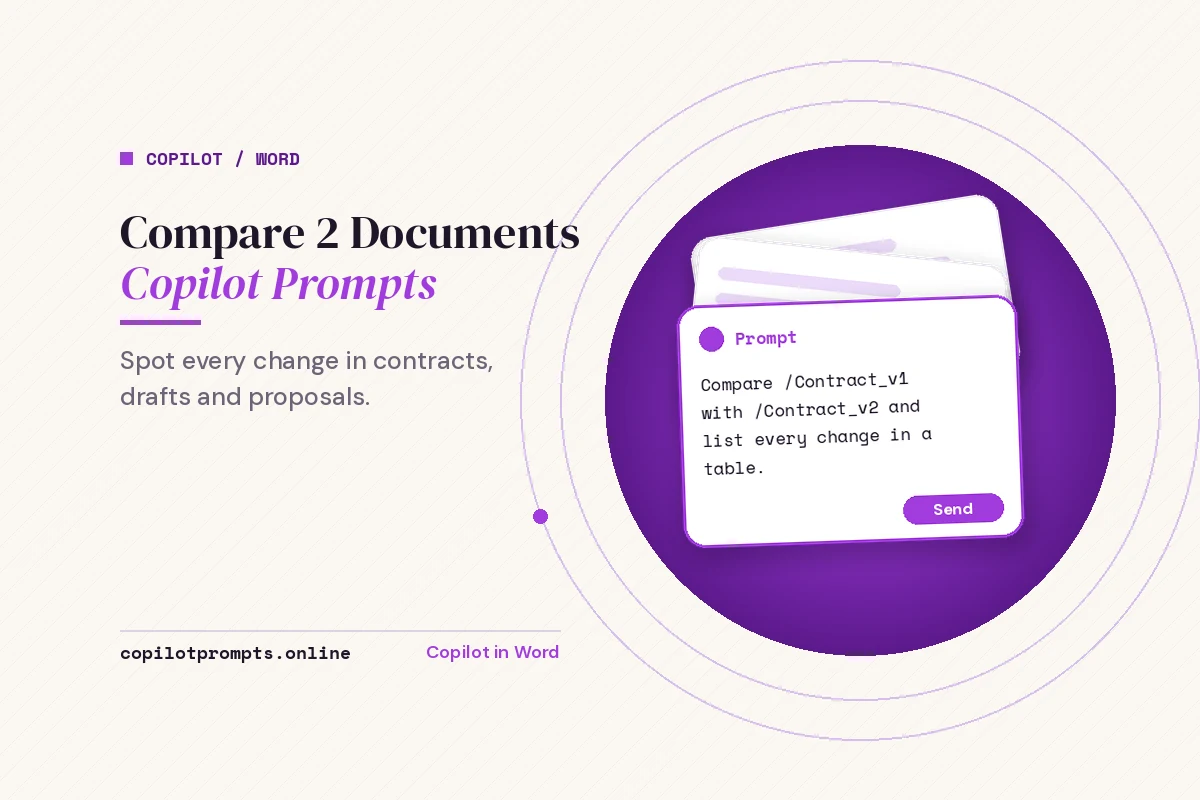
Copilot Prompts for Comparing 2 Documents: 25 Proven Templates That Catch Every Change
Copilot prompts for comparing 2 documents save you from the slow, error-prone job of reading two versions side by side and hoping you spotted every changed clause, number and deadline. Instead of scrolling back and forth, you point Microsoft 365 Copilot at both files and ask it exactly what kind of difference you care about.
This guide collects 25 copilot prompts for comparing 2 documents, written as copy-ready templates for the most common comparison jobs: contract revisions, policy updates, vendor proposals, report drafts, resumes and more. You will also learn where to run them (Word, OneDrive, SharePoint or Copilot Chat), how to get Copilot to reference both files reliably, and why you should still pair AI with Word’s built-in Compare tool when every word matters. Replace anything in [square brackets] with your own details.
Where You Can Compare Two Files with Copilot
There is no single “compare” button that works the same way in every app, so it helps to know your options before you start.
| Where | How you add the files | Best for |
|---|---|---|
| Copilot in Word | Type “/” and pick the file, or use Reference a file (up to three files) | Comparing an open draft with an older version or a source document |
| Copilot in OneDrive | Select up to five files, then choose Copilot and Compare files | A quick table of differences without opening anything |
| Copilot in SharePoint | Select up to five files in a library, then Compare files | Team documents, proposals and contracts stored on a site |
| Microsoft 365 Copilot Chat | Attach or reference both files in the chat | Open questions, follow-ups and custom output formats |
Microsoft documents the OneDrive option in its guide to comparing your files with Copilot in OneDrive, including the menu path and supported file types. Availability depends on your license and on what your admin has enabled, so if one route is missing, try another.
Before You Prompt: Three Habits That Improve Every Comparison
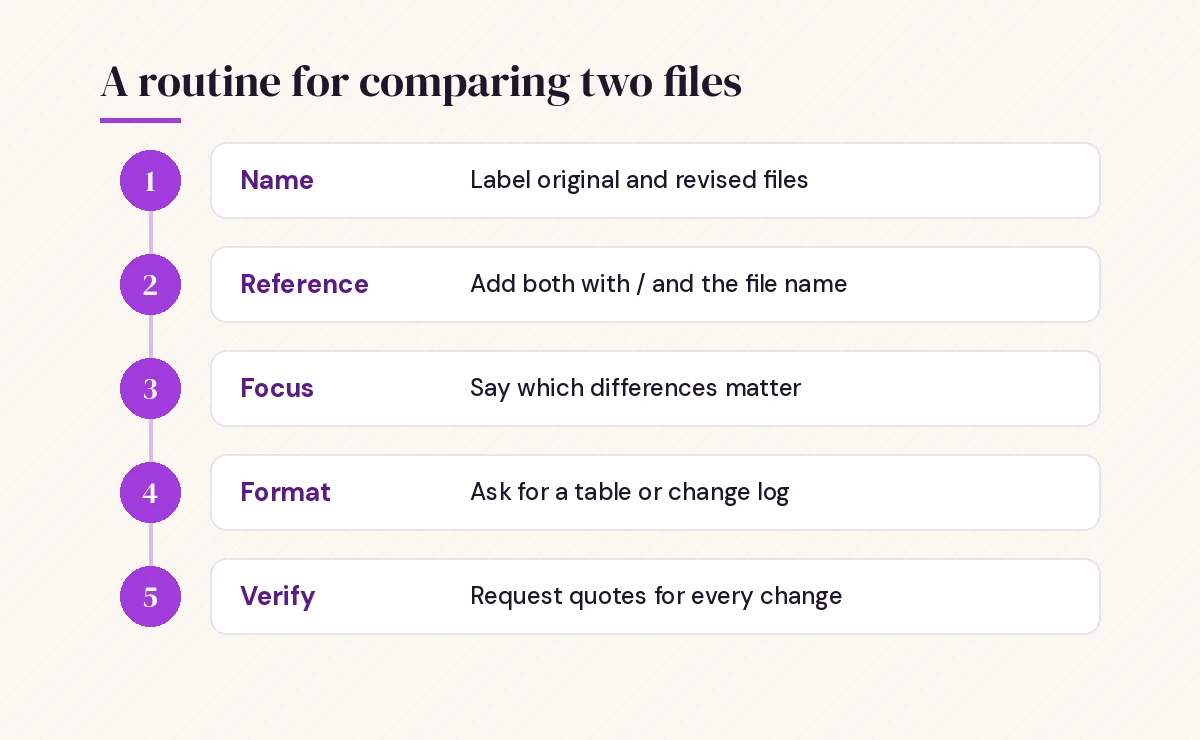
Good comparisons start before you type anything, and these habits make all copilot prompts for comparing 2 documents more reliable.
- Name the files clearly. “Contract_v3_client-edits” and “Contract_v2_sent” are easier for you and Copilot to keep straight than “Final” and “Final (1)”.
- Say which file is the baseline. “Original” and “revised” tell Copilot which direction the changes run, so an added clause is not reported as a deleted one.
- Tell Copilot what kind of difference matters. Wording, numbers, dates, obligations, tone or structure all need different attention. A vague “what changed?” usually returns a vague summary.
If you want a refresher on structuring requests with a goal, context, source and expected format, our guide on how to write Copilot prompts walks through the pattern used in every template below.
Copilot Prompts for Comparing 2 Documents: Quick-Start Templates
Start with these general copilot prompts for comparing 2 documents. They work on almost any pair of files and are a good way to see how Copilot handles your content before you get more specific.
1. The plain difference summary
Compare /[Original file] with /[Revised file]. Treat the first file as the original. List every meaningful change in the revised version, grouped as Added, Removed and Modified. Quote the exact wording where it changed.2. The side-by-side table
Create a table comparing /[File A] and /[File B]. Columns: Section, What File A says, What File B says, Type of change. Only include rows where the content differs.3. The “what should I worry about” scan
I need to approve /[Revised file], which replaces /[Original file]. Which changes could affect cost, deadlines, responsibilities or risk? Rank them from most to least important and explain each in one sentence.4. The similarity check
What do /[File A] and /[File B] agree on? List the points that appear in both, then the points that appear in only one of them.5. The one-paragraph briefing
Write a 100-word briefing for my manager that explains how /[Revised file] differs from /[Original file]. Plain language, no bullet points, mention the single biggest change first.Copilot Prompts for Comparing 2 Documents in Contract Reviews
Contracts are the most common reason people compare documents, and also the place where an AI summary is least enough on its own. Use Copilot to find and explain changes quickly, then confirm the exact wording yourself.
6. Clause-by-clause redline summary
Compare /[Contract v1] and /[Contract v2] clause by clause. For each clause that changed, give the clause number, a short description of the change, and whether it favors [my company] or [the other party].7. Obligations and deadlines
Extract every obligation, deadline and notice period from /[Contract v1] and /[Contract v2]. Show them in a table with columns for the obligation, the party responsible, the deadline in each version, and whether it changed.8. Money terms
List every fee, price, discount, penalty, payment term and cap mentioned in /[Agreement A] and /[Agreement B]. Highlight any figure that differs between the two versions.9. Missing protections
Which clauses in /[Our standard template] are missing or weakened in /[Counterparty draft]? Focus on liability, indemnity, termination, confidentiality and data protection.10. Questions to send back
Based on the differences between /[Our draft] and /[Their redline], draft five polite questions I can send to the other party asking them to explain or justify their main changes.Copilot is not a lawyer and can miss a changed word that shifts meaning, such as “may” becoming “shall”. For anything you will sign, run Word’s own Review and Compare feature as well, which produces an exact tracked-changes view of every edit.
Templates for Reports, Policies and Drafts
When you use copilot prompts for comparing 2 documents on internal files, version comparisons are usually about what readers need to know, not every edit. These prompts focus on meaning and impact.
11. Policy update notice
Compare /[Policy 2025] with /[Policy 2026]. Write a short "What's changed" notice for employees that lists each change, who it affects, and the date it takes effect. Keep it under 200 words.12. Draft review for an editor
I revised /[Draft 1] into /[Draft 2]. Did the changes improve clarity and structure? Point out any sections where meaning was lost, facts were dropped or new statements need a source.13. Tone and style shift
Compare the tone of /[Version A] and /[Version B]. Which is more formal, more persuasive and easier to read? Give two example sentences from each to support your answer.14. Data consistency between reports
Check whether the figures, dates and names in /[Quarterly report] match those in /[Board summary]. List any number that appears in both but with a different value.15. Merge plan
/[File A] and /[File B] are two drafts of the same proposal written by different people. Suggest how to merge them into one document: which sections to keep from each, which to combine, and what is duplicated.For more ways to work with long drafts in Word, see our collection of Copilot prompts for Word, and if your comparison feeds into a written update, the Copilot prompts for report writing guide picks up where these templates stop.
Templates for Proposals, Quotes and Vendor Documents
When the two documents come from different sources, you are not looking for edits. You are evaluating options, so frame your copilot prompts for comparing 2 documents around criteria rather than edits.
16. Vendor proposal comparison
Compare /[Vendor A proposal] and /[Vendor B proposal] on price, scope, timeline, support, and assumptions. Present the result as a table and finish with a neutral summary of the trade-offs. Do not pick a winner.17. Requirements coverage
Here is our requirements document: /[Requirements]. Which requirements does /[Proposal] fully meet, partly meet or not mention? Use a three-column table.18. Hidden assumptions
What assumptions, exclusions or dependencies are stated in /[Quote A] but not in /[Quote B], and the other way round? Explain how each could change the final cost.19. Specification changes
Compare the technical specifications in /[Spec v1] and /[Spec v2]. List every changed measurement, standard, material or performance target, with the old and new value.Templates for Resumes, Job Descriptions and HR Files
20. Candidate fit against a job description
Compare /[Resume] with /[Job description]. Which required skills and experience are clearly shown, which are partly shown, and which are missing? Base your answer only on what the resume says.21. Two candidates side by side
Compare /[Resume 1] and /[Resume 2] against the criteria in /[Job description]. Summarize each candidate's strengths and gaps in a table. Avoid any judgment based on age, gender, name or other personal characteristics.22. Job description refresh
Compare our old /[Job description 2024] with /[Job description 2026]. What responsibilities and requirements were added or removed? Flag any requirement that may be unnecessary for the role.Advanced Prompts for Accuracy and Follow-Up
Once you have a first comparison, a few follow-up copilot prompts for comparing 2 documents make the answer much more trustworthy.
23. Ask for evidence
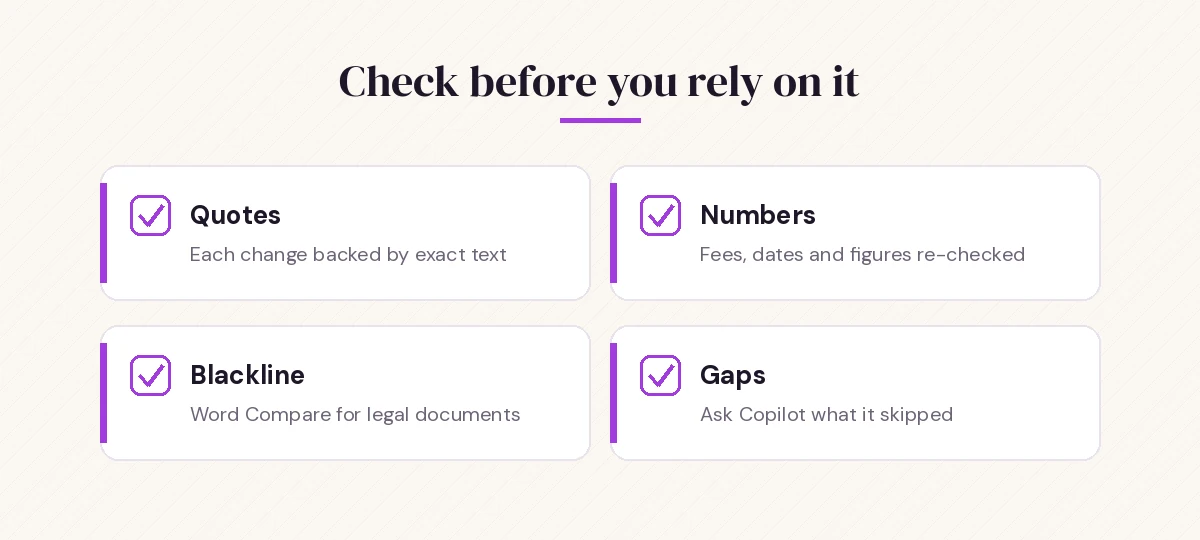
For each difference you listed, quote the exact sentence from both files and give the heading or page where it appears, so I can check it.24. Second pass on what was skipped
Review both files again. Are there any differences you did not mention in your previous answer, including small wording changes in definitions, dates or numbers?25. Output for sharing
Turn the comparison into a short change log I can paste into an email: version numbers, date, a numbered list of changes, and one line on what the reader needs to do.Asking for quotes is the single most useful habit here. It forces Copilot to anchor each claim in the text, and it lets you verify a change in seconds instead of rereading both files.
Copilot vs Word’s Built-In Compare Tool
People often ask whether Copilot replaces the classic Compare feature in Word. It does not, and the two work best together.
| Task | Word Review > Compare | Copilot |
|---|---|---|
| Exact list of every inserted and deleted word | Yes, as tracked changes | Not guaranteed |
| Explaining why a change matters | No | Yes |
| Comparing documents with different structures | Weak | Good |
| Summaries, tables and briefings | No | Yes |
| Proof for legal or audit purposes | Better choice | Use as a helper only |
A practical routine is to run Word’s Compare first to create a blackline, then ask Copilot to summarize and prioritize the tracked changes. You get the precision of the built-in tool and the speed of an AI explanation.
Common Problems and How to Fix Them
Copilot only reads one of the files. Reference each file explicitly with “/” and the file name, and mention both again in the prompt text. If the result still ignores one, ask about it directly: “What does the second file say about [topic]?”
The comparison is too general. Narrow the scope. Ask about one section, one theme or one type of change at a time, such as only payment terms or only dates.
The files are long. Copilot has limits on how much text it processes per request, and Microsoft notes in its Copilot in Word FAQ that very long files may need to be handled in parts. Compare chapter by chapter or section by section.
You cannot find the file. Copilot can only reference files you have permission to open, usually stored in OneDrive or SharePoint. Save local files to the cloud first.
Copilot reports a change that is not there. AI can misread or invent details. Ask for the exact quote from each file, and treat anything it cannot quote as unconfirmed.
Keep these copilot prompts for comparing 2 documents in a note or your team’s prompt library and adjust the bracketed parts for each job. With a clear baseline, a specific question and a request for quotes, Copilot turns a tedious line-by-line review into a few minutes of focused checking.
Frequently Asked Questions
Can Copilot compare two Word documents?
Yes. In Copilot in Word or Microsoft 365 Copilot Chat you can reference other files by typing “/” followed by the file name, then ask Copilot to list differences, build a comparison table or summarize changes. The files usually need to be in OneDrive or SharePoint, and you must have permission to open them.
How many files can Copilot compare at once?
It depends on where you run it. Copilot in OneDrive and SharePoint lets you select up to five files and choose Compare files. In Word, you can reference up to three files when drafting or asking questions. Limits can change, so check Microsoft’s current documentation.
Is Copilot accurate enough to compare contracts?
It is useful for finding and explaining changes quickly, but it can miss small wording differences. For contracts and other documents where every word matters, use Word’s Review and Compare feature for an exact tracked-changes view and have a qualified person review the result.
What is the best prompt for comparing two documents?
Good copilot prompts for comparing 2 documents name both files, say which one is the original, describe the type of difference you care about and ask for a specific format. For example: compare the original and revised files, list added, removed and modified content in a table, and quote the exact wording that changed.
Can Copilot compare a PDF with a Word document?
Copilot in OneDrive and SharePoint supports several common file types, including Word documents and PDFs, for summaries and comparisons. Supported formats vary by app and can change, so check the file type list in Microsoft’s support pages if a file does not appear.
Why does Copilot ignore one of my files?
The file may not be referenced correctly, may be too long, or you may lack access to it. Reference each file with “/” and its name, mention both in the prompt, split very long documents into sections, and confirm the files are saved in OneDrive or SharePoint.