Copilot Prompts for Excel Dashboard: 30 Proven Templates to Build One Fast
Copilot prompts for Excel dashboard building turn a messy export into a clear one-page summary without hours of dragging fields around a PivotTable list. Instead of hunting through ribbons, you describe the numbers you care about, and Copilot in Excel suggests the formulas, summaries and charts that get you there.
This guide gives you 30 copilot prompts for Excel dashboard projects arranged in the order you actually build a dashboard: prepare the data, decide the KPIs, summarize, visualize, add filters and write the commentary. Each template uses square-bracket placeholders such as [Sales] or [Region]. Replace them with your own table and column names, run one request at a time, and check every number before the report goes anywhere important.
What Copilot Can and Cannot Do for Dashboards
It helps to set expectations before you start. Copilot in Excel is very good at the analytical groundwork. It can add calculated columns, write formulas, summarize data into PivotTables, suggest and insert charts, highlight outliers and explain trends in plain language. Newer versions can also carry out multi-step requests, such as building a summary sheet with several tables and charts in one go.
What it does not do is decide what your audience needs. A dashboard is a set of choices: which three to six numbers matter, which comparison tells the story, which filter a manager will reach for. Copilot can propose those choices, but you are the one who knows that the regional director only cares about margin, not volume.
Features also vary. What you see depends on your Microsoft 365 license, your Excel version (desktop, web or Mac), and settings your admin controls. If a prompt returns step-by-step instructions instead of building the object directly, that is normal; follow the steps or rephrase the request more specifically. Microsoft keeps an up-to-date overview in its guide to getting started with Copilot in Excel.
Copilot Prompts for Excel Dashboard Projects: The Five-Step Build Order
Most dashboards that go wrong, with or without AI, do so because someone started with charts. Charts built on unclean data look polished and still mislead. The templates below follow a build order that keeps each step resting on a solid base.
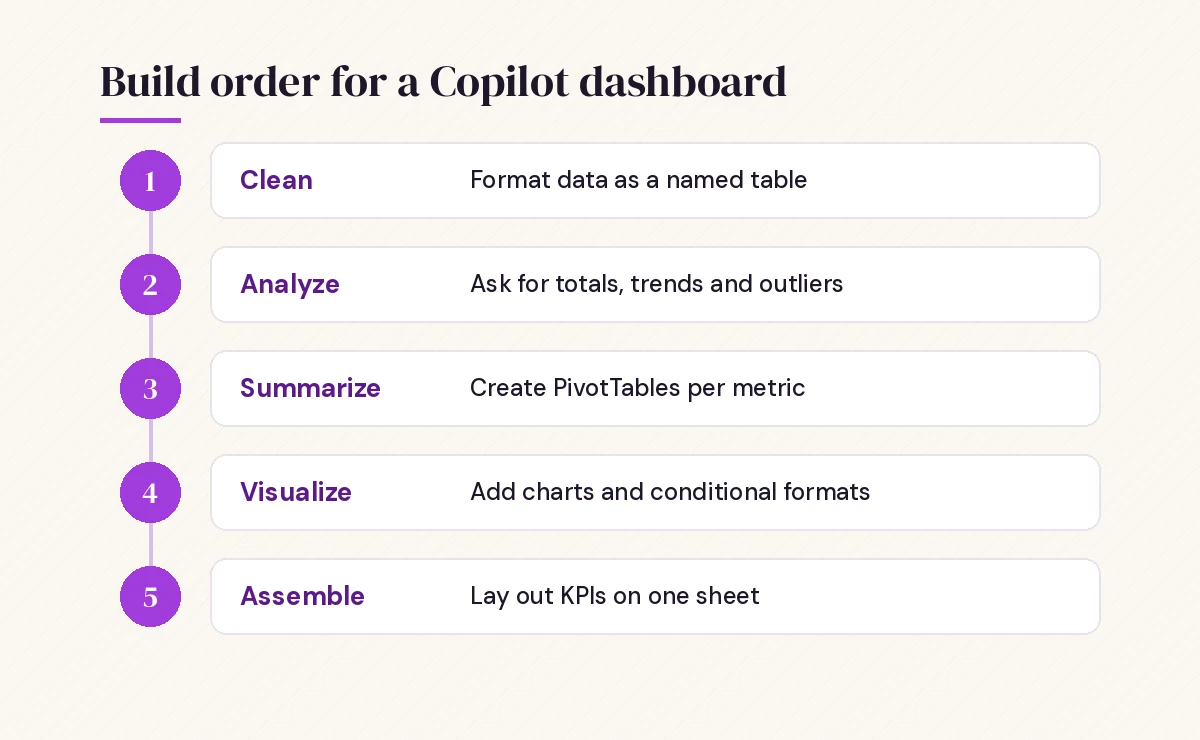
- Clean the source data and format it as a named table.
- Analyze it with open questions so you learn what is interesting.
- Summarize the key measures with PivotTables or formula tables.
- Visualize each summary with one focused chart.
- Assemble the KPIs, charts and filters on a single sheet with a short written summary.
You can move back and forth between the steps, but resist skipping straight to step five. If you are new to writing requests for Copilot, our walkthrough on how to write Copilot prompts explains the goal, context and format pattern used throughout this article.
Step 1: Prompts to Prepare Your Data
Copilot reads structured data far better than loose ranges. Press Ctrl + T to format your data as a table, give it a short name on the Table Design tab, and make sure each column has one clear header. Then use these prompts to tidy what is left.
1. Data health check
Review the [Sales] table and list any data quality problems: blank cells, duplicate rows, numbers stored as text, inconsistent spellings in [Region] and dates in different formats. Do not change anything yet, just report what you find.2. Fix inconsistent labels
In the [Region] column, standardize the spelling so the same region always uses the same name. Show me the list of changes you would make before applying them.3. Add a month column for grouping
Add a column called Month that shows the first day of the month for each date in [Order Date], formatted as mmm yyyy.4. Calculate margin
Add a column called Margin % that divides ([Revenue] minus [Cost]) by [Revenue]. Return a blank instead of an error when Revenue is zero.5. Bring in a missing field
Add a column called [Category] to the [Sales] table by looking up [Product ID] in the [Products] table. Use an exact match and show "Not found" if there is no match.That last one is a lookup, and lookups are where many dashboard errors start. If you want more patterns for joining tables, see our Copilot prompt for VLOOKUP guide, which covers XLOOKUP, cross-sheet matches and fixing #N/A results.
Step 2: Prompts to Find the Story in the Data
Before you decide what goes on the dashboard, let Copilot show you what the data actually says. These are open questions, and the answers often change the KPIs you planned.
6. First look
Analyze the [Sales] table and give me the five most important insights about revenue, margin and order volume over the last [12 months]. Keep each insight to one sentence.7. Trend over time
Show the monthly trend of [Revenue] for the last [12 months] and tell me whether it is growing, flat or declining. Point out any month that breaks the pattern.8. Top and bottom performers
Which five [Products] had the highest revenue and which five had the lowest margin in [Q3]? Show both lists in a table.9. Outliers
Highlight orders where [Discount] is more than twice the average discount for that [Region]. How many are there and what share of revenue do they represent?10. Compare two periods
Compare [Q3 2026] with [Q3 2025] for revenue, orders and average order value, broken down by [Region]. Show the change as a value and a percentage.Treat these answers as leads, not conclusions. Click into the numbers Copilot quotes, check the filters it applied, and confirm that the period matches what you asked for.
Step 3: Prompts to Choose KPIs and Summaries
This is the step where copilot prompts for Excel dashboard planning pay off most. A dashboard that tries to show everything shows nothing. Use Copilot to narrow your list, then build one summary table per measure.
11. Pick the KPIs
I am building a one-page dashboard for [the sales director] who reviews it [weekly]. Based on the columns in the [Sales] table, suggest the five most useful KPIs, explain why each matters to this audience, and give the formula for each.12. KPI tiles
On a new sheet called Dashboard, create a small table with these KPIs for [the current month]: total revenue, number of orders, average order value and margin %. Add a second column showing the same figures for the previous month and a third with the percentage change.13. PivotTable by region and month
Create a PivotTable from the [Sales] table showing total [Revenue] by [Region] in rows and Month in columns. Place it on a new sheet called Summary.14. PivotTable by category
Add a PivotTable that shows revenue, order count and average margin % by [Category], sorted from highest to lowest revenue.15. Formula-based summary
Instead of a PivotTable, build a summary table using SUMIFS that shows revenue by [Sales Rep] for each quarter of [2026]. Explain the formula so I can maintain it.PivotTables are usually the easiest base for a dashboard because they refresh in one click and work with slicers. If you prefer to understand what is happening under the hood, Microsoft’s guide to creating a PivotTable to analyze worksheet data explains the fields, rows and values areas Copilot fills in for you.
Step 4: Prompts for Charts and Visual Cues
Each chart on a dashboard should answer one question. When you ask for a chart, say what question it should answer, and Copilot is more likely to pick a sensible type.
16. Trend chart
Create a line chart of monthly [Revenue] for the last [12 months] from the Summary sheet. Title it "Monthly revenue" and remove the gridlines.17. Comparison chart
Create a clustered bar chart comparing revenue by [Region] for this quarter and the same quarter last year. Sort the bars from largest to smallest.18. Share of total
Show each [Category]'s share of total revenue. Suggest whether a bar chart or a pie chart is clearer for [8] categories and create the clearer one.19. Target versus actual
Using the [Targets] table, create a chart that shows actual revenue against target for each [Region], and make it obvious which regions are below target.20. Conditional formatting
In the KPI table on the Dashboard sheet, color the percentage change green when it is positive and red when it is negative. In the Summary PivotTable, add data bars to the revenue values.A useful habit is to ask Copilot, “What does this chart show in one sentence?” If the answer is muddled, the chart probably is too, and a simpler type or fewer series will usually fix it.
Step 5: Prompts for Filters and Layout
The last step turns a set of tables and charts into something a reader can use. Slicers and timelines let people filter every connected PivotTable at once.
21. Add slicers
Add slicers for [Region] and [Category] that filter both PivotTables on the Summary sheet. If you cannot add them directly, give me the exact steps.22. Add a timeline
Add a timeline control for [Order Date] that filters all PivotTables in this workbook by month.23. Layout plan
Suggest a layout for a one-page dashboard on the Dashboard sheet: where the KPI tiles, the two main charts, the table and the slicers should go, so it fits a landscape page without scrolling.24. Refresh and maintenance notes
Write short instructions for a colleague explaining how to add new rows to the [Sales] table and refresh every PivotTable and chart on the dashboard.If a slicer request comes back as instructions rather than a finished control, the steps are quick to do yourself, and Microsoft’s page on using slicers to filter data shows how to connect one slicer to several PivotTables.
Prompts for the Written Summary
Numbers alone rarely change a decision. A three- or four-line commentary next to the charts tells the reader what to notice and what to do.
25. Executive summary
Based on the Dashboard sheet, write a four-sentence summary for [the leadership team]: the headline result, the biggest positive change, the biggest risk and one recommended action. Use plain language and no jargon.26. Explain a variance
Revenue in [North] fell [8%] compared with last month. Using the [Sales] table, identify which products and customers contributed most to the drop.27. Questions a reader might ask
List the five questions a [finance manager] is most likely to ask after seeing this dashboard, and tell me which data I would need to answer each one.When the dashboard feeds a written update, you can paste Copilot’s summary into Word and expand it. Our collection of Copilot prompts for report writing picks up exactly where this step ends.
Ready-Made Dashboard Recipes
These final copilot prompts for Excel dashboard recipes bundle several steps into one request. They work best once your data is a clean table. If your version of Copilot handles them in pieces, run the request again one part at a time.
28. Sales dashboard
Using the [Sales] table, build a sales dashboard on a new sheet: KPI tiles for revenue, orders, average order value and margin % for [this month] versus last month, a line chart of monthly revenue, a bar chart of revenue by region, and a table of the top 10 customers.29. Budget versus actual dashboard
Using the [Budget] and [Actuals] tables, create a summary by [Department] and month showing budget, actual, variance and variance %. Add a chart of the five largest overspends and highlight any department more than [5%] over budget.30. Project status dashboard
From the [Tasks] table, create a project dashboard showing tasks by status, overdue tasks by owner, percentage complete for each [Workstream], and a list of tasks due in the next 14 days.The same pattern works for HR headcount, support tickets or website traffic. Change the table name, the measures and the audience in the prompt, and keep the five-step order. Finance teams will find extra variance and forecasting prompts in our guide to Copilot prompts for finance.
Example Workflow: Monthly Sales Dashboard in Under an Hour
Here is how the pieces fit together on a realistic task. Say you receive a CSV export of last year’s orders every month and need a dashboard for a Monday review.
- Import and tidy (10 minutes). Paste the export, press Ctrl + T, name the table Sales, then run prompts 1, 2 and 3. Fix anything the health check flags.
- Explore (10 minutes). Run prompts 6 and 10. Note the two or three findings that would surprise your audience.
- Summarize (10 minutes). Run prompt 11 to confirm the KPIs, then prompts 12 and 13 for the tile table and the main PivotTable.
- Visualize (10 minutes). Run prompts 16 and 17, then prompt 20 to add color cues.
- Finish (10 minutes). Add slicers with prompt 21, arrange the sheet using the layout from prompt 23, and write the commentary with prompt 25.
Next month, you paste the new rows into the same table, refresh, and rerun only the summary prompt. The structure is already there, which is where the real time saving comes from.
Tips for Better Results
A few habits make a noticeable difference to how reliable your dashboard is, and they apply to all the copilot prompts for Excel dashboard work in this guide.
- Name things. Refer to tables and columns by their exact names. “Revenue in the Sales table” is clearer to Copilot than “the numbers in column F”.
- Ask for one object at a time when accuracy matters. Bundled requests are convenient, but single requests are easier to check.
- State the period. “This month” can mean the calendar month or the last 30 days. Say which one you want.
- Check totals against the source. Compare one PivotTable total with a simple SUM of the original column. If they differ, a filter or a blank row is usually the reason.
- Keep the raw data on its own sheet. Never build charts on top of the data you are editing.
- Save to OneDrive or SharePoint. Copilot features in Excel generally expect files stored in the cloud, and AutoSave keeps your work safe.
For a wider set of everyday spreadsheet requests beyond dashboards, browse our main list of Copilot prompts for Excel.
Common Problems and Quick Fixes
Copilot says it cannot find the data. The range is probably not a table, or the table has merged headers. Format it with Ctrl + T and try again.
The PivotTable totals look wrong. Check for numbers stored as text and for duplicate rows. Prompt 1 will usually spot both.
A chart includes the grand total as a bar. Ask Copilot to rebuild the chart from the PivotTable without the grand total row, or remove it from the source range.
The dashboard breaks when new data arrives. Charts built on fixed cell ranges do not grow. Build them on the table or a PivotTable so new rows are included after a refresh.
Copilot answers in text instead of building something. Start the request with an action verb such as “Create”, “Add” or “Insert”, and name the sheet where the result should go.
These copilot prompts for Excel dashboard work are meant to be reused. Save the ones you like in a note or in your team’s prompt library, adjust the placeholders, and you will spend your time on the decisions the dashboard supports rather than on building it.
Frequently Asked Questions
Can Copilot build a complete Excel dashboard from one prompt?
Newer versions of Copilot in Excel can carry out multi-step requests that create several tables and charts at once, but results depend on your license, Excel version and data quality. For important reports, building the dashboard one step at a time is easier to check and usually more accurate.
Do I need to format my data as a table first?
It is strongly recommended. Copilot works most reliably with data formatted as an Excel table with a single header row, no merged cells and no blank rows inside the data. Press Ctrl + T and give the table a clear name.
Can Copilot add slicers and timelines to a dashboard?
Depending on your version, Copilot may add them directly or reply with step-by-step instructions. Either way, slicers connected to your PivotTables are the simplest way to let readers filter the whole dashboard at once.
Why is the Copilot button greyed out in Excel?
The most common reasons are that the file is not saved to OneDrive or SharePoint, AutoSave is off, your license does not include Copilot, or your organization has not enabled it. Saving the workbook to the cloud and reopening it fixes many cases.
How do I keep a Copilot-built dashboard up to date?
Build charts on an Excel table or a PivotTable rather than fixed cell ranges, add new rows to the same table, and refresh all PivotTables from the Data tab. The charts and slicers will then pick up the new data automatically.
Is the analysis Copilot gives me always correct?
No. Copilot can misread a column, apply an unexpected filter or choose the wrong period. Always compare key totals with the source data and confirm the date range before sharing the dashboard.


One Comment