Copilot Prompt for VLOOKUP: 21 Powerful Templates (Plus XLOOKUP)
A copilot prompt for VLOOKUP lets you describe the match you want in plain English and get a working lookup formula back, without memorizing column index numbers or the difference between TRUE and FALSE. Below you will find copy-ready templates for exact matches, cross-sheet lookups, error handling, XLOOKUP upgrades and fixing broken formulas.
Lookups are where most spreadsheet time disappears. You have an order list in one place, a price list in another, and you need them joined. Copilot in Excel can write that formula for you, explain it line by line and even add it as a new column. The quality of the result, though, depends almost entirely on how you ask.
Why Lookups Are the Perfect Job for Copilot
VLOOKUP has four arguments, and three of them trip people up. The column index is a number you have to count by hand. The last argument defaults to an approximate match, which quietly returns wrong values on unsorted data. And the lookup column has to sit on the far left of your range, so a reorganized sheet breaks everything.
A copilot prompt for VLOOKUP removes most of that friction. Instead of counting columns, you name them. Instead of remembering the match type, you say “exact match”. Instead of debugging #N/A by staring at cells, you ask why it happened.
There is a second benefit people overlook. Copilot can suggest XLOOKUP, the modern replacement, when it fits better. XLOOKUP looks left or right, defaults to exact match and has a built-in “not found” message. If your version of Excel supports it, it is usually the safer choice. Microsoft documents both in its VLOOKUP function reference and XLOOKUP function reference.
Set Up Your Sheet So Copilot Can Read It
Copilot works best when your data looks like data. A few minutes of tidying saves a lot of back-and-forth:
- Format each list as a table (Ctrl + T) and give it a clear name such as
OrdersorPriceList. Copilot can then refer to columns by header instead of cell ranges. - Use one header row with short, unique names. “Product ID” beats “ID (see note)”.
- Remove merged cells and blank rows inside the data. They confuse both lookups and Copilot.
- Keep the key column consistent. If one sheet stores IDs as text and the other as numbers, no formula will match them until you fix the type.
- Save the workbook to OneDrive or SharePoint if your Copilot button is greyed out. Availability depends on your license and how your admin has set things up.
Once the tables are ready, open the Copilot pane from the Home tab and type your first copilot prompt for VLOOKUP.
How to Write a Copilot Prompt for VLOOKUP That Works
A vague request like “do a vlookup” forces Copilot to guess the sheet, the key and the column to return. A strong copilot prompt for VLOOKUP answers those questions up front.
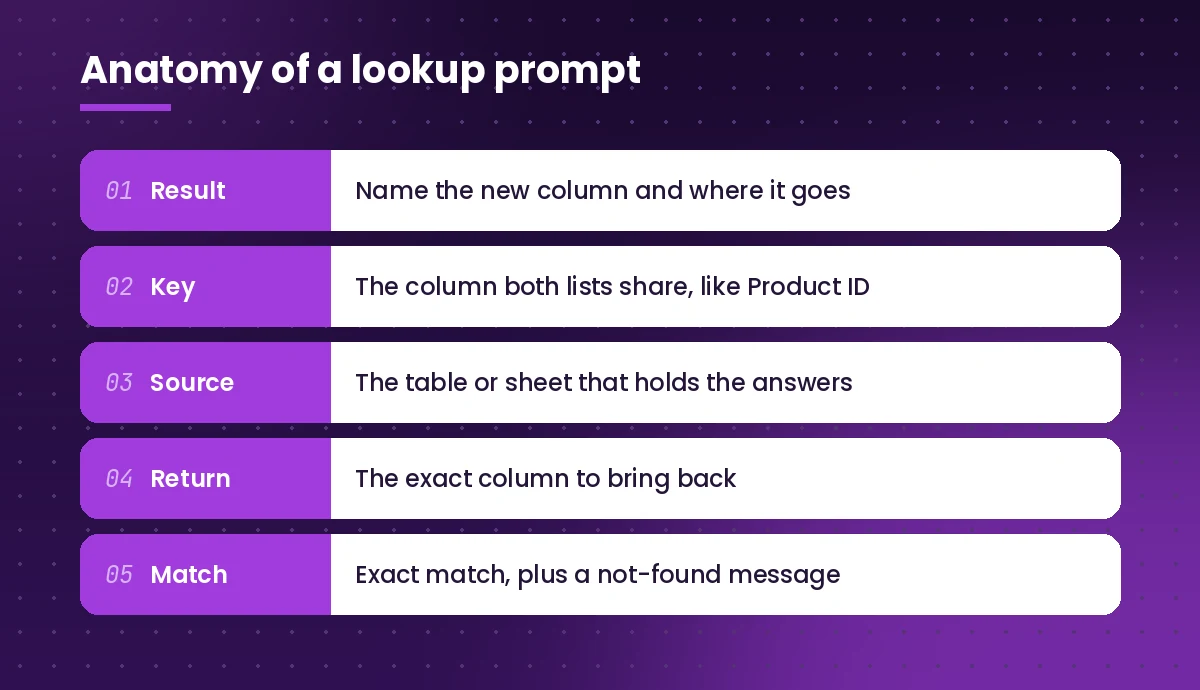
Every reliable lookup prompt covers five things:
- Where to put the result. “Add a column called Unit Price to the Orders table.”
- The key. “Match on Product ID.”
- The source. “Look it up in the PriceList table on the Prices sheet.”
- What to bring back. “Return the Price column.”
- Match type and fallback. “Exact match only. If there is no match, show Not found.”
Put together, a copilot prompt for VLOOKUP reads like an instruction you would give a colleague. For more on this structure, see our guide on how to write Copilot prompts.
21 Copy-Ready Lookup Prompts for Copilot in Excel
Replace the table and column names in brackets with your own. Every copilot prompt for VLOOKUP here can also be adapted for XLOOKUP with a single word change. Each template is written so you can paste it straight into the Copilot pane.
Basic exact-match lookups
1. The classic VLOOKUP column
Add a column to [Orders] called "Unit Price". Use VLOOKUP to find each [Product ID] in the [PriceList] table and return the [Price] column. Use an exact match.2. Lookup with a friendly error message
Create a formula in a new column that looks up [Employee ID] from this table in the [Staff] table and returns [Department]. Exact match. If the ID is not found, show "Check ID" instead of #N/A.3. Pull several columns at once
For each [Customer ID] in this table, bring back [Customer Name], [Region] and [Account Manager] from the [Customers] table. Add each as its own column and use exact matches.4. Lookup against another sheet
In the Sales sheet, add a column "Category" that finds each [SKU] on the Products sheet and returns its [Category]. Explain which sheet and range the formula points to.Upgrading to XLOOKUP
5. Convert an existing formula
Rewrite the VLOOKUP formula in column [F] as an XLOOKUP that does the same thing. Explain what changed and why it is more robust.6. Look to the left
I need to return [Supplier Name], which sits to the left of [Part Number] in the [Parts] table. Write a formula that can look left, since VLOOKUP cannot.7. Return the last match, not the first
Each [Ticket ID] can appear several times in [Log]. Write an XLOOKUP that returns the most recent [Status] by searching from the bottom up.8. Two-way lookup (row and column)
In the [Rates] table, regions are rows and months are columns. Write a formula that returns the rate for the region in cell [B2] and the month in cell [C2].Approximate matches and bands
9. Tiered pricing or commission bands
The [Tiers] table lists minimum sales values and a commission rate for each band. For each rep, return the correct rate based on [Total Sales], using an approximate match. Tell me whether the tier table needs to be sorted.10. Grade or score brackets
Assign a grade to each [Score] using the [GradeScale] table, where each row has a lower bound and a letter grade. Show the formula and explain how the match type works.11. Date-based rate lookups
Find the exchange rate that applied on each [Invoice Date] using the [FXRates] table, which lists rates by effective date. Return the latest rate on or before the invoice date.Lookups with more than one condition
12. Match on two columns
Return [Budget] from the [Plan] table where both [Department] and [Quarter] match the values in this row. Avoid helper columns if possible.13. Combine first and last name as the key
The [Contacts] table has separate [First Name] and [Last Name] columns. Look up each person's [Email] by matching both names together.14. Return every match, not one
List every [Order ID] for the customer named in cell [B1] from the [Orders] table. I want all matching rows, not just the first one.Fixing and understanding formulas
15. Diagnose #N/A errors
Several cells in column [G] show #N/A. Check the lookup values against the [PriceList] table and tell me the likely causes, such as extra spaces, text stored as numbers, or missing items.16. Explain a formula you inherited
Explain the formula in cell [H4] step by step in plain English. Tell me what each argument does and any risk of wrong results.17. Clean the key before matching
Before matching, clean [Product Code] in both tables by trimming spaces and making the case consistent. Then add the lookup column using the cleaned values.18. Find records that do not match
Highlight rows in [Orders] whose [Customer ID] does not exist in the [Customers] table, and add a column that says "Missing" or "OK".Reconciliation and reporting
19. Compare two lists
Compare the [Invoice Number] column on Sheet1 with Sheet2. Add a column that shows whether each invoice appears in both, only in Sheet1, or only in Sheet2.20. Merge last month’s values for a variance check
Bring last month's [Amount] from the [PriorMonth] table into this table by matching [Account Code], then add a column for the difference and the percent change.21. Build a summary from lookups
Using the lookup column I just added, create a summary by [Region] showing total revenue and order count, and suggest a chart that makes the gap between regions clear.VLOOKUP vs XLOOKUP: Which Should You Ask For?
You do not have to pick before you prompt. You can simply say “use the best lookup function for this” and let Copilot choose. Still, it helps to know the trade-offs so you can judge the answer.
| Feature | VLOOKUP | XLOOKUP |
|---|---|---|
| Lookup direction | Only to the right of the key column | Left or right |
| Default match | Approximate unless you set FALSE | Exact |
| Column reference | Number you count by hand | Direct reference to the return range |
| Not-found handling | Needs IFERROR or IFNA | Built-in argument |
| Breaks when columns are inserted | Often, because the index is fixed | No, the return range moves with the sheet |
| Availability | Every Excel version | Microsoft 365 and newer versions |
The short version: ask for XLOOKUP when everyone who opens the file has a recent version of Excel, and stay with VLOOKUP (or INDEX with MATCH) when the workbook travels to people on older versions.
A Simple Workflow From Prompt to Trusted Result
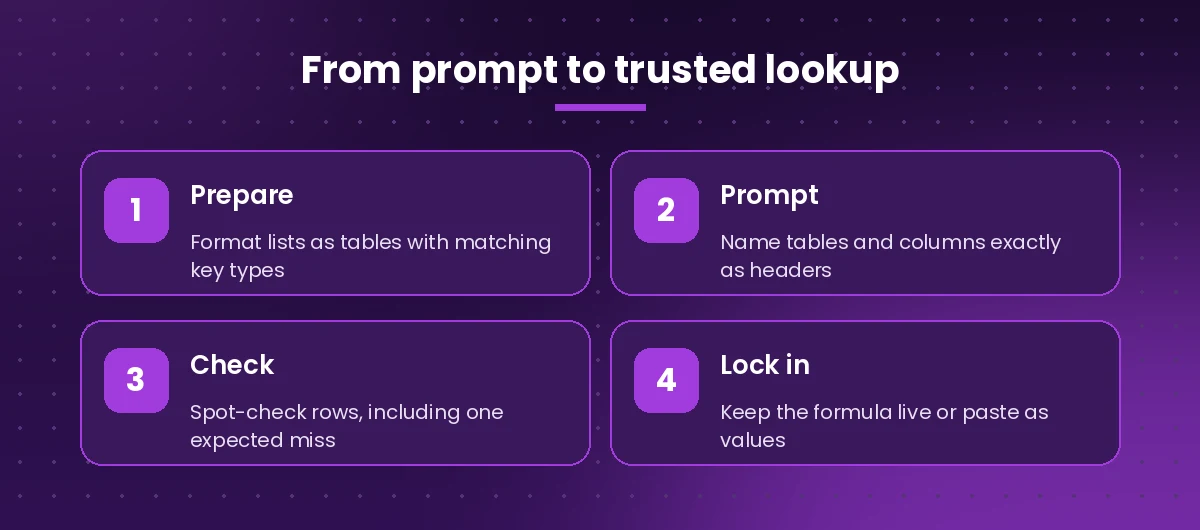
Step 1: Prepare. Format both lists as tables and confirm the key columns hold the same type of value.
Step 2: Prompt. Use one of the templates above as your copilot prompt for VLOOKUP. Name the tables and columns exactly as they appear in your headers.
Step 3: Check. Spot-check five or six rows by hand. Pick at least one row you expect to fail so you can see the fallback message in action. Ask Copilot to explain the formula if anything looks off.
Step 4: Lock in. Once the column is correct, keep it as a formula if the source data changes, or paste as values if you are sending a snapshot.
Follow-Up Prompts to Refine the Result
Your first answer is rarely your last. These short follow-ups save you from starting over:
- “Use exact match instead of approximate.”
- “Make the formula refer to table columns, not cell ranges.”
- “Show blank instead of an error when the key cell is empty.”
- “Wrap it so the result rounds to two decimals.”
- “Give me a version that works in Excel 2016.”
- “Explain this to someone who has never used a lookup.”
That last one is useful if you are building a sheet for a team. Paste the explanation into a notes tab so whoever inherits the file understands it.
Common Mistakes and How to Prompt Around Them
Asking without naming the source. If your workbook has several sheets, Copilot may pick the wrong one. Always say which table or sheet holds the values you want back.
Forgetting the match type. Any copilot prompt for VLOOKUP should state the match type. Most real-world lookups on IDs, emails and codes need an exact match. Say so every time; it costs three words and avoids silent errors.
Mismatched data types. A key stored as 00123 text will not match 123 as a number. If results look wrong, ask Copilot to check whether the key columns use the same format.
Hidden spaces. Imported data often carries trailing spaces. Prompt 17 above handles this, or ask Copilot to add a TRIM step to the key.
Trusting the first answer. Copilot is fast, but it can misread a header or assume a range. Treat every generated formula as a draft until a few rows check out.
Where This Fits in Your Excel Workflow
Lookups rarely stand alone. Once the data is joined, you will usually want to summarize, chart or clean it. Once your copilot prompt for VLOOKUP has done its job, our full list of Copilot prompts for Excel covers those next steps, from pivot-style summaries to conditional formatting. If you are new to prompting in general, the best Microsoft Copilot prompts roundup is a good place to see how the same structure works across Word, Outlook and Teams.
A good habit is to save the lookup templates you use most into a personal prompt list, swapping in table names each time. After a week you will find a single copilot prompt for VLOOKUP or XLOOKUP replaces most of the manual formula writing you used to do.
Quick Reference: Prompt Phrases That Change the Formula
Sometimes one phrase is all it takes to steer Copilot toward the formula you need:
| Phrase in your prompt | What Copilot will usually do |
|---|---|
| “exact match only” | Set the match argument to exact (FALSE in VLOOKUP) |
| “look to the left” | Switch to XLOOKUP or INDEX with MATCH |
| “if not found, show…” | Add IFNA, IFERROR or the XLOOKUP fallback |
| “match on both…” | Build a multi-criteria lookup |
| “return all matches” | Use FILTER instead of a single-value lookup |
| “explain step by step” | Break the formula into plain-language parts |
Frequently Asked Questions
Can Copilot in Excel write VLOOKUP formulas?
Yes. Describe the key column, the source table and the column you want returned, and Copilot can suggest the formula or add it as a new column. Always check a few rows before relying on it.
What is the best copilot prompt for VLOOKUP?
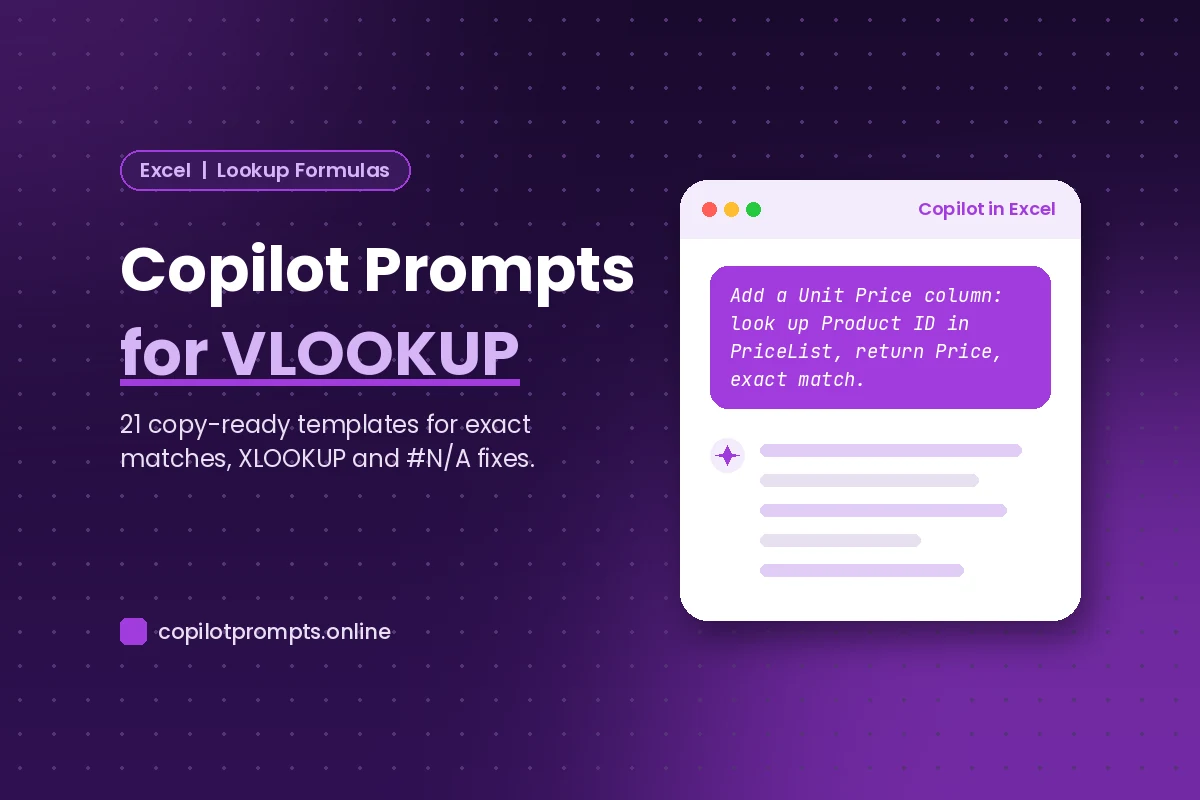
The best version names the result column, the key, the source table, the column to return and the match type, for example: “Add a Unit Price column that looks up Product ID in PriceList and returns Price with an exact match.”
Should I ask Copilot for VLOOKUP or XLOOKUP?
Ask for XLOOKUP if everyone using the file has Microsoft 365 or a recent Excel version, because it looks left or right and defaults to exact match. Use VLOOKUP or INDEX with MATCH for workbooks shared with older versions.
Why does my Copilot-generated lookup return #N/A?
Usually the key values do not match exactly because of extra spaces, text stored as numbers, or items missing from the source list. Ask Copilot to check the key columns and add a not-found message.
Does my data need to be in a table for Copilot to help?
Formatting your lists as named Excel tables with clear headers gives the most reliable results, because Copilot can refer to columns by name instead of guessing cell ranges.
Can Copilot look up values from another sheet or workbook?
It can write formulas that reference another sheet in the same workbook. Name the sheet and table in your prompt. Lookups across separate workbooks are better handled by combining the data first.