Copilot Prompts for Outlook Inbox Management: 23 Effortless Templates for a Calmer Inbox
Copilot prompts for Outlook inbox management help you turn a crowded mailbox into a short list of things that actually need you, without reading every message from top to bottom. This guide gives you copy-ready templates for daily triage, catching urgent requests, summarizing long threads, replying faster and designing the rules and folders that stop the pile from growing back.
Most inbox advice assumes you have an hour to sort mail by hand. Copilot in Outlook changes the math: it can read a thread for you, point out who is waiting on an answer and draft a first reply. It will not clean your inbox on its own, though. The results depend on how clearly you describe what “important” means to you, and that is exactly what the prompts below are built to do.
What Copilot Can and Cannot Do in Your Inbox
Before you start, it helps to know where the assistant fits. Depending on your license and whether you use the new Outlook, Outlook on the web or the classic desktop app, you will find Copilot in a few places: a Summary by Copilot banner at the top of an email thread, a Draft with Copilot option when you write or reply, and a Copilot chat pane that can answer questions about your mail and calendar.
Here is the honest split between what it handles well and what still needs you:
| Copilot is good at | You still need to |
|---|---|
| Summarizing long threads into key points | Decide what to delete, archive or move |
| Finding emails that mention a topic, person or deadline | Create and maintain Outlook rules |
| Pulling out questions and action items | Check names, numbers and dates before acting |
| Drafting replies in a set tone and length | Edit and send every reply yourself |
| Suggesting a folder or category structure | Apply categories, flags and Focused Inbox settings |
Microsoft keeps an up-to-date overview of the features on its Copilot in Outlook help page. Features roll out at different speeds, so if a button mentioned here is missing, check that page for your version.
The practical takeaway for copilot prompts for Outlook inbox management: treat Copilot as a very fast reader and drafter. You remain the one who files, flags and decides.
How to Build Copilot Prompts for Outlook Inbox Management
Vague requests like “help me with my email” get vague answers. A strong triage prompt has five parts, and you can see them in the graphic below.
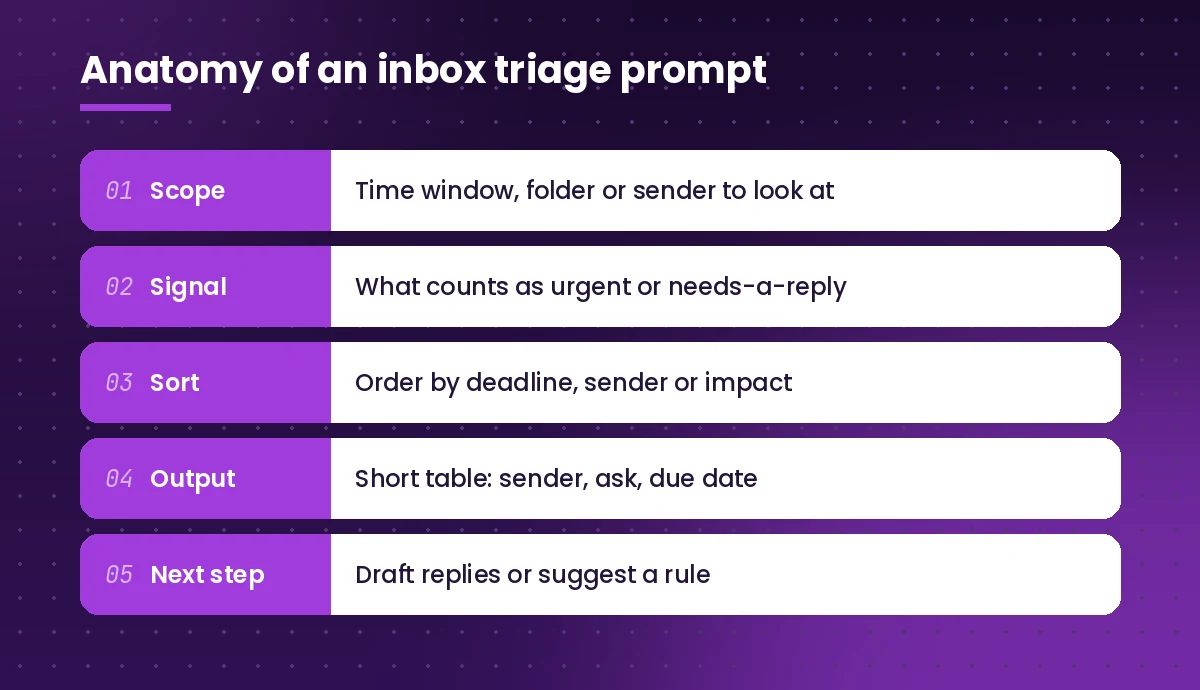
- Scope: which mail to look at, such as “unread emails from the last two days” or “messages from my manager this week”.
- Signal: what makes a message matter, for example a direct question, a deadline or a request addressed to you by name.
- Sort: how to order the results, usually by due date or by who is asking.
- Output: the format you want back. A short table is far easier to scan than paragraphs.
- Next step: what Copilot should offer afterward, like drafting replies or suggesting a rule.
If you are new to this structure, our guide on how to write Copilot prompts explains the same building blocks with examples from other Microsoft 365 apps.
Morning Triage Prompts
The first ten minutes of your day set the tone. These copilot prompts for Outlook inbox management replace the habit of scrolling through everything that arrived overnight.
1. The “what needs me today” scan
Look at my emails from the last 24 hours. List only the ones where someone is asking me a direct question, waiting on my approval, or giving me a deadline. Show sender, the request in one line, and any due date. Put the most time-sensitive first.2. The overnight catch-up
Summarize what arrived in my inbox since 6 PM yesterday in five bullets or fewer. Group related messages together and skip newsletters, automated notifications and calendar acceptances.3. The manager filter
Find all emails from [manager name] in the past week. For each one, tell me whether it still needs a reply or action from me, and what that action is.4. The deadline sweep
Search my recent emails for any dates, deadlines or phrases like "by Friday", "end of week" or "ASAP". List each one with the sender, the task and the date, sorted soonest first.5. The noise check
Which senders sent me the most emails this week that I never opened or replied to? List the top 10 so I can decide whether to unsubscribe or create a rule.That last prompt is surprisingly useful. Once you see the same five senders filling your inbox, you can unsubscribe or route them to a folder in a single sitting.
Prompts to Catch Up on Long Threads
Reply-all chains are where context gets lost. Open the thread first, then use the summary banner or paste one of these into the Copilot pane. Microsoft explains the built-in option in its guide to summarizing an email thread with Copilot.
6. Decision-first summary
Summarize this thread in this order: the final decision (if any), open questions, and who is responsible for what. Keep it under 120 words.7. “What did I miss” summary
I was not on the first part of this thread. Explain the background in plain language, what has been agreed so far, and what people expect from me now.8. Disagreement spotter
Does anyone in this thread disagree or raise a concern? Quote the key sentence from each person and summarize their position in one line.9. Action item extractor
Pull every action item out of this thread as a table with three columns: task, owner, due date. Write "not stated" if the owner or date is missing.A quick tip: when a summary looks too neat, ask a follow-up such as “Which message did that come from?” so you can open the source and confirm it yourself.
Prompts for Fast, Clear Replies
Reading faster only helps if replying is faster too. These templates work in Draft with Copilot, where you can then adjust length and tone before sending. For a much bigger library of writing templates, see our full set of Copilot prompts for Outlook.
10. The quick yes
Draft a short reply confirming I can do this. Repeat back the task and the deadline so we are aligned. Friendly but brief, three sentences max.11. The polite no
Draft a reply that politely declines this request because of my current priorities. Suggest one alternative person or a later date. Keep it warm and under 80 words.12. The holding reply
Write a brief reply saying I have seen this and will respond in full by [day]. Ask one clarifying question if anything in the original email is unclear.13. The answer-all-questions reply
List every question asked in this email, then draft a reply that answers each one in a numbered list. Leave a placeholder like [CHECK] wherever I need to add a fact.14. The batch reply plan
From my unread emails today, which ones can be answered in one or two sentences? Draft a short reply for each, and tell me which ones need a longer response later.Always read the draft before you press Send. Copilot can misread intent, and a reply goes out under your name.
Prompts to Design Rules, Folders and Categories
Copilot is a good thinking partner for organizing, even though you apply the settings yourself. These prompts help you plan a simple system and then build it with Outlook’s own tools.
15. Folder structure planner
Based on the emails I received this month, suggest a simple folder structure with no more than six folders. For each folder, explain what goes in it and give two example senders or subjects.16. Rule designer
I get many automated emails from [tool or service] that I only need to read weekly. Suggest an Outlook rule that would move them to a folder, including the exact conditions I should use.17. Category scheme
Suggest a color category system for my inbox with four or five categories based on how I work, for example by project or by urgency. Explain when to use each one.18. Newsletter cleanup
List the newsletters and marketing emails in my inbox from the last 30 days. Group them by sender and tell me which ones I seem to read and which I ignore.Once you have a plan, create the rules in Outlook settings. Microsoft’s guide to managing email with rules in Outlook walks through the exact steps for each version. Pair this with Focused Inbox, which separates the messages Outlook thinks matter from everything else.
A 15-Minute Daily Inbox Routine With Copilot
Copilot prompts for Outlook inbox management are most useful when they become a habit. Here is a simple routine that combines the prompts above into one short session.
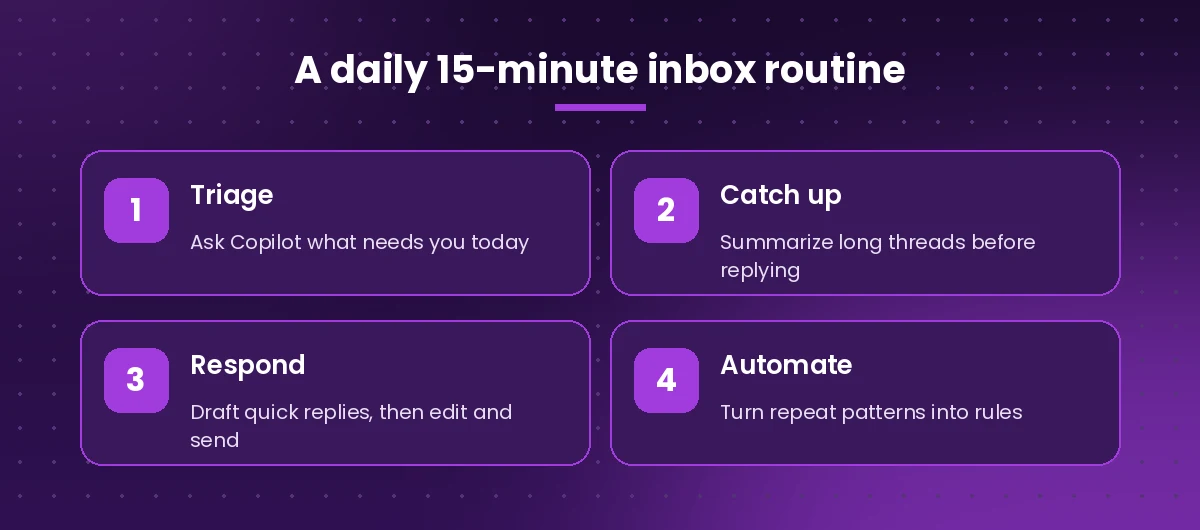
- Triage (3 minutes): run prompt 1 to see what needs you today.
- Catch up (4 minutes): open the two or three longest threads on that list and use prompt 6 or 9.
- Respond (6 minutes): use prompts 10 to 14 to clear quick replies, editing each draft before sending.
- Automate (2 minutes): if one sender or topic keeps showing up, use prompt 16 and set up a rule.
Do this in the morning and once after lunch, and most people find the inbox stays manageable without the dreaded end-of-day sweep. Keep your favorite templates in a OneNote page or a saved prompt so you can paste them in seconds.
Prompts for Special Situations
Some inbox days are not normal days. Keep these templates for the moments when the pile gets out of hand.
19. Back from time off
I was away from [start date] to [end date]. Summarize what happened in my inbox while I was gone, grouped by project. Highlight anything still waiting on me and anything that was resolved without me.20. Before a meeting
Find all recent emails related to [project or client name] and give me a one-paragraph briefing I can read before my meeting, plus any open questions I should raise.21. Handover to a colleague
Summarize the current state of my email conversations about [project] so I can hand them over to a colleague. Include key contacts, open requests and the latest decision on each topic.22. Shared inbox check
In the emails I can see about [team or shared topic], which customer or colleague requests have not had a reply in more than two days? List them oldest first.23. Weekly review
Review my sent and received emails from this week. What commitments did I make, and which of them are still open? Show them as a checklist.If your meetings generate a lot of follow-up mail, our Copilot prompts for Teams meetings help you capture actions at the source, so fewer of them end up buried in email.
Common Mistakes and How to Fix Them
Even well-written copilot prompts for Outlook inbox management go sideways sometimes. These are the problems people hit most often:
- Asking for “everything important”. Copilot does not know your priorities. Define them: direct questions, approvals, deadlines or specific senders.
- Leaving out a time window. Without one, results can mix old and new mail. Add “from the last 48 hours” or “this week”.
- Trusting summaries blindly. Summaries can drop nuance or misattribute a comment. Open the original message before acting on anything consequential.
- Expecting it to file mail for you. Use Copilot to plan rules and folders, then build them in Outlook’s settings.
- Over-long prompts. Keep each request focused on one job. Chain follow-ups instead of packing five tasks into one message.
- Forgetting privacy. Copilot works with what your account can already access, but think twice before pasting sensitive details into a draft that goes to external recipients.
Make These Prompts Your Own
The best Copilot prompts for Outlook inbox management are the ones you tweak to match your role. A sales manager might define urgency as “any customer mentioning a renewal”, while a teacher might care most about messages from parents. Take the templates above, swap in your own signals and senders, and save the versions that work.
Start small: pick the morning triage prompt and the thread summary prompt, use them for a week, and notice how much less time you spend scrolling. Then add replies and rules once the habit sticks.
Frequently Asked Questions
Can Copilot in Outlook organize my inbox automatically?
Not by itself. Copilot can summarize threads, find emails that need a reply and draft responses, but you still create rules, folders and categories in Outlook. Use Copilot to plan those rules, then set them up in Outlook settings.
What are the best Copilot prompts for Outlook inbox management?
Start with a daily triage prompt that asks for emails with direct questions, approvals or deadlines from the last 24 hours, sorted by urgency, plus a thread summary prompt that lists decisions, open questions and owners.
Do I need a paid license to use Copilot in Outlook?
Most inbox features, such as summarizing threads and drafting replies, require a Microsoft 365 plan that includes Copilot. Available features also depend on whether you use the new Outlook, Outlook on the web or the classic desktop app.
Can Copilot tell me which emails need a reply?
Yes, you can ask it to find messages where someone asked you a question or requested an action. Give it a time window and define what counts as needing a reply so the results are focused.
Is it safe to let Copilot read my email?
Copilot works within the permissions of your Microsoft 365 account and only uses content you already have access to. Still, review summaries and drafts before acting, and follow your organization’s data policies.
How do I reach inbox zero with Copilot?
Combine a short daily routine with good rules. Triage with Copilot each morning, summarize long threads before replying, clear quick replies with drafts, and turn recurring senders into rules so they stop landing in your main inbox.