Copilot Prompts for Outlook: 40 Effortless Email Templates
Looking for copilot prompts for outlook that save real time? Email eats hours of every workday. Copilot in Outlook can draft replies, summarize long threads, coach your tone and help you prepare for meetings. Below are 40 copy-ready Copilot prompts for Outlook, organized by task, with tips to get replies you can actually send.
Key takeaways
- The copilot prompts for outlook below are grouped by task so you can find the right one fast.
- Each of the copilot prompts for outlook uses [brackets] you replace with your own details.
- Pair the copilot prompts for outlook with the four-part formula below for sharper answers.
What Copilot can do in Outlook
Depending on your license and Outlook version, you will typically see:
- Draft with Copilot: write a new email or reply from a short prompt, then adjust length and tone.
- Summarize: a summary of a long email thread at the top of the conversation.
- Coaching by Copilot: feedback on tone, clarity and reader sentiment before you send.
- Copilot Chat in Outlook: ask questions across your email and calendar, such as what needs your attention.
Features and names can vary by plan and app version (new Outlook, Outlook on the web, mobile).
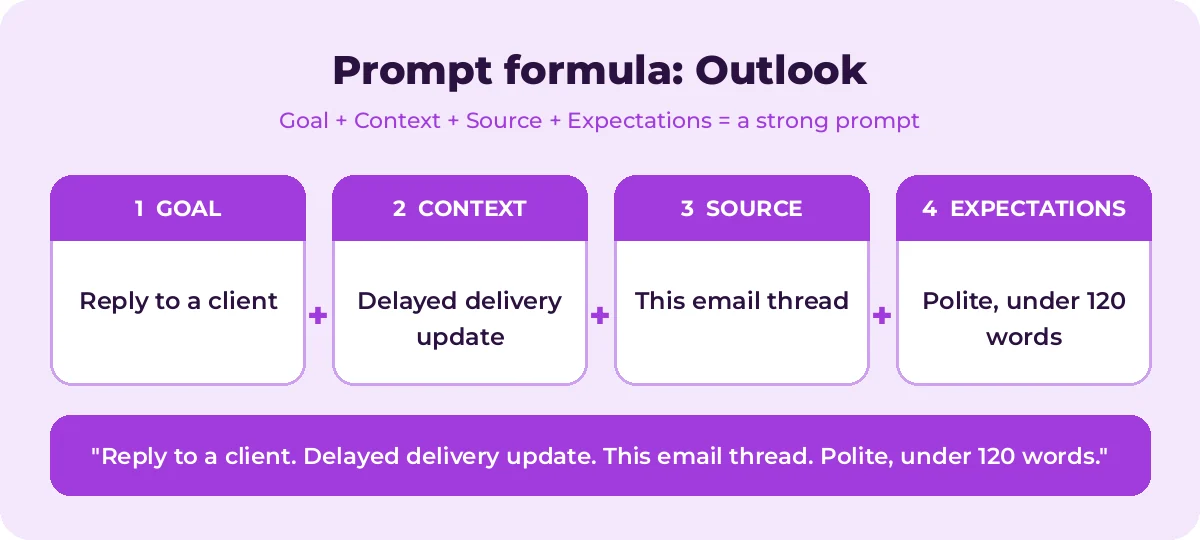
The quick prompt formula for email
| Part | In Outlook | Example |
|---|---|---|
| Goal | What the email should do | Ask for a deadline extension |
| Context | Recipient and relationship | My manager; project is blocked by a vendor |
| Source | Thread, meeting or notes | Based on this thread |
| Expectations | Length and tone | Under 120 words, polite, direct |
For more on this formula, see How to Write Copilot Prompts.
Writing new emails (1-10)
1. Write an email to [name] asking for a status update on [project]. Mention the deadline is [date]. Keep it short and friendly.2. Draft an email to my team announcing [change], explaining why it matters and what they need to do by [date].3. Write a polite email requesting a meeting with [name] next week to discuss [topic]. Suggest two time slots.4. Draft an email to a new client welcoming them and outlining the next three steps in onboarding.5. Write an email asking [vendor] for a quote for [product/service], including quantity [x] and delivery by [date].6. Draft an email requesting a deadline extension for [task] from [date] to [date] because [reason].7. Write a short email sharing [document] with [stakeholders] and asking for feedback by [date].8. Draft an email introducing myself to [name], the new [role], and offering help with [area].9. Write a congratulations email to [name] on [achievement] that sounds genuine, not generic.10. Draft an email escalating [issue] to [manager] with a summary, impact and the decision I need.Replying to emails (11-20)
11. Reply accepting this invitation and confirming I will bring [item/information].12. Reply politely declining this request because of [reason], and suggest [alternative].13. Reply answering each question in this email with bullet points.14. Reply to this complaint with empathy, explain [what happened] and offer [solution].15. Reply saying I need until [date] to respond fully, and confirm I have received the request.16. Reply asking for clarification on [point] before I can proceed.17. Reply with a short thank-you and confirm the next step is [step].18. Reply pushing back respectfully on [proposal], explaining my concerns about [issue].19. Reply negotiating [price/timeline] to [target], keeping the relationship positive.20. Reply delegating this to [name], copying them, and explaining what they need to do.Summarizing and catching up (21-28)
21. Summarize this email thread in 5 bullet points.22. What decisions have been made in this thread, and what is still open?23. What is [name] asking me to do in this email?24. List all deadlines and dates mentioned in this thread.25. Which emails from [name] this week need a reply from me?26. Summarize the emails I received about [project] in the last week.27. What are the main concerns raised in this thread, and who raised them?28. I've been away for a week. What are the most important emails I need to deal with first?Tone and clarity (29-34)
29. Make this email more concise and direct without sounding rude.30. Make this email sound warmer and more appreciative.31. Make this email more formal for a senior executive audience.32. Check this draft for anything that could be misread or sound passive-aggressive.33. Rewrite this email so the request is in the first sentence.34. Simplify this email for a reader whose first language is not English.Meetings and calendar (35-40)
35. Draft a meeting invitation for [topic] with a short agenda and the goal of the meeting.36. Summarize the emails and files related to my meeting with [name] tomorrow so I can prepare.37. Write a follow-up email after today's meeting with [client], recapping decisions and action items: [notes]38. Draft a message rescheduling my meeting with [name] and proposing [two options].39. Write an out-of-office reply for [dates], directing urgent issues to [name, email].40. What meetings do I have this week that need preparation, and what should I prepare?Reusable email templates
These longer prompts work well when you send the same type of email often. Save them and fill in the brackets each time.
Weekly status update
Write a weekly status update email to [stakeholders] about [project]. Use these notes: [notes]. Structure it as: Summary (2 sentences), Done this week, Next week, Risks and help needed. Keep it under 200 words and use bullet points.Customer follow-up after a call
Write a follow-up email to [customer name] after our call about [topic]. Thank them, recap the three main points we discussed: [points], confirm the next step: [step] by [date], and attach a friendly sign-off. Professional, warm tone, under 150 words.Saying no without burning bridges
Write a reply to [name] declining [request] because [honest reason]. Acknowledge why the request matters to them, offer [alternative or future option] and keep the door open. Under 120 words, kind but clear.Inbox triage
Look at my unread emails from the last [2 days]. Group them into: needs a reply today, can wait, FYI only. For each one needing a reply, give me a one-line summary of what is being asked.Tips for better Outlook results
- Always add the outcome you want. “Get them to approve the budget by Friday” gives Copilot a clear purpose.
- Describe the relationship. A note to a close colleague and one to a new client need different tones.
- Use the length and tone options in Draft with Copilot, then refine with a follow-up such as “make it shorter”.
- Read before you send. Check names, dates, numbers and commitments. Never send a draft you have not reviewed.
- Check summaries against the source for anything important. Summaries can miss nuance or late replies.
- Keep sensitive details out of prompts unless your organization allows it.
Example: from messy thread to clear reply
Say you are copied on a 20-message thread about a delayed shipment. Try this sequence:
- “Summarize this thread in 5 bullets and list open questions.”
- “What is being asked of me specifically?”
- “Draft a reply confirming I’ll contact the carrier today, giving a new estimated delivery date of [date], and asking [name] to confirm the delivery address. Under 100 words.”
- “Make it a little warmer.”
In a couple of minutes, you have caught up and replied clearly. If the issue needs a meeting, use our Teams meeting prompts to run and recap it.
Common mistakes with Copilot in Outlook
- Accepting the first draft. It is a starting point. A quick “make it shorter” or “sound less formal” often makes the difference.
- Leaving out the ask. If the email needs a reply, approval or a date, say so in your prompt.
- Over-polite padding. AI drafts can include filler phrases. Ask Copilot to “remove filler and get to the point.”
- Relying only on summaries for important threads. Read the latest messages yourself before making commitments.
How to Use Copilot Prompts for Outlook Effectively
The copilot prompts for outlook in this guide are starting points, not finished scripts. Treat each one as a template: swap the bracketed parts for your own recipient, purpose and tone, then review what Copilot in Outlook returns.
Most weak results come from missing context. The graphic below shows how the four prompt parts fit together for Outlook tasks.
A simple routine works for nearly every request:
- Start with one clear goal per prompt.
- Name the exact source: the email thread or the meeting invite.
- Describe the output you want, including length, format and tone.
- Refine with a follow-up instead of starting over.
A few Outlook-specific tips make a big difference:
- Open the thread first, then ask Copilot to summarize it before replying.
- State the tone and length, for example “friendly, under 100 words”.
- Use “Coaching by Copilot” to review an important draft before sending.
Save the copilot prompts for outlook you use most in a shared note so your team can reuse them. That list soon becomes a playbook that keeps quality consistent.
Mistakes That Weaken Your Results
- Being vague about the goal or the audience.
- Pasting sensitive data without checking your organization’s policy.
- Accepting the first answer without checking facts, numbers and names.
- Cramming several unrelated tasks into one request.
Avoid these and even short copilot prompts for outlook will give you cleaner, more reliable answers.
Build a Repeatable Outlook Workflow
Single prompts help, but chaining them is where the real time savings appear. The diagram shows a four-step flow you can follow.
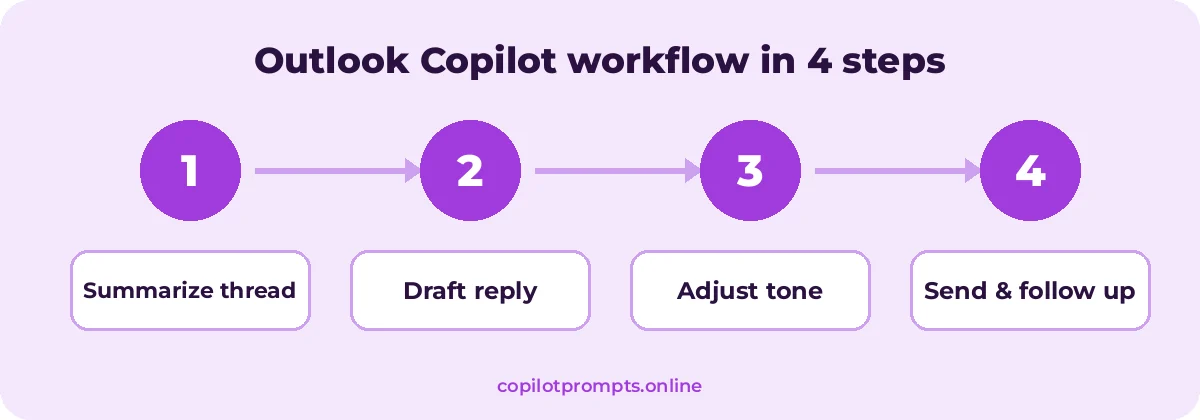
Run each step as its own prompt and check the result before moving on. For official feature details, see Microsoft Copilot help.
Frequently asked questions
Where do I find Copilot in Outlook?
In new Outlook and Outlook on the web, look for the Copilot icon in the toolbar when writing a message, or the Summarize option at the top of an email thread. Availability depends on your license and version.
Can Copilot read all my email?
Copilot works with content you already have permission to access, following your organization’s security and compliance settings.
Will Copilot send emails for me?
No. Copilot drafts text; you review, edit and send it yourself.
Do these prompts work in classic Outlook?
Some Copilot features may differ or be unavailable in classic Outlook. You can paste email text into Copilot Chat and use the same prompts there.
Can I use these prompts for Gmail or other email apps?
Yes, as plain-text prompts in Copilot Chat. Paste the email content and ask for a draft or summary.
Can I use Copilot prompts for Outlook on my phone?
Yes. Copilot is available in Outlook mobile for eligible plans, so you can summarize threads and draft replies on the go.
Conclusion
The more you reuse and refine copilot prompts for outlook, the better your results get.
Copilot in Outlook works best when you tell it who you are writing to, what you want them to do and how the email should sound. Use these 40 prompts as starting points and refine each draft with quick follow-ups. Next, try our Copilot prompts for Word for longer documents, or see the full list of best Microsoft copilot prompts for outlook. Bookmark this page and come back whenever you need fresh copilot prompts for outlook.