Best Microsoft Copilot Prompts: 100+ Proven Ideas for 2026
Looking for the best Microsoft best microsoft copilot prompts to use every day? Looking for the best Microsoft best microsoft copilot prompts you can use right away? This list collects 100+ copy-and-paste prompts for everyday work: writing, email, meetings, spreadsheets, presentations, research, planning and personal productivity. Replace anything in [square brackets] with your own details, and you are ready to go.
Key takeaways
- The best microsoft copilot best microsoft copilot prompts are grouped by task so you can find the right one fast.
- Each of the best microsoft copilot prompts uses [brackets] you replace with your own details.
- Pair the best microsoft copilot prompts with the four-part formula below for sharper answers.
Most of best microsoft copilot prompts work in Copilot Chat. Prompts that act on your own files, inbox or meetings work best inside Microsoft 365 apps with a Microsoft 365 Copilot license. Want app-specific lists? Jump to our guides for Excel, Outlook, Word, PowerPoint and Teams meetings.
The quick prompt formula
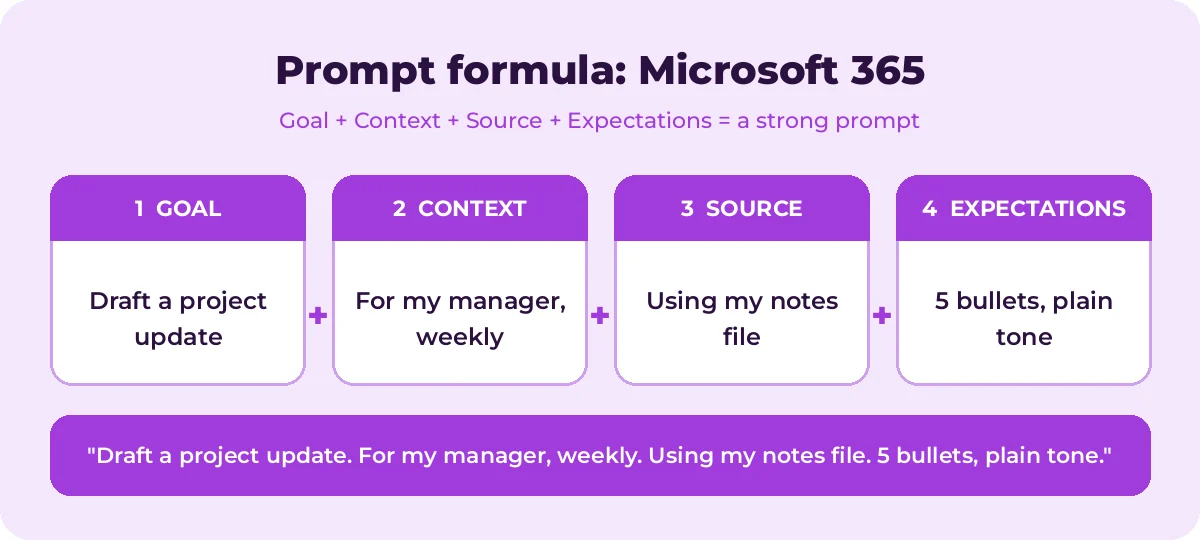
Microsoft recommends building prompts from four parts. You do not need all four every time, but the more you include, the better the result.
| Part | What to include | Example |
|---|---|---|
| Goal | What you want Copilot to do | Write a project update email |
| Context | Why you need it and who it is for | For my manager, who missed the meeting |
| Source | Files, emails, notes or data to use | Use /Q3 Project Notes |
| Expectations | Format, length, tone | Under 150 words, bullet points, friendly tone |
For a full walkthrough with before-and-after examples, read How to Write Copilot Prompts.
Writing and editing prompts (1-15)
1. Rewrite this paragraph to be clearer and more concise, keeping the original meaning: [paste text]2. Turn these rough notes into a well-structured one-page summary with headings: [paste notes]3. Make this text sound more professional but still friendly: [paste text]4. Shorten this to under 100 words without losing the key points: [paste text]5. Proofread this for grammar, spelling and punctuation. List each change you made: [paste text]6. Write 5 alternative headlines for an article about [topic] aimed at [audience].7. Explain [complex topic] in plain language for someone with no background in it.8. Convert this paragraph into a bulleted list of key points: [paste text]9. Write a short bio for me for [LinkedIn/conference/website] based on: [role, experience, achievements].10. Draft an introduction paragraph for a report on [topic] that hooks a busy executive reader.11. Rewrite this for a [Grade 8] reading level: [paste text]12. Give me 3 versions of this sentence: formal, neutral and casual: [paste sentence]13. Create an FAQ with 6 questions and answers based on this content: [paste content]14. Suggest a clear structure (H2 and H3 headings) for a blog post about [topic].15. Review this text and point out any claims that need a source or more evidence: [paste text]Email prompts (16-30)
16. Draft a polite email to [name] asking for an update on [project], due [date].17. Summarize this email thread and list any questions I still need to answer.18. Write a reply declining this meeting invite politely and suggesting [alternative].19. Write a follow-up email after my meeting with [client] recapping decisions and next steps: [notes]20. Make this email shorter and more direct while keeping a respectful tone: [paste email]21. Draft an out-of-office message for [dates] that directs urgent requests to [name, email].22. Write a thank-you email to my team for delivering [project] ahead of schedule.23. Write an email introducing [person A] to [person B] and explaining why they should talk.24. Draft a reminder email about the [invoice/report] that was due on [date]. Keep it firm but friendly.25. Turn these bullet points into a clear email to [audience]: [bullets]26. Write a cold outreach email to a [job title] at a [industry] company about [offer]. Under 120 words.27. Check the tone of this email. Could anything be read as rude or unclear? [paste email]28. Draft an apology email to a customer about [issue] with a clear fix and timeline.29. Write an email asking my manager for [time off/budget/resource] with a short justification.30. Write three subject line options for this email: [paste email]Meeting prompts (31-42)
31. Create an agenda for a 30-minute meeting about [topic] with [attendees]. Include time for each item.32. Summarize this meeting and list decisions made, open questions and action items with owners.33. What did [name] say about [topic] in this meeting?34. List any points where attendees disagreed and how each was resolved.35. Draft a follow-up email to attendees with the meeting recap and next steps.36. Write 5 questions I should ask in my meeting with [person/team] about [topic].37. I missed the first 15 minutes of this meeting. What did I miss?38. Create a table of action items from this meeting: task, owner, due date.39. Turn these meeting notes into a status update for stakeholders who were not there: [notes]40. Suggest an icebreaker for a [team size] team kickoff meeting that takes under 5 minutes.41. Prepare me for a meeting with [name]: summarize our recent emails and documents about [topic].42. Draft a one-on-one agenda for my meeting with [direct report] covering goals, blockers and feedback.Excel and data prompts (43-55)
43. Write an Excel formula that [describe calculation] using columns [A] and [B].44. Explain what this formula does, step by step: [paste formula]45. Show totals of [Sales] by [Region] in this table.46. Highlight rows where [column] is greater than [value].47. What are the top 3 trends in this data?48. Create a chart that shows [metric] over [time period].49. Add a column that calculates [profit margin] from [revenue] and [cost].50. Find duplicates in the [column] column.51. Sort this table by [column] from largest to smallest.52. Are there any outliers in [column]? Explain why they stand out.53. Write a formula to look up [value] from [sheet/table] and return [column].54. Summarize this dataset in 5 bullet points for a manager.55. Suggest three ways to clean up this data before analysis.PowerPoint prompts (56-65)
56. Create a presentation about [topic] for [audience] with 8 slides.57. Create a presentation from /[document name].58. Add a slide that summarizes the key takeaways.59. Write speaker notes for each slide in a conversational tone.60. Suggest a strong opening slide that grabs attention for [topic].61. Turn this slide's text into 3 short bullet points.62. Add an agenda slide at the beginning.63. Summarize this presentation in 5 bullet points.64. Suggest an image for a slide about [concept].65. Create a closing slide with a clear call to action: [action].Research and learning prompts (66-77)
66. Give me an overview of [topic] with key concepts, common terms and where to learn more.67. Compare [option A] and [option B] in a table: cost, pros, cons, best for.68. What are the main arguments for and against [idea]?69. Create a 4-week learning plan to get started with [skill], 3 hours per week.70. Quiz me with 10 questions on [topic], one at a time, and explain the answers.71. Summarize the main points of this article in 5 bullets: [paste text or link]72. What questions should I ask before choosing a [product/vendor/service]?73. Explain [term] with a simple analogy.74. List common mistakes beginners make with [skill or tool] and how to avoid them.75. Search the web for recent news about [company/topic] and summarize it with sources.76. Create a glossary of 15 terms someone new to [industry] should know.77. What are the key differences between [concept A] and [concept B]?Planning and productivity prompts (78-90)
78. Help me prioritize these tasks by urgency and impact: [task list]79. Create a weekly plan to finish [project] by [date], with daily milestones.80. Break this goal into smaller steps I can start today: [goal]81. What should I focus on today based on my meetings and recent emails?82. Create a project plan table with phases, tasks, owners and deadlines for [project].83. List risks for [project] and suggest a mitigation for each.84. Write OKRs for a [team] team focused on [goal] this quarter.85. Create a checklist for [process, e.g. onboarding a vendor].86. Draft a short weekly status update from these notes: [notes]87. Help me run a quick SWOT analysis for [business/idea].88. Suggest 10 ideas for [campaign/event/product feature].89. Turn this process description into numbered step-by-step instructions: [text]90. Draft a decision memo comparing [options] with a recommendation.Career and personal prompts (91-102)
91. Improve my resume bullet points to highlight results: [paste bullets]92. Write a cover letter for [job title] at [company] using my resume: [paste resume]93. Give me 10 likely interview questions for a [role] and tips for answering each.94. Help me prepare for a salary conversation. My role is [role]; my achievements are [list].95. Write a LinkedIn post announcing [achievement] that sounds humble and genuine.96. Plan a 3-day trip to [city] on a [budget] budget, focused on [interests].97. Create a simple weekly meal plan for [number] people with a shopping list.98. Suggest a 20-minute daily routine to build the habit of [habit].99. Write a polite message to my landlord about [issue].100. Give me 5 gift ideas for [person] who likes [interests], under [budget].101. Help me write a thoughtful message for [occasion] to [person].102. Create a monthly budget template with categories for [situation].Tips to get better results
- Be specific. “Write an email” gets a generic draft. “Write a 100-word email to my client confirming Friday’s delivery” gets something you can send.
- Point to your sources. In Microsoft 365 apps, type
/to reference a file, email or meeting so Copilot works from your actual content. - Ask for a format. Tables, bullets, word counts and tone instructions shape the answer.
- Iterate. Treat the first answer as a draft. Follow up with “make it shorter”, “add an example” or “use a more formal tone”.
- Check the output. Copilot can make mistakes. Verify numbers, names, dates and facts before you share anything.
- Protect sensitive data. Follow your organization’s policies about what you can share with AI tools.
- Save your favorites. Keep prompts that work in a document or use Copilot’s saved prompts feature where available, so you can reuse them.
How to Use Best Microsoft Copilot Prompts Effectively
The best microsoft copilot prompts in this guide are starting points, not finished scripts. Treat each one as a template: swap the bracketed parts for your own project, audience and files, then review what Microsoft 365 Copilot returns.
Most weak results come from missing context. The graphic below shows how the four prompt parts fit together for Microsoft 365 tasks.
A simple routine works for nearly every request:
- Start with one clear goal per prompt.
- Name the exact source: the file, email thread or meeting you want Copilot to use.
- Describe the output you want, including length, format and tone.
- Refine with a follow-up instead of starting over.
A few Microsoft 365-specific tips make a big difference:
- In Outlook and Teams, point Copilot at a specific thread or meeting so it does not guess.
- In Word and PowerPoint, reference a file with “/” so the draft is grounded in your content.
- In Copilot Chat, say whether you want work (Graph) data or web results.
Save the best microsoft copilot prompts you use most in a shared note so your team can reuse them. That list soon becomes a playbook that keeps quality consistent.
Mistakes That Weaken Your Results
- Being vague about the goal or the audience.
- Pasting sensitive data without checking your organization’s policy.
- Accepting the first answer without checking facts, numbers and names.
- Cramming several unrelated tasks into one request.
Avoid these and even short best microsoft copilot prompts will give you cleaner, more reliable answers.
Build a Repeatable Microsoft 365 Workflow
Single prompts help, but chaining them is where the real time savings appear. The diagram shows a four-step flow you can follow.
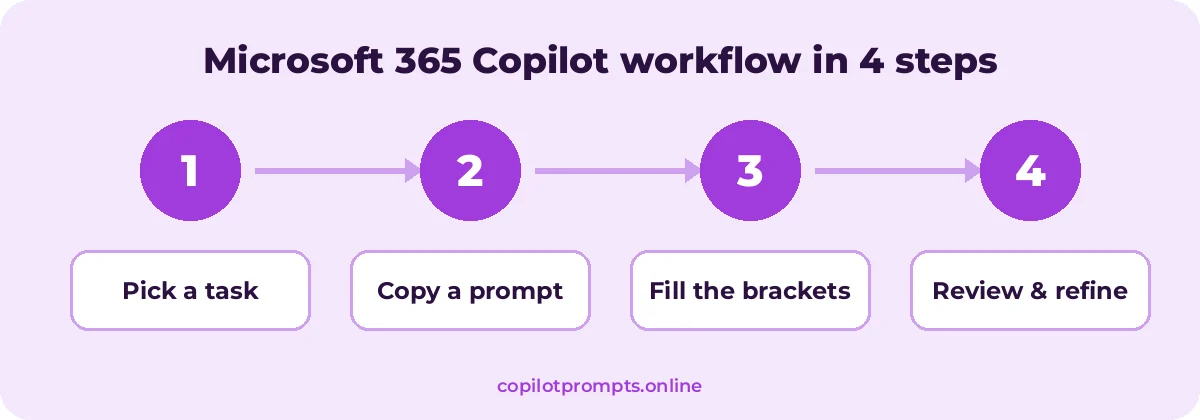
Run each step as its own prompt and check the result before moving on. For official feature details, see Cooking up a great prompt.
Frequently asked questions
Where do I type these prompts?
In Copilot Chat (in the Microsoft 365 Copilot app, Edge, Teams or at copilot.microsoft.com) or in the Copilot pane inside Word, Excel, PowerPoint, Outlook and Teams.
Do I need a paid license?
General writing, brainstorming and research prompts work in Copilot Chat. Prompts that read your files, email, calendar or meetings require Microsoft 365 Copilot, depending on your plan.
Why does Copilot give different answers to the same prompt?
Generative AI is not deterministic, so responses vary. Adding context, sources and clear expectations makes results more consistent.
Can I use these prompts with other AI assistants?
Yes. Most prompts here are general enough for any chat assistant, though features like referencing files with / are specific to Microsoft 365 Copilot.
How often is this list updated?
We review it regularly as Copilot features change and add new prompts based on reader requests.
Do the best Microsoft Copilot prompts work in the free Copilot app?
Many writing, planning and research prompts work in the free Copilot app. Prompts that read your email, meetings or files need a Microsoft 365 Copilot license.
Conclusion
The more you reuse and refine best microsoft copilot prompts, the better your results get.
The best Microsoft best microsoft copilot prompts are clear, specific and grounded in your own content. Start with best microsoft copilot prompts, fill in the brackets, and refine each answer with a quick follow-up. Once you are comfortable, explore our app guides, such as Copilot prompts for Excel and GitHub best microsoft copilot prompts, or role-based lists for HR and teachers. Bookmark this page and come back whenever you need fresh best microsoft copilot prompts.
