Copilot Prompts for Teachers: 43 Time-Saving Ideas for Lessons & Grading
Looking for copilot prompts for teachers that save real time? Teachers spend hours every week planning lessons, creating materials and giving feedback. Copilot can help with all of it: drafting lesson plans, building rubrics, differentiating activities and writing parent emails. Below are copy-ready Copilot prompts for teachers, grouped by task, with tips for using AI responsibly in the classroom.
Key takeaways
- The copilot prompts for teachers below are grouped by task so you can find the right one fast.
- Each of the copilot prompts for teachers uses [brackets] you replace with your own details.
- Pair the copilot prompts for teachers with the four-part formula below for sharper answers.
Before you start: Follow your school’s or district’s AI policy, avoid entering student names or personal data, and review everything Copilot produces for accuracy and age-appropriateness. Copilot is a planning assistant, not a replacement for your professional judgment.
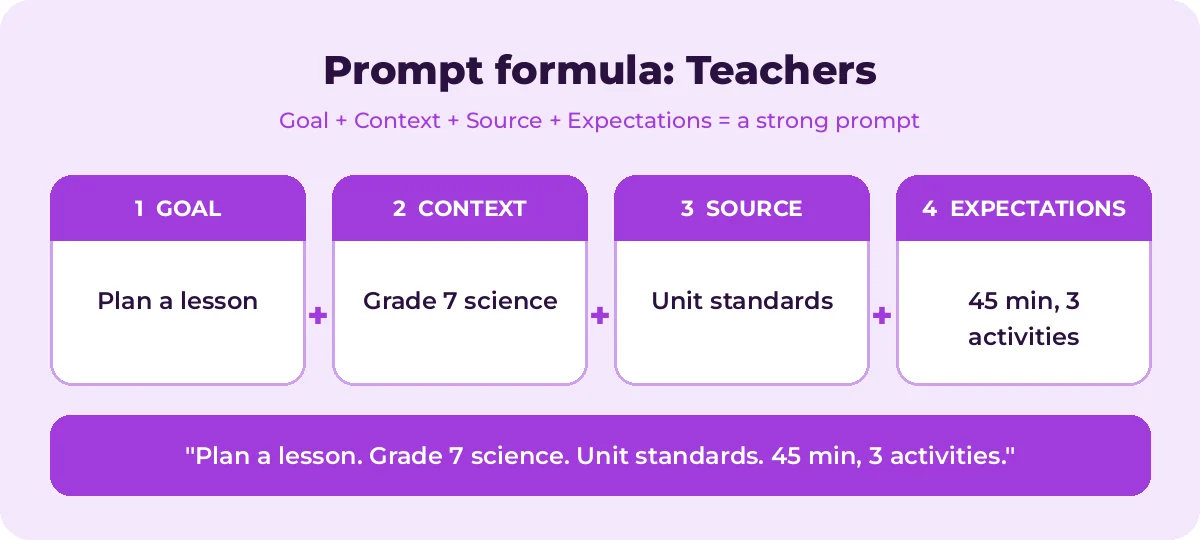
The quick prompt formula for teachers
| Part | In teaching | Example |
|---|---|---|
| Goal | What you need | Create a lesson plan |
| Context | Grade, subject, students | Grade 7 science, mixed reading levels |
| Source | Curriculum, standards, materials | Our unit on ecosystems; [standard code] |
| Expectations | Format and length | 45 minutes, objectives, activities, exit ticket |
Learn more in How to Write Copilot Prompts.
Lesson planning
Create a [45]-minute lesson plan on [topic] for [grade] [subject]. Include learning objectives, a warm-up, direct instruction, a group activity, independent practice and an exit ticket.Create a lesson plan aligned to [standard] for [grade]. Include success criteria students can understand.Plan a 2-week unit on [topic] for [grade], with a daily overview, key vocabulary and a final assessment idea.Suggest 5 engaging hooks to start a lesson on [topic] for [grade].Turn this lesson into a 5E (Engage, Explore, Explain, Elaborate, Evaluate) lesson plan: [paste lesson]Create a project-based learning idea on [topic] for [grade] with a driving question, milestones and final product.Suggest real-world connections that make [topic] relevant to [age] students.Create a substitute teacher plan for [subject], [grade], with clear instructions and activities that need no special equipment.Differentiation and accessibility
Adapt this activity for three levels: students who need extra support, on-level students and students ready for a challenge: [paste activity]Rewrite this text at a [Grade 4] reading level while keeping the key ideas: [paste text]Create a vocabulary list for [topic] with student-friendly definitions and example sentences.Suggest supports for English language learners in a lesson on [topic], such as sentence starters and visuals.Create a graphic organizer outline to help students [compare/sequence/summarize] [topic].Suggest ways to make this lesson more accessible for students with [attention/reading/processing] difficulties.Write extension questions for students who finish early on [topic].Quizzes, assessments and activities
Create a 10-question multiple-choice quiz on [topic] for [grade] with an answer key and one-sentence explanations.Write 5 short-answer questions on [topic] that test understanding, not just recall.Create an exit ticket with 3 questions to check understanding of [learning objective].Write a reading comprehension passage of about [300] words on [topic] for [grade], with 6 questions.Create a review game for [topic], such as a quiz-show style set of questions in 5 categories.Create 10 discussion questions on [book/topic] that encourage critical thinking.Design a group activity where students [goal] in 20 minutes, with roles for 4 students.Write practice problems on [math skill] from easy to hard, with worked solutions.Rubrics and grading
Create a 4-level rubric for [assignment] for [grade] with criteria for [content, organization, evidence, conventions]. Use student-friendly language.Create a single-point rubric for [assignment] with criteria, and space for "areas for growth" and "evidence of exceeding".Turn this rubric into a student self-assessment checklist: [paste rubric]Give feedback on this anonymous student paragraph using this rubric. Start with a strength, then two specific next steps: [paste rubric and text]Suggest 10 feedback comment starters for [assignment type] that are specific and encouraging.Look at these anonymized quiz results and tell me which questions most students missed and what that suggests I reteach: [paste data]Grading note: Use Copilot to draft feedback and spot patterns, but you decide the grade. AI can misjudge student work, especially creative or unconventional answers.
Communication with parents and families
Write a friendly email to parents introducing myself as their child's [subject] teacher this year, including how to contact me.Write a weekly class newsletter covering what we learned, upcoming dates and how families can help at home: [notes]Draft a positive note home about a student who [achievement], without using their name so I can personalize it.Draft a respectful email to a parent about [concern], with specific observations and a suggestion to meet.Rewrite this message so it is clear and welcoming for families whose first language is not English: [paste text]Create talking points for a parent-teacher conference about a student who is [situation].Classroom management and admin
Create a set of 5 classroom expectations for [grade], phrased positively, with examples of what each looks like.Suggest 10 quick brain breaks for [grade] that take under 3 minutes.Create a seating plan strategy for group work that balances skills and behavior needs.Draft a field trip permission letter for [destination] on [date], including cost, transport and what to bring.Create a checklist for the first week of school for a [grade] teacher.Professional growth
Summarize the main ideas of [teaching strategy, e.g. retrieval practice] and how to use it in a [subject] classroom.Help me write a professional growth goal related to [area], with measurable steps.Suggest ways to use [technology/tool] to increase student engagement in [subject].Weak vs. strong teacher prompts
| Weak prompt | Strong prompt |
|---|---|
| Lesson on fractions | Create a 45-minute Grade 4 lesson on adding fractions with like denominators, with a hands-on warm-up, guided practice, pair work and a 3-question exit ticket |
| Make a quiz | Write 10 multiple-choice questions on the water cycle for Grade 6, with one clearly correct answer each and an answer key |
| Rubric for essay | Create a 4-level rubric for a Grade 9 argumentative essay with criteria for claim, evidence, reasoning and conventions, in student-friendly language |
| Email parents | Write a warm, 120-word email to Grade 2 families about next week’s field trip, including date, cost and what to pack |
A weekly planning routine with Copilot
Here is a simple routine many teachers can adapt:
- Monday planning: “Plan five 45-minute lessons for [grade] [subject] on [topic] this week, building from [prior knowledge] to [goal].”
- Materials: For each lesson, ask for a handout, an exit ticket and one differentiated version.
- Check: Read every activity, fix errors and adjust for your students.
- Friday reflection: Paste anonymized exit ticket results and ask, “Which concepts need reteaching next week?”
- Family update: “Write a short newsletter on what we learned this week and one activity families can try at home.”
Using Copilot in Microsoft 365 apps
- In Word, ask Copilot to draft lesson plans and handouts from your curriculum documents. See Copilot prompts for Word.
- In PowerPoint, create lesson slides from a lesson plan. See Copilot PowerPoint prompts.
- In Excel, analyze anonymized grade data for patterns. See Copilot prompts for Excel.
- In Outlook, write parent emails faster. See Copilot prompts for Outlook.
Tips for teachers using Copilot
- Protect student privacy. Remove names and identifying details. Follow your school’s data policies.
- Be specific about grade and level. “Grade 5” and “advanced Grade 11” produce very different results.
- Check accuracy. AI can make factual mistakes, especially with dates, science details and math. Verify before teaching.
- Check age-appropriateness and bias. Review examples, names and scenarios to make sure they suit your students.
- Make it yours. Adapt Copilot’s drafts to your students, your voice and your classroom routines.
- Teach students about AI too. Model good prompting and fact-checking so students learn to use AI responsibly.
How to Use Copilot Prompts for Teachers Effectively
The copilot prompts for teachers in this guide are starting points, not finished scripts. Treat each one as a template: swap the bracketed parts for your own grade level, subject and lesson length, then review what Copilot returns.
Most weak results come from missing context. The graphic below shows how the four prompt parts fit together for Teachers tasks.
A simple routine works for nearly every request:
- Start with one clear goal per prompt.
- Name the exact source: your unit standards or lesson notes.
- Describe the output you want, including length, format and tone.
- Refine with a follow-up instead of starting over.
A few Teachers-specific tips make a big difference:
- Always state the grade level and subject.
- Ask for differentiated versions for different reading levels.
- Review facts and answer keys before sharing with students.
Save the copilot prompts for teachers you use most in a shared note so your team can reuse them. That list soon becomes a playbook that keeps quality consistent.
Mistakes That Weaken Your Results
- Being vague about the goal or the audience.
- Pasting sensitive data without checking your organization’s policy.
- Accepting the first answer without checking facts, numbers and names.
- Cramming several unrelated tasks into one request.
Avoid these and even short copilot prompts for teachers will give you cleaner, more reliable answers.
Build a Repeatable Teachers Workflow
Single prompts help, but chaining them is where the real time savings appear. The diagram shows a four-step flow you can follow.
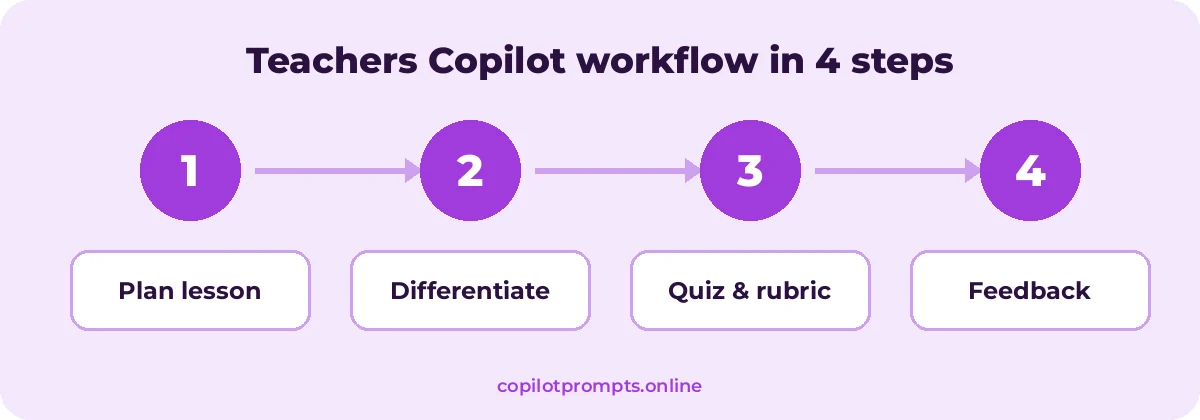
Run each step as its own prompt and check the result before moving on. For official feature details, see Microsoft Learn Educator Center.
Frequently asked questions
Can Copilot create lesson plans aligned to standards?
Yes, if you name the standard and grade. Check that the activities and assessments actually match the standard before using them.
Should I use Copilot to grade student work?
Use it to draft feedback, build rubrics and spot patterns in anonymized data. The final grade and judgment should always be yours.
Is it safe to paste student work into Copilot?
Only if your school’s policy allows it, and only after removing names and personal details. When in doubt, don’t.
Do teachers get Copilot for free?
Access depends on your school’s Microsoft 365 plan. Copilot Chat may be available with a school account; in-app Microsoft 365 Copilot features usually need a license. Check with your IT team.
Can Copilot help with special education plans?
It can help brainstorm supports and accommodations, but formal plans involve legal requirements and specialist input. Use it for ideas only and keep sensitive information out of prompts.
Can students see the Copilot prompts for teachers I use?
No. Your prompts and results stay in your own Copilot session unless you share them. Check your school’s guidance on AI use.
Conclusion
The more you reuse and refine copilot prompts for teachers, the better your results get.
Copilot can give teachers back hours each week by drafting lesson plans, quizzes, rubrics and parent emails in minutes. Use copilot prompts for teachers as a starting point, protect student privacy and always add your own expertise. For more ideas, see the best Microsoft copilot prompts for teachers or our Copilot prompts for HR. Bookmark this page and come back whenever you need fresh copilot prompts for teachers.