How to Write Copilot Prompts: 4 Simple Steps That Work (2026)
Want to learn how to write Copilot prompts that get useful answers the first time? Copilot is only as good as the instructions you give it. A vague prompt gets a vague answer; a clear prompt gets something you can actually use. This guide shows you how to write Copilot prompts with a simple four-part formula, lots of before-and-after examples and copy-ready templates you can adapt for any task.
Mastering how to write Copilot prompts pays off in every Microsoft 365 app.
The examples below show how to write Copilot prompts for real tasks.
Use this checklist whenever you practice how to write Copilot prompts.
Key takeaways
- Knowing how to write Copilot prompts comes down to four parts: goal, context, source and expectations.
- Learning how to write Copilot prompts with examples is faster than memorizing rules.
- Once you know how to write Copilot prompts, reuse them as templates.
Why prompt quality matters
Copilot is built on large language models. It predicts a useful response based on what you ask and the information it can access. When your prompt leaves out the goal, audience or format, Copilot has to guess, and the result is often generic. Better prompts reduce guessing, which means fewer rewrites and faster results.
The 4-part prompt formula
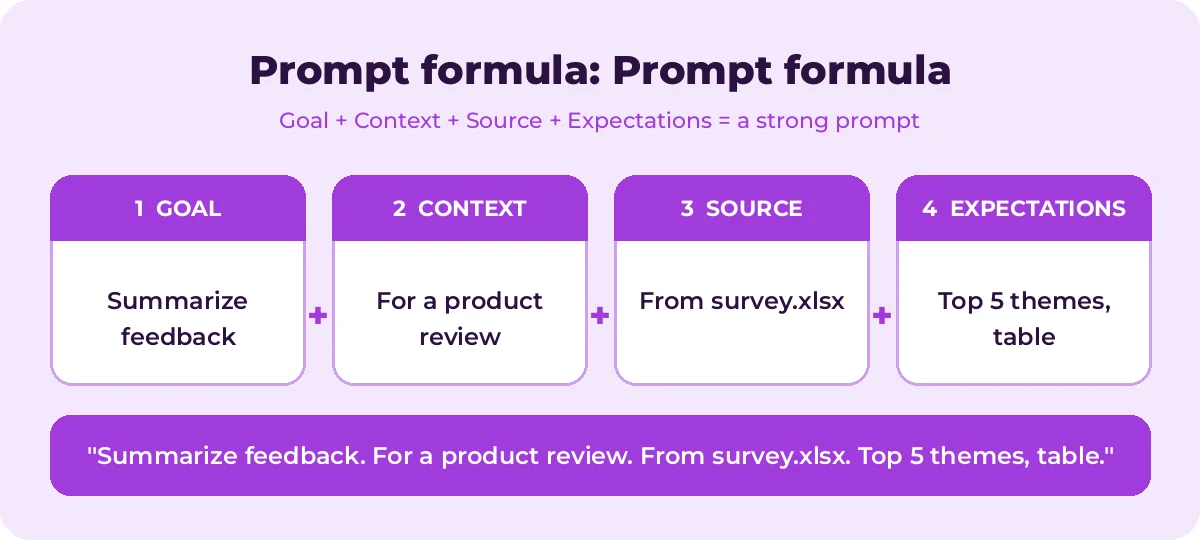
Microsoft’s own guidance breaks a good prompt into four elements:
| Part | Question it answers | Example phrase |
|---|---|---|
| Goal | What do you want? | “Draft a project update email…” |
| Context | Why, and for whom? | “…for leadership who need a quick view of risks…” |
| Source | What information should Copilot use? | “…based on /Project Plan and last week’s meeting notes…” |
| Expectations | How should the answer look? | “…in under 150 words, bullets, neutral tone.” |
Goal
Start with an action verb: draft, summarize, compare, explain, list, rewrite, create. One clear goal per prompt works better than several unrelated ones.
Context
Tell Copilot who the output is for and why. “For a new hire on their first day” produces very different text than “for the board of directors.”
Source
Point Copilot to the information it should use. In Word, Outlook, PowerPoint, Teams and Copilot Chat with Microsoft 365 Copilot, you can type / to reference files, people, emails or meetings. You can also paste text directly into the prompt.
Expectations
Describe the format, length, tone and structure you want: a table, five bullets, a 200-word email, a friendly tone, headings for each section.
A copy-ready template
[Goal: action verb + task] for [audience] because [purpose].
Use [source: file, email, meeting or pasted text].
Format it as [table / bullets / email / outline], about [length], in a [tone] tone.
Before-and-after examples
Weak prompt:
Write an email about the delay.Strong prompt:
Write an email to our client, Northwind, explaining that the website launch is moving from June 3 to June 17 because of extra security testing. Reassure them that the new date is firm, offer a 20-minute call this week, and keep it under 150 words with a professional, apologetic tone.Summary
Weak prompt:
Summarize this.Strong prompt:
Summarize /Q3 Marketing Report for our sales team. Focus on what changed in lead volume and which campaigns worked best. Give me 5 bullet points and one sentence on what sales should do differently next quarter.Excel
Weak prompt:
Analyze the data.Strong prompt:
Show total revenue by region and product category in this table, then highlight the three categories with the largest drop compared to last quarter. Add a short explanation of possible causes I should investigate.Presentation
Weak prompt:
Make a presentation on onboarding.Strong prompt:
Create a 10-slide presentation from /New Hire Onboarding Guide for new employees in their first week. Include a welcome slide, an agenda, key policies, who to contact for help and a final checklist slide. Keep text short and add speaker notes.Code
Weak prompt:
Fix this.Strong prompt:
This Python function should return the average order value per customer, but it returns 0 for customers with one order. Find the bug, explain the cause in one sentence and give me the corrected function with a unit test.Prompt templates by task
Drafting
Draft a [document type] about [topic] for [audience]. Include [sections]. Keep it under [length] and use a [tone] tone.Summarizing
Summarize [source] in [number] bullet points for [audience]. Highlight decisions, risks and next steps.Rewriting
Rewrite the following to be [clearer/shorter/more persuasive/more formal] for [audience]. Keep [what must stay]: [paste text]Comparing
Compare [A] and [B] in a table with columns for [criteria]. End with a recommendation for [situation].Brainstorming
Give me [number] ideas for [goal] aimed at [audience]. For each idea add one sentence on why it could work and one possible risk.Explaining
Explain [topic] to [audience] in under [length]. Use one real-world example and avoid jargon.Planning
Create a step-by-step plan to [goal] by [date]. Show it as a table with step, owner, deadline and dependencies.Techniques that improve results
Give Copilot a role
Starting with “Act as an experienced [role]” can help set the vocabulary and perspective. For example:
Act as an experienced HR business partner. Review this job description and suggest changes to make it more inclusive and clear: [paste text]Show an example
If you want a specific style, paste a short example and ask Copilot to match it.
Here is an example of our product update style: [paste example]. Write a new update in the same style about [feature].Ask it to ask you questions
When you are not sure what details matter, let Copilot interview you first.
I want to write a [document] about [topic]. Before you draft anything, ask me up to 5 questions that would help you write it well.Break big tasks into steps
Instead of one huge prompt, work in stages: outline first, then each section, then a final polish. You keep control and catch problems early.
Iterate in the same conversation
Copilot remembers earlier messages in a chat. Follow-ups like these are fast and effective:
Make it 30% shorter.Add a concrete example to the second point.Turn this into a table.Use a warmer tone and remove the jargon.Set boundaries
Tell Copilot what not to do, such as “don’t include pricing” or “only use information from the attached file.” This reduces unwanted content.
How the formula changes by app
The four parts stay the same everywhere, but what you emphasize shifts depending on where you use Copilot.
- Word: Source and expectations matter most. Reference the documents Copilot should draw from and describe the structure, length and tone you want. See Copilot prompts for Word.
- Excel: Be precise about columns, conditions and the result you want, such as a new column, a chart or highlighted rows. Copilot works best when your data is formatted as a table. See Copilot prompts for Excel.
- Outlook: Context is key. Say who the recipient is, what relationship you have and what you want them to do next. See Copilot prompts for Outlook.
- PowerPoint: Give the audience, the number of slides and the source file. See Copilot PowerPoint prompts.
- Teams: Ask focused questions about the meeting, such as decisions, disagreements or what a specific person said. See Copilot prompts for Teams meetings.
Put it together: one prompt, four parts
Here is a full example labeled by part, so you can see how the pieces fit:
[Goal] Draft a one-page proposal for a four-day work week pilot
[Context] for our department heads, who are concerned about customer coverage
[Source] using /Employee Survey Results and /Support Staffing Plan
[Expectations] with sections for benefits, risks, coverage plan and next steps, in a confident but balanced tone, under 500 words.
You do not need the labels in real prompts. They are there to show that each sentence does a job.
Common mistakes to avoid
- Being too vague. “Help with my report” gives Copilot nothing to work with.
- Overloading one prompt. Ten requests at once often means some get ignored.
- Forgetting the audience. The same facts need different wording for a CEO and a customer.
- Skipping the format. If you need a table, ask for a table.
- Trusting without checking. Copilot can be wrong. Verify facts, numbers and citations.
- Sharing sensitive data carelessly. Follow your organization’s data policies.
A quick prompt checklist
Before you hit enter, ask yourself:
- Did I start with a clear action verb?
- Did I say who it is for and why?
- Did I point to the right source?
- Did I describe the format, length and tone?
- Is there anything Copilot should avoid?
How to Write Copilot Prompts for Any App
Once you know how to write Copilot prompts with the four-part formula, the same structure works in Word, Excel, Outlook, PowerPoint and Teams. Only the source changes.
The graphic below shows one prompt broken into its four parts.
Treat every prompt as a draft. Run it, read the answer, then add the missing detail in a follow-up instead of starting over.
Keep the prompts that work in a shared note. A small library of proven templates saves your team far more time than any single clever prompt.
Improve a Prompt Step by Step
Good prompts are usually built, not written in one go. Use this simple loop to turn a weak request into a strong one.
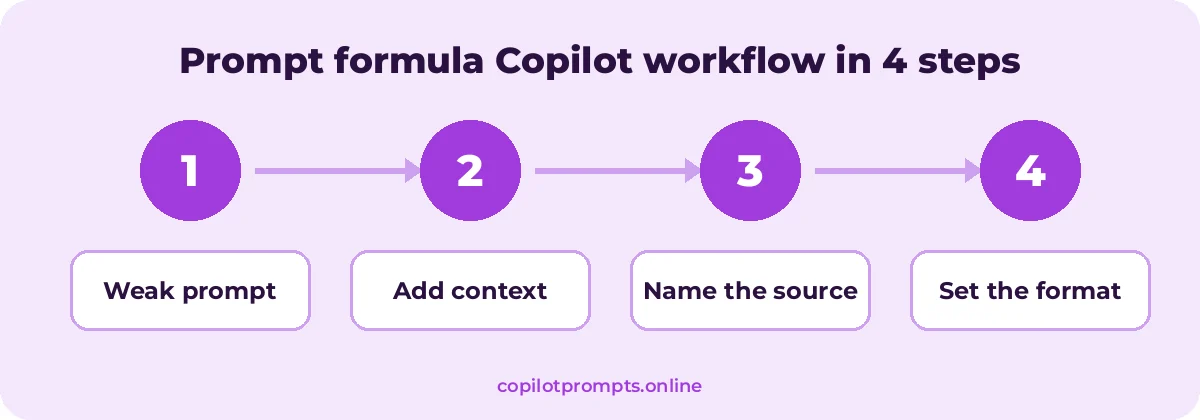
- Start with the bare request.
- Add who it is for and why you need it.
- Point Copilot at the exact file, email or meeting.
- Describe the format, length and tone you want.
Microsoft’s own guide, Cooking up a great prompt, follows the same idea and is worth a read.
Practice is the fastest teacher. Knowing how to write Copilot prompts well is a skill that improves every time you review an answer and refine your request.
Frequently asked questions
What is the best way to write Copilot prompts?
Use the four-part formula: state your goal, add context about audience and purpose, point to a source and set clear expectations for format, length and tone.
Do prompts need to be long?
No. They need to be specific. A two-sentence prompt with the right details often beats a long, unfocused one.
Can I reference my own files in a prompt?
With Microsoft 365 Copilot, yes. Type / in supported apps or Copilot Chat to pick a file, email, meeting or person to ground the response.
What should I do if the answer is wrong?
Tell Copilot what is wrong and what you expected, add missing context or source material, or start a new chat if the conversation has drifted off topic.
Do the same tips work for GitHub Copilot?
Mostly. Clear goals, context and expectations help with code too. See our GitHub Copilot prompts for coding-specific techniques.
How long does it take to learn how to write Copilot prompts?
Most people get noticeably better results within a day of practice. Use the four-part formula on real tasks and compare the answers.
Conclusion
Practice how to write Copilot prompts on one real task today.
Writing good Copilot prompts is a skill you can learn in an afternoon. Lead with a goal, add context, name your source and set expectations, then refine with quick follow-ups. To put the formula into practice, grab ready-made prompts from our list of the best Microsoft Copilot prompts or explore app guides for Word and Outlook. Now you know how to write Copilot prompts that are clear, specific and easy to reuse.