Copilot Prompts for Excel: 50 Powerful Ideas for Formulas & Charts
Looking for copilot prompts for excel that save real time? Copilot in Excel can write formulas, summarize data, spot trends, highlight values and build charts from a plain-English request. The trick is knowing what to ask. Below are 50 copy-ready Copilot prompts for Excel, grouped by task, plus tips to get accurate results.
Key takeaways
- The copilot prompts for excel below are grouped by task so you can find the right one fast.
- Each of the copilot prompts for excel uses [brackets] you replace with your own details.
- Pair the copilot prompts for excel with the four-part formula below for sharper answers.
Before you start
A few things help Copilot in Excel work reliably:
- Format your data as a table (select the range and press Ctrl+T) or use a clean, well-structured range with one header row.
- Use clear column headers like “Order Date”, “Region” and “Revenue” rather than “Col1”.
- Save the file to OneDrive or SharePoint so Copilot features are available, depending on your setup.
- Avoid merged cells and blank rows inside your data.
Copilot in Excel requires a Microsoft 365 Copilot license or an eligible plan. Features can vary by version and organization settings.
The quick prompt formula for Excel
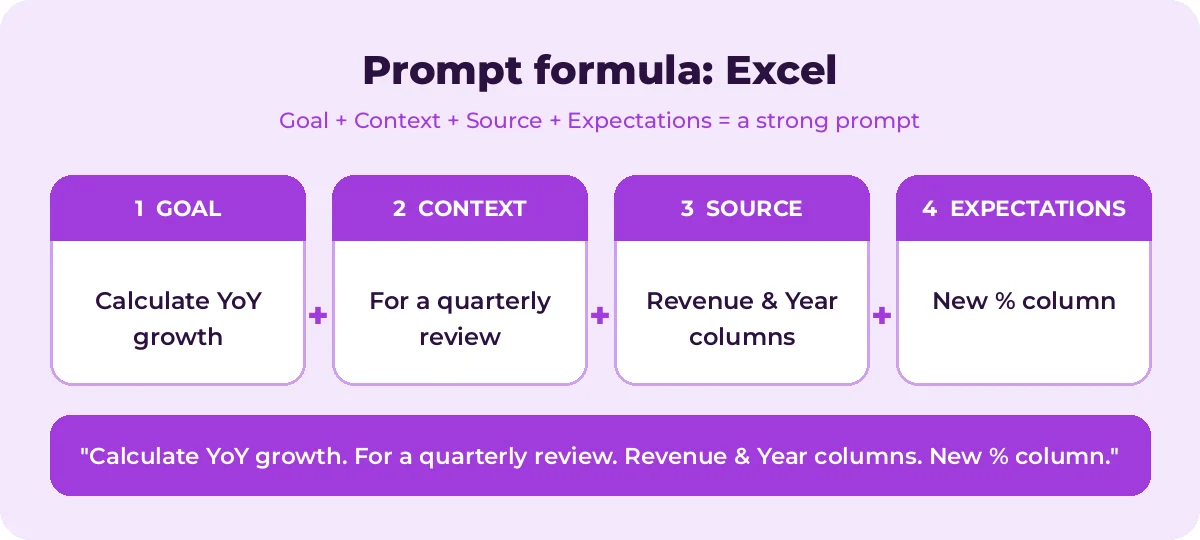
Use Goal, Context, Source and Expectations, adapted for spreadsheets:
| Part | In Excel | Example |
|---|---|---|
| Goal | The calculation or analysis | Calculate year-over-year growth |
| Context | Why you need it | For a quarterly review |
| Source | Which table or columns | Using the Revenue and Year columns |
| Expectations | The output | As a new column formatted as a percentage |
New to this formula? Read How to Write Copilot Prompts.
Formula prompts (1-12)
1. Add a column that calculates [Revenue] minus [Cost] and name it Profit.2. Create a formula that calculates profit margin as a percentage of revenue.3. Write a formula that returns "Overdue" if [Due Date] is before today and [Status] is not "Done".4. Add a column that looks up each [Product ID] in the [Products] table and returns the price.5. Calculate a running total of [Sales] by date.6. Add a column that extracts the first name from [Full Name].7. Create a column that shows the month and year from [Order Date].8. Add a column that counts the days between [Start Date] and [End Date], excluding weekends.9. Calculate year-over-year growth for each product using the [Year] and [Revenue] columns.10. Explain this formula step by step and suggest a simpler version if one exists: [paste formula]11. Why is this formula returning #N/A, and how can I fix it? [paste formula]12. Write a formula that assigns a grade A-F based on the [Score] column: 90+ A, 80+ B, 70+ C, 60+ D, else F.Data analysis prompts (13-24)
13. Show total [Revenue] by [Region].14. What are the top 5 [products] by [sales] this year?15. Show the average [order value] by [customer segment] and month.16. What trends do you see in [metric] over time?17. Which [region] had the biggest change between Q1 and Q2?18. Are there any outliers in [column]? List them with a short explanation.19. Summarize this data in 5 key insights for a manager.20. Compare [metric] across [categories] and tell me which are underperforming.21. What percentage of total [sales] comes from each [product category]?22. Is there a relationship between [column A] and [column B]?23. Show a breakdown of [count of orders] by [status].24. Create a summary table of [metric] by [dimension 1] and [dimension 2].Formatting and highlighting prompts (25-32)
25. Highlight rows where [Revenue] is below [target].26. Make the top 10 values in [column] bold and green.27. Color cells in [Status] red for "Late", yellow for "At Risk" and green for "On Track".28. Highlight duplicate values in [Email].29. Apply a color scale to [column] from lowest to highest.30. Sort the table by [column] from largest to smallest.31. Filter the table to show only [Region] = [value] and [Status] = [value].32. Highlight dates in [Due Date] that fall within the next 7 days.Chart and visualization prompts (33-40)
33. Create a line chart of [metric] by month.34. Show a bar chart comparing [metric] across [categories].35. Create a chart showing the share of [sales] by [region].36. Chart [metric A] and [metric B] over time so I can compare trends.37. Which chart type would best show [what you want to show], and why?38. Create a PivotTable that shows [metric] by [row field] and [column field].39. Visualize the distribution of [column].40. Suggest 3 charts that would help explain this data to executives.Data cleanup prompts (41-46)
41. What problems do you see in this data that I should fix before analysis?42. Add a column that removes extra spaces from [column].43. Add a column that converts [Name] to proper case.44. Split [Full Address] into Street, City and Postal Code columns.45. Add a column that flags rows where [Email] is blank or missing an @ sign.46. Standardize the values in [Country] so "USA", "U.S." and "United States" match.Planning and learning prompts (47-50)
47. Build a simple monthly budget table with categories, planned, actual and difference columns.48. Create a project tracker table with task, owner, start date, due date, status and % complete.49. Explain the difference between XLOOKUP and VLOOKUP with an example.50. What Excel features would help me analyze this dataset faster?Tips for better Excel results
- Name columns exactly. Use the same header text in your prompt that appears in your table.
- Ask one thing at a time. “Add a profit column” then “highlight negative profit” is more reliable than both in one prompt.
- Check formulas before you trust them. Click into new columns and confirm the logic matches what you asked for.
- Ask Copilot to explain. If a result looks surprising, ask “How did you calculate this?”
- Keep a copy of the original data. Some actions change your sheet directly. Use undo or work on a copy when experimenting.
- Use Copilot Chat for formula help. If Copilot is not available in your workbook, you can still describe your columns in Copilot Chat and ask it to write a formula for you.
Prompts that don’t work well (and how to fix them)
Some requests confuse Copilot because they are too broad or depend on information that is not in your sheet. Here is how to rewrite them:
| Weak prompt | Why it struggles | Better prompt |
|---|---|---|
| Analyze this | No goal or focus | Show total Revenue by Region and highlight the lowest three |
| Fix my spreadsheet | No description of the problem | Find rows where Amount is blank or negative |
| Make a chart | No metric or dimension | Create a line chart of Orders by month |
| Is this good? | No benchmark | Compare each Region’s margin to the overall average |
| Predict next year | Missing assumptions | Project next year’s Revenue assuming 5% monthly growth from the last 12 months |
When a result looks off, the usual cause is ambiguous column names or mixed data types, such as numbers stored as text. Clean those first and try again.
Example workflow: monthly sales review
Here is how a short sequence of prompts can turn a raw sales export into a review-ready summary:
- “What problems do you see in this data that I should fix before analysis?”
- “Add a column that shows the month and year from Order Date.”
- “Show total Revenue by Region and month.”
- “Create a line chart of Revenue by month for each Region.”
- “Summarize this data in 5 key insights for a manager.”
Each step builds on the last, and you can check the result before moving on. Paste the final insights into an email using our Outlook prompts or a slide using our PowerPoint prompts.
Share your results
Once Copilot has done the analysis, you still need to communicate it. Ask Copilot to “write three sentences explaining this chart to someone who has not seen the data” and paste that into your report or email. A short plain-English explanation next to every chart makes your workbook far more useful to colleagues.
How to Use Copilot Prompts for Excel Effectively
The copilot prompts for excel in this guide are starting points, not finished scripts. Treat each one as a template: swap the bracketed parts for your own table names, columns and thresholds, then review what Copilot in Excel returns.
Most weak results come from missing context. The graphic below shows how the four prompt parts fit together for Excel tasks.
A simple routine works for nearly every request:
- Start with one clear goal per prompt.
- Name the exact source: the table and column names, such as Revenue or Region.
- Describe the output you want, including length, format and tone.
- Refine with a follow-up instead of starting over.
A few Excel-specific tips make a big difference:
- Format the range as a table (Ctrl+T) before you ask anything.
- Ask Copilot to add a new column instead of overwriting data.
- Check a few rows of every generated formula by hand.
Save the copilot prompts for excel you use most in a shared note so your team can reuse them. That list soon becomes a playbook that keeps quality consistent.
Mistakes That Weaken Your Results
- Being vague about the goal or the audience.
- Pasting sensitive data without checking your organization’s policy.
- Accepting the first answer without checking facts, numbers and names.
- Cramming several unrelated tasks into one request.
Avoid these and even short copilot prompts for excel will give you cleaner, more reliable answers.
Build a Repeatable Excel Workflow
Single prompts help, but chaining them is where the real time savings appear. The diagram shows a four-step flow you can follow.
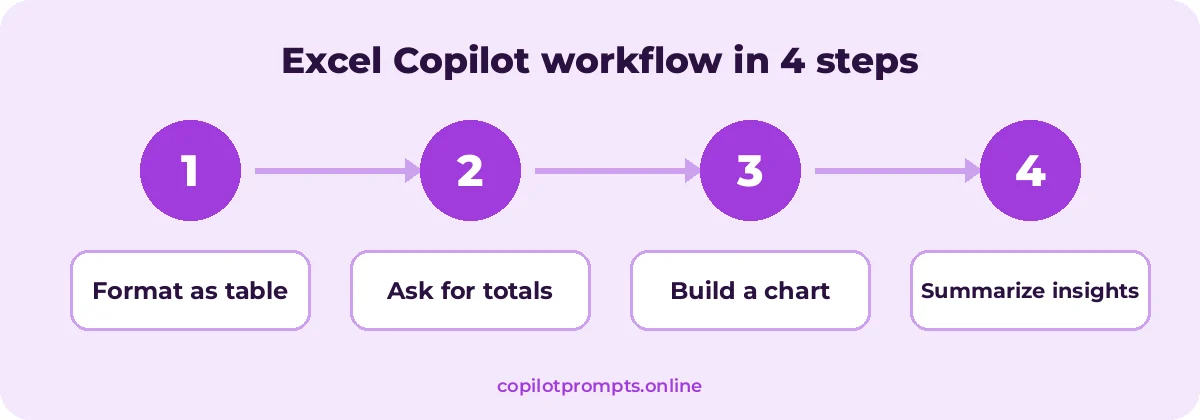
Run each step as its own prompt and check the result before moving on. For official feature details, see Copilot in Excel tips.
Frequently asked questions
Why does Copilot in Excel say it can’t work with my data?
The most common reasons are that the data is not in a table or well-structured range, the file is not saved to OneDrive or SharePoint, or the data has merged cells or unclear headers.
Can Copilot write complex formulas like XLOOKUP or nested IFs?
Yes. Describe the result you want and the columns involved. Always check the formula in a few rows to confirm it behaves as expected.
Does Copilot change my data?
Some prompts add columns, formatting, charts or sort orders. Copilot shows what it will do, and you can usually undo changes.
Can I use Copilot in Excel for free?
In-app Copilot in Excel requires an eligible Microsoft 365 plan. You can still ask Copilot Chat for formula help by describing your data.
How much data can Copilot analyze?
Limits depend on the current version and change over time. For very large datasets, summarize or filter first, then ask Copilot about the smaller set.
Do these Copilot prompts for Excel work in Excel on the web?
Yes. They work in Excel for the web, Windows and Mac when Copilot is available on your plan and the file is saved to OneDrive or SharePoint.
Conclusion
The more you reuse and refine copilot prompts for excel, the better your results get.
Copilot in Excel saves the most time when your data is clean and your prompts are specific. Start with the formula and analysis copilot prompts for excel, check each result, and build up to charts and summaries. For more, browse our 100+ best Microsoft copilot prompts for excel. Bookmark this page and come back whenever you need fresh copilot prompts for excel.