Copilot PowerPoint Prompts: 47 Easy Ways to Build a Deck in Minutes
Looking for copilot powerpoint prompts that save real time? Building a slide deck from scratch can take hours. With Copilot in PowerPoint, you can create a draft presentation from a prompt or a Word document, add slides, summarize decks and write speaker notes in minutes. Here are copy-ready Copilot PowerPoint prompts for every stage of building a deck.
Key takeaways
- The copilot powerpoint copilot powerpoint prompts are grouped by task so you can find the right one fast.
- Each of the copilot powerpoint prompts uses [brackets] you replace with your own details.
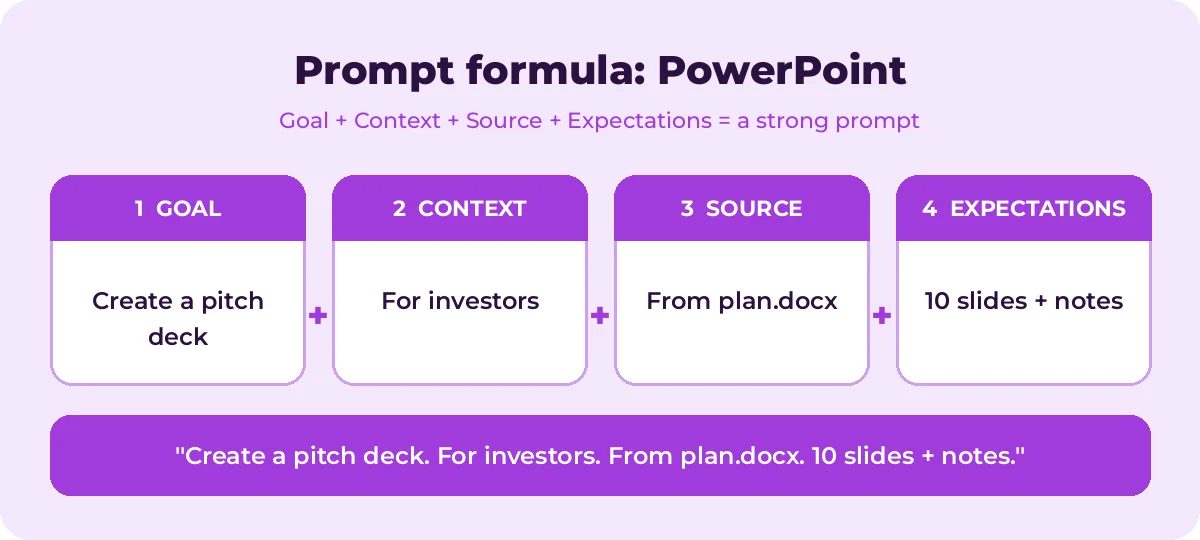
- Pair the copilot powerpoint prompts with the four-part formula below for sharper answers.
What Copilot can do in PowerPoint
With a Microsoft 365 Copilot license, Copilot in PowerPoint can typically:
- Create a presentation from a topic prompt.
- Create a presentation from a file, such as a Word document or PDF, depending on your version.
- Add slides or images to an existing deck.
- Summarize a presentation and list key points or action items.
- Help with speaker notes and organization.
It works best with your organization’s templates and with clear source material. Features vary by plan and version.
The quick prompt formula for presentations
| Part | In PowerPoint | Example |
|---|---|---|
| Goal | The deck or slide you need | Create a pitch presentation |
| Context | Audience and occasion | For potential investors, 10-minute slot |
| Source | Document to build from | /Business Plan |
| Expectations | Slide count, tone, extras | 10 slides, confident tone, speaker notes |
Need a refresher? Read How to Write Copilot Prompts.
Prompts to create a full deck
Create a presentation about [topic] for [audience]. Include an agenda, [number] content slides and a summary slide.Create a presentation from /[Word document]. Keep each slide to 3-5 bullet points.Create a 10-slide pitch deck for [product/startup] covering problem, solution, market, product, business model, traction, team and ask.Create a training presentation on [topic] for new employees with learning objectives, key concepts, examples and a quiz slide.Create a project kickoff presentation for [project] with goals, scope, timeline, roles and next steps.Create a quarterly business review deck for [team] with highlights, metrics, challenges and priorities for next quarter.Create a presentation that explains [complex topic] to non-experts in 8 slides.Create a workshop presentation on [topic] with interactive discussion questions on every other slide.Create a sales presentation for [product] aimed at [customer type], focused on their top three problems.Create a lesson presentation on [topic] for [grade level] with simple language and an activity slide.Prompts to add and edit slides
Add a slide about [topic].Add an agenda slide after the title slide.Add a slide summarizing the key takeaways.Add a slide comparing [option A] and [option B].Add a timeline slide showing [milestones and dates].Add a slide with three customer benefits of [product].Add a closing slide with a call to action: [action].Add a slide with an image of [subject].Add a "Questions?" slide at the end.Add a slide that introduces the team: [names and roles].Prompts to improve content
Use these in the Copilot pane or on selected slide text.
Rewrite the text on this slide to be shorter and punchier.Turn this paragraph into 3 bullet points.Suggest a stronger title for this slide.Make the language in this presentation consistent and professional.Suggest a better order for these slides so the story flows.Which slides have too much text? Suggest how to simplify them.Rewrite this slide for an executive audience who wants the bottom line first.Suggest a visual or diagram that would explain this slide better.Speaker notes and delivery prompts
Write speaker notes for each slide, about 60-90 seconds of talking per slide.Write speaker notes for this slide in a conversational tone.Suggest an opening story or question to start this presentation.What questions might the audience ask after this presentation? Suggest answers.Create a one-minute summary I can say if I run out of time.Turn this presentation into a short script for a 5-minute video.Summarizing and reviewing prompts
Summarize this presentation in 5 bullet points.What are the key messages of this presentation?List any action items or decisions mentioned in this deck.Which slides support the main argument, and which could be cut?Write an email summarizing this presentation for people who could not attend.Brainstorming prompts (use in Copilot Chat first)
Sometimes it helps to plan the story before you open PowerPoint. Try these in Copilot Chat, then paste the outline into Word and create a deck from it.
I need to present [topic] to [audience] in [minutes]. Suggest a story structure with slide titles and one key message per slide.What are the three most important things [audience] needs to understand about [topic]?Suggest 5 creative titles for a presentation about [topic].Weak vs. strong PowerPoint prompts
| Weak prompt | Strong prompt |
|---|---|
| Make slides about sales | Create an 8-slide presentation on Q3 sales results for the leadership team, using /Q3 Sales Report, with an agenda and a recommendations slide |
| Add a slide | Add a slide comparing our current onboarding process with the proposed one in two columns |
| Fix this slide | Rewrite this slide to three bullets of under 10 words each |
| Write notes | Write 60-second speaker notes for each slide in a friendly, confident tone |
Prompts for common presentation types
Status update
Create a 6-slide status update for [project] covering progress, milestones, metrics, risks, decisions needed and next steps. Use /[status notes].Strategy or proposal
Create a presentation proposing [initiative] to [decision makers]. Cover the problem, options considered, recommendation, cost, timeline and risks.Customer webinar
Create a 12-slide webinar deck on [topic] for [customer audience], with an introduction, 3 main lessons, a demo placeholder slide, a recap and a Q&A slide.All-hands or town hall
Create a company update presentation with wins from the quarter, team spotlights, upcoming priorities and a thank-you slide. Keep the tone upbeat and simple.Conference talk
Create a 20-minute conference talk on [topic] for [audience], with a story-driven opening, 3 key ideas with examples and a memorable closing line.Tips for better PowerPoint results
- Start from a good document. A well-structured Word file with clear headings produces a much better deck than a messy one. Use our Copilot prompts for Word to prepare it.
- Use your organization’s template. Starting from a branded template helps Copilot’s slides match your design.
- Specify slide count. Without it, Copilot decides for you.
- Edit ruthlessly. Treat the deck as a first draft. Cut text, check facts and replace generic images.
- Check images and licensing. Make sure any images fit your brand and usage rules.
- Rehearse. Copilot can write notes, but you still need to make the story your own.
Example workflow: report to deck in 15 minutes
- In Word, open your report and confirm headings are clear.
- In PowerPoint, prompt: “Create a presentation from /Q3 Report for the leadership team, 10 slides, with speaker notes.”
- Review the outline and slides. Delete anything off-topic.
- Prompt: “Add a slide summarizing three recommendations.”
- Prompt: “Which slides have too much text? Suggest how to simplify them.”
- Polish design, check numbers and rehearse.
Accessibility checks
Ask Copilot to “suggest alt text for the images in this presentation” and “check whether any slide relies on color alone to convey meaning.” Then run PowerPoint’s built-in Accessibility Checker to catch anything else.
Common mistakes to avoid
- Too many words per slide. Copilot drafts often include full sentences. Cut them down to short phrases and move detail into speaker notes.
- No clear story. A deck is an argument, not a list of facts. Decide your one key message before prompting.
- Unchecked numbers. Charts and figures pulled from a document must be verified against the source.
- Generic visuals. Swap stock-style images for real screenshots, product photos or simple diagrams where they explain more.
- Skipping rehearsal. A good first draft is not a good presentation until you can deliver it confidently.
How to Use Copilot PowerPoint Prompts Effectively
The copilot powerpoint prompts in this guide are starting points, not finished scripts. Treat each one as a template: swap the bracketed parts for your own topic, audience and slide count, then review what Copilot in PowerPoint returns.
Most weak results come from missing context. The graphic below shows how the four prompt parts fit together for PowerPoint tasks.
A simple routine works for nearly every request:
- Start with one clear goal per prompt.
- Name the exact source: a Word or PDF file you add with “/”.
- Describe the output you want, including length, format and tone.
- Refine with a follow-up instead of starting over.
A few PowerPoint-specific tips make a big difference:
- Create the deck from a Word file for the most accurate content.
- Ask for a specific slide count and audience.
- Apply your company template before generating slides.
Save the copilot powerpoint prompts you use most in a shared note so your team can reuse them. That list soon becomes a playbook that keeps quality consistent.
Mistakes That Weaken Your Results
- Being vague about the goal or the audience.
- Pasting sensitive data without checking your organization’s policy.
- Accepting the first answer without checking facts, numbers and names.
- Cramming several unrelated tasks into one request.
Avoid these and even short copilot powerpoint prompts will give you cleaner, more reliable answers.
Build a Repeatable PowerPoint Workflow
Single prompts help, but chaining them is where the real time savings appear. The diagram shows a four-step flow you can follow.
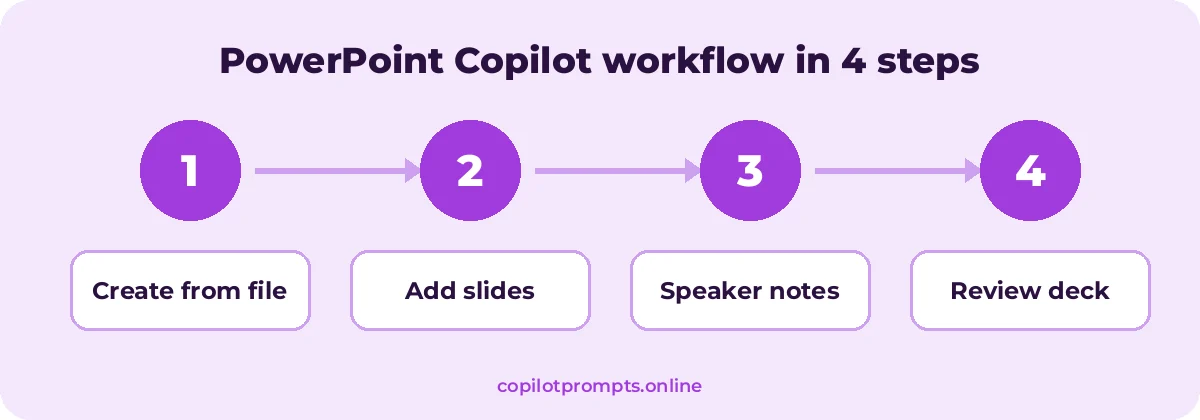
Run each step as its own prompt and check the result before moving on. For official feature details, see Microsoft 365 Copilot documentation.
Frequently asked questions
Can Copilot create a PowerPoint from a Word document?
Yes, in supported versions you can ask Copilot to create a presentation from a file and reference the document with / or by choosing it from a list. The file usually needs to be stored in OneDrive or SharePoint.
Why does my Copilot deck look generic?
Generic prompts and no source file lead to generic slides. Reference a detailed document, specify the audience and start from your organization’s template.
Can Copilot design slides?
Copilot creates slide layouts and can add images, and PowerPoint’s Designer can suggest layouts. You will usually still want to adjust visuals by hand.
How many slides can Copilot create at once?
It varies by version and source length. Ask for a specific number and add more slides with follow-up prompts if needed.
Can I use Copilot to summarize someone else’s deck?
Yes. Open the presentation and ask Copilot to summarize it or list its key points and action items.
Can Copilot PowerPoint prompts use my company template?
Yes. Start from a deck that already uses your template or design, then ask Copilot to add slides so the branding stays consistent.
Conclusion
The more you reuse and refine copilot powerpoint prompts, the better your results get.
Copilot in PowerPoint turns a solid outline or document into a first-draft deck fast. Give it a clear audience, a source file and a slide count, then refine slide by slide. Pair copilot powerpoint prompts with our Teams meeting prompts to present and follow up, or explore the full list of best Microsoft copilot powerpoint prompts. Bookmark this page and come back whenever you need fresh copilot powerpoint prompts.