Copilot Prompt for Meeting Minutes: 19 Proven Templates (Copy & Paste)
A good copilot prompt for meeting minutes turns an hour of discussion into a clean, shareable record in under a minute. The trick is asking for the right structure: decisions, owners, deadlines and open questions, not just a loose summary.
Most people type “summarize this meeting” instead of a real copilot prompt for meeting minutes, and they get a few vague paragraphs. Formal minutes need more than that. They need attendees, agenda items, what was agreed, who is doing what and by when. This guide gives you copy-ready templates for every kind of meeting, plus the settings that make them work in Microsoft Teams.
What you will get from this guide
- Ready-to-paste templates for formal minutes, quick recaps, board meetings, project stand-ups and client calls.
- A simple structure you can reuse so every set of notes looks the same.
- Follow-up prompts that turn your notes into emails, task lists and Word documents.
- A review checklist so nothing inaccurate goes out with your name on it.
Before You Prompt: Make Sure Copilot Can See the Meeting
Even the best copilot prompt for meeting minutes fails if Copilot cannot see the meeting. It can only write minutes from what it can access. In Teams, the organizer controls this through the meeting option called Copilot and other AI, found under the online meeting options in the scheduler.
There are usually three choices:
| Setting | What it means for your minutes |
|---|---|
| During and after the meeting | Copilot uses the transcript, so you can ask for minutes once the call ends. This is the setting you want. |
| Only during the meeting | Copilot works live, but untranscribed content is gone when the meeting ends. Ask for your notes before you leave. |
| Off | Copilot, recording and transcription are disabled. No AI notes are possible. |
Two more points matter. First, if you want to prompt Copilot after the call, someone has to start transcription during it. Second, Copilot does not work in meetings hosted by another organization, so for external calls you may need to take notes another way.
Microsoft explains these options in its guide to using Copilot in Teams meetings. Your admin may have set different defaults, so check what your client shows.
How to Build a Copilot Prompt for Meeting Minutes
Every copilot prompt for meeting minutes that produces usable notes has the same building blocks. Skip one and the output usually drifts into a generic summary.
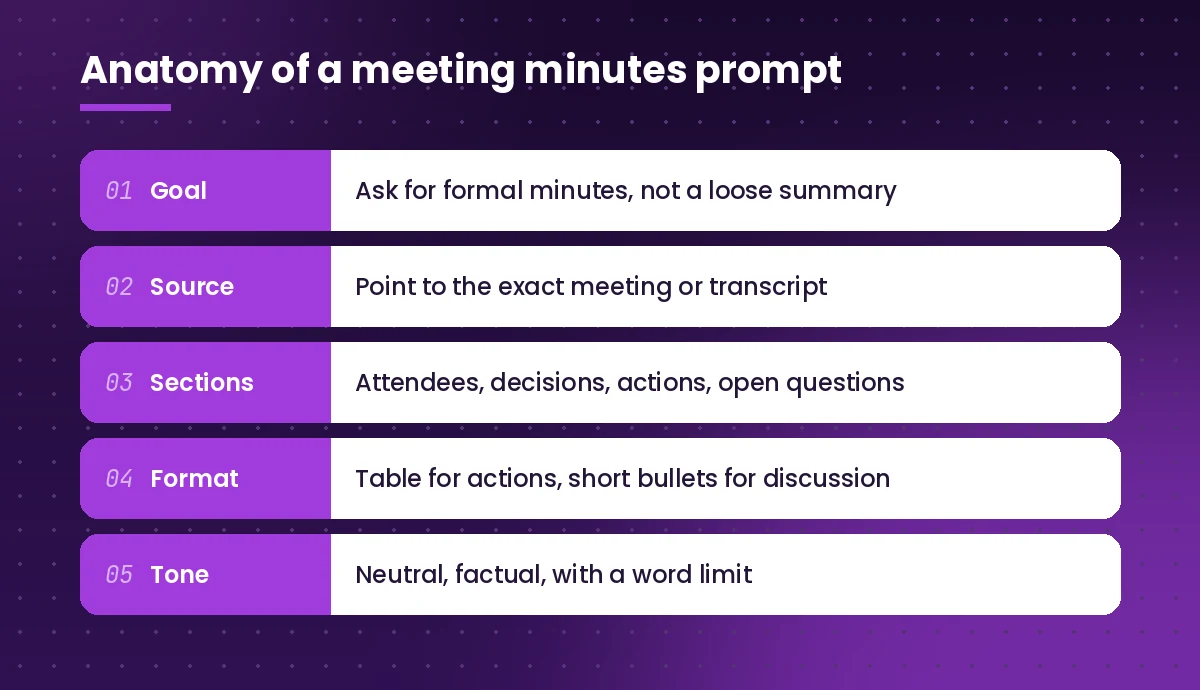
- Goal. Say you want formal minutes, not a summary. The word “minutes” signals structure.
- Source. Point to the exact meeting, transcript or recap. In Copilot Chat you can reference a meeting by typing
/and choosing it. - Sections. List the headings you want, in order.
- Format. Ask for tables for action items and bullet points for discussion.
- Tone and length. Neutral, factual and short. Minutes should record, not editorialize.
If you want to go deeper on prompt structure, our guide on how to write Copilot prompts breaks down the goal, context, source and expectations method with examples.
Copy-Ready Prompts for Formal Minutes
Each copilot prompt for meeting minutes below works in the Copilot pane inside a Teams meeting, in the Recap tab, or in Copilot Chat when you reference the meeting. Replace the text in square brackets.
1. The all-purpose template
This is the best copilot prompt for meeting minutes when you are not sure which format your team expects. It covers every standard section.
Create formal meeting minutes from this meeting. Use these sections in order: Meeting title, Date and time, Attendees, Agenda items discussed, Key decisions, Action items (table with Task, Owner, Due date), Open questions, Next meeting. Keep the tone neutral and factual. Use short bullet points. Do not include small talk.2. Minutes grouped by agenda item
Write minutes for this meeting organized by agenda item. For each item, give a two-sentence summary of the discussion, the decision made (or "No decision"), and any follow-up tasks with owners. If a topic was discussed that was not on the agenda, list it under "Other business".3. Decisions and actions only
Busy stakeholders often want the outcome without the discussion. This copilot prompt for meeting minutes strips everything else away.
From this meeting, list only the decisions made and the action items agreed. Show action items as a table with columns: Action, Owner, Due date, Status. If an owner or date was not stated, write "Not specified" instead of guessing.The instruction “write Not specified instead of guessing” is important. It stops Copilot from filling gaps with assumptions.
4. Minutes with speaker attribution
Prepare meeting minutes that note who raised each main point. Format each discussion point as: [Name]: [point in one sentence]. Then add a section listing every commitment a person made, with their name and the deadline they mentioned.5. A one-paragraph executive summary
Summarize this meeting in one paragraph of no more than 80 words for a senior leader who did not attend. Lead with the most important decision, then the biggest risk or open issue, then the next step.Templates for Specific Meeting Types
Different meetings need different records, so one copilot prompt for meeting minutes rarely fits every situation. A board meeting needs motions and votes. A stand-up needs blockers. Use these variations instead of forcing one format onto everything.
Board or committee meetings
Draft board meeting minutes in a formal style. Include: Call to order time, Members present and absent, Approval of previous minutes, Reports presented, Motions (who moved, who seconded, outcome), Resolutions, Adjournment time. Mark anything you cannot confirm from the transcript with [VERIFY].Always have the secretary or chair review board minutes. They are often a legal record, and Copilot can mishear names or numbers.
Project status meetings
Write minutes for this project status meeting. Sections: Overall status (Green, Amber or Red with one-line reason), Progress since last meeting, Blockers and who owns them, Risks raised, Decisions, Action items table. Keep it under 300 words.Daily stand-ups
Summarize this stand-up as a table with columns: Team member, Yesterday, Today, Blockers. Then list any blocker that needs help from someone outside the team.Client or sales calls
Create client call notes from this meeting. Include: Client attendees and roles, Their main goals, Pain points they mentioned, Questions they asked, What we promised to send or do, Agreed next step and date. Write it so I can paste it into our CRM.One-on-one meetings
Write private notes from this one-on-one. Include: Topics discussed, Feedback given in both directions, Goals or development items, Commitments from each person. Keep the tone supportive and professional.Brainstorming and workshops
Capture the output of this workshop. List every idea raised, grouped by theme. For each theme, note which ideas got the most support. Add a final section with ideas that were parked for later.Recurring weekly team meetings
Write minutes for this weekly team meeting and compare them with last week's action items from [meeting name or date]. Mark each earlier action as Done, In progress or Not mentioned.For more prompts you can use before and during a call, see our full list of Copilot prompts for Teams meetings.
Follow-Up Prompts That Turn Notes Into Work
Running a copilot prompt for meeting minutes is only half the job. The other half is getting them to people and making sure the actions happen. Chain these prompts after your first one instead of starting again.
Turn minutes into a recap email:
Turn these minutes into a short recap email to all attendees. Start with a one-line thank you, then key decisions, then the action items table. End by asking people to reply within 24 hours if anything is wrong.Make a personal to-do list:
From these minutes, list only the action items assigned to me, sorted by due date. Add a suggested first step for each one.Create a follow-up for people who missed it:
Write a short catch-up message for [name], who missed this meeting. Explain what was decided that affects their work and what they need to do next.Spot gaps:
Review these minutes. Which action items have no owner or no deadline? Which questions were raised but not answered? List them so I can follow up.Prepare the next agenda:
Based on these minutes, draft an agenda for our next meeting. Start with a review of open action items, then unresolved questions, then any topics we agreed to revisit.Once your recap is ready, our Copilot prompts for Outlook help you polish the email before it goes out.
Moving Your Notes Into Word or Loop
Many teams keep official minutes in a shared document. You have a few options, depending on your license and setup.
- Copy into Word. Paste the Copilot output into your minutes template in Word, then use Copilot in Word to tidy the formatting. Our Copilot prompts for Word include prompts for rewriting and formatting.
- Use a Copilot Page. In Copilot Chat, you can often send a response to a Page so colleagues can edit it together.
- Try Facilitator. In supported tenants, the Facilitator agent in Teams can take collaborative AI notes during the meeting that everyone can see and edit.
A helpful Word prompt once the notes are pasted in:
Format this document as official meeting minutes. Apply heading styles to each section, convert the action items into a table, and add a line at the end for "Minutes approved by" and "Date approved".Why Your Minutes Come Out Wrong (and How to Fix It)
Even a well-built copilot prompt for meeting minutes can produce weak notes. These are the most common problems and what to change.
The notes are too vague. You asked for a summary rather than minutes. Name the sections you want and ask for decisions and owners explicitly.
Names are missing or wrong. Copilot relies on the transcript. If people joined from a shared room device, their speech may be attributed to the room. Add attendee names to your prompt, or fix them during review.
Copilot says it cannot find the meeting. Transcription may not have been on, the setting may have been “Only during the meeting”, or the meeting was hosted outside your organization. Check the meeting options next time.
Action items have invented deadlines. Add “If not stated, write Not specified” to your prompt. This single line removes most guesswork.
The output is too long. Set a word limit and ask for bullet points. Minutes are a record, not a transcript.
Sensitive topics appear in shared notes. Ask Copilot to leave out a specific topic, and always review before you share. Follow your organization’s policy on what can go into minutes.
A Quick Review Checklist Before You Share
AI notes save time, but you are still responsible for what you send. Spend two minutes on this check:
- Are all decisions stated exactly as they were made?
- Does every action have the right owner and a realistic date?
- Are names, numbers, product names and dates spelled correctly?
- Is anything confidential included that should not be?
- Would someone who missed the meeting understand what happens next?
You can even follow your copilot prompt for meeting minutes with a review prompt:
Compare these minutes with the meeting transcript. List any statement in the minutes that is not supported by the transcript, and any important decision in the transcript that is missing from the minutes.Build a Reusable Minutes Routine
The real time saving comes from consistency. Pick one copilot prompt for meeting minutes that suits your team, save it, and use it for every meeting. Over a few weeks, everyone learns where to find decisions and actions, and follow-up gets easier.
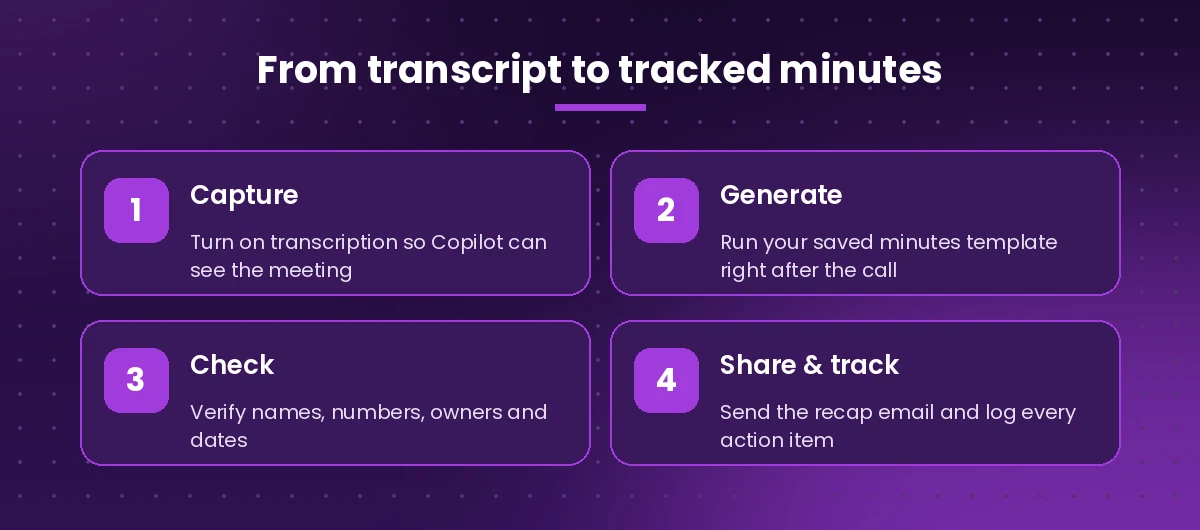
A simple routine looks like this:
- Turn on transcription when the meeting starts, or set Copilot to work during and after the meeting.
- Run your saved copilot prompt for meeting minutes as soon as the call ends, while details are fresh.
- Review the output against the checklist above.
- Send the recap email and add actions to your task tool.
- Open the next meeting by reviewing the previous action items.
Save your favorite prompts in a shared note or a Copilot prompt library so new team members use the same format from day one. When you find a copilot prompt for meeting minutes that works for your team, treat it as a standard and refine it over time.
Working from a raw transcript instead of formal minutes? See our Copilot prompt to summarize meeting transcript guide for recap, speaker and client-ready templates.
Frequently Asked Questions
What is the best Copilot prompt for meeting minutes?
A strong all-round option asks for formal minutes with fixed sections: attendees, agenda items, key decisions, an action items table with owner and due date, open questions and next meeting. Adding “write Not specified instead of guessing” keeps the output accurate.
Can Copilot take meeting minutes automatically in Teams?
Copilot can generate notes when you ask, and the Recap tab may show AI notes and tasks after the meeting, depending on your license. For collaborative live notes, some tenants can use the Facilitator agent. You still need to review the output.
Does Copilot need transcription to write minutes?
To ask Copilot about a meeting after it ends, transcription must be turned on during the meeting. If the organizer chose the “Only during the meeting” option, ask for your minutes before you leave the call.
Why can’t Copilot find my meeting?
Common reasons are that transcription was off, Copilot was disabled in the meeting options, the meeting was hosted by another organization, or you do not have a Copilot license that covers Teams meetings.
Can I use Copilot to write minutes from a recording or an uploaded transcript?
Yes, in many cases. You can upload or reference a transcript file in Copilot Chat and use the same templates. Results depend on the quality of the transcript and the file access your organization allows.
Are Copilot meeting minutes accurate enough for official records?
They are a fast first draft, not a final record. Copilot can mishear names, numbers or decisions, so have the chair, secretary or meeting owner review and approve the minutes before they are filed or shared.

One Comment