Copilot Prompt to Summarize Meeting Transcript: 22 Powerful Templates That Work
A Copilot prompt to summarize meeting transcript text works best when it tells Copilot exactly what kind of summary you need, who will read it and how much detail to keep. A transcript is a raw, messy record of everything people said, including false starts, side jokes and half-finished thoughts. Ask for “a summary” and you get a tidy paragraph that hides the decisions. Ask for the right shape and you get something you can actually forward.
This guide is about the transcript itself: the text file Teams creates when transcription is on, a transcript you downloaded, or one exported from another tool and pasted or uploaded into Copilot. If you need formal minutes with attendees and a numbered action list, our guide to the Copilot prompt for meeting minutes covers that format in depth. Here we focus on pulling different kinds of meaning out of the same raw words.
Square brackets in every template mark the parts you replace. Copy a prompt, swap in your details, and run it.
Where Copilot Can Read a Transcript
Before writing any prompt, check that Copilot actually has the transcript in front of it. There are three common situations, and each needs a slightly different opening line.
- Inside a Teams meeting or its recap. If transcription was running, Copilot in Teams can answer questions about the meeting during the call and afterward from the meeting’s recap and chat. Microsoft explains the options in its guide to catching up on meetings with Copilot in Teams.
- In Microsoft 365 Copilot Chat with a file. You can reference a meeting or a transcript file you have access to, or upload a downloaded .docx or .vtt transcript, and then prompt against it.
- Pasted text. For a transcript from Zoom, Google Meet, a recorder app or an interview tool, paste the text directly into the chat or upload it as a document.
If transcription was never turned on, there is nothing for Copilot to read. Microsoft’s page on live transcription in Teams meetings shows how to start it; your admin’s policies decide whether the option appears for you.
Opening lines for each source
Using the transcript of [meeting name] on [date], ...Using the attached transcript file, ...Below is a meeting transcript between [roles or names]. Using only this text, ...
[paste transcript]That last phrase, “using only this text,” matters more than it looks. It tells Copilot not to blend in outside knowledge or guess at things nobody said.
How to Build a Copilot Prompt to Summarize Meeting Transcript Text
Most weak summaries come from prompts that leave out one of five things. Run through them before you hit enter.
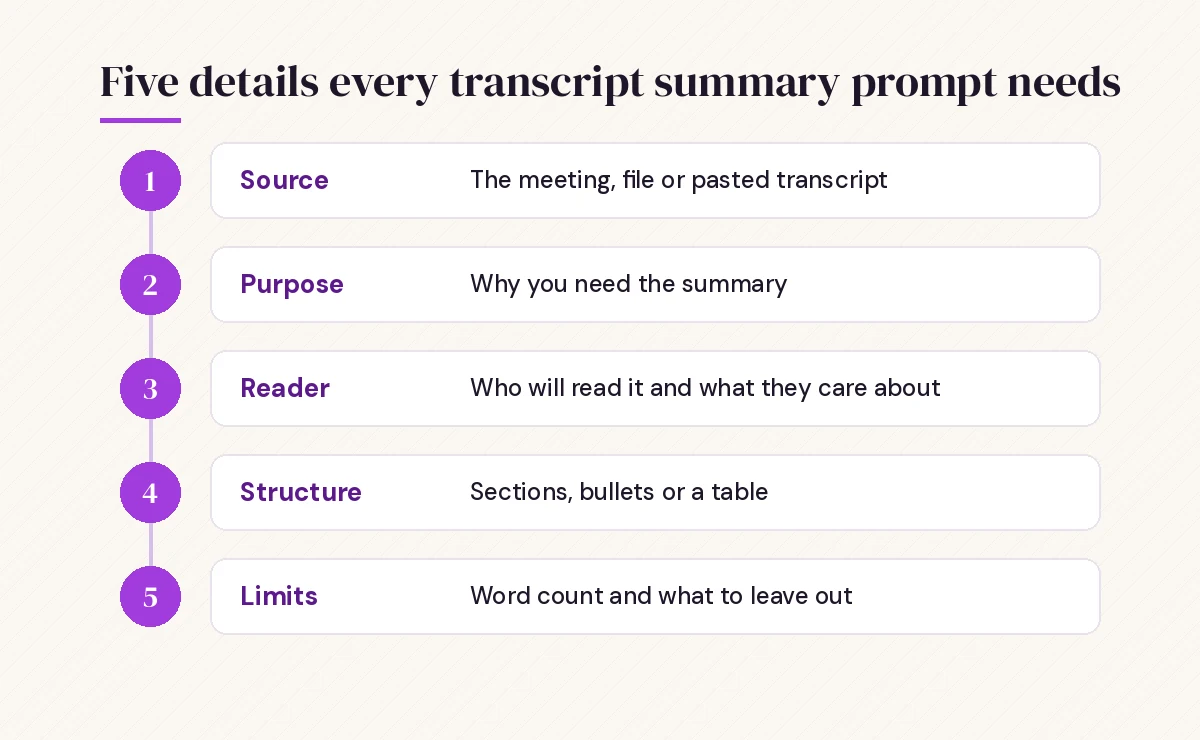
- Source. Point to the exact meeting, file or pasted text.
- Purpose. Say why you need the summary: to brief an absent colleague, to update a client, to prepare for the next session.
- Reader. An executive wants outcomes and risks. A teammate wants tasks and context. An auditor wants who said what.
- Structure. Name the sections or ask for a table. Copilot follows a requested layout closely.
- Limits. Give a word count, a bullet cap, or a rule such as “do not include small talk.”
Here is the difference in practice. A weak request:
Summarize this transcript.A stronger request built from the five parts:
Using the attached transcript of today's vendor review, write a summary for my director, who missed the call. Start with a two-sentence overview, then list decisions, open risks and next steps as separate bullet groups. Keep it under 200 words and skip greetings, tangents and scheduling chatter.22 Copy-Ready Prompts for Summarizing Transcripts
The templates below are grouped by what you want out of the conversation, so you can pick the Copilot prompt to summarize meeting transcript text that fits the moment. Mix and match them; you can run several against the same transcript in one chat.
Quick overviews
1. The two-minute recap
Using the transcript of [meeting], give me a recap I can read in two minutes: the purpose of the meeting, the three most important points discussed, every decision made and every next step with an owner. Use short bullets.2. The one-paragraph brief
Summarize this transcript in one paragraph of no more than 90 words for someone senior who only needs the outcome. Lead with the main decision or result.3. Topic-by-topic summary
Break this transcript into the main topics discussed, in the order they came up. For each topic, give a heading, a two-line summary and any decision reached. Mark topics with no decision as "unresolved."4. The “what changed” summary
Compared with the plan described at the start of this meeting, what changed by the end? List each change, why it happened according to the speakers, and who proposed it.Decisions, actions and accountability
5. Action items table
From this transcript, extract every task someone agreed to do. Show a table with columns: Task, Owner, Due date (write "not stated" if none was mentioned), and the exact quote where it was agreed.6. Decisions log
List every decision made in this meeting. For each, give the decision in one sentence, who made or approved it, and any condition attached to it. Do not include ideas that were only suggested.7. Open questions and parking lot
Which questions were raised in this transcript but not answered? List each one, who asked it, and who seemed best placed to answer it based on the conversation.8. Commitment check
Find every statement where someone said "I will," "we will," "I'll check," or similar. Group them by person so each attendee can see what they committed to.Speaker-aware summaries
9. Summary by speaker
Summarize this transcript by speaker. For each person, list their main points, concerns and requests in three bullets or fewer. Keep their wording close to what they actually said.10. Where people disagreed
Identify the points where participants disagreed or pushed back. For each, summarize both positions fairly in neutral language and note whether the disagreement was settled.11. Key quotes
Pull the five most important direct quotes from this transcript, with the speaker's name and the approximate timestamp. Choose quotes that capture a decision, a concern or a commitment.Timestamps only appear if the transcript file includes them, so this works best with Teams transcripts or .vtt files.
Summaries for a specific audience
12. For your manager
Turn this transcript into a status update for my manager. Cover progress, blockers, decisions that need their input and anything that affects deadlines or budget. Under 150 words, plain language.13. For a client
Write a client-facing summary of this call. Include what we discussed, what we agreed and what happens next. Leave out internal comments, pricing debates and anything said after the client left. Professional, friendly tone.14. For someone joining the project
Summarize this transcript for a new team member who has no background on the project. Explain any acronyms or project names mentioned, and list the three things they should know before the next meeting.15. Follow-up email draft
Based on this transcript, draft a follow-up email to all attendees with a short recap, the decisions made and a bulleted list of action items with owners. Subject line included.When the email needs polishing, our Copilot prompts for Outlook guide has templates for tone and length.
Special meeting types
16. Interview or research session
This is a transcript of a user research interview. Summarize the participant's goals, frustrations and direct quotes about [product or feature]. Separate what they said from what the interviewer suggested.17. Webinar or all-hands
Summarize this webinar transcript as a short article for people who missed it: main message, three key takeaways, and the questions from the audience with the answers given.18. Sales or discovery call
From this sales call transcript, summarize the customer's needs, budget signals, timeline, decision makers mentioned and objections raised. End with suggested next steps.19. Training session
Turn this training transcript into a study guide: the main concepts in order, a one-line definition of each, any steps that were demonstrated, and five review questions.Long and multi-part transcripts
20. Section-by-section first pass
This transcript is long. First, list the main sections of the conversation with approximate start times. Then wait for me to ask about a specific section before summarizing it in detail.21. Combine several transcripts
Using the transcripts of [meeting 1], [meeting 2] and [meeting 3], summarize how the discussion of [topic] developed across the three sessions. Show what was decided in each meeting and what is still open.22. Accuracy check
Review the summary you just wrote against the transcript. List any point that is not clearly supported by what someone said, and any important point from the transcript that the summary left out.A Simple Workflow From Transcript to Shared Summary
Good prompts are half the job. The other half is a routine you follow every time, so summaries stay consistent and nobody forwards something inaccurate.
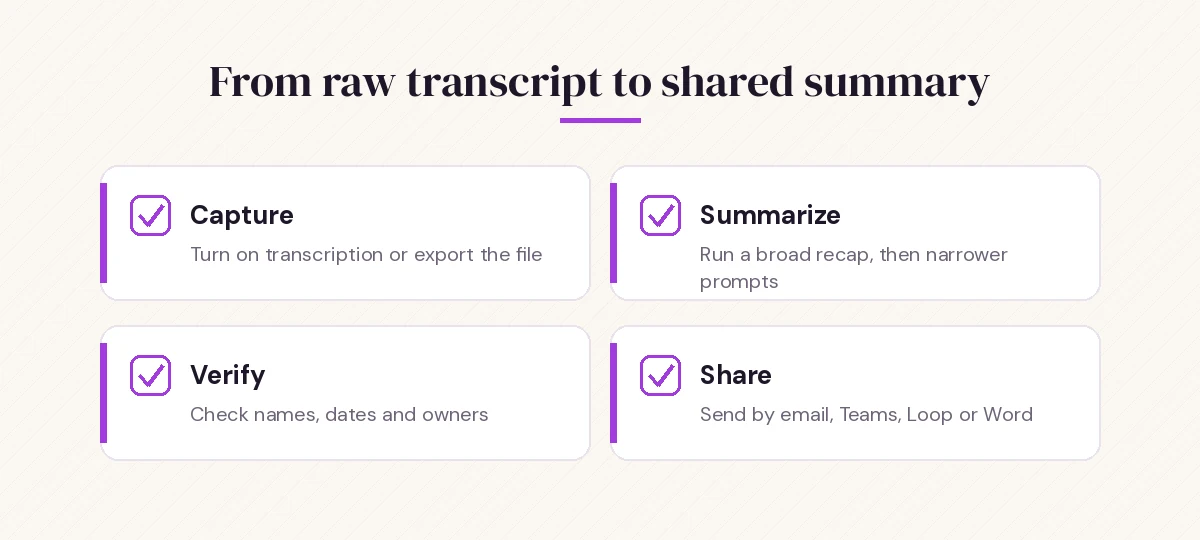
- Capture. Make sure transcription is on at the start of the meeting, or that you have the exported file from your other tool.
- Summarize. Run a broad prompt first (template 1 or 3), then narrower ones for actions, decisions or a specific reader.
- Verify. Use template 22, then spot-check names, numbers, dates and owners against the transcript yourself.
- Share. Paste the result into an email, a Teams post, a Loop component or a Word document, depending on where your team tracks work.
If you summarize the same type of meeting every week, save your best Copilot prompt to summarize meeting transcript files as a reusable template. Our guide on how to write Copilot prompts explains how to turn a one-off request into a template you can refine.
Common Problems and How to Fix Them
| Problem | Likely cause | Fix |
|---|---|---|
| Summary is vague and generic | No reader or purpose stated | Name the audience and why they need it |
| Important decision missing | Decision was phrased casually in the call | Ask for “every decision, including informal agreements” |
| Wrong owner on a task | Speaker labels were unclear in the transcript | Ask Copilot to quote the line and check it yourself |
| Includes small talk | No limit set | Add “skip greetings, tangents and scheduling chatter” |
| Copilot says it cannot find the meeting | Transcript was off or you lack access | Upload or paste the transcript instead |
| Summary invents details | Prompt allowed outside knowledge | Add “using only this transcript” and run the accuracy check |
A note on speaker names: automatic transcripts sometimes label a person as “Speaker 1” or attach a line to the wrong attendee, especially when several people share a meeting room microphone. If ownership matters, fix the labels first or tell Copilot who each speaker is.
In this transcript, Speaker 1 is [name, role] and Speaker 2 is [name, role]. Use their names in the summary.Privacy and Good Judgment
Transcripts often capture more than people realize: personal comments, early ideas, frank opinions about other teams. Before you share any summary, read it the way an attendee would. Ask yourself whether everyone in the meeting would be comfortable seeing it.
A few habits help:
- Tell attendees when a meeting is transcribed, and follow your organization’s recording policy.
- For client or external summaries, explicitly ask Copilot to exclude internal discussion (template 13).
- Do not paste sensitive transcripts into a consumer chat tool if your company provides Microsoft 365 Copilot Chat with work sign-in. Check your organization’s guidance on which tool to use.
- Keep the original transcript as the record. The summary is a convenience, not a replacement.
Going Further With Your Meeting Content
Once the summary is done, the transcript can do more work for you. You can ask Copilot to draft the agenda for the next meeting based on open questions, turn the action table into a Planner-ready list, or compare what was promised in this meeting with what was delivered since the last one.
For live meetings, our collection of Copilot prompts for Teams meetings covers questions you can ask while the call is still running, such as “what have I missed?” or “where do we disagree?” And if you need to compare two versions of a written record, the guide to Copilot prompts for comparing 2 documents shows how to spot differences between drafts.
The core idea behind any Copilot prompt to summarize meeting transcript content is the same in every case. Tell Copilot what you want, who it is for and what to leave out, and a long transcript becomes a short, accurate summary in a minute or two.
Frequently Asked Questions
Can Copilot summarize a Teams meeting if transcription was off?
Usually not after the meeting ends. Copilot in Teams needs a transcript to answer questions once the call is over. Some organizations allow Copilot to run during a meeting without saving a transcript, but then its help is limited to the live session. Turn transcription on at the start if you want a summary later.
Can I summarize a Zoom or Google Meet transcript with Copilot?
Yes. Export the transcript from that tool, then paste the text into Microsoft 365 Copilot Chat or upload the file, and start your prompt with “Using only this transcript.”
What is the best Copilot prompt to summarize meeting transcript files quickly?
Start with a recap prompt that names the source, the reader and the structure, for example: purpose of the meeting, three key points, decisions and next steps with owners, in short bullets. Then follow up with narrower prompts for actions or a specific audience.
How do I get Copilot to list action items with owners and dates?
Ask for a table with Task, Owner, Due date and the quote where it was agreed, and tell Copilot to write “not stated” when no date was mentioned. The quote column makes it easy to check each owner against the transcript.
Why does Copilot sometimes get speaker names wrong?
Automatic transcripts can mislabel speakers, especially in shared meeting rooms. Correct the labels first or tell Copilot which speaker is which, and verify any task ownership before you share the summary.
Is it safe to share a Copilot transcript summary with clients?
Only after you review it. Ask Copilot to leave out internal comments and anything said after the client left, then read the result yourself to make sure nothing private or inaccurate remains.
One Comment