Copilot Prompt to Create PowerPoint Presentations: 22 Proven Templates for Better Decks
A good Copilot prompt to create PowerPoint presentations turns a blank file into a structured first draft in a few minutes, but only if you give Copilot the same brief you would give a colleague: who the deck is for, what it must achieve, how long it should be and which material to build from. Ask for “a presentation about our product” and you get generic slides. Ask with a clear brief and you get something you can actually present after an edit or two.
This guide gives you 22 copy-ready versions of a Copilot prompt to create PowerPoint presentations, from one-line starters to file-based builds and follow-up prompts that fix a weak draft. It also explains how deck creation works in Copilot in PowerPoint today, what to prepare before you type, and where AI still needs a human check. Replace everything in [square brackets] with your own details.
How a Copilot Prompt to Create PowerPoint Presentations Works Now
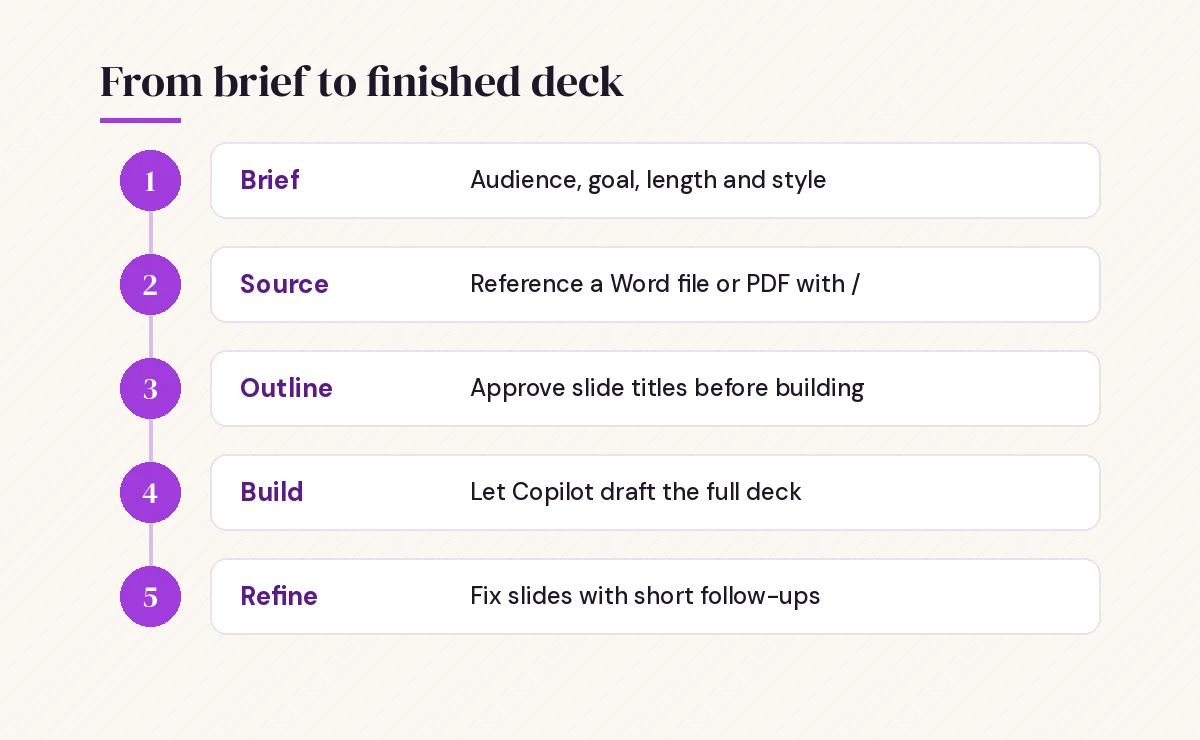
You no longer need a special command. You open a new presentation, open Copilot, describe the deck you want, and Copilot drafts the slides for you.
- Start a new presentation in PowerPoint (or open your organization’s template first).
- Select the Copilot icon to open the Copilot pane.
- If your organization uses Brand Kits, choose the one Copilot should apply.
- Describe the presentation in the prompt box, or reference a file with “/” followed by its name.
- Answer any clarifying questions Copilot asks about audience, length, design or imagery, or skip them.
- Review the draft and keep refining it with follow-up prompts.
Microsoft’s step-by-step guide to creating a new presentation with Copilot in PowerPoint covers the current menus, Brand Kit options and supported versions. The interface changes often, so treat it as the reference if a button has moved. Copilot in PowerPoint also depends on your Microsoft 365 license and your admin’s settings, so if you do not see it at all, check which plan you have.
What Copilot Needs Before It Can Build a Good Deck
Copilot fills every gap you leave with safe, generic choices. The fastest way to better slides is to close those gaps in the prompt itself. Before you write any Copilot prompt to create PowerPoint presentations, decide on these six things:
- Topic and goal. Not just “Q3 results”, but “convince leadership to approve a second support team”.
- Audience. Executives, new hires, customers and engineers all need different depth and vocabulary.
- Length. Give a slide count or a time limit, such as “10 slides” or “a 15-minute talk”.
- Structure. Name the sections you want, in order, if you already know them.
- Source. Point Copilot at a Word document, PDF or notes file whenever the facts live somewhere else.
- Style. Tone, visual direction and anything to avoid, such as “no stock photos of handshakes”.
The same goal, context, source and expectations pattern from our guide on how to write Copilot prompts applies here. Slides just add two extra details: length and visual style. Here is how a vague request compares with a specific Copilot prompt to create PowerPoint presentations:
| Weak request | Stronger request |
|---|---|
| Make a presentation about onboarding | Create an 8-slide onboarding deck for new support agents covering tools, first-week schedule and escalation rules |
| Do a sales deck | Create a 10-slide pitch for mid-size retailers explaining how [product] cuts checkout time, with one slide per objection |
| Summarize this report in slides | Create a 12-slide deck from /[Report] for the leadership team, with a one-slide executive summary first |
| Make it look nice | Use a clean, modern style with plenty of white space, one key message per slide and simple icons instead of photos |
5 Starter Templates for a Deck from a Blank Slide
These work when the content is mostly in your head. Each Copilot prompt to create PowerPoint presentations below includes an audience, a length and a structure, which is the minimum for a usable first draft.
1. The general-purpose brief
Create a [number]-slide presentation about [topic] for [audience]. The goal is to [inform / persuade / train] them so that [desired outcome]. Include a title slide, an agenda, [3-4] main sections and a closing slide with next steps. Keep each slide to one main idea and no more than four bullet points.2. The time-boxed talk
I have [15] minutes to present [topic] to [audience]. Create a deck that fits that time, roughly one slide per minute and a half. Open with a question or surprising point, end with a clear call to action, and add speaker notes for every slide.3. The problem-solution story
Create a presentation that follows a problem, impact, solution, plan structure. Problem: [describe]. Impact: [who it affects and how]. Solution: [your proposal]. Plan: [timeline or steps]. Audience: [audience]. Length: [8-10] slides. Tone: confident and practical.4. The explainer for non-experts
Create a 7-slide introduction to [technical topic] for people with no background in it. Use plain language, one everyday analogy, and a simple diagram-style layout where it helps. Finish with a slide of three key terms and their definitions.5. The outline-first request
Before creating any slides, draft an outline for a presentation on [topic] for [audience]: slide titles plus two or three bullet points each. Wait for my feedback before you build the deck.The outline-first approach is worth adding to any Copilot prompt to create PowerPoint presentations that matters. Fixing a list of slide titles takes seconds, while reorganizing a finished deck takes much longer.
Prompts That Build Slides from an Existing File
Most real presentations already exist as a report, proposal or meeting notes. Adding a file reference to your Copilot prompt to create PowerPoint presentations keeps facts closer to the original and saves you from retyping. Type “/” in the prompt box and pick the file from OneDrive or SharePoint.
6. Word document to deck
Create a presentation from /[Document name]. Turn each main heading into a section, keep the key numbers exactly as written, and add a summary slide at the start. Limit the deck to [12] slides.Copilot reads the structure of your document, so headings formatted with Word’s built-in Heading styles produce cleaner sections. If your source needs work first, our Copilot prompts for Word can help you tidy and restructure it before you convert it.
7. Report to executive briefing
Use /[Report name] to create a 6-slide executive briefing. Slide 1: the three findings that matter most. Slides 2-4: one finding each with supporting evidence from the report. Slide 5: risks. Slide 6: decisions we need. Do not add facts that are not in the report.8. Proposal to client pitch
Create a client-facing pitch deck from /[Proposal document]. Focus on the client's problem, our approach, timeline, team and pricing summary. Leave out internal notes and anything marked confidential. Use a persuasive but not salesy tone.9. Meeting notes to update deck
Turn /[Meeting notes] into a 5-slide project update: decisions made, progress since the last update, open risks, next steps with owners, and questions for the steering group.10. Two sources, one story
Create a presentation using /[File 1] for background and /[File 2] for the latest figures. Where the two files disagree, use the figures from /[File 2] and add a speaker note flagging the difference.Always check numbers, names and dates against the source file. Copilot is good at structure and summary, but it can round, merge or misplace figures. If you regularly turn documents into decks, the templates in our guide to Copilot prompts for report writing help you produce source files that convert more cleanly.
Templates for 7 Common Presentation Types
Different decks follow different conventions. Each Copilot prompt to create PowerPoint presentations in this section bakes the expected structure into the request, so Copilot does not have to guess.
11. Startup or product pitch
Create a 10-slide pitch deck for [product]. Slides: problem, solution, how it works, market, business model, traction, competition, team, roadmap, ask. Audience: [investors / partners]. Use short headlines that state the point, not just a label.12. Quarterly business review
Create a quarterly business review deck for [team or account] covering [quarter]. Include: goals versus results, highlights, misses and why, customer feedback themes, priorities for next quarter, and support needed. Use placeholders such as [metric] wherever I need to insert real numbers.13. Training session
Create a 12-slide training presentation that teaches [skill or process] to [audience]. Include learning objectives, a step-by-step walkthrough, a common mistakes slide, a short practice exercise and a 3-question knowledge check at the end. Add trainer notes to every slide.14. Project kickoff
Create a project kickoff deck for [project name]. Cover the why, scope and out-of-scope items, timeline with milestones, roles and responsibilities, communication plan and how we will measure success. Audience: the project team and sponsors.15. Sales presentation for a specific prospect
Create an 8-slide sales presentation for [prospect company], a [industry] business with [size] employees. Lead with their likely challenges in [area], show how [product] addresses each one, include one slide for a customer story placeholder and finish with a clear next step.16. Conference or webinar talk
Create a 20-minute conference talk on [topic] for [audience]. Start with a story, build around three key ideas, use minimal text and large visuals, and end with a single memorable takeaway. Put the detail in speaker notes rather than on the slides.17. Board or leadership update
Create a concise board update on [topic]. Five slides maximum: summary, performance against plan, key risks with mitigations, decisions requested, and appendix. Formal tone, no jargon, and every headline should be a full sentence that states the conclusion.For dozens more prompts covering editing, design and delivery, see our full collection of Copilot PowerPoint prompts.
Follow-Up Prompts to Shape the First Draft
Even the best Copilot prompt to create PowerPoint presentations produces a first draft, not a finished deck. The real gains come from short follow-ups that fix specific problems instead of regenerating the whole deck.
18. Tighten the text
Rewrite every slide so it has a headline that states the main point and no more than three bullets of under twelve words each. Move any extra detail into the speaker notes.19. Add or reorder slides
Add a slide after slide [number] that explains [topic] with a simple three-step visual. Then move the pricing slide so it comes right before the closing slide.20. Change the tone for a new audience
Adapt this presentation for [new audience]. Replace internal jargon with plain language, remove slides about [topic they do not need], and add one slide on what this means for them.21. Speaker notes and timing
Write speaker notes for every slide in a conversational tone, about [60-90] seconds of talking each. Add a transition sentence at the end of each note that leads into the next slide.22. The critical review
Review this presentation as a skeptical [executive / customer]. Which slides are unclear, unsupported or unnecessary? List the three biggest weaknesses and suggest a specific fix for each.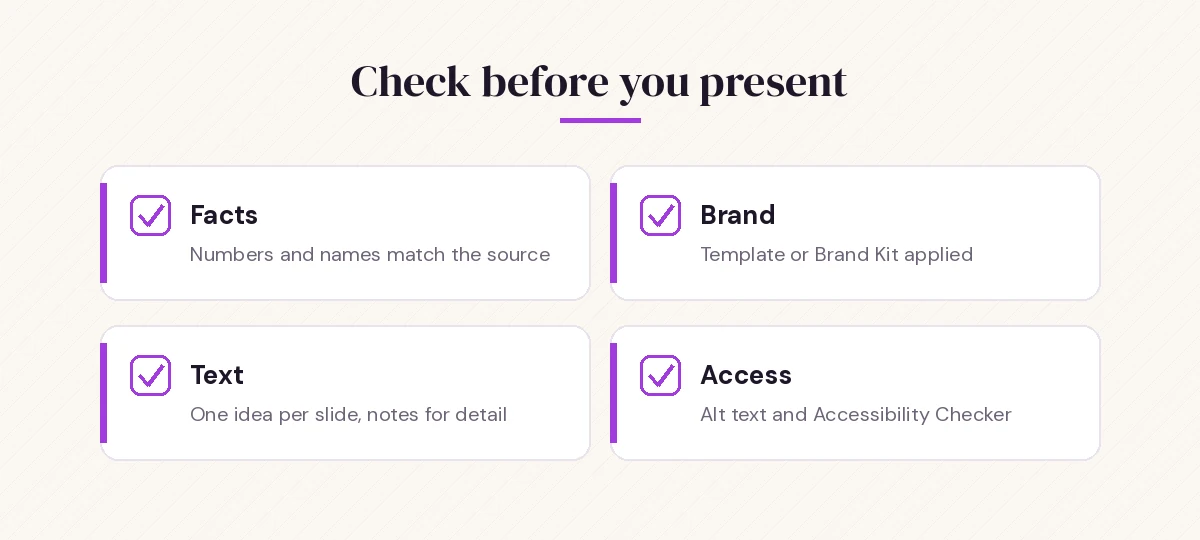
A Worked Example: From Two Lines to a Usable Deck
Here is how a realistic Copilot prompt to create PowerPoint presentations plays out for a team lead preparing a proposal for a new support process.
Round 1, the brief. Instead of “make a deck about the new support process”, the team lead writes:
Create a 9-slide presentation for our operations leadership proposing a tiered support model. Use /Support_Process_Proposal as the source. Structure: current problem, impact on customers, proposed tiers, staffing, rollout timeline, risks, costs, decision needed. Professional tone, simple icons, no stock photos.Round 2, the outline check. Copilot asks about the audience’s familiarity with the current process. The team lead answers “they know the basics but not the ticket volumes” and lets Copilot build the deck.
Round 3, targeted fixes. The costs slide is too dense, so the next prompt is: “Split the costs slide into one-time costs and ongoing costs, and keep the totals exactly as written in the source file.”
Round 4, delivery prep. Finally: “Add speaker notes for slides 1 to 9, about one minute each, and suggest two questions leadership is likely to ask.”
Four short, specific prompts produce a deck that matches the source, fits the audience and is ready to rehearse. The pattern is brief, check, fix, prepare, and it matters more than the exact wording of any single Copilot prompt to create PowerPoint presentations.
When the Deck Comes Out Wrong: Quick Fixes
The slides are generic. Your Copilot prompt to create PowerPoint presentations probably lacked audience, goal or source. Add them and regenerate, or reference a file so Copilot has real content to work from.
Too much text per slide. Ask for one idea per slide, a word limit per bullet and detail in the speaker notes, as in template 18.
The design ignores your branding. Start from your organization’s template, or select the Brand Kit if one is available. Copilot uses the layouts already in the file, so a blank default file gives it nothing to follow.
Facts or numbers are wrong. Tell Copilot to use only the referenced file and to keep figures exactly as written. Then check every number yourself before you share the deck.
Copilot cannot find your file. It can only reference files you have access to, usually stored in OneDrive or SharePoint. Upload local files first, and keep very large documents to a manageable size; Microsoft notes that Copilot works best with Word documents smaller than 24 MB.
The deck is too long or too short. Give an explicit slide count, or ask Copilot to merge or split specific slides rather than rebuilding everything.
Know the Limits Before You Present
Copilot speeds up drafting, but it does not know your audience’s politics, your latest numbers or what your manager said in the hallway. Treat every deck that comes from a Copilot prompt to create PowerPoint presentations as a draft.
- Accuracy. AI can misread sources or fill gaps with plausible but wrong statements. Verify facts, names and figures.
- Images. Check that generated or suggested images are appropriate, relevant and allowed under your organization’s policies.
- Accessibility. Ask Copilot to add alt text where needed, then run PowerPoint’s Accessibility Checker before you share.
- Confidentiality. Only reference files you are allowed to use for that audience, and remove internal notes before sending a deck externally.
Save each Copilot prompt to create PowerPoint presentations that works well for you in a personal prompt library, a OneNote page or your team’s shared document. With a clear brief, a referenced source and a few targeted follow-ups, Copilot does the heavy lifting of structure and drafting while you keep control of the message.
Frequently Asked Questions
What is the best Copilot prompt to create PowerPoint presentations?
A strong Copilot prompt to create PowerPoint presentations states the topic, the audience, the goal, the slide count, the structure you want and any source file. For example: create a 10-slide presentation for new customers explaining how to get started with our product, with an agenda, five how-to slides and a closing slide with support contacts.
Can Copilot create a PowerPoint presentation from a Word document?
Yes. In Copilot in PowerPoint you can reference a Word document by typing “/” followed by the file name and ask Copilot to build a deck from it. Using Word’s Heading styles in the source helps Copilot split the content into sensible slides, and the file usually needs to be stored in OneDrive or SharePoint.
Do I need a paid license to use Copilot in PowerPoint?
Copilot inside PowerPoint requires a Microsoft 365 subscription or license that includes it, and in work accounts your admin must have it enabled. Plans and features change, so check your current subscription details if the Copilot icon does not appear.
How many slides can Copilot create at once?
Copilot generates a full draft deck in one go, and you can control the length by asking for a specific number of slides or a time limit. For long presentations, it is often better to build the deck section by section so each part stays focused.
Can Copilot use my company’s PowerPoint template?
Yes. Start from your organization’s template file before prompting, and Copilot will use its existing layouts and theme. If your organization has published a Brand Kit, you can select it so Copilot applies the approved logos, fonts and colors.
Why does Copilot make generic or inaccurate slides?
Generic slides usually come from vague prompts without an audience, goal or source. Inaccurate slides happen because AI can misread or invent details. Reference a source file, tell Copilot to use only that file, and always check numbers, names and dates before presenting.
One Comment