Copilot Instructions File: 9 Proven Examples to Make GitHub Copilot Follow Your Rules
A Copilot instructions file is a plain Markdown file in your repository that tells GitHub Copilot how your project works, so you stop repeating the same rules in every chat. Write it once, commit it, and Copilot adds it as background context to the requests you make in that repo.
Without one, Copilot guesses. It might suggest Jest when your team uses Vitest, reach for moment.js when you standardized on date-fns, or skip the test command your CI depends on. None of those suggestions are wrong in general. They are just wrong for your codebase. A short, well-written copilot-instructions.md closes that gap.
This guide covers where the file lives, what belongs in it, how path-specific rules and AGENTS.md fit alongside it, nine examples you can copy, and how to confirm Copilot is really reading what you wrote.
What a Copilot Instructions File Actually Does
Think of it as onboarding notes for a new teammate who reads very fast but knows nothing about your project. Copilot already understands languages and frameworks. What it lacks is local knowledge: which commands build the app, which folders hold what, which patterns your team avoids and why.
When you send a request in a supported Copilot feature, the contents of the file are added to that request automatically. You do not attach it or mention it. In Copilot Chat you can usually see it listed under the references for a response, which is the quickest way to confirm it was used.
A few things it does not do are worth knowing up front:
- It does not guarantee obedience. Copilot treats your rules as strong guidance, not hard constraints, so review output as you normally would.
- In VS Code, custom instructions are not applied to inline suggestions as you type. They shape chat, agent and review features.
- It does not replace linters, formatters or CI checks. Let tools enforce what tools can enforce, and use instructions for the judgment calls.
Where the File Goes and the Other Types You Can Use
GitHub currently supports several kinds of custom instructions, and they stack rather than replace each other. Here is how they compare.
| Type | Location | Applies to |
|---|---|---|
| Repository-wide | .github/copilot-instructions.md | Every request in the repository |
| Path-specific | .github/instructions/NAME.instructions.md | Files matching the applyTo glob |
| Agent instructions | AGENTS.md anywhere in the repo | Agents; the nearest file in the tree takes precedence |
| Personal | Your own user settings | All your requests |
| Organization | Org settings on GitHub | Members of that organization |
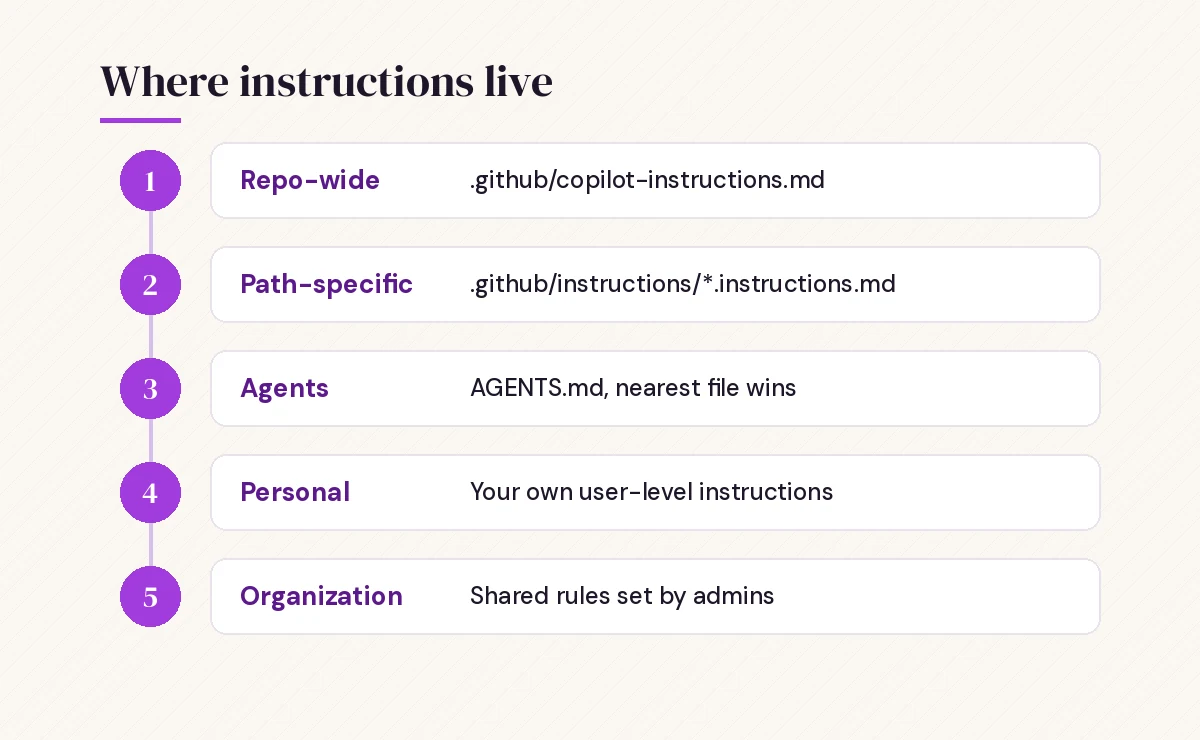
The repository-wide file is the one most people mean when they talk about Copilot instructions. Create a .github folder at the root of your repository if it does not exist, add a file named exactly copilot-instructions.md, and write your rules in natural language Markdown. GitHub’s guide to adding repository custom instructions walks through the same steps with screenshots.
When more than one set applies, GitHub’s documentation says personal instructions get the highest priority, then repository, then organization, though all relevant sets are still sent. The practical lesson is simple: avoid writing rules that contradict each other across levels, because you cannot rely on one cleanly overriding another.
What to Put in Your Copilot Instructions File
The best files answer the questions a capable new developer would ask in their first hour. Aim for these sections, in roughly this order:
- Project summary. Two or three sentences on what the code does and who uses it.
- Tech stack and versions. Language version, framework, package manager, test runner, database.
- Build, test and lint commands. The exact commands, in the order they must run, including anything that looks optional but is not.
- Project layout. Where routes, models, components, tests and config live.
- Conventions. Naming, error handling, logging, state management, preferred libraries.
- Things to avoid. Deprecated modules, patterns you are migrating away from, files that are generated and should never be edited by hand.
Keep it short. GitHub’s own prompt for generating this file asks for instructions no longer than two pages and not tied to any single task. That is a good ceiling for hand-written files too. Long files dilute the important rules and waste context.
Write rules Copilot can follow
Each line should be a single, testable statement. Compare these two versions:
Write good, clean code and follow best practices.Use named exports only. Default exports break our barrel files in src/index.ts.
Return Result<T, AppError> from service functions instead of throwing.
Run `pnpm test --filter <package>` after changing code in packages/.The first tells Copilot nothing it does not already assume. The second gives it three concrete behaviors, and the short reasons help it make sensible choices in edge cases. VS Code’s documentation makes the same point: explaining why a convention exists leads to better decisions than the bare rule alone.
9 Copilot Instructions File Examples You Can Copy
Each example below is a starting point. Replace the bracketed parts, delete anything that does not apply, and keep only rules you would actually enforce in a code review.
1. Minimal starter for any repository
# Project instructions

This is [one-sentence description of the project].

## Stack
- [Language and version], [framework and version]
- Package manager: [npm / pnpm / pip / poetry / maven]
- Tests: [test runner]

## Commands
- Install: `[install command]`
- Build: `[build command]`
- Test: `[test command]`
- Lint: `[lint command]`

## Rules
- Add or update tests for every behavior change.
- Do not edit files in [generated folder]; they are generated by [tool].
- Ask before adding a new dependency.
2. TypeScript and React front end
# Front-end instructions

- React 18 with TypeScript in strict mode. Never use `any`; prefer `unknown` plus narrowing.
- Function components and hooks only. No class components.
- Styling uses CSS Modules. Do not add inline style objects except for dynamic values.
- Data fetching goes through hooks in src/api/. Components must not call fetch directly.
- Every new component gets a colocated `*.test.tsx` using React Testing Library.
- Use accessible markup: buttons for actions, links for navigation, labels on every input.
3. Python API service
# Backend instructions

- Python 3.12, FastAPI, SQLAlchemy 2.0 with async sessions.
- Type hints on every function signature. We run mypy in strict mode in CI.
- Routes live in app/routes/, business logic in app/services/, database access in app/repositories/.
- Raise domain errors from app/errors.py; never return raw database exceptions to clients.
- Use `structlog` for logging. Do not use print statements.
- Run `pytest -q` and `ruff check .` before declaring a change complete.
4. Testing-first team
# Testing rules

- Write or update the test before changing implementation code when fixing a bug.
- Name tests `test_<behavior>_when_<condition>`.
- Use fixtures from tests/conftest.py; do not duplicate setup helpers.
- Mock only external services (HTTP, email, payment). Never mock our own modules.
- A change is not finished until the full suite passes locally.
5. Security-sensitive codebase
# Security requirements

- Never hard-code secrets, tokens or connection strings. Read them from environment variables via config/settings.
- Validate all external input with the schemas in src/validation/ before use.
- Use parameterized queries only. String-built SQL is not allowed.
- Do not log personal data such as emails, phone numbers or tokens.
- Flag any new dependency so a human can check its license and advisories.
These rules pair well with a dedicated review pass. Our guide to the Copilot prompt for code review includes security-focused prompts that build on them.
6. Monorepo layout map
# Monorepo map

- apps/web: Next.js customer site
- apps/admin: internal dashboard (Vite + React)
- packages/ui: shared component library; changes here affect both apps
- packages/db: Prisma schema and migrations; never edit generated client code
- Run commands from the root with `pnpm --filter <name> <script>`.
- When a change touches packages/ui, mention which app pages need a visual check.
7. Docs and writing style
# Documentation style

- Write in plain English, second person, present tense.
- One idea per paragraph. Keep paragraphs under four sentences.
- Code samples must be complete and runnable; include imports.
- Use sentence case for headings.
- Update the CHANGELOG under "Unreleased" for any user-facing change.
8. Cloud agent onboarding
If you use Copilot as an agent that opens pull requests, give it the operational detail it needs to avoid failed builds:
# Agent onboarding

- Always run `npm ci` before `npm run build`; the lockfile must not change.
- The build needs Node 20. Node 22 fails on the native image dependency.
- Integration tests need Docker. If Docker is unavailable, run `npm run test:unit` only and say so in the PR description.
- CI runs lint, typecheck, unit tests and e2e in that order (see .github/workflows/ci.yml).
- Trust these instructions; search the codebase only if something here is missing or wrong.
That last line comes straight from the spirit of GitHub’s own onboarding prompt, and it saves the agent a lot of exploratory searching.
9. Prompt to generate the file for you
You do not have to start from a blank page. Paste this into Copilot Chat in agent mode with the repository open:
Analyze this repository and draft a .github/copilot-instructions.md file.
Include: a 2-sentence project summary, the stack with versions, the exact
install/build/test/lint commands (verify each one from package files and CI
workflows), the folder layout, and up to 10 conventions you can see in the code.
Keep it under two pages. Do not invent commands you cannot find evidence for.
List anything you were unsure about at the end so I can confirm it.
In VS Code you can also type /init in chat to generate project-wide instructions. Whichever route you take, read the draft carefully. Generated files sometimes list commands that do not exist or describe folders that were renamed months ago.
Path-Specific Instructions with applyTo
The repository-wide file should hold rules that apply everywhere. When guidance only matters for certain files, move it into a path-specific file so it does not clutter every request.
Create a .github/instructions folder, then add files whose names end in .instructions.md. Each one starts with a frontmatter block that uses applyTo with a glob pattern:
---
applyTo: "**/*.ts,**/*.tsx"
---
Use the logger from src/lib/log.ts instead of console.
Prefer type aliases over interfaces for props.
A few useful patterns:
**/*.pymatches every Python file in the repo.src/**/*.pymatches Python files anywhere undersrc.**/tests/**targets test folders at any depth.
When a path-specific file matches and a repository-wide file also exists, both are used. On GitHub.com, path-specific instructions currently work with the cloud agent and code review. You can add excludeAgent: "code-review" or excludeAgent: "cloud-agent" to the frontmatter if a file should only be read by one of them. In VS Code, you can also add a description field so the agent can load the file on demand when the task matches, even if no file pattern does.
Where AGENTS.md Fits
AGENTS.md is a cross-tool format that several AI coding agents understand, including Copilot. You can place one or more anywhere in the repository, and when Copilot works in a folder, the nearest AGENTS.md in the directory tree takes precedence.
Use it when your team mixes coding agents and wants one shared set of rules, or when sub-projects in a monorepo need their own guidance. If you keep both AGENTS.md and a GitHub-specific file, keep them consistent. The VS Code custom instructions documentation is explicit that there is no general precedence order between these files, so contradictions lead to unpredictable results.
How to Check Copilot Is Using Your Rules
Saving the file is not the same as Copilot following it. Run a quick test after every meaningful edit:
- Start a new chat in the repository so old context does not interfere.
- Ask for a small task where your rules clearly matter, such as “add a function that fetches the user profile and handles errors”.
- Expand the references on the response and look for
.github/copilot-instructions.mdin the list. - Check the output against your rules: right library, right folder, right error pattern, tests included.
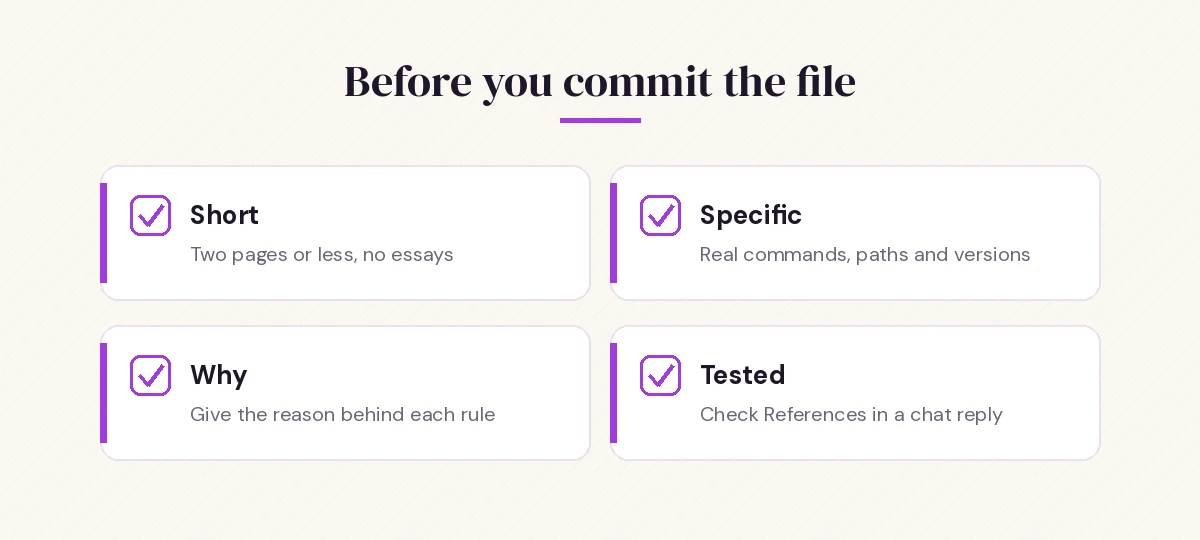
If the file is not listed, confirm the name and location first; a typo such as copilot-instruction.md is the most common cause. In VS Code, also make sure the github.copilot.chat.codeGeneration.useInstructionFiles setting is enabled, and open the Agent Customizations editor to see which instruction files were discovered. For Copilot code review on GitHub, repository owners can switch custom instructions on or off in the repository’s Copilot settings, and reviews read instructions from the head branch of the pull request, which means you can test edits to the file in the same PR.
Common Mistakes to Avoid
Writing an essay. A ten-page file full of philosophy buries the five rules that matter. Cut anything a linter already enforces.
Being vague. “Follow best practices” and “write clean code” add nothing. Name the library, the folder, the command.
Letting it go stale. Instructions that mention last year’s test runner actively mislead Copilot. Review the file whenever you change tooling, and treat edits like any other code change with a pull request.
Mixing task requests with project rules. “Add dark mode to the settings page” belongs in a chat prompt, not in the instructions file. For reusable task prompts, see our collection of GitHub Copilot prompts.
Conflicting levels. A personal rule that says “use axios” and a repo rule that says “use our fetch wrapper” will produce inconsistent results. Fix the conflict at the source.
Putting It Together
Start small. Create .github/copilot-instructions.md with your stack, your commands and five rules you care about most. Use it for a week, notice where Copilot still drifts, and add a precise line for each recurring problem. Split out path-specific files once the main file grows past a page or two, and add AGENTS.md if other agents work in the same repo.
A focused Copilot instructions file is one of the cheapest ways to get better suggestions, because it fixes the missing context once instead of in every prompt. If you want to sharpen the prompts you send on top of it, our guide on how to write Copilot prompts covers the structure that works best.
Once your rules are in place, turn the tasks you repeat into reusable slash commands with Copilot prompt files.
Frequently Asked Questions
Where do I put the Copilot instructions file?
Save it as copilot-instructions.md inside the .github folder at the root of your repository, so the full path is .github/copilot-instructions.md. Create the .github folder first if it does not exist.
Does the file name have to be exact?
Yes. Copilot looks for copilot-instructions.md specifically. Path-specific files must end in .instructions.md and live in or below .github/instructions, otherwise they will not be picked up.
How long should a Copilot instructions file be?
Short enough to scan in a minute or two. GitHub’s own generation prompt caps it at two pages, and most teams get good results with a project summary, the key commands and a handful of specific rules.
Does the instructions file affect inline code completions?
In VS Code, custom instructions are not applied to inline suggestions as you type. They shape Copilot Chat, agent sessions and code review, so that is where you will see the difference.
What is the difference between copilot-instructions.md and AGENTS.md?
copilot-instructions.md is GitHub Copilot’s repository-wide instructions file. AGENTS.md is a cross-agent format that Copilot and other coding agents also read, and you can place several in different folders, with the nearest one taking precedence. Keep the two consistent if you use both.
How can I tell if Copilot used my instructions?
Expand the references on a Copilot Chat response and look for .github/copilot-instructions.md. If it is missing, check the file name and location, and in VS Code confirm that instruction files are enabled in settings.
One Comment