Copilot Prompt Files: 10 Ready-to-Use .prompt.md Examples That Save Hours
Copilot prompt files are reusable Markdown files, saved with a .prompt.md extension, that you run as slash commands in GitHub Copilot Chat. Instead of retyping the same long request every time you scaffold a component, write tests or prepare a pull request, you save the request once and call it with a few keystrokes.
If you already keep a notes file full of favorite prompts, you are halfway there. A prompt file does the same job, but it lives inside your repository, it can carry settings like which agent and tools to use, and everyone on the team gets the same version through source control.
This guide explains how Copilot prompt files work in VS Code, how to create your first one, the frontmatter fields worth knowing, and ten examples you can paste into .github/prompts today.
What Copilot Prompt Files Are (and What They Are Not)
A prompt file is a saved chat request with optional configuration on top. You write the task in plain Markdown, add a short YAML header if you want, and Copilot treats the whole thing as if you had typed it into chat yourself.
The key difference from custom instructions is when they apply. Your Copilot instructions file is added to requests automatically, in the background, every time. A prompt file does nothing until you call it. That makes the two a natural pair:
- Instructions hold the rules that are always true: your stack, your test command, your naming conventions.
- Prompt files hold specific jobs you do repeatedly: “write unit tests for this file”, “draft release notes”, “review this endpoint for security issues”.
Keeping those separate stops your instructions from bloating with task-specific detail, and keeps each reusable prompt short and focused.
| Feature | How it runs | Best for |
|---|---|---|
| Custom instructions | Added to every request automatically | Project-wide rules and context |
| Prompt files | You invoke them with /name | Repeatable, single tasks |
| Custom agents | You switch to them in chat | A persona with its own tools and behavior |
| Agent skills | Loaded by the agent when relevant | Multi-step workflows with helper files |
Where Copilot Prompt Files Live
VS Code looks for prompt files in two places by default.
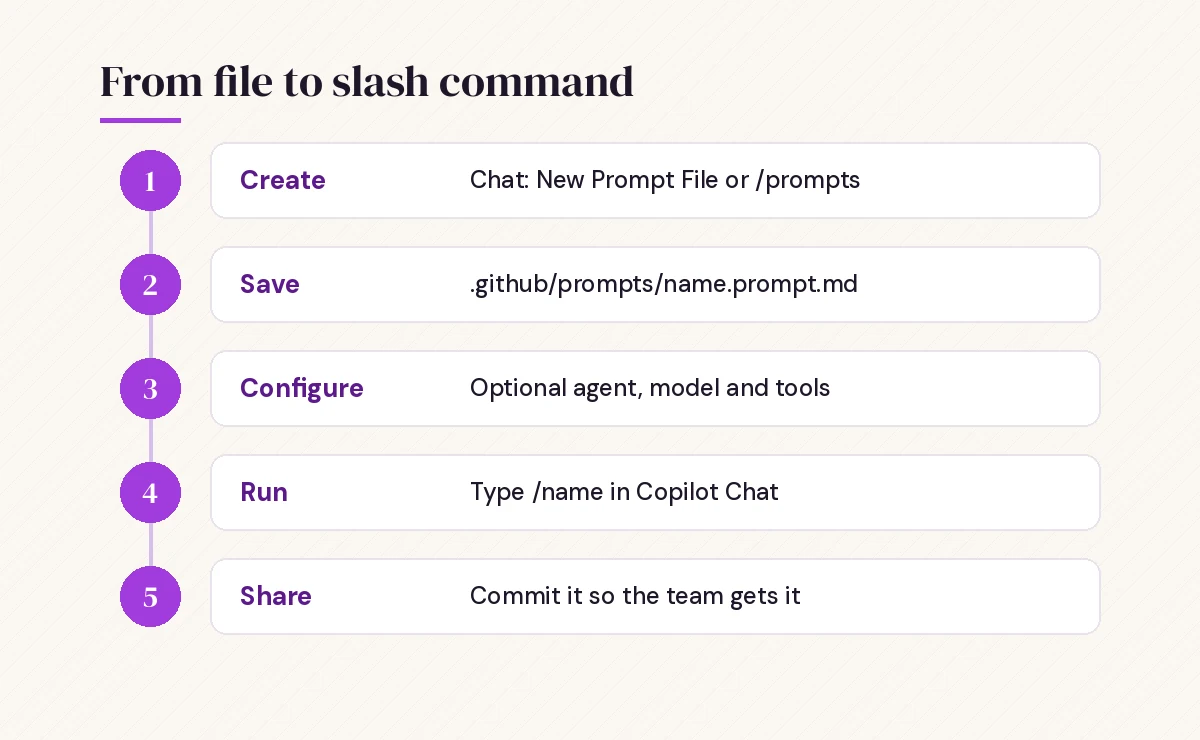
Workspace prompts go in a .github/prompts folder at the root of your repository. Commit them and every teammate who opens the project in VS Code can use them. This is the right home for anything tied to how this codebase works.
User prompts are stored in your VS Code profile rather than in a repository, so they follow you across every project you open. Use them for personal habits, such as how you like commit messages phrased or the way you prefer explanations formatted. You can sync them between machines with Settings Sync by including “Prompts and Instructions” in what gets synced.
For monorepos, VS Code has a setting that discovers customizations from the parent repository root, so one shared .github/prompts folder can serve several packages.
How to Create Your First Prompt File
The quickest way is from the chat itself. With a Local session selected in the Chat view, type /prompts to open the prompt file menu, or run Chat: New Prompt File from the Command Palette. Pick workspace or user storage, give the file a name, and VS Code opens a new .prompt.md file for you.
You can also create the file by hand. Here is a minimal one, saved as .github/prompts/explain.prompt.md:
---
description: 'Explain the selected code for a new teammate'
---
Explain the selected code to a developer who joined the team this week.

Cover what it does, why it is structured this way, and any side effects.
Keep it under 200 words and end with one question they should ask a senior engineer.
Open a file, select some code, and type /explain in chat. The file name becomes the slash command unless you set a different name in the header.
If you would rather not write the first draft yourself, type /create-prompt followed by a description of the task. The agent asks a few clarifying questions and generates the file, including frontmatter. Always read what it produces before you commit it, the same way you would review any generated code.
The Frontmatter Fields That Matter
Everything in the YAML header is optional, but a few fields change how useful your Copilot prompt files become.
| Field | What it does |
|---|---|
description | Short summary shown when you browse prompts |
name | The slash command name; defaults to the file name |
argument-hint | Placeholder text in the chat box telling people what to type after the command |
agent | Which agent runs it: ask, agent, plan, or a custom agent name |
model | Pins a specific model; otherwise the current picker choice is used |
tools | Tools the prompt can use, including MCP tools |
Two practical notes. First, if you list tools and do not set agent, the prompt runs in agent mode by default, which makes sense because tools need an agent to call them. Second, if a listed tool is not available on someone’s machine, it is simply ignored rather than causing an error. Older examples you find online may use a mode field instead of agent; check the current VS Code prompt files documentation when something does not behave as expected, because this feature is still evolving.
Variables and file references
Prompt files get far more flexible once you stop hardcoding details. You can use ${selection} for whatever the user has highlighted, and input placeholders such as ${input:componentName} or ${input:componentName:e.g. UserCard} so the model asks for, or picks up, a value you pass after the slash command.
You can also point to other files with ordinary Markdown links, using paths relative to the prompt file:
Follow our [API conventions](../../docs/api-guidelines.md) and
reuse the error format in #file:../../src/lib/errors.ts
This is the cleanest way to avoid repeating guidelines. Write the standard once, link to it from every prompt that needs it.
10 Copilot Prompt Files You Can Copy Today
Each example below is a complete file. Save it in .github/prompts/ with the name shown, adjust the paths and commands to match your project, and run it with a slash command. These pair well with the general GitHub Copilot prompts collection if you want one-off versions of the same ideas.
1. Write unit tests for the current file
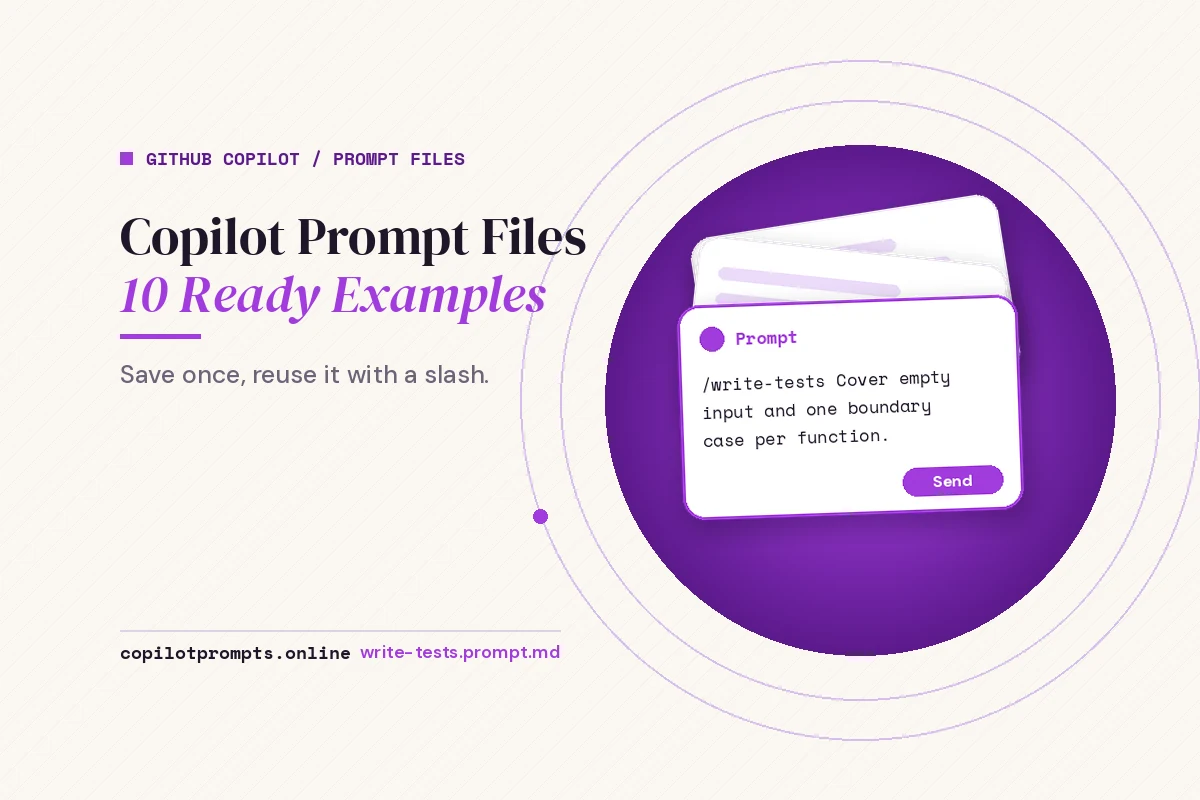
Save as write-tests.prompt.md.
---
description: 'Generate unit tests for the active file'
agent: 'agent'
argument-hint: 'Optional: function name to focus on'
---
Write unit tests for the file I have open. If I named a function, focus on that one.

Rules:
- Use the test framework and folder structure already used in this repo.
- Cover the happy path, empty input, invalid input and one boundary case per function.
- Do not change production code. If something is untestable, explain why instead.
- Run the test command and fix failing tests you wrote. Report what passed.
2. Scaffold a new component
Save as new-component.prompt.md.
---
description: 'Scaffold a component that matches our conventions'
agent: 'agent'
argument-hint: 'ComponentName and a one-line purpose'
---
Create a new component named ${input:componentName:e.g. PricingCard}.

1. Look at two existing components in src/components to copy their structure.
2. Create the component, its styles and a test file in the same pattern.
3. Export it from the nearest index file if the others are exported that way.
4. List every file you created.
3. Review a change for security issues
Save as security-review.prompt.md. Using ask keeps it read-only, so it reports problems without editing anything.
---
description: 'Security review of the selected code or open file'
agent: 'ask'
---
Review this code for security problems. Check for:
- Missing authentication or authorization checks
- Unvalidated or unsanitized input
- Secrets, tokens or keys in code or logs
- SQL, command or path injection risks
- Unsafe deserialization or file handling

Return a table with columns: Issue, Location, Severity (high/medium/low), Suggested fix.
If you find nothing serious, say so plainly instead of inventing issues.
For a broader version that also looks at readability and performance, see our Copilot code review prompts.
4. Prepare a pull request description
Save as pr-description.prompt.md.
---
description: 'Draft a pull request description from my changes'
agent: 'agent'
tools: ['changes']
---
Look at my uncommitted and staged changes and draft a pull request description.

Use this structure:
## Summary (2-3 sentences, plain language)
## What changed (bullet list grouped by area)
## How to test (numbered steps a reviewer can follow)
## Risks or follow-ups

Do not mention files that only changed formatting.
Tool names differ between VS Code versions and extensions, so if changes is not recognized on your setup, open the tools picker in chat to see the exact names available and swap them in.
5. Explain an error and propose a fix
Save as fix-error.prompt.md.
---
description: 'Diagnose a pasted error message'
agent: 'ask'
argument-hint: 'Paste the error or stack trace'
---
I will paste an error after this command. Do the following:

1. Explain in one paragraph what the error means.
2. Point to the most likely line or file in this workspace that causes it.
3. Give the smallest fix that would resolve it, as a code snippet.
4. Mention one other possible cause if the first fix does not work.
6. Write a database migration
Save as migration.prompt.md.
---
description: 'Create a reversible migration'
agent: 'agent'
argument-hint: 'Describe the schema change'
---
Create a database migration for this change: ${input:change}

- Follow the naming and folder pattern of the existing migrations.
- Make it reversible, with a working down/rollback step.
- Never drop a column with data in the same migration that renames it.
- Update any model or type definitions that reference the changed table.
Summarize the migration and any manual steps before deploying.
7. Refactor without changing behavior
Save as safe-refactor.prompt.md.
---
description: 'Refactor selected code while keeping behavior identical'
agent: 'agent'
---
Refactor the selected code: ${selection}

Goals: clearer names, smaller functions, less duplication.
Constraints:
- Public function signatures must not change.
- Behavior must stay identical. Run the existing tests before and after.
- If tests are missing for this code, write them first, then refactor.
Show a short before/after summary of what you changed and why.
8. Document a module
Save as document-module.prompt.md.
---
description: 'Write docs for the open module'
agent: 'agent'
---
Write documentation for the module I have open.

- Add doc comments to every exported function, class and type, in the style already used in this repo.
- Create or update a README section with: purpose, main exports, a short usage example, and known limitations.
- Do not document private helpers in the README.
- Keep explanations practical. No marketing language.
9. Draft release notes
Save as release-notes.prompt.md.
---
description: 'Turn recent changes into release notes'
agent: 'ask'
argument-hint: 'Version number, e.g. 2.4.0'
---
Write release notes for version ${input:version}.

Group items under: New, Improved, Fixed, Breaking changes.
Write each item for end users, not developers: say what they can now do, not which file changed.
Keep each bullet to one sentence. Flag anything you are unsure about with [check].
10. Plan before coding
Save as plan-feature.prompt.md. This one is useful when a request is large and you want to agree on an approach before any files change.
---
description: 'Produce an implementation plan, no code changes'
agent: 'plan'
argument-hint: 'Describe the feature'
---
Create an implementation plan for: ${input:feature}

Include:
1. Files likely to change, with one line on why for each
2. New files needed
3. Order of work in small, testable steps
4. Risks and open questions I should answer first
Do not write or edit any code.
If you want more ideas, GitHub maintains a community collection called Awesome Copilot with many contributed prompt files, instructions and agents you can adapt.
How to Run a Prompt File
There are three ways to run Copilot prompt files, and each suits a different moment.
- Slash command in chat. Type
/and the prompt name. Add extra detail after it, such as/new-component UserAvatar with a fallback initial. - Command Palette. Run Chat: Run Prompt and pick from the list. Handy when you cannot remember the exact name.
- Play button. Open the
.prompt.mdfile and press the play button in the editor title bar. This is the fastest way to test changes while you are still editing the file.
One limitation worth knowing: in current VS Code builds, prompt files run in Local sessions in the Chat view. If you work mostly in another session type, the documentation suggests turning the workflow into an agent skill instead.
Writing Copilot Prompt Files That Actually Work
The same principles behind writing good Copilot prompts apply here, with a few extras because the file gets reused many times.
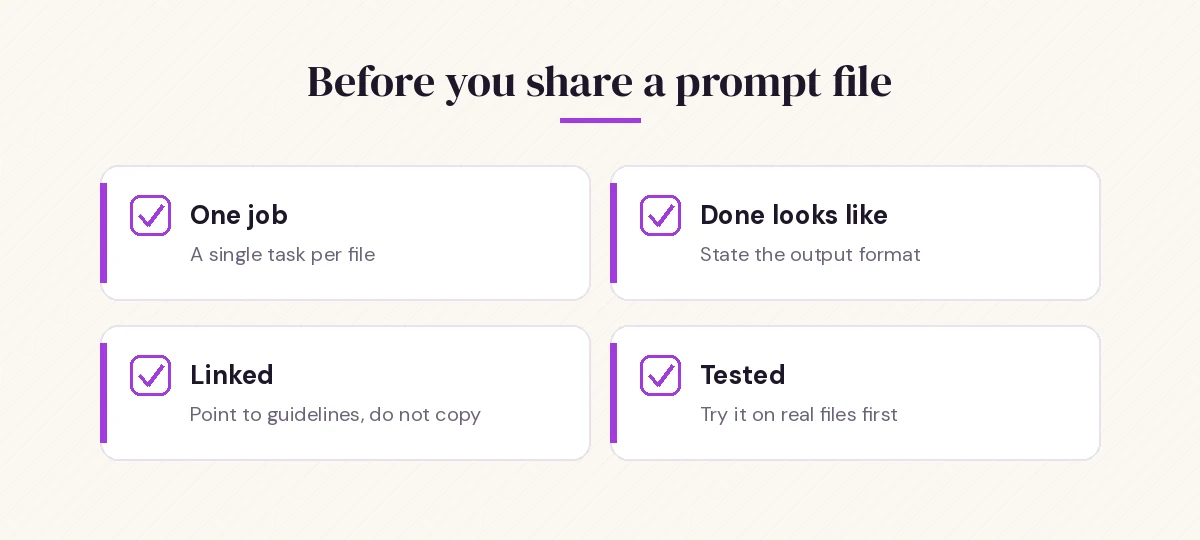
One job per file. A file called do-everything.prompt.md will get vague results. Split it into write-tests, document-module and pr-description, and chain them yourself.
Say what done looks like. End each prompt with the output format: a table, a numbered list, a summary of changed files. This makes results consistent from run to run.
Prefer links over copies. If three prompts need your API guidelines, link to the guidelines file from each. When the standard changes, you edit one file.
Pick the agent deliberately. Review and explanation tasks are safer in ask, which answers without editing. Generation and refactoring tasks need agent. Large features benefit from plan first.
Test with the play button, then commit. Run the prompt on two or three real files. If you have to correct it the same way twice, fix the file rather than the output.
Give it a clear description. The description and argument-hint fields are what teammates see. A prompt nobody understands is a prompt nobody runs.
Troubleshooting Common Problems
The slash command does not appear. Check that the file ends in .prompt.md, not just .md, and that it sits in .github/prompts or your user profile folder. Make sure you are in a Local session in the Chat view. Reloading the VS Code window also helps after moving files around.
It ignores some instructions. Long prompt files with competing rules dilute each other. Move permanent rules into your instructions file and keep the prompt focused on the task. Like everything Copilot generates, treat the output as a draft to review.
A tool is not being used. Tool names change between releases and depend on installed extensions. Open the tools picker in chat to confirm exact names, and remember that unavailable tools are skipped silently.
You cannot tell which file ran. Run Chat: Configure Prompt Files and hover over an entry to see where it comes from: built-in, your profile, the workspace, or an extension. The Agent Debug Log, available from the chat view’s menu, shows discovery errors.
Do Copilot Prompt Files Work Outside VS Code?
VS Code has the most complete support and the most detailed documentation, so it is the safest place to start. GitHub has also brought prompt files to other Copilot-enabled editors such as Visual Studio and JetBrains IDEs, but the supported fields and behavior can differ between them and change between releases. If your team uses mixed editors, test each shared prompt in every editor you rely on before making it part of a documented workflow.
A good way to introduce Copilot prompt files to a team is to start small: commit three prompt files that remove the most repetitive typing, such as tests, PR descriptions and a security review. Ask people which ones they actually use after a couple of weeks, then add more.
Frequently Asked Questions
What is a Copilot prompt file?
It is a Markdown file with a .prompt.md extension that stores a reusable chat request. You run it as a slash command in Copilot Chat instead of typing the same prompt again.
Where should I save GitHub Copilot prompt files?
Save workspace prompts in the .github/prompts folder of your repository so the team can share them. Personal prompts can be stored in your VS Code user profile and used across all your projects.
How are prompt files different from copilot-instructions.md?
Instructions are added to every request automatically and hold standing project rules. Prompt files only run when you call them and describe one specific task.
Can I pass values into a prompt file?
Yes. Type extra text after the slash command, and use placeholders such as ${input:name} or ${selection} inside the file so the prompt picks up those values.
Do I need the YAML frontmatter?
No, it is optional. Without it, the file name becomes the command and the current agent and model are used. Add frontmatter when you want a description, a specific agent, a model or a tool list.
Can I share prompt files with my team?
Yes. Commit them to .github/prompts in your repository and anyone who opens the project in a supported editor with Copilot can run them.