Copilot Prompts for SOP: 25 Proven Templates to Write Clear Procedures Fast
These Copilot prompts for SOP writing help you turn the steps that live in people’s heads into standard operating procedures that a new hire can actually follow. Most teams know they need documented procedures. The trouble is time: interviewing the expert, sorting the steps, formatting the document and keeping it current after every process change. Microsoft 365 Copilot can take over most of that drafting work, as long as you give it the raw material and a clear structure.
This guide is for operations leads, quality and compliance teams, IT admins, office managers and anyone who has been told to “write up how we do this.” Every one of these Copilot prompts for SOP work uses square brackets for the details you swap in. Copy a prompt, replace the brackets, and run it in Copilot in Word or Copilot Chat.
What a Good Standard Operating Procedure Needs
Before asking Copilot for anything, it helps to agree on what a finished procedure looks like. A useful SOP answers a short list of questions without making the reader hunt for them:
- Purpose. Why this process exists and what goes wrong if it’s skipped.
- Scope. Which teams, locations, systems or situations it covers, and which it doesn’t.
- Roles. Who performs each step, who approves, and who to call when something breaks.
- Prerequisites. Access, tools, forms and training needed before step one.
- Steps. Numbered actions, one verb each, in the order they actually happen.
- Checks and exceptions. What “done right” looks like, and what to do when it isn’t.
- Records and revision history. Where evidence is stored, who owns the document and when it was last reviewed.
Copilot is fast at producing this shape. It is not able to know your real process. If you ask for “an SOP for invoice approval” with nothing else, you’ll get a tidy, generic document that matches no company on earth. The Copilot prompts for SOP drafting below always feed it your notes, a transcript or an existing file first.
How to Prompt Copilot for Procedure Documents
Microsoft’s guidance on writing effective Copilot prompts breaks a good request into a goal, context, sources and expectations. For procedures, that translates into five inputs you should give every time.
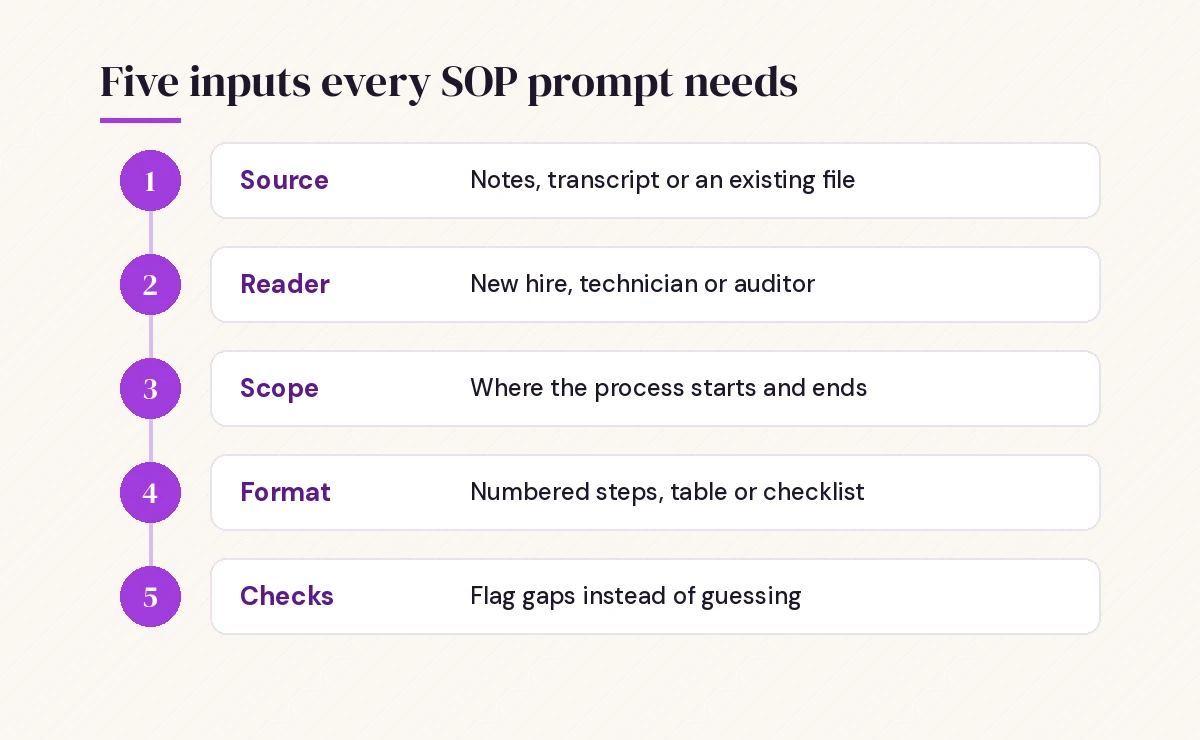
- Source material. Your rough notes, a meeting transcript, an old document or a recorded walkthrough summary.
- Reader. A brand-new hire, an experienced technician, an auditor. This changes the detail level.
- Scope. Where the process starts and ends.
- Format. Numbered steps, a table with owners, a checklist, or a full controlled document.
- Checks. Ask Copilot to flag missing steps, unclear owners and assumptions instead of inventing them.
Here is the difference between a weak and a strong request:
Weak: Write an SOP for onboarding.

Strong: Using my notes in [file], write a standard operating procedure for
setting up a new employee's laptop and accounts. Reader: an IT support
technician in their first month. Scope: starts when HR submits the new hire
ticket, ends when the employee signs in on day one. Format: purpose, scope,
roles, prerequisites, numbered steps with the owner for each, and a final
checklist. Don't invent steps. List anything that looks missing or unclear
at the end under "Questions for the process owner."
That last instruction matters more than any other. It turns Copilot from a confident guesser into a useful interviewer. For more on prompt structure in general, our guide on how to write Copilot prompts goes deeper.
Capture the Process First: Prompts for Gathering Steps
The hardest part of documenting a procedure is getting the steps out of the expert. These prompts help you collect them with less back-and-forth.
1. Build an interview guide for the process expert
I need to document how [person or team] handles [process]. Write 12
interview questions I can ask them in a 30-minute call to capture every
step, decision point, tool, handoff and common mistake. Group the questions
by stage: before, during and after the process.
2. Turn a walkthrough meeting into raw steps
Record and transcribe a Teams call where the expert shares their screen and explains the work. Then, in Copilot in Teams or Copilot Chat:
From the transcript of [meeting name], list every action the presenter
performed in the order they did it. Use one short line per action, starting
with a verb. Note any tool or screen they mentioned. Mark anything they
described as optional, a workaround or "it depends."
Our guide on the Copilot prompt to summarize a meeting transcript has more ways to pull structure out of long recordings.
3. Clean up messy notes
Here are my rough notes on how we [process]: [paste notes]. Reorder them
into a logical sequence, merge duplicates, and split any line that contains
more than one action. Don't add steps that aren't in my notes. Put anything
you're unsure about in a separate list.
4. Find the decision points
Review these steps for [process]: [paste steps]. Identify every place where
the person has to make a decision or where the path splits. For each one,
write the question they're answering and the possible outcomes.
Copilot Prompts for SOP Drafting in Word
Once you have clean steps, Copilot in Word is the natural place to draft the full document. You can start from a blank page with Draft with Copilot and point it at your notes file.
5. Draft the full procedure
Draft a standard operating procedure for [process] using [notes file].
Sections: Purpose, Scope, Roles and Responsibilities, Definitions,
Prerequisites, Procedure (numbered steps), Exceptions, Records, and
Revision History. Write for [reader]. Keep each step to one or two
sentences and start each with an action verb.
6. Write purpose and scope statements
Write a two-sentence purpose statement and a short scope section for an SOP
on [process]. The scope should say which teams and systems it covers and
list two situations it does not cover: [exclusions].
7. Add a roles and responsibilities table
Create a table for this procedure with columns: Role, Responsibilities, and
Steps they own. Use only roles mentioned in the document. If a step has no
clear owner, list it in a row called "Unassigned" so I can fix it.
8. Turn a paragraph-style document into numbered steps
Plenty of old procedures read like essays. This one fixes that:
Rewrite the "Procedure" section of this document as numbered steps. Each
step should contain exactly one action. Move explanations and background
into short notes under the step they belong to. Keep every detail from the
original.
9. Add a definitions section
Scan this SOP for acronyms, system names and internal jargon. Write a
definitions table with each term and a plain-language explanation. If you
can't tell what a term means from the document, mark it "needs definition."
If you write a lot in Word beyond procedures, the Copilot prompts for Word guide covers rewriting, summarizing and formatting tasks.
Make Steps Easy to Follow
A procedure only works if someone can follow it at 7 a.m. on their second day. These prompts tighten the wording.
10. Simplify the language
Rewrite the steps in this SOP for a reader with no background in [field].
Use short sentences, everyday words and the active voice. Keep system names
and button labels exactly as written.
11. Add warnings and cautions
Review this procedure and suggest where a warning, caution or note would
prevent a common mistake or safety issue. For each one, quote the step and
write the warning in one sentence. Only suggest warnings that follow from
the content; flag anything that needs an expert to confirm.
12. Convert steps into a one-page checklist
Turn this SOP into a one-page checklist a technician can print and tick
off. Keep the step numbers so it matches the full document. Add a line at
the top for date, name and reference number.
13. Create a quick-reference version
Summarize this SOP into a quick-reference card of no more than 10 lines for
experienced staff who only need reminders. Link each line to its step number
in the full document.
14. Build a decision table for branching steps
Steps [x] to [y] change depending on [condition]. Turn them into a table
with columns: If, Then, Owner. Keep the wording precise and don't merge
different outcomes.
Review, Audit and Improve Existing Procedures
Many teams don’t need new procedures. They need the old ones fixed. Copilot is good at spotting gaps when you ask it to play reviewer.
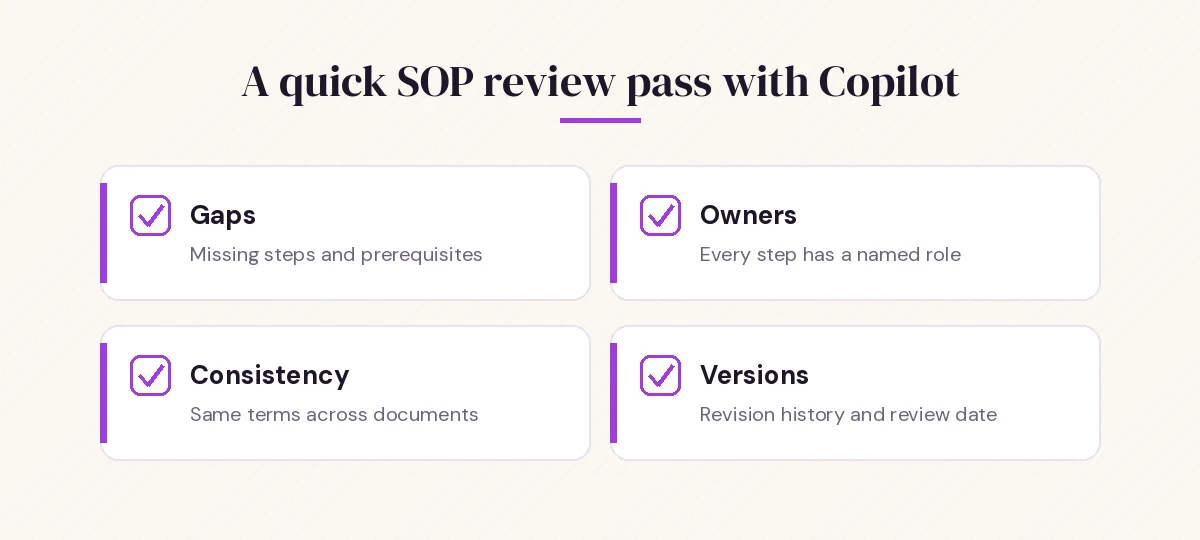
15. Gap analysis
Act as a process auditor. Review this SOP and list: steps with no owner,
steps that are vague or contain more than one action, missing
prerequisites, missing exception handling, and any references to systems
or roles that might be outdated. Present the findings as a table with a
suggested fix for each.
16. Compare the SOP to what actually happens
Compare the steps in [SOP file] with the walkthrough in [meeting
transcript or notes]. List every difference: steps people skip, steps done
in a different order and steps that aren't documented at all.
When two versions of a procedure exist and you need to see what changed, the Copilot prompts for comparing 2 documents guide shows a few reliable approaches.
17. Check consistency across a set of procedures
I have three related procedures: [file 1], [file 2], [file 3]. Check
whether they use the same role names, terms and approval steps. List every
inconsistency and suggest one standard wording.
18. Draft a revision summary
Compare this updated SOP with the previous version in [file]. Write a short
revision history entry: what changed, why it likely changed, and which
roles are affected. Keep it under 80 words.
19. Prepare for an audit
Based on this procedure, list the records and evidence an auditor would
expect to see to prove the process was followed. For each item, say which
step produces it and where it should be stored according to the document.
Treat this as a starting list. Your actual regulatory or certification requirements come from your quality team and the standard you follow, not from Copilot.
Training and Rollout Prompts
A procedure nobody reads doesn’t change anything. These prompts help you launch it.
20. Write the announcement email
Write a short email to [team] announcing the new SOP for [process],
effective [date]. Explain why it changed in two sentences, list the three
biggest differences, and say where the document lives and who to ask with
questions. Friendly and clear, under 150 words.
21. Create training questions
Write 8 multiple-choice questions to check that a new team member
understands this SOP. Focus on decisions, exceptions and safety points
rather than trivia. Include the correct answer and a one-line explanation.
22. Turn the procedure into a slide outline
Create a 6-slide training outline from this SOP: overview, roles, the main
steps in three groups, common mistakes and where to get help. Give a title
and three bullets per slide.
For building the deck itself, see our Copilot prompt to create a PowerPoint presentation.
23. Draft a scenario walkthrough
Write a realistic practice scenario based on this procedure where something
goes wrong at step [x]. Describe the situation, then list what the person
should do according to the SOP.
Ready-Made Prompts by Department
Here are short Copilot prompts for SOP starters you can adapt by team. Each one still works best when you attach your own notes.
| Department | Procedure | Starter prompt |
|---|---|---|
| IT | Password reset | Draft an SOP for helpdesk password resets using [notes], including identity checks. |
| Finance | Invoice approval | Write an approval procedure from [notes] with thresholds and approvers in a table. |
| HR | Employee offboarding | Turn [checklist] into a procedure with owners for access removal and equipment return. |
| Operations | Stock receiving | Draft receiving steps from [notes], with checks for damaged or missing items. |
| Customer support | Ticket escalation | Write an escalation procedure from [notes] with priority levels and response targets. |
| Facilities | Visitor sign-in | Create a short front-desk procedure from [notes], with a printable checklist. |
24. Adapt one procedure for another location
Adapt this SOP for our [location] site. Keep the structure, replace roles
and systems using [details], and list every step where you weren't sure the
process is the same.
25. Translate for a multilingual team
Translate this procedure into [language]. Keep system names, button labels
and step numbers unchanged. After the translation, list any terms that
might need a local reviewer.
HR teams writing policies alongside procedures may also like the Copilot prompts for HR collection.
Mistakes to Avoid When Using Copilot for Procedures
A few habits separate useful procedure drafts from risky ones:
- Letting Copilot invent steps. Always say “don’t add steps that aren’t in my source,” and read the output against the source.
- Skipping the expert review. The person who does the job should approve the draft before anyone else sees it.
- Mixing policy and procedure. A policy says what and why. A procedure says how. Ask Copilot to split them if a document tries to do both.
- Writing for the wrong reader. A step that’s obvious to a ten-year veteran can stop a new hire cold. State the reader in the prompt.
- Forgetting ownership. Every procedure needs a named owner and a review date, or it goes stale within a year.
- Pasting sensitive data carelessly. Follow your organization’s data policies before adding customer, patient or financial details to a prompt.
Keep Your SOP Library Current
The best time to update a procedure is right after the process changes. A simple habit works: after any meeting where a process decision is made, ask Copilot to list what changed and which documents mention the affected steps. Then update the SOP the same week.
From [meeting recap], list every decision that changes how we do
[process]. For each one, quote the step in [SOP file] that needs to change
and suggest new wording.
Microsoft’s Copilot Scenario Library has more examples of how operations and support teams use these tools day to day. If your procedures feed into longer status or compliance reports, our Copilot prompts for report writing guide picks up where this one ends.
Start with one process that causes the most questions on your team. Capture it with prompts 1 to 4, draft it with prompts 5 to 9, and run the gap analysis before you publish. Once that first document is solid, save your best Copilot prompts for SOP work and reuse them for every procedure that follows.
Frequently Asked Questions
Do Copilot prompts for SOP writing work without my own notes?
It can produce a well-structured draft, but it doesn’t know your real process. For an accurate document, give it notes, a meeting transcript or an existing file, and ask it to flag anything it had to assume rather than filling the gaps with guesses.
Which Copilot app is best for writing standard operating procedures?
Copilot in Word is best for drafting and formatting the full document, because you can point it at existing files. Copilot in Teams or Copilot Chat is better for pulling steps out of a recorded walkthrough or a long email thread first.
What sections should a standard operating procedure include?
Most include a purpose, scope, roles and responsibilities, definitions, prerequisites, numbered steps, exceptions, records and a revision history. Regulated industries may need extra sections, so check the standard your quality team follows.
How do I stop Copilot from adding steps that don’t exist?
Tell it directly not to add steps that aren’t in your source, and ask it to put uncertain items in a separate list of questions for the process owner. Then compare the draft against the source before sharing it.
Can Copilot turn a long SOP into a checklist?
Yes. Ask it to convert the procedure into a one-page checklist that keeps the original step numbers, so the checklist and the full document stay in sync when either one is updated.
Is it safe to use Copilot for procedures that involve sensitive data?
Microsoft 365 Copilot works within the permissions you already have, but you should still follow your organization’s data and compliance policies. Avoid pasting customer, patient or financial records into prompts unless your company has approved that use.