Copilot Prompts for Power BI: 35 Proven Ideas for Faster Reports
Copilot prompts for Power BI help you get from a crowded dashboard to a clear answer in a few seconds: a plain-language summary of a report, a quick breakdown of revenue by region, a new report page drafted from a sentence, or a DAX query you would otherwise spend twenty minutes writing. This guide collects 35 copy-ready requests, sorted by the job you are doing, along with a short formula for writing your own and fixes for the answers that miss.
Power BI is full of data that people rarely dig into. Report readers scroll past visuals without knowing what changed, authors rebuild the same page layouts over and over, and model owners never get around to writing measure descriptions. Copilot can take a share of that work off your plate, but the quality of what it returns depends almost entirely on how specific your request is.
Where Copilot Shows Up in Power BI
Copilot in Power BI is not a single chat box. It appears in a few different places, and each one is built for a different kind of user. Knowing which surface you are in tells you what kind of request will work.
- The Copilot pane in a report. Open a report in the Power BI service and select Copilot on the right side. This pane answers questions about the report that is currently open and can summarize the whole report or a single topic.
- The standalone Copilot experience. Reached from the left navigation, this full-screen version can search across reports and semantic models you have permission to see, then summarize or answer questions about them. Microsoft lists it as a preview feature.
- Copilot in apps. When an author publishes a Power BI app, readers can ask questions scoped to the content inside that app, and authors can add verified answers for common questions.
- Authoring tools in Power BI Desktop and the service. Report creators can ask Copilot to create report pages, add a narrative summary visual, write DAX queries in DAX query view and generate descriptions for measures.
Microsoft’s Copilot for Power BI overview is the best place to check what is generally available and what is still in preview, because the list changes often.
What you need before Copilot appears
A Pro or Premium Per User license on its own is not enough. Microsoft says Copilot needs a paid Fabric capacity (F2 or higher) or Power BI Premium (P1 or higher), the right tenant setting switched on by an admin, and a capacity in a supported region. Trial capacities are not supported. If you cannot find the Copilot button, those requirements are the first thing to raise with your Power BI administrator.
A Four-Part Formula for Copilot Prompts for Power BI
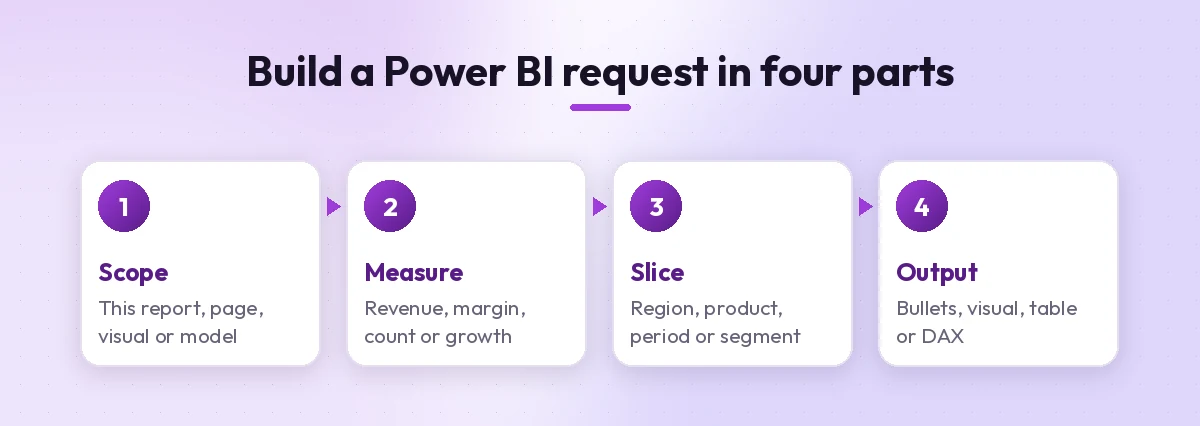
Analytics questions go wrong when they are vague. “How are sales?” forces Copilot to guess which measure, which time frame and which breakdown you care about. A request that names four things almost always does better.
- Scope. Say what to look at: this report, this page, a specific visual or the whole semantic model.
- Measure. Name the number you mean, using the field name from your model where you can, such as Total Revenue or Gross Margin %.
- Slice. Add the dimension and the time frame: by region, by product category, last quarter, year to date.
- Output. Describe what you want back: three bullet points, a bar chart, a table sorted descending, or a DAX query.
Here is the difference in practice:
Weak: Show me sales.

Better: Using the Sales Overview report, show Total Revenue by Region
for the last full quarter as a bar chart sorted from highest to lowest,
then tell me which region changed most compared with the quarter before.
The second version gives Copilot a field to use, a filter, a chart type and a follow-up comparison. If you want a deeper look at prompt structure in general, our guide on how to write Copilot prompts covers the same idea across every Microsoft 365 app.
Prompts to Summarize a Report
Summaries are the fastest win among all Copilot prompts for Power BI, especially for managers who open a report once a week and want to know what changed. These work in the Copilot pane on an open report.
1. A quick executive overview
Summarize this report in five bullet points for a busy executive.
Lead with the biggest change compared with the previous period and
keep each bullet under 25 words.
2. Focus on one page
Summarize only the Regional Performance page. Which regions are above
target, which are below, and by roughly how much?
3. Find what needs attention
Looking at this report, list the three metrics that look most concerning
right now and explain in one sentence each why they stand out.
4. Turn the report into talking points
Turn the key findings in this report into talking points I can use in
a 10-minute team meeting. Use plain language and avoid jargon.
5. Compare two periods
Compare this month with the same month last year across the main KPIs
in this report. Present it as a table with columns for metric,
this year, last year and change.
6. Summary for a subscription email
Write a short summary of this report that I could paste into a weekly
update email: one opening sentence, three highlights and one risk.
Prompts to Ask Questions About Your Data
When the answer you need is not already on a visual, ask for it. Copilot answers from the semantic model behind the report when the question relates to that data, so use names that match your fields.
7. Top performers
Which 10 products had the highest Total Revenue this year? Show the
result as a table with revenue and share of total.
8. Spot the trend
How has Average Order Value changed month by month over the last
12 months? Describe the trend and point out any unusual month.
9. Break it down
Break down Gross Margin % by Product Category and Sales Channel for
last quarter. Which combination has the lowest margin?
10. Explain a drop
Revenue in the North region fell last month. Using the data in this
report, which products or customers contributed most to the decline?
11. Customer view
How many new customers did we add each quarter this year, and what
share of total revenue came from them?
12. Check a target
Are we on track to hit the annual sales target shown in this report?
Base the estimate on year-to-date progress and say what assumption
you used.
13. Find outliers
Which stores have a return rate more than double the company average?
List them with their return rate and total sales.
Ask one focused question at a time, then follow up. Chaining small questions (“Now split that by channel”, “Only show the bottom five”) usually gives cleaner results than one long request with five parts.
Prompts to Build Report Pages and Visuals
Report authors can ask Copilot to draft a page from a description. Treat the result as a first draft you will adjust, not a finished design. The same thinking applies if you build dashboards in Excel; our Copilot prompts for Excel dashboards guide shows the spreadsheet version.
14. A full overview page
Create a report page that gives an overview of sales performance:
total revenue, total orders and average order value as cards, revenue
by month as a line chart, and revenue by region as a bar chart.
15. A page for one audience
Create a page for the marketing team showing campaign spend, leads
generated and cost per lead by campaign and by month.
16. Let Copilot suggest content
Suggest three report pages I could build from this semantic model and
describe what visuals each page should include.
17. A single visual
Add a visual showing the top 5 product categories by profit for the
current year, sorted descending.
18. A trend page
Create a page that shows how customer count, churn and revenue per
customer have trended over the last two years.
19. A narrative visual
Add a narrative summary to this page that explains the main changes
in revenue and margin in three short sentences.
20. A page from a business question
Build a page that helps a regional manager answer: which stores are
underperforming this quarter and why?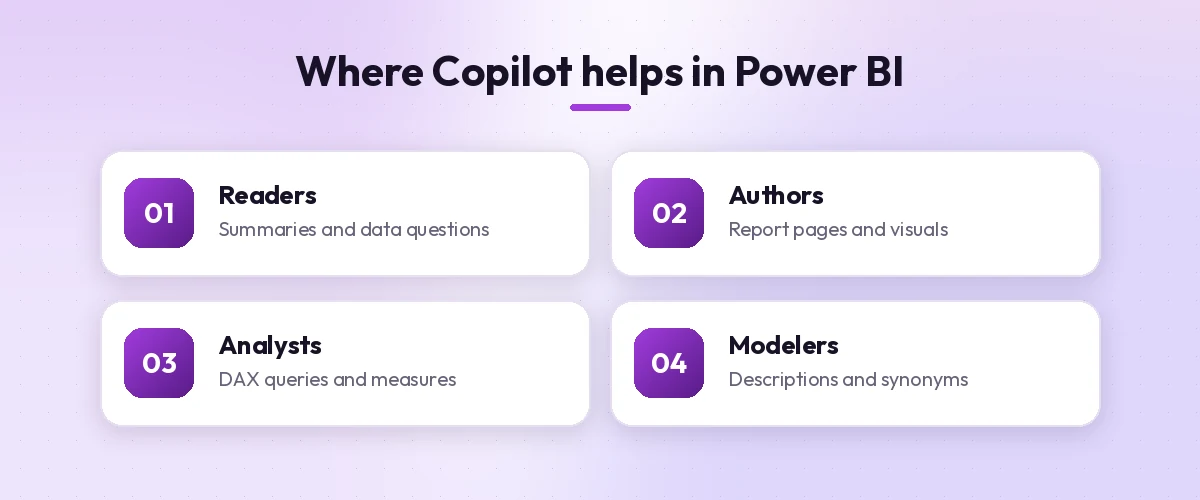
Prompts for DAX Queries and Measures
In DAX query view, Copilot can write and explain DAX queries from a plain-language description. It saves time on syntax, but you should still read and test what it produces before you rely on the numbers.
21. A simple aggregation
Write a DAX query that returns Total Revenue and Total Orders by
Year and Month, sorted by date.
22. Year-over-year growth
Write a DAX query that shows Total Revenue for each product category
this year and last year, plus the percentage change.
23. Running total
Write a DAX query that calculates a running total of revenue by month
for the current year.
24. Top N with ranking
Write a DAX query that ranks customers by total sales and returns only
the top 20 with their rank.
25. Explain existing code
Explain what this DAX query does in plain English, step by step, and
point out anything that could return unexpected results.
[paste the query]
26. Fix an error
This DAX query returns an error. Explain the likely cause and suggest
a corrected version.
[paste the query and the error message]
27. Optimize a slow query
This query is slow on a large table. Suggest a more efficient way to
write it and explain why it should perform better.
[paste the query]
A good habit is to ask for the logic first (“Explain how you would calculate customer retention”) and the code second. That way you can catch a wrong assumption before it turns into a measure that dozens of reports depend on.
Prompts to Document and Improve the Semantic Model
The better your model is described, the better every other Copilot answer gets. Microsoft recommends preparing your semantic model for AI, which includes clear names, descriptions and synonyms, so Copilot understands your business terms.
28. Measure descriptions
Write a one-sentence description for each measure in the Sales table
that a business user would understand without knowing DAX.
29. Model summary
Summarize this semantic model: the main tables, how they relate, and
which questions it is best suited to answer.
30. Naming review
Review the table and column names in this model and list any that are
unclear, inconsistent or likely to confuse a business user. Suggest
better names.
31. Synonyms
Suggest synonyms for the key fields in this model, such as other words
people might use for Revenue, Customer and Region.
32. Data dictionary
Create a data dictionary table for this model with columns for field
name, table, data type and a plain-language description.
Prompts for Sharing and Presenting Insights
Numbers rarely stay inside Power BI. These requests help you turn findings into something you can send or present. If your next step is a written report, our Copilot prompts for report writing guide picks up from here.
33. Stakeholder update
Based on this report, write a short update for the finance director
covering revenue, margin and the one action we recommend this month.
34. Slide outline
Turn the insights from this report into a five-slide outline: title,
three findings with one supporting number each, and next steps.
35. Questions to investigate
What follow-up questions should we investigate based on this report?
List five, ordered by likely business impact.
When the Answer Misses: Quick Fixes
Even well-written Copilot prompts for Power BI sometimes return something off. Most problems come from one of a few causes.
| Problem | Likely cause | What to try |
|---|---|---|
| Generic answer with no numbers | Copilot answered from general knowledge, not your model | Use exact field and table names and mention the report |
| Wrong measure used | Two fields have similar names | Name the measure precisely, or add descriptions and synonyms |
| Same answer every time | Same prompt on an unchanged model is cached | Reword the request or refresh the data |
| Visual looks cluttered | Too many fields in one request | Ask for one visual at a time, then refine |
| DAX query errors | Assumed column names or relationships | Paste the error and ask Copilot to correct it |
| Answer drifts off topic | Earlier conversation is still in context | Clear the chat before a new topic |
Two more habits help a lot. First, keep prompts in English for now: Microsoft notes that other languages may work but are not officially supported. Second, remember that a single prompt can be long, so add context when it matters, such as your fiscal year start, what counts as an active customer, or which regions belong to which sales team.
Habits That Keep Copilot Answers Trustworthy
Copilot is fast, but it does not know your business rules unless they are in the model or the prompt. A few habits keep you from passing along a wrong number.
- Check the numbers against a visual you trust. If Copilot says revenue grew 8%, confirm it on an existing card or table before you repeat it.
- Ask how it got the answer. A follow-up like “Which fields and filters did you use?” quickly reveals a wrong assumption.
- Respect permissions. Copilot only works with data you already have access to, so a missing answer might be a security setting rather than a bad prompt.
- Keep a prompt library. Save the requests that work for your reports in a shared document so your team reuses them. Our Copilot prompts for Excel data analysis post follows the same approach for spreadsheets.
- Improve the model, not just the prompt. If the same question keeps failing, the fix is often a better field name, a description or a synonym rather than a longer request.
For finance teams in particular, pairing these with our Copilot prompts for finance collection covers both the reporting and the analysis side of month-end work.
Putting It All Together
Start small. Pick one report your team opens every week and try the summary requests first, since they need no setup and show value straight away. Then move on to data questions using your real field names, and only after that try page creation and DAX. Each time a request works well, save it. Within a few weeks you will have a short list of proven Copilot prompts for Power BI that fit your own models, which is worth far more than any generic list.
Frequently Asked Questions
Do I need a special license to use Copilot in Power BI?
Yes. Microsoft states that a Pro or Premium Per User license alone is not enough. You need access to a paid Fabric capacity (F2 or higher) or Power BI Premium (P1 or higher), and your admin must allow Copilot in the tenant settings.
Can Copilot in Power BI write DAX for me?
Yes. In DAX query view, Copilot can write DAX queries from a plain-language description and explain existing queries. Always test the result against numbers you already trust before using it in a report.
What are the best Copilot prompts for Power BI beginners?
Start with report summaries such as “Summarize this report in five bullet points” and simple data questions that use your exact field names. They need no setup and show quickly how Copilot reads your semantic model.
Why does Copilot give a generic answer instead of using my data?
When a question does not clearly relate to the semantic model, Copilot may answer from general knowledge. Mention the report and use exact field names, and ask the model owner to add descriptions and synonyms.
Can Copilot create a full Power BI report page?
Report authors can ask Copilot to create a report page from a description, and it will suggest visuals and a layout. Treat it as a first draft and adjust visuals, formatting and filters yourself.
Why do I get the same answer when I ask the same question again?
If you send the exact same prompt on an unchanged semantic model within 24 hours, Copilot can return a cached response. Rephrase the request or refresh the data to get a fresh answer.