Copilot Prompts for Teams Channels: 32 Smart Ideas to Catch Up Fast
Copilot prompts for Teams channels turn a long, busy channel into something you can actually keep up with: a two-minute recap of what changed overnight, a list of decisions buried in a 90-reply thread, or a clean status update drafted from the last week of posts. This guide gives you 32 copy-ready requests, grouped by the job you are trying to get done, plus a simple way to write your own and quick fixes when the answer comes back thin.
Channels are where most team knowledge lives in Microsoft Teams, and also where it quietly gets lost. Announcements sit next to side debates, important decisions hide inside reply chains, and anyone who was away for two days has to scroll for twenty minutes to rebuild the picture. Copilot can do that scrolling for you, but only if you ask it the right way.
Where Copilot Works Inside a Teams Channel
Copilot does not read an entire team at once. It works on the conversation you open it in, so the first habit to build is opening it in the right place.
- Open Copilot in a channel thread. Select a channel, expand the replies under a post to open the full conversation, then choose Open Copilot in the upper-right corner. The pane that opens answers questions about that thread, and More prompts under the compose box shows suggested requests.
- Summarize thread. From a post’s More actions menu, or at the bottom of an opened thread, you can choose Summarize thread for a one-click recap. Microsoft notes the thread needs at least 1,000 characters of text before this option works.
- Ask Copilot on a selected message. On desktop and web, highlight text in a message, right-click and choose Ask Copilot to get context about that specific line.
- Copilot in the compose box. When you write a post, Copilot can rewrite it, change its tone or length, or adjust it with your own custom instruction before you send.
Microsoft’s guide to using Copilot in Teams chats and channels explains each entry point and is worth bookmarking, because the buttons move as Teams updates.
What Copilot can and cannot see
By default, Copilot looks at roughly the last 30 days of messages in the thread where you opened it, unless you ask for a different time frame. It cannot summarize images, Loop components or files shared in the conversation, so if the key detail lives in an attached spreadsheet, you will need to open that file and use Copilot there. It also only answers questions about the conversation itself, so an unrelated question will get a polite refusal.
A Simple Formula for Copilot Prompts for Teams Channels
Vague requests like “summarize this” work, but they give you a generic recap. The strongest copilot prompts for Teams channels usually name four things.
- Scope. Which thread, which time window, or which people’s messages.
- Focus. Decisions, open questions, action items, risks, or disagreements.
- Reader. You, your manager, a new team member, or a client.
- Format. Bullets, a table, a short paragraph, or a draft post you can send.
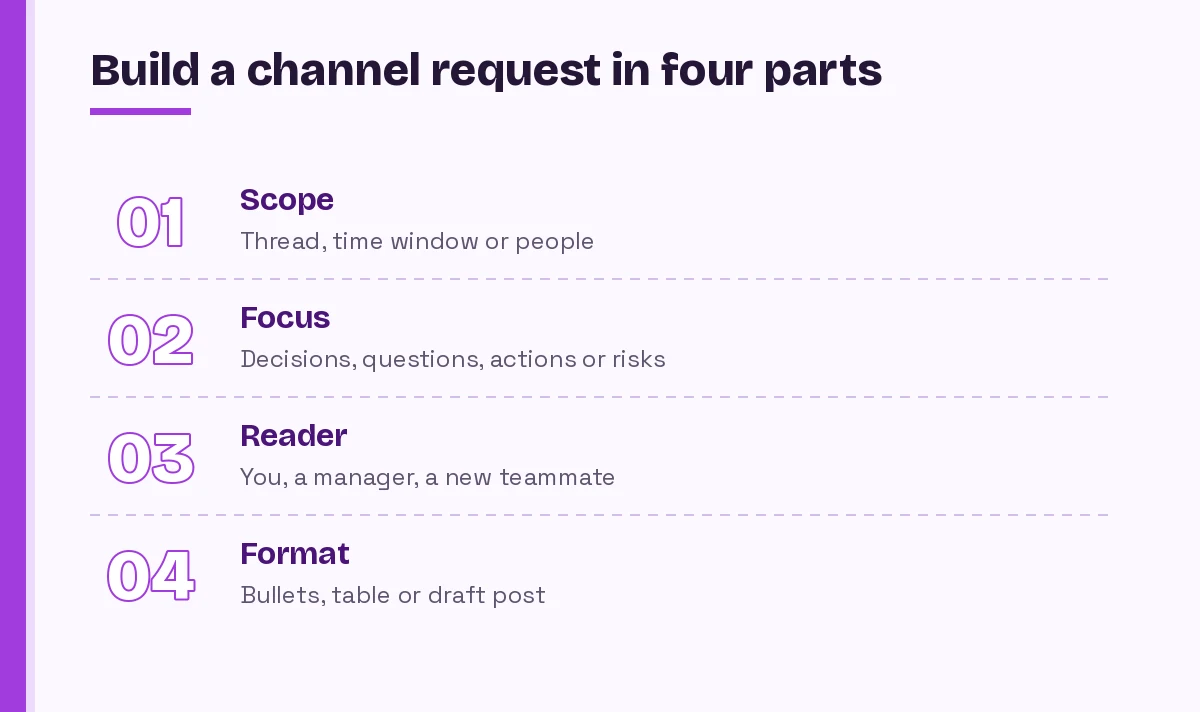
Here is the formula in action:
Summarize the replies in this thread from the last 7 days. Focus on decisions and anything still unresolved. Write it for a teammate who was on leave, as 5 bullets, then list open questions with the name of the person who raised each one.If you want a deeper look at prompt structure in general, our guide on how to write Copilot prompts breaks down goal, context, source and expectations in more detail.
Copilot Prompts for Teams Channels to Catch Up on Busy Threads
These are the requests you will use most. Open the thread first, then paste one into the Copilot pane.
1. The fast recap
Give me a 5-bullet recap of this thread. Lead with the most important change, and keep each bullet under 20 words.2. Catch up after time away
I was out from Monday to Wednesday. What happened in this thread during those days, and what do I need to respond to first?3. Decisions only
List every decision made in this conversation. For each one, include who made or confirmed it and the date it was posted.4. Open questions
What questions in this thread are still unanswered? Group them by who asked, and flag any that were asked more than once.5. Action items with owners
Pull out the action items from this thread as a table with columns for task, owner, due date if mentioned, and status. Write "not stated" when something is missing.6. Where people disagree
Where do people in this thread disagree? Summarize each viewpoint fairly in one or two sentences and note who holds it.7. What changed since my last reply
What has been discussed in this thread since my last message? Highlight anything that mentions me or my work.Prompts to Pull Out Decisions, Risks and Next Steps
A recap tells you what was said. These requests help you understand what it means for the work.
8. Risk scan
Based on this thread, what risks or blockers have people raised? Rank them by how often they come up and suggest which one needs attention first.9. Dependencies
Which tasks in this conversation depend on another team or person finishing something first? Show them as a simple list of "X is waiting on Y".10. Timeline reconstruction
Rebuild the timeline of this discussion. List the key moments in date order, with one line on what changed at each point.11. Changed plans
Did the plan change at any point in this thread? Tell me what the original plan was, what it is now, and why it changed, quoting the message that triggered the change.12. Unassigned work
Find any tasks or follow-ups in this thread that nobody has taken ownership of yet.13. Commitments made by me
What did I say I would do in this thread? List each commitment with the date I posted it.That last one is easy to overlook, and it is often the most useful. People make small promises in channel replies all the time and forget them a week later.
Prompts for Project and Status Channels
Project channels collect updates from many people, which makes them ideal for Copilot. If you manage projects regularly, our collection of Copilot prompts for project managers pairs well with these.
14. Weekly status draft
Using the messages in this thread from the past week, draft a status update with three sections: done, in progress, and blocked. Keep it under 150 words.15. Progress against a goal
The goal of this project is to launch the new onboarding flow by the end of the month. Based on this thread, are we on track? Give your reasoning in three bullets.16. Stakeholder summary
Summarize this thread for a senior stakeholder who does not need technical detail. Focus on progress, decisions and anything they need to approve.17. Status by person
For each person who posted in this thread this week, summarize what they worked on and what they said is next.18. Recurring issues
Which problems keep coming back in this conversation? Describe each one and how many times it was raised.
Copilot Prompts for Teams Channels to Write Better Posts
Copilot in the compose box can rewrite what you have drafted. Write your rough post first, open Copilot, and give it one of these instructions as a custom adjustment.
19. Make it scannable
Rewrite my post with a one-line summary at the top, then short bullets for the details. Keep my original meaning.20. Friendlier tone
Make this message sound warmer and more collaborative without making it longer.21. Shorter and clearer
Cut this post to half its length. Keep the request and the deadline, drop the background.22. Clear call to action
Rewrite this so the ask is obvious in the first sentence, and end with exactly what I need from people and by when.23. Announcement format
Turn this into a channel announcement with a clear headline, three key points, and a line telling people where to ask questions.24. Translate for a global team
Translate this post into Spanish and keep the tone professional but friendly.Copilot’s rewrite options and custom tone instructions are covered in Microsoft’s Copilot in Teams FAQ, including how translation and tone adjustments work.
Prompts to Onboard New People Into a Channel
When someone joins a team halfway through a project, the channel history is both the best briefing and the hardest one to read.
25. New member briefing
A new teammate just joined this channel. Using this thread, explain what this conversation is about, the main decisions so far, and who to ask about what.26. Glossary of team jargon
List the acronyms, project names and internal terms used in this thread, with a short explanation of each based on how people use them.27. Who does what
Based on this conversation, describe each person's role in the project in one line.28. Starter questions
What are five good questions a new team member should ask after reading this thread?Prompts to Turn Channel Talk Into Other Work
Channel conversations often feed meetings, emails and documents. These requests help you move the content along.
29. Meeting agenda from a thread
Draft a 30-minute meeting agenda that covers the unresolved topics in this thread, with suggested time for each item.30. Follow-up email
Draft a short email to the client summarizing what our team agreed in this thread and the next steps, without internal discussion.31. FAQ from repeated questions
Turn the questions people keep asking in this thread into an FAQ with short answers based on the replies they received.32. Decision log entry
Write a decision log entry for the main decision in this thread: context, options considered, the decision, who approved it, and the date.If the thread is really a meeting follow-up, our Copilot prompts for Teams meetings cover recaps and transcripts, and the follow-up email prompts help you finish the job in Outlook.
Channel Agent: When a Channel Gets Its Own Assistant
Some organizations now have access to Channel Agent, a preview feature that creates a dedicated agent inside a Teams channel. According to Microsoft’s Channel Agent guide, it can draft status reports, use meeting transcripts as knowledge sources, help create tasks and answer questions using channel messages. It is in public preview, needs a Copilot license, and only channel members can interact with it, so treat it as an extra rather than something everyone on your team will have.
The same writing habits apply. A request like “Draft this week’s status report for the channel, grouped by workstream, and mark anything blocked” will get a far better result than “status update please”.
When the Answer Misses: Quick Fixes
| Problem | Likely cause | Try this |
|---|---|---|
| The recap is generic | No focus in the request | Add what you care about, such as decisions or blockers |
| Recent messages are missing | Copilot opened in the wrong thread | Expand the replies, then open Copilot from that thread view |
| Older context is ignored | Default 30-day window | Name the dates you want covered |
| A file’s content is not included | Copilot cannot read shared files in chat | Open the file and ask Copilot inside Word, Excel or PowerPoint |
| Summarize thread is not available | Thread is too short | Read it directly or ask a specific question instead |
| Names are wrong or missing | Request did not ask for attribution | Ask for “who said it” next to each point |
Habits That Keep Channel Summaries Trustworthy
- Check the sources. Copilot shows references for its answers when it can. Click through before you repeat a decision to your manager.
- Ask for quotes on anything important. “Quote the message where this was agreed” makes it easy to verify.
- Keep sensitive decisions in writing. A summary is a starting point, not the record. Post the confirmed decision back into the channel so everyone sees the same version.
- Respect what people expect. Copilot only sees what you already have access to, but a summary shared outside the team can still surprise people. Strip internal debate before you forward anything.
- Iterate. If the first answer is close, follow up with “shorter”, “add owners” or “only the last 3 days” instead of starting over.
Putting It All Together
The best way to start is small. Pick the busiest channel you follow, open its longest thread, and try the fast recap, the decisions-only request and the action-item table. Once those feel natural, save your favorite copilot prompts for Teams channels in a OneNote page or a pinned post so your whole team can reuse them. A few well-written requests each morning can replace a lot of scrolling and make sure nothing important slips past you.
Frequently Asked Questions
How do I open Copilot in a Teams channel?
Select the channel, expand the replies under a post to open the full conversation, and choose Open Copilot in the upper-right corner. You can type your own request or pick one from More prompts under the compose box.
Can Copilot summarize an entire Teams channel at once?
Copilot in a channel works on the thread where you open it, using about 30 days of messages by default. To cover several threads, summarize each one or ask Copilot in the main Microsoft 365 Copilot chat to search across your conversations.
Why is the Summarize thread option missing?
Microsoft says a thread needs at least 1,000 characters of text before a thread summary can be generated. Short threads are usually faster to read directly, or you can ask Copilot a specific question about them.
Can Copilot read files and images shared in a channel?
No. Copilot in chats and channels cannot summarize images, Loop components or files shared in the thread. Open the file in Word, Excel or PowerPoint and use Copilot there for its content.
Do I need a license to use Copilot in Teams channels?
Yes. Copilot features in Teams chats and channels require a Microsoft 365 Copilot license assigned by your organization, and your admin controls which features are turned on.
What are the best channel prompts for beginners?
The easiest copilot prompts for Teams channels to start with are three: a short recap of the thread, a list of decisions with who made them, and a table of action items with owners. They are easy to check and immediately save time.
One Comment