GitHub Copilot Prompts for Debugging: 30 Powerful Templates to Fix Bugs Faster
GitHub Copilot prompts for debugging work best when they hand the assistant evidence instead of a vague complaint. “It’s broken, fix it” gives Copilot nothing to reason about. A stack trace, the input that triggered the failure, what you expected and what actually happened gives it almost everything. This guide collects 30 copy-ready GitHub Copilot prompts for debugging for reading errors, isolating root causes, fixing failing tests, chasing performance problems and confirming that a fix really holds.
Every template is written for Copilot Chat in an editor such as VS Code, Visual Studio or a JetBrains IDE, but the same structure works in agent mode and in Copilot on GitHub.com. Replace anything in square brackets with your own details.
Why Debugging Requests Go Wrong
Most bad answers during a bug hunt come from missing context, not from a weak model. When you ask Copilot why something fails without showing the failure, it fills the gap with the most common cause it has seen. Sometimes that guess is right. Often it sends you down a path that wastes twenty minutes.
Three patterns cause most of the trouble:
- No error output. The assistant never sees the real exception, line number or log message.
- No expected behavior. Copilot can’t tell a bug from a design choice unless you say what should happen.
- Fix before diagnosis. Asking for a patch straight away invites a change that hides the symptom while the real defect stays in place.
The GitHub Copilot prompts for debugging below solve each problem by separating the job into stages: explain, isolate, fix, verify.
Tools Copilot Gives You for Bug Hunting
Before you write GitHub Copilot prompts for debugging from scratch, it helps to know which built-in shortcuts already exist. GitHub’s Copilot Chat cheat sheet lists the common slash commands, chat variables and participants. The ones that matter most when tracking down defects are:
| Feature | What it does | When to use it |
|---|---|---|
/explain | Explains the selected code or error | You don’t yet understand what the code does |
/fix | Proposes a fix for problems in the selection | The cause is local to a few lines |
/fixTestFailure | Finds and fixes a failing test | A test run went red |
#selection, #file | Attach code as context | Always, when the bug lives in specific code |
@terminal | Answers with terminal context (VS Code) | A command or build failed in the shell |
| Agent mode | Edits files, runs commands, iterates | Multi-file bugs where tests can confirm the fix |
Availability varies by editor, Copilot plan and organization policy, so type / or # in the chat box to see what your setup supports. In recent VS Code builds you can also use the Fix Test Failure action in Test Explorer or attach the failing output straight to chat.
How to Structure GitHub Copilot Prompts for Debugging
Nearly every strong request in this guide follows the same shape. Once it becomes a habit, you will write good debugging prompts without looking anything up.
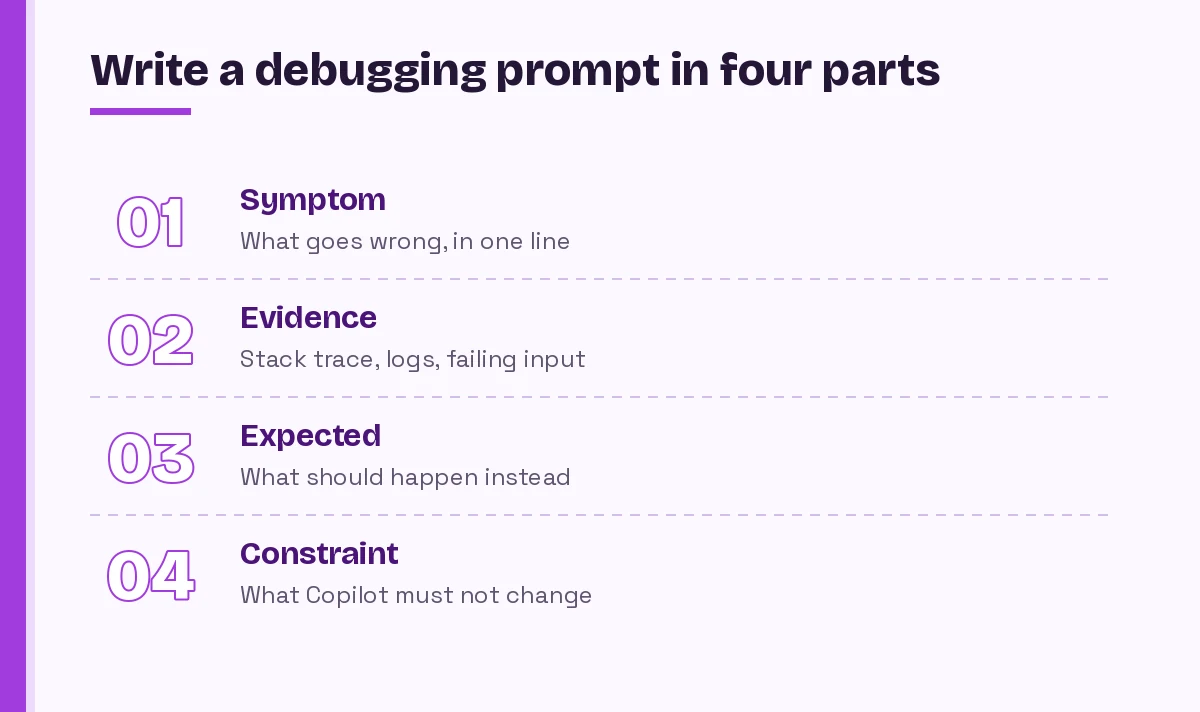
- Symptom. What goes wrong, in one sentence. “The checkout total is off by one cent for some carts.”
- Evidence. The stack trace, log lines, failing input or test output. Paste it, don’t paraphrase it.
- Expectation. What the correct result would be and why.
- Constraint. What Copilot must not change: public APIs, test expectations, dependencies or files outside a folder.
Here is that pattern as a reusable base:
Symptom: [one sentence describing the bug]
Evidence: [paste the full error, stack trace or log lines]
Expected: [what should happen instead]
Constraints: do not change [public API / test expectations / other files].
First explain the most likely root cause and how confident you are. Do not write a fix until I confirm.
That last line is the most valuable habit in this article. Asking for a diagnosis first keeps you in control and makes wrong guesses cheap.
Prompts for Understanding Errors
The first group of GitHub Copilot prompts for debugging is for moments when an error message makes little sense or points somewhere unexpected.
1. Decode the stack trace
Explain this stack trace line by line. Identify which frame is in my code rather than a library, and tell me which line most likely caused the failure.
[paste stack trace]
2. Plain-English error
/explain What does this error mean in the context of #selection? List the three most common causes and how I can check each one.
[paste error]
3. Compare expected and actual
This function returns [actual result] for input [input], but I expect [expected result]. Walk through #selection step by step with that input and show where the values diverge.Template 3 is a lightweight “trace by hand” exercise. Copilot narrates the execution path, which often exposes an off-by-one, a wrong comparison or a mutated variable faster than stepping through a debugger.
4. Read the logs for me
Here are the log lines around the failure. Group them by request or thread, point out the first abnormal entry and explain what probably happened before it.
[paste logs]
5. Terminal failure
@terminal Why did my last command fail, and what should I run to fix it?Root Cause Isolation Prompts
These GitHub Copilot prompts for debugging help you narrow down where a defect actually lives, which matters most in larger codebases where the error appears far from its source.
6. Rank the suspects
Given this symptom and error, list up to five possible root causes ranked by likelihood. For each one, give a quick check I can run to confirm or rule it out.
Symptom: [describe]
Error: [paste]
7. Follow the data
Trace how [variable or field] flows from [entry point] to #selection. Point out every place it can be modified, set to null or converted to another type.8. What changed?
This worked in [previous version or commit] and fails now. Here is the diff: [paste diff or attach #changes if available]. Which change is most likely responsible, and why?9. Minimal reproduction
Help me write the smallest possible script or test that reproduces this bug outside the full application. Remove every dependency that isn't needed to trigger it.A minimal repro is worth the effort. It confirms the bug is real, gives you a regression test for free and makes every follow-up question sharper.
10. Add targeted logging
Add temporary debug logging to #selection that would show why [symptom] happens. Log inputs, key branch decisions and return values. Mark each line with a TODO-REMOVE comment.11. Rubber duck mode
Act as a senior engineer pairing with me. Ask me one question at a time about this bug until we've narrowed the cause. Do not suggest code yet.Prompts for Writing and Checking Fixes
Once you know the cause, these GitHub Copilot prompts for debugging produce safer patches. Each one keeps the change small and makes the reasoning visible.
12. Smallest safe fix
/fix The root cause is [cause]. Make the smallest change that fixes it without altering the function's signature or other behavior. Explain why the fix works.13. Two options with trade-offs
Propose two different fixes for this bug. For each, list the trade-offs, the risk of side effects and which callers might be affected. Recommend one.14. Fix plus regression test
Fix the bug in #selection and write a unit test that fails before the fix and passes after it. Use [test framework] and match the style in #file:[existing test file].If you want more templates for that second half, our collection of GitHub Copilot prompts for unit tests covers edge cases, mocking and coverage in depth.
15. Check for siblings
This bug was caused by [pattern, e.g. comparing floats with ==]. Search #file or the workspace for other places with the same pattern and list them before changing anything.16. Challenge the fix
Review the fix you just proposed. What inputs or conditions could still break it? Could it introduce a new bug elsewhere?Asking Copilot to critique its own suggestion often surfaces a missed null case or a concurrency issue that the first answer ignored.
Failing Test Prompts
Red builds are one of the most common reasons developers reach for GitHub Copilot prompts for debugging. Keep the test’s intent in mind: sometimes the code is wrong, and sometimes the test is.
17. Diagnose a red test
/fixTestFailure Before changing anything, tell me whether the test or the implementation is wrong, and why.18. Code or test?
This test fails with [output]. Based on the test name, the requirement [describe] and the implementation in #file:[source file], decide whether the test expectation or the code is incorrect. Do not edit the test unless the requirement supports it.19. Flaky test detective
This test passes locally but fails intermittently in CI. Review it for timing assumptions, shared state, test order dependence, real network or clock usage and random data. Suggest how to make it deterministic.20. Snapshot or assertion mismatch
Explain the difference between the expected and received values in this assertion failure, field by field, and tell me which difference matters.
[paste failure output]
Performance and Memory Bug Prompts
Slow code and growing memory are bugs too, but they rarely throw errors, so GitHub Copilot prompts for debugging performance need measurements such as timings or profiler output.
21. Find the hot spot
This function takes [time] for [input size]. Here is the profiler output: [paste]. Identify the most expensive operations and suggest changes in order of expected impact.22. Complexity check
What is the time and space complexity of #selection? Show me any nested loops, repeated lookups or unnecessary copies, and propose a faster version with the same output.23. Memory leak suspects
Memory grows steadily while [scenario]. Review #file for listeners that are never removed, caches without limits, closures holding large objects and unclosed resources.24. N+1 queries
Review this data access code for N+1 query patterns or queries inside loops. Show the number of queries it runs for [N] records and suggest a batched alternative.Async, Concurrency and Environment Prompts
Some of the hardest defects depend on timing or on where the code runs. The GitHub Copilot prompts for debugging in this section help you describe that kind of problem precisely.
25. Race condition review
#selection is called from multiple [threads / async tasks]. Identify shared state, missing awaits, unsafe check-then-act sequences and possible deadlocks. Explain a sequence of events that would produce [symptom].26. Unhandled promise or exception
Find every async call in #file that is not awaited or whose errors are not handled. Explain what happens to the error in each case.27. Works on my machine
The code works locally but fails in [environment] with [error]. List environment differences that could explain it, such as paths, environment variables, versions, time zones, locale or permissions, and how to check each one.28. Dependency upgrade breakage
After upgrading [package] from [old version] to [new version], I get [error]. What breaking changes are likely involved, and how should I update my code? Tell me which parts of your answer I should verify in the official changelog.That final sentence matters. Copilot’s knowledge of a library can lag behind its latest release, so treat version-specific claims as leads to confirm, not facts.
Agent Mode Debugging Prompts
Agent mode can run your tests, read the output and iterate on its own. That power makes clear limits important, so GitHub Copilot prompts for debugging in agent mode should always say what the agent may touch and when to stop.
29. Bounded fix loop
Find the cause of the failing [test name] test. Fix the implementation without changing the expected behavior in the test. Run only the relevant test file after each change, stop after three attempts and summarize what you tried.30. Investigate without editing
Investigate why [symptom] happens. You may read files and run [test or build command], but do not edit any files. Report the root cause, the evidence you found and a proposed fix for me to review.The second request is a good default for unfamiliar codebases. You get the investigation benefits of agent mode without surprise edits across the project. VS Code also offers a preview copilot-debug command that can help start a debugging session from the terminal; check your editor’s documentation for current support.
Making Debugging Requests Reusable
If you find yourself typing the same diagnosis-first rules every day, move them out of individual GitHub Copilot prompts for debugging and into shared files:
- Repository instructions. Add a short debugging section to your Copilot instructions file, for example “Always explain root cause before proposing a fix” and “Never change test expectations to make a test pass.”
- Prompt files. Save templates such as 6, 14 or 29 as Copilot prompt files so the whole team can run them as slash commands.
- Review the patch. Run your normal Copilot prompt for code review over the fix before merging, just as you would for a teammate’s change.
GitHub’s Copilot Chat cookbook section on debugging errors has further worked examples, including invalid JSON and API rate limit problems.
A Repeatable Bug-Fixing Workflow
When a bug lands on your desk, this sequence ties the GitHub Copilot prompts for debugging above into one routine and keeps both you and Copilot honest:
- Reproduce it. Confirm you can trigger the problem reliably, ideally with a minimal script or test (template 9).
- Explain it. Paste the evidence and ask for an explanation first (templates 1 to 4).
- Isolate it. Rank causes and run the suggested checks (templates 6 to 8).
- Fix it small. Request the smallest safe change plus a regression test (templates 12 and 14).
- Challenge it. Ask what could still break (template 16) and search for the same pattern elsewhere (template 15).
- Verify it yourself. Run the full test suite, check the original scenario and read every changed line.
Copilot speeds up each step, but it doesn’t replace step 6. Suggestions can be wrong, incomplete or subtly insecure, so you stay responsible for what ships.
Mistakes That Slow You Down
Even well-written GitHub Copilot prompts for debugging fail when these habits creep in:
- Paraphrasing the error. “Some null thing on line 40” loses the detail that matters. Paste the exact text.
- Sharing too little code. If the bug crosses files, attach each relevant file with
#fileor let agent mode search. - Sharing secrets. Strip API keys, tokens, passwords and personal data from logs before pasting them into any chat.
- Accepting the first patch. A fix that makes the symptom vanish isn’t proof the cause is gone.
- Letting tests be rewritten. If Copilot edits a test so it passes, ask why. Sometimes that’s correct; often it hides the defect.
- Endless loops. If three attempts fail, stop, start a fresh chat and restate the problem with what you’ve learned.
For coding templates beyond bug fixing, browse our full library of GitHub Copilot prompts.
Final Thoughts
The best GitHub Copilot prompts for debugging have little to do with clever wording. They give the assistant real evidence, a clear expected outcome and firm limits, then ask for an explanation before any code changes. Start with the four-part base prompt, keep templates 1, 6, 12 and 17 close at hand, and add a regression test every time you fix something. Your bugs won’t disappear, but they will get shorter.
Frequently Asked Questions
What are the best GitHub Copilot prompts for debugging?
A strong debugging prompt includes four things: the symptom, the exact error or log output, the behavior you expected and any constraints on the fix. Ending GitHub Copilot prompts for debugging with “explain the root cause before writing a fix” gives you a chance to check Copilot’s reasoning before code changes.
How do I use the /fix command in Copilot Chat?
Select the problem code in your editor, open Copilot Chat or inline chat and type /fix followed by any details, such as the error message or what must not change. Copilot proposes a fix you can review and accept or reject. Available commands vary by editor, so type / to see your options.
Can GitHub Copilot read my stack trace?
Yes. Paste the full stack trace into Copilot Chat and ask it to explain which frame is in your own code and which line most likely caused the failure. In VS Code you can also use @terminal or attach terminal output when the error came from a command you ran.
Can Copilot fix failing tests automatically?
In supported editors, /fixTestFailure and agent mode can investigate a failing test, propose changes and rerun tests. Always ask whether the test or the implementation is wrong, and check that Copilot did not simply change the test expectation to make it pass.
Is it safe to paste logs and errors into Copilot Chat?
Remove secrets such as API keys, tokens, passwords and personal data before pasting anything. Your organization may also have Copilot policies that control what data can be used, so follow your company’s guidance.
Why does Copilot suggest fixes that don’t work?
Usually because it lacks context: the real error, the expected behavior or the code that calls the broken function. Add that evidence, ask for ranked root causes instead of an instant fix, and verify every suggestion by running your tests.