Copilot Pages How to Use: 7 Simple Steps + 25 Smart Prompts
Copilot Pages how to use is a question that comes up the moment you realise a great Copilot Chat answer disappears into your chat history as soon as you start a new conversation. Microsoft Copilot Pages fixes that. It takes a response and turns it into a persistent, editable page that sits next to the chat, so you can keep refining it with Copilot, edit it by hand and share it with colleagues who can build on it with you.
This Copilot Pages how to use guide walks through the whole workflow in plain steps: creating a page, editing it side by side with Copilot, using the built-in shortcuts, sharing it as a link or a live component, and finding it again later. After that you get 25 copy-ready prompts for briefs, plans, meeting prep and research, plus fixes for the most common snags.
What Microsoft Copilot Pages Actually Is
A Copilot Page is a canvas built on Microsoft Loop technology. You open it from Copilot Chat, and the chat stays open beside it. Anything you ask Copilot can be pushed into the page, and anything on the page can be edited directly, just like a document.
The difference from a normal chat answer is durability. A chat response is a moment in a conversation. A page is a working artifact: it keeps its content until you delete it, it can be renamed, and other people can open it without ever seeing your private chat.
Microsoft’s own get started guide for Copilot Pages describes it as a place to turn ideas into content you can edit, refine with Copilot and share with others. That is a good summary of when to reach for it: whenever the output is something you will come back to.
Who can use it
Availability depends on the kind of account you sign in with:
- Work or school (Entra ID) accounts can use Pages if they have SharePoint or OneDrive storage, and Microsoft notes this includes people without a Microsoft 365 Copilot licence.
- Personal Microsoft accounts need an eligible Microsoft 365 subscription. Microsoft’s help pages list Personal, Family, Premium and Pro, though wording has varied between pages, so check the current note if the option is missing.
- Your organisation can limit it. If your IT team manages Copilot, they may control which tools are switched on.
Menus and labels move around as Microsoft updates the Copilot apps. If a button below has a slightly different name on your screen, look for the closest match rather than assuming the feature is gone.
Copilot Pages How to Use: The 7-Step Workflow
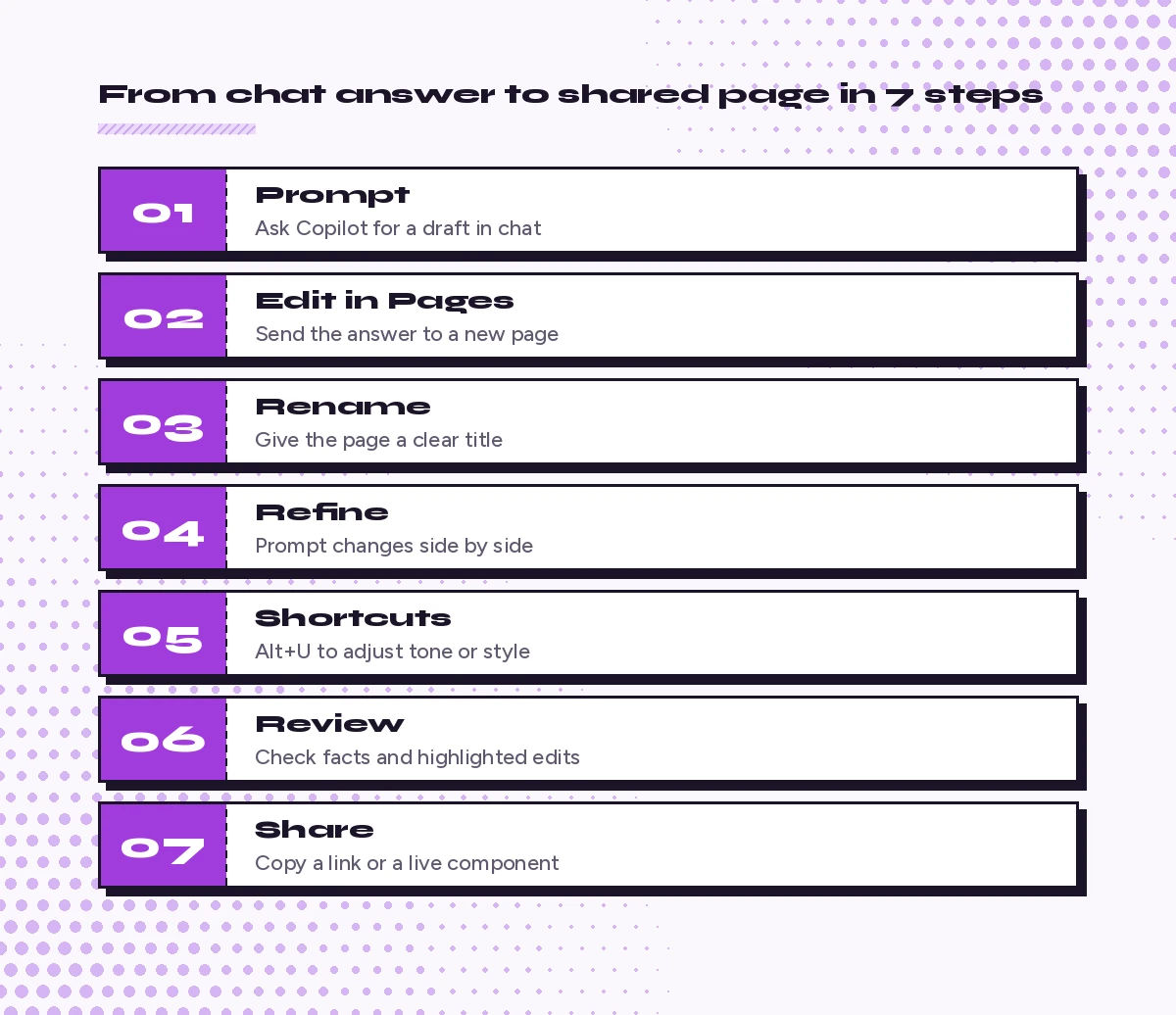
Here is the full Copilot Pages how to use loop, from a blank chat to a page your team is working on. Each step is short, and you can skip ahead once you know the basics.
Step 1: Start with a prompt that asks for something durable
Pages work best for content with a shelf life: a project brief, a plan, a meeting agenda, a set of research notes. Sign in at copilot.cloud.microsoft (or open Copilot in Teams or the Microsoft 365 Copilot app) and give Copilot a clear brief.
Draft a one-page project brief for [project name]. Include the goal, scope, out-of-scope items, owners, key dates, risks and next steps. Keep each section to three or four bullet points.Microsoft notes that if you explicitly ask Copilot to “create a page” or “generate a page”, it can open one for you automatically when it detects you are drafting something durable.
Step 2: Send the answer to a page
You have two routes. From a new chat, select the plus button beside the prompt box, go to More and choose Draft page (the label may read “Draft page or code”). From an existing answer, open the options under the response and select Edit in Pages, then choose a new page or add it to one you already have.
On the Microsoft 365 Copilot mobile app the flow is the same idea: press and hold the response (or tap More actions) and choose Edit in Pages.
Step 3: Give the page a real title
Copilot will suggest a name, but it is usually generic. Click the title on the page and rename it to something you will recognise in a list of twenty pages, such as “Q1 onboarding revamp: brief v1”. Good titles matter more than they seem, because search is how you will find most pages later.
Step 4: Refine it side by side
This is where Pages earns its place. With the chat on one side and the page on the other, you can ask Copilot to add a section, rewrite a paragraph or answer a question about what is already on the page. You can also click into the page and type directly, which is faster for small fixes.
Add a "Success measures" section after Scope with three measurable outcomes and how we will track each one.Read the page and list any section that is vague or missing an owner. Do not change the page yet.That second prompt is useful because it treats the page as source material. Copilot answers based on what is currently written, so you get a quick quality check before you share.
Step 5: Use Copilot shortcuts for quick polish
In the lower right corner of a page there is a Copilot shortcuts button, also available with Alt+U. According to Microsoft’s article on Copilot shortcuts in Pages, it offers three groups:
| Shortcut group | What it does | Good for |
|---|---|---|
| Adjust content | Add details, shorten, or turn content into an email or blog post | Resizing a draft for a new audience |
| Change tone | Professional, friendly, sincere or assertive | Matching the reader |
| Style page | Add emojis, section headers, an introduction or a conclusion | Making a rough draft scannable |
If the page is not shared yet, shortcut changes apply straight away and are highlighted so you can review them. If it is already shared, you get a preview first and can keep the revision with the check mark or go back with the arrow, which stops half-finished edits from showing up for colleagues.
Step 6: Review before anyone else reads it
Copilot drafts quickly, but it can still get names, dates and figures wrong. Read the highlighted changes, check anything factual against the original source, and remove sections that do not add value. A shorter, accurate page beats a long one that people have to fact-check.
Step 7: Share it with the right people
Select Share in the upper right of the page. You will usually see two choices:
- Copy link gives colleagues access to that single page, which opens in Loop. Paste it into Teams, Outlook or anywhere else.
- Copy component pastes the page as a live Loop component into Teams, Outlook, OneNote or other Microsoft 365 apps. Edits made in the component update the page in real time.
Shared people see the page content, not your Copilot conversation. Link permissions follow your organisation’s SharePoint and OneDrive sharing settings, and Microsoft’s admin documentation notes that guests cannot open a shared page directly through the link.
Where Your Pages Live and How to Find Them
A part of Copilot Pages how to use that people often miss is finding a page again a week later.
Pages are stored in a personal container that sits alongside your Loop workspace, so they are not files you will see in a normal OneDrive folder. To find an existing page:
- Look in the Copilot library or Pages list inside Copilot Chat.
- Open the chat you created it from and scroll to the page card.
- On mobile, open the menu, then Pages or All pages.
- Use search, which is where a clear title pays off.
Pages stay available until you delete them, so a quick monthly tidy-up keeps the list useful. If you prefer a notebook structure for longer projects with many files, our Copilot OneNote prompts guide covers a different way to organise working notes.
What Pages Are Good For
Not every answer needs a page. A quick fact check or a one-line rewrite can stay in chat. Pages shine when the output will be revisited, edited by several people or reused.
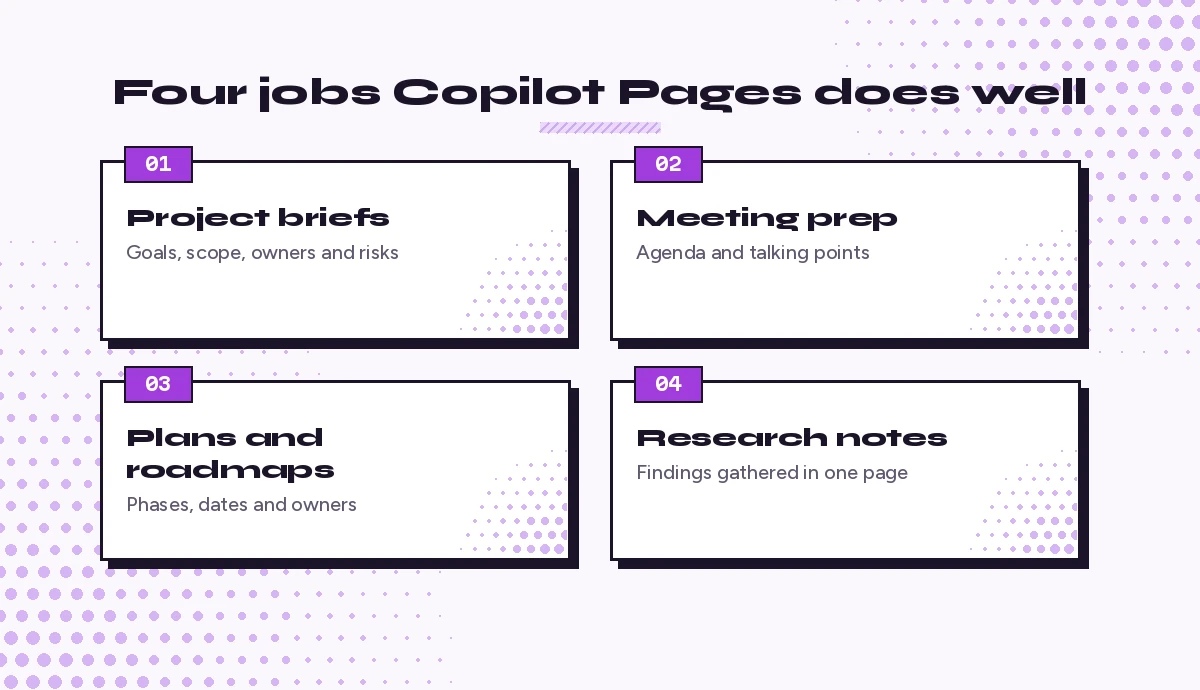
A simple rule: if you would normally copy the answer into a Word document or a Teams post and keep editing it, start a page instead. You keep Copilot beside you for every later revision.
25 Copilot Pages Prompts You Can Copy
Replace anything in square brackets. Run the prompt in chat, then send the answer to a page, or ask Copilot to create a page directly.
Project briefs and plans
- Kick-off brief
Create a page with a one-page brief for [project]. Sections: goal, background, scope, out of scope, owners, milestones, risks, open questions.- Phased plan
Turn this brief into a phased plan with three phases. For each phase list the deliverables, owner, start and end week, and dependencies. Use a table.- RACI table
Add a RACI table for these workstreams: [list]. Roles: [names or titles]. Flag any task with no Accountable person.- Risk register
Add a risk register with columns for risk, likelihood (low/medium/high), impact, owner and mitigation. Start with the five most likely risks for a project like this.- One-paragraph status update
Using only what is on this page, write a five-sentence status update for leadership: progress, what changed this week, blockers and the next decision needed.Meetings and workshops
- Agenda builder
Create a page with a 45-minute agenda for [meeting purpose] with [attendees]. Include timings, an owner per item and the decision we need by the end.- Pre-read
Write a one-page pre-read for the meeting on this page. Summarise the background in plain language and list the three questions attendees should think about beforehand.- Talking points
Give me talking points for my section of the agenda: [topic]. Keep each point to one sentence and add one likely pushback with a short response.- Workshop exercises
Add three 10-minute workshop exercises that help the group [goal]. For each, include instructions, materials and what output we should capture.- Actions section
Add an Actions section with a table: action, owner, due date, status. Leave the rows blank so we can fill them in during the meeting.If your meetings live in Teams, pair these with our Copilot prompts for Teams meetings to capture what was actually decided.
Research and analysis
- Research notes
Create a page that collects what we know about [topic]: key definitions, main options, pros and cons of each, and gaps we still need to research.- Comparison table
Compare [option A], [option B] and [option C] in a table across cost, setup effort, security, support and fit for a team of [size]. Mark any cell where you are unsure.- Source check
Review this page and list every claim that needs a source. Suggest where I could verify each one. Do not invent sources.- Executive summary
Add a five-bullet executive summary at the top of this page for a reader with two minutes. Lead with the recommendation.- FAQ section
Add an FAQ section with the six questions a skeptical stakeholder is most likely to ask about this page, with short, honest answers.Writing and communication
- Announcement draft
Turn this page into a short announcement email for [audience]. Keep it under 150 words, include one clear call to action and a link placeholder.- Blog post outline
Use this page to outline a blog post for [audience]. Give a headline, an intro hook, five H2 sections and a closing call to action.- Plain-language rewrite
Rewrite the Background section in plain language for someone outside the team. Short sentences, no jargon, keep every fact the same.- Tone swap
Rewrite the Risks section in a calmer, more neutral tone. Do not remove any risk or soften the impact ratings.- Teams post
Write a Teams channel post summarising this page in four lines, with a question at the end that invites feedback.Team process and handover
- Onboarding guide
Create a page with a first-week onboarding guide for a new [role]: day-by-day tasks, people to meet, tools to set up and three quick wins.- Handover notes
Turn this page into handover notes for a colleague covering my work while I am away: current status, open items, contacts and what can wait.- Checklist
Convert the plan on this page into a checklist grouped by phase, with checkboxes and an owner name after each item.- Retrospective
Add a retrospective section with three headings: what went well, what did not, what we will change. Suggest two prompts per heading to guide the discussion.- Page cleanup
Review the whole page. Remove duplicate points, merge sections that overlap, and keep the structure under seven headings. Show me what you removed.For more structure ideas you can adapt into pages, browse our Copilot prompt template guide and the Copilot prompts for project managers collection.
Tips for Getting Better Pages
The basics of Copilot Pages how to use take five minutes to learn. A few habits make the difference between a messy page and one people actually use:
- Ask for structure up front. Name the sections you want in the first prompt. It is easier than restructuring later.
- Make one change per prompt. “Add a risks table” works better than a paragraph of ten edits, and you can check each result.
- Point at sections by name. “Rewrite the Scope section” gives Copilot a clear target on a long page.
- Ground it in your files. In work accounts you can reference files, emails or meetings in your prompt so the draft is based on real material rather than general knowledge.
- Keep one page per topic. If a page starts covering three projects, split it. Search and sharing both work better with focused pages.
- Save prompts you reuse. If you run the same brief prompt every month, keep it in your Copilot prompt gallery so it is one click away.
Common Problems and Fixes
Even when you know Copilot Pages how to use well, a few snags come up. Here is how to clear them.
I do not see Edit in Pages. Check that you are signed in with the right account. Work accounts need SharePoint or OneDrive storage, and your admin may have switched Pages off. Personal accounts need an eligible subscription.
Colleagues cannot open my page. The link follows your organisation’s sharing settings. Try sharing again with a people-specific link, and remember that external guests cannot open a page link directly.
Shortcut edits did not appear for others. On a shared page, shortcut changes show as a preview until you accept them with the check mark.
The page drifted off topic. Ask Copilot to list every section with a one-line summary, then delete what does not belong or move it to a new page.
Copilot changed something I wanted to keep. Review highlighted edits after each prompt, and ask for suggestions first (“do not change the page yet”) when the content is sensitive.
Final Thoughts
Once you know how to use Copilot Pages, the habit is simple: chat to explore, page to keep. Start with a durable prompt, push the answer into a page, refine it one change at a time, check the facts and then share it as a link or a live component. Pick one prompt from the list above for something you are working on this week and try the full loop once. After that it becomes second nature.
Not sure whether a page or a Loop workspace is the better home for your work? Our guide to Copilot Pages and Microsoft Loop compared covers nine practical differences and when to use each.
Frequently Asked Questions
What is Microsoft Copilot Pages?
It is an editable canvas that opens beside Copilot Chat. You can send chat answers to a page, keep refining it with Copilot or by hand, and share it with colleagues without sharing your chat.
How do I create a Copilot Page?
From a Copilot Chat response, open the options under the answer and select Edit in Pages. From a new chat, use the plus button, then More, then Draft page. You can also ask Copilot to “create a page” in your prompt.
Do I need a Microsoft 365 Copilot licence to use Pages?
Not always. Microsoft says work or school accounts with SharePoint or OneDrive storage can use Pages without a Copilot licence, while personal accounts need an eligible Microsoft 365 subscription. Your admin can still limit access.
How do I share a Copilot Page?
Select Share at the top of the page and choose Copy link to share a link that opens in Loop, or Copy component to paste a live, editable component into Teams, Outlook or OneNote.
Can people I share with see my Copilot chat?
No. They get access to the page content only. Your conversation with Copilot stays private.
Copilot Pages how to use on a phone?
Open the Microsoft 365 Copilot app, send a prompt, press and hold the response (or tap More actions) and select Edit in Pages. You can find existing pages from the menu under Pages.
One Comment