Copilot Pages vs Loop: 9 Clear Differences + 20 Smart Prompts
Copilot Pages vs Loop is a fair question, because the two tools look almost identical once you open them. Both give you a clean, editable canvas. Both let colleagues edit alongside you. Both even share the same storage behind the scenes. Yet they were built for different moments in your workday, and picking the wrong one usually means extra copying, pasting and tidying later.
The short version: Copilot Pages is where you catch and polish something Copilot wrote for you, while Microsoft Loop is where a team runs ongoing, shared work. This guide breaks that down into nine practical differences, gives you a quick decision checklist, and finishes with 20 copy-ready prompts, ten for each tool, so you get useful output from day one.
The Quick Answer Before the Details
If you only have a minute, here is how to decide:
- Start in Copilot Pages when the first draft comes from Copilot Chat and you want to keep refining it with AI beside you.
- Start in Loop when several people need a shared home for a project, with task lists, tables and notes that stay live wherever they are pasted.
- Use both when a Copilot-drafted page later becomes part of a bigger team effort. You can add a page to a Loop workspace without rebuilding it.
Microsoft frames it the same way in its official comparison of Loop, Copilot Pages and Copilot Notebooks: Loop is the collaboration platform, Pages is the editable canvas for Copilot responses, and Notebooks are the private research spaces that group related content.
What Each Tool Actually Is
Copilot Pages in one paragraph
A Copilot Page is a persistent canvas that opens next to Copilot Chat. When an answer is worth keeping, you send it to a page, rename it, edit it by hand and keep prompting Copilot to improve it. The chat stays private; the page is what you share. If you have never built one, our step-by-step guide on how to use Copilot Pages walks through the whole flow.
Microsoft Loop in one paragraph
Microsoft Loop is a co-creation app built around three pieces: workspaces (a project home), pages (flexible documents inside a workspace) and Loop components (portable blocks such as task lists, tables, checklists and voting tables). A component pasted into a Teams chat, an Outlook email or a OneNote page stays in sync everywhere it lives, so an edit in one place shows up in every copy.
Why they feel like the same product
They share an engine. Microsoft’s FAQ notes that Copilot Pages are .page files with the same capabilities as Loop pages, and anyone who opens a shared page link from chat lands in the Loop app. That overlap is the reason people go searching for copilot pages vs loop in the first place.
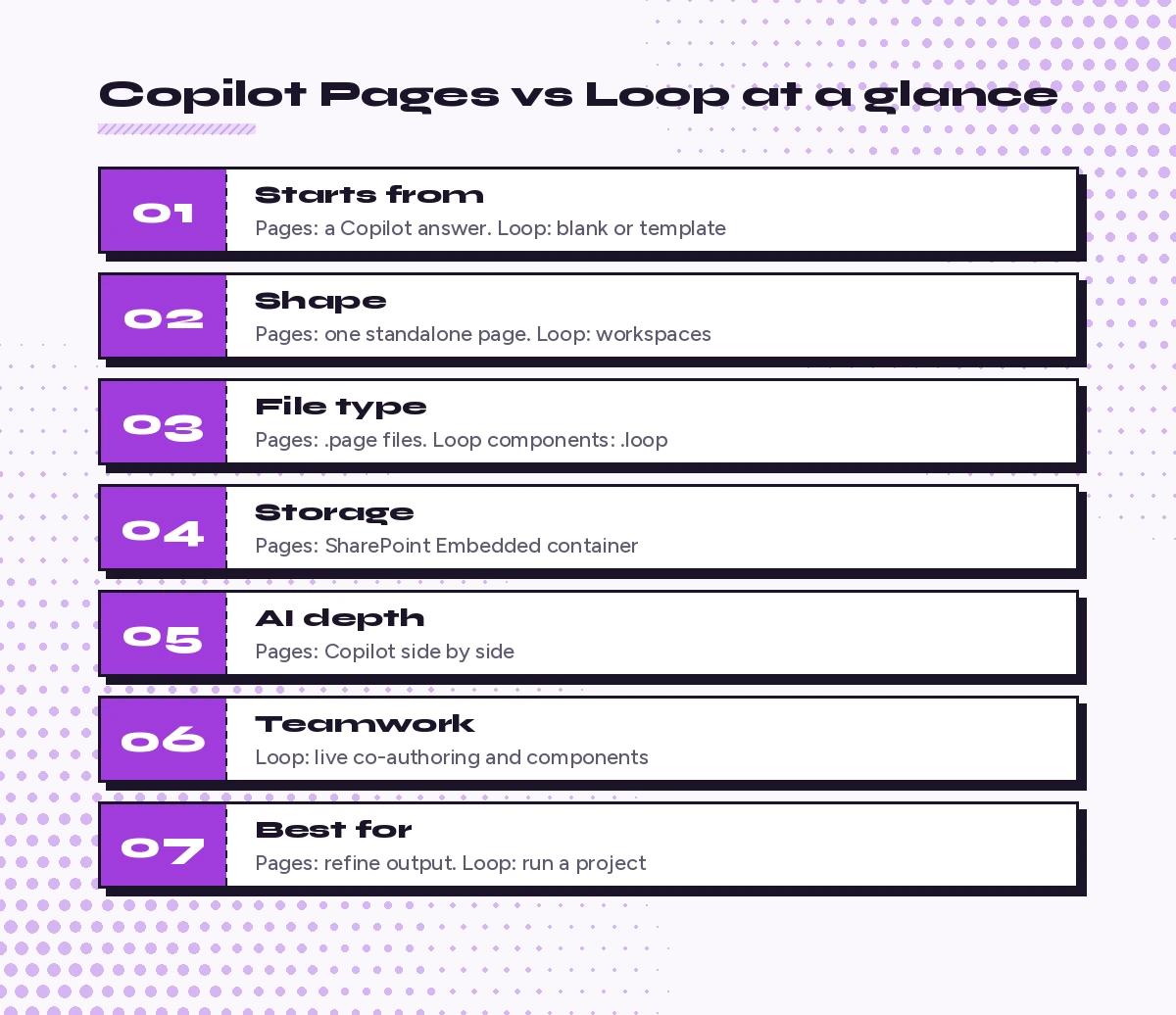
9 Copilot Pages vs Loop Differences That Matter Day to Day
1. Where the work starts
Pages almost always begin with a Copilot response. You ask a question in chat, get an answer and choose to edit it in a page. Loop starts with a blank page, a template or a new workspace, and Copilot is optional. If your first move is “ask Copilot”, you are in Pages territory. If it is “set up a space for the team”, you are in Loop territory.
2. How content is organised
Microsoft describes Copilot Pages as flat: each page stands on its own. Loop is modular, with pages and components arranged inside workspaces that can hold dozens of related items. Ten separate pages about the same launch quickly become hard to track, whereas one Loop workspace keeps them together under a single name.
3. How deep the AI goes
Pages puts Copilot right beside the canvas. You can highlight a paragraph and ask for a rewrite, ask for a table to be added, or regenerate a section without leaving the page. Loop has Copilot features too, such as summarising a page or pulling out action items, but Microsoft rates its AI integration as medium compared with Pages.
4. How collaboration works
Loop shines for live teamwork: presence indicators, shared cursors, comments and components that update across apps. Pages can be shared and co-edited, but each page is shared on its own. If six people need to work across many linked documents, Loop handles that more gracefully.
5. Portability across Microsoft 365
Loop components are the most portable thing in this whole family. A task list made in a Teams chat can appear in an Outlook email and stay synced. Copilot Pages can also be shared as interactive components in Teams, Outlook, Whiteboard, OneNote or Loop, but only when your organisation has Loop components switched on. Without that, pages stay interactive only inside the Copilot app and supported chat experiences.
6. File type
A Copilot Page saves as a .page file. Loop components created inside apps such as Teams or Outlook save as .loop files, while pages inside Loop workspaces behave like the same page format that Pages uses. You rarely need to think about this, but it matters if you go searching in OneDrive or need to explain to IT what a strange file extension is.
7. Where the files are stored
Microsoft Learn’s Copilot Pages and Notebooks storage overview explains that each user gets one user-owned SharePoint Embedded container that holds Copilot Pages, Copilot Notebooks and Loop My workspace content. Shared Loop workspaces live in their own shared containers, and components created in Teams chats, Outlook emails or OneNote are saved in the creator’s OneDrive or the relevant SharePoint site. In short, Pages lives in your personal container, while Loop content follows wherever it was created.
8. Who owns it when people leave
Because a Copilot Page sits in a container tied to your user account, its lifecycle follows that account. Shared Loop workspaces are managed by their workspace owners, and Teams channel content is tied to the Microsoft 365 group. For long-running team assets, a shared Loop workspace is the safer home, since it does not depend on one person staying in the organisation.
9. How admins control it
The two can be enabled or disabled separately. Admins have one policy for creating and viewing Copilot Pages and Notebooks, and another for creating Loop workspaces. One wrinkle: in the SharePoint admin centre and Purview audit data, the shared container always shows the application name “Loop”, even when it only holds Copilot Pages. If a menu option is missing on your screen, your IT team may simply have one of these policies turned off.
Copilot Pages vs Loop: Side-by-Side Comparison Table
| Topic | Copilot Pages | Microsoft Loop |
|---|---|---|
| Typical starting point | A Copilot Chat answer | A blank page, template or workspace |
| Structure | One standalone page | Workspaces, pages and components |
| AI involvement | Copilot sits beside the canvas | Copilot helps with summaries and tasks |
| Live co-authoring | Yes, per page | Yes, across pages and components |
| Main file type | .page | .page in workspaces, .loop components |
| Storage | User-owned SharePoint Embedded container | Depends on where it was created |
| Lifecycle | Tied to your user account | Workspace owners or Microsoft 365 group |
| Best for | Capturing and refining AI output | Running shared, ongoing projects |
Menus and labels change as Microsoft updates its apps, so treat this copilot pages vs loop table as a guide to behaviour rather than exact button names.
Copilot Pages vs Loop: Which One Should You Pick?
Ask yourself these questions before you open either app:
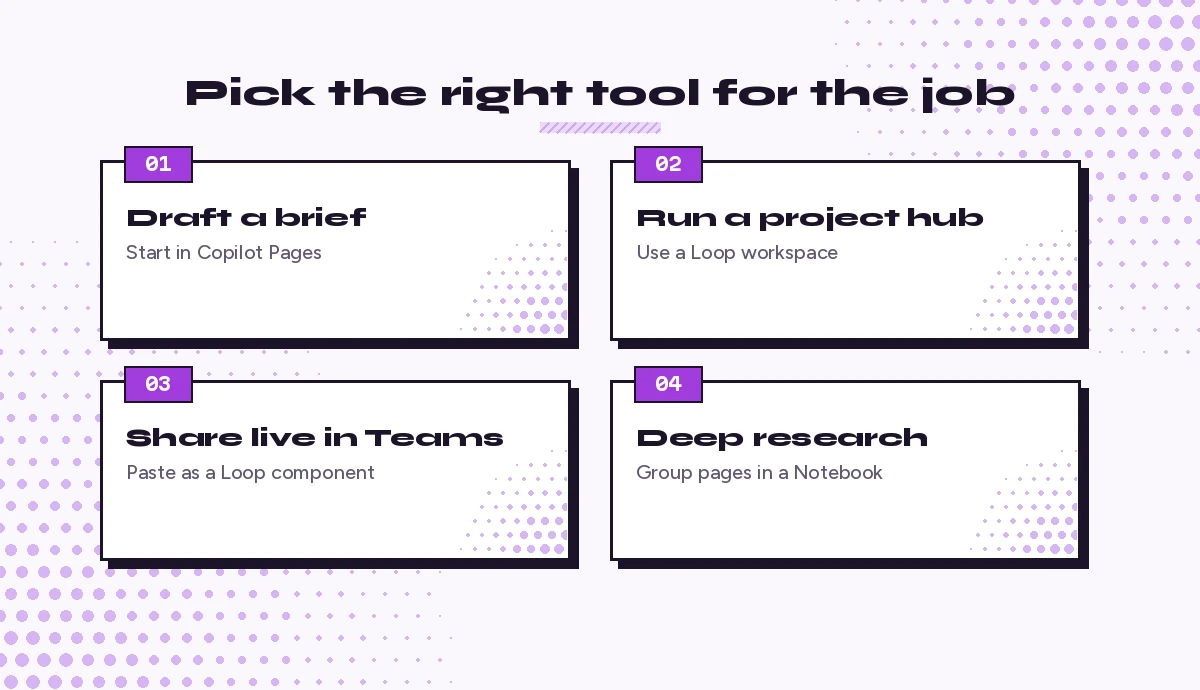
- Did Copilot write the first draft? Choose Pages.
- Will more than three people edit it over several weeks? Choose Loop.
- Does it need to live inside a Teams chat or an email and stay synced? Choose a Loop component, or share the page as a component if your tenant allows it.
- Is it a one-off deliverable such as a brief, memo or outline? Choose Pages.
- Is it a hub with tasks, decisions and notes? Choose a Loop workspace.
- Do you need to research across files and chats first? Consider a Copilot Notebook, then publish the useful parts to a page.
A workflow that uses both
The smartest answer to copilot pages vs loop is often both. Many teams settle on a simple pattern. A project lead drafts a kickoff brief with Copilot and refines it in a page. Once it is approved, the page is added to the project’s Loop workspace, where the team keeps a task list component, a decision log and meeting notes. Weekly status updates are pasted into Teams as components so nobody has to chase the latest version. The AI work happens in Pages; the long-term coordination happens in Loop.
10 Prompts for Copilot Pages
Use these in Copilot Chat, then send the answer to a page. Swap the bracketed parts for your own details.
Briefs and plans
Create a one-page project brief for [project name]. Include goal, scope, out of scope, owners, key dates, risks and the first three next steps. Use short headings and a table for owners and dates.Turn these rough notes into a clear plan with phases, milestones and owners. Flag anything that has no owner or no date: [paste notes]Draft a decision memo comparing [option A] and [option B]. Give a summary, pros and cons for each, cost or effort considerations, and a recommended choice with reasons.Editing inside the page
Rewrite the section titled [section name] so it is half the length and easier for a non-technical reader. Keep every fact and figure.Add a table at the end of this page that lists each action item, the owner, the due date and the current status.Review this page for gaps. List questions a senior manager would ask after reading it, then suggest one sentence I could add to answer each.Meeting and research work
Using my recent emails and chats about [topic], create a page with background, open questions and talking points for tomorrow's meeting.Summarise the key points from [file name] into a page with a short overview, five main findings and a list of follow-up questions.Create an FAQ section for this page with eight questions a new team member would ask, with short, plain-language answers.Convert this page into a checklist version that someone could follow step by step, keeping the original page unchanged.If you want a repeatable structure for prompts like these, our Copilot prompt template breaks every request into goal, context, source and expectations.
10 Prompts for Microsoft Loop
These work with Copilot inside Loop pages, or as starting points when you build components by hand.
Setting up a workspace
Create a project hub page for [project name] with sections for goals, team and roles, timeline, open decisions and links to key files.Suggest a structure for a Loop workspace that supports a six-week product launch. List the pages I should create and what each one should contain.Draft a weekly status template with headings for progress, blockers, decisions needed and next week's priorities.Running the work
Summarise the changes made to this page in the last week and list who needs to review them.Pull out every action item on this page and turn them into a task list with owners and due dates.Create a decision log table with columns for date, decision, owner, reason and follow-up.Write a short agenda for our next stand-up based on the open tasks and blockers on this page.Sharing and wrap-up
Write a three-sentence update I can paste into the Teams channel that summarises where the project stands today.Create a retrospective page with sections for what went well, what did not, lessons learned and actions for next time.Review this workspace page and suggest which sections should become separate pages so the workspace stays easy to navigate.For more prompts that fit the places Loop components often end up, see our collections of Copilot prompts for Teams channels and Copilot prompts for project managers.
Common Copilot Pages vs Loop Mistakes to Avoid
Keeping a team hub in a single page. A page works well for one deliverable but gets crowded when it turns into a running project log. Move it into a Loop workspace once it starts collecting tasks and meeting notes.
Expecting your chat to be shared. When you share a Copilot Page, recipients see the page, not the conversation that produced it. Add any context they need directly to the page.
Forgetting about ownership. A page in your personal container depends on your account. If a document must outlive your role on a team, store it in a shared workspace with more than one owner.
Assuming every feature is switched on. Sharing pages as live components requires Loop components to be enabled. If the option is missing, ask your IT team before assuming it is a bug.
Pasting static screenshots instead of components. A screenshot of a task list is out of date the moment someone ticks a box. Paste the live component instead so everyone sees the current state.
How Copilot Notebooks Fit In
Microsoft lists a third tool alongside these two. Copilot Notebooks gather files, chats, pages, links and meeting notes in one private project space, and Copilot answers questions grounded in that content. Notebooks are less about sharing and more about thinking: you research inside a notebook, then publish the useful output as a page. If you already capture meeting notes in OneNote, our Copilot OneNote prompts are a natural companion.
Final Verdict
The Copilot Pages vs Loop decision gets easier once you stop treating them as rivals. Pages is your AI drafting desk: it turns a good Copilot answer into something durable and shareable. Loop is your team’s shared workspace: it keeps tasks, notes and decisions live across Teams, Outlook and beyond. Start each piece of work in the tool that matches its first step, and move it when the job changes. That one habit will save you more time than any single feature.
Frequently Asked Questions
Is Copilot Pages the same as Microsoft Loop?
Not exactly. Copilot Pages are .page files that share the same capabilities as Loop pages and open in the Loop app when shared, but Pages are built for capturing and refining Copilot responses, while Loop is a broader collaboration app with workspaces and portable components.
Do I need Loop to use Copilot Pages?
No. Microsoft lets admins enable Copilot Pages and Loop separately. However, sharing a page as an interactive component in Teams, Outlook, Whiteboard, OneNote or the Loop app requires Loop components to be enabled.
Where are Copilot Pages stored?
Copilot Pages are saved in a user-owned SharePoint Embedded container that is also used by Loop My workspace and Copilot Notebooks. In admin tools that container appears with the application name Loop.
Can I move a Copilot Page into a Loop workspace?
Yes. Microsoft notes that Copilot Pages can be added to Loop workspaces or Copilot Notebooks, so a page drafted with Copilot can become part of a larger team project without being rebuilt.
In Copilot Pages vs Loop, which is better for team collaboration?
Loop is generally better for ongoing team collaboration because it organises many pages and components in shared workspaces with live co-authoring. Copilot Pages are better for refining a single piece of AI-generated content and sharing it.
What happens to my Copilot Pages if I leave my organisation?
Because Pages live in a container tied to your user account, their lifecycle follows that account and your organisation’s retention policies. For content that must outlast one person, a shared Loop workspace with several owners is a safer choice.