Copilot Prompt Gallery: 30 Proven Prompts Worth Saving (and How to Share Them)
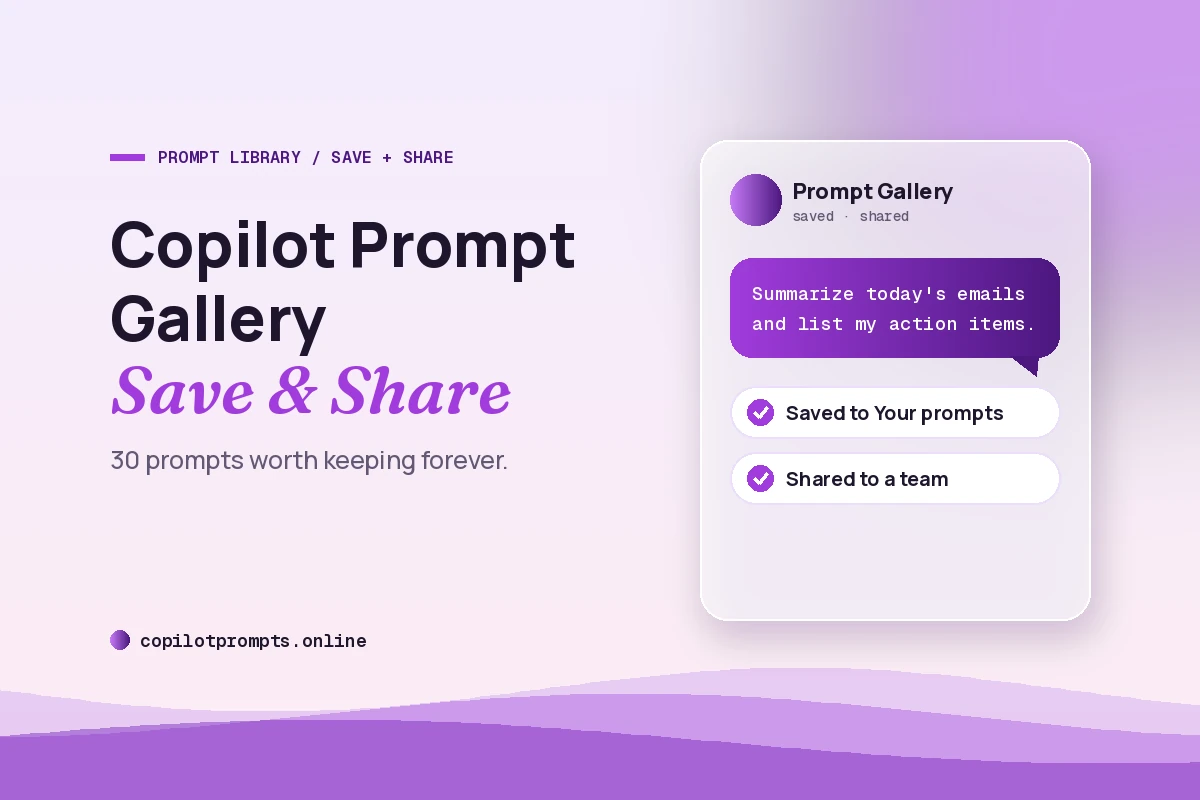
The Copilot Prompt Gallery is the place in Microsoft 365 Copilot where good prompts stop being one-off messages and start becoming reusable tools. Instead of digging through your chat history for that brilliant weekly-summary prompt you wrote last month, you save it once, give it a clear name and run it again whenever you need it. You can also share your best ones with a Microsoft Teams team so everyone works from the same proven starting points.
This guide walks through how the gallery is organised, how to save, rename, edit and share prompts, and how to keep a personal library that stays useful instead of turning into clutter. The second half gives you 30 copy-ready prompts that are genuinely worth bookmarking, grouped by the kind of work they handle. Every prompt uses square brackets for the parts you should replace.
What the Copilot Prompt Gallery Is (and What It Is Not)
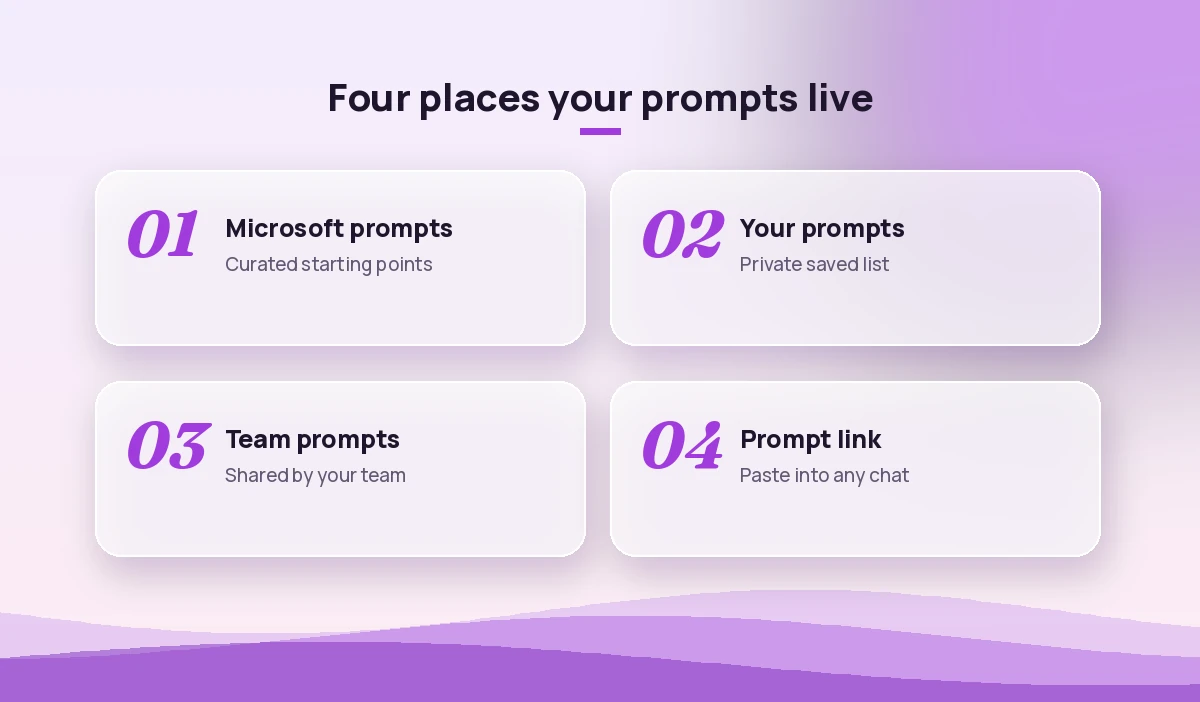
Think of the Copilot Prompt Gallery as a library with a few shelves. One shelf holds Microsoft-curated prompts that everyone in your organisation can see. Another shelf holds the prompts you have saved yourself, which stay private to you. A third holds prompts that colleagues have shared with a team you belong to. You browse, pick one, adjust the bracketed details and run it.
According to Microsoft’s guide on how to save your favorite prompts to use again, a saved prompt lands in the Your prompts tab, where you can view, edit or run it again. That same page notes your saved list is visible only to you.
It is worth being clear about what the library does not do:
- It does not run anything on a timer. A saved prompt waits for you to click it. If you want Copilot to run something automatically every morning, that is a different feature, covered in our guide to Copilot scheduled prompts.
- It does not change Copilot’s permissions. A shared prompt that says “summarise the Q3 budget file” only works for colleagues who can already open that file.
- It does not guarantee quality. A curated prompt is a starting point. You still need to add your own context, audience and format to get a strong answer.
Feature names and menu placement shift as Microsoft updates the Copilot apps, and availability depends on your licence and your organisation’s settings. If something below looks slightly different on your screen, look for the same idea: a bookmark or save icon on a prompt you have run, and a list of saved prompts nearby.
Where to Find the Copilot Prompt Gallery
Microsoft describes the gallery as reachable from several places, including Microsoft 365 Copilot Chat, Teams and Outlook. In practice, most people meet it in one of three ways:
- From the chat box. In Copilot Chat there is usually a prompts or “view prompts” option near the input area that opens the library, filtered to the app you are in.
- From inside an app. In Word, PowerPoint, Excel and Outlook, the Copilot pane often suggests prompts and links through to more of them.
- From the Prompts app in Teams. Microsoft’s article on sharing prompts with a team refers to a Prompts app with a Team prompts tab, and notes you can add it to Teams so shared prompts sit right inside a team’s channels.
If you cannot open the Copilot Prompt Gallery from any of these, check that you are signed in with your work or school account. Some saving and sharing options are tied to a Microsoft 365 Copilot licence, so a free or consumer account may show a simpler set of features.
How to Save a Prompt You Wrote
Saving works on prompts that have already run, which is a sensible design: you only keep what you have seen working.
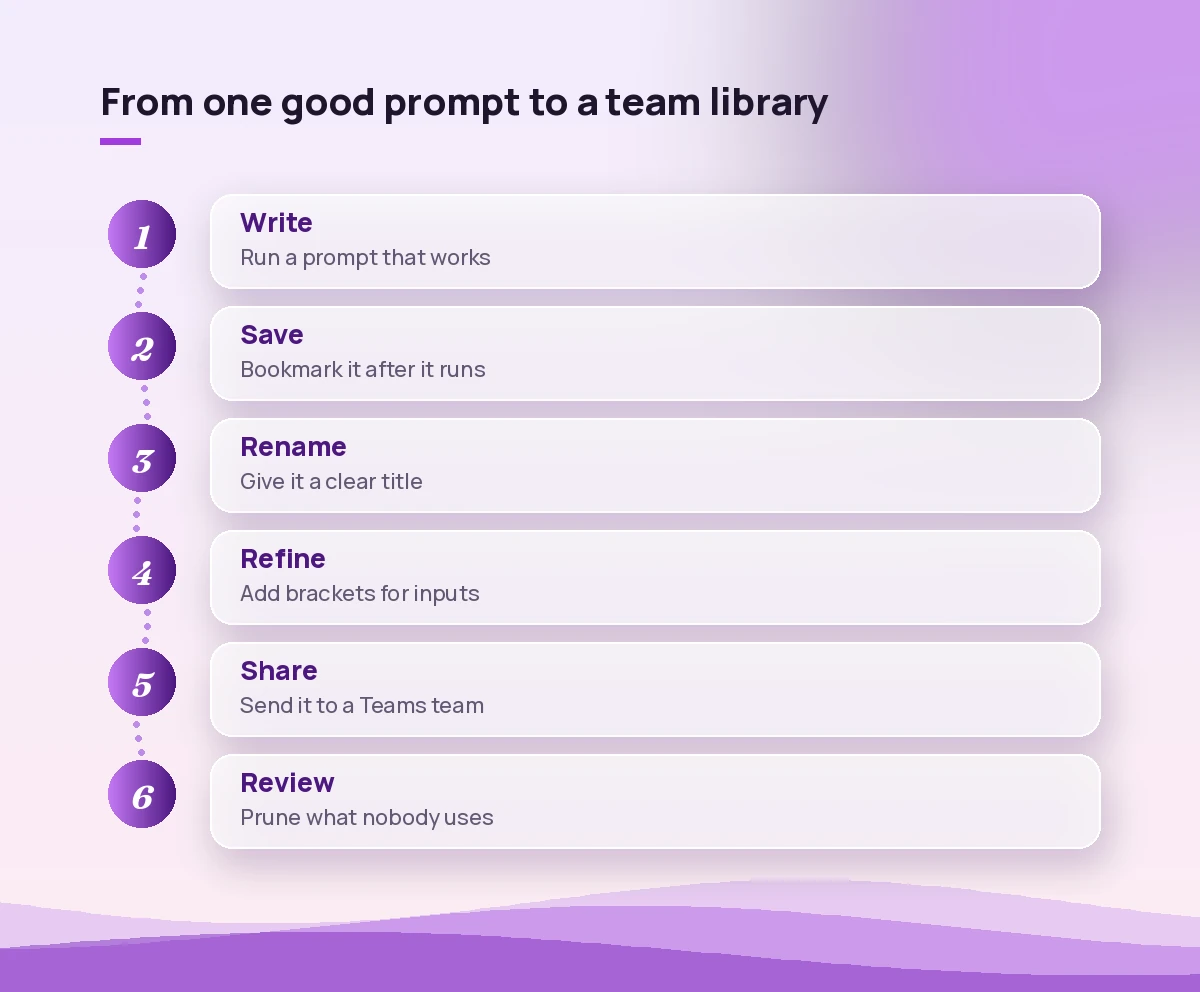
- Write and run your prompt in Copilot Chat or an app’s Copilot pane.
- When the reply is good, hover over your prompt (not the answer) to reveal the bookmark icon.
- Select Save prompt.
- Edit the title so it describes the job, for example “Daily email summary with action items” instead of the first few words of the prompt.
- Open Your prompts later to run, edit or delete it.
A small habit makes a big difference here: before saving, rewrite any one-time details as placeholders. “Summarise the Contoso renewal thread” becomes “Summarise the [client] renewal thread”. Now it is a template you will reach for again, not a record of last Tuesday.
Saving a Microsoft-curated prompt
The curated prompts in the Copilot Prompt Gallery can be saved too. Bookmark one as it is, or run it, tweak the wording until the result fits your work, and save the improved version. The tweaked copy is usually the one worth keeping, because it reflects your documents, your tone and your preferred format.
How to Share Prompts With a Team
Sharing turns a personal trick into a team standard. Microsoft’s support steps follow this pattern:
- Save the prompt so it appears in Your prompts.
- Open the Copilot Prompt Gallery in Copilot Chat, Teams or Outlook and go to Your prompts.
- Hover over the prompt card and select Share prompt.
- Choose Share to team, then pick the Microsoft Teams team.
Teammates then find it under the Team prompts tab once they select that team. If a shared prompt goes stale, the same tab lets you remove it.
There is also a lighter option. Microsoft’s page on how to share your best prompts with others explains that after a prompt runs you can copy a link to it and paste that link into a Teams chat, a OneNote page or another app. This is handy for sending one prompt to one person without adding it to a whole team’s list.
When you share, add one or two lines of context: what the prompt is for, what inputs it needs and anything you learned while refining it. A prompt without context tends to get run once, misunderstood and ignored.
What Makes a Prompt Worth Saving
Not every prompt deserves a place in your library. The ones that earn it usually share four traits:
| Trait | Why it matters | Quick test |
|---|---|---|
| Repeats often | Saves real time every week | Will you run it at least twice a month? |
| Has clear inputs | Easy to reuse with new details | Can every changing part go in brackets? |
| Defines the output | Results look the same each time | Does it name format, length and audience? |
| Stands alone | A teammate can use it without you | Would a new hire understand it? |
The strongest saved prompts follow the structure Microsoft teaches for any Copilot request: a goal, the context, the sources to use and your expectations for the response. If you want to go deeper on that structure, our breakdown of Copilot prompt ingredients shows each part with examples, and the Copilot prompt template guide gives fill-in-the-blank frames you can save directly.
30 Prompts Worth Adding to Your Library
The prompts below are written to be saved. Each one names its inputs in brackets and spells out the output, so it works the same way the fifth time as the first. Copy them, run them on real work, adjust the wording and then bookmark your version.
Daily and weekly routines
These are the prompts most people end up running on repeat, which makes them the best candidates for the top of your saved list.
1. Morning inbox triage
Review my unread emails from the last [24 hours]. Group them into: needs a reply today, needs a reply this week, and FYI only. For each email give the sender, a one-line summary and the action required. Put anything from [manager or key client] at the top.2. End-of-week recap
Summarise my week from [Monday date] to [Friday date] using my meetings, emails and Teams chats. List the decisions made, work I completed, open items I own and anything I promised to someone. Keep it under 250 words in bullet points.3. Meeting prep in two minutes
I have a meeting called [meeting name] at [time]. Using the invite, related emails and shared files, tell me the purpose, who is attending and their roles, the open questions from previous discussions and three things I should be ready to answer.4. Catch up on a busy channel
Summarise the last [7 days] of conversation in the [channel name] channel. Highlight decisions, unanswered questions and anything that mentions me or my team. End with a short list of threads I should read in full.5. Action items from a meeting
From the transcript of [meeting name], list every action item with the owner, the due date if mentioned and the exact quote it came from. Flag any item that has no clear owner.6. Plan my day
Look at my calendar for today and my flagged emails. Suggest a realistic plan with two focus blocks, the three most important tasks and anything I can defer. Point out any back-to-back meetings with no break.Writing and editing
Writing prompts benefit most from saved instructions about tone and length, because those are the details people forget to type each time.
7. Polish a draft without changing my voice
Edit the text below for clarity and grammar. Keep my tone and vocabulary, shorten sentences longer than 25 words and remove filler. Show the edited version, then list the five most important changes you made.

[paste text]
8. Reply to a tricky email
Draft a reply to this email from [name]. My goal is to [decline politely / push back on the deadline / ask for more detail]. Keep it professional, warm and under 150 words. Offer one alternative or next step.

[paste email]
9. Turn notes into a status update
Turn these rough notes into a project status update for [audience]. Use sections for progress, risks, decisions needed and next steps. Use plain language and keep it to one screen.

[paste notes]
10. Rewrite for a different audience
Rewrite the content below for [executives / customers / new team members]. Remove jargon, keep the key facts and adjust the length to about [number] words. Add a one-sentence summary at the top.

[paste content]
11. Create an announcement
Write a short announcement for [channel or email list] about [change or news]. Explain what is changing, when it takes effect, who it affects and where to ask questions. Friendly tone, no more than 120 words.12. Summarise a long document
Summarise /[document name] in three parts: a five-sentence overview, the key numbers or commitments, and any open questions or risks. Quote the section heading for each point so I can find it.Analysis and decisions
13. Compare two options
Compare [option A] and [option B] for [goal]. Use a table with rows for cost, effort, risk, timeline and impact. Then recommend one option in two sentences and list what would change your recommendation.14. Spot trends in a spreadsheet
Analyse the data in [file or table name]. Identify the three biggest changes between [period 1] and [period 2], any outliers and one chart type that would show the main trend clearly. Explain each finding in plain words.15. Pre-mortem for a plan
Imagine it is [date] and the [project name] has failed. List the eight most likely reasons it failed, rate each by likelihood and impact, and suggest one early warning sign and one prevention step for each.16. Decision summary for leadership
Write a one-page decision brief on [topic] for [leader name or role]. Include the decision needed, background in three bullets, the options with pros and cons, my recommendation and the deadline for a decision.17. Find gaps in a proposal
Review [document name] as a sceptical reviewer would. List unclear claims, missing evidence, assumptions that need testing and questions a [client / approver] is likely to ask. Order them from most to least serious.18. Customer feedback themes
From the feedback in [file or pasted list], group comments into themes, count how many fall in each theme and give two representative quotes per theme. Finish with the top three improvements the feedback suggests.Presentations and documents
19. Outline a deck from a document
Create a [number]-slide presentation outline based on /[document name] for [audience]. Give each slide a title, three bullet points and a suggested visual. Make the last slide a clear ask or next step.20. Speaker notes
Write speaker notes for each slide in this presentation. Keep each note to about 60 words, conversational in tone, and include one transition sentence that leads into the next slide.21. Executive summary from a report
Write an executive summary of [report name] in under 200 words. Lead with the main conclusion, then three supporting points and one recommended action. Avoid technical terms.22. First draft of a proposal
Draft a proposal for [project or service] for [client]. Use the context from /[brief or email thread]. Include the problem, proposed approach, timeline, team, pricing placeholder and next steps. Mark any assumption with [CHECK].Team and people work
23. One-to-one prep
Prepare me for a one-to-one with [name]. Using our recent emails, chats and shared files, list what they are working on, any wins worth recognising, blockers they mentioned and three open questions I could ask.24. Onboarding checklist
Create a first-two-weeks onboarding checklist for a new [role] joining [team]. Organise it by day, include people to meet, tools to set up and documents to read, and add one small win they could deliver in week one.25. Feedback that is specific and kind
Help me write feedback for [name] about [situation]. Describe the behaviour, its impact and a clear suggestion for next time. Keep it balanced and specific, and suggest how I could open the conversation.26. Meeting agenda
Create an agenda for a [length]-minute meeting about [topic] with [attendees]. Include timed sections, the goal of each section, who leads it and the decision or output we need by the end.Learning and prompt improvement
The last group is about getting better at Copilot itself. These are especially useful to share with a team that is just starting out.
27. Improve my prompt
Here is a prompt I use: "[paste prompt]". Rewrite it so it gives Copilot a clear goal, context, sources and expected output. Then explain in three bullets what you changed and why.28. Explain a topic quickly
Explain [topic] to me as if I am new to it. Start with a two-sentence definition, then give a simple example from [my industry], three common mistakes and where I should look to learn more.29. Turn a process into steps
Turn this description of how we [process name] into a numbered step-by-step guide. Add who is responsible for each step, the tools used and one common mistake to avoid at each stage.

[paste description]
30. Build my own prompt library
Based on my recent meetings, emails and documents, suggest ten tasks I repeat often that a saved Copilot prompt could speed up. For each one, write the prompt with placeholders in square brackets and a short title I can save it under.That last prompt is a neat way to start: let Copilot look at your own work patterns and propose the prompts you should be saving. For a quick reference of patterns you can mix into any of these, keep our Copilot prompt cheat sheet open in another tab.
How to Keep Your Copilot Prompts Gallery Useful
A saved list grows fast. After a few months, an unmanaged library is just a second chat history. A few light habits keep it sharp:
- Name by job, not by wording. Titles like “Client renewal summary” or “Weekly status update” are easier to scan than “Please review the emails and…”.
- Use a consistent prefix. Starting titles with the app or area, such as “Outlook:”, “Excel:” or “Team:”, groups related prompts when you scroll.
- Keep one version. When you improve a prompt, edit the saved copy instead of saving a near-duplicate.
- Prune monthly. Delete anything you have not run in the last month or two. If you miss it, you can rebuild it.
- Share only the proven ones. A team list works best when every entry has been tested on real work by at least one person.
- Write for someone else. If a prompt only makes sense to you, add the missing context before sharing it.
For teams, it helps to agree on a small owner group, even one person, who reviews the shared prompts each quarter, retires outdated ones and adds the prompts people keep asking about in chat.
Common Problems and Fixes
There is no save option. Saving usually appears only after a prompt has run and only when you hover over your own message. Check you are signed in with a work or school account; some library features need a Microsoft 365 Copilot licence.
A shared prompt gives a teammate poor results. The prompt probably relies on files or threads they cannot access, or on context you had in the chat before it. Rewrite it so every reference is explicit or bracketed.
You cannot find a team in the share list. You can only share to Teams teams you belong to. Ask the team owner to add you, or share a prompt link in a chat instead.
Curated prompts feel generic. They are designed to work for everyone, so they lack your details. Run one, add your audience, sources and format, and save the improved version. If you are new to adding that detail, our guide on how to write Copilot prompts covers it step by step.
The interface looks different from these steps. Microsoft updates the Copilot apps regularly. Look for the same building blocks: a save or bookmark icon on a run prompt, a personal saved list and a team or shared tab.
Final Thoughts
The real value of the Copilot Prompt Gallery is not the curated list. It is the slow build-up of prompts that already work for your job, named clearly and shared with the people who do similar work. Start with three prompts you run every week, save them with good titles and placeholders, and add one new prompt each week. Within a month you will have a small, reliable toolkit, and your team will have a shared starting point instead of everyone reinventing the same request.
Frequently Asked Questions
What is the Copilot Prompt Gallery?
It is the prompt library in Microsoft 365 Copilot where you can browse Microsoft-curated prompts, keep your own saved prompts in a private Your prompts tab and, with the right setup, see prompts shared with your Microsoft Teams teams.
How do I save a prompt in Microsoft 365 Copilot?
Run the prompt first. When it finishes, hover over your prompt to reveal the bookmark icon and select Save prompt. You can then rename it, and it will appear in your Your prompts list to view, edit or run again.
Can other people see my saved prompts?
No. Prompts in your Your prompts list are private to you. Others only see a prompt if you share it to a Teams team or send them a link to it.
How do I share a prompt with my team?
Save the prompt, open your saved prompts, hover over the prompt card and choose Share prompt, then Share to team and select the Teams team. Members can find it in the Team prompts tab after selecting that team.
Do I need a paid licence to use saved and shared prompts?
Some prompt saving and sharing features are tied to a Microsoft 365 Copilot work or school licence, and your organisation’s settings also affect what you see. If an option is missing, check with your IT admin.
Can saved prompts run automatically?
No. A saved prompt runs only when you select it. To have Copilot run a prompt on a schedule, use the separate scheduled prompts feature where it is available in your Copilot app.