Copilot Prompts for Productivity: 35 Powerful Templates to Save Hours Every Week
Copilot prompts for productivity work best when they hand Copilot a specific job, the right material and a clear finish line, instead of a vague “help me get more done.” This guide collects 35 copy-ready templates for the parts of a workday that quietly eat your hours: planning, email, meetings, focus time, writing, decisions and the weekly review.
None of these replace judgment. What they do is take the first pass off your plate, so the minutes you spend are on deciding and doing rather than sorting, summarizing and staring at a blank page. Each template is written for Microsoft 365 Copilot, and most also work in Copilot Chat if you paste the content in yourself.
Why Generic Requests Waste More Time Than They Save
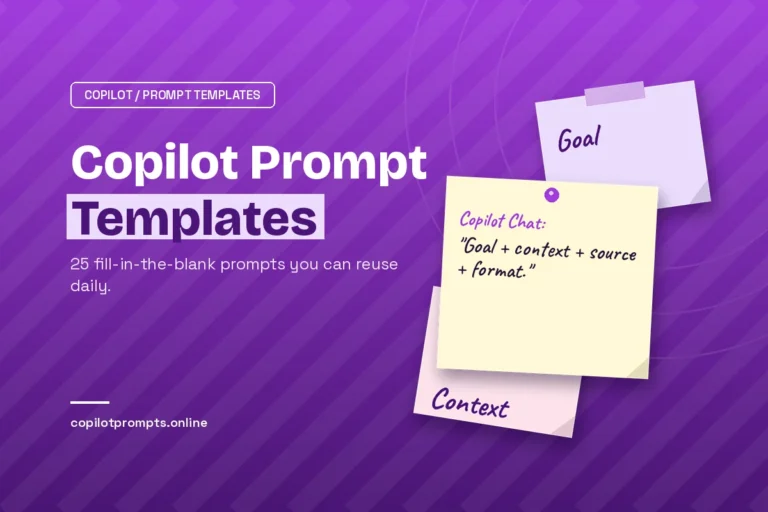
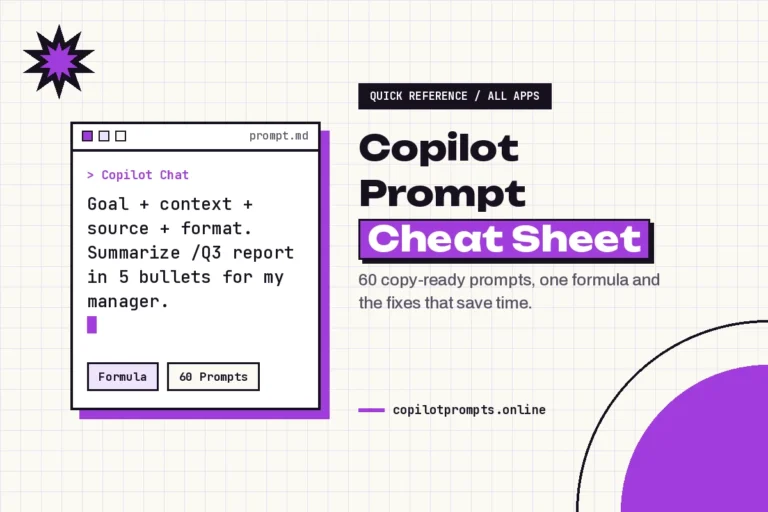
A request like “make me more efficient” gives Copilot nothing to act on. You get a list of general tips you’ve already read, and you’ve lost five minutes. The fix isn’t longer prompts. It’s prompts with four specific ingredients.
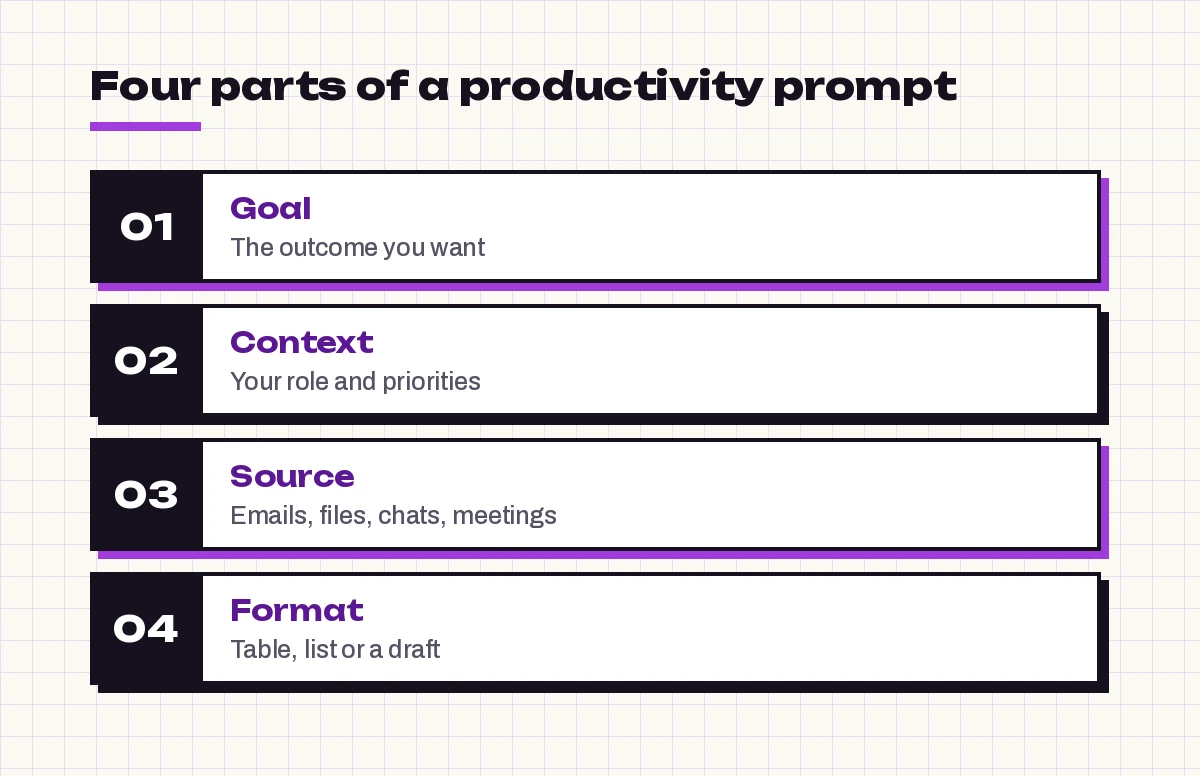
- Goal: the outcome you want, such as “a plan for today” or “a reply I can send.”
- Context: who you are, what you’re working on and what matters most right now.
- Source: the emails, files, chats or meetings Copilot should look at. In Microsoft 365 Copilot you can point to them with the
/key to reference a file or person. - Format: a table, a short list, a draft or a single recommendation.
Microsoft teaches the same structure in its own guide to Copilot prompts, and our breakdown of Copilot prompt ingredients shows how each piece changes the answer.
How to Write Copilot Prompts for Productivity That Actually Work
Before the templates, three habits make every one of them perform better:
- Name the time window. “Today,” “since Friday” or “the next two weeks” keeps answers focused.
- Say what you’ll do with the result. “So I can decide what to drop” produces a different answer than “so I can report to my manager.”
- Ask for less. Five priorities beat twenty. A shorter output is easier to act on, which is the whole point.
Square brackets in the templates below are placeholders. Replace them with your own details, then delete the brackets.
Start-of-Day Planning Prompts
The first ten minutes of the day decide whether you run your schedule or it runs you. These Copilot prompts for productivity give you a quick, honest picture before the first meeting starts.
1. The morning briefing
Give me a briefing for today. List my meetings with times, flag any that conflict, and summarize unread emails and chat mentions that need a reply from me today. Keep it under 200 words.2. Pick the three things that matter
Based on my meetings, flagged emails and the documents I worked on this week, suggest the three most important tasks for me today. For each, explain in one sentence why it should come first.3. Realistic time check
I have these tasks today: [list]. Compare them with the free time on my calendar and tell me honestly what fits. Suggest which task to move to tomorrow if everything won't fit.4. Build a time-blocked plan
Turn my task list below into a time-blocked plan for today between [start time] and [end time]. Put demanding work in the longest free slot, group small admin tasks together and leave 15 minutes of buffer after long meetings. Tasks: [list]5. Catch up after a day off
I was out on [date]. Summarize what happened in my email, Teams chats and meetings that day. Separate items that need action from me and items that are just for awareness.If you’re returning from a longer break, our prompt for returning from vacation goes further with a full catch-up routine.
6. Spot what’s slipping
Look at emails and chats from the past week where I promised to send, review or follow up on something. List anything I haven't done yet, with who's waiting and since when.Prompts to Tame Email and Chat
Inbox time grows to fill whatever space you give it. These Copilot prompts for productivity in your inbox shrink the reading part so you can spend your attention on replies that need real thought.
7. Triage in one pass
Sort my unread emails from today into three groups: needs my reply, needs my decision, and FYI only. Give one line per email with the sender and the ask.8. Summarize a long thread
Summarize this email thread in five bullets. End with the open question that still needs an answer and who is expected to give it.9. Draft a reply that says no politely
Draft a short, friendly reply declining this request. Explain that I'm focused on [priority] until [date], and suggest [alternative person or later date]. Keep it under 90 words.10. Turn a ramble into a clear message
Rewrite my draft below so the main request appears in the first sentence, the deadline is obvious and it's under 120 words. Keep my tone friendly. Draft: [paste]11. Catch up on a busy Teams chat
Summarize the last two days of messages in the [chat or channel name]. What decisions were made, what questions were asked of me, and what can I safely ignore?12. Batch the small replies
List the emails in my inbox from this week that need only a one- or two-line reply. For each, draft that reply so I can review and send them together.For a deeper system, see these Copilot prompts for Outlook inbox management, which cover rules, folders and follow-ups in more detail.
Meeting Prompts That Give Time Back
Meetings cost twice: the hour itself and the scattered prep and follow-up around it. Copilot is strongest on both ends, which makes meetings one of the best places to use copilot prompts for productivity.
13. Prep in three minutes
I have a meeting about [topic] with [names] at [time]. Summarize related emails, chats and files from the past two weeks, and suggest three questions I should be ready to answer.14. Decide if you need to attend
Here is the invite for [meeting]. Based on the agenda and my current priorities, do I need to attend, or could I send a short update instead? If an update is enough, draft it.15. Write a tight agenda
Draft a 30-minute agenda for a meeting whose goal is to [decision or outcome]. Include time per item, who leads each part and the one decision we must leave with.16. Recap a meeting you missed
Summarize the [meeting name] meeting from [date]. List the decisions, the action items with owners, and anything that was assigned to me.17. Turn notes into actions
From these meeting notes, create a table of action items with columns for task, owner, due date and status. If an owner or date is missing, mark it as "unassigned." Notes: [paste]18. Send the follow-up
Draft a follow-up email to the attendees of [meeting] with the decisions, action items and next meeting date. Keep it scannable, with no more than eight bullets.Recaps depend on transcription being turned on for the meeting. Our guide to the best prompt to summarize a meeting transcript covers what to do when it isn’t.
Focus and Deep Work Prompts
Getting more done usually means protecting fewer, longer stretches of uninterrupted time. These Copilot productivity prompts help you plan that time and start it quickly.
19. Find your focus windows
Look at my calendar for the next two weeks and list every free block of 90 minutes or more during working hours. Suggest which two I should protect for [project].20. Break a big task into first steps
I need to finish [project] by [date]. Break it into steps that each take under an hour, in a sensible order, and tell me the very first thing to do in the next 20 minutes.21. Gather everything before you start
I'm about to work on [project]. Find the most recent files, emails and chats about it and list them with a one-line note on what each contains, so I can start without searching.22. Restart after an interruption
Here's where I was in my draft: [paste last paragraph or notes]. Summarize what I've done so far and what the next section should cover, so I can pick up quickly.23. Write a status message that prevents interruptions
Write a short Teams status message saying I'm in focus time on [project] until [time], and that urgent issues can go to [name]. Keep it friendly and under 25 words.Writing and Document Prompts
A large share of office work is writing that nobody enjoys: updates, summaries and first drafts. Hand Copilot the first pass with the copilot prompts for productivity below, and keep the editing for yourself.
24. Draft from bullet points
Turn these bullet points into a one-page document for [audience]. Use short headings and plain language, and keep it under 450 words. Bullets: [paste]25. Summarize a long document
Summarize /[file name] in five bullets for someone with two minutes to read. Then list any deadlines, numbers or decisions it mentions.26. Write the weekly status update
Write my weekly status update for [manager or team] using my sent emails, meetings and edited files from this week. Use three sections: done, in progress and blocked. Keep each item to one line.27. Tighten anything
Edit this text to be 30% shorter without losing any facts. Remove filler, use active voice and keep my meaning. Text: [paste]28. Reuse what already exists
Find documents I or my team created in the last six months about [topic]. Tell me which one is the best starting point for a new [document type] and why.For more structured report work, try our Copilot prompts for report writing.
Prompts for Decisions and Prioritizing
Being busy isn’t the same as making progress. These Copilot prompts for productivity help you choose, which is often the hardest part of the day.
29. Sort tasks by urgency and impact
Sort this task list into a 2x2 table: urgent and important, important but not urgent, urgent but less important, and neither. Suggest what to delegate or drop. Tasks: [list]30. Compare options quickly
I'm deciding between [option A] and [option B] for [goal]. Compare them in a table covering cost, time, risk and effort, then tell me which questions I still need answered before I decide.31. Find what to delegate
Here is everything on my plate this week: [list]. Which items could someone else handle, and what would I need to give them to do it well? Draft a short handover note for the top one.32. Pressure-test a plan
Review this plan and point out the three biggest risks, any step that depends on someone outside my team, and one thing I could cut without hurting the result. Plan: [paste]End-of-Week Review Prompts
A short Friday review is one of the highest-return habits you can build, and these three prompts make it take about ten minutes.
33. What actually got done
Summarize what I worked on this week based on my sent emails, meetings attended and files edited. Group it by project and note anything that looks unfinished.34. Learn from the week
Looking at my calendar this week, how many hours went to meetings versus open time? Which recurring meetings could be shortened, combined or skipped?35. Set up next week
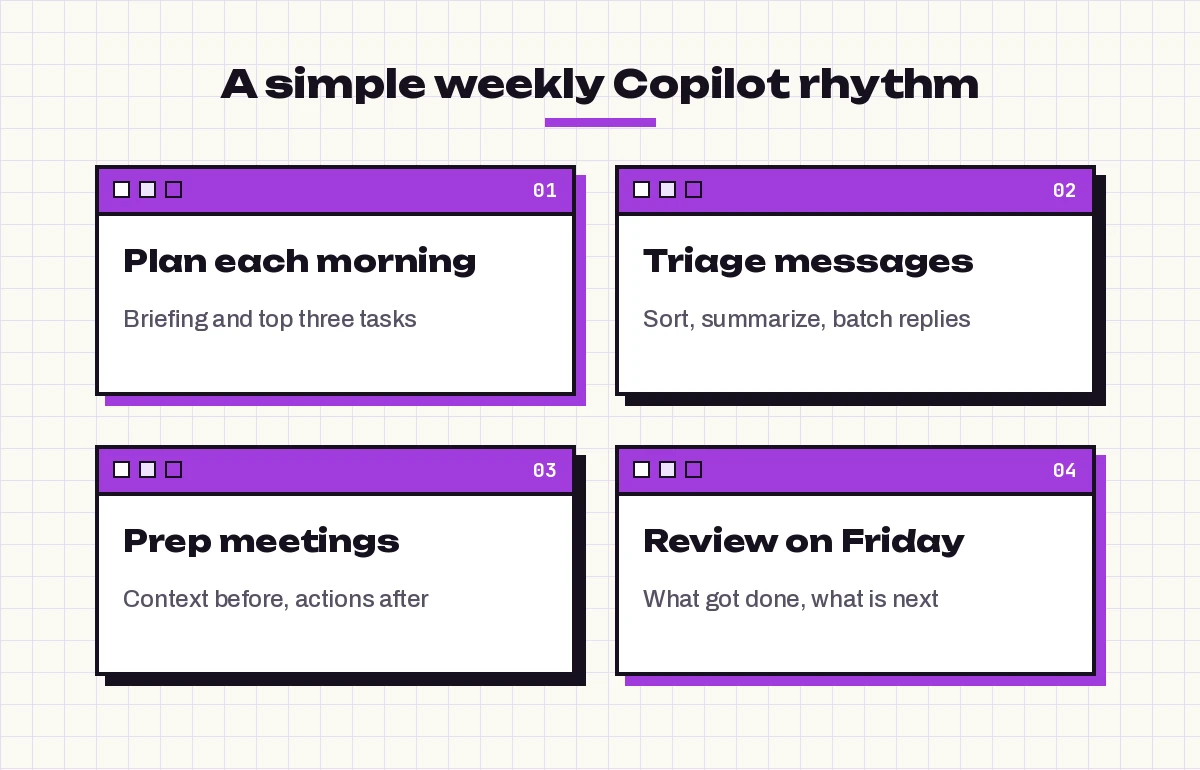
Based on what's unfinished this week and my meetings next week, suggest my top three priorities for Monday and the best time to work on each.The graphic below shows how these prompts fit into a simple weekly rhythm.
Which Copilot Surface to Use for Each Job
Not all Copilot prompts for productivity work everywhere. Copilot Chat on its own can only work with what you paste in or what’s on the web, while Microsoft 365 Copilot can reach your mail, calendar, chats and files, depending on your license and your organization’s settings.
| Task | Best place to run it | Notes |
|---|---|---|
| Daily briefing and catch-up | Microsoft 365 Copilot Chat (Work tab) | Needs access to mail, calendar and Teams |
| Email triage and replies | Copilot in Outlook | Drafts stay drafts until you send them |
| Meeting recaps | Copilot in Teams | Requires transcription or recording |
| Document summaries and drafts | Copilot in Word | Reference files with the / key |
| Task lists and comparisons | Any Copilot surface | Paste your list directly |
If a prompt references “my emails” and returns nothing, you’re probably in a version without work data access. Paste the content in instead and the same template will still help.
Common Mistakes That Undo the Time Savings
- Accepting the first answer. A quick follow-up such as “shorter” or “only items with deadlines” usually gets you there faster than rewriting the whole request.
- Asking for everything at once. One prompt per job keeps answers accurate and easy to check.
- Skipping the review. Copilot can misread a thread or miss a detail. Check names, dates and numbers before anything leaves your outbox.
- Rebuilding prompts from scratch. Save the ones that work. Microsoft’s Copilot Prompt Gallery lets you save prompts, and a simple note works just as well.
Build Your Own Productivity Prompt Library
The real gain comes when copilot prompts for productivity become routine rather than one-off experiments. Pick five templates from this list that match your week, run them for two weeks and adjust the wording each time an answer misses. Keep the versions that work in a single note, sorted by when you use them: morning, after meetings and Friday.
When you want a reusable structure for writing new ones, start from our Copilot prompt template, and keep the one-page Copilot prompt cheat sheet open while you practice.
Frequently Asked Questions
What are the best Copilot prompts for productivity?
The most useful ones handle repeated daily work: a morning briefing, email triage, meeting prep and recaps, time-blocked planning and a Friday review. Prompts that name a goal, a source, a time window and an output format give the most reliable answers.
Can Copilot plan my day for me?
Microsoft 365 Copilot can look at your calendar, emails and chats and suggest priorities or a time-blocked plan. You still decide what goes on the calendar, and it can only use information it has permission to access.
Do these prompts work in the free version of Copilot?
Prompts about your own emails, meetings and files need Microsoft 365 Copilot with access to your work data. Planning, prioritizing and writing prompts work in free Copilot Chat if you paste your task list or text into the conversation.
How do I save Copilot prompts I use often?
You can save prompts in Microsoft’s Copilot Prompt Gallery where it’s available, or keep your best templates in a note or document. Grouping them by time of day makes them quicker to reuse.
How long should a productivity prompt be?
Most Copilot prompts for productivity need only one to three sentences. Include the goal, the source material, the time window and the format you want. Extra length only helps when it adds context Copilot can’t find on its own.
Is it safe to let Copilot read my email and calendar?
Microsoft 365 Copilot works within your organization’s existing permissions, so it surfaces only content you already have access to. Review drafts and summaries before sharing them, especially with people outside your company.