Copilot Prompt Template: 25 Reusable Templates That Get Better Results
A Copilot prompt template is a request you write once, with blanks for the parts that change, so you can reuse it every time a similar task comes up. Instead of typing “summarize this” and hoping for the best, you paste a proven structure, fill in three or four brackets, and get an answer that is closer to what you need on the first try.
This guide covers the simple four-part structure Microsoft recommends, how to turn any good request into a reusable one, and 25 fill-in-the-blank templates for email, documents, spreadsheets, meetings, slides and code. Everything in square brackets is a slot for your own details.
Why Reusable Prompts Beat Starting From Scratch
Most weak Copilot answers have the same cause: the request was missing something. It did not say who the reader was, which file to use, or what shape the answer should take. When you type from scratch under time pressure, you forget one of those pieces almost every time.
A saved Copilot prompt template fixes that. It works like a checklist you cannot skip, because the blanks remind you what Copilot needs. Over a few weeks you also learn which wording reliably works for your job, and that knowledge stops living only in your head.
Reusable prompts help in three practical ways:
- Consistency. A weekly status update written from the same frame looks the same every week, which your manager will notice.
- Speed. Filling four brackets takes less time than composing a careful request and then fixing the reply twice.
- Sharing. A teammate can use your best prompt without needing to know why it works.
If you are completely new to this, start with our guide on how to write Copilot prompts and come back here once the basics feel comfortable.
The Four-Part Structure Behind Every Copilot Prompt Template
Microsoft’s own page on writing prompts in Copilot breaks a prompt into four parts: a goal, context, source and expectations. Only the goal is required, but the page notes that you will often need more than a goal to get the result you want.
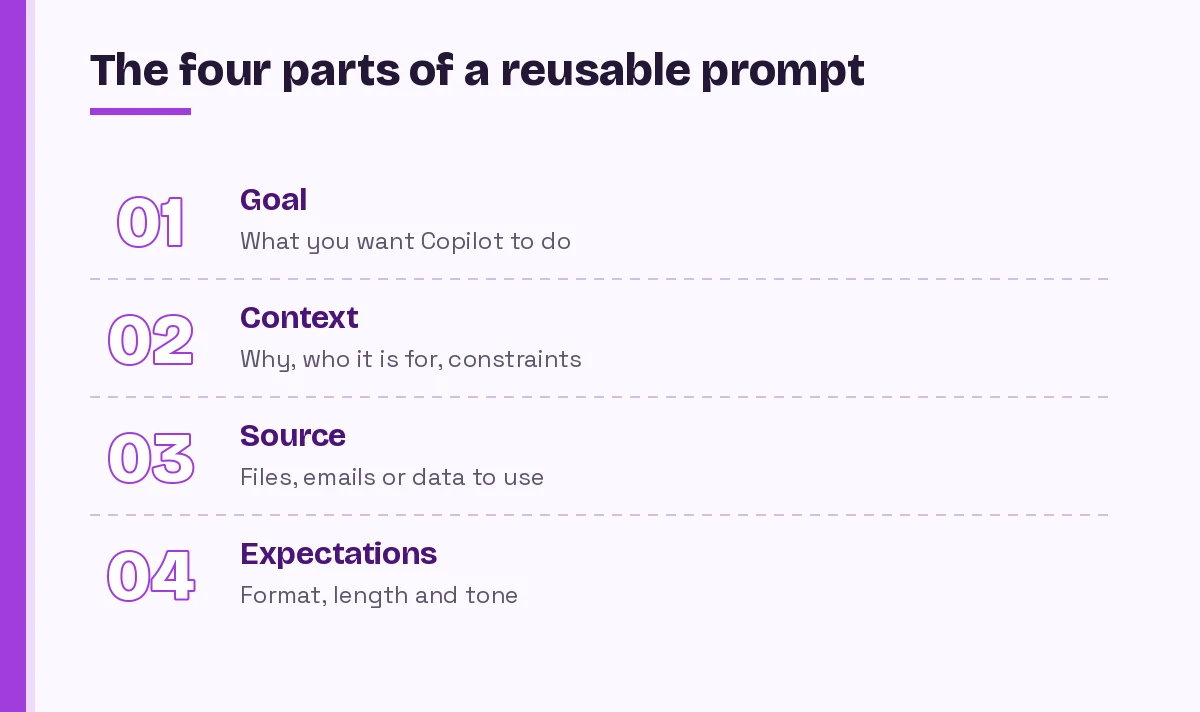
| Part | Question it answers | Example slot |
|---|---|---|
| Goal | What should Copilot do? | Draft, summarize, compare, list, rewrite |
| Context | Why, and who is it for? | [audience], [deadline], [situation] |
| Source | What should it use? | /[file], [email thread], [meeting name] |
| Expectations | What should the answer look like? | [length], [tone], table or bullets |
Here is the bare Copilot prompt template. Every template later in this article is a variation of it:
[Goal: action verb + what you want]
Context: this is for [audience] because [reason]. [Any constraint, such as deadline or policy.]
Use: [file, email thread, meeting or data].
Format: [length], [tone], [structure such as table, bullets or numbered steps].
The order matters less than completeness. Some people prefer to open with the context and end with the goal. Pick one order and stick with it so your saved library feels consistent.
How to Turn Any Good Prompt Into a Copilot Prompt Template
You probably already have a few requests that worked well. Turning them into reusable versions takes about five minutes each.
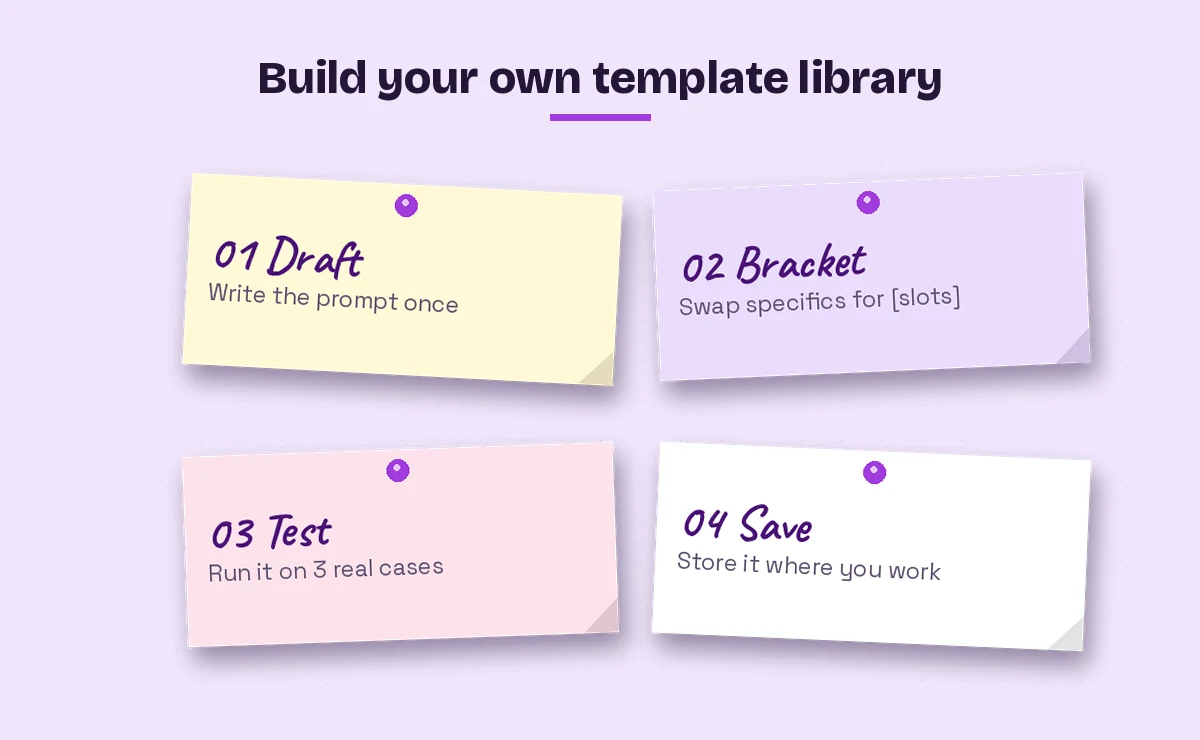
- Find a winner. Scroll back through your Copilot Chat history and pick a reply you did not have to fix much.
- Copy the exact wording. Small phrases such as “in plain language” or “flag anything uncertain” often explain why it worked.
- Bracket the specifics. Replace names, dates, file names and topics with labels in square brackets, like [client name] or [quarter].
- Test it three times. Run the bracketed version on three different real cases. If one result is off, tighten the wording.
- Name and save it. Give it a clear name like “Weekly status update” so you can find it again.
Email and Outlook Templates
Email is where most people feel the time savings of a Copilot prompt template first. These five frames cover the common situations. For more ideas in this area, see our full list of Copilot prompts for Outlook.
1. Reply with a clear decision
Draft a reply to this email from [sender]. My answer is [yes / no / not yet] because [reason]. Keep it under [number] words, friendly but direct, and end with one clear next step.2. Catch up on a thread
Summarize this email thread in 5 bullet points. Then list any questions still waiting for my answer and any deadlines mentioned, with dates.3. Ask for something politely
Write a short email to [name] asking for [item or help] by [date]. Explain that I need it for [reason]. Tone: polite and appreciative, not pushy. Offer one way I can make it easier for them.4. Follow up after silence
Write a follow-up to my email from [date] about [topic] that has not had a reply. Keep it to 3 sentences, restate the one question I need answered, and suggest a quick call as an option.5. Announce a change
Draft an announcement email to [team or audience] about [change]. Explain what is changing, when it starts, why we are doing it, and what they need to do. Use a short intro, then bullets, and keep it under 200 words.Word and Document Templates
Documents benefit most from the “source” part of the structure. In Word or Copilot Chat, you can usually reference a file by typing a forward slash and picking it, which gives Copilot something concrete to work from.
6. First draft from notes
Using /[notes file], write a first draft of a [document type] for [audience]. Use clear headings, short paragraphs and a summary at the top. Do not add facts that are not in my notes; mark gaps with [TBD].7. Executive summary
Write an executive summary of /[document] for [audience] who has 2 minutes to read it. Include the main point, 3 key findings, and the decision or action needed. Maximum 150 words.8. Rewrite for a new reader
Rewrite this section for [new audience, such as customers or new hires]. Remove internal jargon, explain any technical term in plain words, and keep the meaning the same.9. Find weak spots
Review /[document] as a skeptical [role, such as finance director]. List the 5 weakest arguments or missing pieces of evidence, explain why each is weak, and suggest how to fix it.10. Compare two versions
Compare /[version A] and /[version B]. Show the important differences in a table with columns for section, what changed, and why it matters. Ignore formatting-only changes.Excel and Data Templates
Spreadsheet requests go wrong when Copilot has to guess which columns matter. Name them. Also make sure your data is formatted as a table, since Copilot in Excel works best with clean, structured ranges.
11. Quick insight scan
Look at this table and give me the 3 most important trends in [column] by [column]. For each trend, show the numbers that support it and suggest one chart that would show it clearly.12. Build a formula
Write a formula for a new column called [name] that [what it should calculate], using [column A] and [column B]. Explain in one sentence how the formula works.13. Clean messy data
Find problems in this table: duplicates, blank cells in [key column], inconsistent spellings in [column] and dates in the wrong format. List each problem with the row numbers and suggest a fix.14. Explain the numbers to a non-expert
Explain what this data shows about [topic] to someone with no finance background. Use plain words, 4 short bullet points, and avoid any number that is not in the table.Teams and Meeting Templates
Meeting prompts depend on transcription being on, so make that part of your routine before the call starts. Our guide on Copilot prompts for Teams meetings goes deeper on what works live versus after the call.
15. Meeting recap
Summarize the [meeting name] meeting from [date]. Include decisions made, open questions, and action items with owners and due dates in a table. Flag any task that has no clear owner.16. Prep for a meeting
I have a meeting with [person or team] about [topic] on [date]. Using my recent emails, chats and files about this topic, give me a short briefing: background, open issues, and 3 questions I should ask.17. What did I miss
I joined the [meeting name] meeting late. Summarize what was discussed before I joined, in 5 bullet points, and tell me if anyone mentioned my name or asked me something.18. Turn chat into a status update
Read the last [time period] of messages in [chat or channel] and write a status update with three sections: done, in progress, and blocked. Keep each bullet to one line.PowerPoint Templates
Slides need clear limits, or you get twenty dense pages. State the slide count and what each slide must do.
19. Deck from a document
Create a presentation from /[document] with [number] slides for [audience]. Slide 1 is the main message, the last slide is next steps. Keep each slide to 3 bullets maximum and add speaker notes.20. Tighten a deck
Review this presentation and suggest which slides to merge or cut so it fits in [number] minutes. For each slide that stays, rewrite the title as a full-sentence takeaway.21. Speaker notes
Write speaker notes for each slide in this deck. Use a conversational tone, about 60 to 90 seconds per slide, and add one transition line that leads into the next slide.GitHub Copilot Templates
Developers can reuse prompts too, and GitHub Copilot makes it even easier with reusable prompt files saved in the repository. Our guide to Copilot prompt files shows how to store these so the whole team can run them. Here are frames that work well in Copilot Chat inside your editor.
22. Explain unfamiliar code
Explain what #file:[file name] does for a developer new to this codebase. Cover the main purpose, the key functions, any side effects, and anything that looks risky or unclear.23. Write tests
Write unit tests for [function name] using [test framework]. Cover the normal case, edge cases such as [empty input / large values / null], and one failure case. Follow the style of existing tests in [folder].24. Refactor safely
Refactor [function or selection] to improve [readability / performance / naming] without changing its behavior. Explain each change in one line and point out anything that needs a test before merging.25. Review a change
Review these changes as a senior [language] developer. List issues by severity (bug, security, performance, style), cite the line, and suggest a fix. Skip anything that is purely personal preference.Where to Store and Share Your Templates
A library only helps if you can find it in five seconds. Pick one home and use it consistently.
| Option | Best for | Note |
|---|---|---|
| Copilot Prompt Gallery | Microsoft 365 users who want prompts inside Copilot | Saving and sharing options depend on your license and version |
| A OneNote page or Word file | Personal collections with notes on what worked | Easy to search and update |
| A shared team document | Teams that want consistent outputs | Add an owner so it stays current |
| Prompt files in a repo | Developers using GitHub Copilot | Version-controlled alongside the code |
Whichever you choose, add one line under each entry describing when to use it and one example of a good result. That small note saves teammates from guessing.
Common Mistakes That Make Templates Fail
Even a well-built Copilot prompt template can produce weak replies. These are the usual culprits:
- Leaving brackets unfilled. Copilot will treat “[audience]” literally or invent something. Scan for square brackets before you press Enter.
- Too many instructions at once. If a prompt asks for a summary, a table, a chart and an email, split it into two or three turns.
- No source. Asking about “the project” without pointing to a file, thread or meeting forces Copilot to guess which one you mean.
- Vague format. “Make it short” means different things to different people. Say “under 120 words” or “5 bullets.”
- Never updating. Copilot features change over time. Revisit your library every few months and retire prompts that no longer work well.
Remember that the first answer is a draft. Follow-up prompts like “make it warmer,” “cut it by half” or “add a table” are part of the process, not a sign the template failed.
Tips to Get More From Your Prompt Library
A few habits turn a folder of prompts into a real productivity tool:
- Add role framing when it helps. Starting with “Act as a [role]” can shift tone and focus, especially for reviews and critiques.
- Ask Copilot to ask first. End a complex prompt with “Before you start, ask me up to 3 questions if anything is unclear.”
- Keep a “do not” line. Phrases such as “do not add statistics that are not in the source” reduce made-up details.
- Chain prompts. Save sequences, not just single requests: summarize, then extract actions, then draft the email.
- Track what you edit. If you always fix the same thing in the output, add that fix to your Copilot prompt template.
For a broad set of ready-to-use ideas to add to your collection, browse our list of the best Microsoft Copilot prompts.
Final Thoughts
You do not need hundreds of saved prompts. Ten or fifteen that match your real weekly tasks will save more time than a giant list you never open. Start with the goal, context, source and expectations frame as your base Copilot prompt template, adapt the 25 examples above to your own work, and keep refining the ones you use most. Within a month, writing a strong Copilot request will feel like filling in a form rather than starting from a blank page.
Frequently Asked Questions
What is a Copilot prompt template?
It is a reusable prompt with blanks, usually in square brackets, for the details that change each time, such as the audience, file or deadline. You fill in the blanks and paste it into Copilot instead of writing a new request from scratch.
What should a good Copilot prompt include?
Microsoft describes four parts: a goal (what you want), context (why and for whom), a source (which files, emails or data to use) and expectations (format, length and tone). Only the goal is required, but adding the other parts usually improves the result.
Can I save prompts inside Microsoft 365 Copilot?
Many Microsoft 365 Copilot users can save prompts to the Copilot Prompt Gallery and reuse them later. The exact saving and sharing options depend on your license and version, so check what your Copilot app shows.
Do these templates work with free Copilot Chat?
Yes for most of them. Templates that rely on your work emails, meetings or files need a Microsoft 365 Copilot license, but writing, rewriting and brainstorming templates work in free Copilot Chat when you paste or upload the content.
How do I reuse prompts in GitHub Copilot?
GitHub Copilot supports prompt files stored in your repository, so you can save a reusable instruction once and run it from Copilot Chat in your editor. This keeps prompts version-controlled and shared with your team.
How many saved prompts should I keep?
Start with 10 to 15 that match tasks you do every week. A small, well-tested library you actually use is more valuable than a long list you never open, and you can add more as new needs come up.