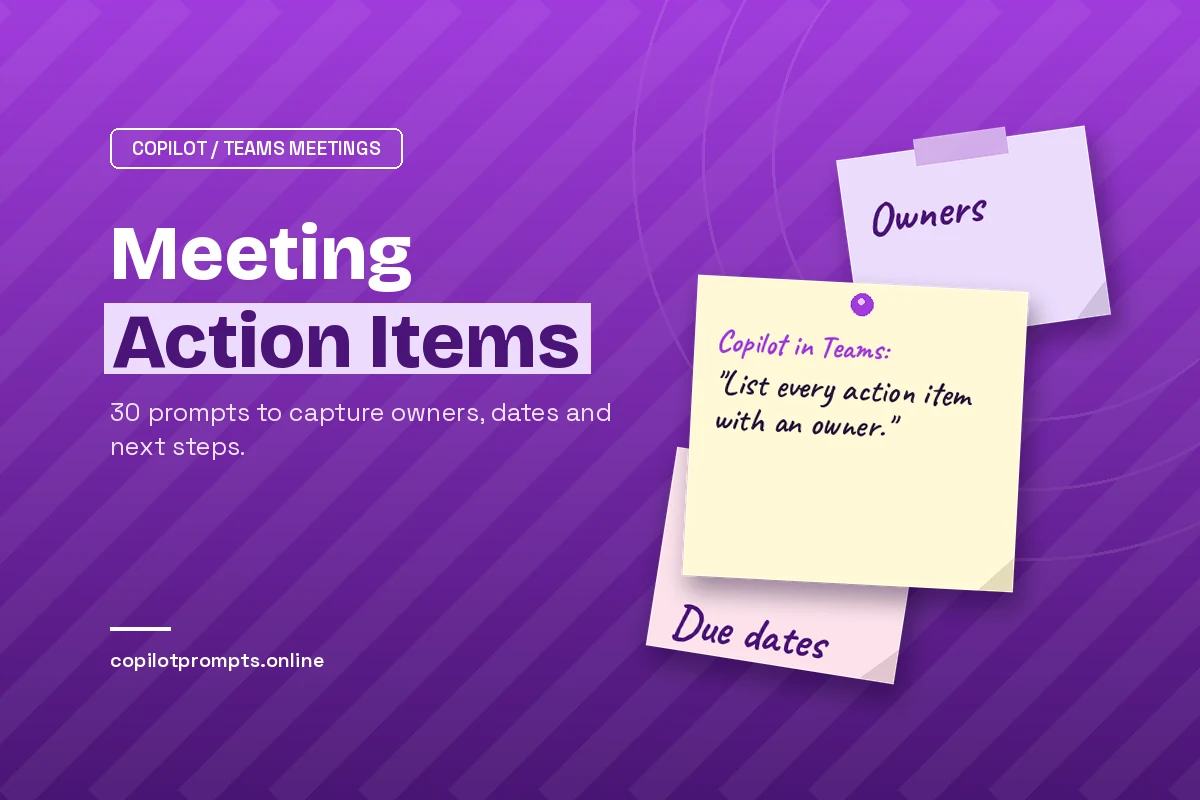
Copilot Prompts for Meeting Action Items: 30 Proven Prompts to Capture Every Task
Copilot prompts for meeting action items solve the oldest problem in office life: a good discussion ends, everyone nods, and a week later nobody remembers who agreed to do what. Copilot in Microsoft Teams listens to the meeting through the transcript, so you can ask it to list the tasks, name the owners and pull out the deadlines while the details are still fresh.
This guide explains how Copilot finds tasks in a conversation, what to switch on before the meeting starts, and 30 copy-ready prompts grouped by moment: during the call, right after it, when the list is messy, and when you need to turn it into emails, tables or tracked work. Replace anything in square brackets with your own names, projects and dates.
How Copilot Finds Tasks in a Teams Meeting
Copilot does not guess at tasks from thin air. It reads the speech-to-text data from your meeting, plus the meeting chat, and looks for commitments: someone saying “I’ll send the draft by Friday,” a manager asking “Can you check the budget numbers?” or a group agreeing that “we need legal to review this first.”
Microsoft’s own page on using Copilot in Teams meetings says Copilot summarizes key discussion points, including who spoke and what they said, and suggests action items in real time during or after a meeting. That means you can ask about tasks at minute 20 to check you are on track, and again at the end for the final list.
There are three places where you will usually work with meeting tasks:
- The Copilot pane during the meeting. Select Copilot in the meeting controls and ask privately. Other attendees do not see your questions.
- The Recap tab after the meeting. Depending on your license, the recap can show AI notes and suggested follow-up tasks, and you can open Copilot there to ask more questions.
- Microsoft 365 Copilot Chat. You can reference a past meeting in Copilot Chat and ask about it alongside your emails and files.
| Where you ask | Best for | What to watch |
|---|---|---|
| Copilot pane, live | Checking progress mid-meeting | Only covers what has been said so far |
| Recap after the call | The final, complete task list | Needs transcription for after-meeting prompts |
| Copilot Chat | Combining several meetings or adding email context | Name the meeting clearly so Copilot picks the right one |
Set Up the Meeting So Copilot Gets the Tasks Right
The quality of an action item list depends on two things: whether Copilot can access the conversation afterward, and whether people actually said the owner and the date out loud.
On access, the setting that matters is Allow Copilot and Facilitator, which organizers find under Online meeting options in the meeting scheduler. According to Microsoft, if it is set to “During and after the meeting,” transcription is required and Copilot starts when transcription starts. If it is set to “Only during the meeting,” Copilot works live but the untranscribed content and your Copilot conversation are gone once the meeting ends. Admins can control these defaults; the Microsoft Learn article on managing Copilot in Teams meetings covers the policy side.
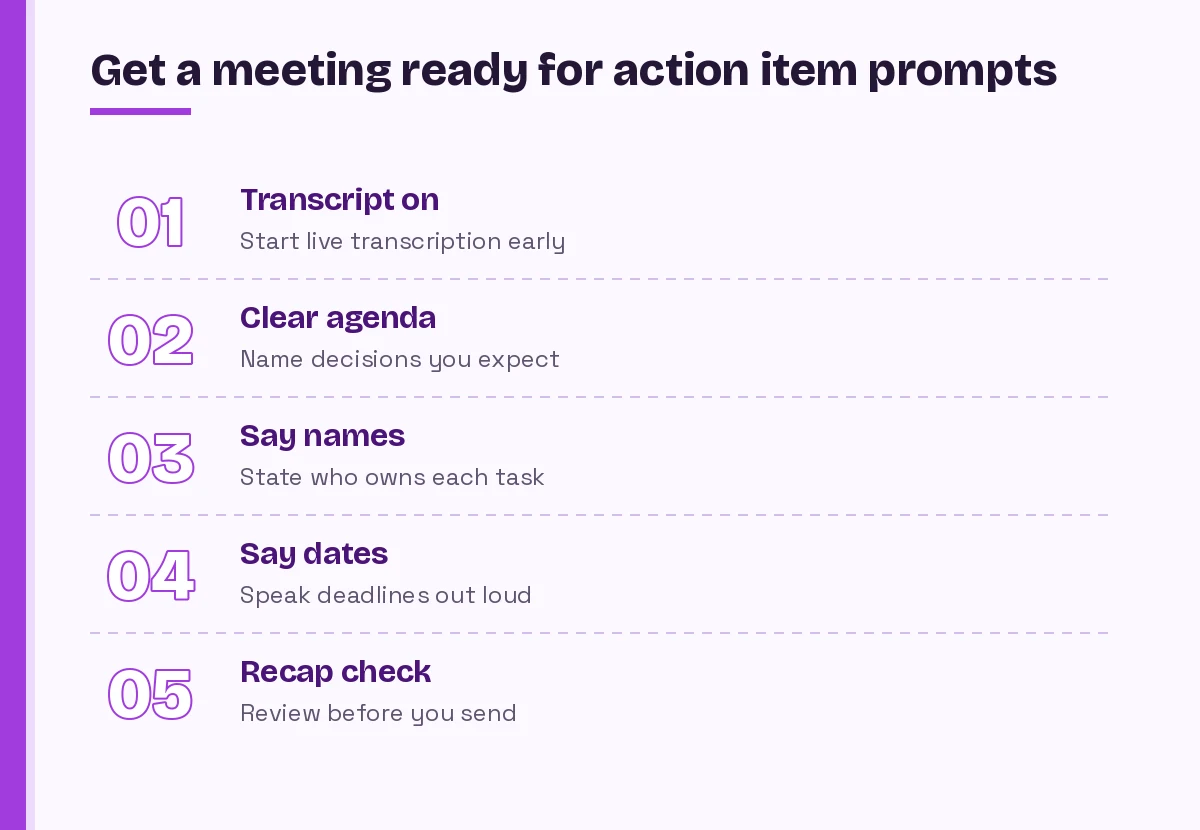
On the human side, a few small habits make Copilot action items far more reliable:
- Turn on transcription early. Anything said before it starts is invisible to Copilot after the call.
- Say the owner’s name. “Priya, can you take this?” is easy to capture. “Someone should look at this” produces an orphan task.
- Say the deadline. “By Thursday the 14th” beats “soon.”
- Recap verbally at the end. A 60-second spoken summary of decisions and owners gives Copilot a clean final pass to anchor on.
If you also need formal minutes, our guide to the Copilot prompt for meeting minutes pairs well with the prompts below.
Copilot Prompts for Meeting Action Items During the Call
Asking during the call lets you catch a missing owner before everyone leaves. Keep these short, because you are typing while listening.
Prompt 1: Quick task check
List the action items agreed so far, with the person responsible for each one.Prompt 2: Find tasks with no owner
Which tasks have been mentioned so far without a clear owner? List them so I can assign them before we finish.Prompt 3: Catch missing deadlines
For each action item discussed so far, tell me whether a due date was mentioned. Flag the ones without a date.Prompt 4: My tasks only
What have I been asked to do in this meeting so far? Include any deadlines that were mentioned.Prompt 5: Late-joiner catch-up
I joined late. Summarize what was decided before I arrived and list any action items assigned to me or my team.Prompt 6: Prepare the closing recap
Draft a short spoken recap I can read out in the last two minutes: decisions made, action items, owners and due dates.Prompt 6 is underrated. When you read Copilot’s draft aloud, people correct it on the spot, and those corrections land in the transcript for the final list.
Prompts for a Clean List Right After the Call
The most useful Copilot prompts for meeting action items come right after the call. Once the meeting ends, open the recap or the Copilot pane in the meeting chat. This is where most teams meeting action items get finalized.
Prompt 7: The standard list
List every action item from this meeting. For each one, give the task, the owner, the due date if one was mentioned, and the moment in the discussion where it was agreed.Prompt 8: Table format
Create a table of the action items from this meeting with columns for Task, Owner, Due Date, Priority (High/Medium/Low based on the discussion) and Status (set all to Not Started).Prompt 9: Group by person
Group the action items from this meeting by owner, so each person can see their own list. Put unassigned items in a separate section at the end.Prompt 10: Decisions versus tasks
Separate the outcomes of this meeting into two lists: decisions that were made, and action items someone needs to complete. Don't mix them.Prompt 11: Include the why
For each action item, add one sentence explaining why it matters, based on what was said in the meeting.Prompt 12: Only what’s urgent
Which action items from this meeting are due within the next [5 working days]? List them in order of due date.When you want a full narrative summary instead of a task list, the Copilot prompt to summarize a meeting transcript guide has prompts built for that job.
Prompts That Fix Vague or Missing Action Items
Real meetings are messy, and even good Copilot prompts for meeting action items can only work with what people actually said. People say “let’s circle back” and “we should probably” and then the call ends. These prompts help Copilot surface the gaps rather than smoothing them over.
Prompt 13: Spot soft commitments
Find statements in this meeting where someone said they would "look into," "think about" or "circle back on" something. List each one with the speaker and suggest a concrete action item it could become.Prompt 14: Ambiguous ownership
Were any tasks assigned to a group, like "the team" or "marketing," rather than a named person? List them so I can ask for a single owner.Prompt 15: Conflicting deadlines
Did anyone mention different dates for the same task, or deadlines that seem to clash? Quote the relevant parts of the discussion.Prompt 16: Dependencies
Which action items depend on another task being finished first? Show the order they need to happen in.Prompt 17: Open questions
List the questions raised in this meeting that were not answered. For each, suggest who should own finding the answer, based on the discussion.Prompt 18: Sanity check
Review your list of action items against the transcript. Did you miss any tasks, or include anything that was only an idea and not agreed? Explain any changes.Prompt 18 is a good habit for any meeting with money, deadlines or customers involved. Copilot can misattribute who said what, especially when people talk over each other or join from a shared room, so always read the list before you send it.
Prompts That Turn Tasks Into Follow-Ups
An action item list only helps if it reaches the people who own the work. These prompts turn the list into something you can send.
Prompt 19: Recap email to attendees
Write a short follow-up email to the attendees of this meeting. Thank them briefly, list the decisions, then the action items with owners and due dates. Keep it under 200 words and use a friendly, professional tone.Prompt 20: Personal nudge
Draft a short Teams message to [name] reminding them of the action items they took on in this meeting, with the due dates. Keep it polite and brief.Prompt 21: Update for people who missed it
Write a three-paragraph update for [stakeholder] who missed this meeting: what we discussed, what we decided, and what's happening next, including who owns each next step.Prompt 22: Manager summary
Summarize this meeting for my manager in five bullet points, ending with the action items my team owns and any blockers we need help with.Prompt 23: Customer-safe version
Rewrite the action items from this meeting so they are suitable to share with the client. Remove internal comments, pricing discussions and anything about other customers.For more email-specific wording, our collection of Copilot prompts for follow-up emails covers reminders, chasers and thank-you notes.
Prompts for Tracking Work in Planner, Loop and Excel
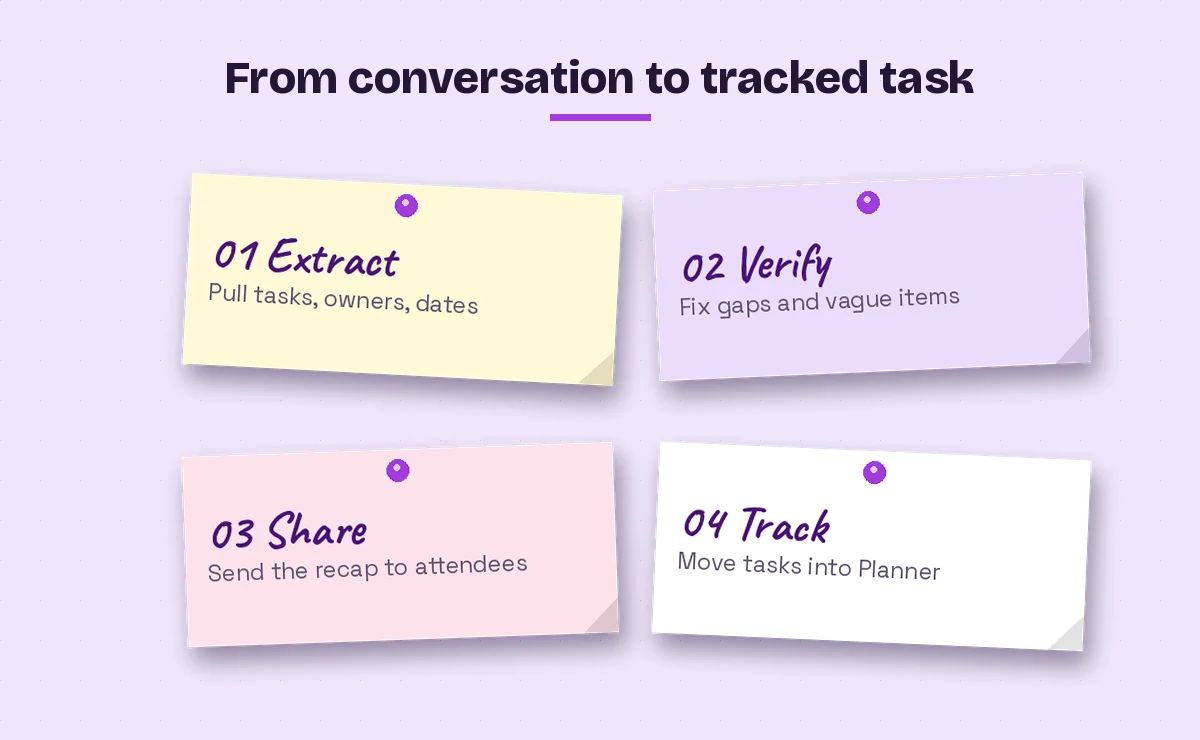
Getting the list out of the meeting and into a tool where it gets ticked off is the final step. Copilot in Teams lets you edit some meeting responses in Word or Excel, and the output of these prompts is easy to paste into Planner, a Loop table or a spreadsheet.
Prompt 24: Planner-ready tasks
Format the action items from this meeting as a list I can paste into Planner: one line per task, starting with a short task title, then the owner and due date in brackets.Prompt 25: Tracker with status
Create a project tracker table from this meeting's action items with columns for ID, Task, Owner, Due Date, Depends On, Status and Notes. Number the IDs starting at [AI-01].Prompt 26: Compare with last time
Compare the action items from this meeting with the ones from [previous meeting name]. Which earlier tasks were reported as done, which are still open, and which were not mentioned at all?Prompt 27: Weekly rollup
Look at my Teams meetings from this week and list every action item assigned to me, grouped by meeting, with due dates. Flag anything overdue.Prompts 26 and 27 work best in Microsoft 365 Copilot Chat, where Copilot can look across several meetings rather than just the one you have open.
Prompts for Recurring Meetings and Stand-Ups
Weekly syncs and daily stand-ups create a lot of small tasks that are easy to lose. These prompts keep the thread running from one session to the next.
Prompt 28: Stand-up blockers
From this stand-up, list each person's blockers and any action items others agreed to take on to help unblock them.Prompt 29: Carry-over list
Which action items from this meeting should be reviewed at the start of our next session? Write them as a short agenda section called "Open items from last time."Prompt 30: Retro on task follow-through
Based on this meeting, which tasks seem to keep coming back week after week without being finished? Suggest one way to make each of them more specific.Project leads will find more planning-focused wording in our guide to Copilot prompts for project managers.
Tips for Better Results Every Time
Whichever Copilot prompts for meeting action items you use, a few patterns separate a reliable task list from a vague one:
- Ask for a format. “Table with Task, Owner, Due Date” gives you something you can paste. “What are the action items?” gives you prose.
- Ask Copilot to quote. Adding “include the line from the discussion where this was agreed” makes it easier to check each item.
- Tell it what to leave out. Ideas, brainstorms and side conversations are not tasks. Say “only include things someone agreed to do.”
- Name people consistently. If two attendees share a first name, ask for full names in the output.
- Keep a human review step. Copilot’s output is a strong first draft, not a record you should forward without reading.
| Weak prompt | Stronger version |
|---|---|
| What are the tasks? | List the action items with owner and due date in a table |
| Summarize the meeting | Separate decisions from action items, and flag tasks with no owner |
| Who has to do stuff? | Group action items by owner, with unassigned items at the end |
| Write an email | Write a follow-up email listing decisions, then action items with owners, under 200 words |
Common Problems and How to Solve Them
Copilot says it can’t access the meeting. If the meeting ran with “Only during the meeting,” the conversation is not available afterward. For important meetings, make sure transcription is on so you can prompt Copilot after the call ends.
The list is missing tasks from the start. Transcription probably started late. Copilot can only work with what was transcribed.
Tasks are assigned to the wrong person. This happens with shared conference room microphones and crosstalk. Use Prompt 18 to double-check, then correct the owners yourself.
Copilot doesn’t work in an external meeting. Microsoft notes that Copilot won’t work in meetings hosted outside the participant’s organization, so you may need the host to share their recap instead.
There are no suggested follow-up tasks in the recap. Recap features depend on licensing and admin settings. You can still ask Copilot directly with Prompt 7 if you have access to Copilot in the meeting.
If you are new to Copilot in Teams meetings overall, start with our broader list of Copilot prompts for Teams meetings, then come back to these when you want to tighten up task capture.
Final Thoughts
The value of a meeting is mostly in what happens after it, and that depends on a clear list of who owes what by when. Turn on transcription, say owners and dates out loud, and use the prompts above to pull out the list, fix the gaps and send it while everyone still remembers the conversation. Save your favorite three or four Copilot prompts for meeting action items as templates, and capturing tasks becomes a two-minute habit instead of a chore.
Frequently Asked Questions
Can Copilot create action items from a Teams meeting automatically?
Copilot suggests action items during and after a meeting based on the transcript and chat. You still need to ask for them or open the recap, and you should review the list before sharing it.
Do I need transcription on to get action items after the meeting?
Yes, for after-meeting prompts. Microsoft’s guidance says Copilot can run without transcription during the meeting, but to prompt Copilot about the meeting afterward you need live transcription turned on.
What is the best prompt for getting meeting action items?
A good default is: “List every action item from this meeting with the task, owner and due date in a table, and flag any task without an owner.” Asking for a specific format and flagging gaps gives the most usable result.
Can Copilot assign tasks to people in Planner?
Copilot can format the list so it’s easy to move into Planner or a Loop table, but you should check owners and dates yourself before assigning. What Copilot can do directly depends on your license and admin settings.
Why did Copilot assign a task to the wrong person?
Speaker attribution can slip when people share a room microphone or talk over each other. Ask Copilot to quote the line where each task was agreed, then correct the owner manually.
Does Copilot work for action items in meetings with external guests?
Copilot won’t work in meetings hosted outside your organization. If another company hosts, ask them to share their recap, or take your own notes and use Copilot Chat to organize them afterward.