Copilot Excel Conditional Formatting: 28 Powerful Prompts to Highlight Data Fast
Copilot Excel conditional formatting turns a plain-English sentence into a working highlight rule, so you no longer have to remember the right menu, the right rule type or the exact syntax of a custom formula. You describe what should stand out, Copilot reads your table, proposes the rule, and you apply it with one click.
This guide to Copilot Excel conditional formatting covers what Copilot can and can’t do with highlighting, how to set up your sheet so it gets the rules right, and 28 copy-ready prompts grouped by job: thresholds, dates, text, duplicates and blanks, whole-row highlighting, color scales, icon sets and fixing rules that misbehave. Swap anything in square brackets for your own column names and values.
How Highlighting Works When You Ask Copilot
Conditional formatting has been part of Excel for decades. You pick a range, choose a rule such as “Greater Than” or “Top 10%,” and Excel colors the cells that match. The rule stays live, so when a value changes the formatting updates on its own. Microsoft’s overview of using conditional formatting to highlight information lists every built-in option if you want the full picture.
The hard part has always been the custom formula rule. It is the most flexible option, and also the easiest one to get wrong: one misplaced dollar sign and the wrong rows light up. That is where Copilot earns its place. In a post on the Microsoft Excel blog, the Excel team shows Copilot turning a request like “highlight rows in red when the date is this month or earlier and the customer has not paid” into two custom formula rules, ready to review and apply.
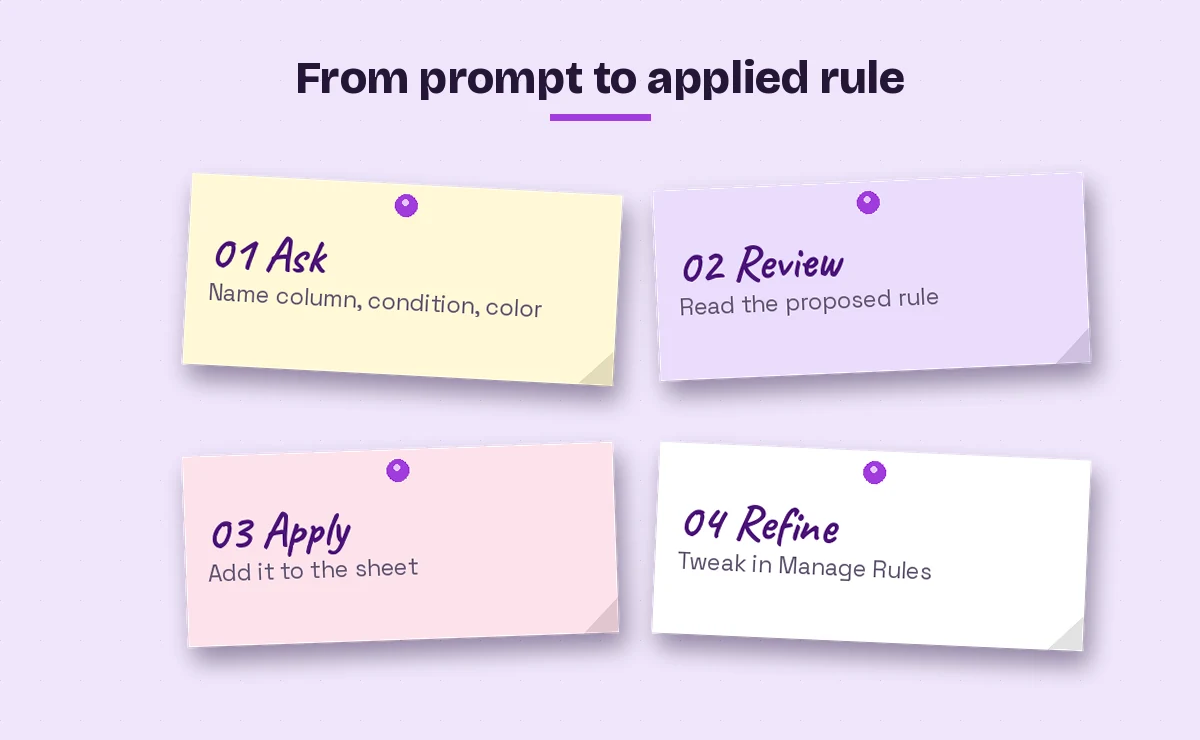
In practice, a Copilot Excel conditional formatting request goes like this:
- Copilot reads the table or range you have selected.
- It interprets your request and picks a rule type: a built-in rule, a color scale, or a custom formula.
- Depending on your version and mode, it either shows the proposed rule with an Apply button or makes the change directly in edit mode.
- The finished rule appears under Home, Conditional Formatting, Manage Rules, where you can edit it like any rule you built by hand.
That last point matters. Nothing Copilot creates is locked or hidden. If the color is slightly off or the threshold needs to move, you can tweak it yourself in seconds.
| What you want | Rule type Copilot usually picks | What to double-check |
|---|---|---|
| Values above or below a number | Cell value rule | Whether “above” should include the number itself |
| Top or bottom performers | Top/Bottom rule | Percent vs count (top 10% vs top 10 items) |
| Overdue or upcoming dates | Custom formula with TODAY() | That the date column holds real dates, not text |
| Whole-row highlights | Custom formula with a locked column | The dollar sign sits before the column letter only |
| Heat maps | Color scale | Which color means “good” |
| Status indicators | Icon set | The cut-off values for each icon |
Set Up Your Sheet So Copilot Reads It Correctly
Copilot can only highlight what it understands, so good Copilot Excel conditional formatting starts with tidy data. Microsoft’s guidance on formatting data for Copilot in Excel says your data should be an Excel table or a supported range, and the workbook must have AutoSave turned on. A supported range has a single header row, unique non-blank headers, consistent formatting, and no subtotals, empty rows, empty columns or merged cells.
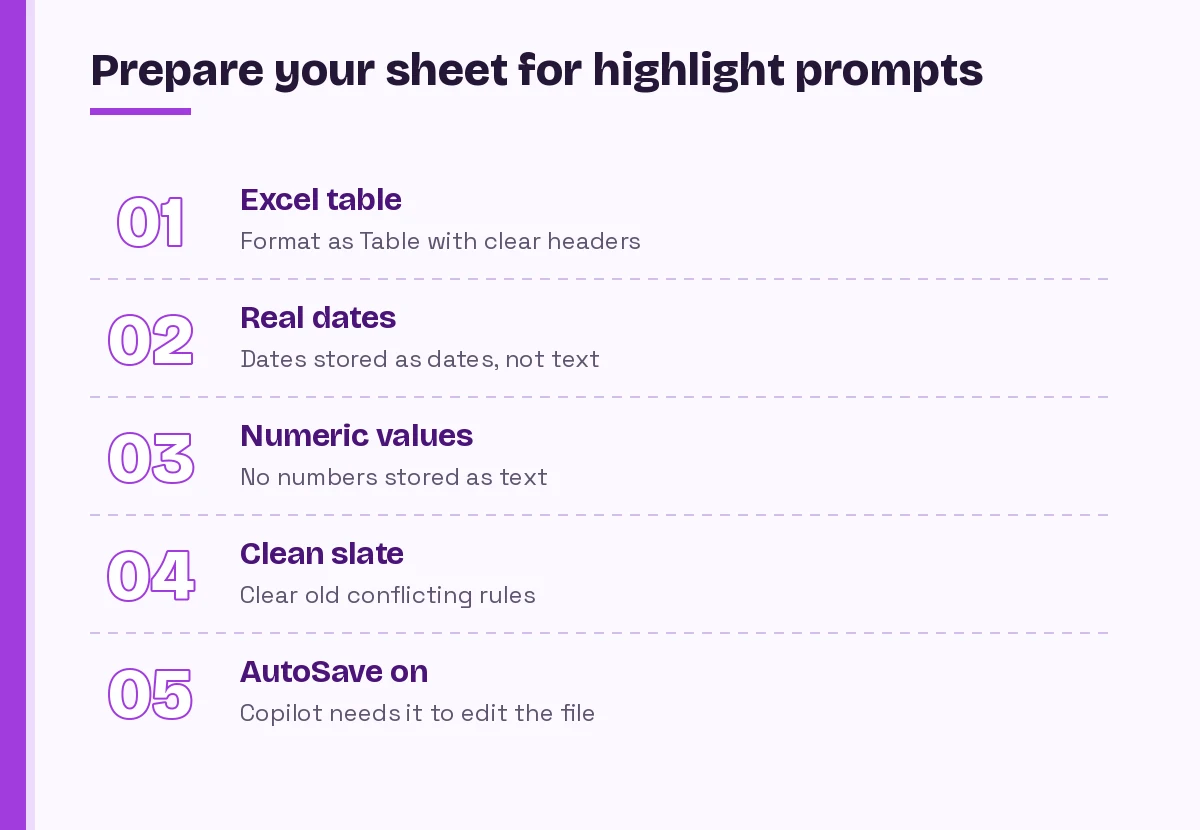
A few habits make a big difference for highlight requests in particular:
- Name your columns plainly. “Due Date” and “Amount Owed” are easy for Copilot to match. “Col H” and “Amt (net) FINAL” are not.
- Store dates as dates. If a date is stored as text, date rules such as “overdue” silently fail. Sort the column: real dates sort in time order, text dates sort alphabetically.
- Keep numbers numeric. A green triangle in the cell corner often means a number stored as text, and threshold rules skip those cells.
- Remove old rules first. Stacked rules from previous months fight each other. Clearing them gives Copilot a clean slate.
If your data needs heavier cleanup before you color anything, our guide to Copilot prompts for Excel data analysis has prompts for trimming, splitting and standardizing columns.
Copilot Excel Conditional Formatting Prompts for Thresholds
Threshold rules are the simplest place to start with Copilot Excel conditional formatting and the quickest win. Be precise about the column, the comparison and the color.
Prompt 1: Flag large values
Highlight cells in the [Amount] column greater than [5,000] with a light red fill and dark red text.Prompt 2: Flag values below target
In the [Sales] column, format any value below [Target] in the same row with an orange fill, so I can see which reps missed their number.Notice that prompt 2 compares two columns rather than a fixed number. Copilot handles this by writing a formula rule, which is exactly the kind of rule people struggle to build by hand.
Prompt 3: Range band
Highlight values in [Margin %] between 10% and 20% in yellow, below 10% in red, and above 20% in green.Prompt 4: Top performers
Highlight the top 10% of values in the [Revenue] column using bold font and a light green fill.Prompt 5: Bottom items by count
Highlight the bottom 5 items in [Units Sold], not the bottom 5 percent, with a light grey fill.Prompt 6: Above average
Format cells in [Response Time (hrs)] that are above the column average in orange so I can spot slow tickets.Prompt 7: Strong contrast for printing
Make values in [Variance] that are less than 0 show white text on a black background so they stay visible when printed in black and white.Copilot Excel Conditional Formatting Prompts for Dates
Dates are where Copilot Excel conditional formatting saves the most time, because date rules nearly always need formulas with TODAY(), EDATE() or EOMONTH(). Spell out whether “today” counts as overdue.
Prompt 8: Overdue items
Highlight rows in red where [Due Date] is before today and [Status] is not "Done".Prompt 9: Due this week
Highlight cells in [Due Date] that fall within the next 7 days, including today, with a yellow fill.Prompt 10: Two-tier payment reminder
Highlight rows in red when [Invoice Date] is this month or earlier and [Paid] is "No". Highlight rows in yellow when [Invoice Date] is next month and [Paid] is "No".This one mirrors the example from the Excel team’s blog post. Two rules come back, and the order matters: the red rule should be checked first.
Prompt 11: Contracts about to expire
Highlight rows where [Contract End] is within the next 60 days in light orange, and rows where it has already passed in light red.Prompt 12: Weekends
Shade dates in the [Shift Date] column grey when they fall on a Saturday or Sunday.Prompt 13: Stale records
Highlight rows where [Last Updated] is more than 90 days ago so I know which records need review.For larger reporting layouts that combine these date flags with charts, our Copilot prompts for Excel dashboards show how to build the summary sheet around them.
Prompts for Text, Duplicates and Missing Data
Not every Copilot Excel conditional formatting request is about numbers. These prompts help with lists, logs and data quality checks.
Prompt 14: Contains specific text
Highlight cells in [Notes] that contain the word "urgent" in light blue, regardless of capitalization.Prompt 15: Exact status match
Color the [Status] column: "Approved" in green, "Pending" in amber, "Rejected" in red.Prompt 16: Duplicate values
Highlight duplicate values in the [Email] column so I can find repeated contacts.Prompt 17: Duplicate rows across several columns
Highlight rows where the combination of [Customer ID], [Order Date] and [Amount] appears more than once.Built-in duplicate rules only look at single cells. Prompt 17 needs a COUNTIFS formula, and Copilot can write it for you.
Prompt 18: Rows with missing values
Highlight the rows in my table that have any empty cells in yellow.Microsoft’s Excel team used this same request in a community post, and Copilot answered with an OR(ISBLANK()) formula covering each column. A shorter COUNTBLANK version also works, so ask for that if you prefer:
Rewrite that rule using COUNTBLANK so it is easier to read.Prompt 19: Invalid entries
Highlight cells in [Phone] that do not contain exactly 10 digits.Whole-Row and Cross-Column Rules
Whole-row Copilot Excel conditional formatting makes a long table readable at a glance. This is also where hand-built rules most often break, because the reference has to be locked to the column but not the row.
Prompt 20: Row highlight from one column
Highlight the entire row in light green when [Stage] equals "Closed Won".Prompt 21: Row highlight from two conditions
Highlight the whole row in light red when [Stock] is below [Reorder Level] and [Supplier Status] is "Delayed".Prompt 22: Every other group
Shade alternating groups of rows grey each time the value in [Region] changes, so each region stands out as a block.Prompt 23: Compare against a lookup sheet
Highlight rows in this table where [Product Code] does not appear in the [Active Products] sheet, column A.Prompt 23 pairs well with lookup work. If you’re also matching data between sheets, our VLOOKUP prompt guide covers the formula side.
Color Scales, Data Bars and Icon Sets
Color scales, data bars and icon sets are the visual side of Copilot Excel conditional formatting. They show patterns across a whole column rather than flagging single cells. Tell Copilot which end of the scale is good, because “higher is better” is not always true.
Prompt 24: Heat map
Apply a red-to-green color scale to [Customer Satisfaction], where low scores are red and high scores are green.Prompt 25: Reverse scale
Apply a green-to-red color scale to [Days to Resolve], where fewer days is green.Prompt 26: Data bars
Add solid purple data bars to the [Budget Used] column so I can compare spending across projects.Prompt 27: Traffic-light icons
Add a three traffic-light icon set to [Progress %]: green at 80% or above, yellow from 50% to 79%, red below 50%.Without explicit cut-offs, Excel’s icon sets split values by percentiles of the range, which can label a project “green” even when everything is behind. Giving the numbers yourself avoids that.
Fix, Explain and Clean Up Existing Rules
Copilot Excel conditional formatting is also useful after the fact, when a workbook already has rules you didn’t write.
Prompt 28: Explain the rules
List every conditional formatting rule on this sheet, the range it applies to, and what each one does in plain English.A few follow-ups that work well in the same chat:
Why is row 14 highlighted red when the status is "Done"?Remove all conditional formatting from the [Notes] column but keep the rules on the other columns.Change the red highlight to a softer color that still works for people with red-green color blindness.If Copilot can’t apply a change directly in your version, ask it for the formula and the steps instead. You can paste the formula into New Rule, then “Use a formula to determine which cells to format” in a minute.
Common Mistakes and How to Avoid Them
Most problems with Copilot Excel conditional formatting come from vague wording or messy data rather than from Copilot itself. Here is what to watch for:
| Problem | Likely cause | Fix |
|---|---|---|
| Nothing gets highlighted | Dates or numbers stored as text | Convert the column, then ask again |
| Only the first column colors, not the row | Rule applied to one column | Ask for “the entire row” explicitly |
| Wrong rows light up | Reference locked incorrectly | Ask Copilot to explain the formula, then correct it |
| Colors conflict | Old rules still active | Clear old rules or ask Copilot to list them |
| Copilot asks for a table | Data range not supported | Format as a table and turn on AutoSave |
Two more habits help. First, test new rules on a copy of the sheet when the workbook is shared, since edits made by Copilot save right away. Second, write the threshold in the prompt instead of saying “high” or “low.” Copilot will guess what “high” means, and its guess may not match yours.
Build Your Own Highlight Prompts
Once you’ve used a few of the Copilot Excel conditional formatting prompts above, you’ll notice they all follow the same pattern. A strong highlight request names four things:
- The target: a column, the entire row, or a cell range.
- The condition: a number, a date window, a text match or a comparison with another column.
- The format: fill color, font color, bold, a color scale, data bars or icons.
- The edge cases: whether boundaries are included, whether case matters, and what happens to blanks.
Put together, a custom prompt might read:
In the [Orders] table, highlight the entire row in light amber when [Ship Date] is blank and [Order Date] is more than 3 days ago. Ignore rows where [Status] is "Cancelled".Save the Copilot Excel conditional formatting prompts that work for your recurring reports in a note. Next month, paste the same request and you’ll get the same rule in seconds. For more spreadsheet ideas, our main collection of Copilot prompts for Excel covers formulas, cleanup and analysis, and the Copilot Excel pivot table prompts guide pairs nicely with highlighted summaries. If you’d rather work inside a formula cell, read about the COPILOT function in Excel.
Final Thoughts
Conditional formatting is one of those Excel features most people use at a basic level and avoid at an advanced one. Copilot changes that by handling the custom formulas, locked references and multi-rule logic for you. Your job shifts to describing the result clearly and checking the rule before you rely on it.
Start with one Copilot Excel conditional formatting prompt from the threshold section on a real report, look at the rule Copilot creates under Manage Rules, and build from there. Within a week, highlighting overdue invoices, duplicates or missed targets becomes a ten-second request instead of a ten-minute puzzle.
Frequently Asked Questions
Can Copilot apply conditional formatting in Excel?
Yes. Copilot in Excel can create highlight rules, color scales, data bars and custom formula rules from a plain-English request. Depending on your version and mode, it either shows the rule for you to apply or makes the change directly in the workbook.
What are good Copilot Excel conditional formatting prompts?
The best prompts name the column, the condition, the format and any edge cases, for example: “Highlight rows in red where Due Date is before today and Status is not Done.” Specific thresholds work better than words like “high” or “low.”
Why isn’t Copilot highlighting anything in my sheet?
The most common causes are dates or numbers stored as text, data that isn’t in an Excel table or supported range, or AutoSave being turned off. Fix the data format, then repeat the request.
Can Copilot highlight an entire row based on one cell?
Yes. Ask for “the entire row” or “the whole row” in your prompt. Copilot writes a custom formula rule with the column reference locked so each row checks its own value.
How do I edit or remove a rule that Copilot created?
Go to Home, Conditional Formatting, Manage Rules. Rules made by Copilot appear there like any other rule, so you can edit the formula, change the color or delete it. You can also ask Copilot to remove rules from a specific column.
Does conditional formatting from Copilot update when data changes?
Yes. Copilot creates standard conditional formatting rules, so the highlighting updates automatically whenever the underlying values change, just as it would for a rule you built by hand.