
Copilot Function in Excel Is Retired: 20 Proven Prompts to Use Instead
The COPILOT function in Excel let you type an AI prompt straight into a cell, point it at a range, and get a summary, a label or a short piece of text back in the grid. That changed on September 14, 2026, when Microsoft retired the Copilot function in Excel for good. If you built workbooks around it, or you just found an old tutorial and wondered why your formula shows #NAME?, this guide explains what happened and how to get the same results another way.
You will find the original syntax (for reference), a step-by-step plan to rescue existing workbooks, and 20 prompts for the Copilot pane in Excel that cover the jobs the in-cell formula used to do. Where a regular formula is the better tool, we show that too.
What the COPILOT Function Was (and Why It Matters Now)
The COPILOT function arrived as a preview in August 2025 for people in the Microsoft 365 Insider and Frontier programs. The Copilot function in Excel called an AI model hosted on Azure from a cell formula, so you could classify feedback, draft product descriptions or generate sample lists without leaving the sheet. It never reached general availability.
Microsoft’s COPILOT function support article now carries a notice that the feature is no longer available and that the page is kept for reference. The recommended replacement is Copilot in Excel, the chat pane you open from the Copilot icon in the lower-right corner of the window.
For reference, the old syntax of the Copilot function in Excel looked like this:
=COPILOT(prompt_part1, [context1], [prompt_part2], [context2], ...)Each prompt part was text, and each context argument was a cell or range. Excel stitched them together into one instruction. A typical example:
=COPILOT("Classify", B2:B50, "into one of these categories", E2:E5)Microsoft was always clear about the limits of the Copilot function in Excel. It only saw the prompt and the ranges you passed in, it was not meant for numerical calculations, and it was not recommended for anything with legal, regulatory or compliance consequences. Those same cautions still apply to any AI output you put in a workbook.
What Happens to Workbooks That Used the Excel AI Formula
This is the part most people need first. According to Microsoft, results the Copilot function in Excel had already calculated stay in the workbook as cached values. The moment a cell containing the formula recalculates, Excel no longer recognizes the function and returns #NAME?.
In practice that means a sheet can look fine today and break the next time someone edits a referenced cell, refreshes data or forces a full recalculation. If a dashboard, report or lookup table depends on those cells, the errors can spread through every formula that points at them.
| Situation | What you will see | What to do |
|---|---|---|
| Cell has a cached result, nothing recalculated | The old text still shows | Convert it to a static value now |
| Cell recalculated after retirement | #NAME? | Recreate the result with the Copilot pane or a native formula |
| Other formulas reference those cells | Errors cascading downstream | Fix the source cells first, then recheck dependents |
| New formula typed today | #NAME? immediately | Use the Copilot pane instead |
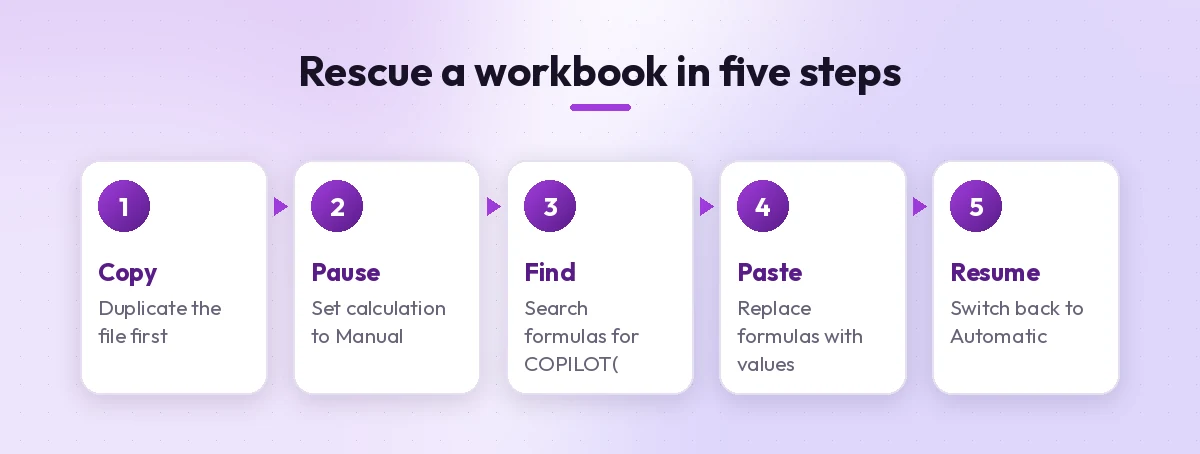
How to Rescue Old Results in 5 Steps
If you still have cached text from the Copilot function in Excel, you can keep it. The idea is to stop recalculation, find every affected cell, and replace each formula with its current value.
- Make a copy of the file. Work on a duplicate so you can always go back.
- Switch to manual calculation. Go to Formulas > Calculation Options > Manual. This keeps Excel from recalculating while you work.
- Find every affected cell. Press Ctrl+F, select Options, set Look in to Formulas, and search for
COPILOT(. Select Find All, then press Ctrl+A in the results list to select them all. - Paste as values. Copy the selected cells (or each column of them), then use Home > Paste > Paste Values. The text stays, the formula goes.
- Turn automatic calculation back on. Return to Formulas > Calculation Options > Automatic. Microsoft notes that Copilot editing in Excel only works when calculation is set to Automatic, so do not skip this.
If cells already show #NAME?, the cached values are gone. Jump to the prompts below to regenerate them.
Copilot Function in Excel vs the Copilot Pane
The good news is that the pane does more than the Copilot function in Excel ever did. According to Microsoft’s Get started with Copilot in Excel guide, it can edit sheets, write formulas, build charts and PivotTables, find insights, search the web with citations and pull data from other workbooks. It also offers three modes: edit (changes the workbook), plan (proposes steps for you to approve) and chat (answers without changing anything).
The trade-off is that results are no longer “live”. A COPILOT formula could recalculate when its input changed. Output from the pane is written once, as values or as regular formulas, so you rerun the prompt when the source data changes.
| Copilot function in Excel (old) | Copilot pane approach |
|---|---|
| One formula per cell or spill range | One prompt for the whole column or table |
| Only saw ranges passed as arguments | Can read the workbook you have open |
| Recalculated with inputs | Rerun the prompt when data changes |
| No plan or review step | Plan mode lets you approve steps first |
Tip: when you want something that updates automatically, ask the pane for a native formula instead of a static answer. That gives you the best of both.
20 Prompts to Replace the COPILOT Function
Each prompt below maps to a common use of the Copilot function in Excel. Open the pane, make sure your data is in a clean range or an Excel table with clear headers, and adjust the column letters and sheet names below. Naming the exact columns makes results more accurate.
Summarizing text
1. Summarize a block of feedback
Summarize the customer feedback in column C into five bullet points covering the most common themes. Put the summary on a new sheet called Summary.2. One-line summary per row
For each row, write a one-sentence summary of the comment in column D and put it in a new column E called Short summary. Keep each summary under 20 words.3. Executive digest of survey answers
Read the open-text answers in column F and write a 150-word overview for a manager: what people liked, what frustrated them, and the top two suggestions.Classifying and tagging
4. Sentiment labels
Classify each entry in column B as Positive, Neutral or Negative and add the result in a new column C called Sentiment. Then count how many of each.5. Categories from your own list
Assign each support ticket in column C to one of the categories listed in Sheet2!A2:A6. Add the category in a new column D. If none fit, write Other.6. Priority flags
Review the request descriptions in column E. Add a column F that marks each one High, Medium or Low urgency based on words like outage, deadline or blocked, and explain the rule you used.7. Theme tagging with counts
Identify the five most frequent themes in the comments in column B, add a Theme column next to them, then create a PivotTable that counts comments by theme.Extracting details from messy text
8. Pull out names and companies
From the text in column A, extract the person's name into column B and the company name into column C. Leave the cell blank if a value is missing.9. Split addresses
Split the addresses in column D into separate columns for street, city, postal code and country. Do not change the original column.10. Find dates hidden in notes
Look through the notes in column G and extract any date mentioned into a new column H in YYYY-MM-DD format. If there is no date, leave it empty.Generating content
11. Product descriptions from specs
Using the product name in column A and the specs in columns B to E, write a 40-word product description for each row in a new column F. Use a friendly, plain tone.12. Sample data for a prototype
Create a sample table of 30 fictional customer orders with columns for order ID, date in 2026, region, product, quantity and unit price. Format it as an Excel table.13. Email subject lines
For each campaign in column A, write two short email subject lines under 50 characters in columns B and C.14. Rewrite for consistency
Rewrite the job titles in column C so they follow one consistent style, for example "Senior Sales Manager" instead of "sr. sales mgr". Put the cleaned titles in column D.Looking things up
15. Web lookup with sources
Look up the capital city and official currency for each country in column A and add them in columns B and C. Include the sources you used.16. Upcoming events for planning
Look up major public holidays in the next three months for the cities in column B and list them on a new sheet with the city, date and holiday name.17. Lookup from a table in this workbook
Add a column to Sheet1 that returns the manager name for each employee ID in column A, using the table on the Staff sheet. Use an XLOOKUP formula, not static values.Converting AI results into live formulas
18. Ask for a formula, not an answer
Write a formula for column D that labels each order as Large if the amount in column C is over 5000, Medium if it is over 1000, and Small otherwise. Fill it down the whole table.19. Keyword-based classification formula
Create a formula in column E that returns Refund if the comment in column B contains refund or money back, Delivery if it contains late or shipping, and Other otherwise.20. Rebuild a broken sheet
Column F shows #NAME? errors where an old COPILOT formula used to classify comments from column B. Recreate those results as static values in column F using the same three categories: Praise, Complaint, Question.Prompt 20 is the fastest way to recover a sheet that broke when the Copilot function in Excel went away. Tell the pane what the old formula was doing and which columns it used, and let it fill the gaps.

When a Native Formula Is the Better Replacement
Many tasks people handed to the Copilot function in Excel were really text or lookup tasks that regular Excel handles reliably and instantly. Native functions also recalculate without an AI call, and they always give the same answer for the same input.
| Task | Native formula example |
|---|---|
| Text before a character | =TEXTBEFORE(A2,"@") |
| Text after a character | =TEXTAFTER(A2,"-") |
| Extract a pattern, such as an email address | =REGEXEXTRACT(A2,"[\w.+-]+@[\w.-]+") |
| Clean spacing and capitalization | =PROPER(TRIM(A2)) |
| Look up a value from a table | =XLOOKUP(A2,Staff[ID],Staff[Manager],"Not found") |
| Flag a keyword | =IF(ISNUMBER(SEARCH("refund",B2)),"Refund","Other") |
REGEXEXTRACT and the other REGEX functions are available in Excel for Microsoft 365. If you are on an older version, ask the pane for an equivalent using MID and SEARCH.
If you are coming from lookup-heavy sheets, our walkthrough on the Copilot prompt for VLOOKUP shows how to get the pane to write and explain lookup formulas step by step.
Tips for Better Results in the Pane
The pane reads more context than the old formula, which is helpful but also means a vague request can wander. A few habits keep things predictable:
- Format data as a table. Clear headers and no merged cells help Copilot understand the structure.
- Name columns, not just letters. “The Comments column” is easier to get right than “column C” when sheets change.
- Use plan mode for big edits. Review the steps before Copilot rewrites hundreds of rows.
- Ask for a new column. Keep the source data intact so you can compare.
- Spot-check a sample. Read 10 to 20 rows of any AI-generated labels before you rely on them.
- Avoid sensitive decisions. Microsoft advises against relying on Copilot for finance, legal or medical decisions without review.
For the bigger picture on structuring requests, see how to write Copilot prompts. And if you want more ideas once the migration is done, our Copilot prompts for Excel data analysis cover trends, outliers and charts, while the main Copilot prompts for Excel list covers everyday spreadsheet work.
Licensing and Availability Notes
The Copilot function in Excel required a qualifying Copilot license and was limited to preview channels. Copilot in Excel is broader: Microsoft lists it on Windows, Mac, the web, iPad, iPhone and Android, with edit, plan and chat modes on desktop and web. Eligibility depends on your subscription, for example a commercial Microsoft 365 Copilot license, Microsoft 365 Premium, or an eligible business plan with Copilot Chat. Features can differ between a Premium (add-on) and Basic experience, and your IT admin may control what is turned on. Check the in-app label or your account settings if a feature is missing.
Final Thoughts
The retirement of the COPILOT function in Excel is less of a loss than it first appears. Save any cached results as values today, then move the work to the Copilot pane, where one prompt can handle an entire column, or to a native formula when you need something that recalculates on its own. Start with prompt 20 if a sheet is already showing errors, then work through the summarizing and classifying prompts for everything else.
Frequently Asked Questions
Is the COPILOT function in Excel still available?
No. Microsoft retired the COPILOT function on September 14, 2026. It was a preview feature for Microsoft 365 Insider and Frontier users and never reached general availability. Copilot in Excel, the side pane, remains available.
Why does my COPILOT formula show #NAME?
After the retirement, Excel no longer recognizes the function. Cached results stay in the workbook until the cell recalculates, then the cell returns #NAME?. Replace the formula with a static value or recreate the result with the Copilot pane.
How do I keep results from the Copilot function in Excel?
Make a copy of the file, set calculation to Manual, use Find with Look in set to Formulas to locate COPILOT(, then paste those cells as values. Switch calculation back to Automatic afterward, because Copilot editing needs Automatic calculation.
What replaced the Copilot function in Excel?
Microsoft points users to Copilot in Excel, opened from the Copilot icon in the lower-right corner. It can summarize text, classify data, generate content and look up information from the web, often across a whole column in one prompt.
Can the Copilot pane create formulas that update automatically?
Yes. Ask it to write a formula rather than return values, for example an IF, XLOOKUP or TEXTBEFORE formula filled down a column. Native formulas recalculate on their own without another AI request.
Do I need a license to use Copilot in Excel?
Yes. Eligible options include a commercial Microsoft 365 Copilot license, Microsoft 365 Premium, Personal or Family plans with AI credits, and eligible business plans with Copilot Chat. Available features depend on your plan and your organization’s settings.


One Comment