Copilot Prompts for Executive Assistants: 35 Smart Templates to Run the Day
Copilot prompts for executive assistants turn the most repetitive parts of supporting a leader into quick first drafts: the morning inbox sweep, the meeting brief, the travel itinerary, the polite decline. You still decide what matters and how your executive should sound, but Microsoft 365 Copilot can do the reading, sorting and rough writing in Outlook, Teams, Word and Excel so you spend more time on judgment calls.
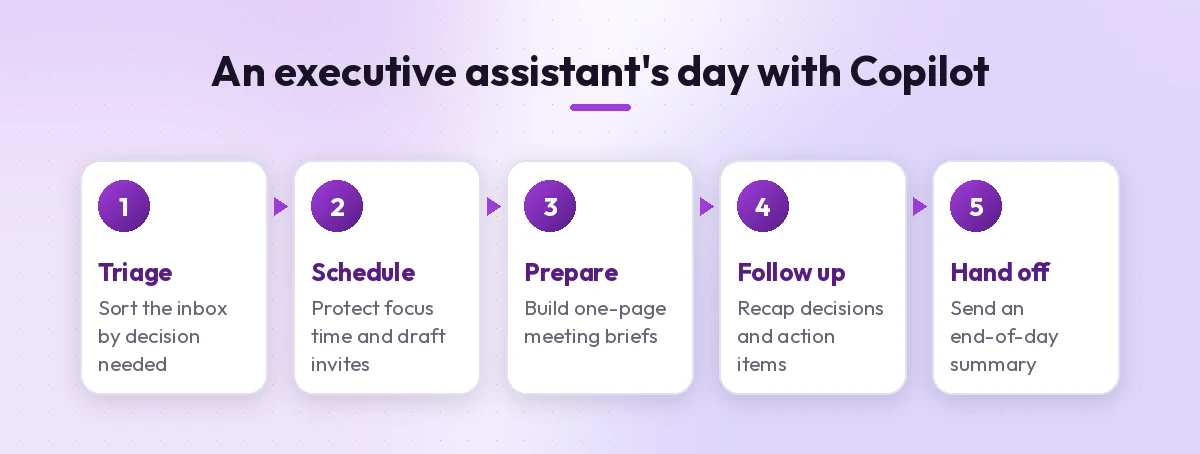
Below you will find 35 templates organized around a real EA workday, from triage at 8 a.m. to the end-of-day handover. Replace anything in square brackets, like [executive], [date] or [project], with your own details. Each prompt is written to be copied as-is, then refined after you see the first answer.
Where Copilot Fits in an Executive Assistant’s Day
Support roles juggle a lot of small tasks across many apps, so it helps to know which Copilot surface handles which job. Microsoft 365 Copilot can reference the emails, files, chats and meetings you already have access to, which makes it useful for pulling scattered context together.
| Task | Best place to ask | What Copilot is good at |
|---|---|---|
| Inbox triage and replies | Outlook | Summarizing threads, drafting and adjusting tone |
| Scheduling and agendas | Outlook and Teams | Proposing agendas, summarizing conflicts you describe |
| Meeting follow-up | Teams | Recaps, decisions and action items from recorded meetings |
| Briefing notes and memos | Word or Copilot Chat | Pulling context from files and emails into one page |
| Expense and travel tracking | Excel | Organizing data, totals, flagging gaps |
One caveat before you start. Many assistants work inside an executive’s mailbox or calendar through delegate access, and how Copilot behaves in shared or delegated mailboxes depends on your organization’s setup and licensing. Check with IT what works in your environment. In many cases the smoothest approach is to run prompts on threads and meetings you are included in, or on files shared with you.
A Simple Formula for EA Prompts
You already brief people for a living, and a good prompt is just a tight brief. Most of the templates below follow four parts:
- Context. Who it is for and why: “For [executive], who is meeting the board tomorrow.”
- Source. What Copilot should read: a thread, a file, a meeting or pasted notes.
- Task. The single output you want, stated plainly.
- Format. Bullets, a table, a three-line summary, or an email under 120 words.
If you want a deeper walkthrough of this structure, our guide on how to write Copilot prompts breaks it down with before-and-after examples.
Inbox Triage and Email Drafting Prompts
The inbox is usually the heaviest lift for anyone managing a leader’s communications. These prompts help you sort quickly and reply in the right voice. For a full system that goes beyond replies, pair them with our Copilot prompts for Outlook inbox management.
1. Morning priority sweep
Review my unread emails from the last 24 hours. Group them into: needs [executive]'s decision today, I can handle, FYI only, and can wait. Give one line per email with the sender and the ask.2. Summarize a long thread for your executive
Summarize this email thread for [executive] in five bullets: what the issue is, who is involved, what has been agreed, what is still open, and what decision is needed from them.3. Draft a reply in the executive’s voice
Draft a reply to this email on behalf of [executive]. Tone: warm but brief, confident, no exclamation marks. Accept the proposal, ask for the final budget by [date], and keep it under 100 words.4. Decline politely
Write a gracious reply declining this invitation for [executive] due to schedule commitments. Thank them sincerely, leave the door open for a future conversation, and keep it to four sentences.5. Chase an overdue response
Draft a friendly follow-up to [name] about [request] that we sent on [date]. Restate what we need and the new deadline of [date] without sounding impatient.6. Adjust tone before sending
Rewrite this draft so it sounds more diplomatic and less direct, but keep every fact and the deadline exactly the same. Show the new version only.7. Turn an email into a task list
From this email, list every action item. For each, show who owns it, what needs to happen and any date mentioned. Mark anything that needs [executive]'s approval.Calendar and Scheduling Prompts
Copilot will not magically resolve a double-booked week, but it is helpful for planning around constraints and for writing the messages that go with calendar changes.
8. Plan a week around priorities
[Executive]'s priorities next week are [priority 1], [priority 2] and [priority 3]. Here are the fixed commitments: [paste list]. Suggest how to protect focus time and which meetings could be shortened or delegated.9. Write a reschedule message
Draft a short note to [attendee] moving our [meeting] from [old time] to one of these options: [option 1], [option 2]. Apologize briefly for the change without over-explaining.10. Create a meeting invite description
Write a calendar invite description for a [length] meeting about [topic]. Include the purpose in one sentence, a three-item agenda, what attendees should read beforehand and the expected outcome.11. Find overloaded days
Here is [executive]'s calendar for the next two weeks: [paste]. Identify days with back-to-back meetings over four hours, missing travel buffers or no lunch break, and suggest fixes.12. Draft a scheduling request to another assistant
Write a brief email to [name], assistant to [other executive], asking to set up a [length] meeting between our executives about [topic] in the next two weeks. Offer three time windows and ask about their preferred format.13. Build a recurring meeting cadence
Suggest a recurring meeting rhythm for [executive] with their direct reports: frequency, length and a standing agenda for weekly, monthly and quarterly sessions. Keep total meeting time under [hours] a week.Meeting Prep and Follow-Up Prompts
Good preparation is where an assistant becomes indispensable. Copilot can assemble the background in minutes, and after the meeting it can turn a Teams recording into clean minutes. Our Copilot prompt for meeting minutes guide covers the follow-up side in more depth.
14. One-page meeting brief
Prepare a one-page brief for [executive]'s meeting with [person/company] on [date]. Use recent emails and files about them. Include: who they are, our history, open issues, what they likely want and three suggested talking points.15. Attendee background summary
For each attendee in this meeting invite, summarize their role and any recent emails or meetings we have had with them. Keep each to two lines.16. Pre-read digest
Summarize these three pre-read documents for [executive] into one page. Highlight decisions they will be asked to make and any numbers that changed since last quarter.17. Meeting recap from Teams
Summarize this meeting for people who missed it. List decisions made, action items with owners and due dates, and open questions. Keep it under 200 words.18. Action item tracker
From the last four [meeting name] meetings, create a table of action items with columns for owner, task, due date and status based on what was said. Flag anything mentioned more than once without progress.19. Post-meeting thank-you note
Draft a short thank-you email from [executive] to [name] after today's meeting. Mention [specific point discussed] and confirm the next step: [next step].20. Board meeting checklist
Create a checklist for preparing a board meeting on [date]: materials to collect, deadlines for each owner, logistics, catering, tech setup and follow-up tasks. Organize it by weeks before the meeting.Travel and Event Planning Prompts
Copilot cannot book flights or see live airline availability, so treat these as planning and communication aids. Always confirm times, terminals and visa rules with official sources.
21. Clean itinerary from confirmations
Using these booking confirmation emails, build a day-by-day itinerary for [executive]'s trip to [city]: flights, hotel, meetings, ground transport and confirmation numbers. Format it as a table.22. Trip brief
Write a one-page trip brief for [executive]'s visit to [city] on [dates]: purpose, meeting schedule, key contacts with phone numbers from the itinerary, and things to remember like time zone difference and dress code.23. Offsite planning outline
Create a planning outline for a [number]-person leadership offsite in [location] on [dates]: goals, draft agenda, venue requirements, budget categories and a timeline of tasks starting eight weeks out.24. Vendor comparison
Compare these three venue proposals in a table: price, capacity, catering, AV, location and cancellation terms. Recommend one for a [type of event] and explain why in two sentences.25. Expense report prep
In this Excel sheet of trip expenses, total the amounts by category, list any rows missing a receipt reference and flag items over [amount] that may need approval.Briefing Notes, Reports and Documents
Executives often need things condensed. These prompts work well in Word or Copilot Chat when you point them at a specific file.
26. Weekly executive summary
Draft a weekly summary for [executive] using this week's emails and documents about [projects]. One section per project: progress, risks and decisions needed. Keep the whole thing under one page.27. Turn notes into a polished memo
Turn these rough notes into a clear internal memo from [executive] to [team] about [topic]. Use a short intro, three headed sections and a closing line with next steps. Keep their direct, friendly tone.28. Speech or remarks outline
Create a five-minute remarks outline for [executive] at [event]. Opening story idea, three key messages, one thank-you section and a closing line. Write in a natural spoken style.29. Briefing on a document they have not read
Summarize this [report/contract/proposal] for [executive] in the format: what it is, why it matters to us, three key points, risks and what response is expected by [date].30. Proofread before it goes out
Proofread this document for spelling, grammar, inconsistent names or dates and unclear sentences. List the issues in a table with the original text and suggested fix rather than rewriting it.Projects, Stakeholders and Office Admin
These cover the behind-the-scenes coordination that keeps an office moving.
31. Stakeholder update
Write a short status update to [stakeholder group] about [project] on behalf of [executive]: what is done, what is next and where we need their input. Use plain language and keep it under 150 words.32. Onboarding plan for a new hire
Create a first-week onboarding schedule for a new [role] joining [executive]'s team: introductions, systems access, key documents to read and check-ins. Format it day by day.33. Standard operating procedure
Write a step-by-step process for how I handle [task, e.g. booking international travel] so a backup assistant can follow it. Include tools used, approval steps and common mistakes.34. Gift and event tracker
Create an Excel table template to track client gifts and events: recipient, company, occasion, date, item, cost, sent by and follow-up. Add a column that flags anniversaries in the next 30 days.35. End-of-day handover
Summarize what happened today across my emails and Teams chats: completed tasks, items waiting on others and what [executive] needs to see first tomorrow. Keep it to ten bullets.Using Copilot Prompts for Executive Assistants Safely
An assistant speaks with borrowed authority, so mistakes carry more weight. Every one of these copilot prompts for executive assistants produces a draft, not a decision, and a few habits keep it that way.
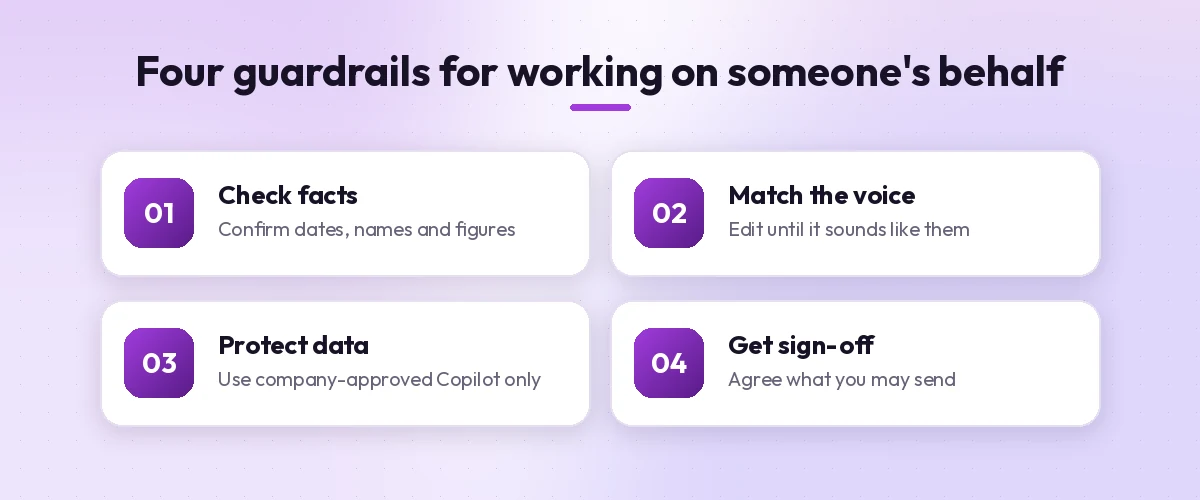
| Guardrail | What to do | Why it matters |
|---|---|---|
| Check facts | Confirm dates, names, figures and times against the source | Summaries can drop or blur details |
| Match the voice | Edit drafts until they sound like your executive | Generic phrasing is easy to spot |
| Protect sensitive data | Use your work account and company-approved Copilot only | Personal tools may store data differently |
| Get sign-off | Agree which messages you may send without review | Avoids surprises for your executive |
| Respect permissions | Only work with content you are authorized to access | Copilot follows the access you have |
Microsoft’s Microsoft 365 Copilot data, privacy and security documentation explains that Copilot only surfaces organizational data the signed-in user already has permission to view. That is reassuring, but it also means oversharing in SharePoint or Teams can show up in answers, so flag any oddly broad access to IT.
Build Your Own EA Prompt Library
Templates are most valuable once they are tuned to your executive, and copilot prompts for executive assistants are no exception. Spend a week noting which tasks you repeat, then save the improved prompts somewhere you can grab them fast.
- Keep a voice guide. Write five lines describing how your executive writes, such as preferred greetings, sign-offs and words they never use, and paste it into drafting prompts.
- Save favorites. Microsoft’s Copilot Prompt Gallery lets you browse examples and save prompts you reuse.
- Iterate in the same chat. Reply with “shorter”, “more formal” or “add the deadline” instead of starting again.
- Share with backups. A shared prompt list makes coverage during your leave far smoother.
If your executive is also experimenting, point them to our Copilot prompts for managers so you are both working from compatible templates.
Wrapping Up
The real value of Copilot for an assistant is not any single prompt. It is getting back the half hour each morning that used to go to reading threads and the evenings spent assembling briefs. Start with the inbox sweep, the meeting brief and the end-of-day handover, since those three touch every day. Once they feel natural, work through the rest of these copilot prompts for executive assistants and rewrite them in your executive’s voice.
Frequently Asked Questions
Can executive assistants use Copilot in their executive’s mailbox?
It depends on how your organization has set up delegate and shared mailbox access and Copilot licensing. Ask IT what is supported. A reliable approach is to use Copilot on threads, meetings and files you are included in or that are shared with you.
Which Copilot prompts save an EA the most time?
Inbox sweeps, thread summaries, meeting briefs, Teams meeting recaps, itinerary building and end-of-day handover notes usually save the most time because they involve a lot of reading and routine writing.
Can Copilot book travel or schedule meetings automatically?
Copilot can help draft scheduling emails, invite descriptions and itineraries from confirmations you already have, but it does not book flights or hotels. Always confirm times and bookings with the airline, hotel or travel platform.
How do I make Copilot write like my executive?
Create a short voice guide with their preferred greetings, sign-offs, tone and phrases to avoid, then paste it into drafting prompts. Edit the result and ask Copilot to adjust tone until it sounds right.
Is it safe to use Copilot with confidential executive information?
Use only your work account and the Copilot version your company has approved. Microsoft 365 Copilot respects your organization’s existing permissions and data protections, but you should still follow internal policies on sensitive topics.
Do I need a Microsoft 365 Copilot license for these prompts?
Prompts that read your emails, meetings and files need a Microsoft 365 Copilot license. Prompts where you paste the text yourself can also work in Copilot Chat, as long as your company allows it.