Copilot Prompts for Sales: 30 Proven Templates to Prospect, Pitch and Close Faster
Copilot prompts for sales help you spend less time on research, email drafts and CRM notes, and more time actually talking to buyers. This guide collects 30 copy-ready templates for Microsoft 365 Copilot, organized around the way a deal really moves: finding and researching accounts, writing outreach, preparing for calls, handling objections, building proposals, and keeping the pipeline honest.
Each of these copilot prompts for sales uses square-bracket placeholders like [company] or [product]. Swap in your own details, attach the right files where you can, and treat each result as a first draft. Copilot is quick at structure and wording, but you still own the facts, the pricing and the relationship.
Why Sales Teams Use Microsoft 365 Copilot
A typical sales week is full of writing that nobody sees as “selling”: account summaries, follow-up emails, meeting prep, internal deal updates and forecast notes. That work matters, yet it eats the hours you could spend on conversations. Copilot is built into the apps reps already live in, so well-written copilot prompts for sales can take on a large share of that admin.
- In Outlook, it drafts and rewrites emails, summarizes long customer threads and suggests replies.
- In Teams, it recaps calls, pulls out action items and answers questions about what was said in a meeting you missed.
- In Word and PowerPoint, it turns notes into proposals, one-pagers and pitch decks.
- In Excel, it helps analyze pipeline exports, spot trends and build quick charts.
- In Copilot Chat with work data, it can search across your emails, files and meetings to answer questions like “what did this customer ask for last quarter?”
Microsoft also offers a dedicated add-on for sellers. The Sales agent in Microsoft 365, previously branded Copilot for Sales, connects Dynamics 365 Sales or Salesforce to Outlook and Teams so drafts and summaries can draw on CRM records. You do not need it to use the copilot prompts for sales below, but if your company has it, the CRM-aware versions get noticeably more specific.
The Anatomy of Strong Copilot Prompts for Sales
The difference between a bland, generic email and one that sounds like it came from a thoughtful rep is almost always context. Microsoft’s own guidance on writing Copilot prompts recommends four parts: a goal, context, sources and expectations. For sellers, that translates into five practical ingredients.
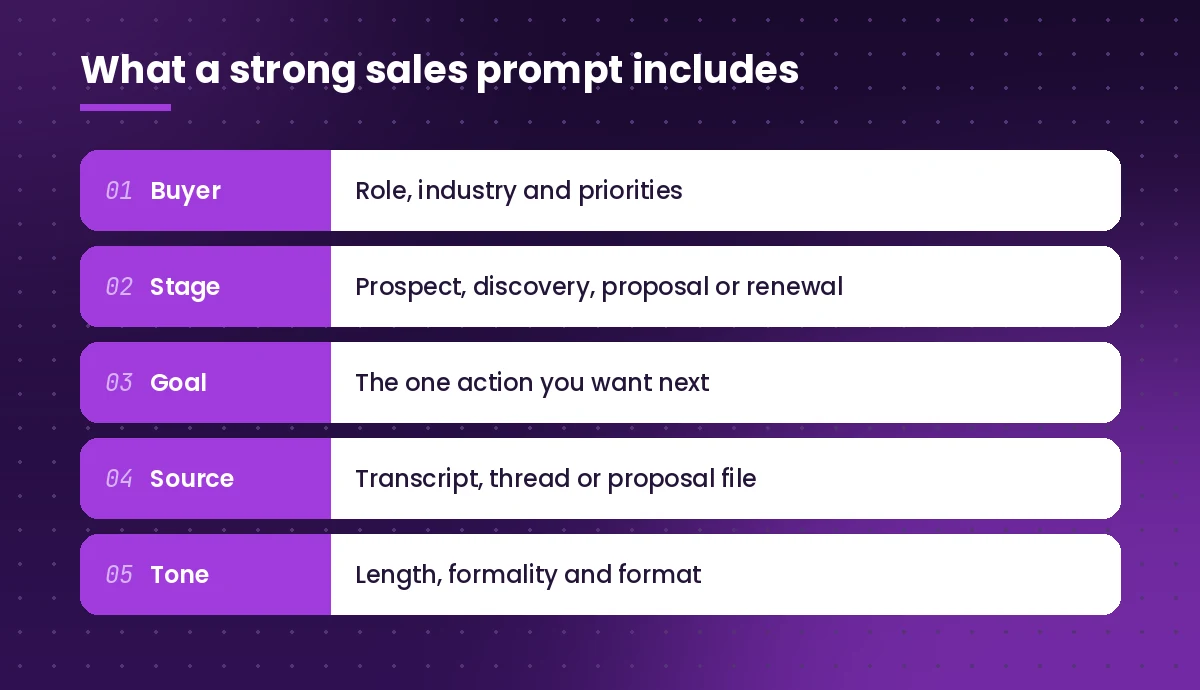
- Buyer. Who you are writing to: role, industry, company size and what they care about.
- Stage. Where the deal stands, from cold prospect to renewal. The right tone for a first touch is very different from a contract negotiation.
- Goal. The single action you want, such as booking a call, confirming a decision maker or getting a signature.
- Source. The material Copilot should rely on: a call transcript, a proposal file, an email thread or a product sheet. Reference files with the / key in Microsoft 365 Copilot Chat so it works from real content instead of guessing.
- Tone and format. Length, formality, bullet points or prose, and anything to avoid, like jargon or discount talk.
If you want a deeper walkthrough of prompt structure, our guide on how to write Copilot prompts covers each part with before-and-after examples.
Prospecting and Account Research Prompts
Good outreach starts with knowing why this account, and why now. These copilot prompts for sales help you build a quick picture of a company before you reach out.
1. One-page account brief
Create a one-page account brief for [company name]. Include what the company does, its main products, target customers, recent news I should know about, likely business priorities this year, and three questions I could ask a [job title] there. Clearly separate facts from your assumptions.Asking Copilot to separate facts from assumptions is a small habit that saves you from repeating a guess as if it were true on a call.
2. Find the right people to contact
For a company like [company name] in [industry], list the job titles most likely to own a decision about [problem your product solves]. For each title, describe their typical goals, the metrics they are judged on, and one concern they might have about changing vendors.3. Map your existing relationship
Search my emails, meetings and files for anything related to [company name] from the last 12 months. Summarize who I have talked to, what topics came up, any commitments I made, and any open questions that were never answered. List the dates.This one needs Copilot Chat with access to your work data. It is especially handy when you inherit an account from another rep.
4. Build a prospect list from your notes
Here are my notes from a trade show: [paste notes]. Turn them into a table with columns for name, company, role, what they were interested in, urgency (high, medium, low) and a suggested next step. Flag anyone I should contact within 48 hours.Cold Outreach and Follow-Up Email Prompts
Most reps agree that the first email is the hardest. These copilot prompts for sales give you a strong starting point and a few variations to test. For more email ideas beyond selling, see our full list of Copilot prompts for Outlook.
5. Personalized cold email
Write a cold email to [name], [job title] at [company]. They likely care about [priority]. We help companies like theirs [outcome] with [product]. Keep it under 120 words, open with something specific to their business, avoid buzzwords, and end with a low-pressure question rather than a meeting request.6. Three subject line options
Suggest five subject lines for the email above. Keep each under 45 characters, avoid all caps and spam words like "free" or "guarantee", and make at least two of them curiosity-based rather than benefit-based.7. A short multi-touch sequence
Create a four-email outreach sequence for [persona] at mid-size [industry] companies. Email 1 introduces a problem, email 2 shares a relevant example, email 3 offers a useful resource, and email 4 is a polite breakup email. Space them over three weeks and keep each under 100 words.8. Follow up after no reply
I emailed [name] on [date] about [topic] and got no response. Write a brief, friendly follow-up that adds one new piece of value, such as a relevant insight or resource, without guilt-tripping them. Under 70 words.9. Rewrite a draft that feels too salesy
Rewrite this email so it sounds more like a helpful peer and less like a sales pitch. Cut any exaggerated claims, shorten long sentences, and keep the core offer. [paste draft]Discovery Call and Meeting Prep Prompts
A prepared rep asks better questions and listens more. These copilot prompts for sales help you walk into every call with a plan.
10. Pre-call briefing
I have a discovery call with [name], [title] at [company] on [date]. Using the email thread /[thread or file] and what you know about their industry, give me: a two-sentence summary of where things stand, their likely goals, five open-ended discovery questions, and two risks to watch for.11. Discovery questions by framework
Write ten discovery questions using the [BANT / MEDDIC / SPIN] framework for a buyer evaluating [product category]. Group them by framework element and add a follow-up question for each one in case the first answer is vague.12. Meeting agenda to send ahead
Draft a short agenda email for a 30-minute call with [company]. Include the purpose, three discussion points, what I need from them, and a line inviting them to add topics. Keep the tone warm and professional.13. Recap a Teams sales call
Summarize this meeting with [company]. List the customer's stated goals, pain points, budget or timeline signals, objections raised, decision makers mentioned, and agreed next steps with owners and dates. Quote the customer directly where possible.Run this inside Teams Copilot during or after a recorded meeting with transcription on. Our guide to Copilot prompts for Teams meetings has more recap and catch-up variations.
14. Post-call follow-up email
Using the recap of today's call with [company], write a follow-up email to [name] that thanks them, confirms what we heard about their priorities in three bullets, lists agreed next steps with dates, and attaches nothing yet. Under 150 words.Objection Handling Prompts
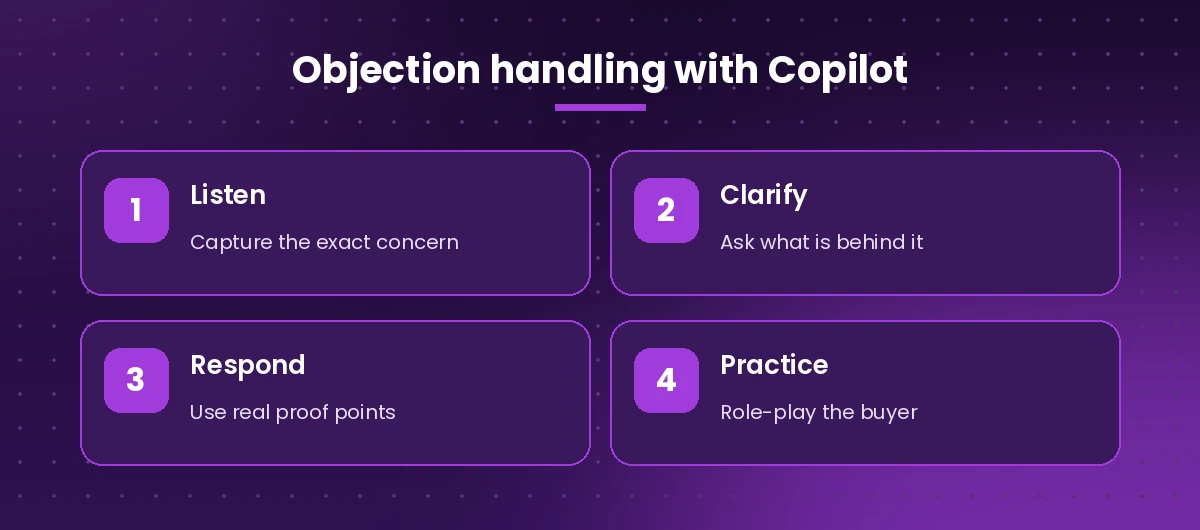
Objections are rarely a “no”. They are usually a request for more information or reassurance. Copilot is a useful practice partner here because it can play the skeptical buyer for you, and copilot prompts for sales like the ones below turn it into a sparring partner.
15. Build an objection playbook
List the ten most common objections a buyer might raise about [product] in [industry], such as price, timing, switching costs and competitor comparisons. For each, write a short response that acknowledges the concern, asks a clarifying question and offers a relevant proof point. Mark where I need to insert a real customer example.16. Role-play a tough buyer
Act as a skeptical [job title] at a [company size] [industry] company who is happy with their current vendor. I will pitch [product]. Push back realistically, one objection at a time, and after five exchanges give me feedback on what I handled well and what I should improve.17. Respond to a price objection by email
A prospect replied: "[paste their message about price]". Draft a response that does not immediately offer a discount. Reframe the conversation around the cost of the problem, ask what budget range they were expecting, and suggest a short call. Keep it respectful and under 120 words.18. Competitor comparison talking points
Using our product sheet /[file] and this public information about [competitor]: [paste details], create a fair comparison table across features, pricing model, support and implementation time. Then write three talking points that highlight where we are genuinely stronger, without criticizing the competitor.Keep comparisons honest. Buyers often check claims, and an inaccurate one can cost you the deal.
Proposals, Decks and Sales Content Prompts
Once a buyer is interested, they need material they can share internally. These copilot prompts for sales content work well in Word and PowerPoint.
19. Draft a proposal from call notes
Create a proposal for [company] based on /[call notes file] and /[pricing file]. Include an executive summary, their goals in their own words, our recommended solution, implementation timeline, pricing options and next steps. Use clear headings and keep the executive summary under 150 words.20. Executive summary for a busy buyer
Rewrite this proposal's executive summary for a CFO who will read it in two minutes. Lead with the business outcome and return, keep it to five sentences, and remove technical detail. [paste summary]21. Build a pitch deck
Create a 10-slide presentation for a first meeting with [company] using /[proposal file]. Slides: their challenge, cost of inaction, our approach, how it works, customer example, implementation plan, pricing overview, risks and how we handle them, next steps, and contact details. Keep text short and suggest a visual for each slide.For more deck templates, browse our list of Copilot PowerPoint prompts.
22. Turn a case study into a one-pager
Turn this customer case study /[file] into a one-page summary with sections for the customer's situation, what they tried before, the solution, and the outcome. Only use figures that appear in the source document and keep it under 250 words.23. Champion enablement email
My champion at [company] needs to convince their [leadership team / finance team]. Write an internal email they could forward, written in their voice, explaining the problem, why our solution fits and what approval they need. Keep it neutral and factual, under 200 words.Pipeline, Forecasting and CRM Prompts
Sales managers and reps alike lose time to reporting. Copilot in Excel and Word can speed this up, especially when you feed copilot prompts for sales reporting a CRM export. Our guide to Copilot prompts for Excel explains how to format data so Copilot can analyze it reliably.
24. Analyze a pipeline export
Analyze this pipeline table. Show total value by stage, deals that have not moved in more than 30 days, deals with close dates in the past, and the top five deals by value. Add a chart of value by stage and summarize the biggest risks in three bullets.Format the data as an Excel table first, and check that close dates and amounts are stored as real dates and numbers.
25. Weekly deal update for your manager
Using these notes on my top deals: [paste notes], write a concise weekly update for my manager. For each deal, include stage, value, what changed this week, next step and any help I need. End with a one-line forecast summary.26. Clean up CRM notes
Turn these rough call notes into a clean CRM entry with fields for summary, pain points, stakeholders, budget, timeline, competition, next step and next step date. Leave a field blank if the notes do not mention it. [paste notes]27. Deal risk review
Review this deal summary and act as a sales manager. Identify missing information, weak signals and risks that could delay or kill the deal. Suggest three questions I should answer before the next forecast call. [paste summary]Negotiation, Closing and Account Growth Prompts
The final stage of a deal, and the months after, deserve the same preparation as the first email, and these copilot prompts for sales cover negotiation, reviews and retrospectives.
28. Negotiation prep sheet
I am negotiating a renewal with [company]. Their current contract is [details], and they have asked for [request]. Help me prepare: list what we can offer, what we should ask for in return, my walk-away points, likely questions from their procurement team, and a calm opening statement.29. Quarterly business review outline
Create an outline for a quarterly business review with [customer]. Include goals we agreed at the start, progress against each, usage highlights from /[report file], open issues, upcoming changes, and three expansion ideas framed around their goals rather than our products.30. Win-loss reflection
Here are my notes on a deal we [won / lost] with [company]: [paste notes]. Analyze what worked, what did not, which signals I missed and what I should do differently next time. Finish with three lessons I can share with the team.Tips for Getting Better Results
Using Copilot prompts for sales work well is more about habits than clever wording. A few practices make a noticeable difference.
- Feed it real material. A transcript, an email thread or a proposal file beats a paragraph of description every time.
- Iterate in the same chat. Follow-ups like “make it shorter”, “warmer tone” or “add a question about timeline” refine the draft without starting over.
- Save your winners. When a template works, save it to your Copilot prompt gallery or a shared team document so others can reuse it.
- Check every fact and number. Copilot can misread a document or blend details from two accounts. Verify names, figures, dates and commitments before anything reaches a customer.
- Respect privacy. Only reference customer data you are allowed to use, and follow your company’s policy on what goes into AI tools.
- Keep your voice. Buyers can tell when an email was pasted straight from a tool. Edit drafts so they sound like you.
Here is a quick view of which app suits copilot prompts for sales at each stage of the cycle.
| Sales task | Best Copilot app | What to attach |
|---|---|---|
| Account research | Copilot Chat (work) | Past emails, account files |
| Outreach and follow-ups | Outlook | Email thread, product sheet |
| Call prep and recaps | Teams | Meeting transcript, agenda |
| Proposals and one-pagers | Word | Call notes, pricing file |
| Pitch decks | PowerPoint | Proposal, case study |
| Pipeline analysis | Excel | CRM export as a table |
Common Mistakes to Avoid
Even experienced reps fall into a few traps when they first adopt copilot prompts for sales.
- Sending drafts unedited. A generic tone or a wrong detail can undo weeks of trust.
- Vague requests. “Write a sales email” gives you a template anyone could send. Add the buyer, stage and goal.
- Letting it invent proof. Ask Copilot to use placeholders like [ADD CUSTOMER RESULT] instead of making up results or quotes.
- Over-automating relationships. Use AI to prepare, not to replace real conversations. The call itself is still where deals are won.
- Ignoring the sources setting. If Copilot answers from the web when you wanted your files, switch to work mode or reference the file directly.
Final Thoughts
The best results with copilot prompts for sales come when you treat Copilot like a capable sales assistant: give it clear context, real source material and a specific goal, then review its work before anything reaches a buyer. Start with the five or six templates that match the part of the cycle where you lose the most time, adapt them to your product and voice, and save the versions that work. Over a few weeks, these copilot prompts for sales can become a personal playbook that keeps your outreach consistent and frees up time for the conversations that close deals.
Frequently Asked Questions
What are the best Copilot prompts for sales reps to start with?
Start with the tasks that take you the most time each week. For most reps, that means the pre-call briefing, the post-call recap and follow-up email, the cold email template and the pipeline update. Use them for a week, adjust the wording to your product and voice, and save the versions that work best.
Do I need the Sales agent (Copilot for Sales) to use these prompts?
No. Every template works in Microsoft 365 Copilot inside Outlook, Teams, Word, PowerPoint, Excel and Copilot Chat. The Sales agent add-on connects your CRM, such as Dynamics 365 Sales or Salesforce, so drafts and summaries can pull in account and opportunity details automatically.
Can Copilot write cold emails that do not sound generic?
Yes, if you give it specifics. Include the buyer’s role, company, a likely priority and one concrete detail about their business, plus a word limit and a clear call to action. Then edit the draft so it sounds like you before sending.
Is it safe to put customer information into Copilot?
Microsoft 365 Copilot with a work account operates within your organization’s security and compliance settings, and it only accesses content you already have permission to see. Still, follow your company’s AI policy and avoid pasting sensitive customer data into consumer tools that are not covered by your work account.
How can sales managers use Copilot?
Managers can use it to analyze pipeline exports in Excel, review deal summaries for risk, prepare coaching notes from call recaps, build quarterly business review outlines and draft team updates. The deal risk review and pipeline analysis templates in this guide are good starting points.
How do I stop Copilot from making up numbers in sales content?
Tell it to use only figures from the attached source, and to write a placeholder such as [ADD METRIC] where a number would help. Always check names, prices, dates and results against your CRM or source documents before sharing anything with a customer.