Copilot Prompts for Lawyers: 30 Essential Templates for Faster Legal Work
Copilot prompts for lawyers help with the part of legal practice that eats the most hours without needing the most judgment: the first read of a long contract, the first draft of a client email, the chronology built from a stack of documents. Used well, Microsoft 365 Copilot gives you a faster starting point in Word, Outlook and Teams, and you spend your time on the analysis only a lawyer can do.
This guide gives you 30 templates grouped by the work you actually do: reviewing agreements, drafting, research support, litigation preparation, client communication and running the practice. Square brackets mark the details you replace, such as [client], [agreement type] or [jurisdiction]. Before you start, one rule matters more than any template: Copilot drafts and summarizes, but you verify, decide and sign.
What Copilot Can and Cannot Do in a Law Practice
It helps to be clear about the tool before trusting it with client matters. Microsoft 365 Copilot works inside the Office apps and can reference files, emails and meetings you already have permission to open. That makes it strong at a specific set of legal tasks:
- Reading and condensing long agreements, deposition transcripts, email threads and meeting recordings.
- Restructuring content into tables, issue lists, timelines and checklists.
- Drafting routine correspondence, internal memos, clause alternatives and plain-language explanations.
- Comparing two versions of a document or a draft against your standard position.
It is weaker, and sometimes risky, at tasks that need authoritative legal sources. A general-purpose assistant can invent case names, misquote statutes or state a rule from the wrong jurisdiction with complete confidence. Treat every citation it produces as unverified until you have pulled it from a trusted research database yourself.
Professional duties still apply too. In the United States, ABA Formal Opinion 512 (2024) discusses competence, confidentiality, communication and fees when lawyers use generative AI, and many state bars have published their own guidance. Check the rules where you are admitted and your firm’s AI policy before putting client material into any tool.
The Anatomy of a Strong Legal Prompt
Lawyers already know how to give good instructions, because a good prompt reads a lot like a clear assignment to a junior associate. Include five things:
- Role and perspective. Say whose side you are on: “Review this as counsel for the buyer.”
- The source. Name the file, thread or meeting, or tell Copilot to use only the open document.
- The task. Be specific: “list every indemnity obligation”, not “review this.”
- The standard. Give your playbook position, risk tolerance or the governing law.
- The format. Ask for a table, a numbered issue list or a memo with headings.
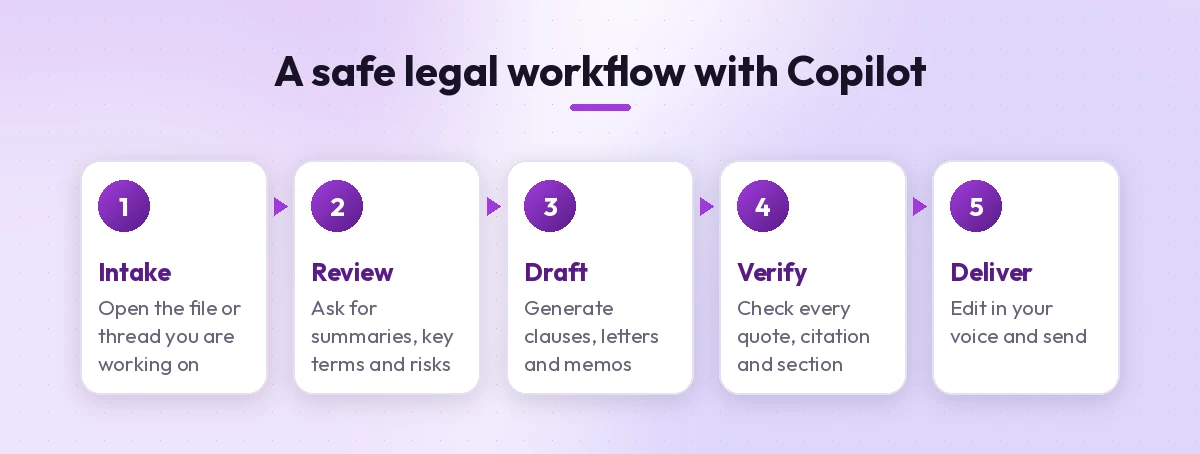
Adding “quote the exact clause and section number for each point” is the single most useful habit. It turns a summary you have to trust into a summary you can check in seconds. For a broader walkthrough, see our guide on how to write Copilot prompts.
Contract Review Prompts
Contract work is where most attorneys feel the time savings first, so it is the natural place to start with copilot prompts for lawyers. Open the agreement in Word, then use these prompts in the Copilot pane.
1. Get a one-page overview
Summarize this [agreement type] in one page for a busy partner: parties, term, renewal, fees, termination rights, liability cap, governing law and anything unusual. Quote the section number for each item.2. Extract the key terms into a table
Create a table of the key commercial and legal terms in this agreement with columns for term, what the contract says, section number and whether it favors [our client] or the counterparty.3. Find risky clauses for your side
Acting as counsel for [party], list clauses in this agreement that create the most risk for our client. For each one, explain the risk in one sentence, quote the language and suggest a narrower alternative.4. Check against your playbook
Compare this agreement against our standard positions listed below. Mark each item Matches, Deviates or Missing, and quote the relevant clause. Our positions: [paste playbook points].5. Map obligations and deadlines
List every obligation, notice requirement and deadline in this contract. Show who owes it, what triggers it, the time period and the section number. Sort by date or trigger.6. Compare two drafts
Compare this draft with [previous version file]. List every substantive change, who it helps, and any change that looks like it was made without being flagged in the redline.If you compare versions often, our guide to Copilot prompts for comparing two documents covers more variations, including side-by-side tables.
Drafting Prompts for Clauses, Letters and Memos
Drafting from a blank page is slow. Drafting from a rough version you can mark up is fast. These templates give you that rough version.
7. Draft clause alternatives
Draft three versions of a [clause type] clause for a [agreement type] governed by [jurisdiction] law: one favoring the [buyer], one balanced and one favoring the [seller]. Keep each under 120 words and explain the difference in a sentence.8. Tighten your own language
Rewrite this clause to remove ambiguity and passive voice without changing its legal effect. List any terms that should be defined and point out anything that could be read two ways.9. Draft a demand or notice letter
Draft a firm but professional letter from [firm] to [recipient] about [issue]. State the facts from my notes below, the obligation that was breached under section [X] and the deadline of [date] to respond. Do not threaten anything not listed in my notes.10. Create an internal research memo outline
Create an outline for an internal memo on whether [issue] in [jurisdiction]. Use the headings Question Presented, Short Answer, Facts, Discussion and Conclusion, and mark every point where I need to add authority.11. Draft an engagement letter from a template
Using our engagement letter template [file], draft a version for [client] covering [scope of work], [fee arrangement] and [staffing]. Highlight any section of the template I still need to complete or remove.12. Turn a clause into plain English
Explain this clause in plain English for a client with no legal background. Use under 100 words, then list two questions the client should ask before agreeing to it.Microsoft’s Copilot in Word overview explains drafting, rewriting and summarizing features in more detail, and our collection of Copilot prompts for Word has more general editing templates.
Legal Research Support Prompts
Copilot is not a replacement for a legal research platform. It is useful around research: framing the question, organizing what you found and checking your reasoning. Keep these prompts focused on materials you supply.
13. Frame the research question
I am researching [issue] for a client in [jurisdiction]. Break this into the specific legal questions I need to answer, the facts that will matter for each, and the types of authority I should look for.14. Summarize authority you already pulled
Summarize the attached [case/statute/regulation] in a short brief: facts, issue, holding, reasoning and how it might apply to a client whose situation is [facts]. Use only the attached document.15. Organize research notes
Turn my research notes below into a table with columns for authority, jurisdiction, year, key point and whether it supports or hurts our position. Do not add any authority that is not in my notes.16. Stress-test your argument
Here is my argument on [issue]. Act as opposing counsel and give the five strongest counterarguments, then suggest how I might respond to each.The phrase “use only the attached document” or “do not add any authority” in prompts 14 and 15 is deliberate. It keeps the assistant working from your sources rather than its own memory.
Litigation and Discovery Prompts
Litigation produces enormous volumes of documents, transcripts and email. Copilot helps you find the thread through them faster.
17. Build a chronology
From these documents, create a chronology of events with columns for date, event, people involved, source document and page or paragraph. Flag any dates that conflict between sources.18. Summarize a deposition transcript
Summarize this deposition transcript by topic. For each topic, list the key testimony with page and line references, and note any admissions, inconsistencies or statements worth following up.19. Draft a witness outline
Using the chronology and documents in this folder, draft an outline for the examination of [witness]. Group questions by topic, put the exhibits to use next to each topic and keep questions short and leading where appropriate.20. Prepare a discovery request draft
Draft a first set of [interrogatories/requests for production] for a [case type] dispute about [issue]. Base them on the facts below and number them. Mark any request that may be overbroad so I can narrow it.21. Summarize an email thread for a case file
Summarize this email thread for the case file: who said what and when, any commitments made, and any statement that could matter as evidence. Quote those statements exactly.Check every page and line reference against the transcript. Summaries can shift a quote to the wrong page or merge two answers.
Client Communication Prompts
Clients judge their lawyers on responsiveness and clarity as much as outcomes. Copilot in Outlook helps with both.
22. Send a matter status update
Draft a short status update email to [client] on [matter]: what happened since our last update, what comes next, any decision we need from them and expected costs for the next stage. Keep it under 200 words.23. Explain a complex result simply
Explain this [ruling/settlement offer/regulatory change] to a client who is not a lawyer. Cover what it means for them, their options and our recommendation in under 250 words.24. Catch up on a long thread
Summarize this email thread about [matter]. List open questions from the client, anything I promised, and any deadline mentioned.25. Recap a client call
Using the transcript of this Teams meeting, write a recap of the call with [client]: decisions made, instructions given, open issues and next steps with owners and dates.For more meeting recap templates, see our guide to summarizing a meeting transcript with Copilot. To keep the inbox itself under control, our Outlook inbox management prompts work well for busy practitioners.
Practice Management and Business Development Prompts
Running a practice involves its own paperwork. These templates handle the business side.
26. Write clear billing narratives
Rewrite these time entries into clear, professional billing narratives. Describe the task and its purpose, avoid vague words like "review" on their own and keep each under 30 words.27. Draft a client alert
Using the attached [new law/ruling], draft a 400-word client alert: what changed, who is affected, practical steps clients should consider and a closing line inviting them to contact us. Keep it informational, not advice.28. Prepare a pitch summary
Using our matter list and the attached request for proposal, draft a one-page summary of why our team fits [prospective client]. Include three relevant experiences and a proposed staffing approach.29. Build a matter intake checklist
Create an intake checklist for a new [practice area] matter: conflict check details, client documents to request, key dates to calendar, initial risks and first-week tasks.30. Create a knowledge note after a matter closes
Using the documents in this folder, write a short internal knowledge note on [matter]: the issue, the approach that worked, useful templates or clauses, and lessons for next time. Remove client names.Confidentiality, Accuracy and Ethics Checklist
Speed only helps if the work product holds up. Run through these checks before anything Copilot drafted leaves your desk.
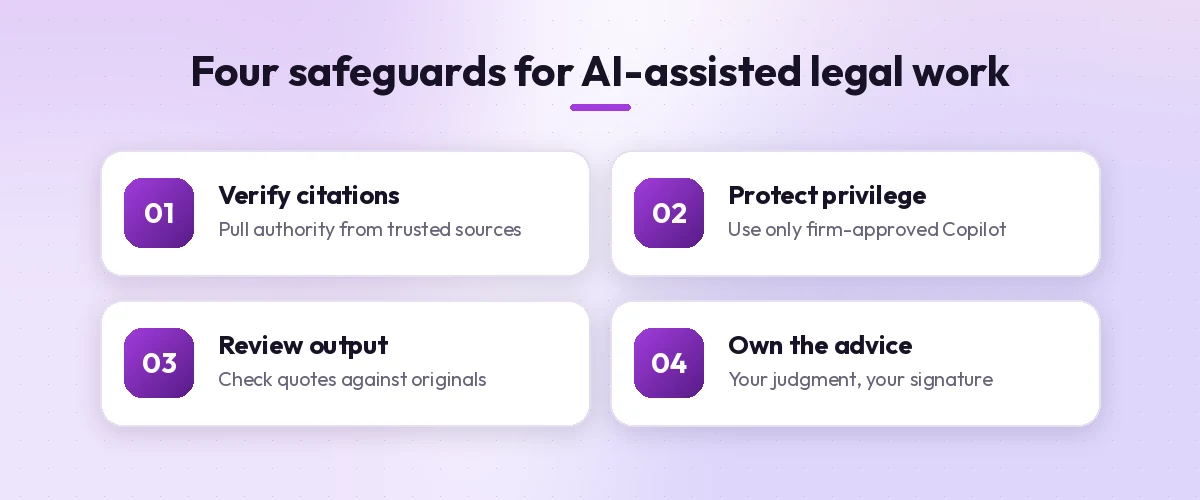
| Safeguard | What to do | Why it matters |
|---|---|---|
| Verify citations | Pull every case, statute and rule from a trusted source | General assistants can invent or misstate authority |
| Protect privilege | Use only firm-approved Copilot with work accounts | Consumer tools may handle data differently |
| Check quotes | Compare quoted clauses and testimony with the original | Summaries can paraphrase or shift references |
| Confirm jurisdiction | Make sure rules match where the matter sits | Answers may default to the wrong law |
| Record your review | Note that you reviewed and edited the output | Supports supervision and billing decisions |
On data handling, Microsoft’s Microsoft 365 Copilot data, privacy and security documentation explains that Copilot respects the permissions already set in your organization. That is useful for ethical walls, but only if matter folders are permissioned correctly in the first place. Ask your IT or knowledge management team to review sharing before rolling Copilot out across practice groups.
Making Copilot Prompts for Lawyers Work for Your Firm
The best results come from adapting a template once, then reusing your improved version. A few practical habits help:
- Store prompts with your precedents. Keep a shared page of tested prompts next to your clause bank, grouped by practice area.
- Bake in your playbook. Paste your standard positions into prompts 3 and 4 so every reviewer uses the same benchmark.
- Work from one source at a time. Ask about a single agreement or transcript, then widen the scope only when needed.
- Ask follow-up questions. If an answer is thin, reply with “Show the exact clause” or “What did you leave out?”
For more practice-area ideas, browse role-based guides like our Copilot prompts for HR teams, which overlaps with employment law work.
Final Thoughts
Copilot will not argue a motion, negotiate a deal or exercise professional judgment, and it should never be the last reader of anything you send. What it can do is remove the slowest first steps from a lot of legal work: reading, sorting and drafting. Start with the contract review and client communication templates, measure the time they save on a few matters, then expand. Treat this list of copilot prompts for lawyers as a starting library and rewrite each template in your own voice and your firm’s standards.
Frequently Asked Questions
Can lawyers use Microsoft Copilot with confidential client information?
Many firms do, but only with a business Microsoft 365 Copilot license configured by IT and in line with firm policy and professional rules. Microsoft 365 Copilot works within your organization’s existing permissions and data protections, while consumer AI tools may not offer the same controls.
Can Copilot do legal research for me?
It can help frame questions, summarize authorities you provide and organize notes, but it is not a legal research database. It can invent or misstate citations, so verify every authority in a trusted research service before relying on it.
Which Copilot prompts save lawyers the most time?
Contract summaries, key term extraction, obligation tracking, deposition summaries, chronologies and client status emails tend to save the most time because they involve heavy reading and routine drafting.
Does Copilot work on contracts in Word?
Yes. With a Microsoft 365 Copilot license, you can open an agreement in Word and ask Copilot to summarize it, list clauses, answer questions about the text or rewrite sections.
Is using AI ethical for attorneys?
Bar authorities such as the ABA in Formal Opinion 512 have said lawyers can use generative AI if they meet duties like competence, confidentiality, client communication and reasonable fees. Rules vary by jurisdiction, so check your own bar’s guidance.
How do I stop Copilot from making things up in legal work?
Tell it to use only the attached document, ask it to quote the exact clause or page for each point, and avoid asking it for authority it has not been given. Then check the quotes and references yourself.