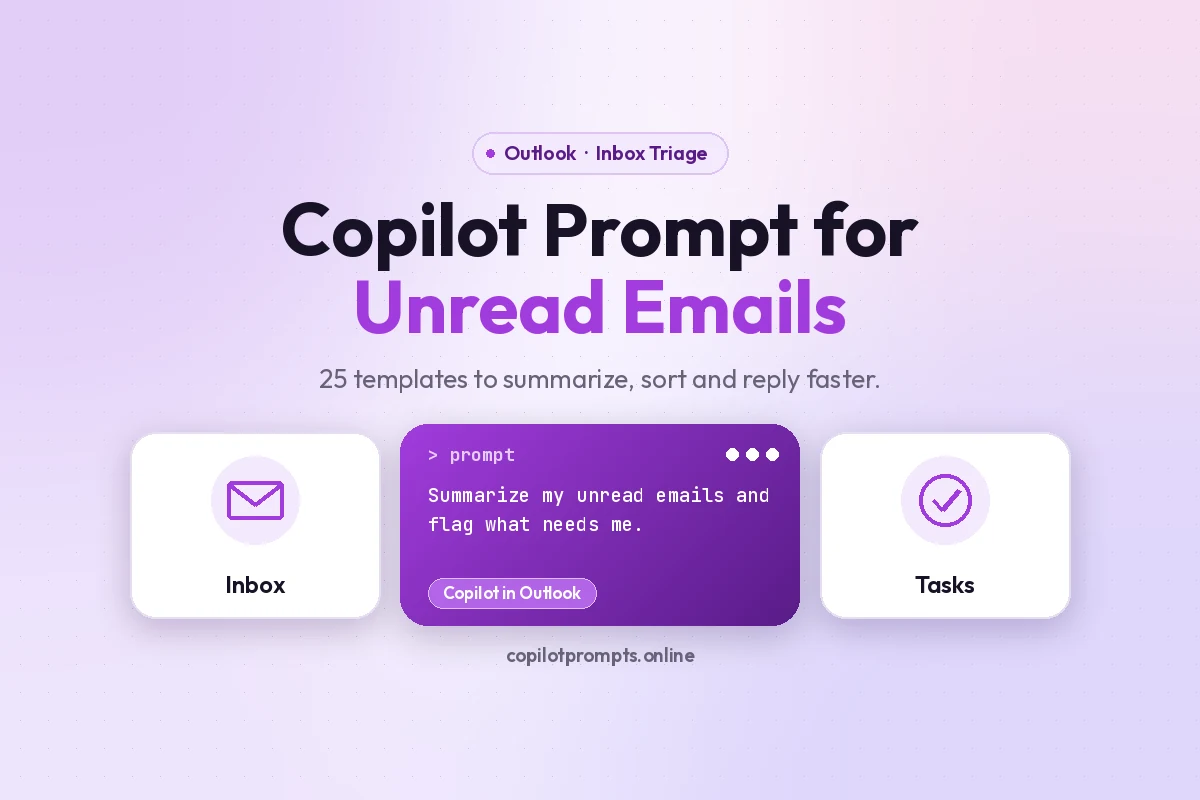
Copilot Prompt for Unread Emails: 25 Fast Templates to Clear Your Inbox
A good copilot prompt for unread emails can turn a wall of bold subject lines into a short, ranked list of what actually needs you. Instead of opening forty messages one by one, you ask Microsoft 365 Copilot to read them, group them and tell you where the decisions, deadlines and questions are hiding. You still choose what to answer first, but the sorting and skimming happen in seconds.
This guide gives you 25 templates you can paste straight into Copilot, organized by situation: the quick morning check, the Monday backlog, filtering by sender or project, drafting replies and building a daily habit. Swap anything in square brackets, like [project] or [manager], for your own details.
Why Unread Mail Is a Good Job for Copilot
Unread messages are mostly a reading problem. Each one has to be opened, skimmed and judged: is this for me, does it need an answer, is there a date in it? That kind of repetitive triage is exactly where an AI assistant earns its keep, because the hard part (deciding what matters) stays with you while the slow part (reading everything) gets compressed.
Microsoft 365 Copilot works with the mail, meetings and files you already have permission to see. In Outlook you can open the Copilot pane or use Copilot Chat in the Microsoft 365 app and ask about your inbox in plain language. For a single long conversation, the built-in thread summary is often enough; Microsoft explains it in Summarize an email thread with Copilot in Outlook. A copilot prompt for unread emails goes further and works across many messages at once.
A quick reality check before you start. What Copilot can see depends on your license, your version of Outlook and how your organization has set things up. Prompts that reference “my unread emails” need Microsoft 365 Copilot with access to your mailbox. If you only have Copilot Chat, you can still paste message text in and use the same templates.
What Makes a Good Copilot Prompt for Unread Emails
Vague requests like “what’s new in my email?” tend to get vague answers. A sharper request names four things:
- Scope. Which messages: unread only, the last 24 hours, a specific folder, sender or keyword.
- Sorting rule. How to group them: by urgency, by required action, by project or by person.
- Output shape. A table, one line per message, a top-five list or a short paragraph.
- Next step. What you want Copilot to do with the result, such as flag replies or draft responses.
If you want the full framework with before-and-after examples, our guide on how to write Copilot prompts walks through it step by step.
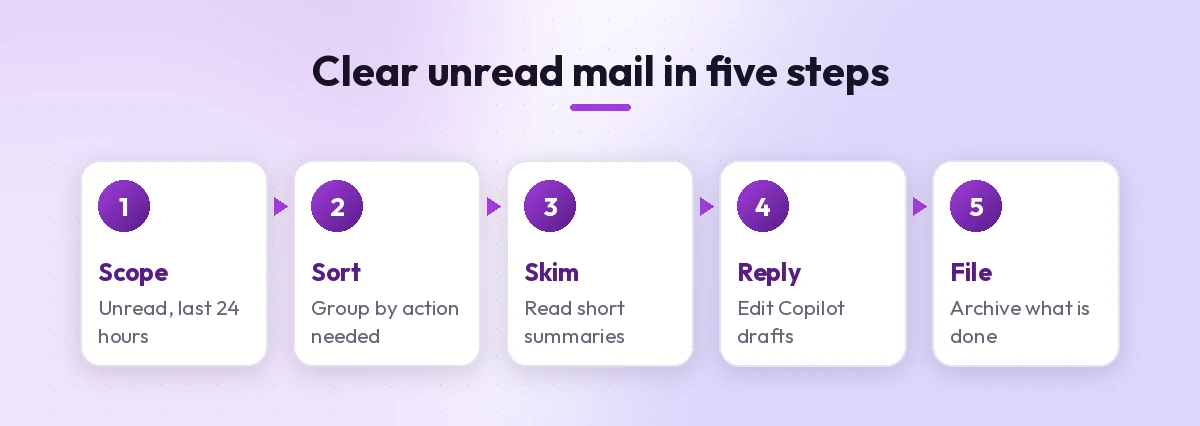
Quick Morning Check Prompts
Each copilot prompt for unread emails in this section is built for the first ten minutes of the day, when you want to know if anything is on fire before you open a single message.
1. The two-minute overview
Summarize my unread emails from the last 24 hours in no more than eight bullets. Start with anything that needs a reply from me today.2. Sort by required action
Look at my unread messages and group them into four buckets: needs my reply, needs my decision, FYI only, and newsletters or notifications. Show one line per email with the sender and the ask.3. Find the deadlines
From my unread inbox, list every email that mentions a deadline, due date or meeting time. Show the date, what is due and who sent it, sorted by the nearest date first.4. Questions waiting on me
Which unread emails contain a direct question addressed to me? Quote the question in a few words and tell me who is waiting for the answer.5. Spot the urgent tone
Scan my unread emails for anything that sounds urgent, escalated or frustrated, even if it is not flagged as important. Explain in one sentence why each one stood out.These five cover most mornings. Run the first one daily, and reach for the others when the overview shows something worth digging into.
Prompts for a Big Backlog After Time Away
Coming back from a long weekend, a conference or sick leave is when inbox overload really hurts. The trick with any copilot prompt for unread emails after time away is to shrink the pile in layers instead of asking for one giant summary.
6. Catch-up briefing
I have been out since [date]. Summarize what happened in my unread emails while I was away. Organize it by project, and for each one tell me the current status and anything that still needs me.7. Separate what resolved itself
Among my unread emails since [date], identify threads where the issue was already resolved by someone else. List them so I can archive them without reading.8. Top ten to answer first
Rank my unread emails since [date] by how important they are to reply to. Consider sender seniority, deadlines and direct requests. Give me the top ten with a one-line reason each.9. Who needs a “sorry for the delay” reply
List the unread emails where someone asked me something more than three days ago and is still waiting. Include the sender, the request and the date it was sent.10. Decisions made without me
Summarize any decisions that were made in my unread email threads while I was away, who made them and whether anything is expected from me as a result.When you are working through a long absence, ask Copilot to handle one project at a time after the first briefing. Smaller scopes give more reliable answers than a single request across hundreds of messages.
Filter by Sender, Project or Keyword
Sometimes you do not need the whole inbox, just the slice that matters for the next meeting or the person you report to. These templates narrow the search.
11. Messages from leadership
Show my unread emails from [manager] and [director]. Summarize each in two lines and tell me what action, if any, they expect from me.12. One project only
Find unread emails related to [project name] or [client name]. Summarize the latest status, open issues and anything that changed since last week.13. Customer or client messages
List my unread emails from external senders at [company domain]. Flag any complaints, requests for quotes or contract questions.14. Attachments to review
Which unread emails include attachments I am expected to review or approve? List the file names, the sender and the deadline if one is mentioned.15. Meeting changes
Check my unread emails for meeting invitations, reschedules or cancellations. Tell me which ones conflict with each other or need an answer.Filtered prompts like these also pair well with Outlook’s rules and folders. Our guide to Copilot prompts for Outlook inbox management shows how to combine both into a system.
Turning Unread Mail Into Replies and Tasks
Reading is only half the job, so a copilot prompt for unread emails should lead to action. Once you know what needs attention, Copilot can draft the first version of each response and pull out the to-dos.
16. Draft quick replies in batch
For the unread emails that need a simple reply, draft a short response to each one. Keep every reply under 60 words, polite and direct. Label each draft with the sender's name.17. Reply to a specific message
Draft a reply to the latest unread email from [name]. Confirm I received it, answer their question about [topic] and say I will send the full update by [date].18. Build a task list
Turn my unread emails into a to-do list. For each task, show what needs to happen, the source email's sender and any date mentioned. Put the most time-sensitive tasks first.19. Hand off to a colleague
Summarize the unread email from [sender] about [topic] in a short note I can forward to [colleague], explaining what they need to do and by when.20. Polite holding reply
Write a short holding reply for emails I cannot answer properly today. Thank the sender, confirm I have their message and promise a full response by [day].Always read a draft before sending it. Copilot is quick at structure and tone, but names, numbers and commitments should be checked by you. For more writing templates, see our collection of Copilot prompts for Outlook.
Quick Reference: Which Template to Use
| Situation | Best template | What you get |
|---|---|---|
| Normal morning | 1 or 2 | A short, grouped overview |
| Back from leave | 6, then 8 | A project briefing and a reply order |
| Before a 1:1 | 11 | Only your manager’s messages, summarized |
| Client-heavy day | 13 | External requests and complaints flagged |
| Too many small replies | 16 | Batch drafts to edit and send |
| End of day | 21 | Anything still waiting on you |
Make Unread Triage a Daily Habit
A single copilot prompt for unread emails helps once. A routine helps every day. These final templates are built to be repeated at fixed times so nothing slips.
21. End-of-day sweep
Review the emails I received today that are still unread or that I have not replied to. List anything that should not wait until tomorrow.22. Friday wrap-up
Summarize the important unread or unanswered emails from this week. Group them into: reply before the weekend, schedule for Monday, and safe to archive.23. Newsletter digest
Summarize my unread newsletters and automated updates from this week in one short digest. Keep only items related to [topics I care about] and skip the rest.24. Weekly sender pattern check
Based on my unread emails this week, which senders or distribution lists send the most messages I never open? Suggest which ones I could unsubscribe from or move to a folder.25. Personalized triage rule
When I ask you to check my unread emails, always use these priorities: anything from [manager] first, then [key client], then emails with deadlines this week. Ignore marketing and system alerts. Confirm you understand by summarizing the rule.Microsoft’s own advice on writing effective Copilot prompts stresses giving a goal, context, expectations and a source, which is exactly what template 25 does in one message. Some versions of Copilot can remember preferences or run saved prompts, but if yours does not, keep the rule in a note and paste it in when you start.
Common Mistakes to Avoid
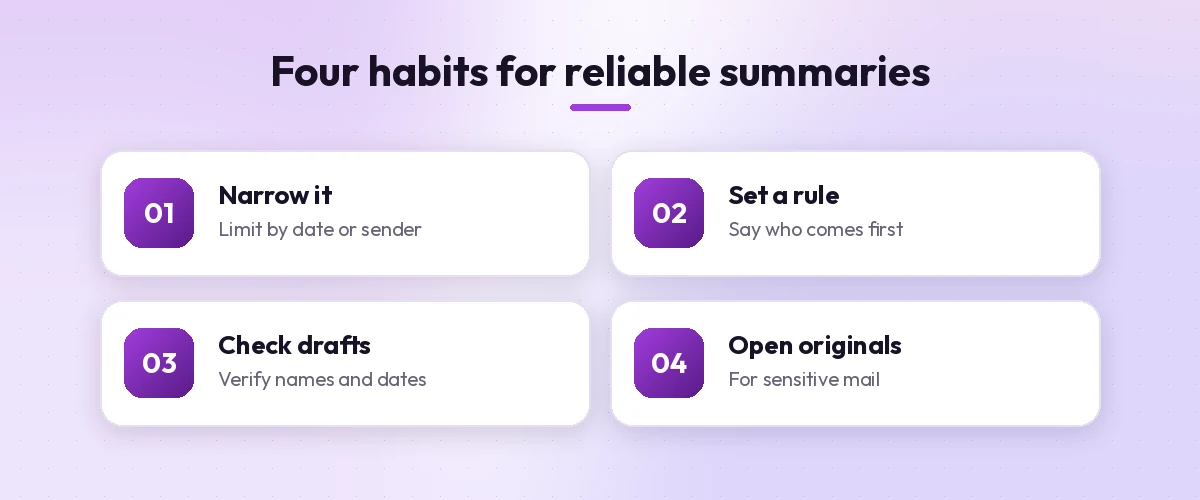
Even the best copilot prompt for unread emails falls short if it is used the wrong way. Watch for these:
- Asking about too much at once. A request covering three months of mail will skip things. Narrow the date range or the sender.
- Trusting summaries for sensitive decisions. A summary can miss nuance in a contract, legal notice or HR matter. Open the original before acting.
- Forgetting it only sees what you can see. Copilot respects your mailbox permissions, so shared or delegated mailboxes may behave differently depending on your setup.
- Never refining the answer. If the first result is too long, reply “shorter, top five only” rather than starting over.
- Sending drafts unchecked. Read every draft for names, dates and promises before it goes out.
Copilot also does not mark messages as read for you just because it summarized them, so your unread count may stay the same. Use Outlook’s normal tools, like “Mark all as read” on a folder, once you are confident nothing important is left.
Privacy and Security Notes
Inbox prompts touch some of your most sensitive data, so it is worth knowing how it is handled. According to Microsoft’s Microsoft 365 Copilot data, privacy and security documentation, Copilot only surfaces organizational data that the signed-in user already has permission to access. Use your work account and the Copilot version your company has approved, and avoid pasting confidential mail into consumer AI tools.
If you support someone else’s inbox, such as an executive, our Copilot prompts for executive assistants cover delegate scenarios and guardrails in more detail.
Final Thoughts
You do not need all 25 templates on day one. Start with the two-minute overview each morning and the end-of-day sweep each evening. After a week, you will know which extra filters fit your role, and you can save your favorite copilot prompt for unread emails as a personal triage rule. The goal is not inbox zero for its own sake, it is making sure the few messages that matter never get buried.
Frequently Asked Questions
Can Copilot summarize all my unread emails at once?
With a Microsoft 365 Copilot license and access to your mailbox, you can ask Copilot in Outlook or Copilot Chat to summarize unread messages from a time period. For large backlogs, results are more reliable if you narrow the scope by date, sender or project.
What is the best prompt to catch up on unread emails?
A strong starting point is: “Summarize my unread emails from the last 24 hours in no more than eight bullets. Start with anything that needs a reply from me today.” It sets a scope, a limit and a priority.
Does Copilot mark emails as read after summarizing them?
Summarizing does not replace reading in Outlook, so your unread count may not change. Use Outlook’s own options, such as marking a folder as read, once you have checked nothing important is left.
Can I use these prompts without a Microsoft 365 Copilot license?
Prompts that read your inbox directly need Microsoft 365 Copilot. With Copilot Chat only, you can paste the text of emails into the chat and use the same templates, as long as your organization allows it.
Is it safe to let Copilot read my unread emails?
Microsoft 365 Copilot works within your organization’s existing permissions and data protections and only shows content you already have access to. Use your work account and follow your company’s policies for sensitive information.
How do I get Copilot to prioritize emails the way I want?
Tell it your rule in plain words, such as which senders come first and what to ignore, then ask it to apply that rule. If your version cannot remember preferences, save the rule as a note and paste it at the start of each session.