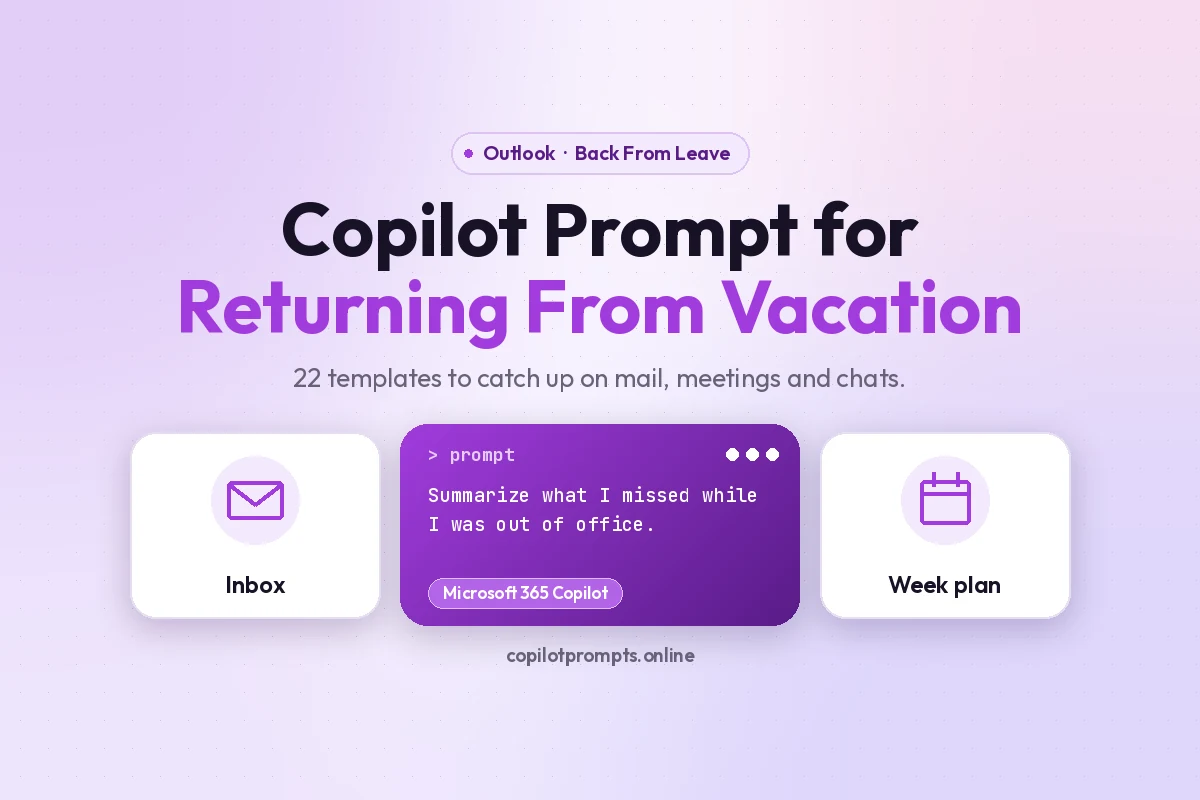
Copilot Prompt for Returning From Vacation: 22 Proven Templates to Catch Up Fast
The right copilot prompt for returning from vacation can turn your first morning back from a dreaded slog into a calm, organized hour. Instead of scrolling through hundreds of emails, missed Teams threads and meeting invites you never saw, you ask Microsoft 365 Copilot to read the backlog for you, pull out the decisions and deadlines, and tell you what changed while you were gone. You still decide what to do next. Copilot just handles the reading.
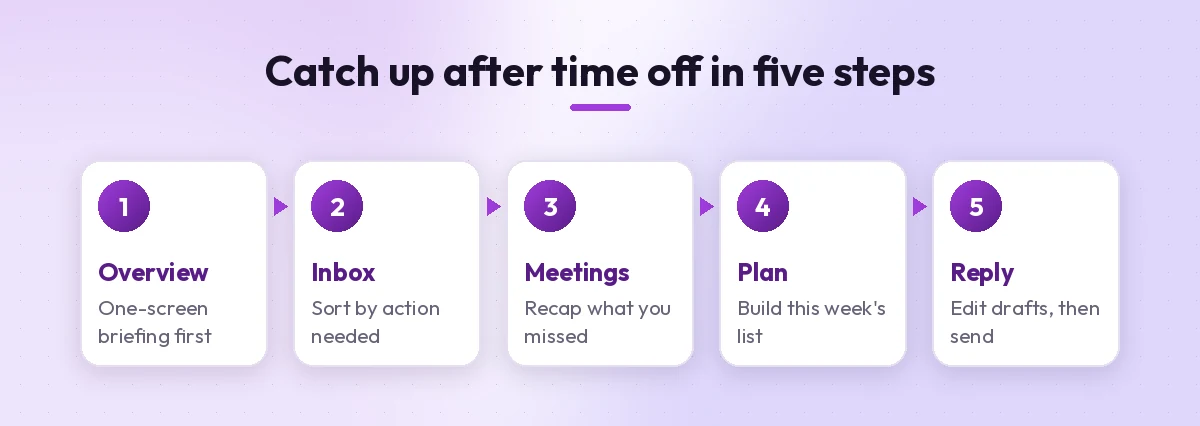
Below you will find 22 templates grouped by the order most people actually catch up: a quick overview first, then email, then meetings and chats, then planning the week and replying. Replace anything in square brackets, like [project] or [manager], with your own details before you paste it.
Why the First Day Back Feels So Heavy
Time off is supposed to be restful, yet many people lose the benefit within a few hours of logging back in. The problem is not the amount of work. It is the amount of unsorted information. A week away can leave you with long reply-all chains where the answer was settled on day two, meeting recaps you were never invited to read, and quiet requests buried between newsletters.
Most of that pile does not need you. The trouble is that you cannot know which part does until you have read it. That is exactly the kind of high-volume, low-judgment reading that an AI assistant is good at. Hand off the skimming, keep the decisions, and your post-holiday catch-up shrinks from a full day to something closer to an hour.
What Copilot Can and Cannot See After Your Break
Before you rely on any template, it helps to know where the information comes from. Microsoft 365 Copilot works with content you already have permission to access: your mailbox, your calendar, Teams chats and channels, and files in OneDrive and SharePoint. When you ask about “emails I received last week,” it searches that data on your behalf.
A few practical limits are worth keeping in mind:
- Licensing matters. Prompts that reference your inbox, chats or meetings need a Microsoft 365 Copilot license with work data enabled. With the free Copilot Chat, you can still paste text in and use the same templates on what you paste.
- Meeting content needs a transcript. Copilot can only summarize a meeting you missed if it was recorded or transcribed and you have access to it.
- It may not catch everything. Long periods and very busy inboxes can produce summaries that skip items. Treat the output as a map, not a guarantee, and open the original message for anything sensitive.
For a single long thread, the built-in summary in Outlook is often enough; Microsoft explains it in Summarize an email thread with Copilot in Outlook. The prompts below go further and work across days of messages at once.
Before You Leave: Set Yourself Up for an Easy Return
The smoothest post-vacation catch-up starts before you go. Two small habits make every template in this guide work better.
First, write a clear out-of-office message that sends people to a backup contact and tells them to resend anything urgent after your return date. Microsoft’s guide to sending automatic replies from Outlook covers the steps. Second, jot down your open projects and the people involved. When you come back, you can paste that list into Copilot so it knows what to look for.
You can even ask Copilot to help with the handover itself:
I'm going on vacation from [start date] to [end date]. Using my recent emails and Teams chats, list the open items I'm responsible for, who is waiting on me, and any deadlines that fall while I'm away. Format it as a handover note I can send to [backup colleague].Step 1: Get the Big Picture First
Resist the urge to open your inbox and start at the top. Ask for a single overview first so you know where the real fires are before you read anything.
1. The one-screen briefing
I was out of office from [start date] to [end date]. Summarize what happened across my email, Teams chats and meetings during that time. Group it into: decisions made, action items for me, open questions waiting on me, and things that are just FYI. Keep it under 300 words.2. What changed on my projects
I'm back from leave. For each of these projects: [project 1], [project 2], [project 3], tell me what changed since [start date], who drove the change, and whether anything now needs my input. Cite the emails or chats you used.3. Find the real deadlines
Search my email and Teams messages since [start date] and list every deadline, due date or "by end of week" request that involves me. Show them in a table with date, requester, task and source, sorted by date.4. Who needs me most
Since [start date], which people have contacted me most often or followed up more than once? For each person, summarize what they need from me in one sentence.Asking Copilot to cite sources is a useful habit here. It lets you jump straight to the original message when a summary line looks important, instead of trusting a paraphrase.
Step 2: Triage the Holiday Inbox
Once you know the priorities, tackle email. The goal is not to read everything. It is to find the 10 to 20 messages that genuinely need you and set the rest aside. If inbox overload is a constant battle for you, our guide to Copilot prompts for Outlook inbox management has more filing and cleanup ideas.
5. Sort by required action
Look at my unread emails from [start date] to today. Sort them into four groups: needs a reply from me, needs a decision or approval, needs me to read but not act, and safe to archive. Give one line per email with the sender and subject.6. Skip threads that resolved themselves
Find email threads from the past [number] days where I was included but the question has already been answered or closed by someone else. List them so I can archive them without reading every message.7. Focus on my manager and key clients
Summarize every email from [manager name] and [client or stakeholder names] since [start date]. Highlight anything that asks me a direct question or sets a deadline.8. Spot anything urgent I missed
Scan my inbox since [start date] for messages marked high importance, or that use words like urgent, ASAP, blocker, escalation or overdue. Tell me which ones are still unresolved.9. Pull out attachments that matter
List emails since [start date] that included documents I'm expected to review or sign off on. For each, name the file, the sender and what they asked me to do with it.For a deeper set of inbox templates, see our collection of Copilot prompts for unread emails, which covers daily triage after the backlog is gone.
Step 3: Catch Up on Meetings and Teams Chats
Meetings are where many decisions happen, and they are the easiest thing to miss on leave. If a meeting was recorded or transcribed, Copilot can tell you what was decided without you watching the replay.
10. Recap every meeting I missed
List the meetings I was invited to between [start date] and [end date] that had a transcript or recording. For each one, give me three bullet points: key decisions, action items with owners, and anything that mentions me or my team.11. Was I assigned anything?
In meetings and Teams chats since [start date], were any tasks assigned to me or my team, even informally ("[my name] can pick this up")? List each one with the meeting or chat it came from.12. Busy channel digest
Summarize the main discussions in the [channel name] channel since [start date]. What was decided, what is still being debated, and is there anything I should respond to?13. Group chat catch-up
I have a lot of unread messages in my Teams group chats. Summarize the chats with the most activity since [start date], and tell me which ones contain a question for me.If your team runs a lot of calls, our list of Copilot prompts for Teams meetings is handy for the weeks after your return too.
Step 4: Rebuild Your Plan for the Week
With email and meetings mapped, turn everything into a realistic plan. This is the step people skip, and it is why the second day back often feels as chaotic as the first.
14. A prioritized to-do list
Based on everything you've found in my emails, chats and meetings since [start date], create a prioritized to-do list for this week. Use three tiers: must do today, must do this week, and can wait. Include an estimated time for each item.15. Check my calendar against the work
Look at my calendar for this week. Which meetings could I decline or delegate given the priorities above? Where are the longest blocks of free time I could protect for catch-up work?16. Prep for my first big meeting
I have [meeting name] on [day]. Using recent emails, chats and files related to it, give me a one-page briefing: background, what changed while I was away, open issues and questions I should be ready to answer.17. Ask what I should not worry about
From the items you've summarized, which ones look like they were already handled by my colleagues or no longer need action? I want permission to let them go.That last one sounds odd, but it is surprisingly helpful. Seeing a short list of items that are already handled makes it much easier to archive with confidence.
Step 5: Reply and Reconnect Without the Stress
Now you can start answering people, beginning with the ones who have waited longest. Copilot can draft replies, but always edit them so they sound like you and contain accurate details.
18. Batch the quick replies
For the emails in my "needs a reply" group that only need a short answer, draft brief responses for each. Keep them friendly, under 60 words, and note anything I need to confirm before sending.19. The polite “just catching up” reply
Draft a reply to [sender] about [topic]. Acknowledge that I've just returned from leave, thank them for their patience, answer their question about [detail], and propose a next step by [date].20. A back-from-vacation update for my team
Write a short Teams message to my team saying I'm back from vacation. Mention the three priorities I'm focusing on this week: [priority 1], [priority 2], [priority 3], and ask them to flag anything urgent that isn't on that list.21. Thank the person who covered for me
Draft a warm thank-you message to [colleague] for covering my work while I was away. Mention the specific things they handled, such as [task 1] and [task 2], and offer to return the favor.22. A follow-up for stalled threads
Find email threads from before my vacation where I was waiting on someone and haven't received an answer. Draft a short, polite follow-up for each one.A Sample 60-Minute Return Routine
If you want a simple way to put this all together, the table below shows one possible structure for your first hour back. Adjust the timing to fit how long you were away.
| Time | What to do | Templates to use |
|---|---|---|
| First 10 minutes | Get the overall briefing and deadlines | 1, 3, 4 |
| Next 15 minutes | Sort the inbox and archive resolved threads | 5, 6, 8 |
| Next 15 minutes | Review meetings and chats you missed | 10, 11, 13 |
| Next 10 minutes | Build your week and protect focus time | 14, 15 |
| Last 10 minutes | Send quick replies and a team update | 18, 20 |
Tips for a Better Copilot Prompt for Returning From Vacation
A few small adjustments make a big difference to the quality of Copilot’s catch-up summaries.
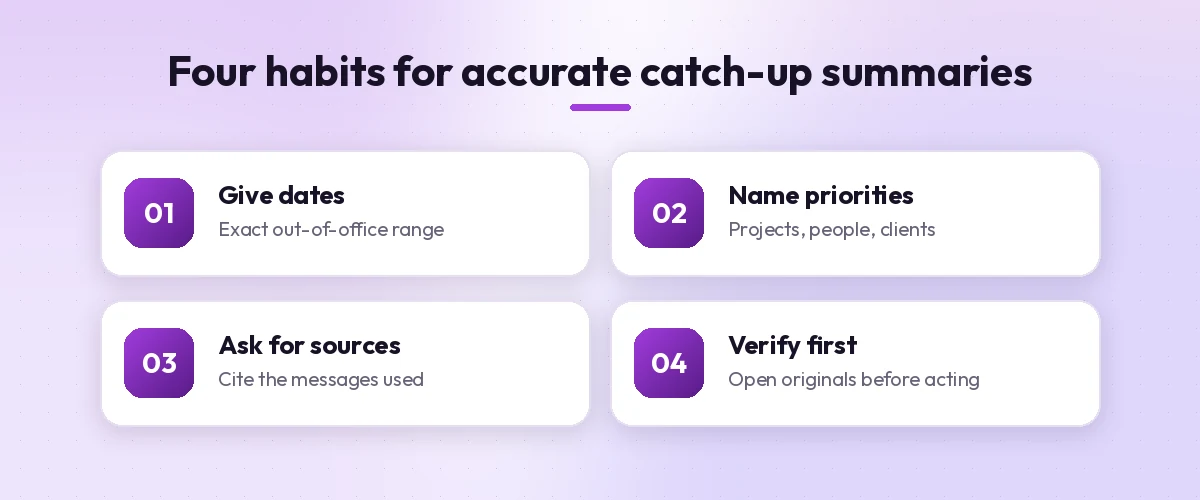
Always give exact dates. “Since I left” is ambiguous. “Since Monday, July 14” gives Copilot a clear range to search.
Name your priorities. Listing your projects, your manager and key clients helps Copilot separate the signal from routine notifications.
Work in passes. If you were away for two weeks or more, ask for one week at a time. Shorter ranges tend to produce more complete summaries.
Ask for sources. Adding “cite the messages you used” makes it easy to verify any line that will drive a decision.
Keep a reusable version. Once you have a wording that works for you, save it. Our guide on how to write Copilot prompts explains how to build reusable templates with goal, context, source and expectations.
Common Mistakes to Avoid
Even good templates can go wrong if you use them carelessly. Watch out for these:
- Replying straight from a summary. A summary can miss tone, attachments or a correction later in the thread. Open the original before you commit to anything.
- Sending drafts without editing. AI-written replies can sound generic or include wrong names and dates. Read every draft before it goes out.
- Asking for everything at once. One giant request for “everything I missed” usually produces a shallow answer. The step-by-step order above works better.
- Forgetting sensitive content. For HR, legal or confidential matters, read the messages yourself rather than relying on a summary.
Final Thoughts
Coming back from a break does not have to undo the rest you just had. Start with a single overview, triage email by required action, review the meetings you missed, then turn it all into a short plan before you reply to anyone. With a well-written copilot prompt for returning from vacation and a bit of editing on your side, the first morning back becomes a focused hour instead of a lost day.
Bookmark this page before your next trip, swap in your own names and dates, and let Copilot do the heavy reading while you focus on the work that actually needs you.
Frequently Asked Questions
What is the best Copilot prompt to catch up after vacation?
Start with a broad overview: tell Copilot your exact out-of-office dates and ask it to summarize your email, Teams chats and meetings into decisions made, action items for you, open questions and FYI items. Then use narrower prompts for your inbox, meetings and weekly plan.
Can Microsoft 365 Copilot summarize all the emails I missed while on leave?
With a Microsoft 365 Copilot license and access to your mailbox, it can search and summarize messages from a date range you specify. For long absences, ask for one week at a time and open the original email for anything important, because summaries can skip items.
Can Copilot tell me what happened in meetings I missed?
Yes, if the meeting was recorded or transcribed and you have access to it. Copilot can list decisions, action items and mentions of you or your team. Meetings without a transcript cannot be summarized this way.
Do these templates work with the free Copilot Chat?
The free Copilot Chat cannot read your mailbox or Teams data on its own. You can still paste in email text or meeting notes and use the same prompts to summarize, prioritize and draft replies from what you paste.
How do I make Copilot catch-up summaries more accurate?
Give exact dates, name your key projects and people, ask it to cite the messages it used, and break long periods into shorter ranges. Always verify important details in the original message before acting.
Should I let Copilot send my post-vacation replies automatically?
No. Use Copilot to draft replies, then edit each one for accuracy and tone before sending. Drafts can contain wrong names, dates or assumptions, especially after a long absence.