Copilot Create PowerPoint from Word Document: 6 Easy Steps and 20 Proven Prompts
Copilot create PowerPoint from Word document is the exact phrase many people type when they have a finished report and a meeting tomorrow, and the good news is that Copilot in PowerPoint can turn that file into a first-draft deck in a minute or two. The draft is rarely perfect. With a little preparation in Word and a few follow-up prompts, though, it gets close enough that you spend your time on the story rather than on copying and pasting.
This guide walks through the whole process: what to fix in your document first, the six steps to run the conversion, 20 copy-ready prompts for different kinds of documents, and the edits that turn an automatic draft into slides you’d actually present. Replace anything in square brackets with your own details.
Copilot Create PowerPoint from Word Document: What Actually Happens
When you ask Copilot in PowerPoint to build a deck from a file, it reads the text of your document, looks at how it’s organized, and drafts slides with titles, bullet points, images and speaker notes. It uses the template or theme of the presentation you started in, so the result looks like your company’s slides if you begin from the right file.
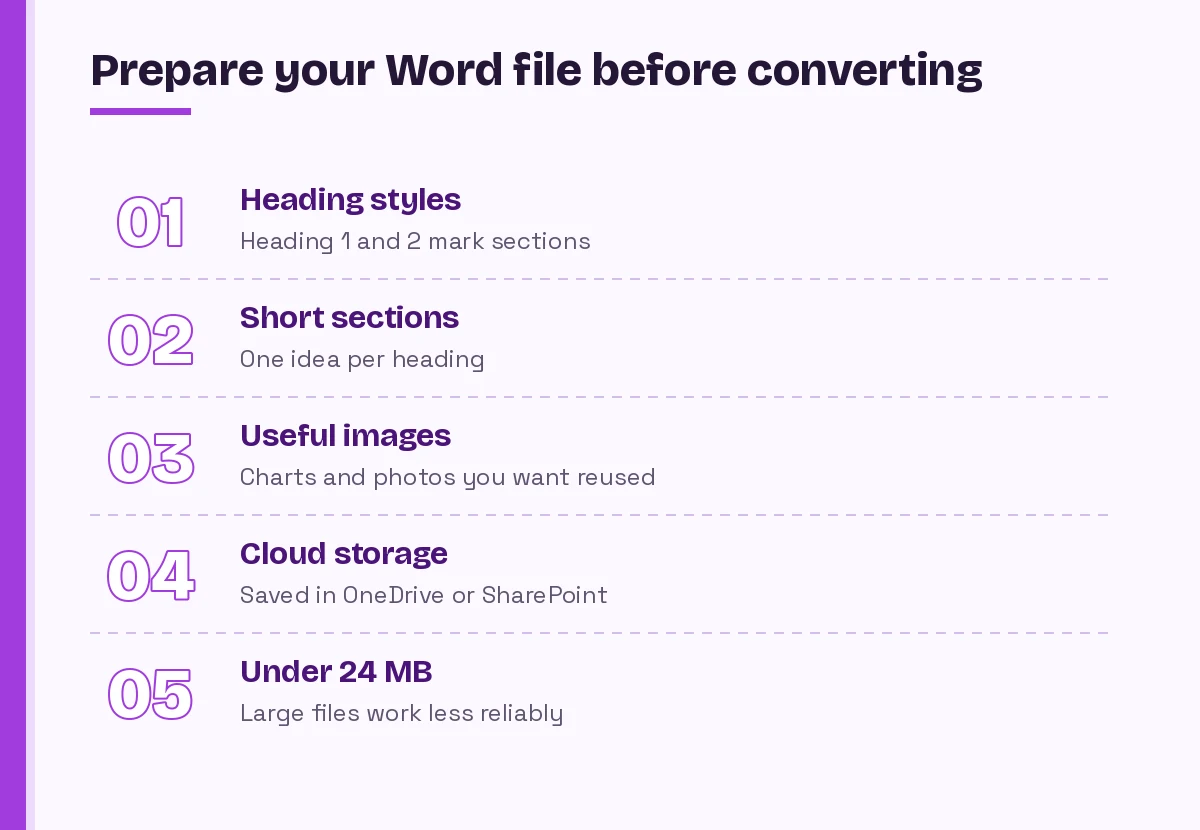
According to Microsoft’s guide to creating a new presentation with Copilot in PowerPoint, Copilot uses Word’s Styles to understand the structure of your source, tries to include images it finds in the document, and works best with Word files smaller than 24 MB. Newer versions may also ask you clarifying questions about audience, length and design direction before they generate anything, which you can answer or skip.
A few things are worth knowing up front:
- You need access to Copilot in PowerPoint. That usually means a Microsoft 365 Copilot license at work or a consumer plan that includes Copilot. If you don’t see the Copilot button, your plan or your organization’s settings may not include it.
- The file has to be reachable. Copilot references documents you can open, typically ones stored in OneDrive or SharePoint. A file sitting only on your desktop usually needs uploading first.
- It summarizes, it doesn’t copy. Expect Copilot to condense paragraphs into bullets. If every sentence in your document matters, the deck will need manual additions.
If you’d rather start a deck from a short idea instead of a document, our guide to the Copilot prompt to create a PowerPoint presentation covers blank-slide prompts in detail.
Prepare the Word Document First
The most reliable copilot create PowerPoint from Word document results start before you open PowerPoint at all.
Most disappointing conversions trace back to the source file, not the prompt. Copilot turns structure into slides, so a document that’s one long wall of text tends to become a handful of crowded slides. Ten minutes of tidying in Word saves far more time in PowerPoint.
Use real heading styles
Apply Heading 1 to major sections and Heading 2 to the points inside them, using the Styles gallery on the Home tab rather than just making text bold and bigger. Copilot reads those styles as signposts. In practice, each Heading 1 often becomes a section and each Heading 2 becomes a slide, so headings are the single biggest lever you have over the deck’s outline.
Keep sections short and focused
A section that covers three ideas usually becomes one slide that covers three ideas badly. Split long sections so each heading carries one point. If a paragraph runs past six or seven lines, it’s a sign the slide will be crowded too.
Put the images you want in the document
Copilot tries to reuse images from your file, so place the charts, photos and diagrams you want on slides directly in the document, near the text they belong to. Remove decorative images you don’t want repeated in the deck.
Clean up the extras
Delete tracked changes, old comments, draft notes and long appendices you won’t present. Anything left in the file is fair game for Copilot to summarize, including that paragraph you meant to delete.
If your document needs heavier restructuring first, the prompts in our collection of Copilot prompts for Word can outline, shorten or reorganize it before you convert.
How to Convert a Word Doc to Slides with Copilot in 6 Steps
Here is the copilot create PowerPoint from Word document workflow from start to finish.
The exact buttons shift a little between updates and between Windows, Mac, web and iPad, but the flow stays the same.
- Save the Word file to OneDrive or SharePoint and close it, so you’re working with the final version.
- Open PowerPoint and start a new presentation. If your organization has a standard template, open that template instead so Copilot keeps its theme and layouts.
- Open Copilot from the Copilot button on the ribbon or the Copilot icon in the corner of the window, depending on your version. If your organization uses a Brand Kit, choose it when Copilot offers the option.
- Reference the document. Type a forward slash and start typing the file name, or use the attach option, then pick your Word file from the list.
- Describe the deck you want. Say who the audience is, how many slides you need and what to emphasize. The prompts below give you ready-made wording.
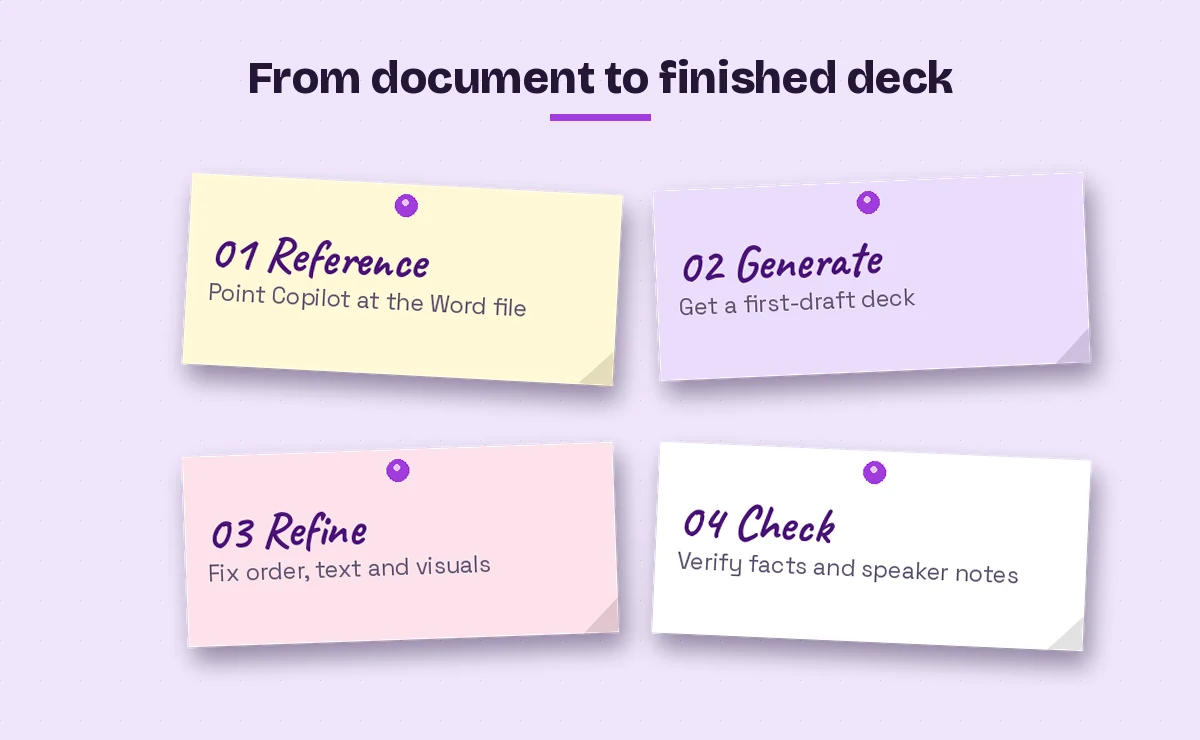
- Review the draft and refine it with follow-up prompts, then check every fact against the source before you share it.
A minimal prompt looks like this:
Create a presentation from /[Document name]. Make it about [number] slides for [audience]. Keep one main idea per slide and add speaker notes.That works, but the more you tell Copilot about the purpose of the deck, the less you’ll rewrite later.
The Prompt Formula for Word to PowerPoint with Copilot
Microsoft’s general advice on writing Copilot prompts is to include a goal, context, expectations and a source. For a conversion, that translates into five details:
| Detail | What to say | Example |
|---|---|---|
| Source | Which Word file to use | /Q3 Sales Report |
| Audience | Who will watch the deck | Leadership team, 15 minutes |
| Length | How many slides | 8 to 10 slides |
| Focus | What matters most | Results, risks and next quarter’s plan |
| Style | Tone and format | Short bullets, one chart per section, speaker notes |
You don’t need all five every time, but audience and length make the biggest difference. A report presented to executives and the same report presented to a project team should not produce the same deck.
20 Copy-Ready Prompts for Different Documents
These templates cover the copilot create PowerPoint from Word document jobs that come up most often at work. Each prompt assumes you’ve referenced your file with a forward slash or the attach button. Adjust slide counts to fit your time slot; a common rule of thumb is roughly one slide per minute or two of speaking.
Reports and analysis
1. Quarterly or monthly report
Create a 10-slide presentation from /[Report name] for [audience]. Start with a one-slide summary of the key results, then one slide per section of the report. End with risks and next steps. Add speaker notes that explain each number in plain language.2. Research findings
Turn /[Research document] into an 8-slide deck that presents the question, method, three main findings and recommendations. Keep the method to one slide. Use short bullets and suggest a chart wherever the document includes data.3. Long report into a short briefing
Build a 5-slide executive briefing from /[Document name]. Focus only on decisions leadership needs to make and the evidence behind each one. Leave out background detail.4. Survey results
Create a presentation from /[Survey summary] with one slide per survey theme. For each theme, show the headline finding, two supporting points and one quote from the document if it includes any.Proposals and plans
5. Project proposal
Create a 9-slide pitch from /[Proposal name] for [decision-makers]. Cover the problem, proposed solution, timeline, budget, risks and the decision we're asking for. Make the final slide a clear ask.6. Project plan or kickoff
Turn /[Project plan] into a kickoff deck for the project team: goals, scope, roles, timeline milestones, how we'll communicate and the first two weeks of work. Keep it to 8 slides.7. Business case
Build a presentation from /[Business case] that leads with the expected benefit, then the costs, assumptions and alternatives considered. Flag any assumptions the document marks as uncertain.8. Strategy document
Create a 12-slide deck from /[Strategy document] with an agenda slide, one slide per strategic priority, and a closing slide summarizing what changes for the team. Use a confident, plain-language tone.Training, policies and procedures
9. Training manual
Turn /[Training manual] into a training deck for new [role]. Break each procedure into numbered steps across slides, no more than five steps per slide. Add a short recap slide after each section.10. Policy update
Create a 6-slide presentation from /[Policy document] explaining what changed, who it affects, when it takes effect and what employees need to do. Avoid legal wording and keep each bullet under 15 words.11. Standard operating procedure
Build a step-by-step deck from /[SOP name] for frontline staff. One slide per stage of the process, with the key checks highlighted. Add speaker notes with the full detail from the document.If you write procedures often, our Copilot prompts for SOPs help you draft the source document in a format that converts cleanly.
12. Workshop handout to slides
Create workshop slides from /[Handout name]. Include an agenda, the main teaching points, two discussion questions per section and an activity slide where the document describes an exercise.Shaping the first draft
These follow-up prompts work in the same Copilot conversation once the deck exists. Copilot in PowerPoint can edit slides it created, and our wider list of Copilot PowerPoint prompts has more ideas for design and storytelling changes.
13. Tighten crowded slides
Review every slide and shorten any bullet longer than 15 words. Move the detail into the speaker notes instead.14. Add an agenda
Add an agenda slide after the title slide that lists the main sections of this presentation.15. Strengthen the opening
Rewrite the first two slides so the main conclusion appears up front, before the background.16. Add a summary
Add a closing slide that summarizes the three most important points and the next step for the audience.17. Write speaker notes
Write speaker notes for each slide in a conversational tone, about 60 to 90 seconds of talking per slide, based on the content of /[Document name].18. Change the tone
Rewrite the slide text for a non-technical audience. Replace jargon with plain words and explain any acronyms the first time they appear.19. Find missing content
Compare this presentation with /[Document name] and list any important points from the document that are not covered in the slides.20. Prepare for questions
Based on /[Document name], list the five questions this audience is most likely to ask after the presentation, with a short answer for each from the document.A Worked Example: A 12-Page Report Becomes a 9-Slide Deck
Picture an operations manager with a 12-page quarterly operations review in Word. The original document has a title, a few bold lines that look like headings, and long paragraphs under each.
Her first attempt, a one-line request to make a presentation from the file, produces six slides with long bullets and no clear order. So she goes back to Word, applies Heading 1 to the five main sections and Heading 2 to the points inside them, moves two charts next to the paragraphs they illustrate, and deletes an outdated appendix.
Then she runs a fuller prompt:
Create a 9-slide presentation from /Q3 Operations Review for the regional leadership meeting. Start with a summary slide of the three biggest changes this quarter. Give each main section its own slide with no more than four bullets. Reuse the charts from the document. End with a slide of decisions needed. Add speaker notes.The second draft follows the document’s sections, reuses both charts and ends on the decisions slide. She uses prompts 13 and 19 to trim two crowded slides and catch a missing staffing point, then checks every number against the report. The whole job takes a fraction of the time a manual rebuild would, and the remaining effort goes into rehearsing rather than formatting.
Quick Fixes When the Conversion Goes Wrong
The file doesn’t appear when you type the slash. Make sure it’s saved to OneDrive or SharePoint under the same account you’re signed into in PowerPoint, and that you have permission to open it. Recently uploaded files can take a moment to show up.
The deck has too few slides. Ask for a specific number, or add more Heading 2 sections to the document. Copilot tends to follow the structure it sees.
Slides are packed with text. Use prompt 13, or ask Copilot to split any slide with more than four bullets into two.
The design doesn’t match your brand. Start from your organization’s template or Brand Kit before generating. Applying a theme afterward often leaves layouts that need manual cleanup.
Numbers look wrong or missing. Copilot condenses content, and condensed figures can lose context. Check each statistic against the source, and paste critical tables yourself if precision matters.
Very long documents give thin results. Split the file into parts, generate a deck from each, and combine them, or create a shorter summary document first and convert that.
Check the Deck Before You Present
An automatic draft is a starting point, so give it the same review you’d give a colleague’s work. Read each slide against the source to confirm facts, dates and names. Make sure confidential details from the document didn’t slip onto slides meant for a wider audience. Check that images are relevant and that you have the right to use them. Finally, rehearse with the speaker notes once; it’s the fastest way to spot slides that don’t flow.
For decks built from formal reports, our Copilot prompts for report writing help you produce a stronger source document next time, which makes the next conversion even smoother.
Once you’ve run a copilot create PowerPoint from Word document conversion a couple of times, turning a Word file into a presentation becomes a short routine: tidy the headings, reference the file, give Copilot the audience and length, then refine. The prompts above cover most documents you’ll meet at work, and you can save your favorites to reuse with every new report.
Frequently Asked Questions
Can Copilot create a PowerPoint from a Word document?
Yes. In Copilot in PowerPoint you can reference a Word file, usually by typing a forward slash and the file name or using the attach option, and ask Copilot to build a presentation from it. It drafts slides, images and speaker notes based on the document.
Why can’t Copilot find my Word document?
Copilot can only reference files you have access to, typically stored in OneDrive or SharePoint under the account you’re signed into. Upload local files to the cloud first, and check that you have permission to open them.
How do I get more slides from a copilot create PowerPoint from Word document request?
Ask for a specific slide count in your prompt and add more Heading 2 sections in the Word file. Copilot follows the document’s structure, so clearer headings usually produce more, better-organized slides.
Does Copilot keep the images from my Word document?
Copilot tries to include images it finds in your document. Place the charts and photos you want near the related text, and remove decorative images you don’t want repeated on slides.
Is there a file size limit for converting Word to PowerPoint with Copilot?
Microsoft notes that Copilot works best with Word documents smaller than 24 MB. For very long or image-heavy files, split the document or create a shorter summary to convert.
Can Copilot use my company’s PowerPoint template?
Yes. Start a new presentation from your organization’s template, or select its Brand Kit if one is available, before asking Copilot to create the deck. Copilot then uses the existing layouts and theme.