Copilot Prompt Cheat Sheet: 60 Essential Prompts and Formulas for Every App
This Copilot prompt cheat sheet is the page to keep open in a browser tab while you work. It gathers the prompts people reach for most often in Word, Excel, PowerPoint, Outlook, Teams and GitHub Copilot, trims each one down to something you can paste in seconds, and adds the follow-up phrases that rescue a weak first answer.
You don’t need to memorize anything here. Skim the formula, jump to the app you’re using through the table of contents, copy a prompt, and replace the parts in square brackets with your own details. If you’re completely new to the assistant, start with our Copilot prompts for beginners guide first, then come back here once the basics feel familiar.
How to Use This Copilot Prompt Cheat Sheet
Every prompt below is deliberately short. Long, perfect prompts are useful for repeat tasks, but most daily work goes faster with a quick request followed by one or two refinements. Treat each entry as a starting point rather than a finished script.
A few habits make the whole list work better:
- Open the right file first. In Word, Excel and PowerPoint, Copilot works on the document you have open, so open it before you prompt.
- Point to sources. In Microsoft 365 Copilot Chat you can type a forward slash to reference a file, email, meeting or person, which keeps answers grounded in your own content.
- Keep the brackets honest. Replace every [placeholder] with real details. Vague inputs produce vague drafts.
- Read before you send. Copilot can get facts, names and numbers wrong. Check anything that matters.
You can print this page or save it as a PDF from your browser’s print menu if you’d like an offline copy beside your desk.
The Four-Part Prompt Formula
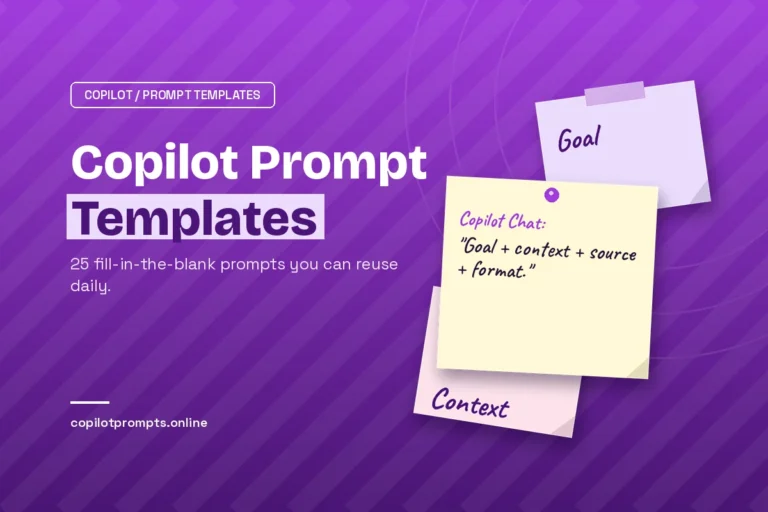
Almost every good request has the same four building blocks. Microsoft’s own guidance on writing Copilot prompts describes them as goal, context, source and expectations. Here’s how they fit together in practice:
| Part | Question it answers | Example |
|---|---|---|
| Goal | What should Copilot do? | Summarize, draft, compare, analyze |
| Context | Who is it for, and why? | For my manager, before Friday’s budget review |
| Source | What should it use? | The attached report, this email thread, column C |
| Format | What should the result look like? | Five bullets, a table, under 150 words, friendly tone |
Put together, a full prompt reads like this:
Summarize [file name] in 5 bullet points for my manager, who needs to decide on [decision] before [date]. Focus on costs, risks and next steps. Keep it under 150 words.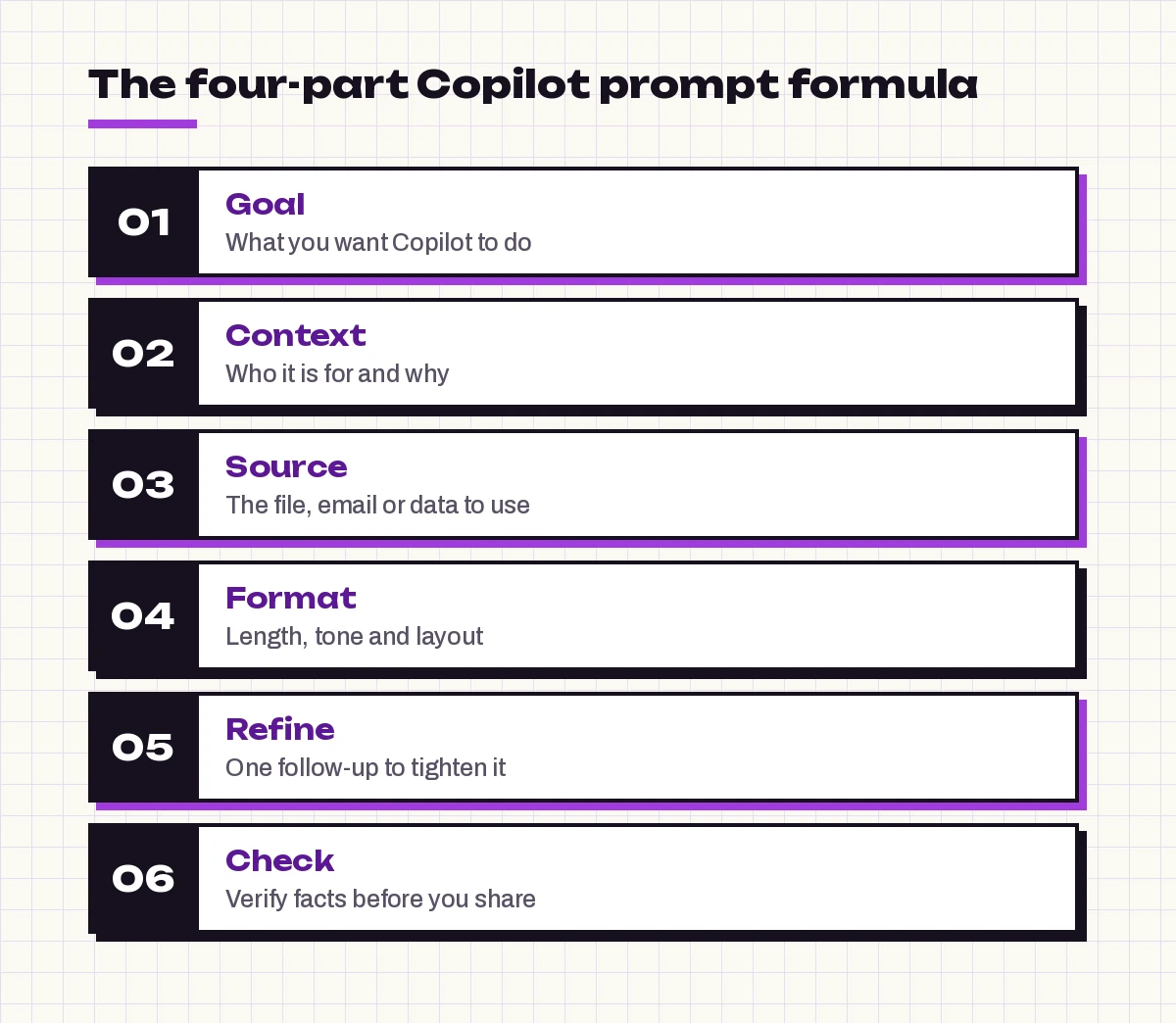
For a deeper look at each part, with examples for every app, read our guide to the Copilot prompt ingredients. You won’t always need all four parts. A quick rewrite only needs a goal and a format. But when an answer misses the mark, the missing piece is usually context or source. For a deeper walkthrough of this structure, read how to write Copilot prompts, and if you’d rather fill in blanks, our Copilot prompt template collection turns the formula into reusable frames.
Word Prompts (1-10)
The first section of this Copilot prompt cheat sheet covers Word, which is where most people start because drafting and rewriting are Copilot’s strongest skills. Open a blank page or an existing document, then try:
1. First draft from notes
Draft a [type of document] for [audience] using these notes. Use headings, short paragraphs and a friendly, professional tone. Notes: [paste notes]2. Summarize a long document
Summarize this document in 6 bullet points, then list any decisions or deadlines it mentions.3. Rewrite for a different reader
Rewrite this section for [audience, e.g. customers with no technical background]. Keep every fact, remove jargon and shorten sentences.4. Tighten the wording
Edit this text to be 30% shorter without losing any key points. Show the new version only.5. Add structure
Suggest clear H2 and H3 headings for this document and move paragraphs under them where they fit best.6. Make a table from text
- Prompt:
Turn the comparison in this section into a table with columns for [option], [cost], [pros] and [cons].
7. Draft from another file
- Prompt:
Create a one-page proposal based on /[file name]. Include the problem, the solution, timeline and cost.
8. Check tone
- Prompt:
Review this letter for tone. Point out any sentences that sound defensive or too casual and suggest calmer wording.
9. Write an executive summary
- Prompt:
Write a 120-word executive summary of this report for a senior leader who has two minutes to read it.
10. Create questions for review
- Prompt:
List 8 questions a skeptical reviewer might ask about this document, with a short suggested answer for each.
Want more depth? Our full guide to Copilot prompts for Word covers contracts, policies and long reports.
Excel Prompts (11-20)
The Excel part of the Copilot prompt cheat sheet assumes your data is ready. Copilot in Excel works best with data formatted as a table with clear column headers. Select a cell inside the table before you open the Copilot pane.
11. Quick overview
Give me 5 key insights from this table, including the biggest changes and any unusual values.12. Write a formula
Add a column that calculates [result, e.g. profit margin] using [column A] and [column B]. Explain the formula in one sentence.13. Highlight what matters
Highlight rows where [column] is below [value] in light red.14. Summarize by group
Create a PivotTable showing total [value column] by [category column] and [month column].15. Build a chart
Create a chart that shows the trend of [column] over time and point out the highest month.16. Clean messy data
- Prompt:
Find duplicate rows and blank cells in this table and suggest how to fix them.
17. Explain a formula
- Prompt:
Explain what the formula in [cell] does, step by step, in plain English.
18. Look up values
- Prompt:
Add a column that looks up [field] from the [sheet name] sheet using [ID column]. Use XLOOKUP.
19. Forecast
- Prompt:
Based on the last 12 months in this table, what trend do you see for next quarter? State your assumptions.
20. Sort and filter
- Prompt:
Sort this table by [column] from largest to smallest and show only rows from [region].
For pivot tables, dashboards and analysis prompts, see Copilot prompts for Excel.
PowerPoint Prompts (21-28)
PowerPoint prompts in this Copilot prompt cheat sheet work best when you tell Copilot how many slides you want and who will watch.
21. Deck from a document
Create a presentation from /[file name] with about 8 slides for [audience]. Include a title slide, an agenda and a closing slide with next steps.22. Deck from a topic
Create a 6-slide presentation about [topic] for [audience]. Keep text to 3 bullets per slide.23. Add a slide
Add a slide that compares [option A] and [option B] in a simple two-column layout.24. Summarize a deck
- Prompt:
Summarize this presentation in 5 bullets and list the key messages of each section.
25. Speaker notes
- Prompt:
Write speaker notes for each slide, about 60 to 90 words each, in a conversational tone.
26. Simplify a busy slide
- Prompt:
Rewrite the text on this slide so it fits in 3 short bullets without losing the main point.
27. Find a stronger close
- Prompt:
Suggest 3 closing slides that end with a clear call to action for [audience].
28. Organize sections
- Prompt:
Organize this presentation into sections and suggest a logical order.
Outlook Prompts (29-37)
For many people, this is the most-used part of any Copilot prompt cheat sheet. Outlook prompts save the most time on long threads and replies you’ve been putting off.
29. Summarize a thread
Summarize this email thread. List what's been decided, what's still open, and anything I need to do.30. Draft a reply
Draft a reply that thanks [name], confirms [point], and asks for [information] by [date]. Keep it under 100 words.31. Polite no
Write a polite reply declining this request because [reason]. Offer [alternative] instead.32. Follow up
- Prompt:
Draft a short, friendly follow-up to this email, since I haven't heard back in a week.
33. Change the tone
- Prompt:
Make this draft sound more confident and less apologetic, without being rude.
34. Catch up after time off
- Prompt:
What are the most important emails I received in the last [number] days, and which ones need a reply from me?
35. Prepare for a meeting
- Prompt:
Find emails and files related to [project] from the last two weeks and summarize what I should know before my meeting.
36. Turn email into tasks
- Prompt:
List every action item in this thread, with the owner and due date if mentioned.
37. Shorten a long message
- Prompt:
Rewrite this email so the main request is in the first line and the whole message is under 80 words.
Our Copilot prompts for Outlook page has more for scheduling, inbox cleanup and difficult replies.
Teams Prompts (38-45)
The Teams entries on this Copilot prompt cheat sheet cover meetings and chats. Meeting prompts depend on transcription or recording being turned on, so check that before the call starts.
38. Meeting recap
Summarize this meeting in 5 bullets, then list decisions, open questions and action items with owners.39. Catch up mid-meeting
What have I missed so far? Summarize the main points and any questions directed at me.40. Find disagreement
- Prompt:
Where did people disagree in this meeting, and what were the different positions?
41. Draft a follow-up
- Prompt:
Draft a follow-up message to attendees that recaps decisions and next steps from this meeting.
42. Chat summary
- Prompt:
Summarize the key points from this chat over the last [number] days.
43. Prep an agenda
- Prompt:
Create a 30-minute meeting agenda for [topic] with time blocks and one owner per item.
44. Unanswered questions
- Prompt:
List any questions raised in this meeting that weren't answered.
45. Channel catch-up
- Prompt:
Summarize what's been discussed in this channel this week and flag anything that needs my input.
GitHub Copilot Prompts (46-54)
The coding assistant has its own shortcuts. In Copilot Chat in VS Code, slash commands such as /explain, /fix, /tests and /doc trigger common tasks, and references like #file or #selection tell Copilot which code to look at. Available commands vary by editor and version, so type / in the chat box to see the current list. A GitHub Copilot prompt cheat sheet mostly comes down to being precise about the code and the outcome you want.
46. Explain code
/explain What does this function do, what are its inputs and outputs, and where could it fail?47. Fix a bug
/fix This throws [error message] when [condition]. Find the cause and suggest the smallest safe fix.48. Write tests
/tests Write unit tests for this function using [test framework], covering normal input, empty input and invalid input.49. Document code
- Prompt:
/doc Add docstrings to these functions describing parameters, return values and exceptions.
50. Refactor
- Prompt:
Refactor this function to be easier to read. Keep the behavior identical and explain each change.
51. Review a change
- Prompt:
Review this code for bugs, security issues and readability. List problems by severity.
52. Generate a regex
- Prompt:
Write a regular expression that matches [pattern] and give 3 examples that match and 3 that don't.
53. Convert code
- Prompt:
Convert this [language] code to [language], keeping the same logic and adding comments where behavior differs.
54. Plan a feature
- Prompt:
I want to add [feature] to this project. Outline the files I'll need to change and the steps in order before writing any code.
GitHub’s documentation on prompt engineering for Copilot Chat recommends starting broad, then getting specific, and giving examples. For a fuller set, see our GitHub Copilot prompts guide.
Follow-Up Phrases That Fix Weak Answers (55-60)
The first answer is rarely the final one, which is why every Copilot prompt cheat sheet needs a set of follow-ups. Instead of rewriting your whole request, add a short follow-up. These six cover most problems:
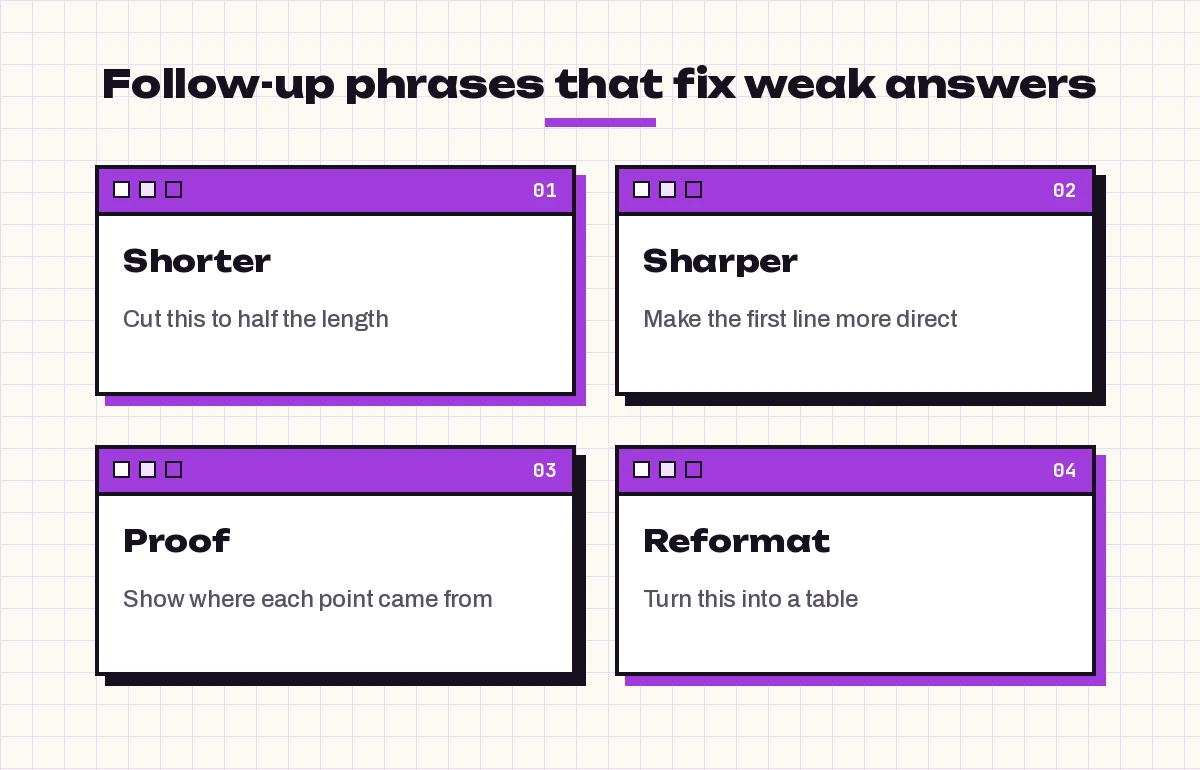
55. Too long
- Prompt:
Cut this to half the length and keep only the points a busy reader needs.
56. Too vague
- Prompt:
Make this more specific. Use the actual names, numbers and dates from the source.
57. Wrong tone
- Prompt:
Rewrite this in a warmer, more conversational tone, as if speaking to a colleague.
58. Unclear source
- Prompt:
Show me which part of the source each point came from.
59. Wrong format
- Prompt:
Turn this into a table with columns for [column 1], [column 2] and [column 3].
60. Missing angle
- Prompt:
What did you leave out? Add anything important a [role] would expect to see.
Common Mistakes to Avoid
Even with a good list of Copilot AI prompt examples, a few habits quietly waste time:
| Mistake | Better approach |
|---|---|
| Asking a one-word question like “budget?” | State the goal: “Summarize the Q3 budget changes for my team.” |
| Forgetting the source | Reference the file, email or meeting with a forward slash |
| Asking for everything at once | Break big jobs into steps and build on each answer |
| Accepting the first draft | Add a follow-up phrase to tighten or correct it |
| Sharing without checking | Verify facts, figures and names before sending |
Another common slip is pasting confidential information into a personal Copilot account at work. If your organization provides Microsoft 365 Copilot, use that version for work data and follow your company’s policies.
Build Your Own Copilot Prompt Cheat Sheet
The most useful Copilot prompts cheat sheet is the one you build from your own work. Each time a prompt saves you real time, copy it into a note with a short label such as “weekly report” or “client follow-up”. After a few weeks you’ll have a personal library that fits your job better than any generic list.
To keep it tidy:
- Group prompts by task rather than by app, so your Copilot prompt cheat sheet matches how you actually work.
- Keep the placeholders in square brackets so each one stays reusable.
- Add the follow-up that usually improves the result right under the prompt.
- Review the list monthly and delete anything you no longer use.
If you use Microsoft 365 Copilot Chat, check whether your version lets you save prompts, since that keeps your favorites one click away. Features differ between licenses and change over time, so look in the prompt area of your own Copilot to see what’s available.
Final Thoughts
A Copilot prompt cheat sheet works because it removes the blank-box moment. Instead of wondering how to phrase a request, you grab a tested starting point, swap in your details and refine from there. Start with the four-part formula, pick two or three prompts from the app you use most, and add the follow-up phrases whenever an answer falls short. Within a week, most of these will feel like second nature.
Frequently Asked Questions
What is a Copilot prompt cheat sheet?
It’s a quick-reference list of short, copy-ready prompts for Microsoft Copilot and GitHub Copilot, grouped by app or task. You copy a prompt, replace the placeholders with your own details and refine the answer with a follow-up.
What’s the best formula for a Copilot prompt?
Use goal, context, source and format. Say what you want, who it’s for, which file or data to use, and how the answer should look. For example: “Summarize this report in 5 bullets for my manager, focusing on costs and risks.”
Do these prompts work in the free version of Copilot?
Many general writing and summarizing prompts work in the free Copilot app. Prompts that rely on your work files, emails, meetings or the Word, Excel, PowerPoint, Outlook and Teams apps usually need a Microsoft 365 Copilot license.
Can I save this cheat sheet as a PDF?
Yes. Use your browser’s print option and choose “Save as PDF” to keep an offline copy. You can also copy your favorite prompts into a note or document so you can edit them.
What are the most useful GitHub Copilot slash commands?
In VS Code, /explain, /fix, /tests and /doc are among the most used. Type a forward slash in the Copilot Chat box to see the commands your editor and version support, since the list changes over time.
Why does Copilot give me generic answers?
Usually the prompt is missing context or a source. Add who the result is for, reference the specific file or email, and say what format you want. If the answer is still vague, ask it to use the actual names, numbers and dates from the source.