Copilot Prompt for LinkedIn Profile: 36 Powerful Prompts to Get Noticed
A good Copilot prompt for LinkedIn profile work can turn an outdated, half-finished page into one that tells a recruiter, client or new colleague exactly what you do and why it matters. Most profiles fail for simple reasons: a headline that only lists a job title, an About section copied from an old resume, or experience entries that describe duties rather than results. Copilot is quick at fixing all three, as long as you feed it real details about your work.
Below are 36 copy-ready prompts, each one a Copilot prompt for LinkedIn profile sections you can run as is, grouped by profile section, plus a short workflow for using them. Swap anything in square brackets for your own details. If you’ve just updated your CV, our guide to Copilot prompts for resume writing pairs well with this one, because the two documents should agree on facts while sounding quite different.
Why Your LinkedIn Profile Needs Different Prompts From Your Resume
A resume is a formal document written for one application. A LinkedIn page is public, searchable and read by many audiences at once: recruiters searching for skills, hiring managers checking you out before an interview, potential clients, former colleagues and people deciding whether to accept your connection request. That changes the writing.
- Voice: first person reads naturally on LinkedIn. Resume bullets usually drop the “I”.
- Scope: the profile can mention interests, the kind of work you want next and how people can reach you.
- Search: recruiters search LinkedIn by job title, skill and location, so plain, specific terms beat clever phrases.
- Length: you have more room in the About section, but readers see only the first couple of lines before they click “see more”.
So instead of pasting your resume and asking Copilot to “make it LinkedIn”, give it the purpose of each section. LinkedIn’s own advice on creating a good profile covers the basics, such as a clear photo, a specific headline and an up-to-date location. The prompts below handle the writing, and each Copilot prompt for LinkedIn profile text keeps your facts in your hands.
Gather Your Raw Material Before You Prompt
Copilot can’t know your career, so the best results come from a ten-minute brain dump first. Open a blank note and write down:
- The role, industry or type of client you want to attract next.
- Every job title, employer and set of dates you plan to list.
- Three to five projects you’re proud of, with any honest numbers (time saved, budgets handled, team size, customers served).
- Tools, certifications and languages you actually use.
- A paragraph you’ve written before, such as an email or post, so Copilot can match your natural tone.
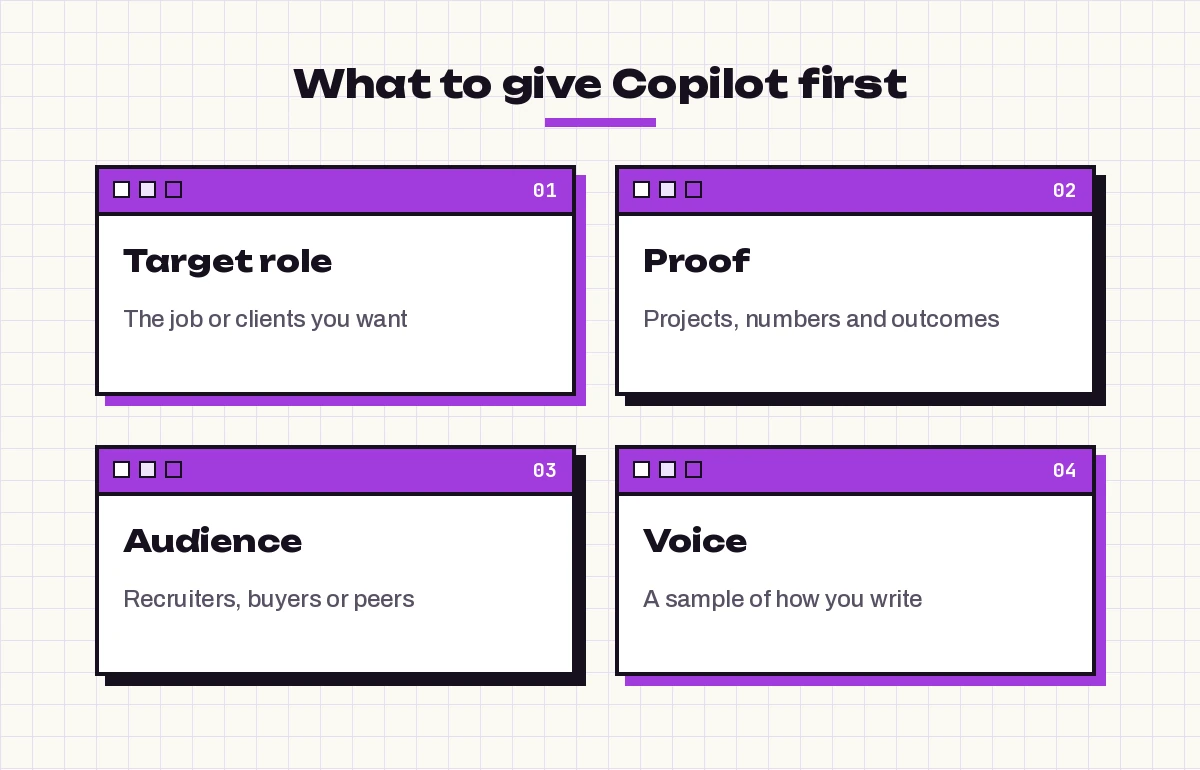
With those notes ready, every Copilot prompt for LinkedIn profile updates in this guide gets sharper. The pattern is the same one we teach in how to write Copilot prompts: state the goal, add context, paste the source material and say what format you want back. Microsoft’s guide to writing prompts in Copilot describes the same building blocks.
Copilot Prompt for LinkedIn Profile Headlines
Your headline appears next to your name in search results, comments and connection requests, so it does more work than any other line. LinkedIn currently allows up to 220 characters here, though the edit screen shows a live counter, so check it there. Aim for role, focus and value rather than a stack of buzzwords. A Copilot prompt for LinkedIn profile headlines works best when it asks for several options at once.
1. Five headline options from your notes
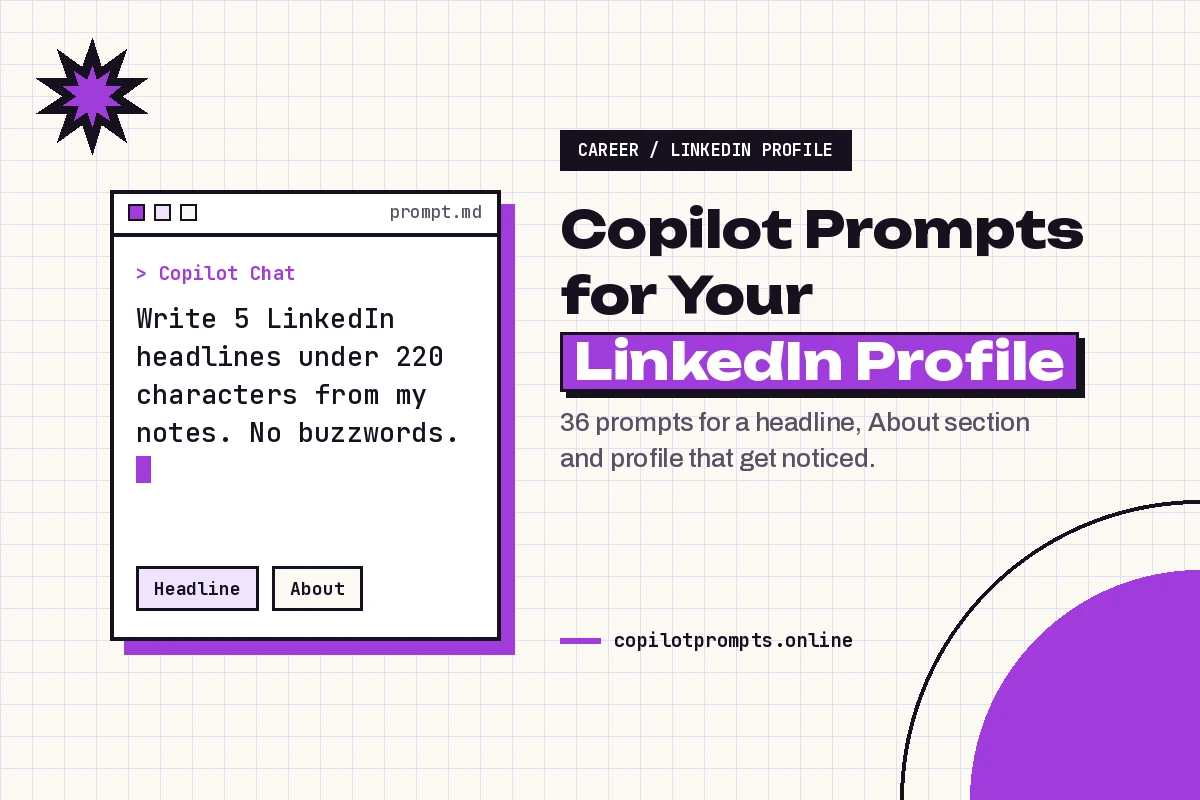
I'm a [job title] specializing in [focus area] for [type of company or client]. Using the notes below, write 5 LinkedIn headline options under 220 characters. Each should state my role, what I focus on and the value I bring. Avoid buzzwords like "passionate", "guru" or "ninja".

Notes: [paste notes]
2. A recruiter-friendly version
Rewrite my current LinkedIn headline so a recruiter searching for [target job title] in [location or remote] would find and understand it. Put the job title first, then two specific skills. Keep it under 220 characters.

Current headline: [paste]
3. A headline for freelancers and consultants
I'm a freelance [service] who helps [type of client] achieve [result]. Write 5 LinkedIn headlines that make the outcome clear to a potential client in one glance. Keep each under 160 characters so it reads well on mobile.4. A career changer’s headline
I'm moving from [current field] into [target field]. Write 4 honest LinkedIn headlines that connect my transferable skills ([skill 1], [skill 2], [skill 3]) to the new field without claiming experience I don't have.5. Compare and pick
Here are three headline options. Rank them for clarity, searchability and credibility for a [target role] audience, and explain your ranking in one sentence each. Then suggest one improved version.

[paste options]
Prompts for a Human, Readable About Section
The About section (sometimes still called the LinkedIn summary) is where you sound like a person. It holds up to 2,600 characters, but the first two or three lines matter most because that’s all most visitors see before expanding it.
6. First draft in your voice
Write a LinkedIn About section in the first person, between 150 and 250 words, for a [job title] with [X] years in [industry]. Open with a strong first line about the problem I solve. Use the facts below only, and match the tone of my writing sample.

Facts: [paste]
Writing sample: [paste a past email or post]
7. Hook-first rewrite
Rewrite only the opening two sentences of my About section so they make a reader want to click "see more". Give me 5 options. Keep the rest unchanged.

[paste About section]
8. Story structure
Turn my notes into an About section with this flow: what I do now, how I got here in two sentences, two examples of results, what I'm looking for next, and how to contact me. Use short paragraphs and plain language.

[paste notes]
9. Make it skimmable
Reformat my About section for easy reading on a phone. Keep the opening paragraph, then add a short list of 4 to 6 specialties, then a closing line with a call to action. Don't change any facts.

[paste]
10. Remove clichés
Highlight every cliché, filler phrase or vague claim in my About section, such as "results-driven" or "team player". For each one, suggest a specific replacement based on the facts in the text, or recommend deleting it.11. Shorter version
Cut my About section to under 120 words without losing the opening hook, my main specialty or the call to action.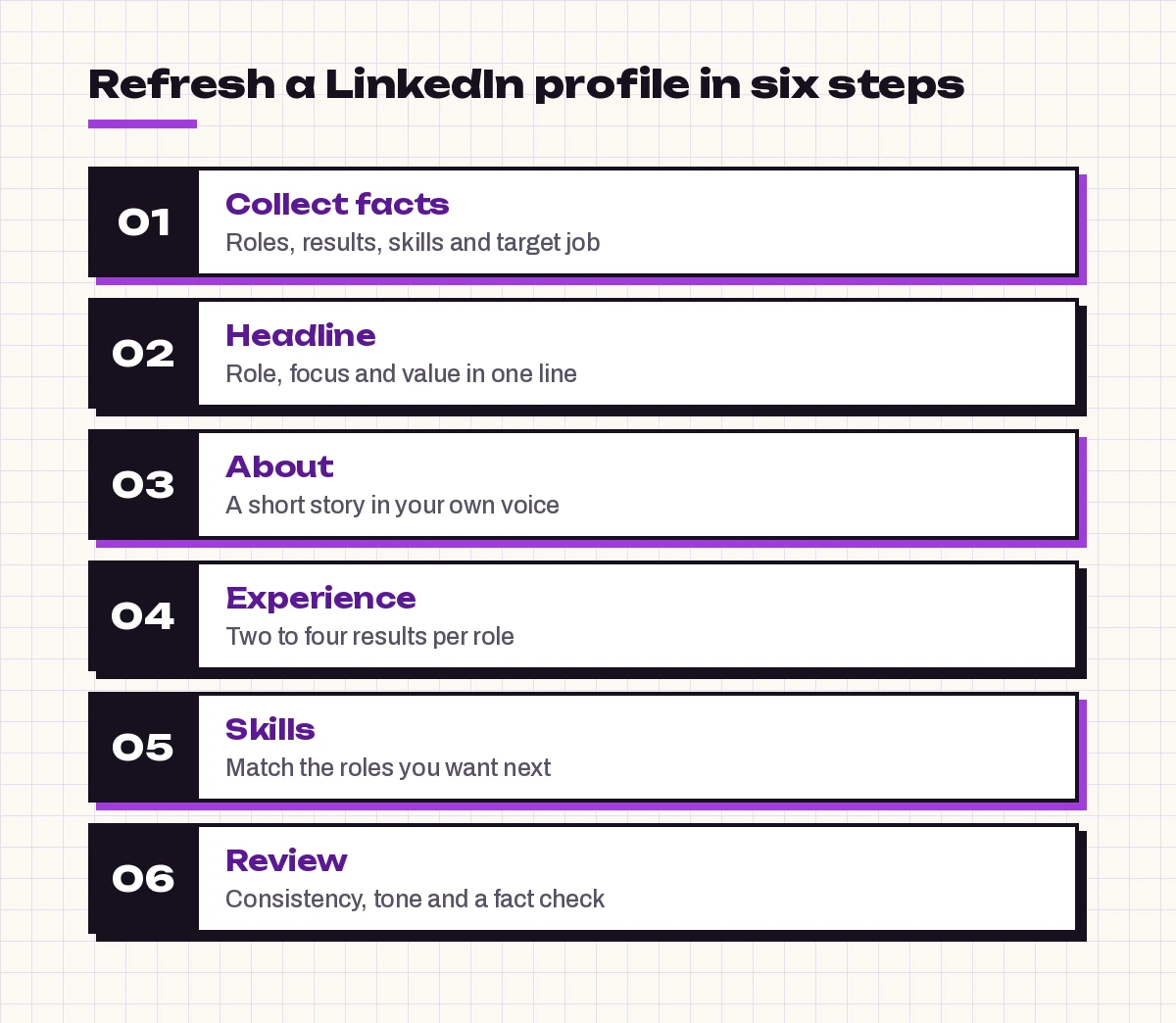
Experience Section Prompts That Show Results
LinkedIn experience entries work best as a one-line description of the role followed by two to four results. You don’t need every task from your resume, just the proof that supports the headline. Treat each Copilot prompt for LinkedIn profile experience as a way to pick your strongest evidence.
12. Duties to results
Rewrite these job duties as 3 LinkedIn experience bullets that show outcomes. Start each with a strong verb, keep each under 25 words, and only use numbers I've provided.

Role: [title, employer, dates]
Duties and results: [paste]
13. Role description line
Write a one-sentence description of my role at [company] that explains the team, scope and purpose in plain words, for someone who has never heard of the company.

Notes: [paste]
14. Convert resume bullets
Here are my resume bullets for [role]. Adapt them for LinkedIn: use first person where it reads naturally, keep the strongest 3, and add one line about what I learned or built. Don't add new facts.

[paste bullets]
15. Older roles, condensed
Condense these older roles into one or two sentences each so my experience section stays focused on my last [X] years. Keep titles and dates exactly as written.

[paste older roles]
16. Explain a gap honestly
I took a break from [dates] for [reason: caregiving, study, travel, health]. Write a short, confident LinkedIn entry for this period that's honest and doesn't over-explain.17. Promotion within one company
I held these titles at [company]: [title 1, dates], [title 2, dates]. Write short descriptions for each that show how my scope grew between them.Skills, Featured and Extra Sections
Skills help recruiters find you, and the Featured section lets visitors see your work. Copilot is useful for picking the right terms and writing short descriptions for links.
18. Pick the right skills
Based on the job postings below for my target role, list the 15 skills that appear most often. Then mark which ones my notes clearly support, so I only add skills I can back up.

Job postings: [paste 2 or 3]
My notes: [paste]
19. Order your top skills
From this list of my skills, choose the 3 I should pin at the top for a [target role] and explain why in one sentence each.

[paste skills]
20. Featured item descriptions
Write a one-sentence description, under 200 characters, for each of these items I want to add to my LinkedIn Featured section. Say what it is and why it's worth a click.

[list: article, case study, portfolio link, talk]
21. Projects section entry
Write a LinkedIn project entry for [project name]: one sentence on the goal, one on my role and one on the result. Use the details below only.22. Certifications in context
I hold these certifications: [list]. Suggest a short line for my About section that mentions them naturally, connected to the work I do.23. Volunteer experience
Turn my volunteer work at [organization] into a LinkedIn entry that shows the skills it uses, like [skill 1] and [skill 2], in two sentences.Keep the Profile Consistent and Searchable
Once each section exists, step back and check that the profile reads as one piece and that the important terms show up where recruiters will look. You can optimize a LinkedIn profile with AI here without stuffing it with keywords, and a single Copilot prompt for LinkedIn profile reviews can catch mixed messages fast.
24. Consistency check
Here's my full LinkedIn profile text. Check that my headline, About section and experience all point to the same target role. List any section that sends a mixed message and suggest a fix.

[paste profile]
25. Match against your resume
Compare my LinkedIn profile with my resume below. List any differences in job titles, dates or employers so I can make them match exactly.

Profile: [paste]
Resume: [paste]
26. Search terms review
A recruiter hiring a [target role] in [location] would likely search for which job titles and skills? List 10. Then tell me which ones are missing from my profile text below.27. Tone check
Read my profile and describe its tone in three words. Then rewrite any sentence that sounds stiff, salesy or overly modest so it sounds confident and natural.28. Mobile preview
Show me exactly what a visitor would read in the first 3 lines of my About section and my headline. Does it explain what I do? Suggest one change if not.Prompts for Posts and Outreach That Support Your Profile
A strong profile gets more attention when you post now and then and send thoughtful connection requests. These prompts keep that light. For more business writing ideas, see our Copilot prompts for marketing.
29. Announce a new role
Write a short LinkedIn post (under 120 words) announcing that I've started as [title] at [company]. Thank [people or team], mention what I'll be working on, and keep it warm, not boastful.30. Share a lesson
Turn this experience into a LinkedIn post with a clear first line, three short paragraphs and one takeaway for readers in [field]. No hashtags in the body; suggest 3 at the end.

Experience: [paste]
31. Open to work post
Write an "open to work" LinkedIn post for a [target role]. Mention two specific strengths with proof, the type of company I want, and how people can help. Keep it under 150 words.32. Connection request note
Write a LinkedIn connection request under 200 characters to [person's role] at [company]. Mention [shared interest or reason] and don't ask for a job.33. Recommendation request
Write a friendly message asking my former manager [name] for a LinkedIn recommendation. Suggest two specific projects they could mention so it's easy for them.34. Write a recommendation for someone else
Help me write a LinkedIn recommendation for [name], who worked with me as [role]. Include one specific example of their work and the impact it had. Keep it under 120 words.Final Review Prompts Before You Publish
35. Fact and claim audit
List every claim, number and title in my profile text. Mark any that sound exaggerated or that I should double-check before publishing.36. Last polish
Proofread my full LinkedIn profile for grammar, consistent tense, repeated words and spelling. Show each change you made so I can approve it.Tips for Better Results
A few habits make every Copilot prompt for LinkedIn profile writing work better:
| Habit | Why it helps |
|---|---|
| Paste real facts | Copilot can’t invent your history accurately |
| Name the audience | Recruiters and clients want different things |
| Ask for options | Five headlines beat one, then you choose |
| Keep your voice | Share a writing sample so drafts sound like you |
| Review every number | Delete anything Copilot added on its own |
Privacy matters too. Your profile is public, but your notes may include details that aren’t, such as salary or reasons for leaving a job. If you use a work account, Microsoft explains how prompts are handled in its Microsoft 365 Copilot privacy documentation. You can always remove sensitive details before pasting.
If you want to reuse these as a structured set, save your favorites in the format from our Copilot prompt template post, so your next profile refresh takes minutes.
Putting It All Together
Using a Copilot prompt for LinkedIn profile updates is quickest when you follow an order. Start with the brain dump, then work through one section at a time: headline, About, experience, skills and the extras. Use the consistency prompts to make the pieces fit, and finish with the fact audit. A profile written this way reads as specific, honest and clearly yours, which is exactly what makes a recruiter or client reach out.
Pick the headline prompt that fits your situation and try it today. Small updates, made regularly, keep your page working for you long after the first refresh.
Frequently Asked Questions
Can Copilot write my whole LinkedIn profile?
It can draft every section, but only from the facts you give it. Paste your roles, projects, skills and a writing sample, then ask for one section at a time. Review each draft and remove anything Copilot added that isn’t true.
How long should my LinkedIn headline be?
LinkedIn allows up to 220 characters, but shorter headlines read better on phones. Lead with your role and focus, then add one line of value. Check the live counter on the edit screen, since limits can change.
What’s the best prompt for a LinkedIn About section?
Ask for a first-person About section of 150 to 250 words that opens with the problem you solve, uses only your facts and matches a writing sample you paste in. Prompt 6 in this guide follows that structure.
Should my LinkedIn profile match my resume?
Titles, employers and dates should match exactly. The wording can differ: LinkedIn is more conversational and can cover your goals and interests, while a resume is tailored to one job.
Is it safe to paste my career details into Copilot?
Follow your organization’s rules if you use a work account. Leave out private details such as salary, personal contact information or confidential project names while drafting.
How do I make my LinkedIn profile easier for recruiters to find?
Use the plain job titles and skills recruiters search for, especially in your headline, About section and skills list. Prompt 26 asks Copilot which search terms are missing from your profile, so you can add only the ones you can honestly support.