Copilot Scheduled Prompts: 25 Powerful Prompts to Automate Your Workday
Copilot scheduled prompts let you write a request once and have Microsoft 365 Copilot run it for you on a timetable, so your morning briefing, weekly recap or follow-up list is waiting before you even open your laptop. This guide walks through how the feature works, how to set one up and manage it, and then gives you 25 recurring prompts you can copy, tweak and schedule today.
If you keep typing the same request into Copilot Chat every Monday, that is a sign it belongs on a schedule. The trick is writing prompts that still make sense when nobody is watching them run, which is a slightly different skill from writing a one-off question.
What Are Copilot Scheduled Prompts?
Copilot scheduled prompts are normal Copilot Chat prompts with a timer attached. You run one once, confirm the answer is useful, then tell Copilot when to repeat it, how often, and for how long. Each time it runs, the response lands in your chat history as its own conversation, and you can optionally get an email telling you it is ready.
According to Microsoft’s support page on how to schedule your most used Copilot prompts, a few ground rules apply:
- Where it works. You can create schedules from Copilot Chat, Microsoft Copilot in Teams, and Outlook for the web and desktop.
- Licence. A Microsoft 365 Copilot licence is required. The free consumer Copilot app does not offer this.
- Limit. You can keep up to 10 different scheduled prompts at a time.
- Results. Finished runs appear in the Chats list on the left, shown in bold with a small icon so they stand out from your normal conversations.
Because the prompt runs with your work data, it can read your calendar, email, Teams chats and files you have access to, the same way it does when you ask in person. That is what makes recurring briefings genuinely useful rather than generic.
Why Use Copilot Scheduled Prompts?
Most knowledge workers repeat a handful of information-gathering tasks every day: checking what is on the calendar, scanning the inbox for anything urgent, reviewing what was agreed in meetings and working out what still needs a reply. None of these are hard, but together they eat the first half hour of the day and the last fifteen minutes of it.
Recurring Copilot prompts take that busywork off your plate in three ways:
- They remove the “remember to ask” step. The best prompt in the world is useless if you forget to run it on a busy morning.
- They create a consistent format. Because the wording never changes, the output has the same shape every time, which makes it quicker to skim.
- They catch things early. A Wednesday sweep of unanswered requests surfaces problems while there is still time to fix them, rather than on Friday afternoon.
If you are just starting to build a prompt habit, our list of Copilot prompts for productivity is a good source of candidates worth automating.
How to Set Up Copilot Scheduled Prompts
Setting up a schedule takes about a minute. The exact menu labels can shift slightly as Microsoft updates the interface, but the flow below matches the current support documentation.
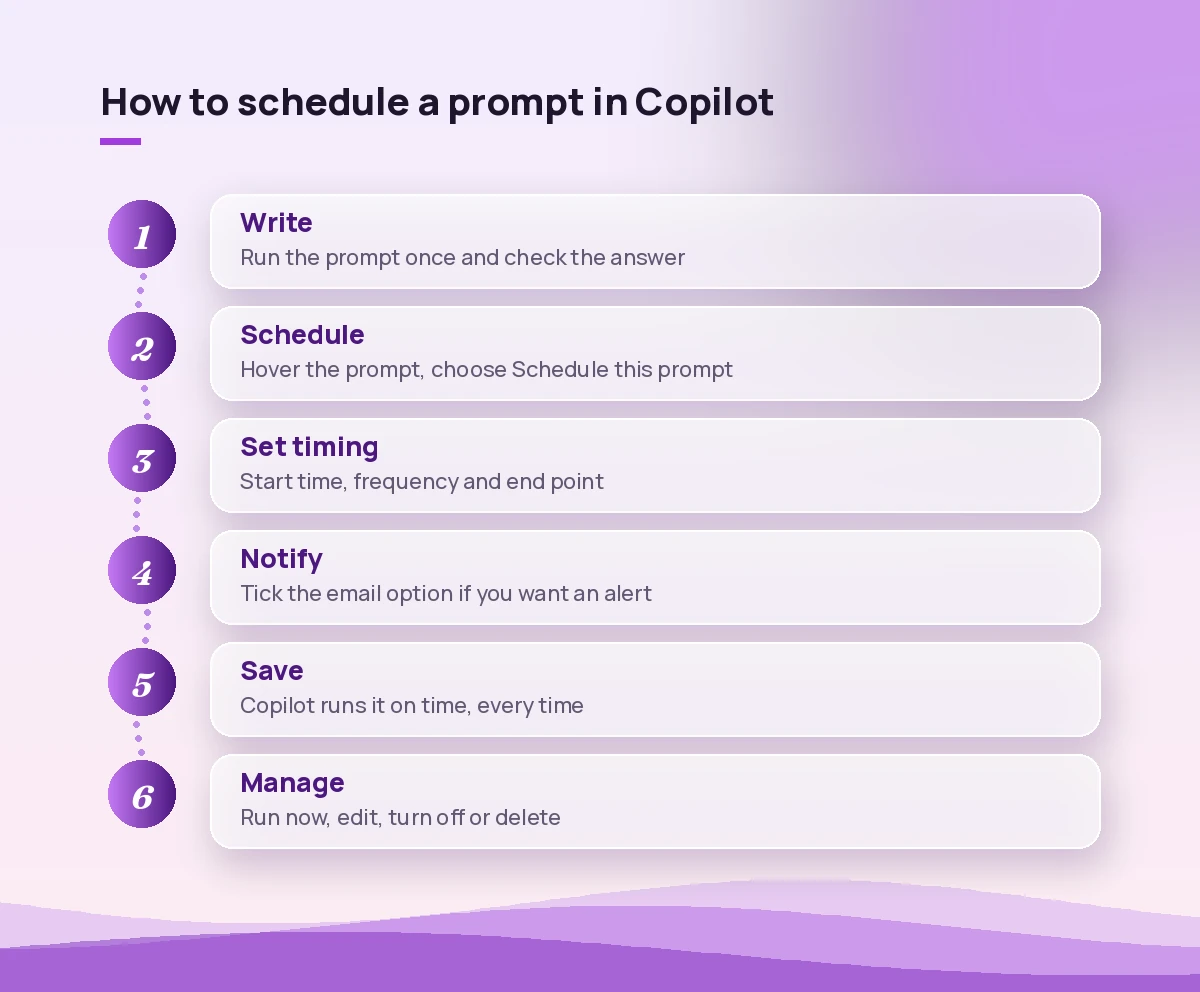
- Open Microsoft 365 Copilot Chat (or Copilot in Teams or Outlook) and sign in with your work account.
- Type the prompt you want to reuse and run it once. Read the answer carefully, and refine the wording until the output is what you want.
- Hover over your prompt and choose Schedule this prompt. In some versions this sits under the More options (…) menu.
- Pick when it should start, how often it repeats, and when it should stop.
- Tick the email notification box if you want a heads-up when each response is ready.
- Select Save.
That is it. From now on, Copilot runs the request at the chosen time and stores each answer as a separate chat.
Managing your schedules
To see everything you have set up, open the Settings and more (…) menu at the top right of Copilot and choose Scheduled prompts. From there you can:
- Run now to trigger an active prompt immediately, which is handy for testing.
- Edit schedule to change the timing or frequency.
- Turn off to pause a prompt without losing it.
- Delete to remove it completely.
Remember the 10-prompt cap on copilot scheduled prompts. If you hit it, turn off or delete the ones you no longer read before adding new ones.
A note for admins
IT teams control availability through the “connected experiences” setting in Microsoft 365. Microsoft’s admin guide to managing scheduled prompts explains that if connected experiences are turned off, users cannot see or manage schedules. It also notes that prompts created during the early preview ran through Power Automate and are managed there until they expire. If the option is missing for you, that admin setting is the first thing to ask about.
How to Write Prompts That Run Well Unattended
A prompt you type live can lean on follow-up questions. A scheduled one cannot, so it needs to be self-contained. Keep these rules in mind before you press Save:
- Use relative time, not dates. Say “today”, “since yesterday at 5 PM” or “this week”. A fixed date will be wrong the second time it runs.
- Name your sources. Tell Copilot whether to look at email, meetings, Teams chats or specific files. Vague prompts return vague briefings.
- Define the shape. Ask for headings, a table or a maximum number of bullets so every run looks the same.
- Set a length limit. A 150-word briefing gets read. A 900-word one gets skipped.
- Ask it to say “nothing new” when that is true. This stops it padding a quiet day with filler.
If you want a structure to lean on, the goal, context, source and expectations pattern in our Copilot prompt template works perfectly for recurring requests.
25 Copilot Scheduled Prompts to Copy
Below are 25 prompts grouped by when you would typically run them. Swap the text in square brackets for your own names, projects and preferences, run each one manually first, and only schedule the ones whose output you would genuinely read.
Morning briefings (daily, before work)
1. The all-in-one start-of-day brief
Give me a briefing for today. List my meetings in time order with the organiser and the purpose of each. Then list emails from the last 16 hours that need a reply from me, most urgent first. Finish with the three things I should focus on today. Keep it under 200 words.2. Meeting prep only
For each meeting on my calendar today, summarise who is attending, what was discussed last time with the same people, and any documents shared in the invite. Flag meetings where I am the organiser.3. Urgent inbox triage
Scan emails I received since 6 PM yesterday. Show only messages that mention a deadline, ask me a direct question, or come from [manager name] or [key client]. For each, give the sender, a one-line summary and the action needed.For more ideas on cutting through a busy inbox, see our guide to the Copilot prompt for unread emails.
4. Teams catch-up
Summarise Teams chats and channel posts from the last 24 hours where I was mentioned or asked a question. Group by chat or channel and tell me which ones still need my response.5. Priority check
Based on my emails, meetings and chats from the past two days, what are the three most important open tasks for me today? Explain in one sentence why each matters.Midweek follow-ups
6. The Wednesday follow-up sweep
Look at emails and Teams messages from Monday until now. List every request someone made of me that I have not answered yet, and every promise I made to someone else that I have not delivered. Present it as a table with columns: person, request, date, status.7. Waiting-on list
Find emails I sent in the last seven days that asked someone for information or a decision and have not had a reply. List the recipient, subject and how many days it has been.8. Project pulse
Summarise everything new about [project name] from emails, meetings and files this week. Note any decisions made, risks raised or deadlines that moved.9. Stakeholder radar
Summarise my recent communication with [stakeholder name] over the last two weeks: topics discussed, anything they are waiting for from me, and their tone. Suggest one thing I should follow up on.10. Calendar sanity check
Review my calendar for the next five working days. Flag double bookings, days with no free block longer than 60 minutes, and meetings with no agenda in the invite.If calendar chaos is a regular problem, our Copilot prompts for Outlook calendar cover rescheduling and focus-time requests in more depth.
End-of-day recaps
11. Meeting outcomes recap
Summarise the meetings I attended today. For each, list the key decisions and any action items, noting who owns each one. Highlight any action items assigned to me.That recap pairs well with the detailed techniques in our Copilot prompts for meeting action items.
12. Tomorrow at a glance
Look at my calendar for tomorrow and my unread messages. Tell me what I need to prepare tonight or first thing tomorrow, in no more than five bullets.13. Daily wins log
Based on emails I sent, meetings I attended and documents I edited today, write a short list of what I accomplished. Keep each item to one line. I will use this for my weekly report.14. Loose ends
List anything from today that looks unfinished: questions I did not answer, documents I opened but did not share, and meetings that ended without a clear next step.Weekly reviews and reports
15. Friday status report draft
Draft a weekly status update for [team or manager] covering [project name]. Use emails, meetings and files from this week. Structure it as: progress, blockers, next week's plan. Keep it under 250 words and use a professional, plain tone.16. Monday week-ahead plan
Review my calendar and inbox for the coming week. Summarise the key meetings, deadlines and deliverables, and suggest the best time blocks for focused work.17. Team activity digest
Summarise what my direct reports [names] worked on this week based on shared documents, meeting notes and Teams channels I can access. Highlight anyone who seems blocked.18. Weekly learning digest
Find documents, links and presentations shared with me this week about [topic]. Give a two-sentence summary of each and tell me which one is most worth reading in full.19. Customer issues roundup
Summarise customer-related emails and chats from this week that mention [product or client]. Group them into themes, note any recurring complaint, and list any that need escalation.20. Decision log
List every decision recorded in my meetings and email threads this week, with the date, the people involved and the reason given. Format as a table I can paste into our project log.Monthly and longer-cycle prompts
21. Month-end review
Summarise my month: the main projects I worked on, key decisions, completed deliverables and anything still open. End with three suggestions for next month based on the patterns you see.22. Meeting load check
Analyse my calendar for the past four weeks. How many hours did I spend in meetings each week, which recurring meetings took the most time, and which ones might be candidates to shorten or cancel?23. Goal progress check-in
My goals this quarter are [goal 1], [goal 2] and [goal 3]. Based on my work over the past month, summarise progress on each and flag the one that is most at risk.24. Relationship maintenance reminder
List important contacts I have not emailed or met with in the last 30 days, based on people I regularly worked with over the previous three months. Suggest a short reason to reconnect with each.25. Document clean-up prompt
List documents I created or edited in the last month that are still in draft or have open comments. Show the file name, last edit date and what seems unfinished.Which Habits Are Worth Scheduling First?
You only get ten slots for copilot scheduled prompts, so be picky. The best candidates share three traits: you would do the task anyway, the inputs change every time, and the output is short enough to read in a minute or two.
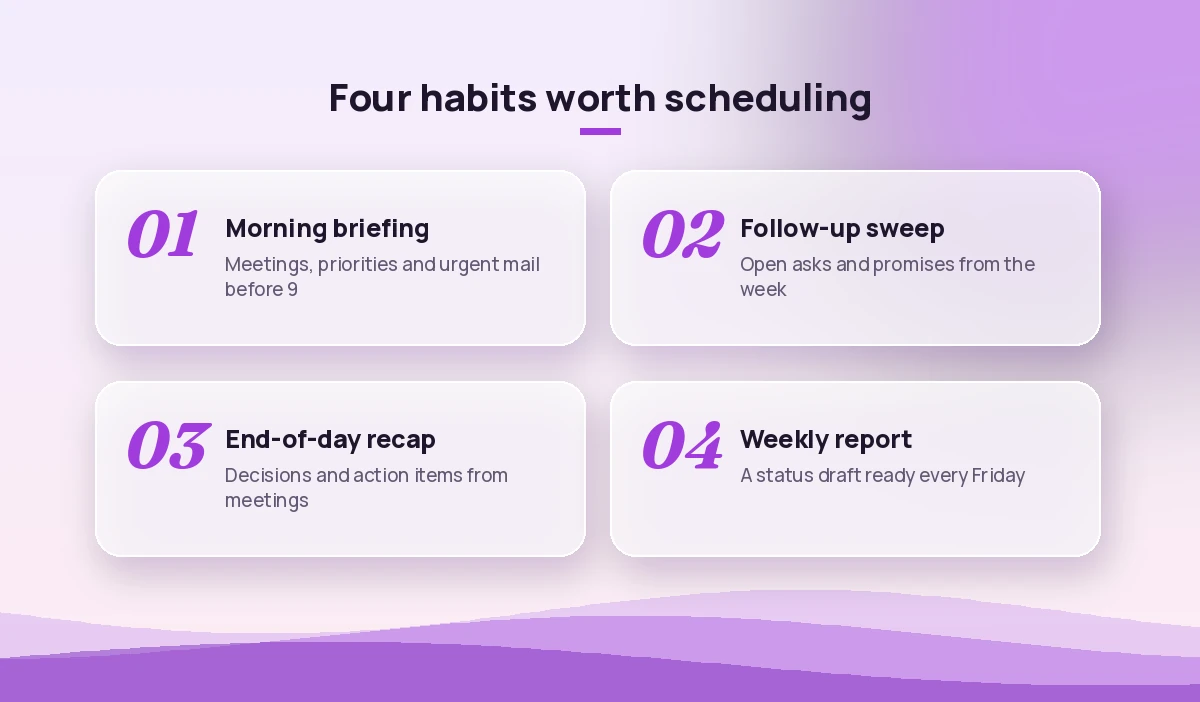
A sensible starting set looks like this:
| Prompt | Suggested timing | Why it earns a slot |
|---|---|---|
| Morning briefing (#1) | Weekdays, 30 minutes before you start | Replaces the first inbox and calendar scan |
| Follow-up sweep (#6) | Wednesday mid-morning | Catches missed replies while there is time to act |
| Meeting outcomes recap (#11) | Weekdays, end of day | Turns meetings into a to-do list automatically |
| Friday status draft (#15) | Friday early afternoon | Gives you a draft to edit instead of a blank page |
Run these for two weeks before adding more. If you notice you are skipping one, rewrite it or delete it and free the slot.
Troubleshooting Common Problems
Even well-written copilot scheduled prompts occasionally misbehave. Here are the issues people run into most often and what to try.
The schedule option is missing. Check that you are signed in with a work account that has a Microsoft 365 Copilot licence and that you are in the work view of Copilot Chat rather than web mode. If it is still not there, your admin may have disabled connected experiences.
The answer is too long or too vague. Add a word limit and a fixed structure. Replace “anything important” with specific criteria such as “mentions a deadline” or “comes from [name]”.
It repeats old information. Tighten the time window, for example “since 5 PM yesterday” instead of “recently”.
You never read the results. Turn on the email notification, or move the run time to just before you usually sit down. A briefing that arrives at 6 AM may scroll out of view by 10.
Results include things you did not expect. Copilot only uses content you already have permission to see, but that can still be a lot. Narrow the sources by naming specific people, projects or Teams channels.
Privacy and Good Practice
Copilot scheduled prompts use the same permissions and data protections as any other Microsoft 365 Copilot request. They do not give the assistant access to anything you cannot already open. Still, a few habits keep things tidy:
- Avoid scheduling prompts that summarise sensitive HR, legal or financial threads unless your organisation’s policy allows it.
- Review and delete schedules you no longer need, especially after changing roles or finishing a project.
- Treat every output as a draft. Check names, numbers and commitments before forwarding a generated report to anyone.
Final Thoughts
The real value of copilot scheduled prompts is not any single answer. It is the compounding effect of never forgetting to check the things that matter. Start with one morning briefing, refine the wording until it reads like a note from a sharp assistant, and then add a follow-up sweep and a weekly report. Within a couple of weeks, the routine parts of your day will be handled before you sit down, leaving your attention for the work only you can do.
Frequently Asked Questions
What are copilot scheduled prompts?
They are Microsoft 365 Copilot Chat prompts that you set to run automatically at a chosen time and frequency. Each run saves its answer as a new chat, and you can opt in to an email notification when it is ready.
Do I need a paid licence to schedule prompts?
Yes. Microsoft’s documentation says a Microsoft 365 Copilot licence is required, and scheduling is available in Copilot Chat, Copilot in Teams and Outlook for the web and desktop.
How many prompts can I schedule in Copilot?
You can keep up to 10 different scheduled prompts. Turn off or delete ones you no longer use to free a slot for new ones.
Where do I find the results of a scheduled prompt?
Completed runs appear in the Chats list on the left side of Copilot, shown in bold with an icon. Open the chat to read the response.
How do I edit or stop a scheduled prompt?
Open the Settings and more menu at the top right of Copilot and choose Scheduled prompts. From there you can run a prompt now, edit its schedule, turn it off or delete it.
Why can’t I see the option to schedule a prompt?
The usual reasons are a missing Microsoft 365 Copilot licence, being in the wrong Copilot view, or an admin turning off connected experiences for your organisation. Ask your IT team to check the connected experiences setting.