Copilot Prompts for Outlook Calendar: 32 Proven Templates to Tame Your Week
Copilot prompts for Outlook calendar work help you see your week clearly, find meeting times faster, protect focus hours and walk into every meeting prepared. Below you’ll find 32 copy-ready templates, grouped by the moments when a calendar usually gets out of hand, plus tips on wording so the answers stay accurate.
A calendar is where everyone else’s priorities land on top of yours. Copilot can’t say no to a meeting for you, but it can read your schedule in seconds, spot conflicts, summarize what a meeting is about and draft the polite message that frees up an afternoon. The trick is asking in a way that gives it enough to work with.
Where Copilot Shows Up in Your Calendar
Before you paste anything, it helps to know which surface you are talking to. Depending on your license, your tenant settings and whether you use the new Outlook, Outlook on the web or the classic desktop app, you may see Copilot in three places:
- The Copilot pane in Outlook, which can answer questions about your meetings, invites and the emails connected to them.
- Microsoft 365 Copilot Chat (the Work tab), which can reason across your calendar, mail, chats and files in one conversation.
- Scheduling helpers inside an email thread or a new event, such as options to set up a meeting from a conversation or to draft an agenda.
Microsoft lists what’s available for each version on its Copilot in Outlook help page. Features reach different tenants at different times, so if a button described here is missing, that page is the place to check rather than assuming something is broken.
One important limit: in most setups Copilot reads and drafts, and you confirm. It may suggest times or write an invite, but you still review and send it. That’s a feature, not a flaw, because a wrong invite to twelve people is hard to undo.
How to Write Copilot Prompts for Outlook Calendar Requests
Copilot prompts for Outlook calendar questions fail for predictable reasons: the time range is fuzzy, the people are unnamed, or you didn’t say what “busy” means to you. A good scheduling request covers five things, shown in the graphic below.
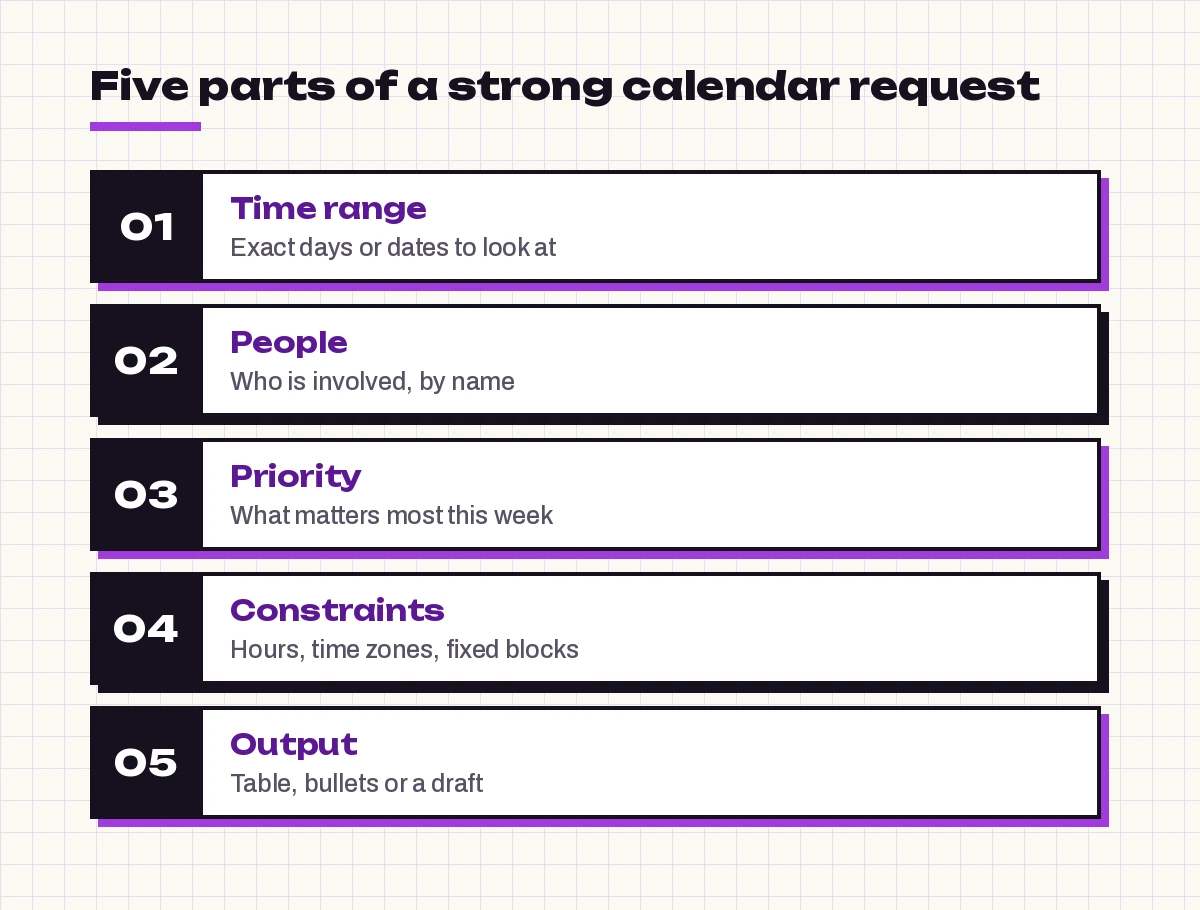
- Time range: “this week”, “Monday to Wednesday” or “the next 10 working days”. Avoid “soon”.
- People: full names or the team name, so Copilot looks at the right invites.
- Priority: what matters most, such as client calls, deadlines or your one-on-ones.
- Constraints: working hours, time zones, lunch, travel days and meetings you never move.
- Output: a table, a bulleted list or a draft message. Saying the format saves a follow-up.
If you want the general theory behind this, our guide on how to write Copilot prompts walks through the same building blocks for other Microsoft 365 apps.
Prompts to Understand Your Week at a Glance
Start here on Monday morning (or Sunday evening, if that’s your habit). These copilot prompts for Outlook calendar reviews give you a quick map before the first meeting starts.
1. The weekly overview
Summarize my calendar for this week. For each day, list the meetings with start time, length and organizer. Then tell me which day is the busiest and which has the most open time.2. Meeting load in hours
How many hours of meetings do I have this week? Break it down by day and show the result as a small table with columns Day, Meetings, Hours booked, Free hours between 9 AM and 5 PM.3. What actually needs preparation
Look at my meetings for the next 3 working days. Which ones have attachments, a shared agenda, or an email thread I haven't replied to? List them in order of date with one line on what I should read first.4. Recurring meeting audit
List all recurring meetings on my calendar this month. For each, show how often it repeats, how long it is, and who organizes it. Flag any that I have declined or missed more than once.5. Tomorrow in 60 seconds
Give me a short brief for tomorrow: first meeting time, last meeting time, any back-to-back blocks longer than 2 hours, and gaps of 30 minutes or more I could use for focused work.Scheduling and Rescheduling Prompts
Finding a time that works for five people is the classic calendar chore, and it’s where copilot prompts for Outlook calendar scheduling pay off fastest. Copilot can do the comparison and the drafting, while you keep the final click.
6. Find a slot for a group
I need a 45-minute meeting with [Name 1], [Name 2] and [Name 3] next week. Suggest three time options during everyone's working hours, avoiding Fridays after 2 PM. Show any conflicts you notice.7. Turn an email thread into a meeting
Based on this email thread, draft a meeting invite. Include a clear title, a 3-point agenda pulled from the open questions in the thread, and the people who replied most. Suggest 30 minutes unless the topics need more.8. Cross time zone planning
I'm in Pakistan Standard Time. Find a 30-minute window this week that falls between 9 AM and 6 PM for me and between 9 AM and 5 PM Eastern Time for [Name]. List the options in both time zones.9. Polite reschedule message
Draft a short, friendly message to [Organizer] asking to move Thursday's [meeting name] to Friday morning. Explain that I have a deadline clash, offer two alternative times, and keep it under 80 words.10. Clear a day for travel
I'm travelling on [date]. List every meeting on that day, and for each one draft a one-line note: either a request to move it, a note that I'll join by phone, or a decline with a suggested delegate.11. Shorten the defaults
Which of my meetings next week are scheduled for 60 minutes but have a simple agenda or fewer than 3 attendees? Suggest which could become 25 or 30 minutes and draft a note to each organizer proposing it.Prompts to Protect Focus Time
An empty slot on your calendar looks like an invitation to everyone else. These copilot prompts for Outlook calendar protection help you guard deep-work hours without sounding difficult. They pair well with the triage ideas in our Copilot prompts for Outlook inbox management guide, since mail and meetings compete for the same hours.
12. Find focus blocks
Find every block of 90 minutes or more this week with no meetings between 9 AM and 5 PM. List them by day and suggest which two I should reserve as focus time based on what's due this week.13. Plan around a deadline
I have [project/report] due on [date]. Look at my calendar from today until then and propose a plan: which free blocks to use for drafting, review and final edits. Warn me if there isn't enough time.14. Spot meeting overload
Show me any day this week or next with more than 5 hours of meetings or more than 3 back-to-back meetings. For each, suggest one meeting I could decline, delegate or make async, and explain why.15. A considerate decline
Draft a decline for the invite "[meeting title]". Say I can't attend because of a prior commitment, ask for the notes or recording, and offer to share my input by email before it starts. Warm but brief.16. Protect lunch and breaks
Check whether I have a 30-minute break between 12 PM and 2 PM every day this week. Where I don't, tell me which meeting is blocking it and whether it looks movable.Meeting Preparation Prompts
Walking into a call without context wastes everyone’s first ten minutes. Copilot can gather the background from email, chats and shared files linked to an invite, which is where copilot prompts for Outlook calendar prep really earn their place.
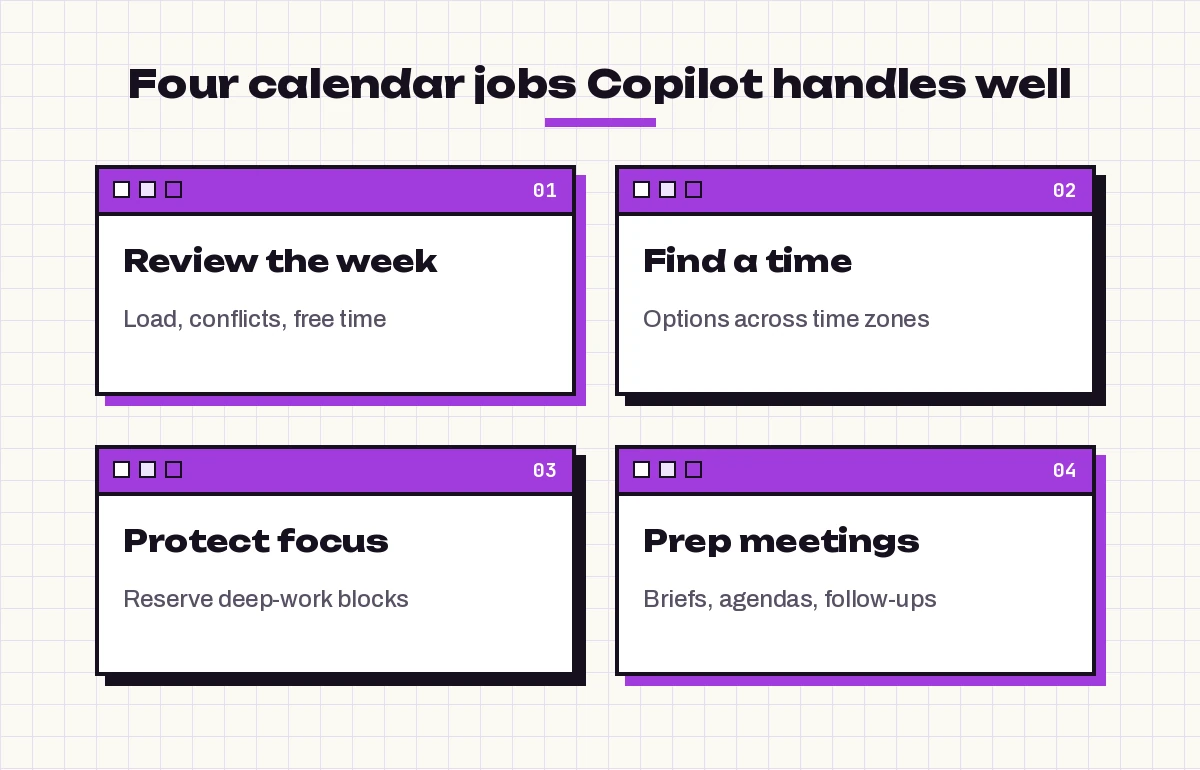
17. Pre-meeting brief
Prepare me for my [meeting name] at [time]. Summarize the invite, any attached or linked documents, and recent emails with the attendees about this topic. End with 3 questions I should be ready to answer.18. Who’s who
For the attendees of my [meeting name], tell me how I've worked with each person recently: last email exchanged, last meeting together, and any open requests between us.19. Build an agenda
Draft a 30-minute agenda for [meeting name] with time boxes. Base it on the invite description and the last email thread about this topic. Leave 5 minutes at the end for decisions and owners.20. Status since last time
This is a recurring meeting. What has changed since the last occurrence? Check related emails and files from the past week and list updates, decisions still pending, and anything that slipped.21. Read-ahead shortlist
I have 15 minutes before my next three meetings. Which single document or email for each meeting is most worth reading, and why? Keep each answer to two lines.For what happens during and after a call, our Copilot prompts for Teams meetings and meeting minutes prompt guides pick up where these leave off.
Follow-Up Prompts After the Meeting
The calendar entry ends, but the work doesn’t. These copilot prompts for Outlook calendar follow-ups close the loop so nothing decided in a meeting gets lost.
22. Follow-up email from the invite
Draft a follow-up email to the attendees of [meeting name]. Thank them, restate the purpose of the meeting, and leave clearly marked placeholders for decisions, owners and due dates that I'll fill in.23. Book the next step
We agreed to meet again in two weeks about [topic]. Suggest three times that work for the same attendees and draft the invite with a one-line purpose and the open items from the last meeting as the agenda.24. Block time for my action items
I took on these action items: [list]. Estimate how long each might take, then find free blocks on my calendar before their due dates where I could do them. Show the plan as a table.25. End-of-week recap
Look back at the meetings I attended this week. List the ones that produced a decision or an action for me, and the ones that didn't seem to need my attendance. Keep it to a short table.Prompts for Teams, Managers and Assistants
If you manage other people’s time, or lead a team that shares calendars, these copilot prompts for Outlook calendar coordination save the most back-and-forth. Assistants who manage a leader’s schedule may also like our Copilot prompts for executive assistants.
26. Plan a team offsite day
I want to hold a half-day planning session for my team of [number] in the next three weeks. Based on the calendars I can see, which days look lightest? Draft an invite with a placeholder agenda and a note asking people to hold the date.27. One-on-one rhythm check
List my one-on-ones over the last month. Show who I met with, how often, and anyone I skipped or rescheduled twice. Suggest a fairer schedule for next month.28. Out-of-office coverage plan
I'm out from [date] to [date]. List the meetings I'll miss, suggest who could cover each one based on the attendee list, and draft a short handover note for each meeting organizer.29. New starter’s first week
Draft a first-week calendar for a new team member starting [date]: welcome meeting, IT setup, one-on-ones with [names], and two focus blocks for onboarding reading. Present it day by day.Reusable Copilot Prompts for Outlook Calendar Planning
The prompts above are specific on purpose. Once you know what works, save a few as fill-in-the-blank versions. If your version of Copilot supports saved prompts, keep them there; otherwise a pinned note works fine. The approach mirrors our general Copilot prompt template guide.
30. The Monday planner
Plan my week from [start date] to [end date]. Show meetings by day, total meeting hours, the 3 biggest free blocks, and any conflicts. My priorities this week are: [priority 1], [priority 2]. Suggest where each priority should go.31. The Friday reset
Review next week's calendar. Flag double bookings, meetings with no agenda, invites I haven't answered, and days with no focus time. Draft responses for anything I need to accept, decline or question.32. The quick scheduler
Find [length] with [people] between [date] and [date], within [working hours and time zone]. Avoid [constraints]. Give 3 options and draft the invite for the first one titled "[title]".Common Mistakes and How to Fix Them
Even well-written copilot prompts for Outlook calendar tasks occasionally miss. Here is how to read the usual problems and what to change.
| What went wrong | Likely cause | Fix in your next prompt |
|---|---|---|
| Copilot looked at the wrong week | Relative dates like “next week” were read differently | Give exact dates, such as “Nov 2 to Nov 6” |
| Suggested times clash with real commitments | Personal blocks or other calendars aren’t visible to it | Mention fixed commitments directly in the prompt |
| Time zone mix-ups | Your Outlook time zone differs from where you are now | State the zone for every person involved |
| Brief misses key context | Files weren’t attached or shared with you | Attach or link the document in the invite first |
| Answer is long and vague | No output format given | Ask for a table or a set number of bullets |
Always double-check names, dates and times before you send anything Copilot drafted. It works from what it can access, and a calendar often has gaps that only you know about, like a school pickup or a dentist appointment kept on a personal calendar.
A Simple Daily Routine
You don’t need all 32 copilot prompts for Outlook calendar work every day. A light routine is enough for most people:
- Morning (2 minutes): run prompt 5 for today instead of tomorrow and pick one focus block.
- Before each important meeting (3 minutes): run prompt 17 and skim the three questions.
- After meetings (2 minutes): use prompt 22 or 24 so actions land on your calendar.
- Friday afternoon (5 minutes): run prompt 31 to set up a calmer next week.
Over a few weeks you’ll learn which wording gives the best answers in your environment, and you can trim the templates to fit. For more ideas across the rest of the mail client, browse our full set of Copilot prompts for Outlook.
Frequently Asked Questions
Can Copilot read my Outlook calendar?
Yes, if you have a Microsoft 365 Copilot license and your organization has enabled it, Copilot can answer questions about your meetings, invites and related emails. What it can see depends on your permissions, so private calendars or calendars you don’t have access to won’t be included.
Can Copilot schedule a meeting in Outlook for me?
Copilot can suggest times and draft an invite from an email thread or a request, but in most setups you review and send it yourself. Availability of scheduling features varies by Outlook version and rollout, so check Microsoft’s Copilot in Outlook help page for your build.
How do I use Copilot in the Outlook calendar?
Open the Copilot pane in Outlook or Microsoft 365 Copilot Chat and ask about your schedule in plain language, naming the date range, the people and the output you want. Starting with a request like “Summarize my calendar for this week” is an easy first test.
Does Copilot work with the classic Outlook desktop app?
Copilot features are available across the new Outlook, Outlook on the web and classic Outlook, but not every feature arrives everywhere at the same time. If something in this guide is missing, try the same prompt in Microsoft 365 Copilot Chat.
Why does Copilot suggest meeting times that don’t work?
It can only use the calendars and free/busy information it can access. Personal appointments, other calendars or unwritten rules like “no meetings on Friday afternoons” need to be stated in your prompt so the suggestions respect them.
Is it safe to let Copilot see my calendar?
Microsoft 365 Copilot works within your organization’s existing permissions and data protections, so it only surfaces content you can already access. Still, review drafted invites and messages before sending, especially when external guests are involved.