Microsoft 365 Copilot vs Copilot Chat: 8 Key Differences + 18 Smart Prompts
Microsoft 365 Copilot vs Copilot Chat is the question almost every Microsoft 365 user runs into once the Copilot icon shows up in their apps. Both open the same kind of chat box, both answer in seconds, and both carry the Copilot name. The difference sits underneath: what each one is allowed to read, where it works, and whether your organisation pays extra for it.
This guide explains the Microsoft 365 Copilot vs Copilot Chat gap in plain terms. You will see eight practical differences, a quick way to tell which version you have right now, a decision checklist, and 18 copy-ready prompts split by version, so you get useful answers whichever one is on your screen.
Microsoft 365 Copilot vs Copilot Chat: The Short Answer
Copilot Chat is the secure AI chat included with eligible work and school Microsoft 365 accounts at no extra cost. It answers from the web, from files you upload or paste, and from a limited set of mailbox and calendar content when you use it inside Outlook.
Microsoft 365 Copilot is the paid add-on licence. It keeps everything Copilot Chat does and adds broad grounding across your organisational data, including emails, meetings, chats, documents and SharePoint sites you already have permission to see. It also unlocks the full Copilot experience inside Word, Excel, PowerPoint and OneNote, plus priority access and advanced agents.
Put simply, the whole Microsoft 365 Copilot vs Copilot Chat debate comes down to data: the free chat knows the internet and whatever you hand it. The licensed version also knows your work.
What Copilot Chat Actually Is
Microsoft describes Copilot Chat as a secure AI chat experience for eligible Microsoft 365 users, combining large language models with enterprise-grade protections. Its default knowledge source is the public web.
You can reach it in several places:
- The Copilot app on the web at
m365.cloud.microsoft/chat - The Microsoft 365 Copilot app on desktop and mobile
- Supported apps such as Outlook and Teams, depending on your plan
- The side pane in Microsoft Edge
Inside that chat you can research and summarise web information, write and rewrite content, analyse uploaded files, create images, and work with agents your admin has made available. The key limit is organisational context. Outside Outlook, the free tier only “sees” your company data if you paste it, upload it, or reference a supported file directly.
The Outlook exception
Copilot Chat in Outlook is the one place where the free tier reaches further. There it can answer questions across supported mail, calendar items, meetings, chats and a bounded set of related files, so a prompt like “When is my next 1:1 with my manager?” can work without a paid licence. Microsoft is clear that this is still a reduced slice of data compared with the licensed product.
What Microsoft 365 Copilot Adds
The paid licence changes how much Copilot can reason across. Instead of waiting for you to hand it a file, it draws on Microsoft Graph, Work IQ and semantic indexing to search everything you are permitted to open: inbox threads, Teams chats, meeting transcripts, OneDrive files and SharePoint sites.
That one change unlocks a different style of question. You can ask Copilot to pull together a status update from last week’s emails, meetings and project files in a single answer, without collecting the sources yourself. Licensed users also get:
- Full Copilot inside Word, Excel, PowerPoint and OneNote
- Priority access to capabilities and advanced reasoning models
- Advanced agents such as Researcher and Analyst
- Deeper integration across Microsoft 365 workflows
If you want to see what the deeper research agent can do, our guide to the best prompts for Microsoft Copilot Researcher shows it in action.
8 Microsoft 365 Copilot vs Copilot Chat Differences That Change Your Day
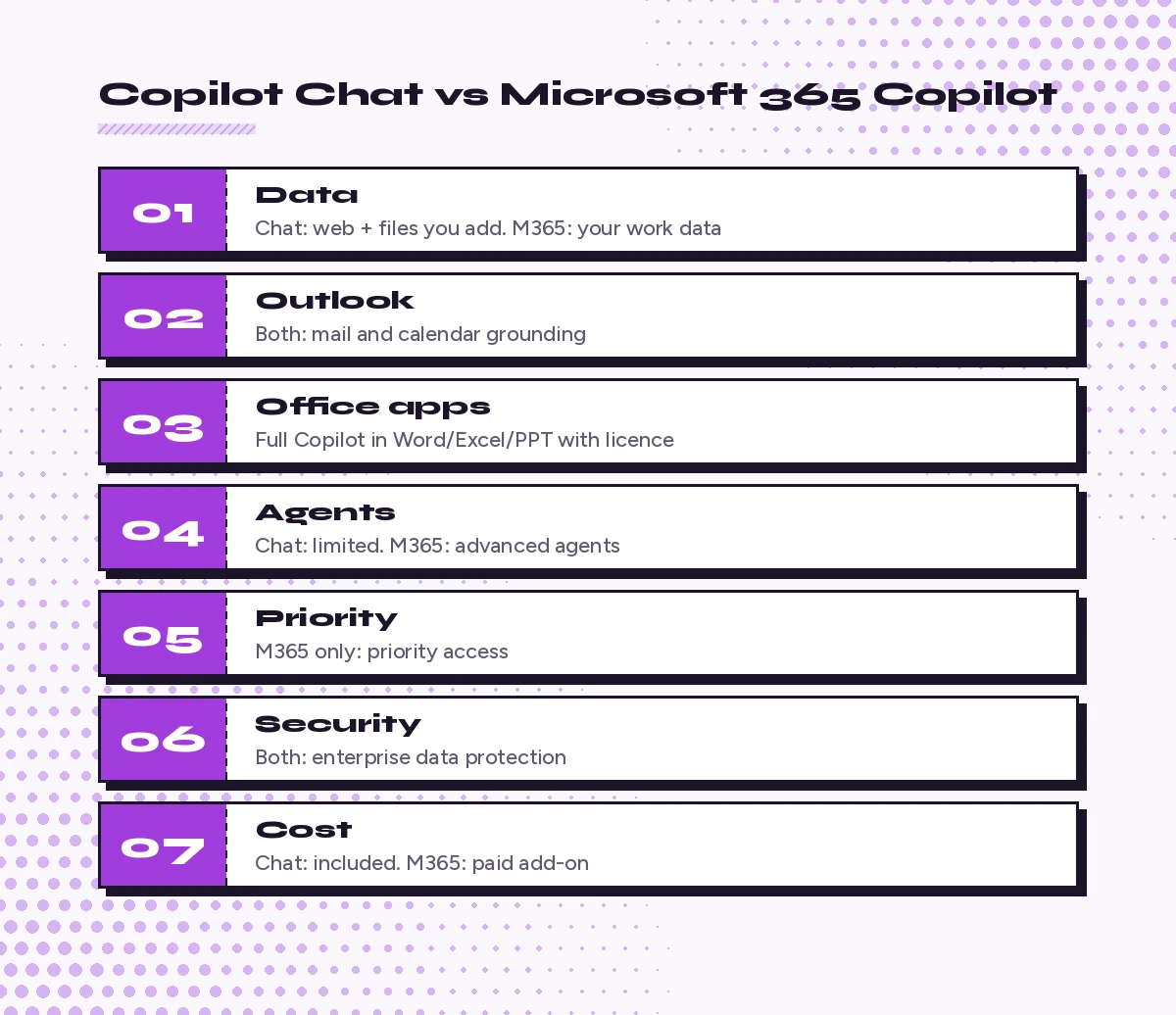
1. What Copilot can read
This is the big one. Copilot Chat is web-grounded and works with content you supply. The licensed product reasons across your permitted organisational data on its own. Same chat box, very different reach, and the root of every other Microsoft 365 Copilot vs Copilot Chat difference.
2. Copilot inside Word, Excel, PowerPoint and OneNote
Microsoft labels the experience in each app. Copilot Chat (Basic) means no paid licence and no Copilot chat inside Word, Excel, PowerPoint or OneNote. Microsoft 365 Copilot (Basic) means standard access in those apps without the add-on. Microsoft 365 Copilot (Premium) means the full in-app experience with priority access. Exactly what appears for you depends on your plan and tenant settings.
3. Questions that span several sources
With a licence you can ask for a summary built from emails, chats, meetings and documents at once. On the free tier you would gather those pieces yourself and paste or upload them first.
4. Agents
Copilot Chat lets you use agents, and some can access organisational content, but advanced agent experiences are limited. The licensed tier includes advanced agents and fuller agent workflows. Some organisations also allow pay-as-you-go agents for unlicensed users, which is a setting your admin controls.
5. Priority and performance
Copilot Chat gets standard access to file upload, image generation and the latest models, which means it is subject to service capacity. During busy periods quality or speed can vary. Licensed users get priority access, so heavy daily use tends to be smoother.
6. Security and privacy
Here they match. Both respect existing Microsoft 365 permissions, both include enterprise data protection for eligible work and school accounts, and neither exposes content you could not already open. The licence widens what Copilot can search; it does not widen what you are allowed to see.
7. Cost
Copilot Chat is included with eligible Microsoft 365 subscriptions. Microsoft 365 Copilot is a per-user add-on with its own price. Pricing and plan names change, so check Microsoft’s current licence options page rather than relying on an old figure.
8. Who decides
You can start using Copilot Chat as soon as your organisation enables it. The paid licence is assigned by an admin, so moving up is a team or IT decision, usually backed by a pilot that proves value.
Microsoft 365 Copilot vs Copilot Chat: Side-by-Side Table
| Capability | Copilot Chat | Microsoft 365 Copilot |
|---|---|---|
| Web-grounded chat | Yes | Yes |
| Enterprise data protection | Yes | Yes |
| File upload and analysis | Yes | Yes |
| Image generation | Yes | Yes |
| Grounding in Outlook | Yes, supported scenarios | Yes |
| Reasoning across all your Microsoft 365 data | Limited | Yes |
| Graph, Work IQ and semantic indexing | No | Yes |
| Advanced agents | Limited | Yes |
| Priority access | No | Yes |
| Extra licence cost | No | Yes |
This table follows Microsoft’s own Copilot Chat overview on Microsoft Learn, which is worth bookmarking because feature availability is updated there first.
How to Check Which Version You Have
You do not need to ask IT. Try these three quick checks:
- Look at the label. Open Word or the Copilot app and look for the experience name near the Copilot pane, such as Copilot Chat (Basic) or Microsoft 365 Copilot (Premium).
- Look for the Work and Web toggle. Licensed users usually see an option to switch between work and web grounding in the chat.
- Ask a work-only question. Outside Outlook, type “What were the main decisions in my meetings yesterday?” If Copilot asks you to upload notes instead of answering, you are on the free tier.
Microsoft 365 Copilot vs Copilot Chat: Which One Should You Use?
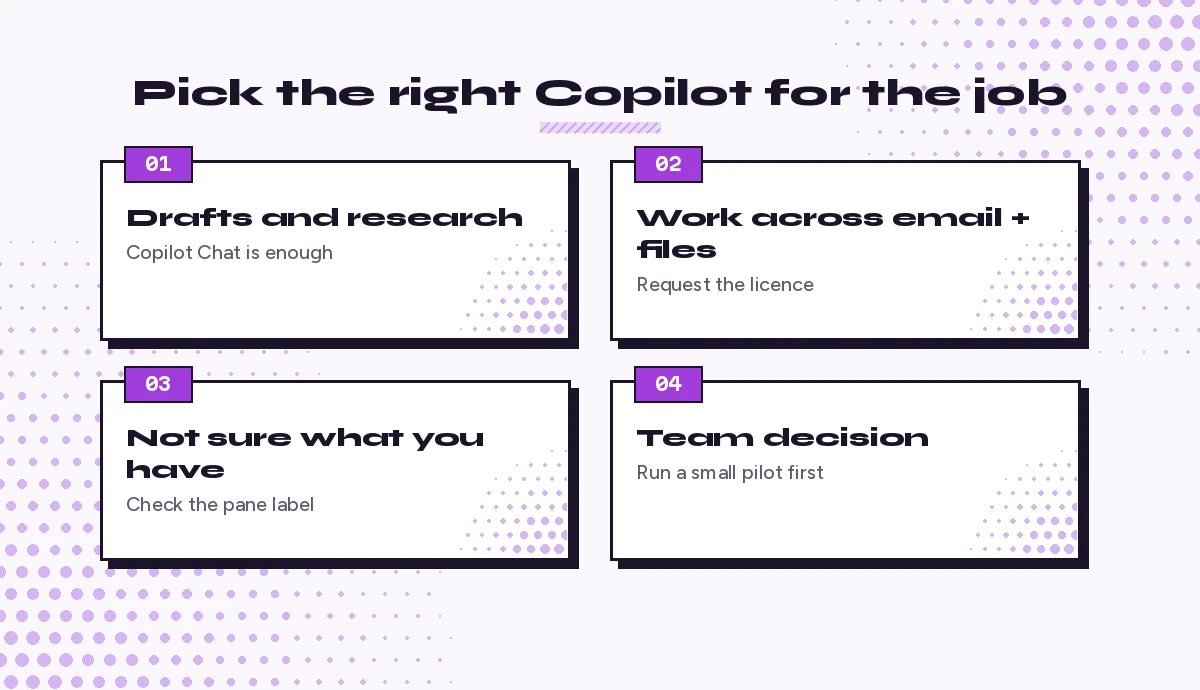
When weighing Microsoft 365 Copilot vs Copilot Chat, pick the version by the job, not the hype:
- Stay on Copilot Chat if most of your prompts involve drafting, rewriting, brainstorming, web research or analysing a file you can upload.
- Make the case for the licence if you spend hours finding information spread across email, Teams and SharePoint, or you want Copilot built into Excel and PowerPoint every day.
- Run a small pilot with a few heavy users before rolling out widely. Track time saved on recurring tasks, not just how often people open Copilot.
9 Prompts That Work Well in Copilot Chat (Free)
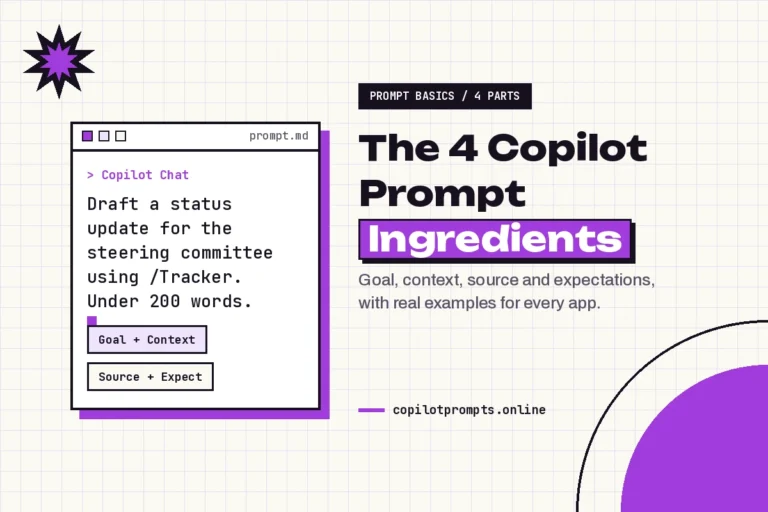
The trick on the free tier is to bring the context with you. Paste text, upload the file, or describe the situation in detail. If you need a refresher on structure, our Copilot prompt template covers goal, context, source and expectation.
Writing and rewriting
Rewrite the text below for a busy senior manager. Keep it under 120 words, lead with the decision needed, and end with one clear next step.

[paste text]
I am announcing a new expense policy to a team of 40. Draft a friendly email that explains what changes, when it starts and where to ask questions. Offer two subject lines.Turn these rough bullet notes into a one-page project brief with sections for goal, scope, timeline, risks and owners. Flag anything that looks missing.
[paste notes]Working with uploaded files
Summarise the attached report in 5 bullet points, then list 3 questions a finance lead would likely ask after reading it.Compare the two attached proposals. Build a table of price, timeline, deliverables and risks, then recommend one with a short reason.Review the attached policy for unclear wording. Quote each unclear sentence and suggest a plainer version.Research and ideas
Research current best practices for running hybrid meetings. Give me 7 practical tips with a source link for each, and keep each tip to two sentences.I need to explain retrieval-augmented generation to non-technical staff. Write a 150-word explanation with one everyday analogy and no jargon.Create an image of a clean, modern workspace with a laptop and soft purple lighting, suitable as a header for an internal newsletter.9 Prompts That Need Microsoft 365 Copilot (Licensed)
These rely on Copilot reading your work data, so they shine with the paid licence. Use / in the chat box to reference specific files, people or meetings when you want tighter answers.
Catching up fast
Summarise what I missed this week across email, Teams chats and meetings about Project Atlas. Group it by decisions, open questions and tasks assigned to me.List the unanswered emails from my manager and direct reports in the last 5 days, ranked by urgency, with a one-line suggested reply for each.Prepare me for my 2 pm meeting. Summarise the latest related emails, chats and shared files, and list the top 3 points I should raise.Building from your own files
Using /Q3 Sales Review and /Pipeline Tracker, draft a one-page update for leadership with wins, risks and next quarter priorities.Find every document on our SharePoint that mentions the vendor onboarding process and summarise where they agree and where they conflict.Draft a status report for Project Atlas from the last two weeks of meeting transcripts and the project plan. Keep it under 300 words.Inside the Office apps
In this workbook, analyse the sales by region sheet, highlight the three biggest month-over-month changes and suggest a chart that explains them.Create a 10-slide presentation from /Annual Plan 2026 with a title slide, an agenda, one slide per goal and a closing slide with next steps.Rewrite this Word document in a more confident tone, add an executive summary at the top, and keep all figures exactly as they are.For more ideas in each app, browse our Microsoft Copilot prompt collection and the Copilot prompt cheat sheet.
Common Microsoft 365 Copilot vs Copilot Chat Mistakes
- Assuming the free tier knows your files. It does not, outside Outlook. If an answer feels generic, upload or paste the source.
- Judging the licence on the free experience. People often try a work-data prompt on Copilot Chat, get a vague reply and decide Copilot is weak. The prompt was fine; the version could not reach the data.
- Thinking the licence bypasses permissions. Copilot only returns content you could already open. Messy sharing settings become visible, so many organisations tidy SharePoint access before a rollout.
- Ignoring the Outlook advantage. Even unlicensed users can triage mail and calendar inside Outlook, so start there before deciding you need more.
Making the Most of Either Version
Whichever side of Microsoft 365 Copilot vs Copilot Chat you land on, good prompts matter more than the tier. Name the goal, give the context, point to a source and say what the output should look like. Ask follow-up questions instead of starting over, and save prompts that work well so the whole team can reuse them. Microsoft’s Copilot Chat privacy and protections guidance is also worth sharing internally, because many people hold back from Copilot simply because they are unsure where their data goes.
Final Verdict
In the Microsoft 365 Copilot vs Copilot Chat choice, Copilot Chat is a capable, secure assistant for writing, research and file analysis, and it costs nothing extra on eligible plans. Microsoft 365 Copilot earns its price when your real work is scattered across email, meetings, chats and shared files, and you want Copilot built into the Office apps you live in. Start with the free chat, learn to prompt well, track the tasks where it runs out of context, and use that list to decide whether the licence is worth it for you or your team.
Frequently Asked Questions
What is the main difference in Microsoft 365 Copilot vs Copilot Chat?
Copilot Chat answers from the web and from content you supply, while Microsoft 365 Copilot can also reason across your emails, meetings, chats and files that you already have permission to access.
Is Copilot Chat free?
In Microsoft 365 Copilot vs Copilot Chat terms, Copilot Chat is included at no extra cost with eligible Microsoft 365 work and school subscriptions. Microsoft 365 Copilot is a separate paid add-on licence.
Can Copilot Chat read my emails?
Inside Outlook, Copilot Chat can work with supported mail, calendar and meeting content for eligible users. Elsewhere it only sees organisational content you paste, upload or reference.
Does Copilot Chat work in Word and Excel?
It depends on your plan. Users labelled Copilot Chat (Basic) do not get Copilot chat inside Word, Excel, PowerPoint or OneNote, while Microsoft 365 Copilot (Basic) and Premium users do.
Is my data safe in both versions?
Yes. Both respect existing Microsoft 365 permissions and include enterprise data protection for eligible work and school accounts, so neither shows content you cannot already open.
How do I know if I have a Microsoft 365 Copilot licence?
Check the experience label in the Copilot pane, look for a Work and Web toggle, or ask a question about yesterday’s meetings outside Outlook. If Copilot asks you to upload notes, you are on Copilot Chat.