Copilot Prompts for Contract Review: 41 Proven Prompts to Spot Risk Faster
Copilot prompts for contract review help you get through the first read of an agreement much faster: pulling out key terms, flagging unusual clauses, comparing a counterparty draft against your template and turning dense legal language into a summary a business owner can act on. This guide shares 41 copy-ready prompts, grouped by the stage of review you are in, along with the guardrails that keep the output reliable.
A quick word of caution before anything else. Copilot is a reading and drafting assistant, not a lawyer. It can miss a clause, misread a cross-reference or describe a term too confidently. Treat everything it produces as a first pass that a qualified person still checks against the actual contract text.
Where Copilot Fits in a Contract Review Workflow
Before choosing copilot prompts for contract review, it helps to see the bigger picture. Most contract work follows the same rhythm: intake, a first read, a risk check against your standards, redlines and negotiation, then sign-off and tracking. AI help is most useful in the middle of that cycle, where the work is repetitive reading and comparing.
Which Copilot you open matters, because each app sees different material:
- Copilot in Word works directly on the open document. It can summarise the agreement, answer questions about it and draft replacement wording.
- Microsoft 365 Copilot Chat can work with files you upload or reference, which suits comparing two drafts or checking a contract against a playbook.
- Copilot in Excel is handy for building a contract register or an obligations tracker once the key terms are extracted.
- Copilot in Outlook helps you write the cover email that goes back to the counterparty with your comments.
Before you upload any agreement, confirm that your organisation allows it. Microsoft explains how Microsoft 365 Copilot handles data, privacy and security, but your own legal, procurement or IT team decides which tools are approved for confidential documents.
| Review stage | Best place to work | What a human still decides |
|---|---|---|
| Intake and triage | Copilot Chat | Who reviews it and how urgently |
| First read | Copilot in Word | Whether the summary is accurate |
| Risk check | Copilot Chat with your playbook | Which deviations are acceptable |
| Redlines | Copilot in Word | Final wording and fallback positions |
| Tracking | Copilot in Excel | Owners and renewal decisions |
How to Structure Copilot Prompts for Contract Review
Microsoft’s guidance on writing good Copilot prompts boils down to four parts: a goal, context, expectations and a source. Copilot prompts for contract review should be stricter than usual, so add two rules of your own.
- Goal: say exactly what you want, such as “a clause-by-clause risk table”.
- Context: your side of the deal (buyer, supplier, licensor), the contract type and governing law if known.
- Source: name the document and tell Copilot to use only that text.
- Quote rule: ask for the clause number and a short quote for every point, so you can check it in seconds.
- Unknowns: tell it to write “not stated in the contract” instead of filling gaps.
- Format: a table, numbered list or short memo with fixed headings.
Here is a reusable starter you can paste and edit:
I am reviewing this [contract type] on behalf of the [buyer/supplier/customer].
Use only the text of the attached document. For every point, give the clause number and a short quote.
If something is not covered, write "not stated in the contract". Do not give legal advice or guess at intent.
Deliverable: [deliverable] in a table with columns [columns].
Finish with a list of questions I should raise with legal or the counterparty.
Prompts for Intake and First Read
The first read is where you decide what kind of agreement you have and how much attention it needs. These opening copilot prompts for contract review give you a fast orientation.
Summarise this agreement in plain English in under 200 words. Cover the parties, what is being bought or provided, the term, the price and how either side can end it.Identify the contract type (for example NDA, MSA, SOW, SaaS subscription, lease) and list the main sections with their clause numbers.Extract the key commercial terms into a table: parties, effective date, term, renewal, fees, payment terms, notice periods, governing law and dispute resolution. Quote the clause for each.List every defined term in this contract with its definition and the clause where it is defined. Flag any term that is used but never defined.Which schedules, exhibits or other documents does this agreement refer to? Tell me which ones are attached and which are mentioned but missing.Based only on the text, rate how complex this agreement is (simple, moderate, complex) and explain why in three bullet points.Clause-by-Clause Risk Spotting
Once you know what you are holding, move to the clauses that usually carry the most exposure. The copilot prompts for contract review below are split by topic. Ask about one topic at a time; narrow questions tend to produce more accurate answers than “find all the risks”.
Liability and Indemnities
Find the limitation of liability clause. State the cap, what it is based on, what is excluded from the cap and whether it applies equally to both parties. Quote the wording.List every indemnity in this contract. For each one, say who gives it, who receives it, what it covers and whether it is capped.Are there any clauses that make us liable for indirect or consequential losses? Quote them and explain in plain words what they mean.Termination, Renewal and Term
Explain every way this contract can end: expiry, termination for convenience, termination for breach and insolvency. Include notice periods and any cure periods.Does this agreement renew automatically? If yes, state the renewal length, the deadline to give notice of non-renewal and any price change on renewal.What happens after termination? List obligations that survive, data return or deletion duties, final payments and any transition assistance.Payment and Price
Pull out every payment-related term: fees, invoicing schedule, due dates, late payment interest, price increases and the right to suspend service for non-payment.Are there any minimum commitments, volume tiers or penalties hidden in the schedules? Quote them with their location.Data, Confidentiality and IP
Summarise the confidentiality obligations: what counts as confidential, the exceptions, how long the duty lasts and what must happen to information at the end.Who owns the intellectual property created under this contract? Explain any licence granted back and any restrictions on using deliverables.Find all clauses dealing with personal data, security or data processing. List what each one requires and flag any reference to a separate data processing agreement.Comparing a Draft Against Your Template or Playbook
This is where copilot prompts for contract review save the most time. If your team keeps a standard template or a clause playbook with preferred and fallback positions, give Copilot both files and let it do the side-by-side reading. For broader techniques, see our guide to comparing two documents with Copilot.
Compare the counterparty's draft with our standard template. List every clause where the wording differs in substance, ignoring formatting and numbering changes. Use columns: clause, our template, their draft, practical effect.Check this contract against the attached playbook. For each playbook topic, mark the draft as "matches standard", "within fallback" or "outside playbook", and quote the relevant clause.Which clauses in their draft are missing entirely compared with our template? List them and explain what protection we lose without each one.Highlight any new clauses the counterparty added that do not appear in our template, and summarise what each one does.Compare version 2 and version 3 of this agreement. List only the changes, who they favour and whether they were flagged in the change notes.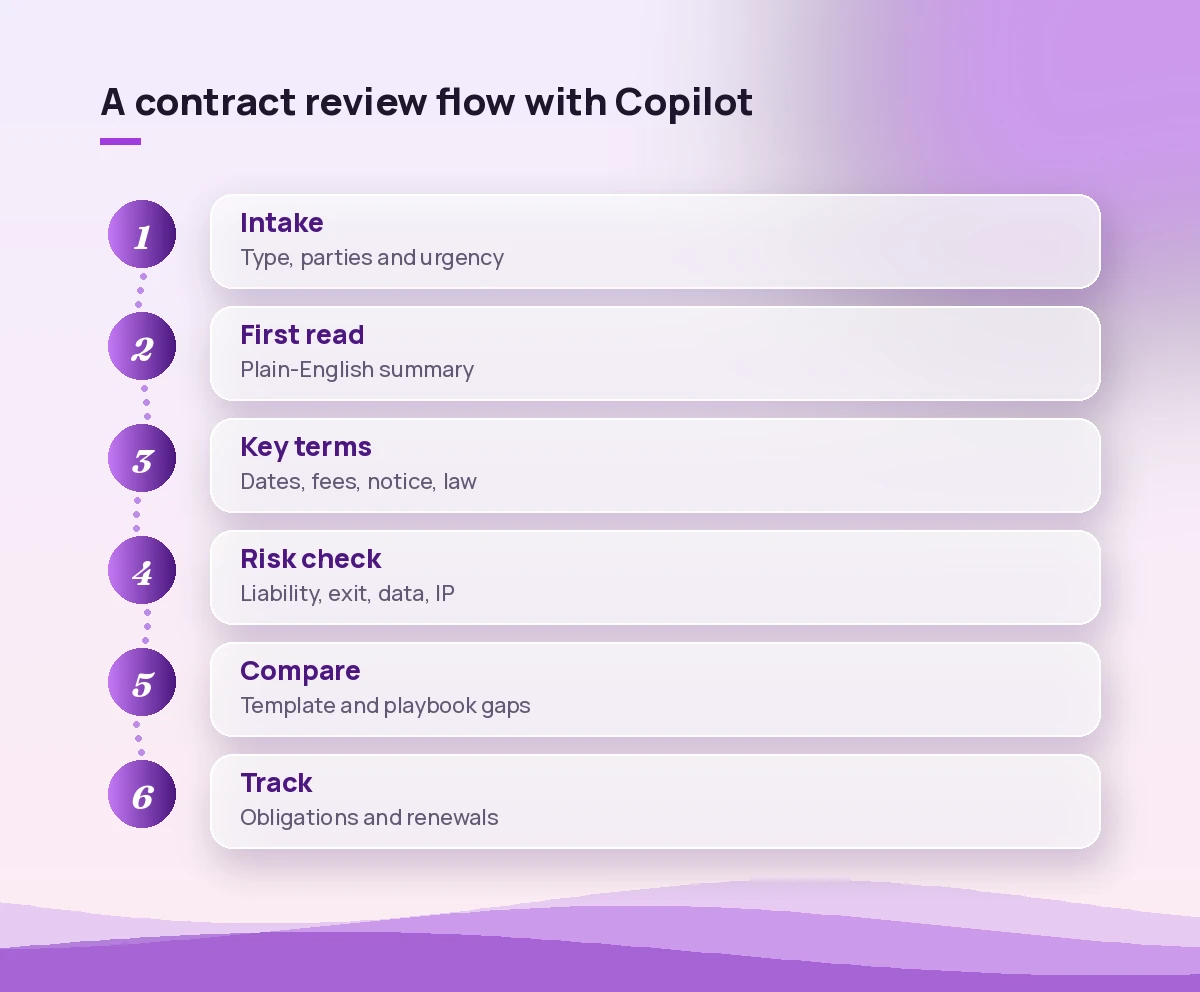
Prompts for Redlines and Negotiation
Drafting replacement language is where you need the most care, and these copilot prompts for contract review are built to give you options. Ask Copilot for options rather than a single answer, and always have the final wording checked by whoever owns legal sign-off.
Rewrite clause [number] so that the liability cap is mutual and set at [amount or basis]. Keep the original structure and defined terms. Show the old and new text side by side.Suggest three alternative versions of the termination for convenience clause: one close to their wording, one balanced and one closer to our template. Explain the trade-off of each.Draft short, polite comments I can add in the margin explaining why we changed clauses [numbers]. Keep each comment under 40 words and avoid legal jargon.Turn my list of requested changes into an issues list for negotiation with columns: issue, clause, our position, their position, proposed compromise, priority.Write a cover email to the counterparty sending back our marked-up draft. Mention the three biggest open points, propose a call next week and keep it under 150 words.Review this marked-up draft and check that every change I made uses the defined terms consistently and does not break any cross-reference.Turning a Review Into Something the Business Can Use
Sales leads, project managers and finance teams rarely want to read a forty-page agreement. These copilot prompts for contract review convert your review into practical outputs. If you also review policies and reports regularly, our document review prompts cover similar techniques for non-legal files.
Write a one-page contract summary for the business owner with sections: what we are buying, cost, key dates, our obligations, their obligations, top risks and open questions.Create an obligations list from this contract: every action either party must take, the deadline or trigger, the responsible party and the clause reference.List every date and deadline in this agreement (notice dates, reporting dates, renewal windows, price review dates) in chronological order so I can add them to a calendar.Draft a short approval note for my manager recommending whether to sign, sign with changes or escalate, based on the risks we identified. Keep it factual and under 200 words.Explain the five clauses in this contract that a non-lawyer most needs to understand, using everyday language and a short example for each.Building a Contract Register in Excel
Once terms are extracted, Excel is the natural place to track them across many agreements. Paste the extracted table into a workbook, format it as a table, then try these.
Add a column that calculates the notice deadline for non-renewal by subtracting the notice period in days from the renewal date.Highlight every contract where the renewal notice deadline falls within the next 60 days.Create a summary by contract owner showing the number of agreements, total annual value and the earliest upcoming renewal.Flag rows where the liability cap is blank or marked "not stated in the contract" so I can follow up.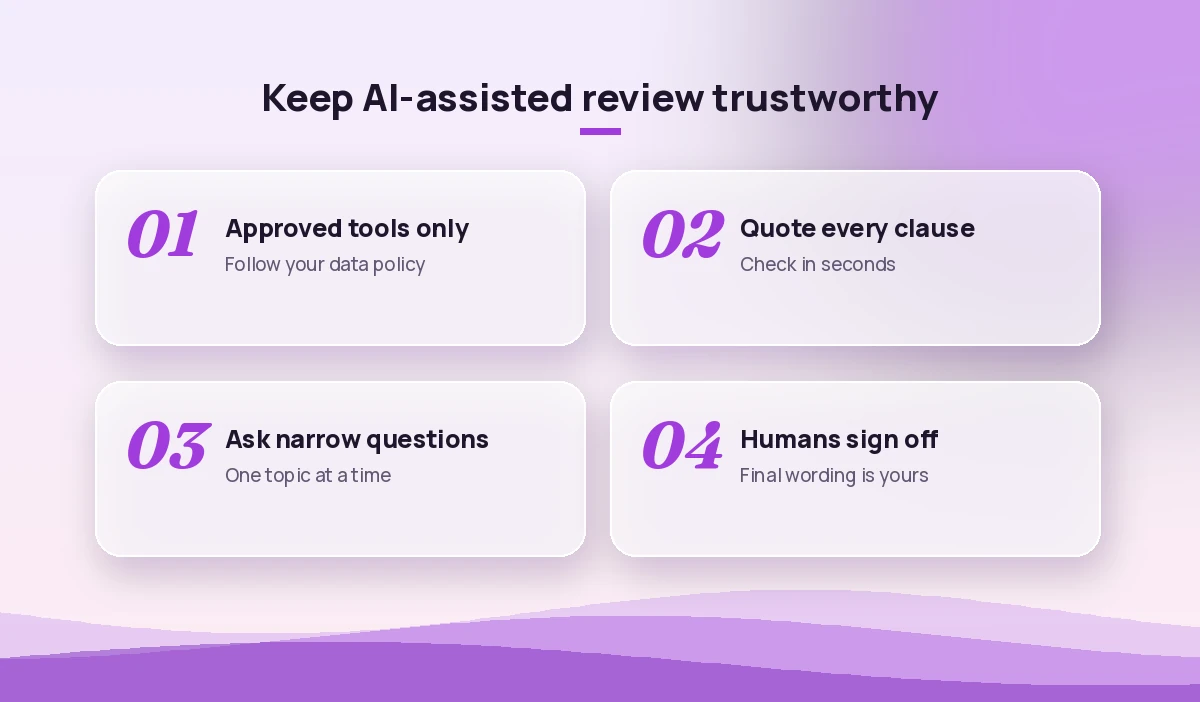
Prompts to Check Copilot’s Own Work
Running verification copilot prompts for contract review will not replace your own reading, but it does catch a surprising number of slips before you rely on an answer.
For each point in your previous answer, show the exact quote from the contract that supports it. Mark any point you cannot support with a quote.Re-read clause [number] and check whether your summary of it missed any exception, condition or carve-out.Which parts of this contract were you least confident about, and why? List anything ambiguous that a lawyer should read in full.Check whether any clause in this agreement contradicts another clause, and list the pairs with both quotes.Common Mistakes When Using AI to Review Agreements
Even good prompts go wrong when the setup is weak. Watch for these patterns:
- Asking for “all the risks” in one go. This is the most common reason copilot prompts for contract review disappoint. Broad questions produce generic lists. Work through liability, termination, payment, data and IP one at a time.
- Skipping the schedules. Pricing, service levels and penalties often sit in exhibits. Make sure every attachment is included, or ask which ones are missing.
- Accepting summaries without quotes. If an answer has no clause reference, you cannot check it quickly, so ask again with the quote rule.
- Using scanned images. Copilot works best with text it can read. Convert scanned PDFs with OCR first and check the conversion for errors.
- Treating output as advice. Copilot does not know your risk appetite, past disputes or commercial priorities. Those calls stay with you and your legal team.
Lawyers and in-house counsel who want prompts for wider legal work, such as research memos and client letters, can also use our collection of Copilot prompts for lawyers.
A Simple Routine for Every New Agreement
If you want a repeatable process for copilot prompts for contract review, this sequence works well for most commercial contracts:
- Upload the agreement and every schedule, then run the plain-English summary prompt.
- Extract key commercial terms into a table with clause quotes.
- Run the topic-by-topic risk checks for liability, termination, payment, data and IP.
- Compare against your template or playbook and build the issues list.
- Draft redlines and comments, then ask Copilot to verify consistency.
- Produce the business summary and add deadlines to your register.
- Have a qualified reviewer read the contract and approve the final position.
Following the same order every time makes the results easier to compare across agreements and keeps the human checkpoints in place.
Final Thoughts
Used with care, Copilot prompts for contract review turn hours of first-pass reading into minutes, and they make it far easier to compare drafts, extract obligations and explain terms to people outside legal. The key is discipline: give it the full document, ask narrow questions, insist on clause quotes and keep the final judgement with a person who is accountable for it. Save the prompts that work best for your team, adapt them to your own templates and playbook, and your review process will get faster with every agreement.
Frequently Asked Questions
Can Copilot review a contract on its own?
No. Copilot can summarise clauses, extract terms and compare drafts, but it can miss or misread wording. Use it for the first pass and have a qualified person check the results against the contract itself.
Which Copilot app is best for contract review?
Copilot in Word is best for working on a single open agreement, while Microsoft 365 Copilot Chat suits comparing two drafts or checking a contract against a playbook. Copilot in Excel is useful for tracking extracted terms.
How do I stop Copilot from making things up about a contract?
Tell it to use only the attached text, ask for a clause number and short quote for every point and instruct it to write “not stated in the contract” when something is missing. Then spot-check the quotes.
Is it safe to upload confidential contracts to Copilot?
It depends on your organisation’s licence and policies. Check with your legal, procurement or IT team which Copilot tools are approved for confidential documents before uploading any agreement.
Can Copilot compare a counterparty draft with our template?
Yes. Provide both files and ask for a table of substantive differences with columns for the clause, your wording, their wording and the practical effect. Review each difference before accepting the comparison.
Can Copilot write redlines for me?
It can draft alternative clause wording and margin comments, which saves time. The final language and negotiating positions should still be approved by whoever owns legal sign-off.