Copilot Prompts for Document Review: 35 Smart Prompts to Catch Errors Fast
Copilot prompts for document review give you a second pair of eyes on any Word file, from a two-page memo to a forty-page proposal, without waiting for a colleague to find time. The catch is that “review this document” is too vague to be useful. Copilot needs to know what kind of problems you’re hunting for, who the document is for and how you want the findings reported.
This guide collects 35 copy-ready Copilot prompts for document review grouped by the job they do: checking structure, tightening clarity, testing facts, spotting inconsistencies, adjusting tone, flagging risky wording and preparing feedback for someone else. You’ll also find a five-pass review order, a short workflow for turning Copilot’s suggestions into real edits, and the mistakes that cause people to trust a review they shouldn’t. Swap the text in square brackets for your own details before running a prompt.
Why a Generic “Review This” Request Disappoints
Ask Copilot to review a document with no other instructions and you’ll usually get a polite summary plus three or four broad comments such as “consider adding more detail” or “the conclusion could be stronger.” None of that is wrong, but none of it tells you which paragraph to fix or why.
Good reviewers work with a purpose. An editor checking a policy reads differently from a manager approving a budget request, and both read differently from a lawyer scanning a supplier agreement. When your request names the purpose, the reader and the type of issue, the output changes from vague praise to a list of specific problems with locations and fixes.
A reliable review request has four parts:
- Purpose: what the document must achieve, such as getting approval, informing staff or setting expectations with a client.
- Audience: who will read it and what they already know.
- Focus: the kind of problems to look for in this pass, for example unclear sentences or mismatched numbers.
- Output: how findings should come back, ideally a numbered list with the section, the problem and a suggested fix.
If you want a refresher on building requests from these pieces, our guide on how to write Copilot prompts covers each element in more depth.
The Five-Pass Review Order
Trying to catch everything in one sweep is how errors slip through. Professional editors split the job into passes, starting with big-picture issues and ending with small ones, because there’s no point polishing a sentence in a section you’re about to delete. The same order works well with Copilot.
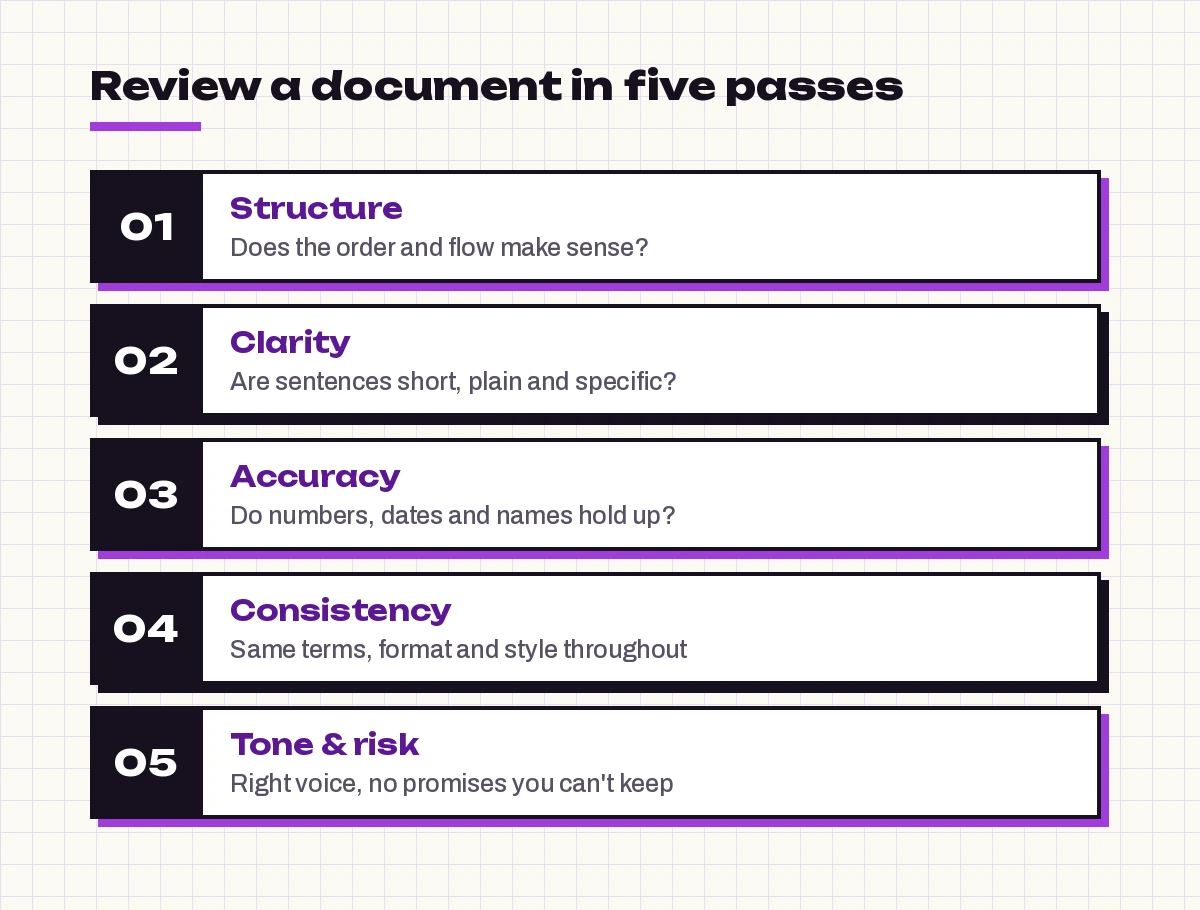
- Structure: does the document follow a logical order, and is anything missing?
- Clarity: are sentences plain, short and specific?
- Accuracy: do numbers, dates, names and claims hold up?
- Consistency: are terms, formatting and style the same from start to finish?
- Tone and risk: does it sound right for the reader, and does it promise anything it shouldn’t?
Each group of Copilot prompts for document review below matches one of these passes. Run them in order on important documents, or pick only the passes you need for quick ones.
Where to Run These Prompts
Most of these prompts are written for the Copilot pane inside Word, where Copilot can read the open document directly. Microsoft’s overview of Copilot in Word shows how to open the pane and what it can do with your file. You can also paste text into Copilot Chat if you’re reviewing something outside Word, though you’ll lose formatting cues like headings and tables.
| Where | Best for | Keep in mind |
|---|---|---|
| Copilot pane in Word | Full reviews of the open file | Very long files may need to be reviewed section by section |
| Copilot Chat | Pasted excerpts, emails, web copy | Paste the whole relevant section so context isn’t lost |
| Selected text in Word | Tightening one paragraph or clause | Highlight the passage first, then ask for a rewrite |
Feature names and availability depend on your Microsoft 365 license and your organization’s settings, so the exact buttons may look a little different on your account.
Copilot Prompts for Document Review: Structure and Flow
Start here. These Copilot prompts for document review tell you whether the document is built correctly before you spend time on wording.
1. Outline check
Create an outline of this document using its headings and main points. Then tell me whether the order is logical for [audience] who needs to [goal]. Suggest a better order if one exists.2. Missing sections
This is a [document type, e.g. project proposal] for [audience]. List any sections or information a reader would expect that are missing or too thin. Explain why each one matters.3. Buried main point
What is the single most important message in this document? Is it stated in the first two paragraphs? If not, quote where it currently appears and suggest an opening that states it clearly.4. Repetition finder
Find places where the same idea is explained more than once. For each, give the section names and recommend which version to keep.5. Section balance
Compare the length of each section with its importance to the reader. Flag sections that are too long for their value or too short for their importance.Copilot Prompts for Document Review: Clarity and Readability
Once the skeleton is sound, move to the sentences. Proofreading prompts like these are where Copilot saves the most time on long files.
6. Unclear sentences
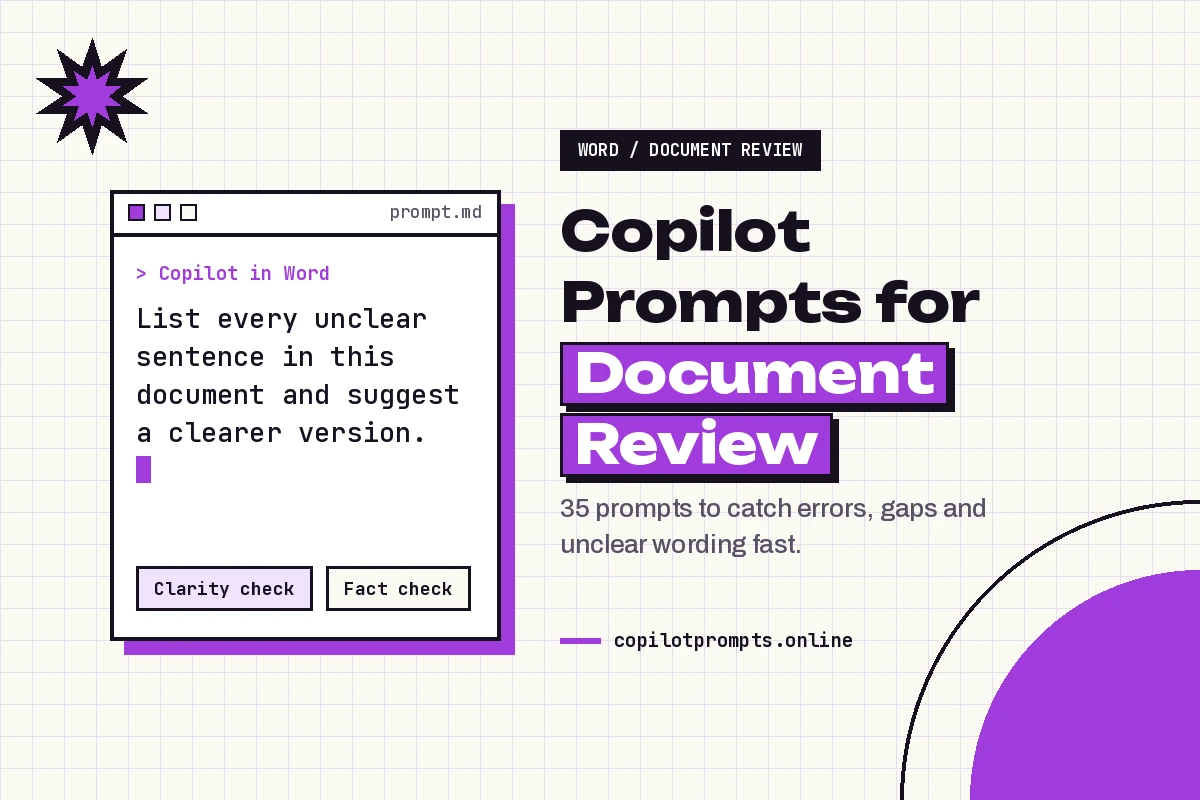
List every sentence in this document that is hard to understand on first reading. For each, quote the original and give a clearer rewrite that keeps the meaning.7. Long sentences
Find sentences longer than 30 words. Suggest how to split or shorten each one without losing information.8. Jargon check
The readers are [audience, e.g. new employees with no finance background]. Identify jargon, acronyms and technical terms they may not know. Suggest a plain-language alternative or a short definition for each.9. Vague wording
Highlight vague words and phrases such as "soon", "significant", "various" or "as needed". For each, explain what a reader might misunderstand and suggest a more specific replacement.10. Passive voice
Find passive-voice sentences where it is unclear who is responsible for an action. Rewrite them in active voice and name the responsible person or team where the context makes it clear.11. Plain-language rewrite of one section
Rewrite the section titled "[section name]" for a reader with no background in the topic. Keep every fact, cut filler and aim for short paragraphs.Accuracy and Fact-Check Prompts for Document Review
Copilot can’t confirm facts that live outside the document, but it’s very good at spotting claims that need checking and numbers that don’t agree with each other. Treat this pass as building your verification list, not as the verification itself.
12. Claims that need a source
List every factual claim, statistic or figure in this document that a skeptical reader would want a source for. Note whether a source is already given.13. Number consistency
Check every number, total and percentage in this document. Flag any figure that appears with different values in different places, and any totals that don't match their parts.14. Dates and deadlines
Extract every date, deadline and timeframe in this document into a table with the section where each appears. Flag any that conflict or seem out of order.15. Names and titles
List every person, team, company and product name mentioned. Flag spelling variations of the same name and any job titles that change between sections.16. Cross-check against a source file
Compare the figures and commitments in this document with /[source file name]. List anything that differs, quoting both versions.The last prompt works when your version of Copilot lets you reference another file by typing a forward slash. If you need a deeper side-by-side comparison, our guide to Copilot prompts for comparing two documents covers that workflow step by step.
Consistency and Style Prompts
Inconsistency is the issue readers notice even when they can’t name it. A consistency check catches the small mismatches that make a document look rushed.
17. Terminology
Find terms that refer to the same thing but are written differently, such as "client" and "customer" or "Phase 2" and "Stage Two". Recommend one term for each and list where to change it.18. Formatting
Review headings, bullet styles, number formats, date formats and capitalization. List every inconsistency and the format that appears most often, so I can standardize on it.19. Style guide check
Review this document against these style rules: [paste 4-8 rules, e.g. use sentence-case headings, spell out numbers under ten, use US spelling]. List each place a rule is broken.20. Tense and point of view
Check whether the document switches between past and present tense, or between "we", "you" and "the company", without a reason. Quote examples and suggest a consistent choice.21. Lists and parallel structure
Find bulleted and numbered lists where items don't follow the same grammatical pattern. Rewrite each list so every item starts the same way.Tone and Audience Prompts
A document can be accurate and clear yet still land badly. These prompts check how it will feel to the person reading it.
22. Tone read
Describe the tone of this document in three words. Then explain whether that tone suits [audience] in this situation: [context]. Quote any lines that feel off.23. Too harsh or too soft
Identify sentences that may come across as blunt, defensive or overly apologetic to [audience]. Suggest a more balanced version for each.24. Reader questions
Read this as [audience role]. List the top questions they will still have after reading, and point to where the document could answer them.25. Executive skim test
If a busy executive reads only the headings and the first sentence of each section, what will they understand? What important point would they miss?Risk and Compliance Copilot Prompts for Document Review
For contracts, policies, client proposals and public statements, a separate pass for risky wording is worth the extra minute. Copilot can surface concerns, but anything with legal or regulatory weight still needs review by a qualified person.
26. Promises and commitments
List every commitment, guarantee or promise this document makes, with who makes it and any deadline. Flag any that are open-ended or lack conditions.27. Absolute language
Find absolute words such as "always", "never", "guaranteed", "all" and "fully". For each, explain the risk and suggest softer wording if appropriate.28. Sensitive information
Scan this document for personal data, internal-only figures, client names or confidential details that should not go to [external audience]. List each with its location.29. Policy alignment
Compare this document with the key rules in /[policy file name]. List any statements that contradict or go beyond the policy.30. Ambiguous obligations
Find sentences where it's unclear who must do something, by when, or what counts as done. Rewrite each so the owner, action and deadline are explicit.If you work with agreements often, the prompts in our Copilot prompts for lawyers guide go further into clause-level checks.
Feedback and Summary Prompts
The last group of Copilot prompts for document review helps when you’re reviewing someone else’s draft and need to send document feedback that’s useful rather than discouraging.
31. Reviewer comments
Act as a constructive reviewer. Give me 5-8 specific comments on this draft, each with the section, the issue and a suggested fix. Start with one genuine strength.32. Priority ranking
From all the issues in this document, pick the five changes that would improve it most. Rank them and explain the impact of each.33. Approval summary
Summarize this document in five bullet points for an approver, followed by any open questions or decisions they need to make.34. Before-and-after summary
I've revised this document. Summarize what a reader will now understand differently compared with the earlier version described here: [paste short description or key points of the old version].35. Final readiness check
Is this document ready to send to [audience]? Answer yes or no, then list anything that must be fixed first and anything that is optional.Turning Findings Into Clean Edits
A list of problems is only half the job. The way you apply Copilot’s suggestions decides whether the final file is better or just different.
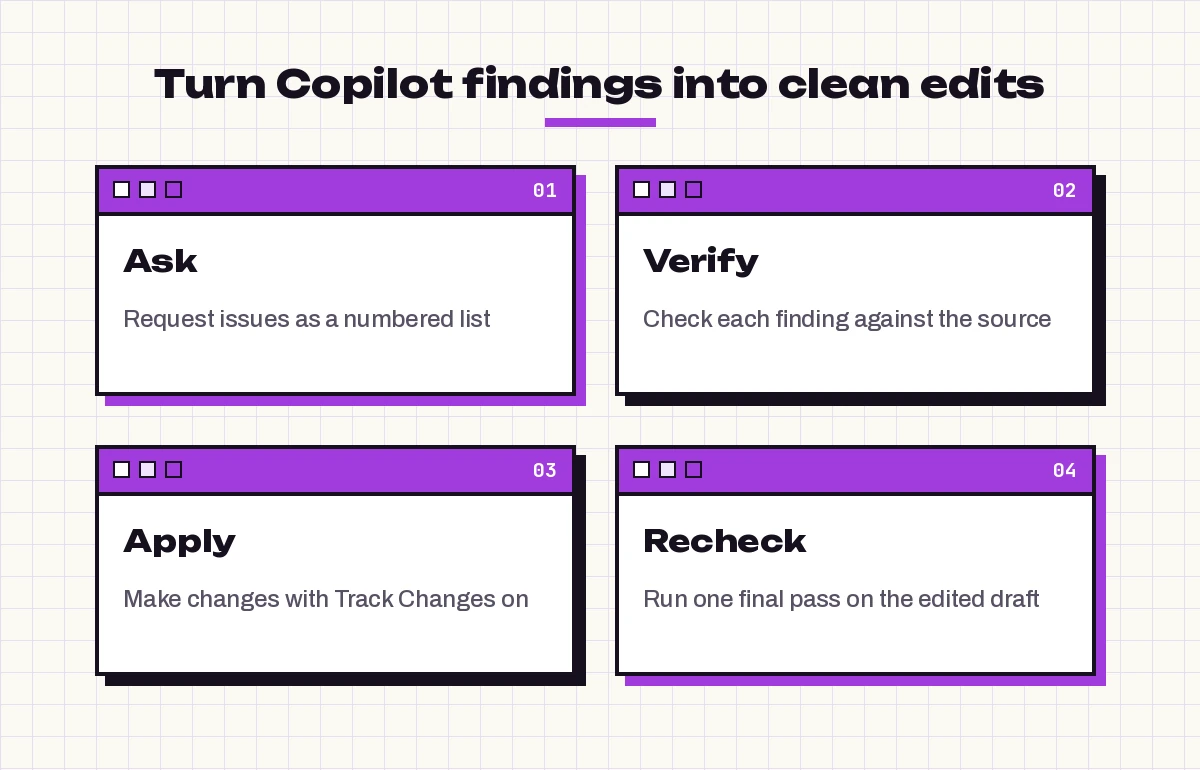
- Ask for numbered findings. A list with section names is far easier to work through than a block of prose. Add “number each issue and name the section” to any prompt above.
- Verify before you change. Copilot occasionally misreads a table or flags something that’s correct in context. Check each finding against the text, and confirm facts against the original source.
- Edit with Track Changes on. Turn on Track Changes in the Review tab before you apply fixes, so colleagues can see exactly what moved and you can undo anything that doesn’t work.
- Recheck the edited draft. Run prompt 35 or a short clarity pass again at the end. Edits sometimes create new problems, such as a broken sentence or a term that no longer matches.
For long reports, run each pass on one section at a time and keep a short note of decisions such as “we use ‘client’ everywhere.” Paste that note into later prompts so the review stays consistent. Our Copilot prompts for report writing guide pairs well with this when you’re drafting and reviewing the same file.
Common Review Mistakes to Avoid
Accepting every suggestion. Copilot optimizes for clarity, which sometimes flattens intentional emphasis or removes a qualifier a lawyer added for a reason. You decide what changes.
Reviewing everything at once. Even the best Copilot prompts for document review fail when crammed into one request. A single “check everything” request produces shallow comments. Focused passes surface far more real issues.
Skipping the audience. A sentence that’s fine for engineers can confuse a customer. Always say who will read the document.
Treating it as fact-checking. Copilot can flag claims and mismatches inside the file, but it can’t confirm that a figure is correct in the real world unless you give it the source.
Forgetting about data handling. Before you paste sensitive content into any tool, check your organization’s rules. Microsoft explains how work data is handled in its Microsoft 365 Copilot privacy documentation.
Build Your Own Review Prompt
When none of these Copilot prompts for document review fits your file, combine the four parts from earlier into one request:
Review this [document type] for [audience], who needs to [goal].
In this pass, focus only on [type of issue].
Return a numbered list: section name, quoted text, the problem, and a suggested fix.
Ignore [anything out of scope, e.g. formatting] for now.
Save your best versions in a note or a prompt library so your whole team reviews documents the same way. The Copilot prompt template collection and our wider set of Copilot prompts for Word are good places to keep building that library.
Final Thoughts
The best Copilot prompts for document review are narrow, purposeful and honest about who the reader is. Run structure before wording, ask for findings as a numbered list, verify anything factual, and apply changes with Track Changes on. Do that, and Copilot becomes a fast, patient first reviewer that frees you to spend your attention on the judgment calls only you can make.
Frequently Asked Questions
Can Copilot review a Word document for errors?
Yes. In the Copilot pane in Word you can ask it to find unclear sentences, inconsistent terms, mismatched numbers and formatting issues in the open file. It works best when you ask for one type of issue at a time and request a numbered list of findings.
What are the best Copilot prompts for document review?
The most useful ones focus on a single issue per pass. A strong all-purpose prompt names the document type, the audience, the focus and the output, for example: “Review this proposal for a finance director. Focus on unclear sentences. Return a numbered list with the section, the quoted text and a suggested fix.”
Can Copilot fact-check my document?
Copilot can list claims that need sources and flag numbers or dates that conflict within the document. It cannot confirm real-world accuracy on its own, so check figures against the original source or reference a source file in your prompt.
Does Copilot add comments or track changes automatically?
Treat Copilot’s review as a list of suggestions. The reliable approach is to ask for numbered findings, then apply the edits yourself with Track Changes turned on so every change is visible and reversible.
How do I review a very long document with Copilot?
Copilot prompts for document review work best on long files when you break the work into passes and sections. Review structure for the whole file first, then run clarity, accuracy and consistency prompts section by section, carrying a short note of style decisions into each new prompt.
Is it safe to use Copilot on confidential documents?
Microsoft 365 Copilot works within your organization’s security and compliance settings, but rules differ between companies. Check your internal policy before reviewing sensitive files, and avoid pasting confidential text into tools your organization hasn’t approved.