Copilot Summarize PDF Prompts: 40 Powerful Prompts for Long Documents
Copilot summarize PDF prompts turn a 60-page report, a dense policy or a research paper into something you can actually act on in a few minutes. The trick is not just asking Copilot to “summarize this PDF”. It is telling it who the summary is for, what to pull out, how long it should be and how to show where each point came from. This guide gives you 40 copy-ready prompts, organised by the job you need done, plus a quick check routine so you can trust what comes back.
One honest note up front: a summary is a shortcut, not a replacement for the source. Copilot can skip a caveat, merge two figures or overstate a conclusion. The prompts below are written to reduce those problems, but the final check is still yours.
Where You Can Summarize a PDF With Copilot
Several Copilot experiences can read a PDF, and they behave a little differently. Picking the right one saves you time before you type a single word.
| Where you work | How the PDF gets to Copilot | Good for |
|---|---|---|
| Microsoft 365 Copilot Chat (work or school) | Upload the file or reference it from OneDrive or SharePoint | Deep questions, comparisons, structured extracts |
| Microsoft Copilot (personal) | Attach the file with the + button | Quick summaries of a single document |
| Copilot in OneDrive | Select the file and choose Summarize | Getting the gist without opening the file |
| Copilot in Word | Open the PDF in Word, or reference it as a source | Turning the content into a new draft |
| Copilot in Microsoft Edge | Open the PDF in the browser and ask in the side pane | Reading reports and papers you find online |
Microsoft keeps an up-to-date list of file formats supported by Copilot, and PDF is on it for summarising tasks. If you store files in OneDrive, the Summarize your files with Copilot guide shows how to summarise one file or several at once from the file list.
Whichever tool you use, check what your organisation allows. Confidential contracts, patient records or HR files may need to stay inside approved, work-licensed tools.
Before You Prompt: A 60-Second PDF Check
Most “bad summary” problems start with the file, not the wording of the request. Run through this quick list first.
- Is the text selectable? If you cannot highlight words, the PDF is probably a scanned image. Copilot may read little or nothing from it. Run it through OCR (for example, open it in Word or use a PDF editor’s text recognition) and try again.
- Is it very long? Long reports with hundreds of pages are where details get dropped. Plan to summarise in sections rather than all at once.
- Are the key numbers in tables or charts? Tables usually come through well; numbers that only exist inside a chart image often do not. Point Copilot to the table versions if they exist.
- Do you know your goal? “Decide whether to renew”, “brief my manager” and “find the methodology” need very different summaries.
The Anatomy of a Strong PDF Summary Prompt
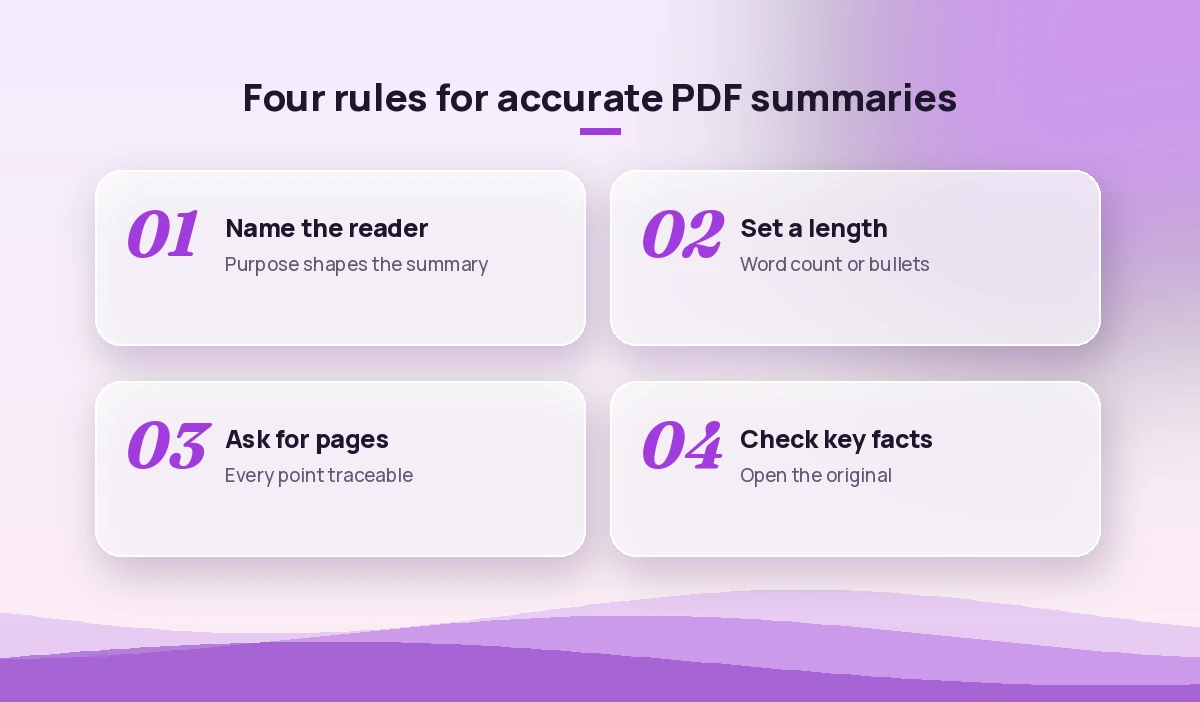
Good Copilot summarize PDF prompts share the same building blocks. Microsoft’s own advice on writing Copilot prompts talks about goal, context, expectations and source. For document summaries, add two more pieces: a length limit and a citation rule.
- Reader: who the summary is for (yourself, a director, a client, a student).
- Purpose: the decision or task the summary supports.
- Focus: the sections, themes or data you care about most.
- Length and format: word count, number of bullets, table columns.
- Evidence rule: page numbers or short quotes for each point.
- Gaps rule: say “not stated in the document” instead of guessing.
Here is a reusable starter. Copy it, fill the brackets, and keep it in a note for later:
Summarize the attached PDF for [reader] who needs to [decision or task].
Focus on [sections, themes or data]. Keep it under [number] words.
Format: [bullets / table / short memo with headings].
For each point, add the page number. If something is not in the document, write "not stated in the document". Do not add outside information.
If you want more depth on this structure, our guide to Copilot prompt ingredients breaks down each part with examples.
Quick-Gist Prompts for Busy Days
Sometimes you only need to know whether a document deserves your time. These short Copilot summarize PDF prompts give you a fast read.
In five bullet points, what is this PDF about and what does it conclude?Give me a one-paragraph summary of this document that a non-specialist could understand. No jargon.What are the three most important takeaways from this PDF? Add the page number for each.Who wrote this document, when, and for what audience? What is its main purpose?Is this document relevant to [topic or project]? Answer yes, partly or no, and explain in two sentences.Executive Summary Prompts for Reports
When a long report needs to reach a senior reader, structure matters more than length. These Copilot summarize PDF prompts produce summaries a manager can scan in under a minute.
Write an executive summary of this report in under 250 words with these headings: Purpose, Key Findings, Risks, Recommendations, Next Steps. Use page numbers for every finding.Summarize this PDF as a briefing note for a director who has two minutes. Start with the single most important conclusion, then three supporting points, then one open question.List every recommendation in this report in a table with columns: Recommendation, Owner (if stated), Deadline (if stated), Page.What does this report say has changed since the previous period or version? List only the changes, with page references.Rewrite the conclusion section of this PDF as five plain-English bullet points for a team update.These pair well with our Copilot prompts for report writing when you need to turn a summary into your own report.
Section-by-Section Prompts for Long Documents
Long PDFs are where one-shot summaries fall apart, and where well-planned Copilot summarize PDF prompts make the biggest difference. A better approach is to map the document first, then work through it in chunks and stitch the results together.
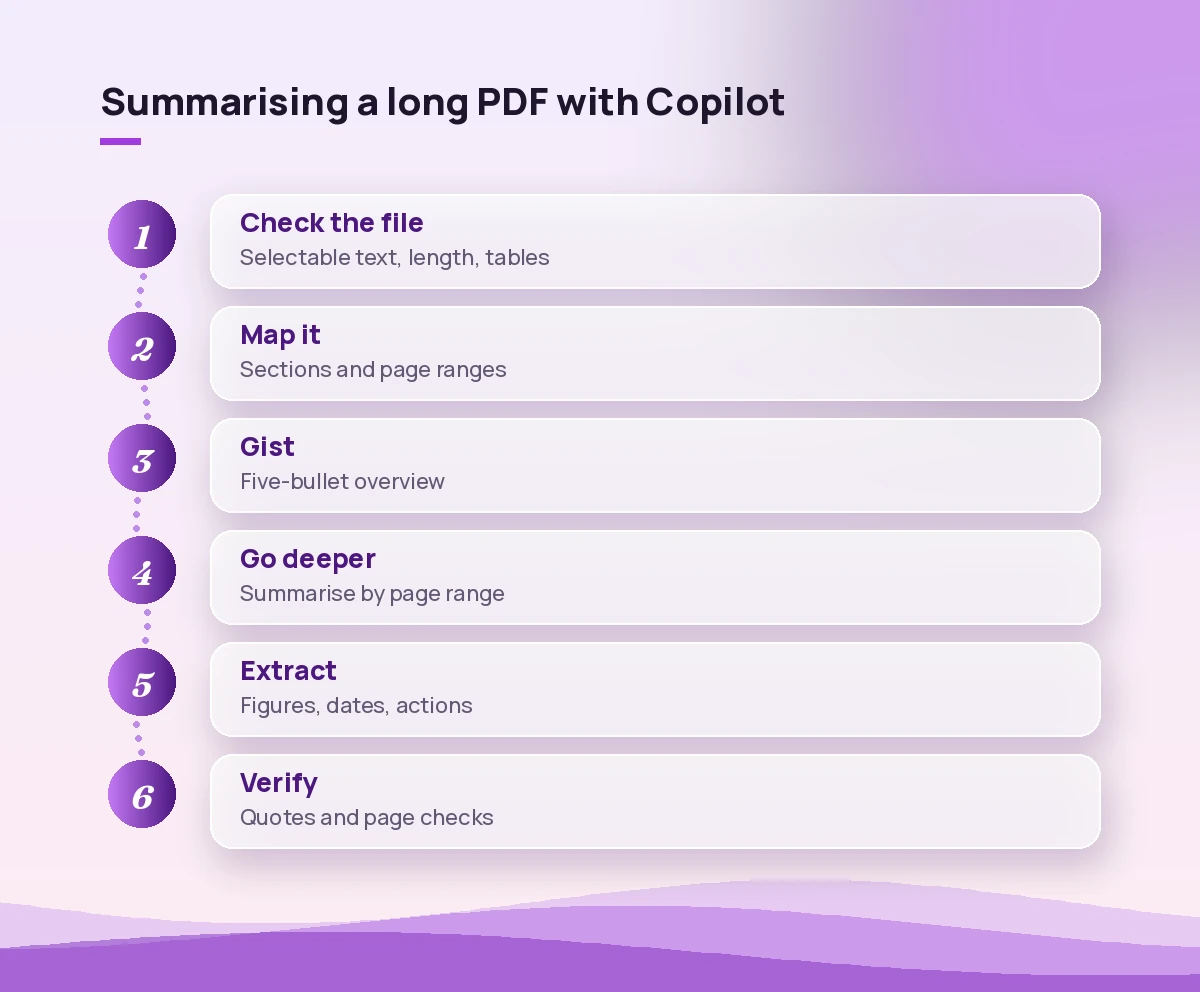
List the main sections and sub-sections of this PDF with their page ranges. Do not summarize yet.Summarize only pages [x] to [y] in 150 words. Keep any numbers, dates and names exactly as written.Summarize section [section name] in detail. Then tell me which other sections it depends on or refers to.Now combine the section summaries from this conversation into one summary of the whole document, under 400 words, keeping page references.Which parts of this document did you have the least information about, or could not read clearly? List them so I can check manually.That last prompt is worth using every time. It is a simple way to find pages Copilot skipped, such as scanned appendices or image-only charts.
Extraction Prompts: Numbers, Dates and Tables
Often you do not need a narrative summary at all. You need the facts pulled out into a format you can sort, share or paste into Excel.
Extract every figure in this PDF that relates to [cost / revenue / headcount / timeline] into a table with columns: Figure, What it measures, Period, Page. Copy the numbers exactly.List all dates, deadlines and time periods mentioned in this document, in chronological order, with what happens on each date.Extract all names of people, organisations and products mentioned, with their role in the document.Turn the table on page [x] into a clean Markdown table I can paste into Excel. Keep the column headers.List every definition or defined term in this PDF with its meaning and page number.Pull out every "must", "shall" or "required" statement in this policy and list them as a compliance checklist.After extracting, spot-check at least three numbers against the original. Copying figures is where small errors are most costly.
Prompts That Tailor the Summary to the Reader
The same PDF needs a different summary for a client, a new hire or a technical lead. These Copilot summarize PDF prompts change tone and depth without changing the facts.
Summarize this document for a new team member in their first week. Explain any acronyms and tell them which sections to read in full.Write a client-friendly summary of this PDF in a warm, clear tone. Leave out internal details and anything marked confidential.Summarize this for a technical reviewer. Keep the methods, assumptions and limitations, and skip the background.Explain the main idea of this PDF as if to a 15-year-old, in under 120 words.Summarize this document in [language] for a reader in [country]. Keep figures and names unchanged.Research Paper and Study Prompts
Academic and industry studies have a predictable shape, which makes them a good fit for structured extraction. Students and analysts can use these to triage reading lists.
Summarize this paper using these headings: Research question, Method, Sample, Main findings, Limitations, What it does not prove.What evidence does the paper give for its main claim? Separate measured results from the authors' interpretation.List the limitations the authors mention, then list any other limitations a careful reader might raise, clearly labelled as your suggestions.Create a 10-question quiz with answers based only on this PDF, to check my understanding.Keep the line between “what the paper says” and “what Copilot suggests” visible. It stops your notes from blending the two.
Summarising Several PDFs Together
Copilot can work with more than one file in a conversation, which is useful for literature reviews, vendor proposals or a pile of meeting packs. For a deeper side-by-side method, see our Copilot prompts for comparing two documents.
Summarize each attached PDF in three bullets, then write one paragraph on what they agree on and where they differ. Label every point with the file name.Build a comparison table of the attached documents with columns: File, Main purpose, Key figures, Recommendations, Open questions.Across these PDFs, which themes come up most often? Rank them and cite the file and page for each.Turning a PDF Summary Into Something Useful
A summary is rarely the final product. These follow-ups move the content into email, slides or a document without starting from scratch.
Turn this summary into a short email to my team with a clear subject line and three action points.Create an outline for a 6-slide presentation based on this PDF: title, one slide per key finding, and a next-steps slide.Draft a one-page Word document from this PDF summary with headings, a short introduction and a "What this means for us" section.If slides are the goal, our guide to the Copilot prompt to create a PowerPoint presentation covers how to go from outline to finished deck.
Verification Prompts: Make Copilot Check Its Own Work
Quality checks take a minute and catch most of the issues that matter. Think of them as the last step in any set of Copilot summarize PDF prompts. Run one or two of these before you share any summary.
Review your summary against the PDF. List any point that is not directly supported by the text, and any important point you left out.For each number in your summary, quote the sentence from the PDF where it appears.Which statements in your summary are your interpretation rather than what the document says? Mark them clearly.Then open the original and check the two or three points that matter most to your decision. If any of them is wrong, ask Copilot to redo that section with the correct page in focus.
A Worked Example: A 48-Page Vendor Report
Imagine you receive a 48-page annual service report from a software vendor and need to brief your manager before a renewal meeting. Here is a realistic sequence:
- Map it: ask for the sections and page ranges. You learn that pages 30 to 48 are appendices with uptime tables.
- Gist: request five bullets on the overall conclusion. The vendor reports improved service with two incidents.
- Extract: pull every uptime figure, incident and SLA credit into a table with page numbers.
- Focus: summarise only the incident section in detail, including root cause and fixes.
- Tailor: write a 200-word briefing note for your manager with a “questions for the vendor” list.
- Verify: ask Copilot to quote the source sentence for each figure, then check the two incident dates yourself.
The whole process takes around ten to fifteen minutes and leaves you with a briefing note you can defend line by line.
Troubleshooting Common PDF Summary Problems
| Problem | Likely cause | What to try |
|---|---|---|
| Copilot says it cannot read the file | Scanned image PDF, password protection or unsupported location | Run OCR, remove the password if allowed, or upload from OneDrive |
| Summary ignores later chapters | Very long document | Summarise by page range, then combine |
| Figures look slightly off | Numbers read from charts or merged cells | Ask for exact quotes and check against the table |
| Summary is generic | No reader or purpose given | Add who it is for and the decision it supports |
| Copilot adds outside facts | Prompt did not limit the source | Add “use only this document” |
Mistakes to Avoid
- Asking for “a summary” with no length. You will get something too long or too vague. Set a word count.
- Trusting the first answer. Always run at least one verification prompt for anything you will share.
- Uploading files you should not. Check your data policy before sending sensitive PDFs to any AI tool.
- Skipping appendices. Important tables often live at the back. Ask about them directly.
- Mixing your opinion with the source. Keep Copilot’s suggestions labelled separately from what the document states.
For a wider set of review techniques that go beyond PDFs, our Copilot prompts for document review and Copilot prompts for Word are good next reads.
Final Thoughts on Copilot Summarize PDF Prompts
The best Copilot summarize PDF prompts are specific about reader, purpose, length and evidence. Start by checking the file, map long documents before summarising them, pull out hard facts into tables, and finish every session with a quick self-check. Save the prompts you use most in a note or in Copilot’s saved prompts, and you will have a repeatable routine for every long document that lands in your inbox.
Frequently Asked Questions
Can Microsoft Copilot summarize a PDF for free?
Yes. The free Microsoft Copilot app lets you attach a PDF and ask for a summary. Microsoft 365 subscribers and work or school users also get options in OneDrive, Word and Copilot Chat. Features and limits vary by plan, so check what your version shows.
How do I summarize a long PDF with Copilot without losing details?
Ask Copilot to list the sections and page ranges first, then summarise each part separately and combine the results at the end. Asking for page numbers on every point makes missing sections easy to spot.
Why can’t Copilot read my PDF?
The most common reasons are a scanned image with no selectable text, password protection, a file that is too large, or a location Copilot cannot access. Running OCR or uploading the file to OneDrive usually fixes it.
Can Copilot summarize several PDFs at once?
Yes. Copilot Chat can work with multiple uploaded files in one conversation, and Copilot in OneDrive can summarise up to five selected files together. Ask it to label each point with the file name so you know where it came from.
Are Copilot PDF summaries accurate?
They are usually a good starting point, but they can miss caveats or misread figures from charts. Ask for page numbers and exact quotes for key numbers, then check the points that matter most in the original document.
What is the best prompt to summarize a PDF in Copilot?
A strong prompt names the reader, the purpose, the focus, a word limit and a citation rule. For example: “Summarize this PDF for my manager in under 200 words, focus on risks and costs, and add page numbers for each point.”

One Comment