Copilot Prompts for Report Writing: 28 Proven Templates for Clear Business Reports in Word
Copilot prompts for report writing help you turn scattered notes, spreadsheets and meeting recaps into a structured document that busy readers can actually use. This guide gives you 28 copy-ready templates for Microsoft Copilot in Word, organized by the stage of the job: planning, drafting, working with data, building findings and recommendations, and polishing the final version.
Most reports do not fail because the writer lacks information. They fail because the important point is buried on page four, the data has no story attached to it, and the recommendations read like an afterthought. Copilot is good at exactly the parts that slow people down: building a first outline, summarizing long source files, rewriting dense paragraphs and spotting gaps. You still own the judgment, the numbers and the conclusions.
How Copilot in Word Fits Into Report Writing
Before you start prompting, it helps to know where Copilot can help inside Word and what it can see.
- Drafting a new document. When you open a blank document, Copilot offers a drafting box. You describe what you want and can reference existing files from OneDrive or SharePoint so the draft is grounded in your own material rather than generic text.
- Working inside an existing draft. You can select a paragraph and ask Copilot to rewrite, shorten, or change its tone, or open the Copilot pane and ask questions about the whole document.
- Turning text into tables. Copilot can convert a block of text into a table and suggest formatting, which is handy for comparison sections.
Microsoft keeps an up-to-date overview in its Copilot in Word help hub. Available features depend on your license and your organization’s settings, so if an option is missing, ask your IT admin before assuming it does not exist.
What Makes Copilot Prompts for Report Writing Work
A request such as “write a report about sales” gets you a generic essay with placeholder numbers. A useful prompt tells Copilot five things.
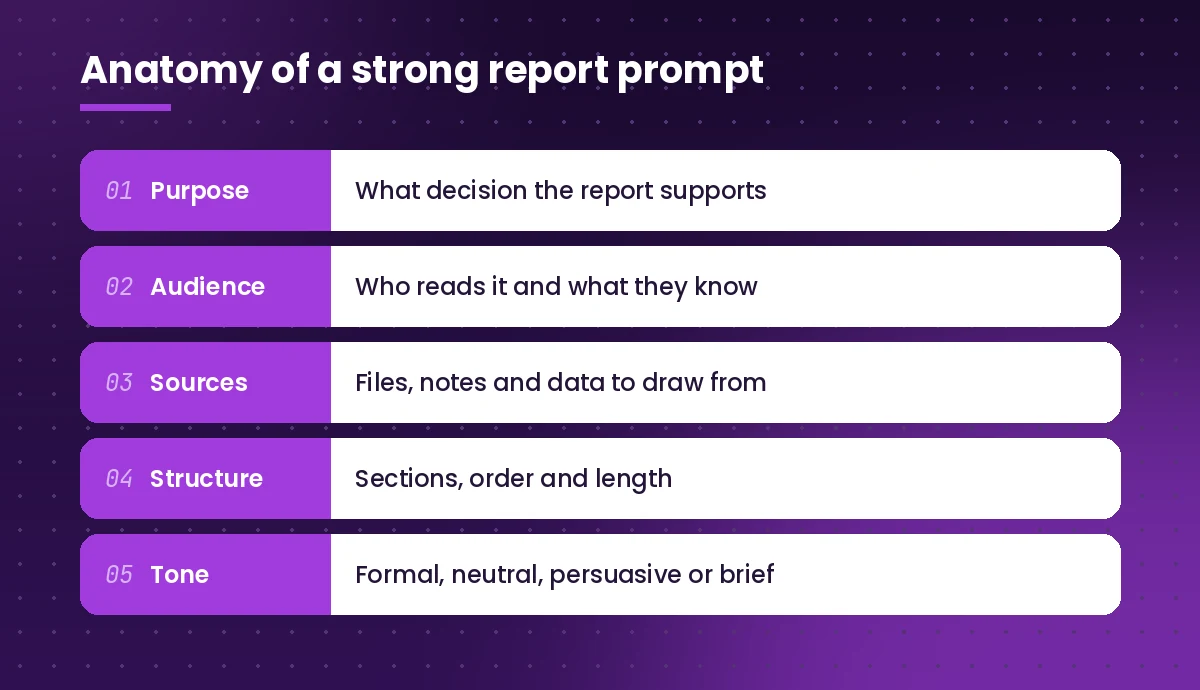
- Purpose. What decision or action should the report support? “Help leadership decide whether to renew the vendor contract” is far clearer than “summarize the vendor.”
- Audience. Executives, a technical team, a client and a regulator all need different depth and vocabulary.
- Sources. Point Copilot at the specific notes, spreadsheets or previous reports to use. In Word you can type a forward slash to search for and attach a file as a reference.
- Structure. Name the sections you want, their order and roughly how long each should be.
- Tone and constraints. Formal or conversational, neutral or persuasive, and anything to avoid, such as speculation or jargon.
If you want a deeper look at prompt construction in general, our guide on how to write Copilot prompts covers the goal, context, source and expectation framework in more detail.
Planning Prompts: Outline Before You Draft
The first copilot prompts for report writing you run should be about structure. Skipping the outline is the most common reason a business report runs long and wanders. Spend two minutes here and the rest goes faster.
1. Build a report outline from a goal
I need to write a report for [audience] that helps them decide [decision]. Create a report outline with section headings, a one-line description of what each section should cover, and a suggested word count for each. Keep the total under [number] words.2. Outline from existing source files
Using /[meeting notes file] and /[data summary file], propose an outline for a [type] report. Group related points under clear headings, put the most important finding first, and list any questions the sources leave unanswered.3. Pick the right report structure
I am writing a [progress / incident / research / proposal] report for [audience]. Suggest the standard structure readers will expect for this type of report, explain why each section matters, and flag any section I could safely drop to keep it short.4. Define the key questions first
Before I draft, list the 5 to 7 questions my readers will want answered in a report about [topic]. For each question, note which of my sources (/[file]) is likely to contain the answer, or say "not covered" if none does.5. Set the scope and boundaries
Write a short "Scope and approach" section for a report on [topic]. State what the report covers, what it deliberately leaves out, the time period, and the main sources used. Keep it to one paragraph of plain language.Drafting Prompts: Write Section by Section
Asking Copilot for an entire 15-page report in one go tends to produce thin, repetitive sections. The copilot prompts for report writing below draft one section at a time, which gives you more control and better substance.
6. Draft the executive summary
Write an executive summary for this report in under 200 words. Open with the single most important conclusion, then give the two or three findings that support it, and end with the recommended action and any deadline. Use plain language a senior leader can read in one minute.Write the executive summary last, after the body is finished, even though it appears first. Running this prompt on the completed draft gives a much more accurate summary than drafting it up front.
7. Draft the introduction or background
Draft a background section for a report on [topic] for readers who are new to it. Explain the situation, why it matters now, and what prompted this report, using details from /[source file]. Keep it to three short paragraphs.8. Turn bullet notes into prose
Turn these rough bullet points into well-organized paragraphs for the [section name] section of a formal report. Keep every fact, do not add new claims, and use short paragraphs with clear topic sentences:
[paste bullets]
9. Draft a methodology section
Write a methodology section describing how this information was gathered: [describe surveys, interviews, data sources, dates]. Explain the approach in plain terms, note any limitations honestly, and avoid overstating how representative the results are.10. Draft a progress or status update
Write a progress report section for [project] covering the period [dates]. Use these headings: Completed, In progress, Blocked, Next steps. Pull details from /[status notes] and keep each item to one or two sentences.11. Draft an incident report
Draft an incident report for [incident] using a neutral, factual tone. Include a timeline, impact, root cause (marked "under investigation" if not yet confirmed), immediate actions taken, and follow-up actions with owners. Do not assign blame to individuals.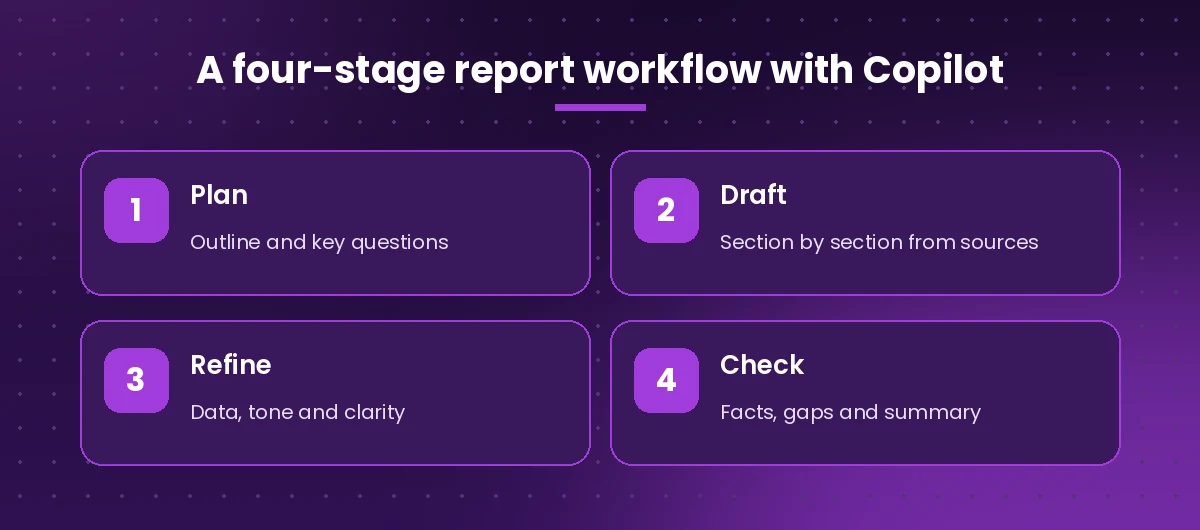
Data Prompts: Make the Numbers Tell a Story
Readers rarely remember a table. They remember what the table means. These copilot prompts for report writing help you explain numbers clearly, but always check every figure Copilot writes against your original data, because it can misread or round values.
12. Explain a data table in plain words
Here is a table of results: [paste table]. Write a short paragraph that explains the two or three most important patterns for a non-technical reader. Use only the numbers in the table and do not calculate anything new.13. Compare periods or options
Compare [period A] with [period B] using the figures below. Describe what increased, what decreased and what stayed flat, then suggest one likely explanation for each change, clearly labeled as a possible explanation rather than a fact.
[paste figures]
14. Convert text into a comparison table
Convert the following description of [options / vendors / approaches] into a table with columns for name, cost, main benefit, main risk and recommendation. Keep cells short.
[paste text]
15. Write chart captions
Write a one-sentence caption and a two-sentence takeaway for a chart showing [what the chart shows]. The caption should describe the chart; the takeaway should say what the reader should conclude.16. Summarize a long source report
Summarize /[long report file] in under 300 words for use in my own report on [topic]. Focus only on points relevant to [specific question], list page or section references where possible, and note anything that contradicts my other sources.If your numbers live in a spreadsheet, it is often faster to do the analysis first in Excel and bring the results into Word. Our collection of Copilot prompts for Excel covers summaries, trends and charts you can then drop into the report.
Findings and Recommendations Prompts
This is the part of a business report that decision makers read most closely. Good copilot prompts for report writing keep findings and recommendations separate: a finding is what you discovered, while a recommendation is what you think should happen next.
17. Turn analysis into clear findings
Based on the sections above, write a "Key findings" section with 4 to 6 numbered findings. Each finding should be one bold sentence followed by two sentences of supporting evidence from the report. Do not introduce anything not already in the document.18. Write actionable recommendations
Write recommendations that follow from these findings: [paste findings]. For each recommendation, include the action, the owner role, a suggested timeframe, the expected benefit and the main risk. Rank them by impact.19. Present options with trade-offs
I need to present three options for [decision]. For each option, write a short paragraph covering what it involves, cost and effort at a high level, benefits, and risks. End with a neutral comparison table so readers can weigh them side by side.20. Write a persuasive business case
Rewrite this recommendation as a persuasive business case for [audience]. Lead with the problem it solves, then the benefit, then the cost and risk, and close with a clear request. Keep claims tied to the evidence in the document:
[paste recommendation]
21. Draft a conclusion
Write a conclusion for this report in two short paragraphs. Restate the main finding in fresh words, connect it to the original purpose, and end with the next step readers should take. Do not repeat the executive summary word for word.Polishing Prompts: Edit Like a Senior Reviewer
Once the draft exists, use Copilot as a demanding editor. These prompts work well in the Copilot pane on the whole document or on a selected section.
22. Tighten wordy sections
Shorten this section by about 30 percent without losing any facts or figures. Remove filler phrases, repeated points and unnecessary qualifiers, and keep the paragraphs short.23. Adjust tone for a new audience
Rewrite this section for [new audience, e.g. a client / the board / frontline staff]. Keep the facts identical, adjust vocabulary and level of detail, and explain or remove any internal jargon.24. Find gaps and weak spots
Review this report as a skeptical senior manager. List claims that lack supporting evidence, sections that feel thin, places where the logic jumps, and questions a reader would likely ask that the report does not answer.25. Check consistency
Check this document for inconsistencies: numbers that differ between sections, terms used in different ways, mismatched dates, and headings that do not match their content. List each issue with its location.26. Improve headings and flow
Suggest clearer, more descriptive headings for each section of this report so a reader skimming only the headings understands the main message. Also suggest transition sentences where sections feel disconnected.27. Create a one-page version
Create a one-page version of this report for readers who will not open the full document. Include the purpose, key findings, recommendations and next steps, using short bullet points under clear headings.28. Draft the cover email
Write a short email to [audience] sharing this report. Summarize the main conclusion in two sentences, highlight the one decision or input I need from them, mention the deadline, and keep it under 120 words.For more email help once the report is ready to send, see our list of Copilot prompts for Outlook.
Matching Prompts to Common Report Types
Different reports emphasize different sections, so not every one of these copilot prompts for report writing deserves equal attention. Use this table to decide which templates above deserve most of your time.
| Report type | Most useful templates | What to watch for |
|---|---|---|
| Monthly or quarterly business report | 6, 10, 12, 13, 17 | Accurate period comparisons |
| Project progress report | 4, 10, 18, 28 | Clear blockers and owners |
| Research or analysis report | 2, 9, 16, 17, 24 | Honest limitations and sources |
| Proposal or business case | 3, 19, 20, 21 | Evidence behind every claim |
| Incident or audit report | 5, 11, 25 | Neutral tone and exact timeline |
Tips for Better Results
A few habits make a noticeable difference in draft quality.
- Ground every draft in your files. Copilot writes better and invents less when you reference real notes and data. A prompt without sources invites generic content.
- Work in rounds. Accept a rough draft, then refine with follow-up prompts like “make the second paragraph more specific” rather than rewriting the whole prompt.
- Keep a reusable prompt library. Save the copilot prompts for report writing that work for your team in a shared document so everyone starts from the same standard.
- Ask for structure explicitly. Copilot follows instructions about headings, word counts and bullet versus prose quite reliably when you state them.
- Protect sensitive information. Follow your organization’s policies on what data can be used with Copilot, especially for HR, legal or financial reports.
Common Mistakes to Avoid
Even well-written copilot prompts for report writing can lead to a poor report if you skip the human checks.
- Trusting numbers without checking. Verify every figure, percentage and date against the original source before you share the document.
- Letting Copilot decide the conclusion. It can summarize evidence, but the recommendation should reflect your judgment and knowledge of the business.
- Publishing the first draft. AI drafts often sound fluent but generic. Add specific examples, context and your own voice.
- Ignoring citations. If readers need to trace a claim, add references to the source files yourself.
Microsoft’s Copilot Scenario Library has more role-based examples if you want ideas for other departments. You can also browse our roundup of the best Microsoft Copilot prompts for tasks beyond Word.
Final Thoughts
The best way to use these copilot prompts for report writing is as a workflow, not a single command: outline first, draft one section at a time from real sources, explain the data in plain words, separate findings from recommendations, and finish with a tough editorial review. Copy the templates that match your next report, fill in the brackets, and keep refining until the document says exactly what your readers need to hear.
Frequently Asked Questions
What are the best Copilot prompts for report writing?
The most useful prompts state the report’s purpose, the audience, the source files to use, the sections you want and the tone. Start with an outline prompt, then draft section by section, and finish with editing prompts that check for gaps and inconsistencies.
Can Copilot in Word write a full report from my files?
Copilot in Word can draft a document while referencing files you attach from OneDrive or SharePoint, depending on your license and settings. For longer reports, you will usually get better results by drafting one section at a time and reviewing each one.
How do I get Copilot to write a good executive summary?
Finish the body of the report first, then ask Copilot to summarize it in a set word count, leading with the main conclusion, followed by the key supporting findings and the recommended action. Review it to make sure nothing important is missing.
Is it safe to trust the numbers Copilot puts in a report?
Treat every figure as something to verify. Copilot can misread tables or round values, so always check numbers, dates and percentages against your original data before sharing the report.
Can I use these prompts with Copilot Chat instead of Word?
Yes. Most templates work in Microsoft 365 Copilot Chat as well. You can paste content or reference files there, then copy the result into Word for formatting and final editing.
How long should my report prompts be?
Long enough to include purpose, audience, sources, structure and tone. A few sentences is usually enough. Very short prompts tend to produce generic drafts, while overly long prompts can bury the main instruction.
