Copilot Prompts for Word: 45 Smart Ideas to Draft & Rewrite Fast
Looking for copilot prompts for word that save real time? Staring at a blank page or a 40-page report you need to understand by lunch? Copilot in Word can draft documents from a short prompt, rewrite paragraphs, summarize long files and turn notes into structured content. This guide gives you copy-ready Copilot prompts for Word, grouped by what you need to get done.
Key takeaways
- The copilot prompts for word below are grouped by task so you can find the right one fast.
- Each of the copilot prompts for word uses [brackets] you replace with your own details.
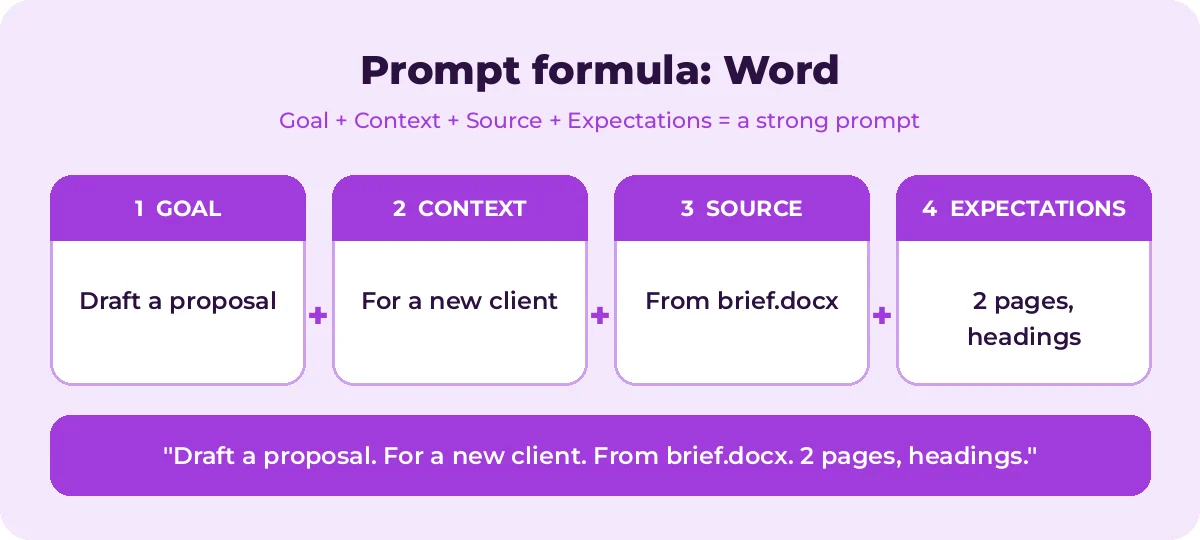
- Pair the copilot prompts for word with the four-part formula below for sharper answers.
What Copilot can do in Word
With a Microsoft 365 Copilot license, Copilot in Word typically lets you:
- Draft with Copilot: generate a first draft from a prompt, optionally grounded in up to a few referenced files.
- Rewrite: select text and ask Copilot to rewrite it, adjust the tone or turn it into a table.
- Summarize: get a summary of the whole document.
- Chat with your document: ask questions in the Copilot pane about the content of the open file.
Exact features vary by plan, platform and version, so the button names you see may differ slightly.
The quick prompt formula for documents
| Part | In Word | Example |
|---|---|---|
| Goal | The document or edit you need | Draft a project proposal |
| Context | Audience and purpose | For the finance committee approving budget |
| Source | Files to draw from | /Project Brief and /Cost Estimate |
| Expectations | Structure, length, tone | 2 pages, headings, persuasive but factual |
Read How to Write Copilot Prompts for the full method.
Drafting prompts
Use these on a blank document with Draft with Copilot. Type / to reference a file where indicated.
Draft a project proposal for [project] for [audience]. Include sections for background, objectives, scope, timeline, budget and risks. Use /[project brief file].Write a one-page executive summary of /[report], focused on findings and recommendations for senior leadership.Draft a standard operating procedure for [process] with purpose, scope, roles, numbered steps and a troubleshooting section.Create a blog post outline about [topic] for [audience], with an introduction, 5 H2 sections and a conclusion.Write a 600-word article about [topic] in a friendly, practical tone with one example in each section.Draft a policy document about [policy topic] for [organization type], including purpose, scope, policy statements and responsibilities.Write a press release announcing [news] for [company]. Include a headline, dateline, a quote from [name, title] and a boilerplate paragraph.Draft a job aid for [task] that a new employee could follow without help.Create a meeting minutes template with sections for attendees, agenda, decisions and action items.Draft a letter to [recipient] about [topic] in a formal tone. Keep it to one page.Rewriting and editing prompts
Select the text first, then use these in the Copilot rewrite or chat pane.
Rewrite this section to be more concise. Keep all key facts.Make this paragraph more persuasive for [audience].Rewrite this in plain language so a non-specialist can understand it.Change the tone of this section to be more formal and professional.Turn this paragraph into a bulleted list.Convert this text into a table with columns for [column 1], [column 2] and [column 3].Rewrite this introduction so it opens with the main point.Make this section more inclusive and remove any jargon or idioms.Fix the flow between these two paragraphs so the transition feels natural.Rewrite this in the active voice.Summarizing and understanding prompts
Open the document and use these in the Copilot pane.
Summarize this document in 5 bullet points.What are the key decisions or recommendations in this document?List all deadlines, dates and owners mentioned in this document.What questions should I ask the author before approving this?Explain the section on [topic] in simple terms.What are the main risks or weaknesses in this proposal?Does this document mention [topic]? If so, where and what does it say?Create a list of action items from this document with owners if they are named.Compare this document with /[other document] and list the main differences.Summarize this contract's key terms in a table: party, obligation, deadline, notes. (Always confirm with a qualified reviewer.)Structuring and improving prompts
Suggest a better structure for this document with clear headings.Add an FAQ section at the end with 5 questions a reader is likely to ask.Write a conclusion for this document that summarizes the main points and next steps.Create a table of key terms and definitions used in this document.Suggest where this document needs examples, data or citations.Write three title options for this document.Identify any repeated points in this document and suggest what to cut.Prompts by document type
Reports
Draft a monthly report for [team] covering highlights, metrics, challenges and next month's priorities. Use /[notes file].Proposals
Draft a proposal to [client] for [service], including their problem, our approach, deliverables, timeline, pricing placeholder and why us.Training materials
Turn /[process document] into a training handout with learning objectives, steps, tips and a 5-question knowledge check.Resumes and cover letters
Using /[my resume], draft a cover letter for the [job title] role at [company]. Highlight the three most relevant achievements.Weak vs. strong Word prompts
| Weak prompt | Strong prompt |
|---|---|
| Write a report | Draft a 2-page quarterly report for the operations team using /Q3 Notes, with sections for highlights, metrics, issues and next steps |
| Make it better | Rewrite this paragraph to lead with the main recommendation and cut it to 80 words |
| Summarize | Summarize this document in 5 bullets for a manager who needs to decide on the budget |
| Fix the tone | Make this section sound confident and positive, but keep all the risks we mention |
The strong versions each name the audience, the source or the expected output. That is the whole secret.
Prompts for collaboration and review
When several people work on the same document, Copilot can help you catch up and give useful feedback.
What changed in this document that I should know about? Summarize the main sections and decisions.Review this draft as if you were [audience]. What would confuse or concern them?Suggest three specific improvements to this document, in order of impact.Check this document for inconsistent terms, dates or numbers.Tips for better Word results
- Reference your files. Drafts grounded in your own content are far more accurate than drafts from scratch.
- Draft in sections. For long documents, generate one section at a time so you can steer the direction.
- Give a target length. “About 300 words” or “one page” keeps output focused.
- Keep your voice. Ask Copilot to match a sample: “Match the style of the introduction.”
- Verify everything. Check facts, figures, names and quotes. Copilot can invent details if the source is unclear.
- Use Track Changes for teamwork. Review AI edits like any other edit so collaborators can see what changed.
Example workflow: from notes to finished report
- Draft: “Draft a quarterly report for the operations team using /Q3 Notes and /Q3 Metrics. Sections: summary, highlights, metrics, issues, next quarter.”
- Review the draft and fix any facts.
- Rewrite: select the summary and ask, “Make this more concise and lead with the biggest result.”
- Structure: “Convert the metrics section into a table.”
- Finish: “Add a conclusion with three priorities for next quarter.”
When you are done, turn the report into slides with our Copilot PowerPoint prompts or email it with our Outlook prompts.
Keep your documents trustworthy
AI-assisted documents still carry your name. Before you share anything Copilot helped write, read it end to end, confirm every figure against its source, and make sure quotes and references really exist. If a document cites policies, contracts or regulations, link to the original. A good habit is to ask Copilot, “Which statements in this draft are not supported by the referenced files?” and then check each one yourself.
How to Use Copilot Prompts for Word Effectively
The copilot prompts for word in this guide are starting points, not finished scripts. Treat each one as a template: swap the bracketed parts for your own document type, audience and length, then review what Copilot in Word returns.
Most weak results come from missing context. The graphic below shows how the four prompt parts fit together for Word tasks.
A simple routine works for nearly every request:
- Start with one clear goal per prompt.
- Name the exact source: a reference file you add with “/”.
- Describe the output you want, including length, format and tone.
- Refine with a follow-up instead of starting over.
A few Word-specific tips make a big difference:
- Reference up to a few files with “/” so drafts use your facts.
- Ask for an outline first, then draft section by section.
- Select a paragraph before asking Copilot to rewrite it.
Save the copilot prompts for word you use most in a shared note so your team can reuse them. That list soon becomes a playbook that keeps quality consistent.
Mistakes That Weaken Your Results
- Being vague about the goal or the audience.
- Pasting sensitive data without checking your organization’s policy.
- Accepting the first answer without checking facts, numbers and names.
- Cramming several unrelated tasks into one request.
Avoid these and even short copilot prompts for word will give you cleaner, more reliable answers.
Build a Repeatable Word Workflow
Single prompts help, but chaining them is where the real time savings appear. The diagram shows a four-step flow you can follow.
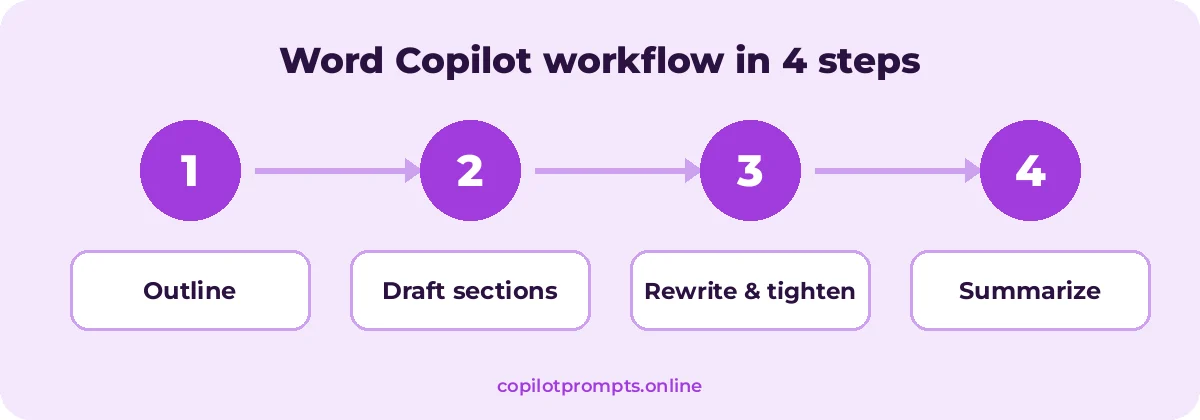
Run each step as its own prompt and check the result before moving on. For official feature details, see Microsoft 365 Copilot documentation.
Frequently asked questions
How do I reference a file in Copilot in Word?
In the Draft with Copilot box, type / and start typing the file name to choose a document from OneDrive or SharePoint. The number of files you can reference may be limited.
Can Copilot summarize a very long document?
Yes, though very long documents may hit length limits. If a summary feels incomplete, ask about specific sections instead.
Will Copilot overwrite my text?
When rewriting, Copilot usually shows options you can keep, regenerate or discard. You stay in control of what goes into the document.
Can I use Copilot in Word for legal or HR documents?
You can use it to draft and summarize, but have qualified people review anything with legal, compliance or employment impact.
Do these prompts work without a Copilot license?
You can paste text into Copilot Chat and use the same rewrite and summary prompts. In-document features require an eligible Microsoft 365 plan.
Are Copilot prompts for Word useful for long reports?
Yes. Draft the outline first, then generate one section at a time and ask for a summary at the end to keep long reports consistent.
Conclusion
The more you reuse and refine copilot prompts for word, the better your results get.
Copilot in Word is most useful when you give it a clear goal, the right source files and a target structure. Use copilot prompts for word to draft faster, edit smarter and understand long documents in minutes. For more ideas, see our list of the best Microsoft copilot prompts for word or our Copilot prompts for HR. Bookmark this page and come back whenever you need fresh copilot prompts for word.