Copilot OneNote Prompts: 30 Powerful Ideas to Organize Your Notes Faster
Copilot OneNote prompts turn a messy notebook into something you can actually use: clean summaries, task lists with owners, study guides and project plans pulled straight from the pages you already wrote. This guide gives you 30 copy-ready prompts for Copilot in OneNote, grouped by situation, plus a simple way to write your own and the habits that keep every answer accurate.
Most people’s notes pile up faster than they get read. Meeting scribbles, half-finished ideas, lecture pages and pasted links all sit in sections nobody opens again. Copilot is good at sorting that pile, but only when you tell it which page to look at, what you want back and what shape the answer should take.
What Copilot Can Do Inside OneNote
Before you copy any prompt, it helps to know where Copilot lives in OneNote and what it is built to handle.
- The Copilot pane. On the Home tab of the ribbon, select Copilot to open a chat pane on the right. You type a request, Copilot reads the content you point it at, and the answer appears in the pane, ready to copy onto a page.
- Quick actions on the page. You can also use the Copilot icon on the canvas or right-click a page or a selection to reach shortcuts like summarizing or creating a task list.
- Understanding notes. Microsoft lists summaries, task lists, analyzing ideas and rewriting notes for clarity as core jobs, according to its Welcome to Copilot in OneNote guide.
- Creating new content. Copilot can also draft event plans, presentation outlines, meeting agendas and brainstorm lists, even on a blank page.
Availability depends on your license, your OneNote version and your organization’s settings. Copilot in OneNote is offered in OneNote for Microsoft 365 on Windows, Mac and iPad and on the web for work licenses, and some consumer plans get it on Windows only. If you do not see the button, check with your IT admin or your subscription details.
A Simple Formula for Better Copilot OneNote Prompts
Every template below follows the same four-part pattern. Microsoft describes good prompts as a clear goal plus context, a source and expectations, and our guide on how to write Copilot prompts breaks that idea down further.
- Scope. Say which notes to use: this page, the selected text, or a named section.
- Task. Name one job, such as summarize, extract, compare, rewrite or plan.
- Shape. Describe the output: bullets, a table, a checklist, a numbered plan or a short paragraph.
- Filter. Add what matters most and what to skip, like deadlines only, decisions only or no repeated points.
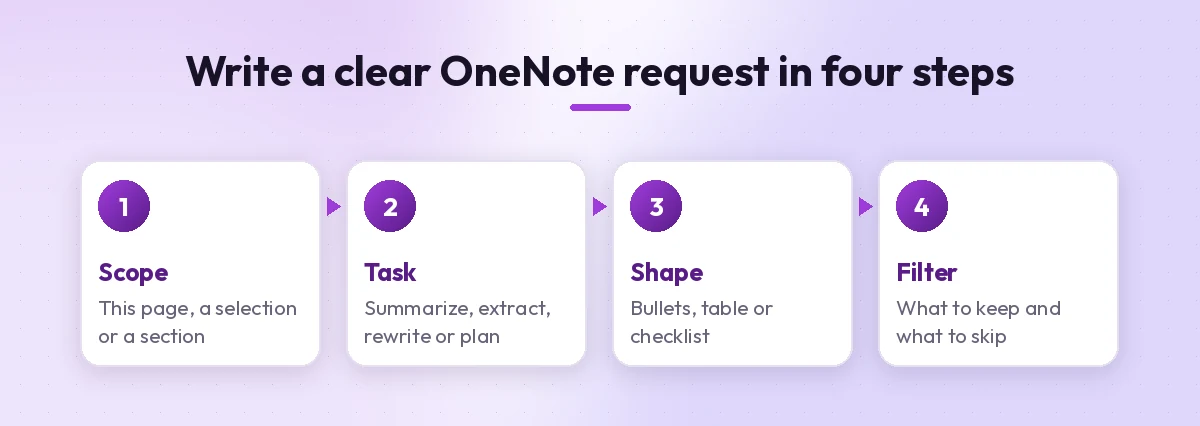
Here is the pattern in action:
Using the notes on this page, list every decision we made about the website redesign.
Put them in a table with columns for decision, owner and date mentioned.
Skip general discussion and anything still marked as an open question.
Compare that with “summarize this” and you can see why the answers differ so much. The more precise the scope and shape, the less editing you do afterward.
Prompts to Summarize Long Pages and Sections
Summaries are the most common reason people open the Copilot pane. Use these when a page has grown too long to skim.
1. Five-point page summary
Summarize the notes on this page in five bullet points. Lead with the most important point and keep each bullet under 20 words.2. Section overview
Give me an overview of everything in the [section name] section. Group the main themes, and for each theme list the pages where it appears.3. Summary for someone who missed it
Summarize this page for a colleague who was not in the meeting. Explain the context in one sentence, then list decisions, open questions and next steps.4. Chronological recap
Create a summary of the notes on this page in chronological order. Use bullet points with the date or time where it is mentioned.5. One-paragraph executive version
Turn the selected notes into a single paragraph of no more than 80 words that a busy manager could read in 30 seconds.If your notes come from meetings, pair these with our guide to Copilot prompts for meeting minutes for a fuller minutes format.
Prompts to Pull Out Tasks and Action Items
Task extraction is where Copilot saves the most time, because action items tend to hide in the middle of long paragraphs. Microsoft’s to-do list guide for OneNote shows a similar request in practice.
6. Clean to-do list
Extract a to-do list from the notes on this page. Start each item with a verb and remove duplicates.7. Tasks with owners and dates
Find every action item on this page. Show them in a table with columns for task, owner and due date. Write "not stated" where an owner or date is missing.8. Priority ranking
From the task list you just created, mark the top three priorities and explain in one line why each one matters most.9. Waiting-on list
List anything on this page that I am waiting for from other people, including who owes it and what they promised.10. Weekly carry-over
Look at my notes in the [Weekly Planning] section and list tasks that appear on more than one page, since those are probably still unfinished.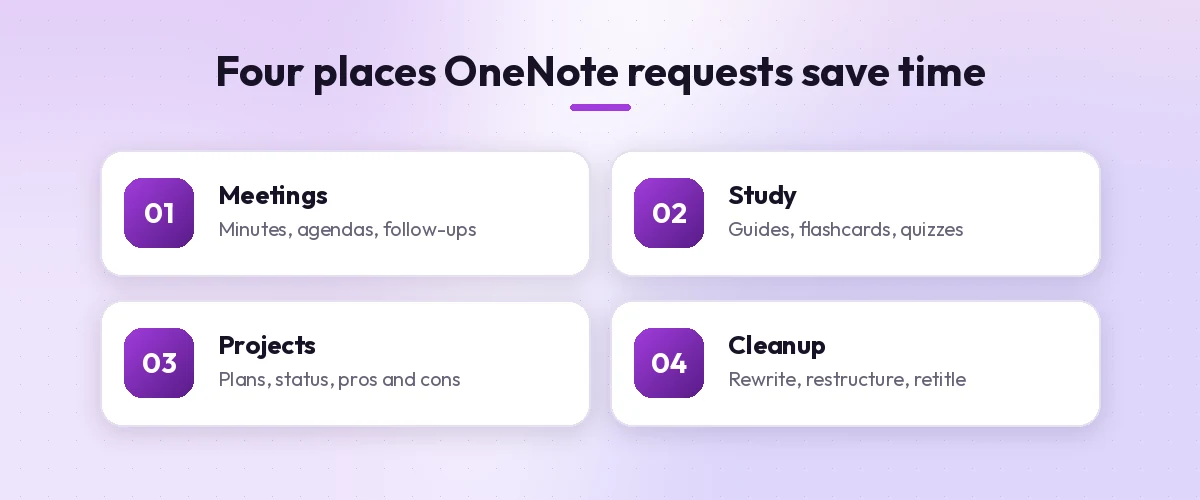
Prompts for Meeting Notes and One-on-Ones
OneNote is a natural home for meeting notes, especially if you keep a page per meeting. These requests help you clean them up before you share them.
11. Turn rough notes into tidy minutes
Rewrite the rough notes on this page as tidy meeting minutes with headings for attendees, agenda items, decisions and action items. Keep the original meaning.12. Agenda for the next meeting
Based on the open items on this page, draft an agenda for our next meeting with time estimates for each item. Keep it to 30 minutes total.13. One-on-one prep
Review my notes from the last three one-on-one pages with [name]. List recurring topics, promises I made and questions I should ask next time.14. Follow-up email draft
Using the decisions and action items on this page, draft a short follow-up email I can paste into Outlook. Keep it friendly and under 120 words.15. Spot what is missing
Read this meeting page and tell me what is unclear or missing, such as tasks with no owner, decisions with no deadline or questions nobody answered.If you record or transcribe calls in Teams, our guide on summarizing a meeting transcript with Copilot covers that side of the workflow.
Prompts for Students and Study Notes
Lecture notes are dense, and OneNote is popular in classrooms for that reason. These requests help turn them into revision material. Teachers can find more classroom ideas in our list of Copilot prompts for teachers.
16. Study guide
Create a study guide from the lecture notes in this section. Include key terms with short definitions, the main concepts and three likely exam questions.17. Flashcard pairs
Turn the notes on this page into 15 question-and-answer flashcards. Keep each answer to one sentence.18. Explain it simply
Explain the concept described in the selected notes as if I were new to the subject. Use one everyday example and avoid jargon.19. Quiz me
Write a five-question multiple-choice quiz based on this page. Put the answers at the end, not next to the questions.20. Fill the gaps
Compare my notes on this page with the topic headings listed at the top and tell me which headings have little or no notes under them.Always check study material against your textbook or teacher’s slides. Copilot works from what is on the page, so a mistake in your notes can carry into the answer.
Prompts for Planning Projects and Events
OneNote is not only for reading back. Copilot can draft fresh plans on a blank page or build them from scattered ideas.
21. Project plan from brainstorm notes
Turn the brainstorm notes on this page into a project plan with phases, key tasks for each phase and a suggested order. Flag any risks the notes mention.22. Event plan
Draft a plan for a team offsite for 20 people in [month]. Include a checklist for venue, food, agenda and travel, and a timeline working back from the date.23. Presentation outline
Create a presentation outline from the notes in this section with a title, six slide headings and two talking points per slide.24. Pros and cons table
Using my notes on this page about the three vendor options, build a pros and cons table for each option and end with the questions I still need answered.25. Status update
Write a short weekly status update from the project notes on this page with three headings: done, in progress and blocked.Project leads can borrow more planning ideas from our collection of Copilot prompts for project managers.
Prompts to Rewrite, Organize and Clean Up Notes
Quick notes are written for speed, not for reading later. These requests improve clarity without changing the meaning.
26. Rewrite for clarity
Rewrite the selected text so it is clear and easy to read. Keep all facts, names and numbers exactly as they are.27. Add structure
Reorganize the notes on this page under clear headings and bullet points. Do not add new information.28. Suggest a better section layout
Look at the page titles in this section and suggest a better way to group them into sections or page groups. Explain your reasoning briefly.29. Tag-ready keywords
List five keywords that describe this page so I can find it again in search. Then suggest a clearer page title.30. Brainstorm from what I have
Based on the ideas on this page, suggest ten more ideas in the same direction and mark which ones build directly on my existing notes.Tips to Get More Reliable Answers
A few habits make the difference between a useful answer and one you have to rewrite.
- Point at the right content. Select text or open the exact page before you ask. Vague scope gives vague answers.
- Ask for one job at a time. “Summarize, then list tasks, then draft an email” works better as three short requests in a row.
- Refine instead of restarting. Follow up with “make it shorter,” “add the top three priorities” or “turn that into a table” in the same chat.
- Watch handwriting and images. Copilot handles typed text best. If a page is mostly ink or pictures, the answer may miss details, so check it carefully.
- Review before sharing. Microsoft’s own FAQ notes that generated answers can contain mistakes. Check names, dates and numbers against your notes.
- Keep your favorites. Save your best requests on a dedicated OneNote page so you can paste them in seconds.
Common Mistakes to Avoid
Even well-written Copilot OneNote prompts can disappoint if the setup is off. Watch for these problems.
| Mistake | What happens | Better approach |
|---|---|---|
| Asking about notes that are not open | Copilot answers from the wrong content or says it cannot find it | Open the page or select the text first |
| No output format | You get a long block of text | Ask for bullets, a table or a word limit |
| Mixing several jobs | Some parts get skipped | Send one request per job |
| Trusting dates blindly | Wrong deadlines end up in your task list | Ask Copilot to say “not stated” when unsure |
| Sharing without review | Small errors reach your team | Read every line before you copy it out |
Bringing It Together
The best Copilot OneNote prompts are short and specific: they name the notes, ask for one job and describe the shape of the answer. Start with the summary and task templates above, since they save time on almost every page, then add the study, planning and cleanup prompts as your notebook grows. Save the ones that work on their own page, swap in your own names and sections, and your notes will start working for you instead of just sitting there.
Frequently Asked Questions
What are the best Copilot OneNote prompts to start with?
Start with a five-point page summary and a task list with owners and dates. Both work on almost any page and save time immediately. Add rewrite and planning requests once you are comfortable.
How do I open Copilot in OneNote?
On the Home tab of the ribbon, select Copilot to open the Copilot pane. You can also use the Copilot icon on the page or right-click a page or selection for quick actions like summarizing or creating a task list.
Can Copilot summarize a whole OneNote section?
Yes. You can ask Copilot to summarize a page, a selection of text or a section. Name the scope clearly in your request so it uses the right notes.
Does Copilot in OneNote work with handwritten notes?
Copilot works best with typed text. If a page is mostly ink or images, review the answer closely, because details may be missed or misread.
Which plans include Copilot in OneNote?
Copilot in OneNote is available with a Microsoft 365 Copilot work license in OneNote for Microsoft 365 on Windows, Mac, iPad and the web, and with eligible consumer Microsoft 365 plans on Windows. Availability can also depend on admin settings.
Is it safe to share Copilot answers from my notes?
Treat every answer as a draft. Check names, dates, numbers and decisions against your original notes before you share them with anyone.