Copilot Speaker Notes Prompts: 30 Proven Prompts for Confident Presentations
Copilot speaker notes prompts help you turn a finished slide deck into a talk you can deliver with confidence, without writing every word of the script yourself. Most people build slides first and leave the notes for the night before, which is exactly when a good prompt saves the most time.
This guide explains the built-in button that drafts notes for you, why the first draft usually needs work, and 30 copy-ready prompts for drafting, trimming, timing, tone, audience tweaks, Q&A prep and rehearsal. Replace anything in square brackets with your own details.
How Copilot Creates Speaker Notes in PowerPoint
There are two ways to get notes from Copilot in PowerPoint, and it helps to know both.
The first is the ribbon option. According to Microsoft’s guide to adding speaker notes with Copilot, you open the View tab, select the Notes drop-down, and choose either “Generate speaker notes for all slides” or “Generate speaker notes for current slide.” Copilot writes the notes, and you pick Keep it to save them or Discard to remove them. Microsoft notes that the feature works best on decks with fewer than 50 slides.
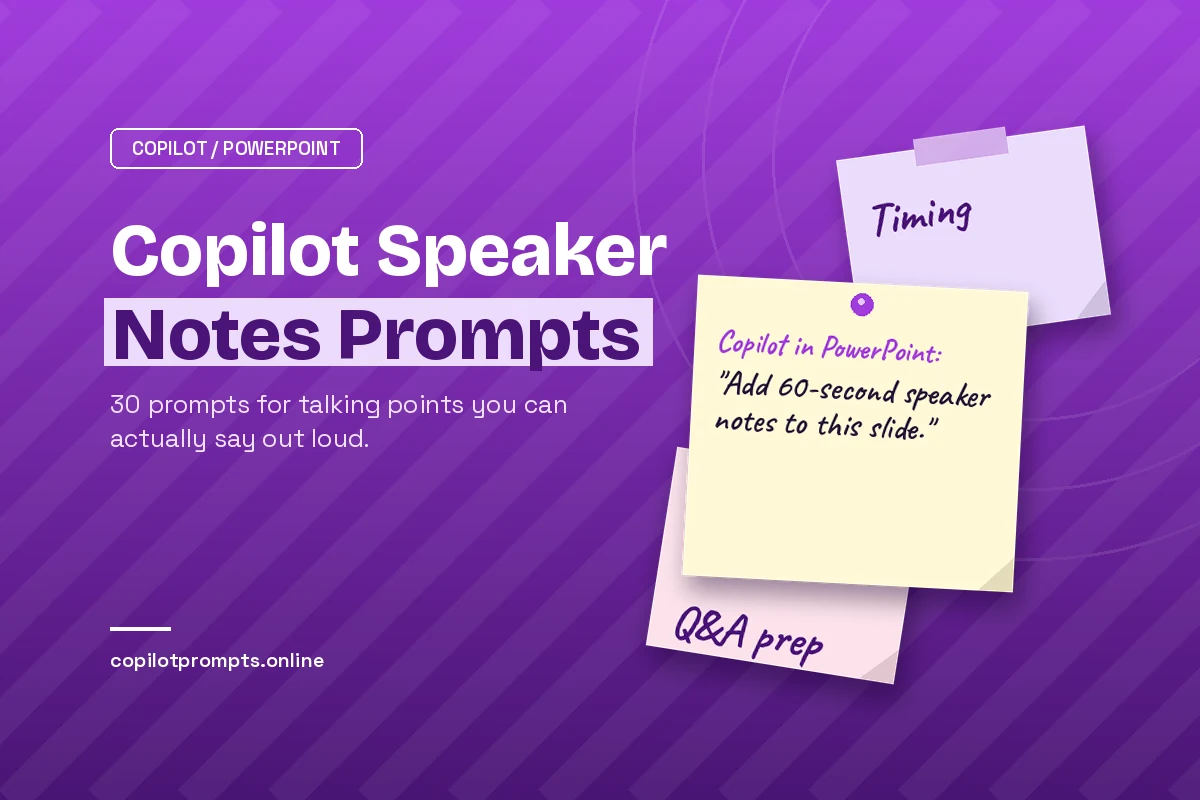
The second way is the Copilot chat pane. Instead of a one-click draft, you type an instruction such as “Add speaker notes to this slide” and then keep refining in the same conversation. This is where written prompts earn their place, because you can control length, tone, audience and structure instead of accepting a generic summary of the slide.
A quick note on access: Copilot inside PowerPoint needs a Microsoft 365 subscription or license that includes it, and your organization may switch features on or off. If you do not see the option, check with your IT team before assuming something is broken.
Ribbon button or chat prompt?
| Approach | Best for | Limitation |
|---|---|---|
| Generate speaker notes (ribbon) | A fast first draft for every slide | Little control over length or style |
| Chat prompt on one slide | Key slides that need careful wording | Slower if you repeat it slide by slide |
| Chat prompt on the whole deck | Consistent tone and timing across a talk | Long decks may need to be done in sections |
A practical workflow is to use the ribbon for a rough pass, then use the prompts below to fix the slides that matter most.
What Good Speaker Notes Actually Contain
Before you prompt, decide what “good” means. Notes are not a transcript of the slide. If your notes just repeat the bullet points, you will end up reading the screen aloud, which is the habit most audiences dislike.
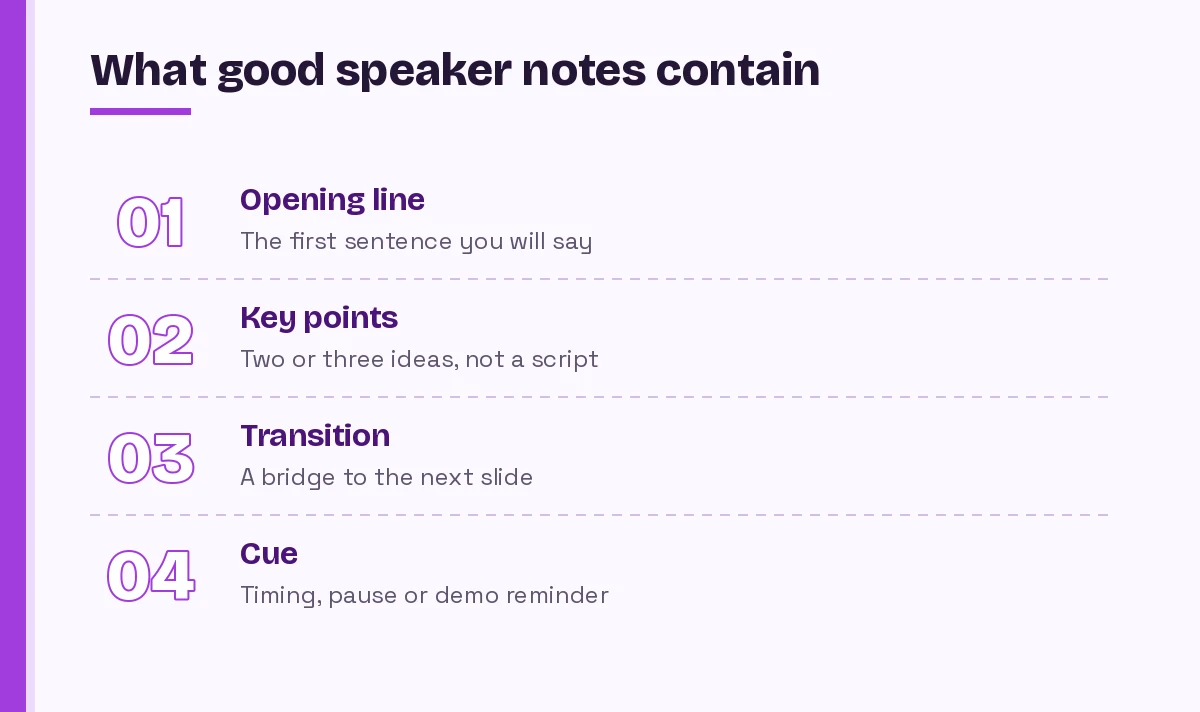
Strong notes usually have four parts:
- An opening line. The exact first sentence you plan to say, so you never freeze when a slide appears.
- Two or three key points. Short phrases that add something the slide does not show, such as an example or the reason behind a number.
- A transition. One sentence that bridges to the next slide so the talk flows.
- A cue. A reminder like “pause here,” “show the demo” or “about 1 minute.”
When you ask Copilot for notes, name these parts in your request. That single habit fixes most bland results. If you want a refresher on structuring requests in general, our guide on how to write Copilot prompts covers the basics.
Copilot Speaker Notes Prompts to Generate Your First Draft
These Copilot speaker notes prompts work in the chat pane inside PowerPoint. Use them when the deck is built and the notes pane is still empty.
1. Notes for the current slide
Add speaker notes to this slide. Start with one opening sentence I can say word for word, then give 2-3 short talking points that add detail not shown on the slide, and end with a one-line transition to the next slide.2. Notes for the whole presentation
Generate speaker notes for every slide in this presentation. Keep each slide's notes under 90 words. Use plain, conversational language that sounds natural when spoken aloud, not like written text.3. Notes built from a source document
Write speaker notes for each slide using the details in /[Word document name]. Pull in one supporting fact or example per slide from that document, and do not repeat text that is already on the slide.4. Notes with a clear story arc
Write speaker notes for this deck that follow a simple story: the problem, why it matters to [audience], our proposed solution, and the next step we need. Make each slide's notes connect to that arc.5. Notes for a title slide
Write speaker notes for the title slide: a short greeting, one sentence introducing me as [name, role], a one-line hook that explains why this topic matters to [audience], and a quick preview of the three things we will cover.6. Notes for a closing slide
Write speaker notes for the final slide. Recap the three main points in one sentence each, state the single action I want the audience to take, and finish with a line that invites questions.If you are still building the slides themselves, start with our list of Copilot prompts to create a PowerPoint presentation and come back once the deck exists.
Prompts to Shorten, Simplify and Time Your Notes
The most common problem with generated notes is length. A wall of text in the notes pane is useless when you are standing in front of a room. These prompts make the notes glanceable.
7. Cut to speaking length
Shorten the speaker notes on this slide so I can say them in about 45 seconds at a relaxed pace. Keep the opening line and the transition, and cut anything that repeats the slide text.8. Turn paragraphs into cue words
Rewrite the notes on every slide as short bullet cues of 3-6 words each, no full sentences except the opening line. I want to glance at them, not read them.9. Fit a time slot
I have [15] minutes for this presentation, including [3] minutes for questions. Adjust the speaker notes so each slide gets a sensible share of the time, and add a time marker like "[about 1 min]" at the top of each slide's notes.10. Simplify the language
Rewrite the speaker notes in simpler words. Replace jargon with everyday terms, keep sentences under 15 words, and make sure a listener who is new to [topic] could follow along.11. Remove filler
Review the speaker notes across this deck and remove filler phrases, repeated points and anything that restates the slide title. List the slides you changed most.12. Mark the must-say points
On each slide, mark the single most important point in the speaker notes with "MUST SAY:" so that if I am short on time I know what to keep.Prompts to Match Tone and Audience
The same deck often goes to different rooms. Instead of rebuilding notes by hand, ask Copilot to adapt the talking points for whoever is listening.
13. Executive audience
Rewrite the speaker notes for a senior leadership audience. Lead each slide with the business impact or decision needed, keep the detail to one supporting point, and remove technical explanations unless they change the decision.14. Technical audience
Adapt these speaker notes for an audience of [engineers / analysts]. Add one technical detail per slide that explains how something works, and flag where I should be ready to show data or a demo.15. Customer or client meeting
Rewrite the notes on this deck for a client presentation to [client type]. Focus on their problems and outcomes, avoid internal jargon and team names, and add a question I can ask the client on slides [3, 6 and 9] to keep it conversational.16. Training session
Turn these speaker notes into trainer notes. For each slide, add the learning point, a quick example, and one check-in question I can ask participants to confirm they understood.17. Warmer, more confident tone
Rewrite the speaker notes so they sound confident and friendly rather than formal. Use "we" and "you," add a short real-world example where it fits, and avoid hedging words like "maybe" or "sort of."18. Non-native English listeners
Adjust the notes for an international audience. Use short, clear sentences, avoid idioms and slang, and suggest where I should slow down or repeat a key number.For more slide-level ideas beyond notes, our collection of Copilot PowerPoint prompts covers rewriting, design and summarizing decks.
Prompts for Transitions, Hooks and Storytelling
Talks feel polished when one slide leads naturally into the next. Generated notes often treat each slide as an island, so ask for connections directly.
19. Smooth transitions
Review the speaker notes for the whole deck and add or improve the last line on each slide so it leads naturally into the next slide's topic. Avoid repeating "next, let's look at."20. A stronger opening hook
Give me three different opening hooks for this presentation: one question, one surprising contrast, and one short story about [situation]. Keep each under 40 words, and add the one you think fits best to the first slide's notes.21. Add an example to a data slide
This slide shows [chart or figure]. Add speaker notes that explain what the audience should notice first, why it matters, and one concrete example that makes the number feel real. Do not invent figures that are not in the deck.22. Explain a complex diagram
Write speaker notes that walk the audience through the diagram on this slide step by step, from left to right, in no more than five short sentences.Prompts to Prepare for Q&A and Tough Questions
Your notes pane is also a good place to store answers to the questions you expect. These prompts help you plan for the part of a presentation that cannot be scripted.
23. Likely questions per slide
For each slide, add a "Likely question" line at the bottom of the speaker notes with the question a skeptical listener might ask and a two-sentence answer based only on the content in this deck.24. The toughest questions overall
Based on this presentation, list the five hardest questions [audience] is likely to ask, why each might come up, and a short, honest answer I can give. Flag any question where the deck does not contain enough information to answer.25. Objection handling
I expect pushback on [budget / timeline / risk]. Add a short note to the relevant slides with the likely objection and a calm, evidence-based response using only the facts in this presentation.26. Backup facts
Add a "Backup" section to the speaker notes on slides [4-7] with one or two extra details from /[source file] that I can use if someone asks for more depth. Keep each backup point to one line.Prompts for Rehearsal and Delivery
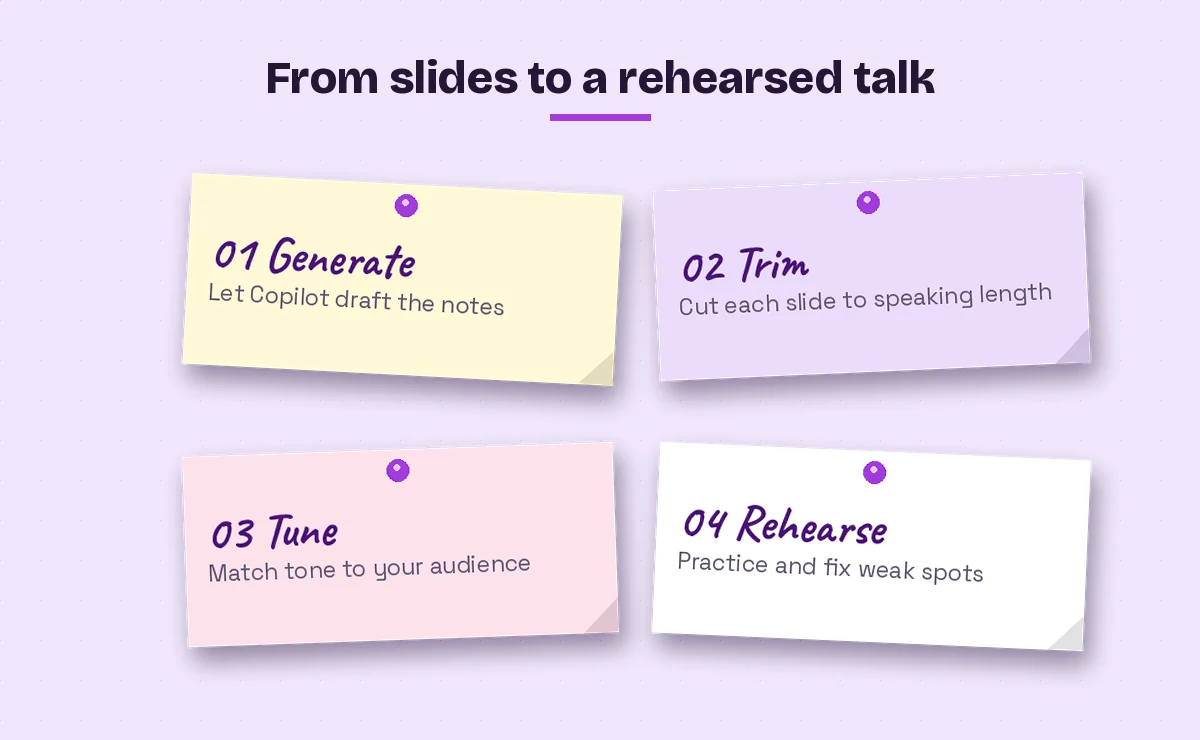
Notes only help if you rehearse with them, so finish your set of Copilot speaker notes prompts with a practice run. PowerPoint’s presenter view shows your notes on your own screen while the audience sees only the slides, as explained in Microsoft’s guide to adding speaker notes to your slides. These prompts get the notes ready for that moment.
27. Rehearsal script
Combine the speaker notes from every slide into one continuous rehearsal script, with slide numbers in brackets, so I can read it aloud and practice the full talk start to finish.28. Delivery cues
Add delivery cues to the speaker notes, in brackets, such as [pause], [look at the audience], [click to reveal] or [show demo], at the points where they will help most. Do not add more than three cues per slide.29. Summary card
Create a one-page summary of this presentation's talking points that I can keep beside me: the opening line, one key message per section, and the closing call to action.30. Check consistency
Check the speaker notes against the slide content and flag any place where the notes mention a number, name or date that does not match what is on the slide.Tips to Get Better Results Every Time
Even well-written Copilot speaker notes prompts give mixed results if the deck itself is weak. A few habits make a big difference to the notes Copilot produces:
- Finish the slides first. Copilot bases notes on what is in the deck, so thin slides lead to thin notes.
- Work in sections on long decks. Since Microsoft says the notes feature works best under 50 slides, split larger presentations into chunks like “slides 1-15.”
- Give the audience and time limit every time. These two details change the output more than any other words in your request.
- Never trust invented facts. If a note contains a number, example or claim you did not provide, check it or delete it before you present.
- Say the notes out loud once. Written text and spoken text are different. If a line feels awkward to say, ask Copilot to rewrite it “as I would say it in conversation.”
- Save your best prompts. If one of these requests works well, keep it in a personal library, as described in our guide to building a Copilot prompt template.
Common Problems and How to Fix Them
| Problem | Likely cause | Prompt fix |
|---|---|---|
| Notes just repeat the slide | No instruction to add new detail | “Add details not shown on the slide.” |
| Notes are far too long | No time or word limit given | “Keep under 60 words, about 30 seconds.” |
| Tone feels stiff | Default written style | “Make it conversational, as if spoken.” |
| Generic examples | No source document named | “Use examples from /[file].” |
| Slides feel disconnected | Each slide handled alone | “Add a transition line to every slide.” |
If your notes come out empty or the option is missing, confirm that the file is saved to OneDrive or SharePoint and that your license includes Copilot in PowerPoint. Those two checks solve most access issues.
Final Thoughts
Good notes are short, spoken and specific to your audience. The built-in Generate option gives you a quick starting point, and the 30 Copilot speaker notes prompts above let you shape that draft into something you can deliver without reading from the screen. Pick five prompts that match your next presentation, run them on your key slides, and rehearse once with presenter view. You will walk in prepared rather than improvising.
If your deck starts life as a report, you can also create a PowerPoint from a Word document and then use these prompts to add notes in minutes.
Frequently Asked Questions
Can Copilot write speaker notes in PowerPoint?
Yes. In PowerPoint for Microsoft 365, open the View tab, select the Notes drop-down and choose to generate speaker notes for all slides or the current slide. You can also ask in the Copilot pane, for example “Add speaker notes to this slide,” and refine the result in chat.
How long should speaker notes be?
Aim for what you can say in the time each slide deserves, often 30 to 90 seconds. Short cue words and one opening sentence are easier to glance at than full paragraphs, so ask Copilot for a word limit or a time target.
Why don’t I see the option to generate speaker notes?
The feature needs a Microsoft 365 subscription or license that includes Copilot in PowerPoint, and your organization may control which features are turned on. Saving the file to OneDrive or SharePoint and updating PowerPoint can also help.
Is there a slide limit for generated speaker notes?
Microsoft says the feature works best on presentations with fewer than 50 slides. For longer decks, generate notes in sections by naming a slide range in your prompt.
Can the audience see my speaker notes?
No. When you present with presenter view, your notes appear only on your own screen while the audience sees the slides. Check your display settings before the session, especially when presenting on a shared screen in Teams.
Should I read Copilot’s speaker notes word for word?
Usually not. Use them as cues and rehearse in your own words. Always check any fact, number or example Copilot adds, and remove anything that is not supported by your slides or source files.