Copilot Prompts for Business Analysts: 36 Practical Templates for Requirements, Processes and Data
Copilot prompts for business analysts save the most time when they treat Copilot like a junior analyst sitting next to you: someone who reads fast, drafts quickly and never gets tired of reformatting, but who needs to be told exactly which sources count and what the output is for. Business analysis is a role built on translation. You turn workshop chatter into requirements, spreadsheets into findings, and messy current processes into clear future-state designs. Each of those translations has a slow, mechanical first draft, and that first draft is where Microsoft 365 Copilot earns its place.
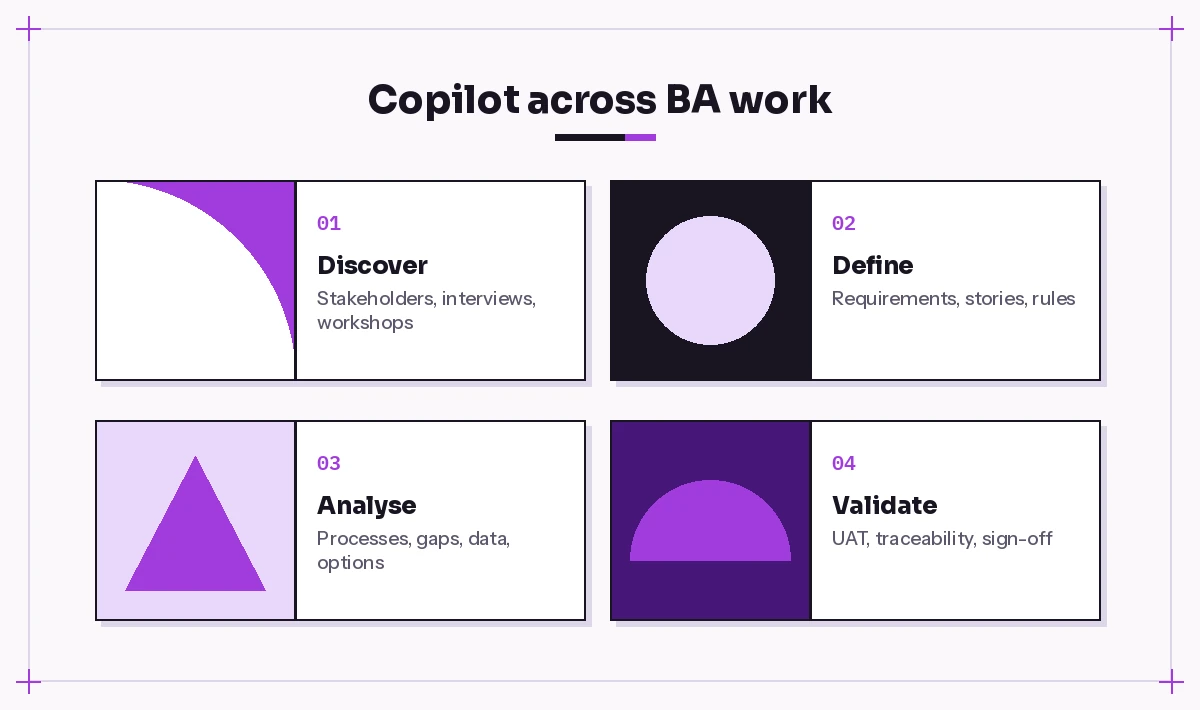
This collection of Copilot prompts for business analysts gives you 36 copy-ready templates organised around the real phases of a business analysis engagement, from stakeholder mapping to user acceptance testing. Replace anything in square brackets, attach the actual files whenever possible, and treat every output as a draft you still own.
What Copilot Prompts for Business Analysts Can and Cannot Do
It helps to be honest about the boundaries before you start. Copilot is strong at reading long documents, spotting patterns across many notes, restructuring content into tables and producing a clean first version of standard deliverables. It is weak at knowing your organisation’s politics, judging which stakeholder’s opinion carries weight, or confirming that a requirement is actually feasible in your systems.
That split is why good Copilot prompts for business analysts focus on mechanical work. Let Copilot do the reading, sorting and drafting. Keep the judgment calls, the validation conversations and the final sign-off for yourself.
A few practical notes:
- Work inside the right app. Copilot in Word is best for requirement documents, Copilot in Excel for data and matrices, Copilot in Teams for meeting recaps, and Microsoft 365 Copilot Chat for pulling several files together.
- Reference real files. When your licence and admin settings allow it, you can point Copilot Chat at documents, emails and meeting transcripts. Grounded answers are far more useful than generic ones.
- Check anything numeric. Copilot can misread a column or round in odd ways. Verify totals and percentages before they reach a steering committee.
Microsoft’s guide to writing effective Copilot prompts recommends stating a goal, context, expectations and source. The Copilot prompts for business analysts in this guide follow that advice, adapted to analysis work.
A Prompt Formula Behind Copilot Prompts for Business Analysts
Most weak prompts fail for one of two reasons: Copilot does not know what it is looking at, or it does not know who will read the result. The formula below fixes both and works for nearly every BA deliverable.
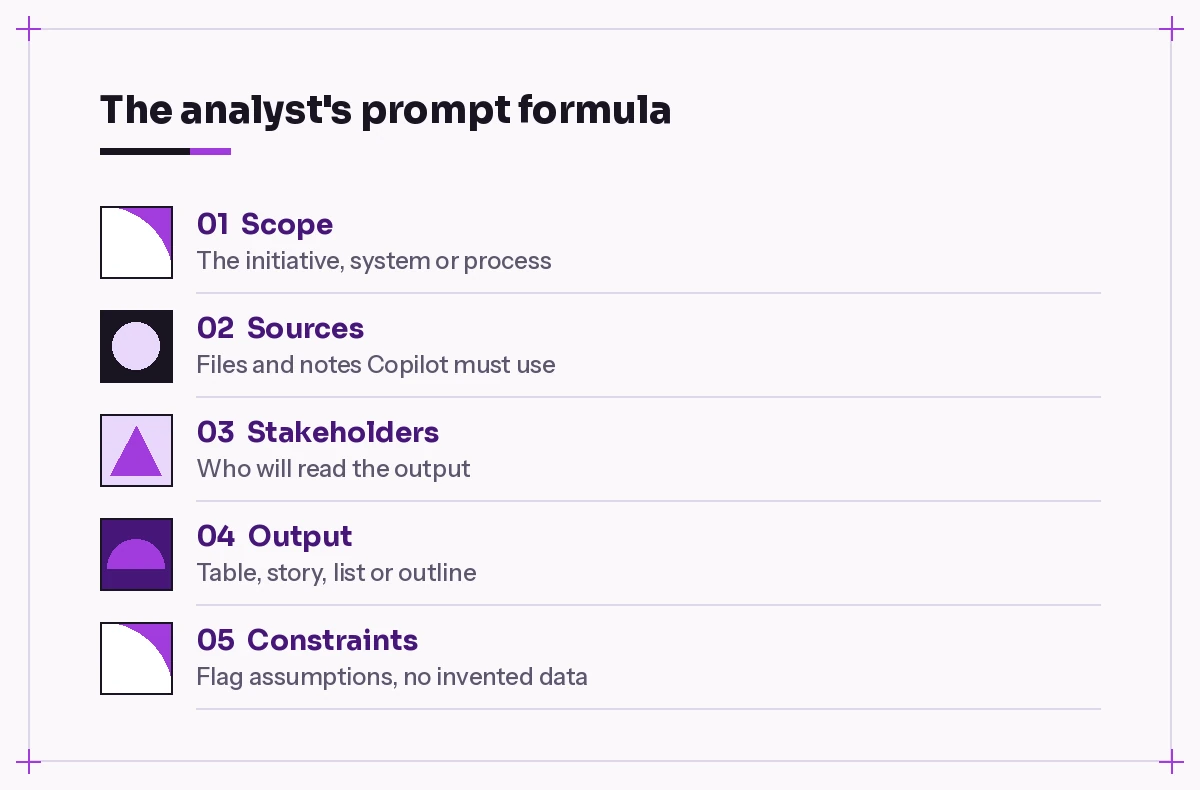
- Scope. The initiative, system or process in one sentence.
- Sources. The files, notes or data Copilot must rely on, ideally nothing else.
- Stakeholders. Who the output is for, such as sponsors, developers, testers or operations staff.
- Output. The artifact type and structure: table, numbered list, user story, diagram description.
- Constraints. Rules like “flag assumptions”, “do not invent figures” or “use our template headings”.
Adding “If something is unclear, list your questions instead of guessing” to the end of a prompt is one of the most useful habits you can build. It turns Copilot from a confident guesser into a collaborator that surfaces gaps, which is exactly what a good analyst does anyway.
Stakeholder and Discovery Prompts
Every engagement starts with people. The first set of Copilot prompts for business analysts helps you work out who matters, what they care about and what you still need to ask.
1. Draft a stakeholder map
Based on the attached project charter and org chart, list every
stakeholder group affected by [initiative]. For each group give their
likely interest, influence (high/medium/low), main concern and the
best way to engage them. Output as a table. Mark any group you inferred
rather than found in the documents.
2. Build a RACI starting point
Create a draft RACI matrix for [project] using these activities:
[list activities] and these roles: [list roles]. Put it in a table.
Where more than one role could be Accountable, flag it as a decision
I need to confirm with the sponsor.
3. Prepare elicitation questions
I am running a discovery interview with [role] about [process].
Write 12 open questions that uncover current pain points, workarounds,
exceptions and data they rely on. Group them by theme and add one
follow-up probe for each. Avoid yes/no questions.
4. Plan a requirements workshop
Design a 90-minute requirements workshop for [number] participants
from [departments] to agree the scope of [initiative]. Include
objectives, agenda with timings, activities, materials, and the exact
outputs we should leave with. Add a parking-lot process for off-topic
issues.
5. Turn interview notes into findings
Summarise the attached interview notes from [number] sessions.
Identify recurring pain points, how many people raised each one, and a
short quote that represents it. Separate facts from opinions and list
any contradictions between interviewees.
6. Spot missing voices
Review the stakeholder list and the interview notes attached. Which
groups affected by [change] have not been consulted yet? Explain why
each gap matters and suggest one question to ask them.
Requirements Writing Prompts
Requirements are the core of the role, and the requirements-focused Copilot prompts for business analysts below are the place where precise wording matters most. Copilot is a fast drafter here, but always walk the output back past the people who gave you the input.
7. Extract requirements from a transcript
From the attached meeting transcript, extract every statement that
describes something the new system must do, must not do, or must
support. Rewrite each as a clear requirement using "The system shall".
Add the speaker and timestamp as a source column. Do not add
requirements that were not discussed.
8. Separate functional and non-functional needs
Sort the requirements below into functional and non-functional.
For non-functional items, tag the category (performance, security,
usability, availability, compliance). Point out any requirement that
is really two requirements joined together.

[paste requirements]
9. Make vague requirements testable
Rewrite each requirement below so it is specific, measurable and
testable. Where a number is missing (for example a response time),
insert a placeholder like [X seconds] and list it as an open question
rather than inventing a value.

[paste requirements]
10. Write user stories with acceptance criteria
Convert these requirements into user stories in the format "As a
[role], I want [capability] so that [benefit]". For each story write
3-5 acceptance criteria in Given/When/Then form, including at least one
negative or edge case.
11. Draft a business requirements document outline
Create a BRD outline for [initiative] using these headings: executive
summary, business objectives, scope (in and out), stakeholders,
current state, future state, business requirements, assumptions,
constraints, dependencies, risks, and sign-off. Fill each section with
what you can find in the attached files and mark gaps as [TBC].
12. Check requirements for quality issues
Review the attached requirements list as a strict quality reviewer.
Flag anything ambiguous, duplicated, conflicting, untestable, or
describing a solution instead of a need. Give a short reason and a
suggested rewrite for each flag. Output as a table.
13. Write business rules
From the policy document attached, extract the business rules that
apply to [process]. Write each as a single, atomic rule with an ID,
the condition, the action and any exceptions. Highlight rules that
seem to contradict each other.
If you also handle product discovery, our Copilot prompts for product managers cover PRDs, roadmaps and feedback themes in more depth.
Process Analysis Prompts
When you run Copilot prompts for business analysts on process work, the job usually means turning a rambling description into something structured enough to draw, measure and improve. Copilot cannot draw your BPMN diagram for you in Visio, but it can produce the step list, swimlanes and decision points that make drawing it quick.
14. Document the current state
Using the attached notes, describe the current [process] as a
numbered step list. For each step give the role, system used, input,
output and typical duration if mentioned. Mark decision points with
"DECISION:" and show each branch.
15. Prepare a swimlane outline
Turn the process steps below into a swimlane outline with one lane per
role. List lanes, then steps in order with the lane they belong to and
any hand-off between lanes. I will use this to draw the diagram, so
keep step names under six words.

[paste steps]
16. Find waste and bottlenecks
Analyse the current-state process below. Identify hand-offs, waiting
time, rework loops, duplicate data entry and manual steps that could
be automated. Rank the top five issues by likely impact and explain
your reasoning briefly.
17. Design a future-state process
Propose a future-state version of [process] that removes the issues
listed below. Keep it realistic for a team using [systems]. Show the
new steps, what changed from the current state, and any new roles,
controls or training needed.
18. Run a gap analysis
Compare the current-state and future-state descriptions attached.
Create a gap analysis table with columns: area, current state, future
state, gap, recommended action, owner (placeholder) and priority.
19. Write a SIPOC
Create a SIPOC table (suppliers, inputs, process, outputs, customers)
for [process] at a high level of no more than seven process steps.
Base it on the attached documentation and note any element you had to
assume.
Data Analysis Prompts in Excel
Analysts spend a surprising amount of time in spreadsheets, so several Copilot prompts for business analysts belong in Excel. Copilot in Excel works best on data formatted as a table with clear headers, so tidy the sheet first. For broader techniques, see our guide to Copilot prompts for Excel data analysis, and Microsoft’s Copilot in Excel help page explains current requirements.
20. Profile a new dataset
Describe this table: what each column appears to contain, the data
type, number of blanks, obvious outliers and any columns that look
like duplicates. Suggest three questions this data could answer for
[business goal].
21. Find the drivers of a metric
Which factors in this table are most associated with [metric, e.g.
late deliveries]? Show a breakdown by [region/product/team] and
highlight the three largest contributors. Explain the result in plain
language and note that association is not proof of cause.
22. Build a baseline for a business case
Using this table, calculate the current monthly average, minimum and
maximum of [metric] for the last [period]. Add a column showing the
month-over-month change. I will use this as the "before" baseline in
a business case.
23. Create a pivot for a stakeholder question
Create a PivotTable that shows [measure] by [dimension 1] and
[dimension 2], sorted from highest to lowest. Add a short note on the
two most surprising results.
24. Explain a formula you inherited
Explain what the formula in column [X] does, step by step, in plain
English. Tell me what would break if the source table gained a new
column, and suggest a simpler version if one exists.
When the audience needs a dashboard rather than a table, the templates in Copilot prompts for Power BI pick up where these leave off.
Prompts for Business Cases and Options Analysis
Sponsors rarely want raw analysis. They want a recommendation they can defend. These Copilot prompts for business analysts help you structure the argument without inventing the numbers.
25. Compare solution options
Compare these [number] options for [problem]: [list options].
Build a table with criteria: cost (use my figures only), time to
deliver, risk, fit with current systems, and user impact. Leave cells
blank where I have not given data and list the missing inputs.
26. Draft a weighted scoring model
Create a weighted scoring matrix for choosing between [options]. Suggest
criteria and weights that add up to 100 for a [type of organisation],
explain each weight in one line, and leave the scores for me to fill in.
27. Write the executive summary
Write a one-page executive summary for [audience] recommending
[option]. Cover the problem, options considered, recommendation,
expected benefits, costs, key risks and the decision needed. Use only
the figures in the attached business case.
28. Build a risk register
List the main risks for [initiative] based on the attached documents.
For each, give a description, likelihood, impact, early warning signs
and a mitigation. Output as a table and add a column for owner with
placeholders.
29. Stress-test your recommendation
Act as a sceptical finance director reviewing this recommendation.
List the ten toughest questions you would ask, and for each one note
what evidence I would need to answer it convincingly.
Testing, Traceability and Change Prompts
Late in a project, the analyst becomes the person who connects what was asked for with what was built. These Copilot prompts for business analysts keep that thread intact. Project leads often pair them with the templates in our Copilot prompts for project managers guide.
30. Generate UAT test cases
Write user acceptance test cases for the user stories below. For each
case include ID, linked story, preconditions, steps, test data,
expected result and a pass/fail column. Include negative tests and at
least one boundary test per story.
31. Build a traceability matrix
Create a requirements traceability matrix linking the requirement IDs
in the first file to the user stories in the second and the test cases
in the third. Flag requirements with no story, stories with no test,
and tests that trace to nothing.
32. Assess a change request
Assess this change request against the approved scope in the attached
BRD. Summarise what is changing, which requirements and processes are
affected, likely impact on timeline and testing, and questions I should
ask the requester before it goes to the change board.
33. Compare two document versions
Compare version [A] and version [B] of the attached requirements
document. List every added, removed or reworded requirement in a table
and highlight changes that alter scope rather than just wording.
For more on version checks, see our prompts for comparing two documents.
Communication and Meeting Prompts
Much of the role is keeping people aligned. Copilot in Teams and Outlook takes care of the recaps so you can focus on the conversation itself.
34. Recap a requirements session
Summarise this meeting for the project team. Include decisions made,
requirements agreed, requirements still disputed (with who holds each
view), open questions and action items with owners and dates.
35. Explain a technical constraint to the business
Rewrite the developer's explanation below for business stakeholders
with no technical background. Keep it under 150 words, explain the
impact on what users will be able to do, and suggest one alternative
they could consider.

[paste explanation]
36. Request sign-off
Draft a short, polite email asking [stakeholder] to review and sign
off the attached [document] by [date]. Summarise the three sections
that most affect their team and say what happens if we do not hear
back.
Our guide to Copilot prompts for meeting minutes has more recap formats if your sessions run long.
Where to Run Copilot Prompts for Business Analysts
| BA task | Best place to run it | Why |
|---|---|---|
| Requirements and BRDs | Copilot in Word | Works inside your template and keeps formatting |
| Data profiling and baselines | Copilot in Excel | Reads structured tables and builds pivots |
| Workshop recaps and decisions | Copilot in Teams | Uses the transcript of the actual meeting |
| Pulling several files together | Microsoft 365 Copilot Chat | Can reference documents, emails and chats in one prompt |
| Sign-off and stakeholder emails | Copilot in Outlook | Drafts in the thread with context |
Habits That Keep the Output Trustworthy
A draft that sounds professional but is quietly wrong is worse than no draft, even when it comes from well-written Copilot prompts for business analysts. A few habits prevent most problems:
- Ask for sources. Add “cite which file and section each point comes from” for anything going into a formal document.
- Ban invention. Phrases like “use only my figures” and “mark assumptions” cut down on made-up details.
- Iterate in the same chat. Follow-ups such as “make the acceptance criteria stricter” or “split requirement 4 into two” work better than starting over.
- Validate with people. Copilot’s version of what a stakeholder meant is a hypothesis. Play it back to them.
- Protect sensitive data. Follow your organisation’s data handling rules and only work with files you are permitted to share with Copilot.
If you want to align your Copilot prompts for business analysts with an industry standard, the IIBA’s BABOK Guide describes the knowledge areas these prompts map onto, such as elicitation, requirements analysis and solution evaluation.
Putting It Together
The best way to adopt these templates is gradually. Pick the deliverable that eats most of your week, whether that is meeting recaps, requirement rewrites or test cases, and use the matching prompt for a fortnight. Save the versions that work in a shared team document so colleagues can reuse them. Once that becomes habit, add the next one.
Used this way, the 36 Copilot prompts for business analysts in this guide do not replace analysis. They clear away the typing and reformatting so you have more time for the parts of the job that need a human: asking the uncomfortable question, reconciling two stakeholders who disagree, and deciding what “done” really means.
Frequently Asked Questions
Can Copilot write a full business requirements document?
It can produce a solid first draft if you give it the charter, meeting notes and your template headings. You still need to validate every requirement with stakeholders, fill in the gaps it marks and make the final scope decisions yourself.
Which Copilot is best for business analysts?
Microsoft 365 Copilot is the most useful because it works inside Word, Excel, Teams and Outlook and can reference your work files when your licence and admin settings allow it. The free Copilot Chat is fine for generic drafting but cannot see your organisation’s documents in the same way.
How do I stop Copilot from inventing requirements?
Tell it to use only the attached sources, ask it to cite where each item came from, and instruct it to list open questions instead of guessing. Reviewing the output against the source notes before sharing it is still essential.
Can Copilot create process diagrams?
Copilot can produce the step list, swimlanes, decision points and hand-offs in text or table form, which makes drawing the diagram in Visio or another tool much faster. Treat that outline as the input for your diagram rather than the finished model.
Are these prompts safe to use with confidential project data?
Microsoft 365 Copilot for work accounts is designed to respect your organisation’s existing permissions, but you should always follow your company’s data policies. Avoid pasting confidential information into consumer tools that are not approved by your IT team.
Do the prompts work for agile and waterfall projects?
Yes. The user story and acceptance criteria prompts suit agile teams, while the BRD, traceability and change request prompts fit more formal or waterfall delivery. Most analysts end up using a mix of both.