Copilot DAX Prompts: 35 Proven Prompts for Faster, Accurate Power BI Measures
Copilot DAX prompts can turn a vague request like “show me sales growth” into a working Power BI measure in seconds, but only when the prompt tells Copilot enough about your model. DAX is unforgiving: one wrong filter or a missing date table and the number looks fine while being quietly wrong.
This guide explains where Copilot writes DAX inside Power BI, how to describe your tables so the code fits your real model, and 35 copy-ready prompts for measures, time intelligence, filter context, DAX queries, debugging and documentation. You will also find a worked example and a short testing routine that catches most mistakes before a report goes live.
Where Copilot Writes DAX in Power BI
Copilot can help with DAX in a few different places, and each one behaves a little differently.
- DAX query view in Power BI Desktop. This is the main home for DAX help. You can ask Copilot in plain language to write a DAX query, explain one, or suggest measures, then run the result against your model and keep the measures you like. Microsoft documents the workflow in its guide to DAX query view.
- The Copilot pane in reports. Here Copilot answers questions about data and builds visuals. It may create calculations behind the scenes, but it is not the best place to craft a measure you plan to reuse.
- Model view. Copilot can draft descriptions for measures, which is handy when you inherit a model nobody documented.
- Copilot Chat or the free Copilot app. No direct connection to your model, but useful for drafting, explaining and reviewing code you paste in.
Copilot in Power BI generally needs a workspace on a paid Fabric or Premium capacity with Copilot switched on by an admin. Requirements change, so check Microsoft’s Copilot in Power BI overview for what applies to your tenant. If you want broader report prompts, such as summaries and page building, our list of Copilot prompts for Power BI covers that side.
Give Copilot Your Model Before Asking for Code
Most poor DAX answers come from Copilot guessing at table and column names. Inside DAX query view it can see the semantic model, which helps a lot. In a chat tool it sees nothing, so you have to describe it.
A short model brief works well:
My Power BI model has these tables:
- Sales (fact): OrderDate, CustomerKey, ProductKey, Quantity, NetAmount
- Date (marked as date table): Date, Year, MonthName, MonthNumber, FiscalYear
- Product: ProductKey, Category, Subcategory
- Customer: CustomerKey, Region, Segment
Relationships: Sales[OrderDate] to Date[Date], Sales[ProductKey] to Product[ProductKey],
Sales[CustomerKey] to Customer[CustomerKey], all single direction, many to one.
Existing measure: [Total Sales] = SUM ( Sales[NetAmount] )
Fiscal year starts on 1 July.
Keep this text in a note and paste it at the top of any chat session. It removes most of the back and forth.
A Four-Part Formula for Copilot DAX Prompts
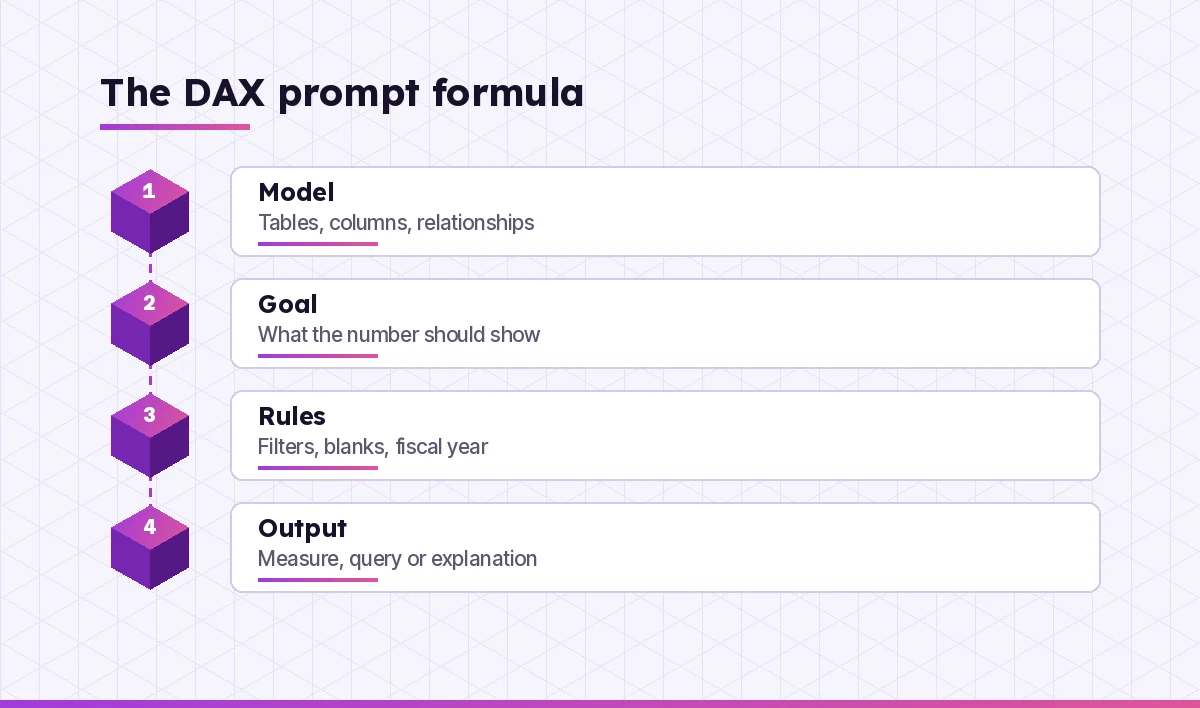
Strong Copilot DAX prompts tend to have the same four parts:
- Model. Which tables and columns are involved, plus any existing base measures.
- Goal. What the number should mean to a business reader, in one sentence.
- Rules. How to treat blanks, returns, fiscal calendars, inactive relationships or slicers.
- Output. A measure, a calculated column, a DAX query, or an explanation, and whether you want variables and comments.
Compare “make a growth measure” with “Using [Total Sales] and the marked Date table, write a measure for year-over-year growth as a percentage. Return blank when last year has no sales. Use variables and DIVIDE.” The second request leaves almost nothing to chance.
Copilot DAX Prompts for Writing Core Measures
Start with base measures that everything else will build on.
1. Write a DAX measure called Total Quantity that sums Sales[Quantity]. Add a short comment explaining it.2. Create a measure for average order value: [Total Sales] divided by the number of distinct orders in Sales[OrderID]. Use DIVIDE so it never errors on zero.3. Write a measure that counts customers who bought at least once in the selected period, using Sales[CustomerKey].4. Create a gross margin % measure from Sales[NetAmount] and Sales[Cost]. Return blank instead of zero when there are no sales.5. Write a measure that shows sales only for the "Online" channel in Sales[Channel], regardless of what is selected in the channel slicer.6. I need a measure for the percentage of total sales each product category contributes, so the categories add up to 100% in a table visual.Time Intelligence Copilot DAX Prompts
Time calculations are where Copilot saves the most effort, and where small mistakes do the most damage. These functions rely on a proper date table with continuous dates, so mention it every time.
7. Using the marked Date table, write a year-to-date sales measure based on [Total Sales]. Then write a version for a fiscal year that starts on 1 July.8. Write a measure for sales in the same period last year, and a second measure for year-over-year change as a percentage.9. Create a rolling 12-month sales measure that ends on the last date in the current filter context.10. Write a month-over-month growth measure that returns blank for the first month in the data.11. My Sales table has OrderDate and ShipDate, with only OrderDate active in the relationship. Write a measure for sales by ship date using USERELATIONSHIP.12. Create a measure that shows the last 30 days of sales from today, ignoring the date slicer.13. Write a measure that compares this quarter to date with the same days of the previous quarter.Filter Context and CALCULATE Prompts
If a measure gives the right number in one visual and nonsense in another, filter context is usually the cause. The Copilot DAX prompts in this section ask for both code and an explanation.
14. Explain in plain English the difference between ALL, ALLSELECTED and REMOVEFILTERS, with one short example from my Sales model for each.15. Write a measure that ranks products by [Total Sales] within each category using RANKX, and returns blank at the category total.16. My percent-of-total measure shows 100% on every row. Here is the code: [paste]. Explain why and fix it.17. Write a measure that shows a different calculation at the month level and the year level, using ISINSCOPE.18. Show me when KEEPFILTERS changes the result of a CALCULATE filter, using Product[Category] = "Bikes" as the example.19. Create a measure that applies a filter from a disconnected Scenario table to Sales using TREATAS.Prompts for DAX Queries in Query View
DAX queries let you test measures and inspect data without building visuals. They start with EVALUATE and return a table. This is where Copilot DAX prompts in query view are strongest.
20. Write a DAX query that returns total sales and quantity by Year and Category, sorted by Year then sales descending.21. Write a DAX query that defines a draft measure for year-over-year growth and shows it by month for the last two years, so I can check it before adding it to the model.22. Return the top 10 customers by sales this fiscal year with their region and order count.23. Write a query that lists products with sales but no cost value, so I can find data quality problems.24. Suggest five measures this model is missing that a sales manager would expect, and define them in one DAX query I can test.If you already write SQL, many of these will feel familiar. Our guide to Copilot prompts for SQL shows how the same habits carry over to database queries.
Debugging and Explaining DAX Prompts
Inherited models are full of measures nobody fully understands. Copilot is a patient explainer, and these Copilot DAX prompts get it to show its reasoning.
25. Explain this measure line by line for someone who knows Excel but not DAX: [paste measure]26. This measure returns an error "A table of multiple values was supplied where a single value was expected". Here is the code: [paste]. Explain the cause and give a corrected version.27. My total row does not equal the sum of the rows. Explain why this happens in DAX and rewrite the measure so the total matches what the business expects.28. Rewrite this nested IF measure using SWITCH ( TRUE () ) so it is easier to read, without changing the results: [paste]29. Compare these two measures and tell me if they give different results in any filter situation: [paste both]Performance and Clean-Code Prompts
A measure can be correct and still slow. These requests help tidy and tune.
30. Rewrite this measure using variables so each expression is evaluated once, and explain the performance benefit: [paste]31. This measure uses FILTER over the whole Sales table inside CALCULATE. Suggest a faster pattern that filters columns instead, and explain the trade-off.32. Review this measure for common performance problems such as iterators over large tables, repeated context transition and calculated columns that could be measures: [paste]33. Format this DAX in a consistent, readable style with line breaks and indentation: [paste]Documentation Prompts
Good descriptions help report users and your future self.
34. Write a one-sentence business description for each of these measures that a non-technical report reader would understand: [paste list]35. Create a data dictionary table for these measures with columns for name, description, formula, and caveats such as fiscal year or excluded data.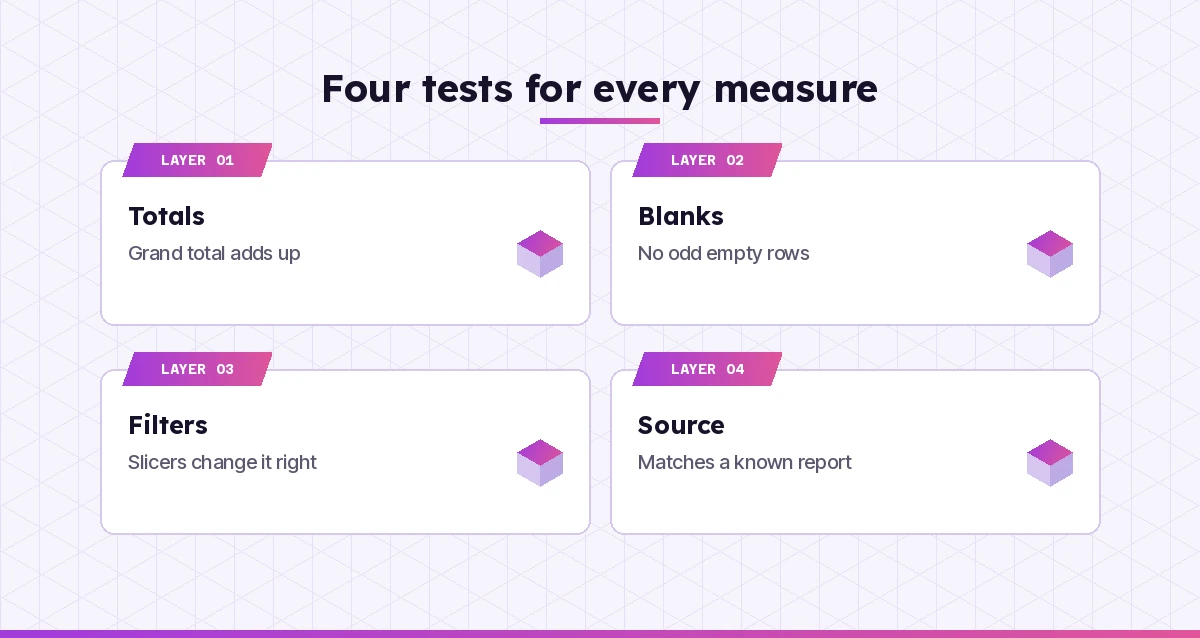
Worked Example: A Year-Over-Year Measure
Here is how a single request plays out. The prompt:
Using [Total Sales] and the marked Date table 'Date'[Date], write a measure called
Sales YoY % that shows growth against the same period last year. Return blank when
last year has no sales. Use variables and DIVIDE, and add short comments.
A typical answer looks like this:
Sales YoY % =
-- Sales in the current filter context
VAR CurrentSales = [Total Sales]
-- Sales for the same dates shifted back one year
VAR PriorSales =
    CALCULATE ( [Total Sales], SAMEPERIODLASTYEAR ( 'Date'[Date] ) )
RETURN
    -- DIVIDE returns blank when PriorSales is blank or zero
    DIVIDE ( CurrentSales - PriorSales, PriorSales )
Before using it, test it. Put Year and Month on rows in a matrix, add [Total Sales], a temporary prior-year measure and the new percentage. Check one month by hand with a calculator. Then switch the slicer to a single region and confirm the figures still make sense. If the first year shows blanks, that is expected, because there is nothing to compare against.
A good follow-up prompt is: “Now give me a version that compares the year to date with the prior year to date.” Building in small steps like this keeps each measure easy to check.
Test Every Measure Before You Publish
Even well-written Copilot DAX prompts produce code that is usually close and sometimes subtly wrong. Treat it as a draft from a quick colleague. Four checks catch most problems:
- Totals. Does the grand total make business sense, or does it add rows that should not be added?
- Blanks. Are there empty rows, zeros or errors where you expect values?
- Filters. Do slicers and cross-filtering change the number the way a user would expect?
- Source. Does the result match a figure you already trust, such as a finance report or a SQL query?
It also helps to learn the basics of evaluation context. Microsoft’s DAX overview is a clear starting point, and knowing the difference between row context and filter context makes it much easier to spot when Copilot has misread your intent.
Common Mistakes With Copilot DAX Prompts
- Not naming the date table. Time intelligence functions need a continuous date column. Say which one.
- Asking for calculated columns by default. Most aggregations belong in measures. Ask Copilot which one fits if unsure.
- Skipping business rules. Returns, cancelled orders, fiscal years and currency all change the answer.
- Accepting the first version. Ask “what filter situations would break this?” and you often get a better second draft.
- Pasting sensitive data into public tools. Share structure and code, not customer records, unless you are in an approved work environment.
For analysts who switch between Power BI, Excel and Python, our Copilot prompts for data analysts collection pairs well with these Copilot DAX prompts, and the Excel PivotTable prompts help when a quick check in Excel is faster.
Putting It Into Practice
Pick one report you maintain and run three requests from this list against it: one measure, one explanation and one DAX query. Save the Copilot DAX prompts that work, together with your model brief, so the next session starts strong. Over a few weeks you will have a personal library of requests that fit your own model, which is worth more than any generic list.
Frequently Asked Questions
Can Copilot write DAX in Power BI Desktop?
Yes. In DAX query view, Copilot can write and explain DAX queries and suggest measures based on your semantic model, and you can run the results before adding measures to the model. It needs a supported capacity and Copilot enabled for your tenant.
Do I need a paid licence to use Copilot for DAX?
Copilot inside Power BI usually needs a workspace on a paid Fabric or Premium capacity with Copilot turned on by an admin. You can still use the free Copilot app or Copilot Chat to draft and explain DAX you paste in, without a model connection.
Why does the DAX from Copilot give the wrong total?
Totals in DAX are calculated in their own filter context, not by adding the visible rows. Paste the measure back and ask Copilot to explain how the total is evaluated and to rewrite it so the total follows your business rule.
How do I get Copilot to use my real table names?
Work in DAX query view, where Copilot can see your model, or paste a short model brief listing tables, columns, relationships and base measures at the start of the chat. Naming the exact columns in each prompt also helps.
Is it safe to trust Copilot-generated measures?
Treat them as drafts. Check totals, blanks and slicer behaviour, and compare at least one number against a trusted source before publishing. Copilot is fast, but it can misread business rules you did not state.
Can Copilot DAX prompts help me learn DAX?
Yes. Ask it to explain measures line by line, compare similar functions like ALL and ALLSELECTED, or rewrite code with comments. Pairing those explanations with Microsoft’s DAX documentation is a quick way to build real understanding.