Copilot Prompts for Translation: 35 Proven Prompts for Accurate, Natural Results
Copilot prompts for translation can turn Microsoft Copilot from a word-swapping tool into something closer to a careful bilingual colleague. Paste a paragraph and type “translate this” and you will usually get a readable result. Tell Copilot who will read it, which regional variant you need, how formal it should sound and which terms must never change, and the output gets noticeably closer to what a professional would hand back.
This guide collects 35 copy-ready prompts for the translation jobs people actually face at work: quick phrases, emails, full Word documents, glossaries, website and marketing localization, meetings and final quality checks. Every prompt has brackets for your own details. You will also find a simple formula for writing your own, a worked example, and honest advice on where AI translation still needs a fluent human reviewer.
Where You Can Translate With Microsoft Copilot
There is more than one way to translate with Microsoft Copilot, and each entry point sees different content.
- Copilot app and copilot.microsoft.com. The quickest option. Paste text or upload a file, and Copilot translates it in the chat. Good for short pieces and drafts.
- Microsoft 365 Copilot Chat with a work account. The same chat experience, but with enterprise data protection, which matters when the text includes customer or company information.
- Copilot in Word, Outlook and PowerPoint. With a Microsoft 365 Copilot licence you can ask for translations and rewrites inside the document or email you are working on. Office apps also have a separate built-in Translate feature; Microsoft explains it in its guide to translating text into a different language.
- Copilot in Teams. Meeting recaps and chat summaries can be requested in another language, and Teams offers translated captions on supported plans.
Features and language support differ by plan and region and change over time, so check Microsoft’s Copilot documentation for what your account includes. The prompts below are plain text, so they work in any of these places.
The Formula Behind Good AI Translation Prompts
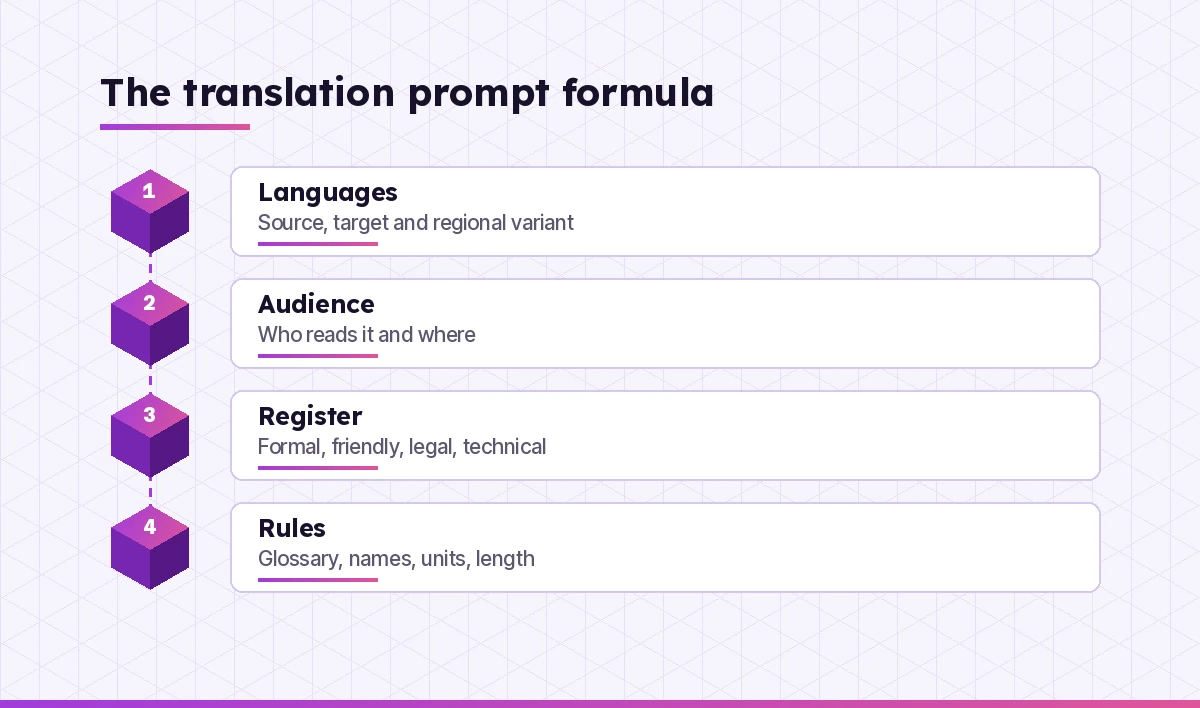
Machine translation fails in predictable ways. It picks the wrong regional variant, flips the tone from friendly to stiff, translates a product name that should stay in English, or quietly converts a date format. Almost all of that can be prevented up front if your request covers four things:
- Languages. Source and target, including the variant: Brazilian or European Portuguese, Latin American or Castilian Spanish, Simplified or Traditional Chinese.
- Audience. Who reads it and in what setting: a customer, a regulator, a colleague in another office, a child.
- Register. Formal, friendly, legal, technical or marketing. Name it, and say whether to use the formal or informal “you” where the language has one.
- Rules. A glossary, names and brands to leave alone, units and currency, and any length limit.
The difference is easy to see side by side.
Weak: Translate this into Spanish.

Strong: Translate the text below from English into Latin American
Spanish for customers in Mexico. Tone: warm and professional, use
"usted". Keep the product name "FlowDesk" and all prices exactly as
written. Keep it roughly the same length. Text: [paste]
The strong version takes fifteen seconds longer to type. Save it once and reuse it with new text.
Quick Translation Prompts for Everyday Text
These are the copilot prompts for translation you will use most often for short messages and phrases.
1. Natural, not literal
Translate this from [source language] into [target language]. Make it
sound like something a native speaker would naturally write, not a
word-for-word translation. Text: [paste]
2. Translation with alternatives
Translate "[phrase]" into [target language]. Give me 3 options from
most formal to most casual, and explain in one line when each fits.
3. Explain an idiom
What does "[idiom or slang]" mean in [language]? Give the closest
natural equivalent in [other language], and tell me if a literal
translation would confuse readers.
4. Detect and translate
I'm not sure what language this is. Identify it, translate it into
English, and point out any words that could mean more than one thing.
Text: [paste]
5. Bilingual table
Translate these [number] lines into [target language]. Show the result
as a two-column table: original on the left, translation on the right.
Lines: [paste]
6. Simplify, then translate
First rewrite this text in plain, simple English at about a
6th-grade reading level. Then translate the simplified version into
[target language]. Text: [paste]
Prompt 6 is useful for safety notices, instructions and public information, where clarity matters more than elegance. Short, simple sentences also translate with fewer errors.
Prompts to Translate Emails and Messages
Email is where tone matters most, and where copilot prompts for translation save the most rework. A sentence that sounds polite in English can feel blunt or overly flowery in another language.
7. Reply in their language
Here is an email I received in [language]: [paste]. First summarize it
in English in 3 bullets. Then draft my reply in [language] saying
[your main points]. Match the formality of their email.
8. Cultural tone check
I need to send this email to a colleague in [country]: [paste]. Translate
it into [language] and adjust the politeness and directness so it feels
normal for business email there. List what you changed and why.
9. Bilingual email
Write this announcement in both English and [language], English first,
with a short divider between versions. Keep both versions equal in
meaning and length. Content: [paste or describe]
10. Customer support macro
Translate this support reply template into [language list]. Keep the
placeholders like {first_name} and {order_id} unchanged. Use a friendly
but professional tone suitable for customer support.
11. Chat message, quick and casual
Translate this Teams message into [language] so it sounds casual and
friendly, like a coworker would write it: [paste]
If you write a lot of email, pair these with our Copilot prompts for email writing to get the original draft right before it is translated.
How to Use Copilot to Translate a Document
Long documents need structure, or the translation drifts halfway through. The copilot prompts for translation below keep it on track. The prompts below work best in Copilot in Word or with an uploaded file in Copilot Chat.
12. Full document, structure preserved
Translate the attached document from [source] into [target]. Keep all
headings, numbering, bullet lists and table layouts exactly as they
are. Do not summarize or skip any section. Keep brand and product names
in English.
13. Section by section
We'll translate this document one section at a time. Translate only
the section titled "[heading]" into [language] for now. After each
section, list any terms you were unsure about.
Working in chunks keeps quality steady. Copilot can lose consistency on very long inputs, and checking smaller sections is far easier.
14. Summary in another language
Read the attached [language] report and write a one-page summary in
English for a manager who does not speak [language]. Include the key
numbers and any decisions or deadlines mentioned.
15. Technical manual
Translate these product instructions into [language] for end users.
Keep safety warnings at the same strength (do not soften "must" or
"never"). Keep model numbers, measurements and units exactly as
written. Text: [paste]
16. Slide deck text
Translate the text on these slides into [language]. Each slide title
must stay under [number] characters so it fits the layout. If a phrase
runs long, give a shorter natural version. Slides: [paste]
17. Policy or HR document
Translate this policy into [language] for employees in [country]. Use
clear, neutral language. Flag any sentence where a legal or HR term may
not have an exact equivalent, so our local team can review it.
For checking a translated document against its source, our guide to Copilot prompts for comparing 2 documents has prompts that spot missing or altered sections.
Glossary and Terminology Prompts
Consistent terminology is what separates a professional translation from a rough one. If “account” becomes three different words across a document, readers notice.
18. Build a glossary
From the text below, pull out the 20 most important technical or
product terms. Create a glossary table with: English term, suggested
[language] translation, short definition, and a note if the term should
stay in English. Text: [paste]
19. Translate with a fixed glossary
Translate the text below into [language]. You must use these exact
term translations every time:
[term] = [translation]
[term] = [translation]
Do not translate these names: [list]. Text: [paste]
20. Consistency audit
Here is a translated document: [paste]. List every place where the
same English concept seems to be translated with different
[language] words, and suggest one consistent choice.
21. Do-not-translate list
Scan this text and list everything that should usually stay
untranslated: brand names, product names, code, file names, URLs,
legal entity names and acronyms. Text: [paste]
Website and Marketing Localization Prompts
Localization goes further than translation, so these copilot prompts for translation ask for adaptation, not just new words. Jokes, references, examples and calls to action may need to change so they land with the new audience.
22. Localize, do not just translate
Localize this landing page copy for [country]. Keep the meaning and
offer, but adapt idioms, examples and cultural references so they feel
local. Point out anything that might not work for this market.
Copy: [paste]
23. SEO-friendly translation
Translate this page title and meta description into [language] for
searchers in [country]. Keep the title under 60 characters and the
description under 155. Suggest the phrase people there would most
likely search for instead of a literal translation of "[keyword]".
Treat Copilot’s search phrase as a suggestion. Confirm it with a keyword tool for that country before you build pages around it.
24. Slogan and tagline options
Our English tagline is "[tagline]". Give me 5 [language] versions that
keep the spirit rather than the literal words. For each, give a back-
translation into English so I can see what it really says.
25. Social media posts
Translate these 3 social posts into [language] for [platform]. Keep
hashtags that are global, swap the rest for ones commonly used in
[country], and keep each post within [number] characters.
26. UI strings and app text
Translate these interface strings into [language]. Keep placeholders
like %s and {count} exactly as they are, keep button labels short, and
use the informal/formal "you" consistently ([choose]). Return them as
key = value pairs. Strings: [paste]
Translation Prompts for Meetings and Multilingual Teams
Teams with people in several countries can use Copilot to keep everyone on the same page.
27. Meeting recap in two languages
Summarize this meeting transcript in English, then give the same
summary in [language]. Include decisions, owners and deadlines in both.
Transcript: [paste or reference the meeting]
28. Prepare talking points
I'm presenting to a team in [country] in [language], which is not my
first language. Turn my English notes into simple [language] talking
points I can read aloud, with a pronunciation hint for any hard words.
Notes: [paste]
29. Explain a colleague’s message
A colleague wrote this in [language]: [paste]. Translate it, then tell
me if the tone is neutral, frustrated or urgent, and what a polite
reply would cover.
30. Multilingual FAQ
Turn these 8 internal FAQ answers into [language 1] and [language 2].
Keep each answer under 80 words and keep the same order so we can
publish them side by side. FAQ: [paste]
For more ways to work with recordings and recaps, see our Copilot prompts for Teams meetings.
Quality Check Prompts Before You Publish
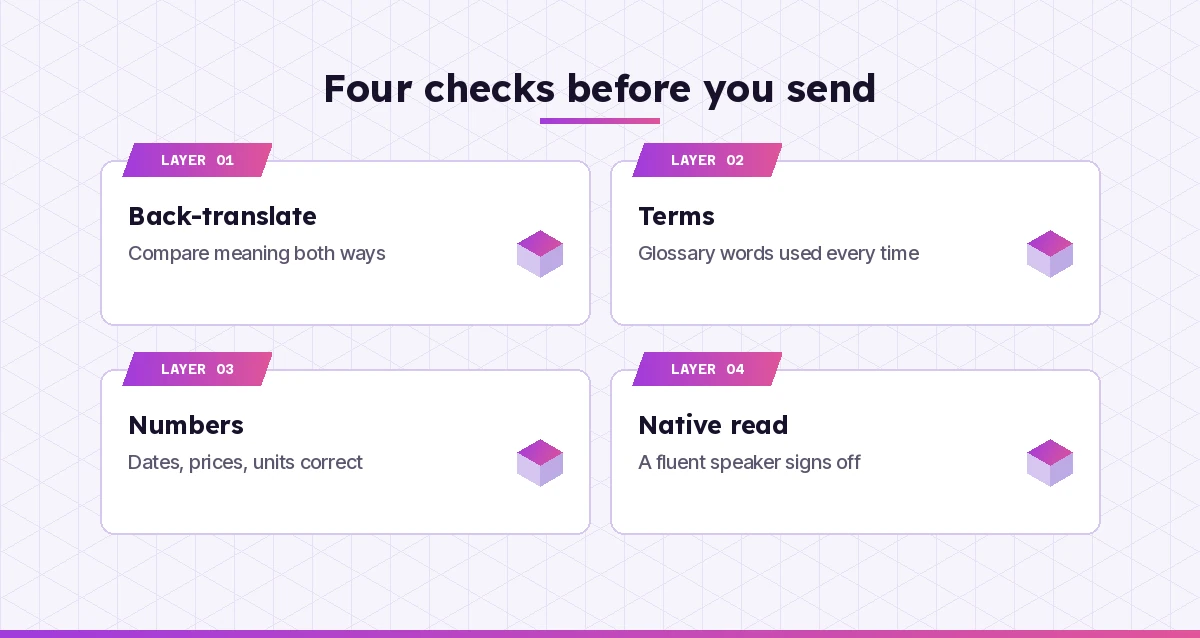
A translation that reads smoothly can still be wrong. Finish your copilot prompts for translation workflow with these checks. These prompts help you catch problems before a reader does.
31. Back-translation check
Here is my original text and its [language] translation. Translate the
[language] version back into English without looking at the original,
then compare the two and list any differences in meaning.
Original: [paste] Translation: [paste]
32. Numbers and facts
Compare the original and the translation below. Check that every
number, date, price, unit, name and link is identical or correctly
converted. List any mismatch in a table.
33. Fluency review
Act as a native [language] editor. Review this translated text and
mark anything that sounds unnatural, too literal or grammatically
wrong. Suggest a better version for each. Text: [paste]
34. Tone match
Does this [language] translation keep the same tone as the English
original (for example, friendly and confident)? Rate the match from 1
to 5 and rewrite any sentences that drift.
35. Translator brief
Write a one-page brief for a professional translator who will review
this text. Include audience, tone, glossary, do-not-translate items,
length limits and the parts you are least confident about.
A Worked Example
Imagine a small software company sending a service update to customers in Germany. A first attempt with “translate to German” comes back in a fairly informal style and translates the product name.
The second attempt uses the formula:
Translate this customer email from English into German for business
customers in Germany. Use the formal "Sie". Tone: clear and reassuring,
not salesy. Do not translate the product name "FlowDesk" or the
feature name "Smart Sync". Keep dates in DD.MM.YYYY format.
Email: [paste]
The writer then runs prompt 31 to back-translate it and prompt 32 to check the dates. The back-translation shows one sentence where “minor delay” came out sounding more serious than intended, so they ask Copilot for a softer alternative. Finally, a German-speaking colleague reads it before it is sent. Total time: about ten minutes, most of it spent on review rather than typing.
Copilot vs DeepL and Dedicated Translation Tools
People often ask how Copilot compares with DeepL, Google Translate or professional translation software. A fair way to think about it:
| Need | Copilot | Dedicated translation tools |
|---|---|---|
| Quick text and emails | Strong, especially with tone instructions | Strong and fast |
| Following detailed instructions | Strong: tone, audience, length, rules | More limited, though some offer glossaries |
| Explaining choices and options | Can explain, compare and rewrite | Usually just returns a translation |
| Large-volume, repeatable work | Manual, chunk by chunk | Built for it, with translation memory |
| Certified or legal translation | Not suitable on its own | Needs a qualified human either way |
Copilot’s advantage is that you can talk to it. You can ask why it chose a word, request three variants or tell it to sound more local. Specialized tools are often better for high-volume, repeatable work. Many teams use both: one for the first draft, Copilot for tone and checks, and a person for sign-off.
When a Human Translator Still Has to Sign Off
AI translation is good enough for drafts, internal communication and understanding foreign-language content. It is not enough on its own for:
- Legal contracts and regulatory filings, where one word can change obligations.
- Medical, safety and pharmaceutical content, where errors can cause harm.
- Certified or official translations, which often require a sworn or accredited translator.
- High-stakes brand campaigns, where tone and cultural fit decide success.
In these cases, use Copilot to prepare a draft, a glossary and a translator brief (prompt 35), then let a qualified professional finish the job.
Tips to Get More From Copilot Prompts for Translation
- Name the variant. “Spanish” is not one audience. Say which country.
- Paste a style sample. A paragraph you already like in the target language helps Copilot match it.
- Keep sentences short in the source. Clear originals produce clearer translations.
- Protect sensitive text. Use a work account with data protection for anything confidential, and leave out details the task does not need.
- Save your best prompts. Keep a page of your favorite versions with your glossary attached, so the whole team gets consistent results.
If you are newer to prompting in general, our guide on how to write Copilot prompts covers the basics, and our Copilot prompts for rewriting help polish text before or after it is translated.
Final Thoughts
Good translation has always been about context: who is reading, what they expect and which words must not change. These copilot prompts for translation simply give Copilot that context up front. Start with the formula, save the five or six prompts you use most, and build a glossary as you go. Then keep a fluent reviewer in the loop for anything that matters, and you will get faster drafts without sacrificing accuracy.
Frequently Asked Questions
Can Microsoft Copilot translate text accurately?
Copilot handles common language pairs well, especially when you give it the target audience, regional variant, tone and key terms. Accuracy drops for rare languages, specialist vocabulary and very long texts, so always review important translations and use a fluent speaker for anything high-stakes.
How do I get Copilot to translate a whole Word document?
Open the document in Word with Copilot, or upload it to Copilot Chat, and ask it to translate the full document while keeping headings, lists and tables unchanged. For long files, translate one section at a time and check each part, which keeps terminology consistent.
Is Copilot better than DeepL or Google Translate?
They suit different jobs. Dedicated translation tools are quick and strong for straightforward or high-volume text. Copilot is useful when you want to control tone, audience and length, ask for alternatives or get an explanation of word choices. Many people use a translation tool for the draft and Copilot for refinement and checks.
Which languages does Copilot support for translation?
Copilot can work with many widely used languages, but quality and feature support vary by language, app and region. Check Microsoft’s current Copilot documentation for the supported languages list for your plan before relying on it for a specific language.
Is it safe to translate confidential documents with Copilot?
Use Microsoft 365 Copilot Chat or Copilot in the Office apps with a work account, which applies enterprise data protection to your content. Avoid pasting confidential material into a personal consumer account, and remove any details the translation does not need.
How can I check whether a Copilot translation is correct?
Ask Copilot to back-translate the text into the original language and compare meanings, check every number, date and name against the source, and have a native speaker review the final version. For legal, medical or certified work, a qualified human translator should always sign off.