Copilot Prompt for Professional Headshot: 32 Proven Prompts for Polished Portraits
A copilot prompt for professional headshot work is really a short photo brief: who is in the frame, what they wear, where they stand, how the light falls and how the picture will be used. Give Microsoft Copilot that brief and it can produce clean, studio-style portraits for a LinkedIn banner, a speaker page, a team mock-up or a placeholder on a new website. Leave it out and you usually get a glossy stock-photo face that looks like nobody in particular.
This guide gives you 32 copy-ready prompts grouped by the job you are doing, a reusable formula, a worked example with follow-up edits, and the honest limits you should know before you put an AI-generated portrait anywhere official. Everything here works in the free Copilot app and website, and most prompts also work wherever Copilot image creation is available inside Microsoft 365.
What Copilot Can and Can’t Do With Headshots
Before you write a single word, it helps to know what you are actually asking for.
- It creates new images from text. Describe a person, outfit, setting and lighting, and Copilot generates a portrait that matches the description.
- It can work from a photo you upload. You can attach a picture and ask for a cleaner background, a more formal look or a different style. Treat the result as a new image inspired by your photo, not a retouched copy. Facial details can drift, so check the likeness carefully.
- It follows style words well. Terms like “soft key light,” “shallow depth of field,” “neutral grey backdrop” and “85mm portrait look” steer the output far more than adjectives like “nice” or “professional.”
- It has guardrails. Copilot may decline requests to imitate a specific real person, a celebrity or anyone who has not agreed to it. Those limits are deliberate, and they are a good reason to only use your own photos.
The practical takeaway: Copilot is excellent for concept shots, placeholders, illustrated avatars and styling ideas. For an ID badge, a passport or anything that must show exactly what you look like today, use a real photograph.
How to Write a Copilot Prompt for Professional Headshot Results
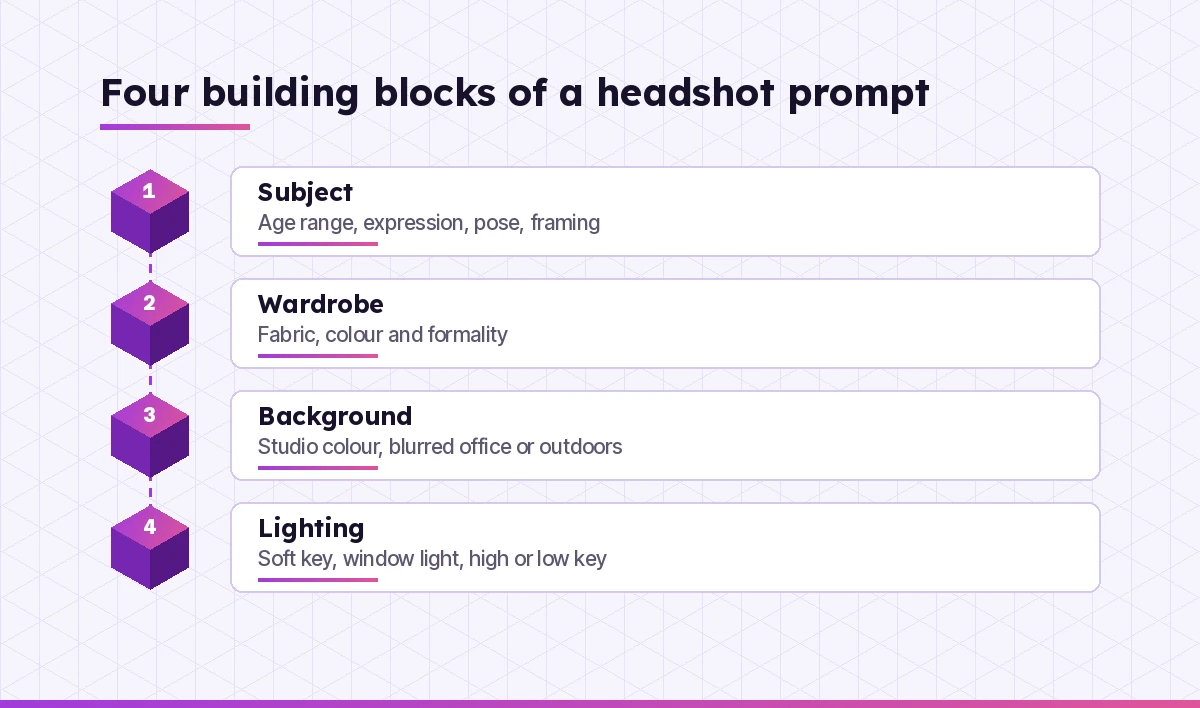
Strong image prompts share the same building blocks. Use this six-part checklist and you will rarely need more than one or two follow-ups.
- Subject. Age range, expression, pose and framing (head and shoulders, chest-up, three-quarter angle).
- Wardrobe. Fabric, colour and formality. “Navy wool blazer over a white open-collar shirt” beats “business clothes.”
- Background. Solid studio colour, blurred office, outdoor greenery or brand colour.
- Lighting. Soft window light, classic three-point studio setup, golden hour, high-key or low-key.
- Camera look. Portrait lens feel, depth of field, sharp focus on the eyes, natural skin texture.
- Use and format. Square for a profile picture, wide for a banner, plenty of headroom for cropping.
Here is a reusable copilot prompt for professional headshot requests. Copy it, then swap the brackets.
Create a photorealistic professional headshot of [subject: age range,
expression, pose]. Wearing [wardrobe]. Background: [backdrop].
Lighting: [lighting style]. Camera look: [lens feel, depth of field,
sharp eyes, natural skin texture]. Format: [square / 4:5 / wide],
head and shoulders centred with space above the head.
If you want a deeper look at why this structure works, our guide to Copilot prompt ingredients breaks down goal, context, source and expectations in more detail.
Corporate and Executive Headshot Prompts
Each copilot prompt for professional headshot use in this section covers the classic office portrait. Keep wardrobe and background calm so the face stays the focus.
1. Classic corporate studio portrait
Create a photorealistic corporate headshot of a confident professional
in their 40s, slight smile, facing the camera at a three-quarter angle.
Charcoal suit, light blue shirt, no tie. Plain medium-grey studio
backdrop. Soft three-point lighting, sharp focus on the eyes, natural
skin texture. Square format, head and shoulders.
2. Executive portrait for an annual report
Generate an executive portrait for an annual report: a senior leader in
a tailored dark suit, arms relaxed, calm and approachable expression.
Background is a softly blurred modern boardroom with warm wood tones.
Even, flattering light. Portrait orientation (4:5), chest-up framing.
3. Business casual for a startup team page
Create a friendly business-casual headshot: a person in their late 20s
wearing a heather-grey crewneck sweater, genuine smile, head tilted
slightly. Bright off-white background, airy natural window light from
the left. Square crop with even margins.
4. Formal portrait for a law or finance firm
Produce a formal headshot suitable for a law firm website. Navy suit,
white shirt, subtle burgundy tie, neutral expression with a hint of a
smile. Deep navy gradient backdrop, classic Rembrandt lighting, crisp
detail, conservative and trustworthy tone. 4:5 portrait.
5. Board member series, consistent style
Create a headshot in a consistent series style for board members:
dark blue backdrop, soft key light from the upper left, subtle rim light,
chest-up framing, eyes at the upper third. Subject: a woman in her 50s
with short silver hair, black blazer, pearl stud earrings.
LinkedIn and Personal Brand Prompts
A profile picture is viewed tiny, so a copilot prompt for professional headshot photos on LinkedIn needs to favour clarity. In practice, contrast, a clear face and a simple backdrop matter more than detail. For the written side of your profile, pair these with our Copilot prompt for LinkedIn profile templates.
6. LinkedIn profile photo
Create a professional LinkedIn profile photo: head and shoulders,
centred, warm confident smile, eye contact with the camera. Smart-casual
navy blazer over a white T-shirt. Clean light-grey background. Soft,
even lighting. Square format with space around the head so it fits a
circular crop.
7. Matching LinkedIn banner
Create a wide LinkedIn banner (4:1) to match a professional headshot:
a softly blurred bright office with plants and large windows on the
right, empty clean space on the left for text. Calm blue and white
palette, no people, no text.
8. Approachable consultant look
Generate an approachable consultant headshot: open posture, light
laugh, sleeves rolled up on a crisp white shirt, standing near a window
with natural daylight. Background is a softly blurred co-working space.
Square, chest-up.
9. Personal brand with a signature colour
Create a personal-brand headshot using purple as the signature colour:
the subject wears a neutral black top, and the backdrop is a smooth
lavender-to-violet gradient. Confident, friendly expression, soft
beauty-dish lighting, polished but natural. Square format.
10. Job seeker refresh
Create a polished, approachable headshot for a job seeker in marketing:
early 30s, smart blouse in muted teal, gentle smile, slight head tilt.
Plain warm-grey background, soft light, natural skin texture, no heavy
retouching look.
If the headshot is going on an application, the words still do most of the work. Our Copilot prompts for resume writing help you match the photo with a stronger document.
Industry-Specific Headshot Prompts
Adapt any copilot prompt for professional headshot work to your field. The right setting tells viewers what you do before they read a word. Swap the details to fit your field.
11. Healthcare professional
Create a headshot of a healthcare professional in a white coat over
light blue scrubs, stethoscope around the neck, reassuring smile.
Background is a softly blurred, bright clinic corridor. Clean, hygienic
feel, even lighting, 4:5 portrait.
12. Software engineer
Generate a relaxed headshot of a software engineer in a dark hoodie,
standing in a modern tech office with blurred monitors behind. Cool
blue ambient light with a warm key light on the face. Chest-up, square.
13. Real estate agent
Create a warm, trustworthy headshot of a real estate agent outdoors,
golden-hour light, blurred tree-lined residential street behind them.
Light camel blazer, friendly smile, head and shoulders, 4:5.
14. Creative director
Generate an editorial-style headshot of a creative director: black
turtleneck, thoughtful expression, side lighting creating gentle shadow
on one side of the face. Textured concrete wall backdrop, muted tones,
slightly desaturated colour grade.
15. Teacher or academic
Create a friendly headshot of a university lecturer in a knit cardigan
over a collared shirt, standing in front of softly blurred library
shelves. Natural warm light, kind expression, head and shoulders.
16. Chef or hospitality
Create a headshot of a chef in a crisp white chef's jacket, arms folded,
proud smile, in a softly blurred professional kitchen with warm light.
Chest-up framing, 4:5.
17. Speaker or event bio
Generate a dynamic speaker headshot: subject on a stage with a softly
blurred audience and warm spotlights behind, smart-casual outfit,
mid-gesture with an engaged expression. Horizontal 3:2 with the subject
on the right third.
Background, Lighting and Style Variations
Once you have a look you like, change one variable at a time. These prompts are built as follow-ups to an image Copilot already created.
18. Swap to a solid studio backdrop
Keep the same person, pose, outfit and lighting. Replace the
background with a seamless solid mid-grey studio backdrop.
19. Make it high-key and bright
Same portrait, but high-key: bright white background, soft wraparound
light, minimal shadows, fresh and clean feel.
20. Make it low-key and dramatic
Same subject and outfit, but low-key lighting: dark charcoal background,
single soft key light from the side, deep but gentle shadows, refined
and serious mood.
21. Outdoor natural light
Move the subject outdoors in open shade with soft natural light, a
blurred green park background and a shallow depth of field. Keep the
same expression and clothing.
22. Black and white portrait
Convert the look to a classic black-and-white portrait with rich
contrast, smooth tonal range and sharp detail in the eyes.
23. Brand colour backdrop
Keep everything the same but change the backdrop to a smooth gradient
from #A13CDD purple to a deep violet, with a soft vignette.
Prompts for Working From Your Own Photo
Uploading a picture gives Copilot something real to anchor on, which is why a copilot prompt for professional headshot edits should always state what must stay unchanged. Use well-lit, front-facing photos and keep requests modest; the bigger the change, the more the face can drift.
24. Clean up a casual selfie
Using the attached photo of me, create a professional headshot version:
same face and hairstyle, head-and-shoulders framing, plain light-grey
studio background, soft even lighting. Keep my features natural and
recognisable. Do not change my age, skin tone or face shape.
25. Change the outfit only
Use the attached photo. Keep my face, hair, expression and pose exactly
as they are, and change my clothing to a navy blazer over a white shirt.
Background: blurred bright office.
26. Fix the background only
From the attached photo, keep me unchanged and replace the cluttered
background with a softly blurred neutral office scene. Match the light
direction so it looks natural.
27. Get styling feedback before a real shoot
Look at the attached photo and give me practical advice for a real
professional headshot shoot: which colours to wear, best background,
lighting direction, framing and three pose ideas. Be specific and short.
That last prompt is often the most useful one. Copilot’s written feedback helps you brief a real photographer, and the photo you get will look exactly like you.
Team, Avatar and Illustrated Headshot Prompts
Sometimes you don’t want photorealism at all. Illustrated portraits are great for internal sites, newsletters and placeholder slots.
28. Consistent team placeholders
Create a set of four placeholder headshots for a website team page in
one consistent style: same light-grey backdrop, same soft lighting, same
chest-up framing, diverse people in smart-casual clothing. Photorealistic,
no text, no logos.
29. Flat illustrated avatar
Turn the attached photo into a flat vector-style avatar: simple shapes,
clean outlines, soft purple background circle, friendly expression.
Suitable for a Teams or Slack profile picture.
30. 3D cartoon professional avatar
Create a 3D cartoon-style professional avatar of a smiling person with
glasses and a blue blazer, soft studio lighting, pastel background,
rounded friendly proportions, square format.
31. Line-art portrait for a newsletter
Create a minimalist single-line art portrait of a professional, head and
shoulders, black line on a warm off-white background, elegant and simple.
32. Prompt rewriter for headshots
I want a professional headshot for [use]. Ask me up to five quick
questions about style, outfit, background and lighting, then write one
detailed image prompt I can use in Copilot.
Worked Example: From Vague Request to Final Portrait
Here is how a typical session goes when you start too loose and tighten step by step.
Attempt 1: “Make me a professional headshot.” The result is a generic smiling stranger in a suit against a grey wall. Nothing is wrong, but it doesn’t fit any particular purpose.
Attempt 2: Use the formula. “Photorealistic headshot of a woman in her 30s, warm smile, three-quarter angle, emerald blouse, softly blurred bright office, soft window light from the left, sharp eyes, natural skin texture, square, head and shoulders with space above.” Now the image looks intentional.
Attempt 3: One change at a time. “Keep everything, but make the background a plain warm-grey studio backdrop.” Then: “Slightly more relaxed smile.” Small edits keep the rest of the picture stable.
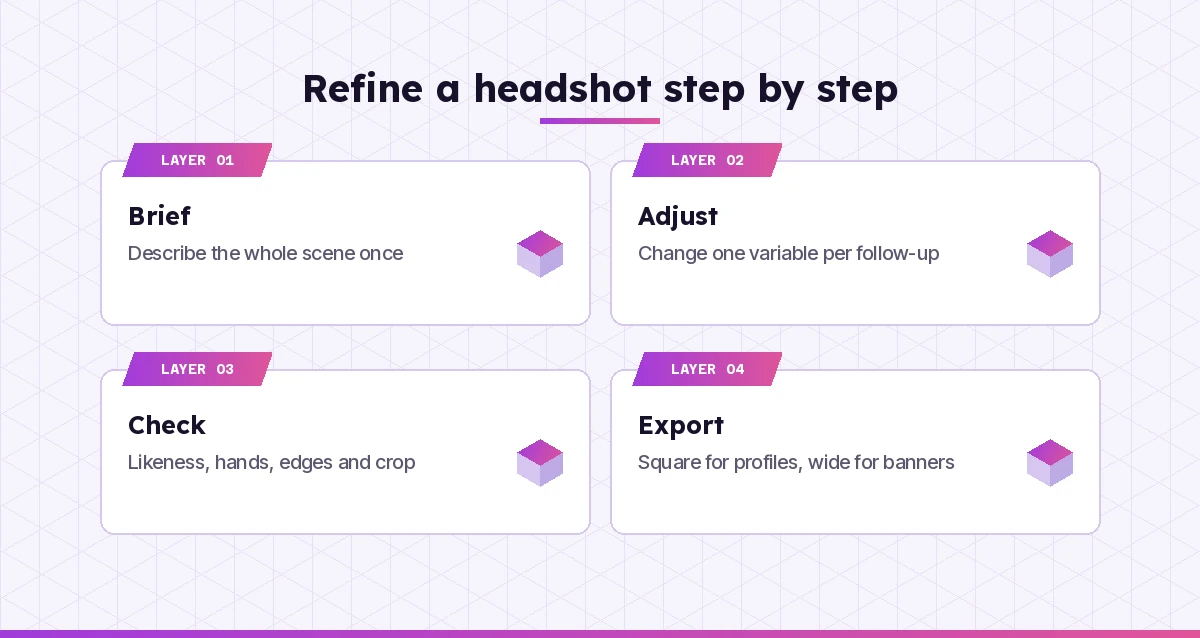
The pattern matters more than any single copilot prompt for professional headshot output. Describe the whole scene once, then nudge single details instead of rewriting the prompt from scratch. Our Copilot prompt template collection uses the same idea for text tasks.
Common Mistakes and How to Fix Them
| Mistake | What you get | Fix |
|---|---|---|
| Only saying “professional” | Generic stock-photo look | Name wardrobe, backdrop and lighting |
| Busy backgrounds | Face gets lost at small sizes | Use plain or softly blurred settings |
| Asking for “perfect skin” | Plastic, over-smoothed faces | Ask for natural skin texture |
| Changing many things at once | The whole image shifts | Edit one variable per follow-up |
| Tight framing | Circular crops cut off hair or chin | Ask for headroom and centred framing |
| Using it as an ID photo | A face that isn’t quite you | Use a real photograph for official IDs |
Ethics, Honesty and Where to Use AI Headshots
A headshot is a claim about who you are, so a little care goes a long way.
- Only upload your own photos, or photos of people who clearly agreed. Don’t try to recreate a colleague, client or public figure.
- Keep the likeness honest. If you use an AI-assisted portrait on a professional profile, it should still look like you on a video call.
- Check your organisation’s rules. Some employers, schools and directories require real photographs for staff pages or badges.
- Avoid sensitive data. Don’t paste personal identifiers or confidential details into prompts.
Microsoft publishes its approach to these limits on its Responsible AI page, which explains why Copilot declines some requests involving real people.
Make Your Headshot Prompts Reusable
Once a prompt gives you a look you love, save it. Keep a short note with the exact wording, the backdrop colour and the lighting style so you can produce matching images for a new team member months later. A consistent visual style across a team page signals care, and a saved copilot prompt for professional headshot work makes that consistency easy. If you collect useful prompts across apps, our Copilot prompt cheat sheet is a handy place to start organising them.
Frequently Asked Questions
Can Microsoft Copilot make a professional headshot?
Yes. Copilot can generate photorealistic and illustrated portraits from a text description, and in many versions you can attach a photo for it to work from. Results are best when you describe wardrobe, background, lighting and framing. Always check the likeness and use a real photograph where an exact likeness is required.
What is a good copilot prompt for professional headshot photos?
A good prompt names the subject and expression, the outfit, the background, the lighting style, a camera look such as sharp eyes and natural skin texture, and the format. For example: head-and-shoulders portrait, navy blazer, plain light-grey backdrop, soft even light, square crop with space above the head.
Can I upload my own photo to Copilot to create a headshot?
In many Copilot experiences you can attach an image and ask for changes such as a cleaner background or a different outfit. Treat the output as a new image based on your photo, because facial details can shift. Ask Copilot to keep your features, age and skin tone unchanged, and make small edits one at a time.
Is it okay to use an AI headshot on LinkedIn?
Many people do, but it should still look like you. Viewers expect your profile photo to match how you appear in meetings and interviews. Check any employer or platform rules, avoid heavy changes to your face, and consider a real photo if accuracy matters.
Why does Copilot refuse some headshot requests?
Copilot has safety rules that can block requests to depict specific real people, celebrities or anyone without consent, and certain kinds of edits to faces. Rephrase to describe a fictional person, or use only your own photo with modest changes.
How do I keep the same style for a whole team’s headshots?
Write one base prompt that fixes the backdrop colour, lighting, framing and colour grade, then only change the person’s description each time. Save that base prompt and reuse it whenever someone joins, so every portrait on your team page matches.