Copilot Prompts for Data Analysts: 40 Powerful Prompts for Faster Insights
Copilot prompts for data analysts turn the slow parts of analysis, like profiling a messy export, writing a tricky SQL join or explaining a chart to a busy stakeholder, into a quick conversation. This guide collects 40 copy-ready prompts organised around the real analysis workflow, from first look at the data to the final slide, along with the checks that keep AI-assisted numbers trustworthy.
Analysts rarely struggle with the idea of a question. The friction is everything around it: figuring out what the columns mean, cleaning blanks and duplicates, remembering window function syntax, and then translating a result into a sentence a director will actually read. That is exactly the kind of work an AI assistant handles well, as long as you stay in charge of the logic.
Where Copilot Prompts for Data Analysts Fit In
“Copilot” covers several products, and analysts tend to touch more of them than most roles. Knowing which one you are talking to changes how you phrase a request.
- Copilot in Excel works on tables in your workbook. It can add formula columns, highlight values, build PivotTables and charts, and run deeper analysis with Python in Excel where that feature is available.
- Copilot in Power BI helps build report pages, write DAX, and summarise visuals. Microsoft’s overview of Copilot for Power BI explains the licensing and capacity requirements.
- Copilot in Microsoft Fabric assists inside notebooks, SQL endpoints and data pipelines if your team works in Fabric.
- Microsoft 365 Copilot Chat is useful for planning an analysis, drafting SQL or Python, explaining statistics, and writing up findings.
- GitHub Copilot speeds up analysis code in VS Code or Jupyter notebooks, from pandas transformations to unit tests for data functions.
The copilot prompts for data analysts below are written so they work in the chat experience, and most of them translate directly to the Excel, Power BI or notebook panes. Where a prompt depends on a specific app, the section says so.
A Prompt Formula Built for Analysis
Microsoft’s guidance on writing effective Copilot prompts recommends four parts: a goal, context, expectations and a source. For analysis work, it helps to be even more specific:
- Goal: the business question, not just the operation. “Find out why Q3 churn rose” beats “group by month”.
- Data context: table names, column names and types, grain (one row per what?), and known quirks.
- Method constraints: which tool or language, what assumptions are allowed, how to handle nulls and outliers.
- Output format: a formula, a query with comments, a table, or a short narrative for a non-technical reader.
Describing the grain of the table is the single biggest upgrade most analysts can make. An AI assistant that thinks your table has one row per customer when it really has one row per transaction will produce confident, wrong totals. For more structure ideas, see our Copilot prompt template.
Prompts for Understanding a New Dataset
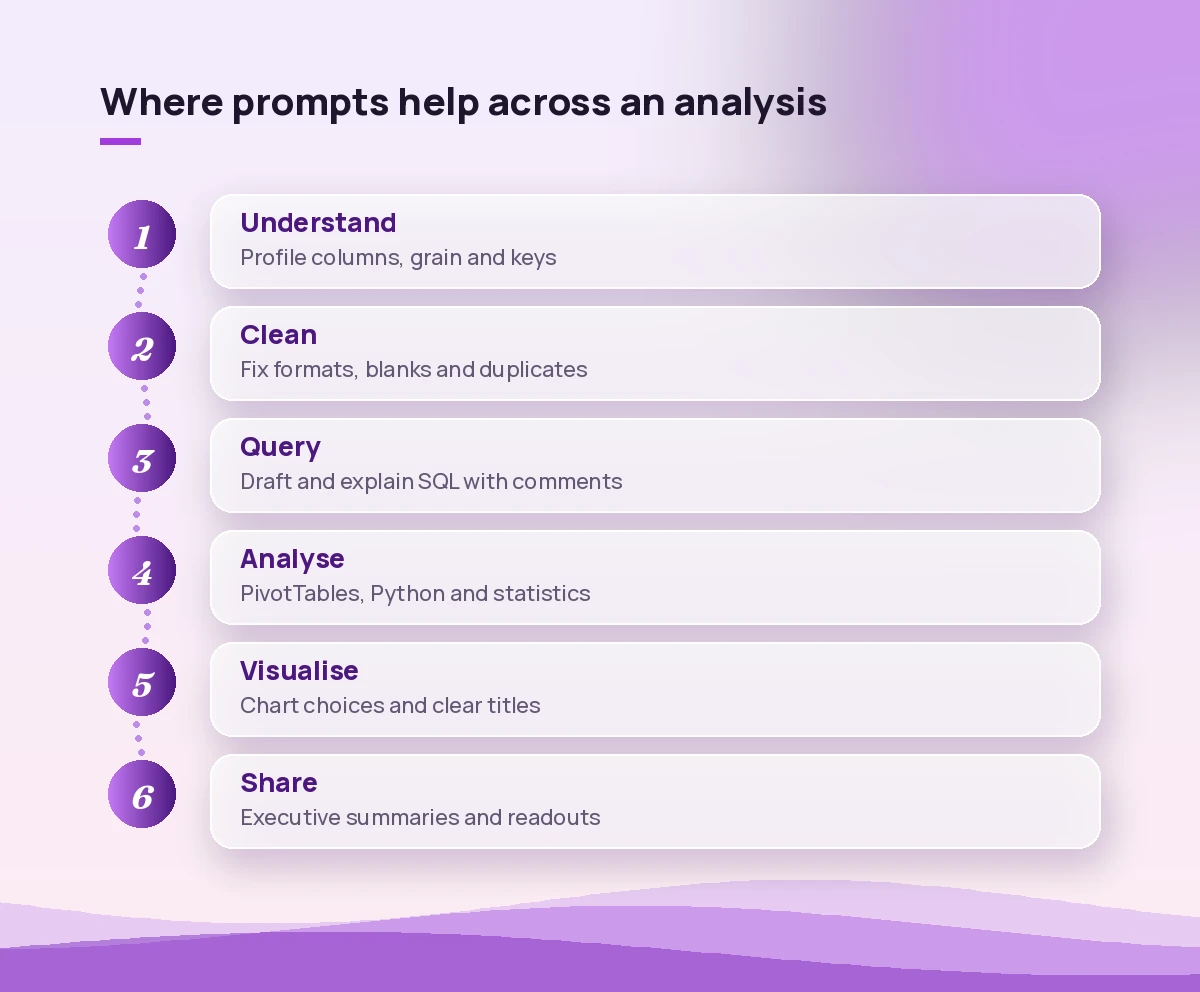
The first hour with an unfamiliar export is where AI help pays off fastest. Use these to profile the data before you trust any of it.
Here are the column names and 20 sample rows from a sales export: [paste]. Describe what one row most likely represents, list each column with its probable data type and meaning, and flag any columns that look ambiguous or redundant.Profile this table in Excel. For each column, show the count of blanks, number of distinct values, minimum and maximum for numbers and dates, and the five most common values for text columns.Based on these column names [paste], suggest the likely primary key and explain how I could confirm it has no duplicates using a formula or a SQL query.List ten questions I should ask the data owner about this dataset before I start analysing it, focusing on definitions, time zones, refunds, test records and how late-arriving data is handled.Write a one-paragraph data dictionary entry for each of these fields so a new team member understands them: [paste field list with my notes].Prompts for Cleaning and Preparing Data
Cleaning is still most of the job. These requests save keystrokes without hiding what changed. If you want a deeper set focused on spreadsheets, our guide to Copilot Excel data cleaning prompts goes further.
Add a column that standardises the Country field so variants like "USA", "U.S." and "United States" all become "United States". Show me the mapping you used before applying it.Find rows where Order Date is later than Ship Date, or where Quantity is zero or negative, and highlight them. Don't delete anything; I want to review them first.Write a Power Query (M) step that splits the "Full Name" column into first and last name, trims extra spaces, and handles names with a middle initial.In pandas, write a function that removes exact duplicate rows, keeps the latest record per customer_id based on updated_at, and prints how many rows were dropped at each step.I have dates stored as text in three formats: 2026-03-01, 01/03/2026 and March 1 2026. Write a formula or Python code that converts all of them into a proper date, and tell me how to catch rows that fail to parse.Prompts for SQL and Query Writing
Use these in Copilot Chat or with GitHub Copilot in your editor. Always paste the schema; never let the assistant guess table names.
Using these tables [paste CREATE TABLE statements], write a SQL query that returns monthly revenue and the number of active customers for the last 12 months. Comment each step and state any assumptions about refunds.Rewrite this query using window functions so I get each customer's first purchase date and their running total of spend: [paste query].This query is slow on a table with 50 million rows: [paste]. Explain the likely bottlenecks and suggest a faster version. Note which suggestions depend on indexes I may not have.Explain this SQL query line by line in plain English, as if to a new analyst, and point out anything that could silently drop rows, such as inner joins or WHERE filters on a left-joined table: [paste].Convert this SQL query to the equivalent pandas code and to a DAX measure, and explain where the results could differ: [paste].Prompts for Excel and Python Analysis
Copilot in Excel works best on data formatted as a table with clear headers. Our broader collection of Copilot prompts for Excel data analysis has more spreadsheet-specific ideas, and the guide to Copilot Excel pivot table prompts covers summaries in depth.
Create a PivotTable that shows revenue by region and product category, with month as columns, and add a column for year-over-year change.Add a formula column that classifies each customer as New, Returning or Lapsed based on their first and last order dates, and explain the logic in one sentence.Using Python in Excel, run a correlation analysis between marketing spend, website sessions and sales by week, and summarise which relationships look meaningful and which could be coincidence.Find the top five drivers of the change in average order value between last quarter and this quarter, and show the contribution of each.Forecast next quarter's weekly sales from this history, show a simple chart with the forecast range, and list the assumptions the forecast relies on.Prompts for Statistics and Testing
AI assistants explain statistics well, but they can also apply a test that does not fit your data. Ask for the reasoning, not only the answer.
I ran an A/B test on checkout pages. Control: 12,400 visitors, 620 conversions. Variant: 12,150 visitors, 671 conversions. Which test should I use, what are the assumptions, and how should I interpret the result for a product manager?Explain the difference between statistical significance and practical significance using this example from our data: [paste]. Keep it under 150 words.My sample sizes are small and the data is skewed. Suggest appropriate methods for comparing these two groups and explain why a t-test might mislead me.Write Python code that bootstraps a 95% confidence interval for median delivery time from this column, with comments explaining each step.Review my analysis plan [paste] and list possible sources of bias, confounding variables, or data leakage I should address before sharing results.Prompts for Dashboards and Visualisation
When charts go to leadership, clarity matters more than cleverness. Pair these with our Copilot prompts for Power BI and Copilot Excel charts prompts for tool-specific help.
Suggest the best chart type to show monthly churn rate alongside the number of customers at risk, and explain why a dual-axis chart may or may not be a good idea here.Create a report page in Power BI that shows sales trend, top 10 products, and regional performance, with a slicer for fiscal year.Write a DAX measure for rolling 3-month average revenue that handles months with no sales, and explain how it behaves at the start of the date table.Review this dashboard description [paste] and suggest which visuals to remove, combine or rename so an executive can understand it in under a minute.Write short, plain-language titles and one-line subtitles for each of these six charts that state the insight rather than just the metric: [paste chart list and key numbers].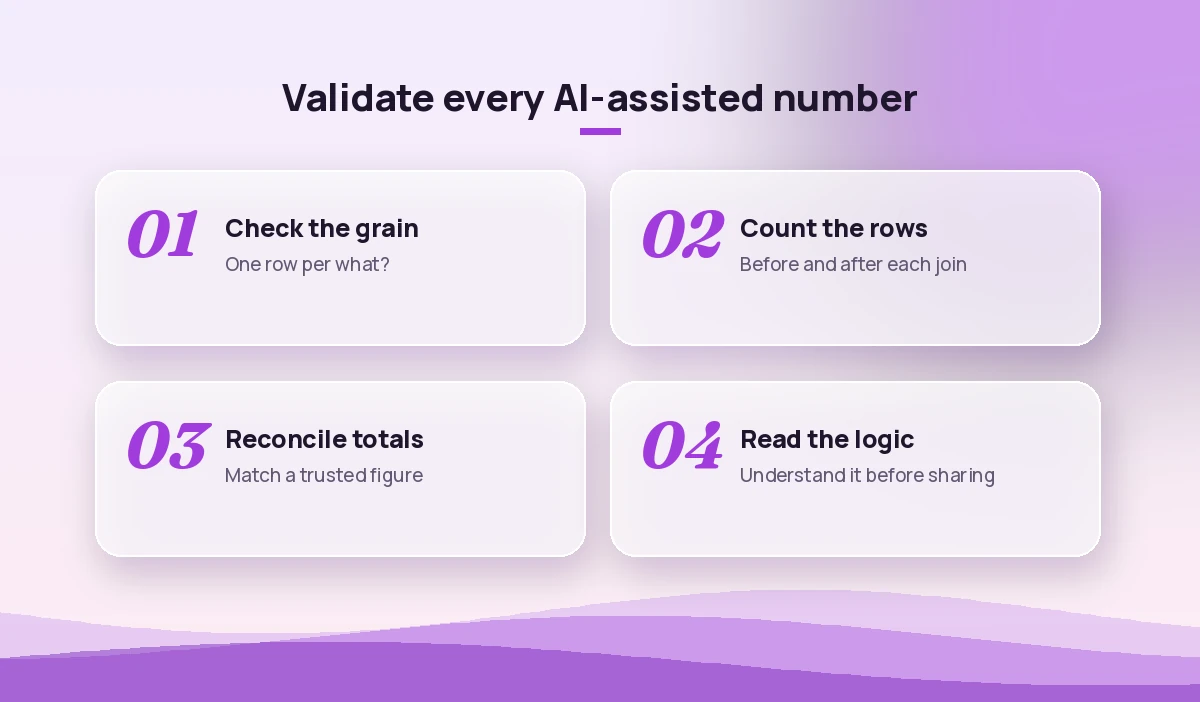
Prompts for Storytelling and Stakeholder Updates
The analysis is only as useful as the decision it informs, and this is where copilot prompts for data analysts often save the most time. These prompts help turn results into something people act on.
Turn these findings [paste] into a five-bullet executive summary. Lead with the decision they need to make, then the evidence, then the risks. No jargon.Write an email to the sales director explaining why the regional numbers in my report differ from the CRM dashboard, without sounding defensive. Key reasons: [paste].Create speaker notes for a 10-minute readout of this analysis, including two likely tough questions and how to answer them honestly.Rewrite this technical paragraph about cohort retention for a non-technical audience, keeping every number accurate: [paste].Draft a one-page analysis brief with sections for question, data used, method, key findings, limitations and recommended next steps, based on my notes: [paste].Prompts for Documentation and Repeatable Work
Good analysts leave a trail. These keep your future self, and your teammates, from reverse-engineering last quarter’s numbers.
Write a README for this analysis notebook that covers purpose, data sources, refresh steps, known limitations and owner contact, based on the code below: [paste].Add clear comments and docstrings to this Python script without changing its behaviour, and list any functions that should have tests: [paste].Create a checklist for refreshing the monthly KPI report, from pulling data to sending the final file, based on these steps I currently do from memory: [paste].Generate pytest unit tests for this data transformation function, covering empty input, nulls, duplicates and unexpected column types: [paste].Summarise the metric definitions used in this report into a glossary table with columns for metric, definition, formula and source table.If a script misbehaves, our GitHub Copilot prompts for debugging walk through finding the cause step by step.
How Data Analysts Differ From Business Analysts in Prompting
Both roles use Copilot, but the emphasis changes. Business analysts lean on prompts for requirements, process maps and user stories, which we cover in Copilot prompts for business analysts. Data analysts spend more time on queries, transformations and statistical reasoning, so their prompts need schemas, grain and method constraints.
| Focus | Data analyst prompt | Business analyst prompt |
|---|---|---|
| Inputs | Schemas, sample rows, metric definitions | Meeting notes, process docs, stakeholder goals |
| Typical output | Queries, formulas, charts, test results | Requirements, user stories, process maps |
| Biggest risk | Wrong joins or totals that look plausible | Missing or misread requirements |
| Best check | Reconcile against a known total | Review with stakeholders |
Guardrails for Trustworthy AI-Assisted Analysis
A fluent answer is not the same as a correct one. Build these habits into every workflow:
- Reconcile totals. Compare any AI-built summary against a number you already trust, such as a finance-approved monthly figure.
- Read the code. Never run a query or script you do not understand. Ask Copilot to explain it first if needed.
- Check row counts after joins. Unexpected increases usually mean a many-to-many join; decreases often mean an inner join dropped records.
- Protect sensitive data. Follow your organisation’s policies on personal and confidential data, and prefer pasting schemas and samples over full extracts.
- State limitations. When you share results, say what the data cannot tell you. Copilot can help draft that section, but the judgement is yours.
Building a Personal Prompt Library
Once a prompt works, save it, because a tested set of copilot prompts for data analysts is worth more than any generic list. Keep a shared document or OneNote page with your best prompts, each with a placeholder for the table name and business question. Over a few weeks you will have a toolkit that matches your company’s data, and new team members can start from it on day one. Our Copilot prompt cheat sheet is a good starting format.
Final Thoughts
The most useful copilot prompts for data analysts in this list share one trait: they give the assistant the same context you would give a new colleague. Describe the table, name the question, set the method, and ask for an output you can verify. Do that consistently and Copilot becomes a fast, patient partner for the mechanical parts of analysis, while the thinking, checking and storytelling stay with you.
Frequently Asked Questions
Can Copilot replace a data analyst?
No. Copilot can draft queries, formulas and summaries quickly, but it cannot judge whether a business question is framed correctly, whether the data is fit for purpose, or whether a result makes sense. Analysts still own the logic, validation and interpretation.
Which Copilot is best for data analysis?
It depends on where your data lives. Copilot in Excel suits spreadsheet tables, Copilot in Power BI suits reports and DAX, Copilot in Fabric suits notebooks and pipelines, and GitHub Copilot suits SQL and Python code in an editor. Copilot Chat is useful for planning and explaining across all of them.
Can Copilot write SQL queries for my database?
Yes, if you give it the table structures and the question. It does not see your database unless a connected tool provides that access, so paste the schema and always test the query on a small sample before relying on it.
How do I stop Copilot from getting totals wrong?
Tell it the grain of each table, specify how to treat nulls, refunds and duplicates, and reconcile the result against a number you already trust. Checking row counts before and after joins catches most errors.
Is it safe to paste company data into Copilot?
Follow your organisation’s data policies. Microsoft 365 Copilot used with a work account is covered by your organisation’s commercial data protections, but it is still good practice to share schemas and small samples rather than full sensitive extracts.
Do these prompts work with Python in Excel?
Many do. Where Python in Excel is available in your Microsoft 365 plan, Copilot can generate and run Python for deeper analysis such as correlations and forecasts. If it is not available, ask Copilot Chat or GitHub Copilot for the Python code and run it in a notebook.